jamestierney
Established Members
-
Joined
-
Last visited
Everything posted by jamestierney
-
Thanks for the reply and that looks like it could resolve the issue. But I actually got this working by uninstalling the registration program from add remove programs of the wim. I now have the tablet install completely automated.
-
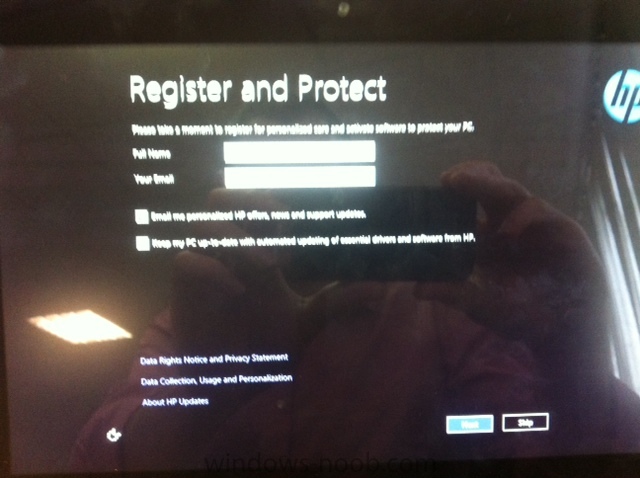
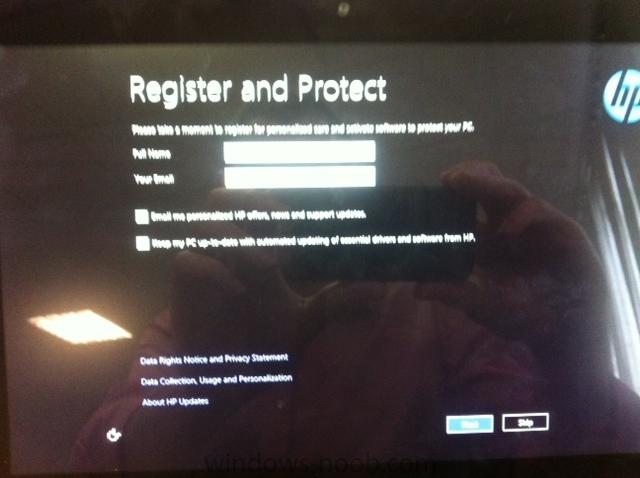
Hey All, I am deploying an image to HP ElitePad 900 tablets. I want the install to be completely automated but the installation stops at the "HP register & protect" and waits for the user to enter or skip. - see screenshot. Is there a way to bypass this screen with the use of a SIM answer file? Thanks, James
-
I got this working if anyone is interested: Dim objWMIService Dim colItems Dim colBattery Dim objSMSEnv Dim strNewName Const strSite = "Tablet" Set objWMIService = GetObject("winmgmts:\\.\root\CIMV2") Set colItems = objWMIService.ExecQuery("SELECT * FROM Win32_Bios") Set colBattery = objWMIService.ExecQuery("SELECT * FROM Win32_Battery") ' Get the Serial Number For Each objItem In colItems ' Remove all beginning, trailing and containing spaces and change to all upper case strNewName = UCase(Trim(Replace(objItem.SerialNumber, " ", ""))) Next strNewName = Right(strNewName, 5) 'Site Code + Last 5 of Serial Number strNewName = strSite & strNewName ' Set the Environment Variable that controls the Computer Name Set objSMSEnv = CreateObject("Microsoft.SMS.TSEnvironment") objSMSEnv("OSDCOMPUTERNAME") = strNewName
-
Hey Guys, firstly, I love this site, without it setting up SCCM 2012 & deploying images to tablets would of taken a lot longer. Anyway I would like to use a script to automatically assign a computer name to the tablet in its deploy TS I need the computer name to start with the static name "tablet" followed by the last 5 digits of the serial number i.e tabletxxxxx Scripting wouldn't be my strong side so any help would be greatly appreciated. James