MichaelAT
Established Members
-
Joined
-
Last visited
Everything posted by MichaelAT
-
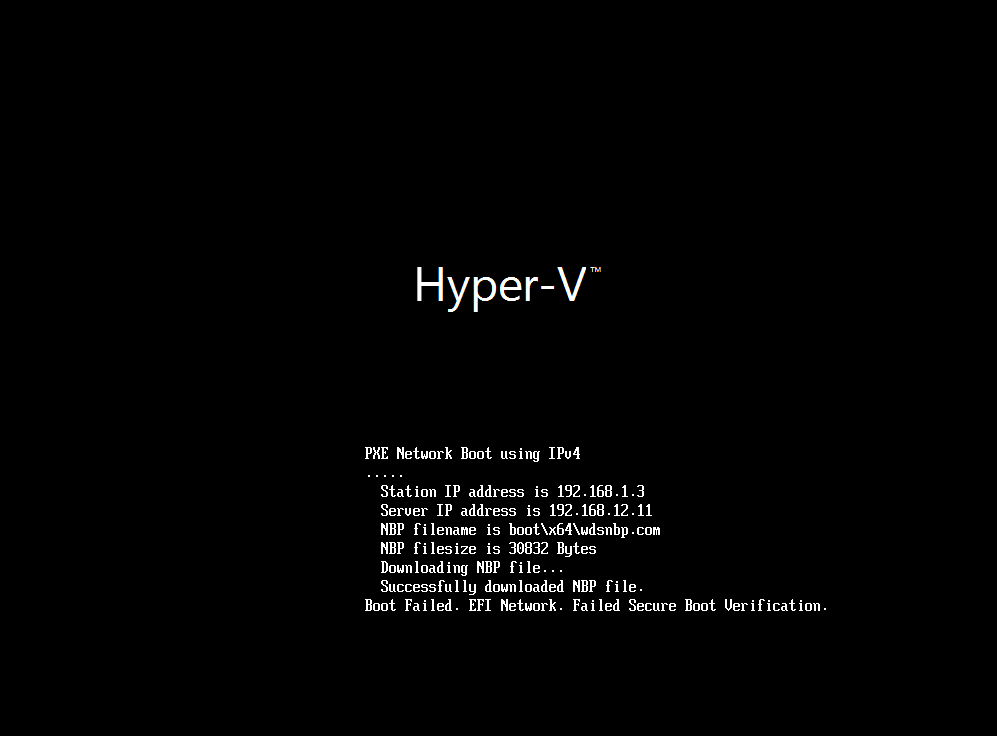
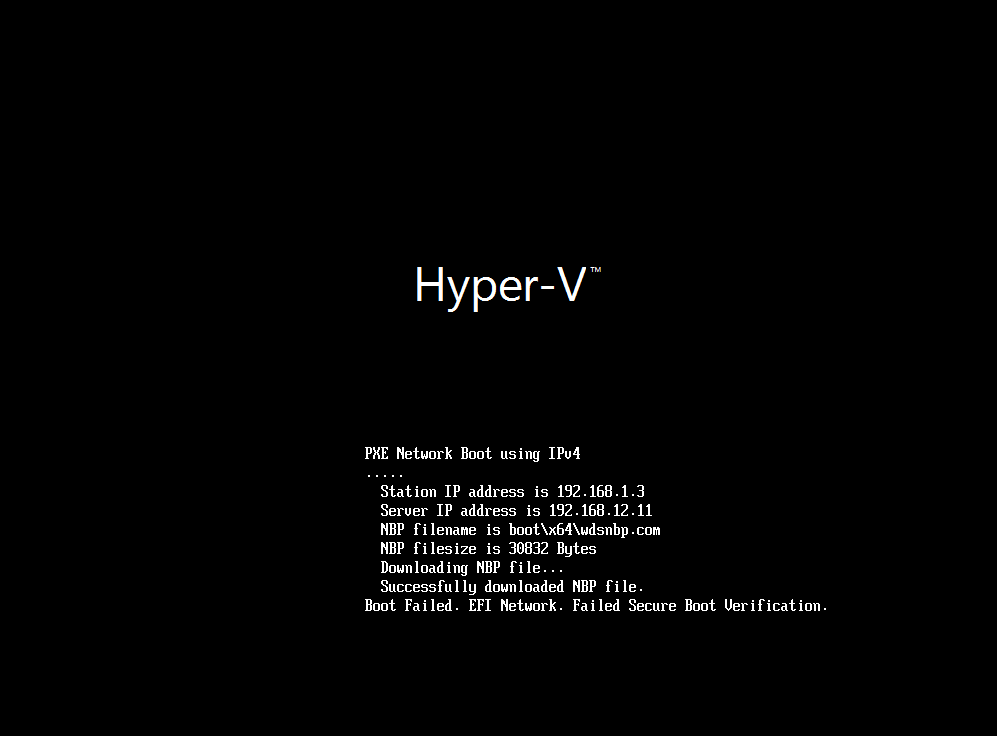
No I have solved the Problem. I've forgot to activate the DHCP Option 60 (PXEClient). But now I got a failure message from the Windows Boot Manager (192.168.12.11), that the uefi has a problem. Does anybody know the problem and the regarding solution?
-
Hello there! I just tried to configure WDS on Windows Server 2012 R2. Well, at first, some Informations: I have 1 Server where Active Directory, DNS and DHCP is implemented. This Server has the IP 192.168.12.10 I have 1 Server where only WDS is implemented. This Server has the IP 192.168.12.11 I have 1 Client which is already prepared with Sysprep. This Client has a DHCP IP 192.168.1.3 What I have done already: The WDS has been configured with the option "Integrated with Active Directory" On WDS: Boot Image and Capture Images has been created Client: Sysprep (Generalize) has been done and the Client has been shutted down On DHCP i have configured Option 66 with 192.168.12.11 (WDS) and Option 67 with boot\x64\wdsnbp.com After that, I have changed in the Hyper-V 2012 Settings the Boot Options, to a "Network Boot". Thereafter, I have started the Client again and everything has been downloaded fine, but then at the End, there is a Failure Message, as you can see below: I dont know, where is the Problem! Hopefully, there is anybody out there, who can help me as quick as possible?? Cheers, Michael