




Francis Tran
-
Posts
3 -
Joined
-
Last visited
Posts posted by Francis Tran
-
-
SCCM SETUP WITH DIFFERENT SQL PORT
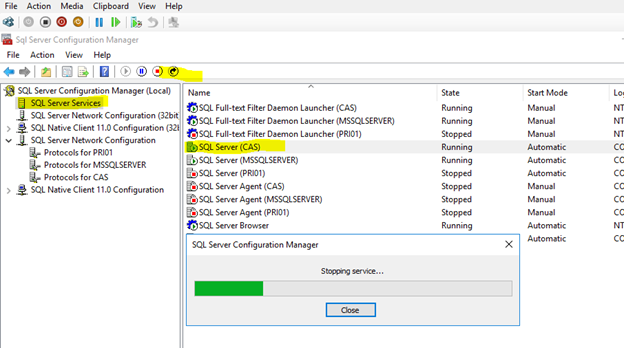
SQL SERVER CONFIGURATION MANAGER:
Make sure all TCP Dynamic Ports are blank
For every IP interface change the "TCP Port" field to your chosen static port
For the "IP All" Interface change the value of the "TCP Port" field to your chosen Static Port
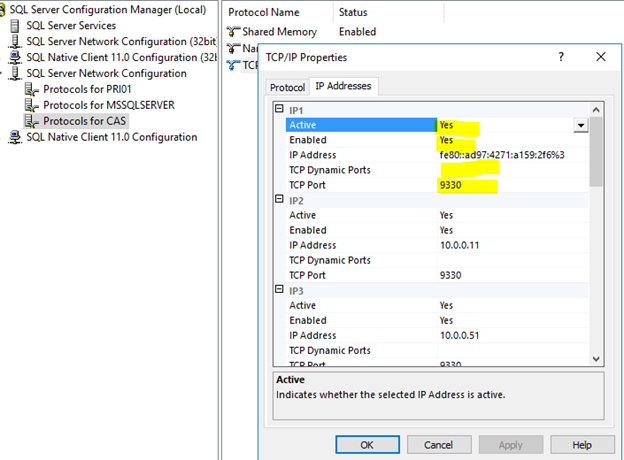
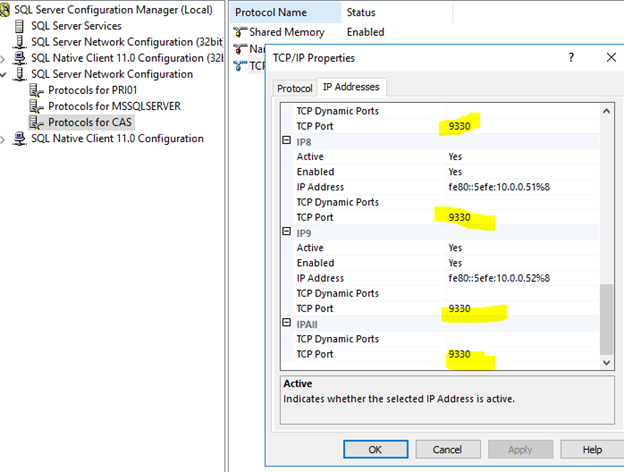
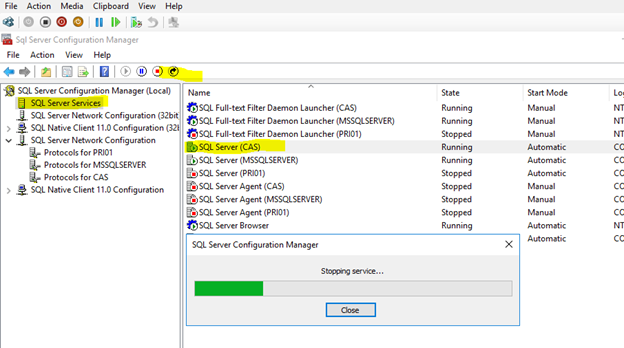
Restart the SQL Engine :
ON SCCM SETUP (CENTRAL SITE, PRIMARY SITE)
Use comma and port number to specified port besides FQDN
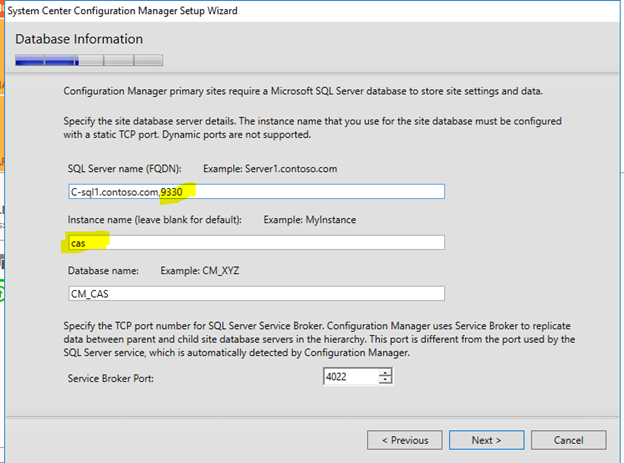
Continue with the setup as usual.
You could do the same when setup WSUS Database, SCCM Primary Site Database, ...
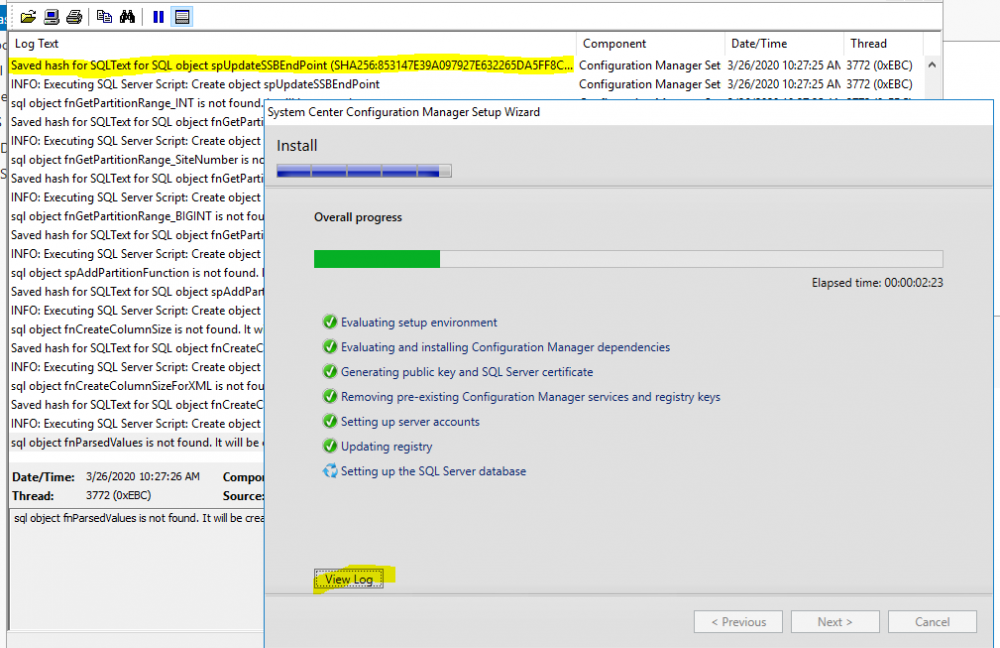
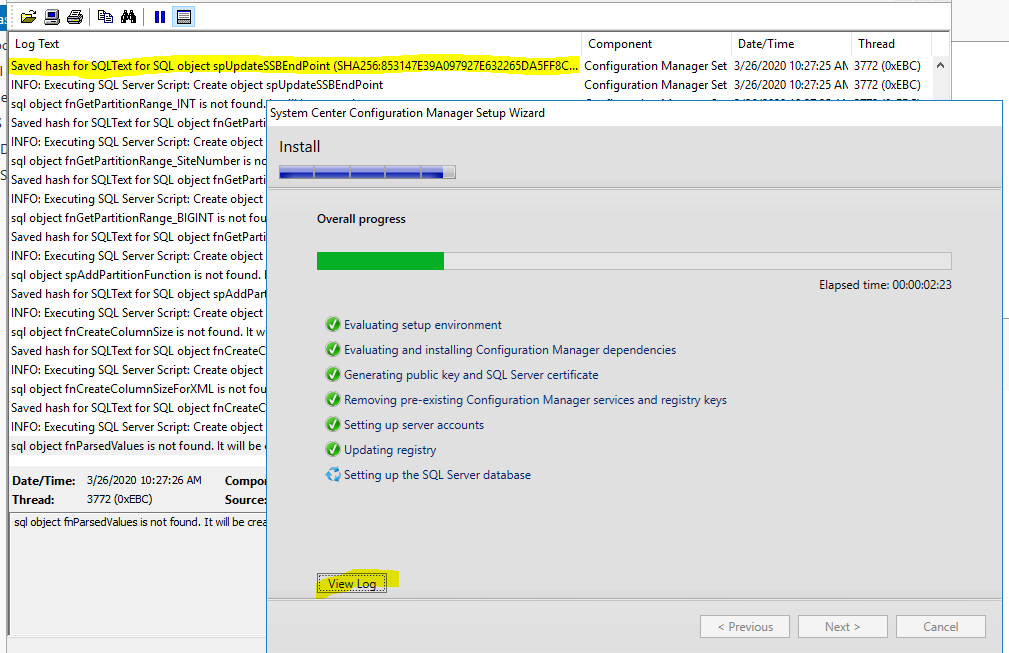
Continue monitoring the status of setup progress by clicking on view log button
-
SYMPTOM:
Windows PE 1511 initialization Network Connection failed with error code 0x80220014 or
Windows PE 1703, 1709 initialization Network Connection failed with error code 0x80040154
Smsts.log:
m_pImpl->AddAdapterTcpIpSettings( XMLAnswerFileImpl::WindowsPE, adapterInfo ), HRESULT=80220014
pAnswerFile->AddNetworkAdapter(adapterInfo), HRESULT=80220014
Failed to configure adapter 0
adapterSettings.Configure( pAnswerFile ), HRESULT=80220014
Execution failed with error 80220014CAUSE:
boot.wim contained wrong registry configuration.
SOLUTION:
replace schema.dat of boot.wim from hotfix
More detailed at :
______________________________DETAIL__________________________________
You could down load hotfix at :
Hotfix include: schema-x64.dat (for WinPE 64bits) and schema-x86.dat (for WinPE 32bits). They must be renamed to "schema.dat" before injected to boot.wim
Step 1: Preparation
-
Copy the boot.wim to a directory of your workstation with "Deployment and Imaging Tool"
2. Start an elevated “Deployment and Imaging Tools Environment” command prompt.
Step 2: Prepare Windows PE
dism /mount-wim /wimfile:C:\temp\WinPEx86\boot.wim /index:1 /mountdir:C:\temp\WinPEx86\mount
Step 3: Save schema-x86.dat state
Back up the permissions that are applied to the existing schema-x86.dat file before you replace it. To back up the file, type the following command, and then press Enter:
icacls c:\Temp\WinPEx86\mount\Windows\System32\schema.dat /save "%temp%\AclFile"
Step 4: Update the schema-x86.dat file
To replace the schema-x86.dat file that has the updated version, you must take ownership of the file and grant permissions to the local administrators group. To do this, type the following commands, and then press Enter after each command:
takeown /F c:\Temp\WinPEx86\mount\Windows\System32\schema.dat /A
icacls c:\Temp\WinPEx86\mount\Windows\System32\schema.dat /grant BUILTIN\Administrators:(F)
xcopy c:\Temp\WinPEx86\schema-x86.dat c:\Temp\WinPEx86\mount\Windows\System32\schema.dat /Y
Step 5: Reset permissions and ownership
When the schema-x86.dat file is replaced, the permissions saved in step 5 must be restored by running the following commands:
icacls c:\Temp\WinPEx86\mount\Windows\System32\schema.dat /setowner "NT SERVICE\TrustedInstaller"
Restore original permission on the schema-x86.dat file
icacls c:\Temp\WinPEx86\mount\Windows\System32\ /restore "%temp%\AclFile"
Step 6: Commit Windows PE changes
Commit the changes to the boot.wim file. To do this, type the following command, and then press Enter:
dism /unmount-wim /mountdir:c:\Temp\WinPEx86\mount /Commit
Step 7: Add update boot image back to SCCM
Step 8: Update distribution points
-
SCCM Adding Primary Site Error Connection to Central Site SQL Database
in System Center Configuration Manager (Current Branch)
Posted
SCCM setup failed to establish a connection to the SQL Server for the Central Administration Site ...
On the Primary Server : Test Test-NetConnection C-CAS01.contoso.com -port 1433
On the Central Site Server: Netstat -a | find /I “1433”
Result is good, that mean it is not SQL problem,
Check if proxy or FW blockage:
Go to Windows Firewall and turn it off:
Test again :
Test-NetConnection C-CAS01.contoso.com -port 1433
Now SCCM Setup should be good again!