


Leaderboard



Popular Content
Showing content with the highest reputation since 09/10/25 in Posts
-
I'm still working on it, but what I can say so far is that after I deleted the policies under System32\GroupPolicy and requested the policies via the Configuration Manager, the software was recognized, downloaded and installed.1 point
-
hi Andy, drop me a message and i'll make them available to you cheers niall1 point
-
This thread really got me to the point I learned so much, and created a never knew before technology. I was able to build a whole new frontend for our OSD. I have attached what I created, hope it helps anyone who wants to do the same, and I am excited for suggestions for improvement. I changed the background to something stock and removed our company one, but the concept is the same. OSD FRONT END BASE TEMPLATE-shared.ps11 point
-
Each application install within the task sequence has a button to delete its cache after the install. It's at the bottom "Clear application content from cache after installing". Not good for Self-repair apps like VLC. I know this is a 10 year old thread but its top result of google, so leaving it for others.1 point
-
I wan't testing in homelab how to deploy windows xp and windows 7 with programs. I build at home a retro server farm just for learning old network system's. Thank u if u supporting me with sccm 2007 prerequisites files. My favorite windows server's is:windows server 2003; 2008; and 2008 R2 only.1 point
-
this is odd, so are you saying that in Windows File Explorer that you cannot browse the D:\ drive at all ? if that's not what you mean then please explain what "when accessed directly from the system" means.1 point
-
I have the following prerequisites, take your pick
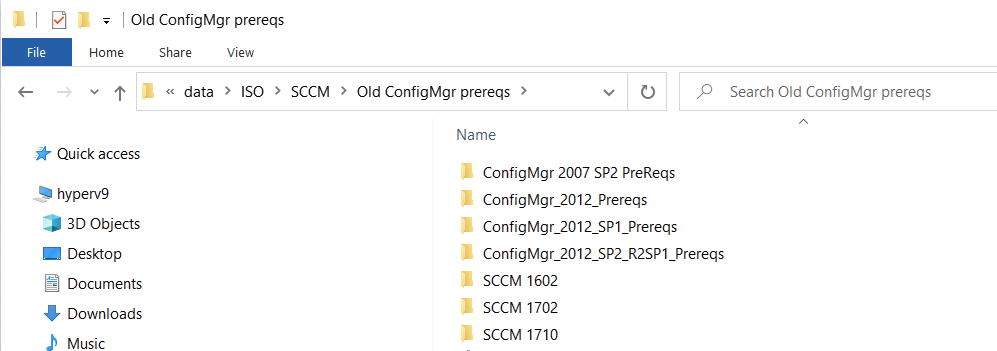 1 point
 -
Hello, old topic, but I thing I found the issue. The task sequence execution engine starts the next installation before the current one is finished. The engine waits for an exit code from msiexec and starts the next installation right away, but in some cases msiexec is still doing stuff. You get this error in the TS status messages, but the actual application exit code received is 1618. That was it in my case at least. Hope this helps1 point
-
This list of guides is all about System Center 2012 R2 Configuration Manager. If you want to learn about SCCM 2012 this is how you can do it ! I've put together this list together to help people like you learn about Configuration Manager 2012 R2 and to help people learn about how they can integrate Microsoft Intune with Configuration Manager 2012 R2 to manage their iOS, Android and Windows Phone mobile devices. If you are looking for some of my other guides then please check below: Microsoft Intune (standalone) in Azure step by step guides are here Microsoft Intune (hybrid) guides look here (over 61,103 views as of July 2017) System Center Configuration Manager (Current Branch and Technical Preview) here (96,953 views, May 2018) Configuration Manager 2007 guides then look here (over 948388 views as of July 2017) Microsoft Deployment Toolkit guides are here SMS 2003 guides are here (over 10423 views as of July 2017) Note: Some of my guides are also available for download, please see below links download the Microsoft Intune Mobile Device Management guides here. download the Standalone Primary guides in PDF and WORD format here. Step-by-Step Guides CM12 in a Lab - PXE boot failure after upgrading to System Center 2012 Configuration Manager Service Pack 1 CM12 in a Lab - How can I deploy Windows 8 X64 to the Microsoft Surface Pro using Configuration Manager 2012 SP1 ? CM12 in a Lab - How can I deploy System Center 2012 Endpoint Protection Definition Updates from a UNC file share CM12 in a Lab - How can I determine what Antimalware Policy is applied to my SCEP 2012 SP1 client ? CM12 in a Lab - when running /testdbupgrade for System Center 2012 Configuration Manager SP1 you get an error: SQL Native client 11 is not installed CM12 in a Lab - How can I backup System Center 2012 Configuration Manager ? CM12 in a Lab - SQL Server 2012 SP1 support in System Center 2012 Configuration Manager SP1 CM12 in a Lab - The CM12 BitLocker FrontEnd HTA - video CM12 in a Lab - The CM12 BitLocker FrontEnd HTA CM12 in a Lab - Where can I download additional clients for System Center 2012 Configuration Manager SP1 ? CM12 in a Lab - How can I sequence applications using App-V version 5 for Configuration Manager 2012 SP1 CM12 in a Lab - How can I deploy a Hidden task sequence in Configuration Manager 2012 SP1 ? CM12 in a Lab - How can I pre-provision BitLocker in WinPE during Windows 8 deployments using Configuration Manager 2012 SP1 ? CM12 in a Lab - How can i disable “Connect to a wireless network” during Windows 8 OOBE ? CM12 in a Lab - How can I deploy Windows 8 in UEFI mode using Configuration Manager 2012 ? CM12 in a Lab - Why is my System Center 2012 Configuration Manager console in read-only mode ? CM12 in a Lab - How can I view hidden Endpoint Protection Reports in System Center 2012 Configuration Manager ? CM12 in a Lab - How can I upgrade System Center 2012 Configuration Manager ? CM12 in a Lab - How can I add a PXE enabled Distribution Point on Server 2008 X86 for System Center 2012 Configuration Manager ? CM12 in a Lab - How can I display my System Center 2012 Configuration Manager hierarchy in Bing Maps ? CM12 in a Lab - How can I enable Debug View in the Configuration Manager console? CM12 in a Lab - How can I easily prompt for a computer name in Configuration Manager 2012 CM12 in a Lab - Importing Computers using a file CM12 in a Lab - Two New Endpoint Protection Reports added, What are they and what do they look like CM12 in a Lab - How can I setup a Distribution Point on a Windows 7 PC in Configuration Manager 2012 ? CM12 in a Lab - How can I capture an image using Capture Media in Configuration Manager 2012 ? Hierarchy with CAS using System Center 2012 Configuration Manager - Part 1. Installation - CAS using System Center 2012 Configuration Manager - Part 2. Install the Primary server - P01 using System Center 2012 Configuration Manager - Part 3. Configuring Discovery and Boundaries using System Center 2012 Configuration Manager - Part 4. Adding roles and configuring custom Client Device Settings and custom Client User Settings using System Center 2012 Configuration Manager - Part 5. Adding WSUS, Adding the SUP role, deploying the Configuration Manager Client Agent using System Center 2012 Configuration Manager - Part 6. Adding the Endpoint Protection role, configure Alerts and custom Antimalware Policies using System Center 2012 Configuration Manager - Part 7. Build and Capture Windows 7 X64 SP1 using System Center 2012 Configuration Manager - Part 8. Deploying Applications using System Center 2012 Configuration Manager - Part 9. Deploying Monthly Updates using System Center 2012 Configuration Manager - Part 10. Monitoring our Monthly Updates Automatic Deployment Rule using System Center 2012 Configuration Manager - Part 11. Upgrading your hierarchy to Service Pack 1 using System Center 2012 Configuration Manager - Part 12. Connecting Powershell and building a reference image of Windows 8 with .NET 3.5 using System Center 2012 Configuration Manager - Part 13. Deploying Windows 8 X64 with custom Start screen using System Center 2012 Configuration Manager - Part 14. Using Compliance Settings1 point

