geoffp
Established Members
-
Joined
-
Last visited
Everything posted by geoffp
-
Hi Just a quick update it looks like the issue was solved by running a clean up of the Software update groups after the clean up was ran all the clients started reporting as normal. I used the following SCCM console extension to do the clean up of the software update groups. http://www.scconfigmgr.com/2015/03/15/clean-software-update-groups-console-extension-for-configmgr-2012/ This issue looks to be caused by to many update being applied and causing a memory leak in windows 7 x86 below is a post i found on technet about this issue https://social.technet.microsoft.com/Forums/en-US/cf8fbe28-714d-49d3-b2ce-5cc5f6f79c63/some-clients-not-updating-reporting-compliant-hr8007000e-error-in-windowsupdatelog?forum=configmanagersecurity Thanks
-
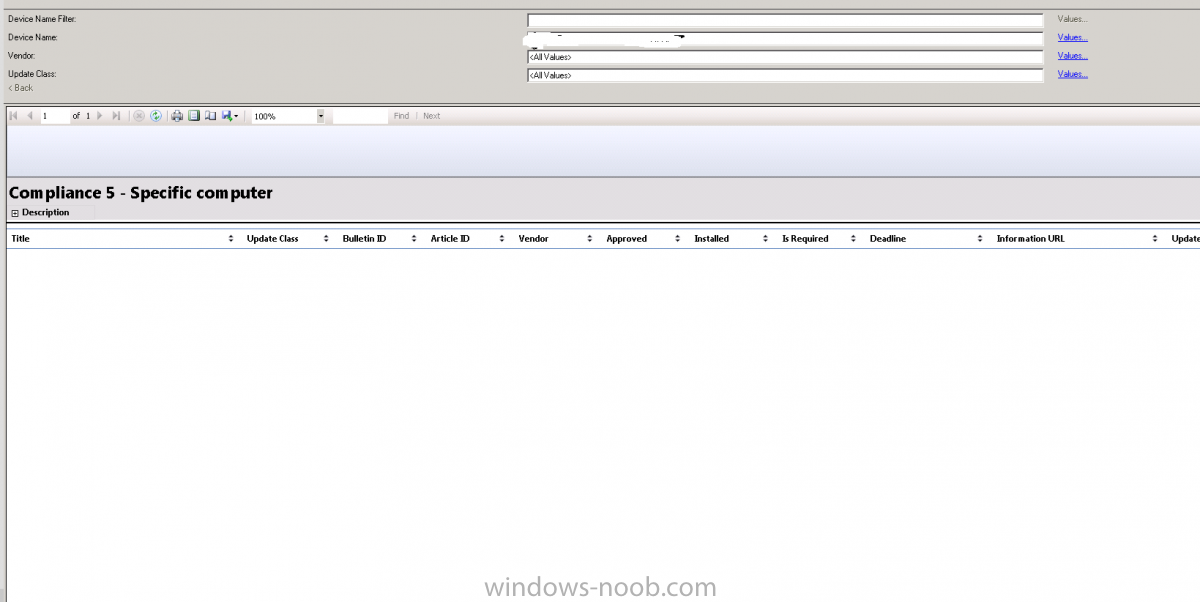
Hi All I am having an issue with some SCCM client reporting as fully compliant but when I check the specific computer compliance report there are no update showing as either installed or required. I have removed and reinstalled the client, ran software update scan, software update deployment and ran a vbscript to run a full compliance report. I have check both the updatesdeployment & scanagent logs and neither are showing any errors. Below is an image of what I am seeing. Thanks
-
-
I had this issues before on a customers site where they used a proxy server and couldnt get external network access during task sequnce. The way I got around it was to activate windows and then go to the following registy key HKLM\SOFTWARE\Microsoft\Windows NT\CurrentVersion\SoftwareProtectionPlatform and change the skiprearm from 0 to 1 before I captured the image.Changing this key to 1 Specifies that the Windows licensing state will not be changed when running sysprep. I also had to remove the windows product key from the Apply windows settings in the task sequnce.