All Activity
- Yesterday
-

task sequence [Help] - Powershell script SMSTSPostAction
Abnrangerx67 replied to Deilson Oliveira's question in scripting
Sure this was four years ago, but I think it is selfish you posted for help, and glad you got it working, but you did not share how you got it working. I am not seeking the fix, but it would help others that may be. However, as suggested, and not sure why you opted for the post action route, it makes sense to install as an application or a package, or publish the app so based on a query or whatever means of targeting it gets installed POST OSD. - Earlier
-

Windows 11 DAO acces to old SQL Server 2005/2008 database
anyweb replied to cliv's question in SQL Server
can't you use Windows 10 LTSC then ? (Long Term Servicing Channel) ? -
I maintain an application that I developed over 20 years ago in vb6. The application uses DAO to access databases on two old servers running SQLServer2005 and SQLServer2008. It is installed on nearly 50 computers with operating systems ranging from WinXP to Win10 and runs smoothly. The program uses DAO and ODBC DSN-less connection strings to access data using DRIVER={SQL Server}. The last driver that worked in Windows 10 and with SQL Server 2005/2008 was sqlsrv32.dll version v.10.0.19041.6456. After PCs started updating to Windows 11, it no longer works. On Windows 11, Microsoft ships a newer sqlsrv32.dll (now v.10.0.26100.3624) that has hardened TLS/SSL behavior, which breaks connectivity to SQL 2005. I thought about manually registering the old driver alongside the new one in ODBC. What I've done so far in Win11: 1. Activate TLS 1.0 (SQL Server 2005 speak TLS 1.0 only, SQL Server 2008–2012 TLS 1.0 / 1.1 / partial 1.2) 2. The old driver after update is in "C:\Windows.old\Windows\SysWOW64\sqlsrv32.dll", so i create a new entry in registry with a new name {SQL Server (Legacy)} and that location: Windows Registry Editor Version 5.00 [HKEY_LOCAL_MACHINE\SOFTWARE\WOW6432Node\ODBC\ODBCINST.INI\SQL Server (Legacy)] "Driver"="C:\\Windows.old\\Windows\\SysWOW64\\sqlsrv32.dll" "Setup"="C:\\Windows.old\\Windows\\SysWOW64\\sqlsrv32.dll" "ResourceFile"="C:\\Windows.old\\Windows\\SysWOW64\\sqlsrv32.rll" "UsageCount"=dword:00000001 "DriverODBCVer"="02.50" "APILevel"="2" "ConnectFunctions"="YYY" "SQLLevel"="1" "FileUsage"="0" "CPTimeout"="60" [HKEY_LOCAL_MACHINE\SOFTWARE\WOW6432Node\ODBC\ODBCINST.INI\ODBC Drivers] "SQL Server (Legacy)"="Installed" 3.Reboot 4. Open C:\Windows\SysWOW64\odbcad32.exe -> Drivers tab -> confirm “SQL Server (Legacy)” -> appears ... but when i try to create a DSN using [SQL Server (Legacy)] ... fail. I also try the same (manual extract and register) with driver {SQL Server Native Client 11.0} sqlncli11.dll v. 11.4.7001.0, and sqlnclir11.rll in c:Windows\SysWOW64\1033\, because 32bit version cannot install using installer on Win11. Driver appear in Drivers tab -> “SQL Server Native Client 11.0” but create a DSN fot test fail also. Windows Registry Editor Version 5.00 [HKEY_LOCAL_MACHINE\SOFTWARE\WOW6432Node\ODBC\ODBCINST.INI\SQL Server Native Client 11.0] "Driver"="C:\\Windows\\SysWOW64\\sqlncli11.dll" "Setup"="C:\\Windows\\SysWOW64\\sqlncli11.dll" "ResourceFile"="C:\\Windows\\SysWOW64\\1033\\sqlncli11.rll" "DriverODBCVer"="03.80" "APILevel"="2" "ConnectFunctions"="YYY" "SQLLevel"="1" "FileUsage"="0" "CPTimeout"="60" "UsageCount"=dword:00000001 [HKEY_LOCAL_MACHINE\SOFTWARE\WOW6432Node\ODBC\ODBCINST.INI\ODBC Drivers] "SQL Server Native Client 11.0"="Installed" I cannot update SQLServer because they are used in an industrial automation project and the app has become too complex over time so also update is dificult. Any suggestion please!
.jpg.f8eb202174aba24c9a592dfeee208785.jpg)
-
Prerequsites for SCCM 2012 R2 and SCCM 1606
anyweb replied to charris211's topic in Configuration Manager 2012
hi Andy, drop me a message and i'll make them available to you cheers niall -

Prerequsites for SCCM 2012 R2 and SCCM 1606
andyburness replied to charris211's topic in Configuration Manager 2012
Hi all, In my home lab I'm trying to set up a test SCCM 2012 R2 instance in a VM. I'm also not able to download the prerequisites any more. Is there any chance I could please also get access to a copy of the SCCM 2012 R2 prerequisites? For some context as to why I want to use such an old version in 2025, SCCM 2012 R2 is what I have a license for, I installed it years ago but didn't archive the prerequisites at the time, and the server I used back then has long since been formatted many times, I like playing with old tech, I have some older Windows XP and Mac OS computers which I want to try to get working with SCCM 2012 R2, just to see if I can, This is going to be an internal only lab, on my home network, not used for anything productive and not exposed to the internet. -
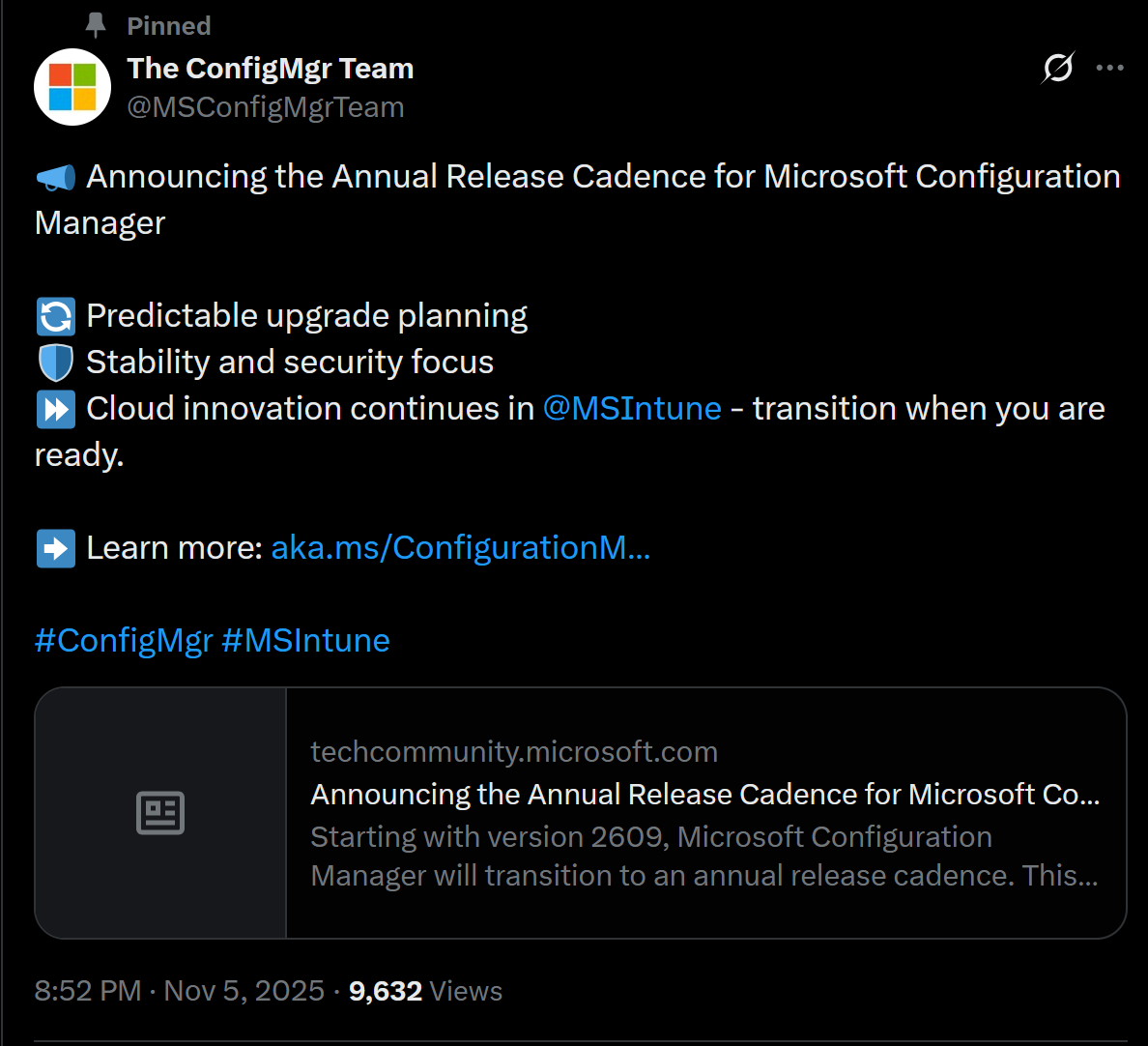
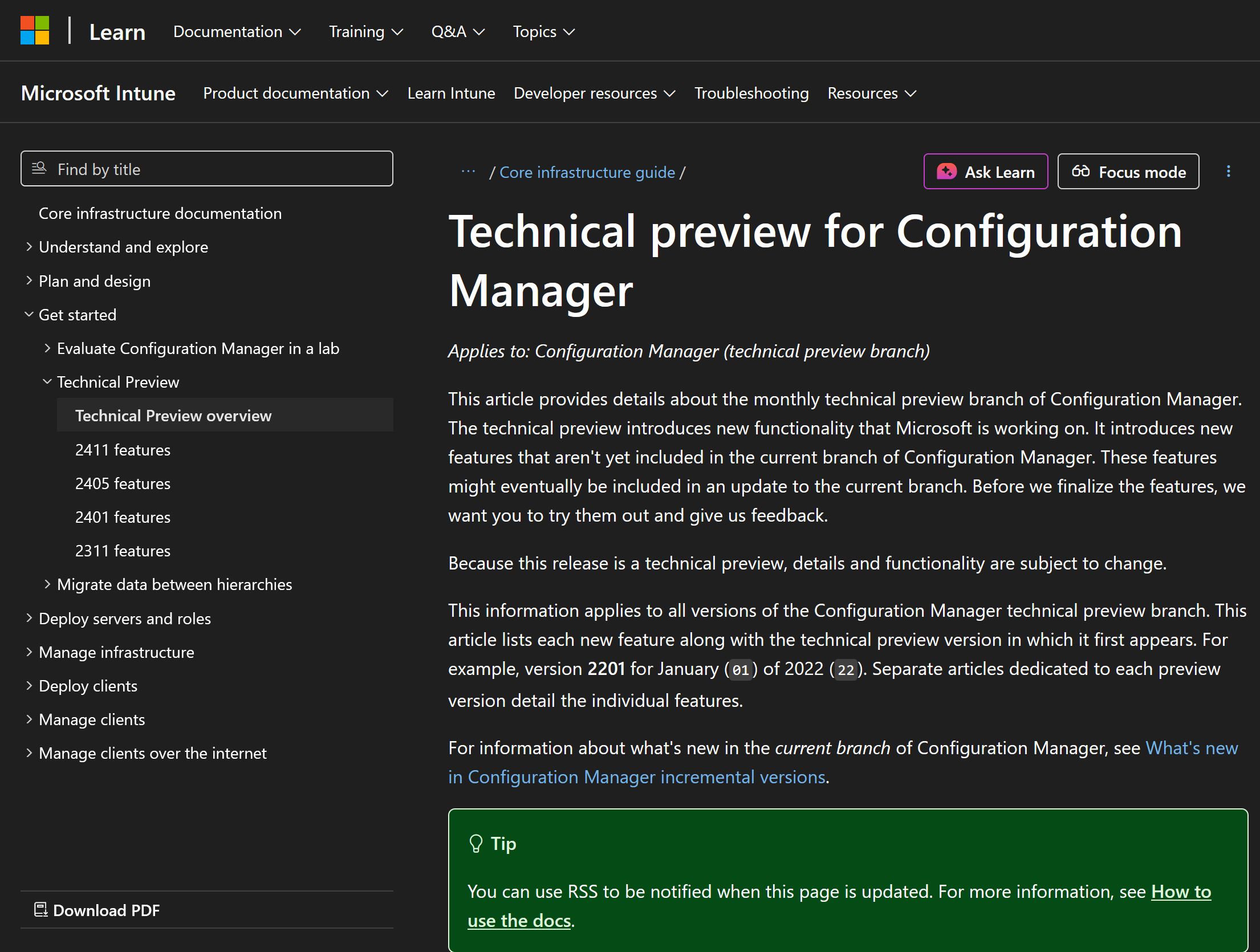
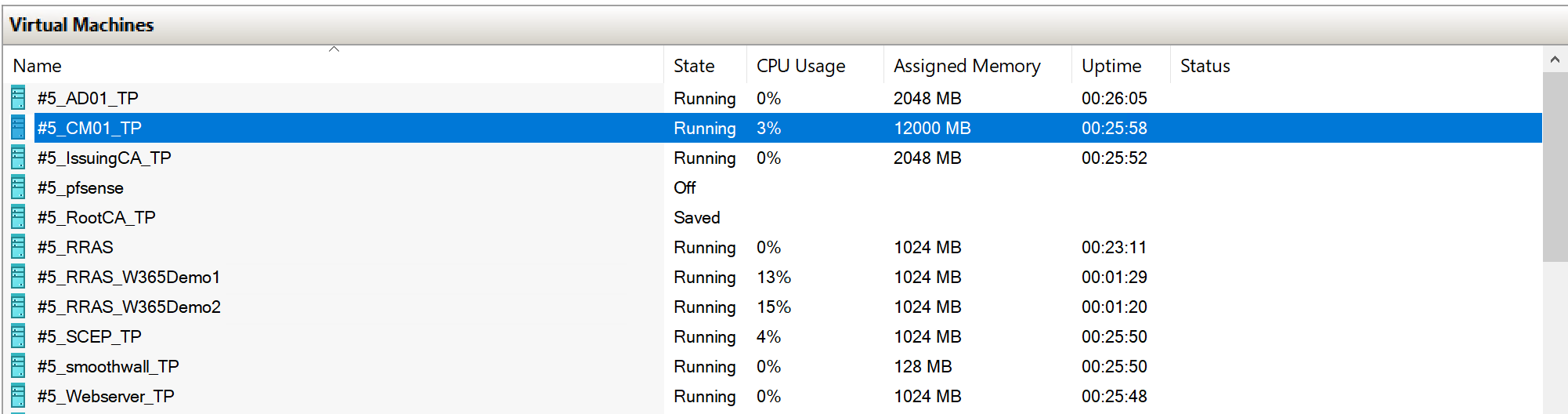
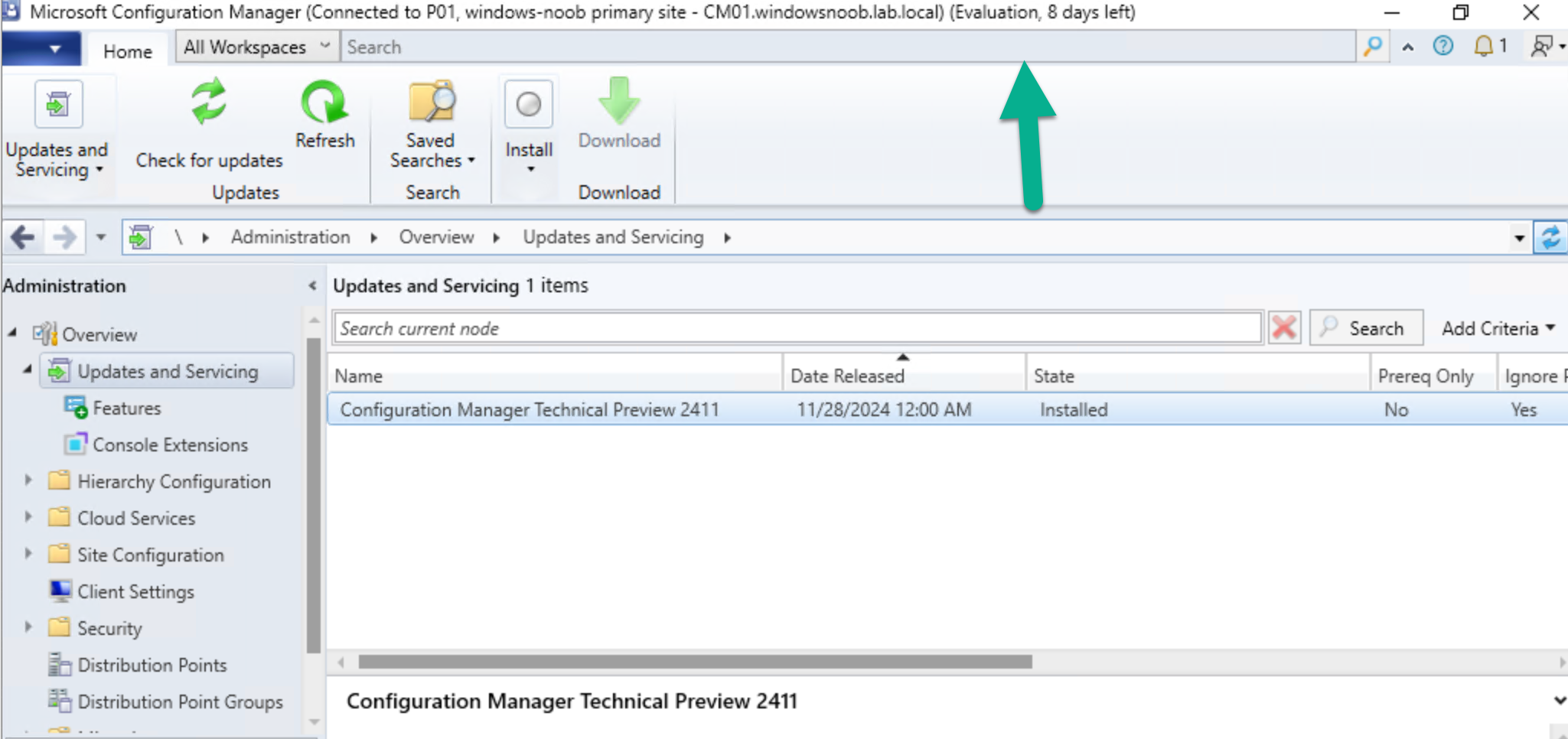
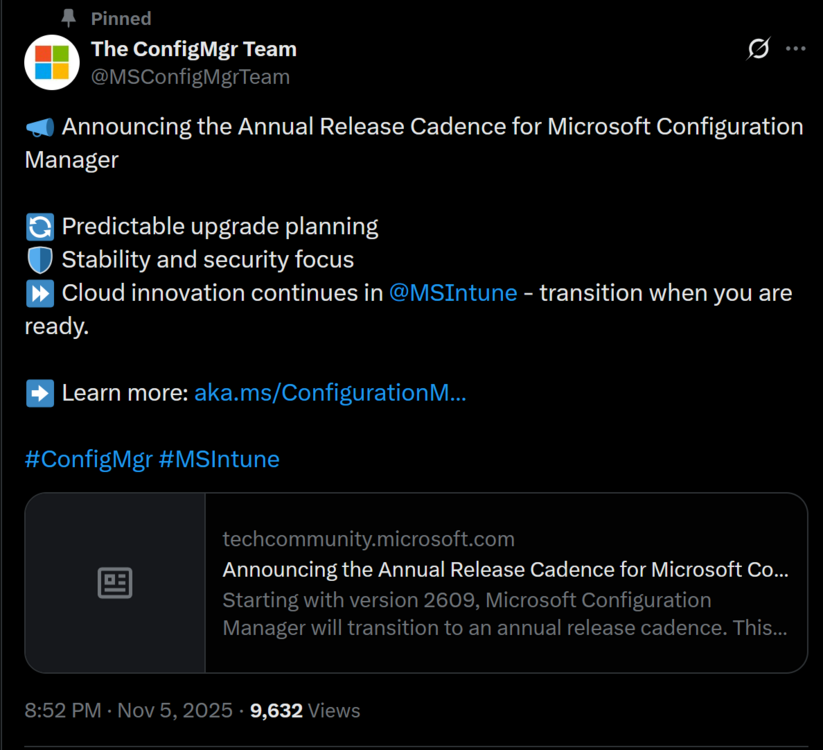
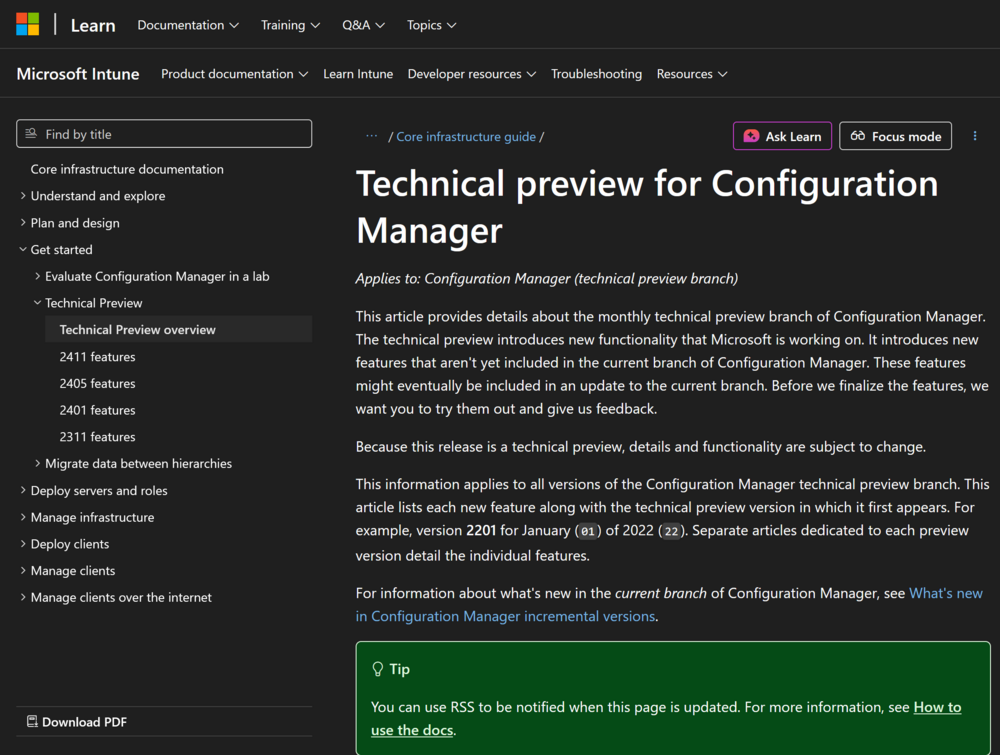
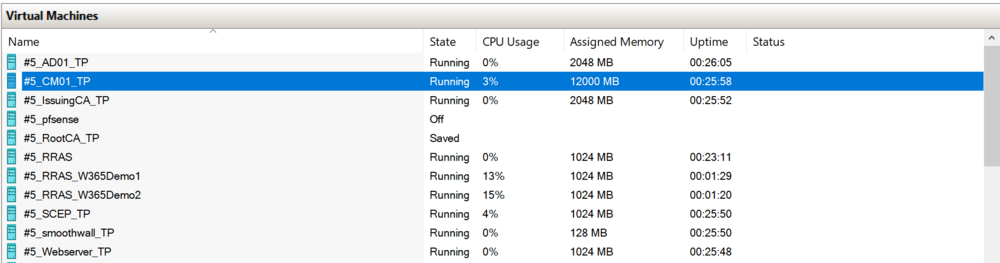
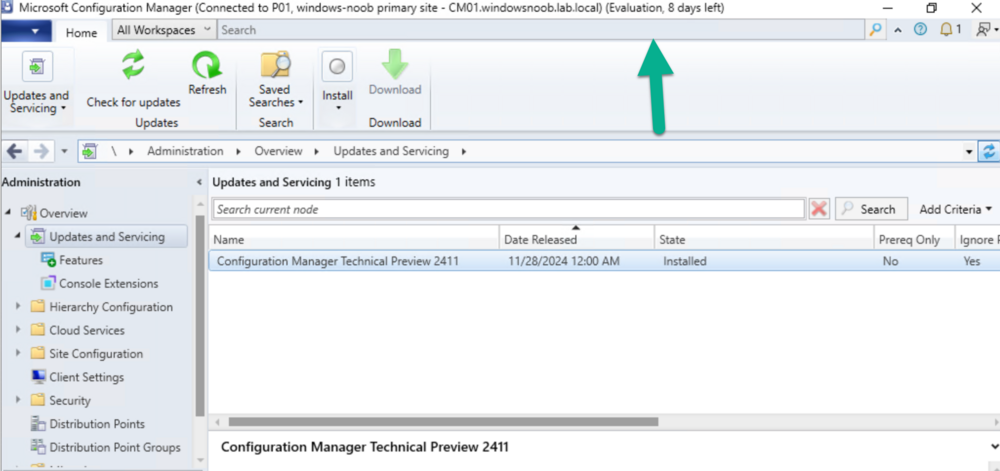
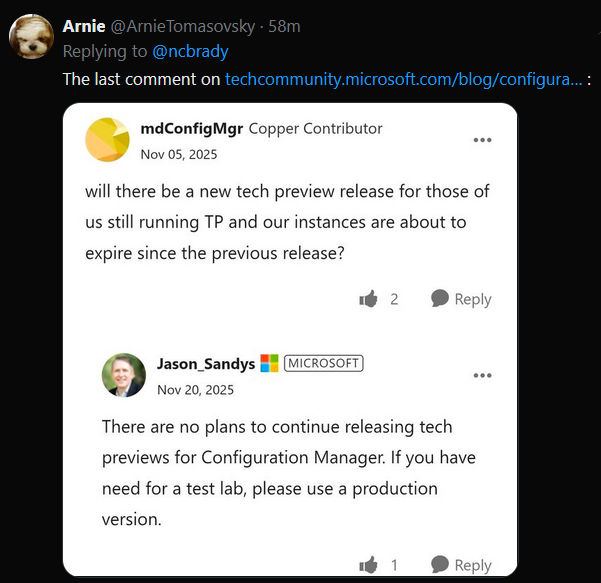
Introduction Microsoft recently released a blog post outlining predictable changes to the cadence of update releases for SCCM formally known as System Center Configuration Manager. The pinned tweet below had some interesting replies which you can read yourself here. The blog post didn’t even mention SCCM Technical Preview at all, but did TAG it as you can see here. What exactly is SCCM Technical Preview ? SCCM Technical Preview has been a test release of Configuration Manager that has been released very regularly (at first) and developed for years allowing SCCM admins to test the latest and greatest features coming to the product in advance, and allowing them to give valuable feedback to the product team, thereby shaping the mainstream product (Microsoft Configuration Manager) into what it is today. Technical Preview launched publicly in May 2015 and that journey started a decade long coding frenzy, where a large team of motivated developers led by none other than the great David James (djammmer) developed great features at an outstanding pace, at least until the last few years when things slowed down to a noticeable crawl about a year after David left in October 2021. Without the Technical Preview releases you could argue that the move to the Cloud would have taken a lot longer. Moving forward to today, the last documented release of SCCM Technical Preview was 2411 and you can still (at the time of writing) read documentation about that version here. I’ve personally tested and blogged about most of those releases over the last 10 years. Below you can see the timeline of upgrades I’ve done in my lab via the History feature within Configuration Manager. Note how it states Evaluation, 8 days left. And below are my many blog posts on the subject: Installation – How can I install System Center Configuration Manager and Endpoint Protection Technical Preview 4 Spot the difference, maintenance windows versus service windows, Microsoft is listening and fixing ! System Center Configuration Manager Technical Preview 1601 is now available ! System Center Configuration Manager Technical Preview 1602 is now available ! System Center Configuration Manager Technical Preview 1603 is now available ! System Center Configuration Manager Technical Preview 1604 is now available ! System Center Configuration Manager Technical Preview 1605 is now available ! System Center Configuration Manager Technical Preview 1606 is now available ! System Center Configuration Manager Technical Preview 1607 is now available ! System Center Configuration Manager Technical Preview 1608 is now available ! System Center Configuration Manager Technical Preview 1609 is now available ! System Center Configuration Manager Technical Preview 1610 is now available ! System Center Configuration Manager Technical Preview 1611 is now available ! System Center Configuration Manager Technical Preview 1612 is now available ! System Center Configuration Manager Technical Preview 1701 is now available ! What is the ContentLibraryCleanup tool and how can I use it ? System Center Configuration Manager Technical Preview 1702 is now available ! Video – Upgrading to System Center Configuration Manager 1703 Technical Preview System Center Configuration Manager Technical Preview 1704 is now available ! System Center Configuration Manager Technical Preview 1705 is now available ! System Center Configuration Manager Technical Preview 1706 is now available ! System Center Configuration Manager Technical Preview 1707 is now available ! System Center Configuration Manager Technical Preview 1708 is now available ! System Center Configuration Manager Technical Preview 1709 is now available ! System Center Configuration Manager Technical Preview 1710 is now available ! System Center Configuration Manager Technical Preview 1711 is now available ! System Center Configuration Manager Technical Preview 1712 is now available ! System Center Configuration Manager Technical Preview 1801 is now available ! Update 1802 for Configuration Manager Technical Preview available now Update 1803 for Configuration Manager Technical Preview available now ! System Center Configuration Manager Technical Preview 1804 released System Center Configuration Manager Technical Preview 1805 released System Center Configuration Manager Technical Preview 1806 released System Center Configuration Manager Technical Preview 1807 released System Center Configuration Manager Technical Preview 1808 released System Center Configuration Manager Technical Preview 1809 is out A quick look at System Center Configuration Manager Technical Preview version 1810 A quick look at System Center Configuration Manager Technical Preview version 1810.2 System Center Configuration Manager Technical Preview version 1901 is now available System Center Configuration Manager 1902 Technical Preview is available System Center Configuration Manager 1902.2 Technical Preview is now available System Center Configuration Manager 1903 is now available and it includes my uservoice ConfigMgr log files help you when you least expect it, oh and SCCM 1904 TP is out ! How can I use the new Community hub in SCCM Technical Preview 1904 SCCM Technical Preview version 1905 is available and this is a HUGE release ! SCCM Technical Preview version 1906 is available System Center Configuration Manager Technical Preview version 1907 is available now ! System Center Configuration Manager Technical Preview version 1908 is available now ! Make your task sequences go faster with the Run as high performance power plan How to configure keyboard layout in WinPE in SCCM How to select an index when importing an Upgrade package into SCCM System Center Configuration Manager Technical Preview version 1909 is released ! System Center Configuration Manager TP1910 is out ! Microsoft Endpoint Manager Configuration Manager technical preview version 1911 is released Microsoft Endpoint Manager Configuration Manager Technical Preview version 1912 released New BitLocker Management features in Microsoft Endpoint Manager Configuration Manager Technical Preview 2002 Microsoft Endpoint Manager Configuration Manager Technical Preview 2002.2 is out Microsoft Endpoint Manager TP 2003 is out Microsoft Endpoint Manager Technical Preview 2004 is out Microsoft Endpoint Manager Configuration Manager technical preview version 2005 is out Microsoft Endpoint Manager TP2006 is out Slides and recording from “New cloud features in Configuration Manager Technical Preview” A look at task sequence media support for cloud-based content Technical Preview 2007 is out ! Technical Preview 2007 Timeline improvements Cool new features in Technical Preview 2008 OSD via boot media and CMG, available in TP2009 New features in Configuration Manager Technical Preview 2010 Manage BitLocker policies and escrow recovery keys over a cloud management gateway (CMG) Required application deployments visible in Microsoft Endpoint Manager admin center Fixing One or more Azure AD app secrets used by Cloud Services will expire soon Improvements to BitLocker support via cloud management gateway Technical preview 2104 get BitLocker recovery keys for a tenant-attached device Creating a VMSS CMG and setting VM size with Technical Preview 2105 How to change the CMG (VMSS) size after it is deployed Use Windows Updates notifications instead of ConfigMgr client notifications in tp2105.2 Configuration Manager Technical Preview 2106 is out, and it’s huge !! Technical Preview 2108 is out ! Technical Preview 2109 is out, update your console manually Technical Preview 2201 – Tenant attach is now GA Technical Preview 2202 – delete collection references Enabling dark-mode in Configuration Manager 2203 Escrow BitLocker recovery password to the site during a task sequence in Configuration Manager 2203 Technical Preview 2204 is out, brings ADR organization, Admin service + dark mode improvements New video: First looks at Distribution point content migration in Configuration Manager 2207 First looks at Distribution point content migration Technical Preview 2208 is out, adds RBAC for tenant attached devices Technical Preview 2209 is out, adds improvements to search in the console and dark mode theme Quick tip: Free up space on your ConfigMgr server Technical Preview 2302 is out Technical Preview 2305 is out, should you upgrade ? yes A quick look at Technical Preview 2307 Technical Preview 2401 is out Technical Preview 2411 is out, upgrade now before your lab times out Who cares ? My trusty SCCM Technical Preview lab support is coming to an end, and currently there’s no sign that Microsoft will do anything about it. It has 8 days left of support and after that, if Microsoft doesn’t release an update for Technical Preview, then it will become unsupported and unusable. I’ve pinged some of the official product teams on Twitter, asking if SCCM Technical Preview is dead but so far, there is no response. If they do update or reply I’ll post it here. This IMHO is a crying shame as many dedicated SCCM admins like me have updated these labs for years, and now those very same labs are left to die by the very company that encouraged us to not only use them, but to provide ongoing feedback. My Technical Preview lab shown below, was used for things like setting up bitlocker management via Configuration Manager, Co-Management setup, Cloud Managed Gateway (CMG), hybrid management of Windows 365 Cloud PCs, tenant attach, OSD via CMG and most recently the integration of Microsoft Intune’s Cloud PKI & SCEP when I technically reviewed this great book from my friends Paul & David. But now the clock is ticking and soon I won’t be able to even use the console. Is this the end of Configuration Manager Technical Preview ? it certainly looks like it and based on this quote in their opening paragraph, I think the answer is yes. Microsoft Intune is the future of device management, and all new innovations will occur there. Update: No sooner than I posted this I got an reply on Twitter from Arnie, and here it is, confirmation from Jason Sandys @ Microsoft that Technical Preview is no more. RIP

-
 We started our Intune pilot a few weeks ago and we are finding that whenever a pilot user accesses an on-prem file share via a mapped drive, all of the inherited permissions are being removed, and the files are no longer visible or accessible.
 -
cool but i found the issue comes back, please let me know how it goes for you, by the way are your users 'standard' users or local administrators ?
-

Windows app is blank, how to troubleshoot ? part 2
miles0231 replied to anyweb's topic in Windows 365
thank you for this! this fixed the issue for us as well!! -
Slow App Deployment on Windows 365 During Initial Login
anyweb replied to PingPanda's topic in Windows 365
have you looked at the following, specifically the second link ? Application deployment in Windows 365: recommended practices | Microsoft Community Hub Use the Enrollment Status Page with Cloud PCs | Microsoft Learn @PingPanda -
Hi everyone, We’re currently testing out Windows 365 in our organization and have noticed some performance issues. Specifically, app deployment on the Cloud PC seems quite slow before or during a user’s first login. In some cases, it can take up to 45 minutes before the Company Portal and other apps are installed, which doesn’t match the usual Autopilot experience we’re used to. Has anyone found a trix to pre-load or pre-provision apps on Windows 365 without creating a custom image? Thanks in advance!
-
New PowerShell Based SCCM OSD Frontend
Abnrangerx67 replied to taylorblakeharris's question in Frontends, HTA's and Web Services
This thread really got me to the point I learned so much, and created a never knew before technology. I was able to build a whole new frontend for our OSD. I have attached what I created, hope it helps anyone who wants to do the same, and I am excited for suggestions for improvement. I changed the background to something stock and removed our company one, but the concept is the same. OSD FRONT END BASE TEMPLATE-shared.ps1 -
Script/Command to quit task sequence
Abnrangerx67 replied to conorofarrell's question in Frontends, HTA's and Web Services
Hi, unless I am doing something wrong, and even though I am using a wpf, the concept is the same. I have the $Form.Close() behind mu button, but it only closed the form not stop or cancel the task sequence. -

SCCM 2007 SP2 prerequisites download
fsentinel replied to EngiNerd's topic in Configuration Manager 2007
Hello, Is it possible still to acquire those files (for 2007 and potentially 2012 R2) ? Few of my colleagues and I are doing a project with retro machines and we are at part where we want to deploy SCCM for more easier configuration management and we searched internet for those and it lead us here. Thanks for help. -

Clearing cache during OSD?
Rossm replied to joeman1881's question in Deploying Windows 10, Windows 8.1, Windows 7 and more...
Each application install within the task sequence has a button to delete its cache after the install. It's at the bottom "Clear application content from cache after installing". Not good for Self-repair apps like VLC. I know this is a 10 year old thread but its top result of google, so leaving it for others. -
New PowerShell Based SCCM OSD Frontend
Abnrangerx67 replied to taylorblakeharris's question in Frontends, HTA's and Web Services
So far got this work (outside of the TS in regards to the GuI popping up and all the controls doing what it needs to do. Next step is seeing how it works in the TS itself. I added things like domain join, auto generating computer names if a custom one is not typed in the textbox, etc. Only challenge and not a big deal, is getting the image show after the import. I tried the base64 approach but no bueno. I will provide an update and share my challenges and workarounds. One key tip if not already figured out, make sure and put your GUI/frontend step AFTER the drive partitioning step if using this as a package. -
Introduction Ever wished you could spin up a Cloud PC not just for your employees, but for contractors, partners, or even external collaborators? Good news—External Identity (preview) support in Entra ID now makes that possible. You can invite external users into your tenant and give them access to Cloud PCs, extending the same secure, managed experience your internal users already enjoy. Of course, there are a few strings attached. Prior to deploying out Cloud PCs to outside identities, you will need to be aware of a number of significant requirements and limitations so that everything runs smoothly. In this blog post, myself and my good friend Paul Winstanley took a look at what you need to be aware of and how to set up and access. Requirements The Cloud PC must be running Windows 11 Enterprise with the 2025-09 Cumulative Updates for Windows 11, version 24H2 (KB5065789) or later installed. The Cloud PC must be Entra only joined, hybrid is not supported. Single-sign on must be enabled in the provisioning policy. Connection to the Cloud PC must be via the Windows App or browser. Limitations User based Intune device configurations profiles will not be applied to the external users Cloud PC. Ensure you target the profiles to devices. Windows 365 Enterprise, Business, and Frontline are supported, Windows 365 Government is not. Cross-cloud users are not supported, i.e. you can’t invite users from Microsoft Azure Government or Microsoft Azure operated by 21Vianet. Be aware of the token limitations for external identities – https://learn.microsoft.com/en-us/entra/identity/conditional-access/concept-token-protection#known-limitations Authentication to on-premises resources with Kerberos or NTLM is not supported for external identities. Assigning the Windows 365 licence Assigning the licence should be a simple case of heading over to the Microsoft 365 admin center, navigating to Billing | Licenses and selecting the required Windows 365 subscription. When selected, we clicked Assign licenses and chose the guest user, in our case Niall’s guest account in Paul’s tenant. When finished we clicked Assign licenses. In our tenant, we received the following error message ‘Failed to assign license for Niall Brady: Cannot process request because a referenced item has an invalid usage location.’ You may not receive this error and not have to perform the fix. To fix this up for us, we went to the Entra admin center and clicked on Users. We located Niall’s guest account and clicked Edit properties. Under the Settings menu, we clicked the Usage location drop-down and selected a location for his account, then clicked Save. After a short period of time, we were able to assign a licence to Niall’s account with no issue. Provisioning the Cloud PC for the External Identity Back in the Intune admin center, under Devices | Device onboarding | Windows 365 | All Cloud PCs there should be a Not provisioned Cloud PC. It reports as Not provisioned as the user has not been assigned a provisioning policy. To resolve this we can either create a provisioning policy and assign this or we can use an existing policy, so long as we have single sign-on enabled and that the Cloud PC is running with 2025-09 Cumulative Updates for Windows 11, version 24H2 (KB5065789) or later. If using an existing policy, take a look at the assignment to ensure that Niall’s account is targeted. We decided to create a new provisioning policy using the new 25H2 release of Windows 11. We navigated to Devices | Device onboarding | Windows 365 | Provisioning policies in our tenant and clicked Create policy. As mentioned, ensure Use Microsoft Entra single sign-on is enabled and Microsoft Entra Join is selected for Join type as hybrid is not supported. We selected the Windows 11 Enterprise + Microsoft 365 Apps 25H2 gallery image to ensure that we met the O/S requirements. When assigning the policy, we targeted a group called Windows 365 External Identities. After completing the provisioning policy wizard, the policy was visible. Next, we simply added Niall’s guest account to the Windows 365 External Identities group. We navigated to Groups and searched for the group and added his account. Back in All Cloud PCs, a Cloud PC now reported a Status of Provisioning. After a period of time, the Cloud PC reported as Provisioned. Accessing the Cloud PC The Cloud PC can be accessed via the Windows App or web browser, however prior to attempting to access the following registry key needs to be created on the host device. Computer\HKEY_LOCAL_MACHINE\SOFTWARE\Microsoft\WindowsApp\Flights DWORD - EnableIdSignInUx Value - 0 There are slight variations to accessing via the app or the browser so let’s take a look at both. Also, thanks to our MVP friend Sune Thomsen for providing the details that steered us in the right direction to make this work! Windows App The user must be authenticated in the Windows App. They need to click their account profile picture on the top right of the application and click Sign in with another account. If the registry key has been entered, then the following Sign in window will be displayed. Note Sign-in options is available. This would not be displayed if the registry key is not present. Click Sign-in options. The next step is to click the Sign in to an organization option. and enter the domain of the organization hosting the Windows 365 Cloud PC. In our case, sccmsolutions.co.uk. Now, the guest account must authenticate in the tenant using their account credentials, and respond to any multi-factor authentication or other prompts. When authentication is complete, the user will be presented with their Cloud PC in the Windows app. The user is able to switch between organizations by clicking their account profile and selecting accordingly. Web Browser When navigating to windows365.microsoft.com, the user will authenticate with their account. Then in the top right hand corner of the web page, the user clicks their profile and then chooses Sign in with another account. Now, choose Use another account. The user will then have the Sign-in options available to select (if the reg key is present on the device). After selecting Sign-in options, choose Sign in to an organization. As with the Windows App, they enter the domain name of the organization hosting the Windows 365 Cloud PC. and authenticate with their user account. Finally, the user will be presented with the provisioned Cloud PC in the web browser. Using either Windows App or the web browser to log on to the Cloud PC, will allow the guest account access to the device, where previously they would have had to have had an account created in that tenant for them to have a Cloud PC assigned. As we can see, Niall’s account is accessing CPC-niall-ZMTAD in the sccmsolutions tenant. This is a hotly awaited addition to Windows 365 Cloud PC features. We look forward to using this feature with our customers. We hope that the registry key requirement is soon removed and is added as part of the installation of the Windows App, as this will help reduce steps required for onboarding for guest accounts. See you next time.
-
Introduction In a previous post we took a look at how you can determine the health of the Windows app and you can read about that here. Please read it to understand the new feature and why this blog post improves things from an admin perspective. In this blog post myself and my good friend Paul Winstanley took a look at yet another Windows 365 related ability and that is an Intune remediation solution called Windows App Health Check Log Reader. Note: This remediation solution is not supported by Microsoft. If your Windows app detects a health issue it’s logged in the following log file: C\Users\<USERNAME>\AppData\Local\Temp\DiagOutputDir\Windows365\logs\health_checks.log But that log file is on the device hosting the Windows app used to connect to your Windows 365 Cloud PC’s and that requires remote access by an admin or some other way of grabbing the log to determine the issue. In this blog post we take a look at a remedition solution which does just that, it looks at Windows devices that you target, determines if they have the Windows app installed and if that app matches a minimum version (needed for health checks), parses the health_checks.log file to see if there were any recent errors reported. If so, based on the cadence you select, it will copy that log to the root of your Intune logs folder, which is located at the following path: C:\ProgramData\Microsoft\IntuneManagementExtension\Logs Doing this allows you to grab the logs via the Intune console collect diagnostics ability. So let’s take a look at how it works. Get the scripts Head over to Github and download the 2 scripts here. They’ve changed a bit lately based on feedback we submitted, so do check regularly for updates. Once you’ve downloaded the scripts, extract them somewhere useful. Create the remediation In Microsoft Intune, create a remediation solution using these 2 scripts. On the Settings page, point it to the 2 scripts as appropriate. Once done, assign it to some devices that you want to monitor the health of the Windows app on, we used an Entra Id group containing some devices with and without the Windows app installed and we set a cadence of every hour to see the results quickly, however in production you’ll probably want to set that to run once a day. Analyzing the results After the remediation has run for some time, you can analyze the data it created by clicking on Device status in the remediation. In here we can see that most devices are without issues (good) but one device reports a detection status of With issues and it has recurred. Back in the Intune console, locate the device highlighted with issues, and click on the Collect diagnostics button. answer Yes when prompted. After some time those log files will be captured and you’ll see the status has changed. Click on Device diagnostics to download those files, by clicking the three dots and then selecting download. Within the extracted ZIP file, locate the (67) FoldersFiles ProgramData_Microsoft_IntuneManagementExtension_Logs folder and you’ll see the health_checks.log file. Open that file in CMTrace to review the issue. That’s a result! With this new remediation solution, you (as an Intune admin) can automate the copying of the health_checks.log file to a location that is easy to remotely grab without needing to bother the end user or use remote access to their PC. Awesome. see you in the next one !
-
 Pdf24 Creator 9.2.1 to Pdf24 Creator 11.28.2 Dear Team, I have a upgrade issue of Pdfcreator24_9.2.1x86.msi to pdfcreator24_11.28.2.x86.msi. i ablet o uninstall Pdfcreator24_9.2.1x86.msi but it is not installing pdfcreator24_11.28.2.x86.msi. I have tried Various Tests could not able to find why it is not installing. *pdf24-creator-9.2.1.msi (PDFCreator24_9.2.1_x86.msi) install-pdf24.bat msiexec /i "pdf24-creator-9.2.1.msi" UPDATEMODE=2 REGISTERREADER=No FAXPRINTER=No DESKTOPICONS=No PROGRAMMENU=No AUTOUPDATE=No /qn regedit.exe /s pdf24.reg pdf24.reg Windows Registry Editor Version 5.00 [HKEY_LOCAL_MACHINE\SOFTWARE\WOW6432Node\PDFPrint] "InstallDir"="C:\\Program Files (x86)\\PDF24\\" "Label"="pdf24" "Installer"="msi" "UpdateCheckUrl"="" "UpdateInfoURL"="" "UpdateMode"=dword:00000002 "CreatorID"="pdf24" "LogoClickUrl"="" "CreatorName"="pdf24.org" "CreatorEmail"="team@pdf24.org" "Language"="German" "assistant.closeAfterSave"=dword:00000001 "assistant.closeAfterEmail"=dword:00000001 "assistant.openPDFAfterSave"=dword:00000000 "assistant.mailNamePrompt"=dword:00000001 "assistant.joinFilesUseFirstName"=dword:00000000 "assistant.fixedSaveDir"="" "NoTrayIcon"=dword:00000000 "NoShellContextMenuExtension"=dword:00000000 "NoShellFileContextMenuExtension"=dword:00000000 "NoShellDirectoryContextMenuExtension"=dword:00000000 "NoShellBackgroundContextMenuExtension"=dword:00000000 "EmailInterface"="mapi" "!NoCloudPrint"=dword:00000001 "NoEmbeddedBrowser"=dword:00000000 "NoPDF24MailInterface"=dword:00000000 "NoTwainImport"=dword:00000000 "NoScreenCapture"=dword:00000000 "NoMail"=dword:00000000 "NoDelayedToForegroundOnNewFile"=dword:00000000 "NoOCR"=dword:00000000 "DeletePrintJobsWithError"=dword:00000000 "!NoOnlineConverter"=dword:00000001 "!NoOnlinePdfTools"=dword:00000001 "NoOnlineConverter"=dword:00000001 "NoOnlinePdfTools"=dword:00000001 "!NoFax"=dword:00000001 "!NoFaxProfile"=dword:00000001 *pdf24-creator-11.28.2-x86.msi install-pdf24.bat msiexec /i "%~dp0pdf24-creator-11.28.2-x86.msi" UPDATEMODE=2 REGISTERREADER=No FAXPRINTER=No DESKTOPICONS=No PROGRAMMENU=No AUTOUPDATE=No /qn regedit.exe /s "%~dp0pdf24_11_28_2.reg" pdf24_11_28_2.reg Windows Registry Editor Version 5.00 [HKEY_LOCAL_MACHINE\SOFTWARE\PDF24] "InstallDir"="C:\\Program Files\\PDF24\\" "Label"="pdf24" "Installer"="msi" "UpdateMode"=dword:00000002 "CreatorID"="pdf24" "LogoClickUrl"="" "CreatorName"="pdf24.org" "CreatorEmail"="team@pdf24.org" "InstallationID"="3A971FE0-47D1-45BF-878C-9C7CCFF3C201" "Language"="German" "assistant.closeAfterSave"=dword:00000001 "assistant.closeAfterEmail"=dword:00000001 "assistant.openPDFAfterSave"=dword:00000000 "assistant.mailNamePrompt"=dword:00000001 "assistant.joinFilesUseFirstName"=dword:00000000 "assistant.fixedSaveDir"="" "NoTrayIcon"=dword:00000000 "NoShellContextMenuExtension"=dword:00000000 "NoShellFileContextMenuExtension"=dword:00000000 "NoShellDirectoryContextMenuExtension"=dword:00000000 "NoShellBackgroundContextMenuExtension"=dword:00000000 "EmailInterface"="mapi" "!NoOnlineConverter"=dword:00000001 "!NoOnlinePdfTools"=dword:00000001 "NoEmbeddedBrowser"=dword:00000000 "NoPDF24MailInterface"=dword:00000000 "NoTwainImport"=dword:00000000 "NoScreenCapture"=dword:00000000 "!NoFax"=dword:00000001 "!NoFaxProfile"=dword:00000001 "NoMail"=dword:00000000 "NoDelayedToForegroundOnNewFile"=dword:00000000 "NoOCR"=dword:00000000 "DeletePrintJobsWithError"=dword:00000000 "Img2PDFPassThroughJPG"=dword:00000001 "Img2PDFOptForA4"=dword:00000001 "Img2PDFJPEGQuality"=dword:00000064 "Img2PDFDPI"=dword:00000090 [HKEY_LOCAL_MACHINE\SOFTWARE\PDF24\Services] [HKEY_LOCAL_MACHINE\SOFTWARE\PDF24\Services\PDF] "Port"="\\\\.\\pipe\\PDFPrint" "Handler"="assistant" "ShellCmd"="" "LoadInCreatorIfOpen"=dword:00000001 "FilenameErasements"="Microsoft Word - Microsoft PowerPoint - Microsoft Excel - Visio- - Editor" "NoUserOverride"=dword:00000000 "AutoSaveOpenDir"=dword:00000001 "AutoSaveShowProgress"=dword:00000001 "AutoSaveUseFileCmd"=dword:00000000 "AutoSaveOverwriteFile"=dword:00000000 "AutoSaveUseFileChooser"=dword:00000000 "AutoSaveFilename"="%Y-%m-%d %H-%M-%S $fileName" "AutoSaveProfile"="default/good" "AutoSaveFileCmd"="" "AutoSaveUseUser"=dword:00000000 "AutoSaveUser"="" "AutoSaveAsService"=dword:00000000 Software Center Error Logs: App Discover APPEnforcement Please note. it is uninstalling the old version 9.2.1 after that nothing happens. when i Try to run install-pdf24.bat (pdf24-creator-11.28.2-x86.msi) manually. it is installing. Can you please help.
 -
please try again, the link only works for logged on users and now you are logged on
-

New PowerShell Based SCCM OSD Frontend
mmck replied to taylorblakeharris's question in Frontends, HTA's and Web Services
Hi can you share the script and details lease for this?, thanks McK -
Hi there, I am looking into to your post from 2016 about creating an engineer front end to use in a task sequence to allow the build engineer to input certain details for the machine being built. When I click the link to see the code or more details it says not available?, are you able to share this with me please. Thanks Robert
-

Need Suggestions for Microsoft Azure AI Engineer Associate Certification
Allan Walker replied to Danial's topic in Azure
I saw your post about preparing for the AI-102 exam. Like you, I’ve found AI-102 practice questions very helpful in reinforcing concepts. But I agree with commenters who warn against relying solely on dump sites; they may be illegal or inaccurate. In my own preparation, I combined practice from reputable platforms (including <DONT SPAM HERE>) with official Microsoft Learn modules, documentation, and hands-on labs. The practice questions helped me identify weak spots and gain speed, while official resources ensured I understood the fundamentals properly. My suggestion is to use <DONT SPAM HERE> as a supplement, not a crutch. Focus mainly on trusted sources, build projects, and test yourself under timed conditions. That balanced approach gave me more confidence as I entered AI-102. -
 I am having the same issue. When I run the log command all I get is the following "Because this distribution point is co-located with its site server, packages may correctly exist in the content library that are not distributed to the distribution point. Package deletion has been disabled.". We have one MECM server that also hosts the DP. Any suggestions would be great. Thanks
 -
Introduction Microsoft has just pushed out yet another new feature for Windows 365 and Azure Virtual Desktop environments which is called health checks. Myself and my good friend Paul Winstanley took a look at the new feature and wanted to share our thoughts with you. We looked at the new functionality of the Windows app on Windows devices but this new feature is available via the Windows app on the following platforms: Windows: version 2.0.703.0 or later macOS: version 11.1.8 or later iOS: version 11.1.7 or later Android: version 11.0.0.46 or later What are health checks ? Good question. Think of it as a way for the Windows app to carry out a series of checks to verify that everything is in place to ensure that you have a consistently good connection to your Cloud PC and if something is not right, to report that there’s a problem to you via the app and via logs. These checks happen if it detects a network change, or can be triggered manually by the end user or automatically when the Windows App itself starts or when the user makes a connection to a resource such as a Cloud PC or Cloud App. Let’s take a look In the current version of the Windows app (2.0.704.0 at the time of writing), the health checks ability has been added. Please note that it is gradually rolling out to all regions, so if you have updated your Windows app and still don’t see the health symbol, don’t panic, it’s on its way. To verify which version of Windows app you are running see here. Before the feature rolls out your Windows app will look something like this. After the health check feature is enabled for your region, the Windows app will appear something like this, notice the new heart shaped icon on the left menu highlighted with a green arrow. Clicking it, brings up some information on the right side of the Windows app detailing the health of your connection. In there you can see the computer name, and what it determines to be the state of the system, the date and time of the check and the result of the check, in this case Everything looks good. You can also manually check the health by clicking Check again which will kick off the health checks, or click on Open log to see a log file containing what it has checked and the results of that check. Below is what the log file content looks like when everything is OK. The health_checks.log file location on Windows devices is: C\Users\<USERNAME>\AppData\Local\Temp\DiagOutputDir\Windows365\logs\health_checks.log You can also click on See all health checks to expand a list of what is checked. that’s all fine when everything is working, but what about when you have an actual problem ? Detecting network issues If something is detected to be not working, such as a failure to reach a required endpoint, then the Windows app will alert you with a banner, and the Health Check icon will have a red dot to signify something is wrong. These changes to the Windows App appearance happen if a network change is detected. Clicking on the health check icon itself, or clicking the Check device health warning button will allow you to check and reveal what the problem is. At this point you have many options. Check again Open log See all health checks Open network settings Clicking on See all health checks in this example reveals that the network connection is disconnected. And as mentioned above, that was detected when a network change was detected, as is revealed in the log file by clicking on Open log. Clicking on Check again in this failed state reveals (in the log) that this was a user initiated check. After you’ve sourced the root of the problem (in this case the router was turned off to simulate a network failure), and resolved it, the log reveals that there was another network change, and this time all is good. So there you have it, automated and manual health checks are now possible using the new feature in the Windows app. More info You can get more info about the new feature from Microsoft below: Run health checks to detect issues with Windows App connections – Windows App | Microsoft Learn https://techcommunity.microsoft.com/blog/windows-itpro-blog/enhancing-azure-virtual-desktop-and-windows-365-experience-with-health-checks/4446612 Summary The new health checks feature is a very welcome addition to the Windows app, as more and more companies have complex environments that contains proxies, ssl inspection, network sniffers that can interuppt or block the necessary traffic routes. The health check feature highlights when there is a problem with one or more of these endpoints, and alerts the end user with a popup. The admin in their turn can utilize the health check log to get more info about exactly what is failing. Thanks Microsoft for the feature and in particular thanks to the very helpful PM, Pavithra Thiruvengadam.