
Jump to content


anyweb

Root Admin
  • Posts

    9260
  • Joined

  • Last visited

  • Days Won

    371

Posts posted by anyweb

  1. Introduction

    Microsoft released an update to Windows 365 recently that allows iPhone users to control the mouse via bluetooth when connected via a USB-C connected iPhone. In this blog post myself and my MVP buddy Paul Winstanley look at the new feature, review it’s capabilities, take it for a spin and give our thoughts.

    We previously tested accessing Cloud PC’s from a USB-C connected iPhone docked to a HP E-24M docking station/monitor combo, but the experience was not good as the only mouse support at that time was using the iPhone’s screen as a touchpad. Paired bluetooth mice did not work and neither did USB connected mice. Now however, Microsoft have solved that problem, at least if you use their mouse. This blog post is broken down into the following sections:

    • Prerequisites
    • Optional Extras
    • Updating the firmware
    • Pairing bluetooth devices
    • Install the Windows app
    • Configure Windows app permissions
    • Configuring Auto-lock on the phone
    • Connecting to your Cloud PC
    • Video meetings
    • Multi-monitor support
    • Summary

    So let’s get started!

    Prerequisites

    As usual there are some prerequisites highlighted below:

    • The Enterprise user must be licensed for Windows 365, Intune and Entra ID P1.
    • Compatible Microsoft bluetooth mouse as documented here.
    • Apple iPhone 15, 16 or 17 with USB-C support

    Optional extras to make the experience even better include:

    • A monitor or docking solution capable of USB-C connection
    • A bluetooth or USB connected keyboard
    • A bluetooth headset
    • A stand to support your iPhone while docked

    Updating the firmware

    Once you meet the prerequisites all you need to do is ensure the firmware of your supported Microsoft mouse is updated on a Windows PC to version 2.2 or later before starting.

    Download the firmware from here and verify the version of the firmware on a Windows PC via the Surface app. The strange thing about updating the firmware is you must first install the MSI (elevated), restart the computer then pair the mouse to the Windows computer, then wait 10 minutes for it to update. It’s all in the instructions.

    To verify the firmware version, install the Microsoft Surface app on that Windows computer, and you’ll see the firmware version in that app. If it doesn’t update, close and then re-open the app.

    Surface App showing the firmware of the Surface Arc Mouse.png

    Pairing bluetooth devices

    Now that the Microsoft Arc mouse firmware is up to date, simply pair it with your iPhone. Once done, you can optionally pair a bluetooth keyboard or use a USB keyboard plugged into the HP dock (monitor) and pair your bluetooth headset.

    IMG_20260425_212134862.jpg

    Note: Even when you pair a bluetooth headset to your iPhone, when it’s connected via USB-C to a dock or external monitor it behaves differently and will always want to default to the audio capabilities of the docked monitor via USB-C. What this means in practice is that after you’ve docked to the HP monitor with your iPhone, and playback audio, the audio will come from the speakers in the monitor.

    To solve this, from the top right of the iPhone swipe down to show the widgets menu.

    IMG_0020.PNG

    Select the audio playback widget (top right of this screen). Click the speaker output option and finally, select your bluetooth headset.

    IMG_0014.PNG

    Install the Windows app

    At this point, install the Windows app from the Apple App Store if you haven’t already done so. Once installed click on + in the Windows app to add your work account, that will give you access to any Cloud PC’s provisioned for your account.

    add work account.png

    After adding your work account, any Cloud PC’s made available to your account will show in the Windows app.

    IMG_0021.PNG

    Note: The notifications icon in the Windows app is useful to keep track of, click on it to see what it’s alerting you to.

    IMG_0013.PNG

    Configuring Windows app permissions

    In the newly installed Windows app, click on your username photo in the top left and select App permissions, flip the following settings to On.

    • Camera
    • Location
    • Microphone
    • Bluetooth
    • Local network

    permissions.png

    Configure Auto-lock on the iPhone

    On your phone, you may want to configure screen lock from the default 30 seconds to 5 minutes while using your Cloud PC, otherwise when your iPhone locks the screen you’ll be disconnected from your Cloud PC session.

    Below is what you’ll see when the iPhone screen locks.

    do you want to reconnect.png

    To configure it, open settings, Display and Brightness and scroll down to Auto-lock.

    autolock settings.png

    Set it to your desired timeout and if necessary, but don’t forget to revert it after you are finished with the Cloud PC. For security reasons never leave your phone unattended when this is set this way.

    Connecting to your Cloud PC

    To connect to your cloud PC, once the above is done, simply plug in the USB-C cable from  your docking solution/USB-C monitor.

    On your iPhone, open the Windows app, and click on your Cloud PC. It will appear on your HP monitor, but most likely in an incorrect resolution. To use the correct resolution, you’ll need to configure the resolution settings in your Windows app by clicking on the Windows icon and selecting the appropriate resolution, usually 1920×1080, or configure the desired resolution in the Windows app by clicking on your username photo, and selecting the option there.

    IMG_0007.PNG

    Video meetings

    To have a video meeting in Microsoft Teams, you must use the camera in your iPhone. Camera’s built into monitors or docking monitors are not supported, therefore you’ll probably want a stand to support your iPhone in a suitable location.

    IMG_20260425_205557295_HDR.jpg

    Once the phone is placed in a suitable spot, you can use the phone's camera for Teams/Webex/Zoom meetings.

    IMG_0018.PNG

    Multimonitor support

    This solution only supports one monitor, the monitor that you are currently connected to. Dual monitors are not supported for this scenario. If you require dual or more monitors use a Windows computer with the Windows app, or macOS.

    IMG_20260425_212102838.jpg

    Summary

    We were left very impressed, being able to work by simply bringing your iPhone to a desk that has a docking station with the Microsoft Arc mouse is actually a killer feature. You can absolutely work using this setup, and even receive phone calls on your phone while working on the Cloud PC.

    But while this is definitely a huge step forward for using your Cloud PC via an iPhone, there are still some gaps that hopefully will be solved in the future. We summarize them below:

    We would like to see the ability to use any popular bluetooth mouse (such as the Logitech MX Master) which allow connections from up to 3 different devices. The Microsoft Surface Arc mouse can only connect to one device and it does not feel as professional as the Logitech mice.

    We would also like to see better security or options regarding the auto-lock feature of the iPhone screen, in conjunction with the connection to your Cloud PC. Once the screen locks on your iPhone, it instantly disconnects your Windows 365 session which makes working hard/frustrating. Setting the timeout to 5 minutes or never helps, but it’s a security risk in an Enterprise.

    Also, why does the iPhone forget your chosen external resolution every time you connect, can’t we set that in the Windows app and make it stick?

    Thanks Microsoft for yet another update to Windows 365, this one really is well worth checking out. Highly recommended and a genuine use-case here!

    see you in the next one,

    Niall & Paul

  2. Introduction

    In a previous blog post I showed you how you can resize Enterprise Cloud PC’s, you can review that here. In this blog post myself and fellow MVP buddy Paul Winstanley teamed up again to look at the resize ability provided by Microsoft for Frontline Cloud PC’s and show you how you  can use this new feature (new to Frontline). Microsoft announced this new ability a couple of weeks ago here.

    Admins can now resize Frontline Dedicated Cloud PCs after provisioning to adjust compute and storage configurations without reprovisioning. This capability provides greater operational flexibility when user requirements change and helps reduce the overhead of managing capacity. Admins can respond more easily to evolving performance needs while keeping existing Cloud PCs intact. For more information, see Resize Windows 365 Frontline Cloud PCs in dedicated mode.

    Why resize?

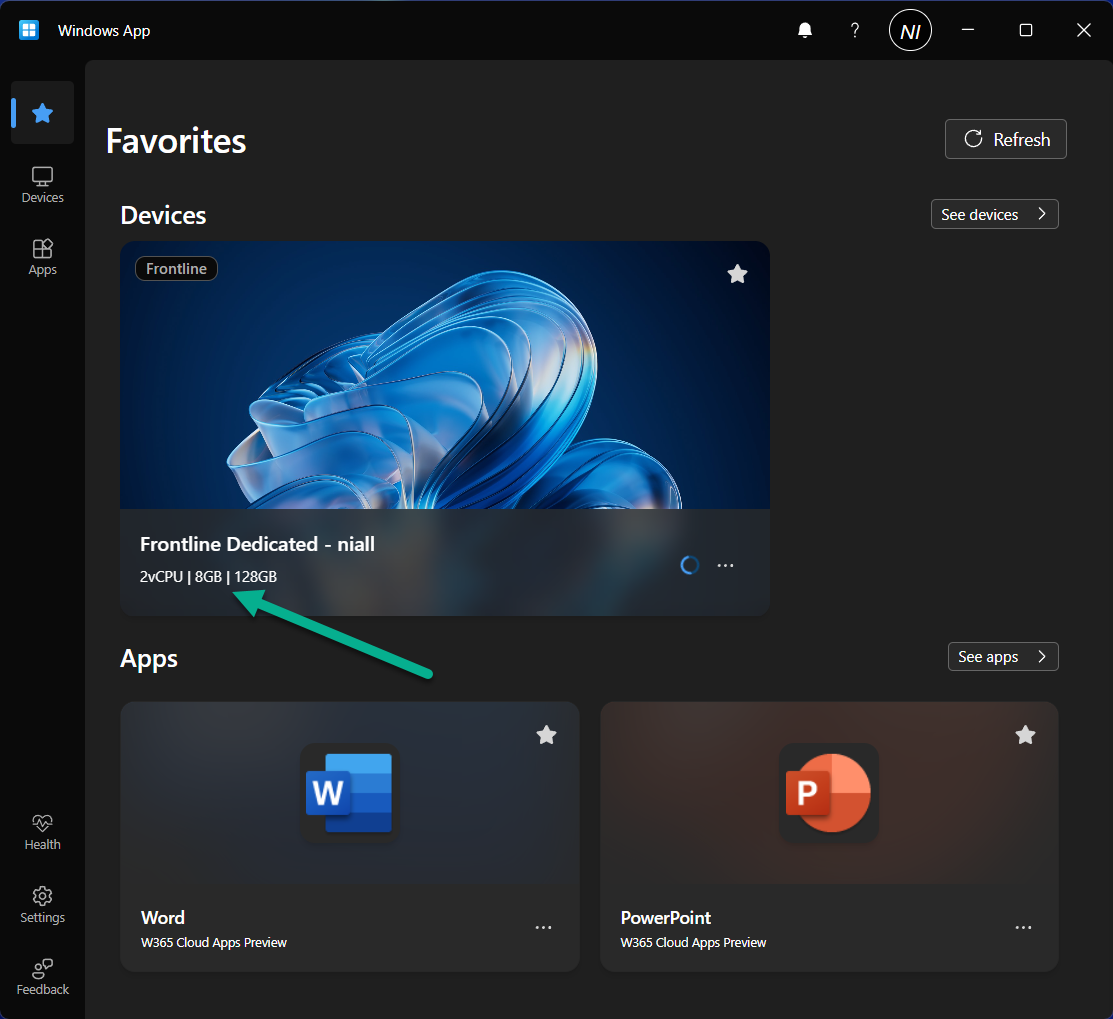
    Imagine you have a user that has a Frontline Dedicated Cloud PC assigned, with the following SKU.

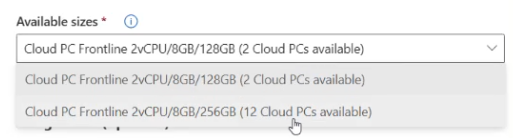
    • Cloud PC Frontline 2vCPU/8GB/128GB

    windows-app-showing-frontline-cpc-before

    This may have been good enough for the tasks that that user was initially doing, but let’s imagine that they got access to new tasks that demanded more CPU/ram/storage, or that they simply noticed that the Cloud PC they were given was under powered.

    Sometimes you may find that a Cloud PC is not powerful enough for a user, or is too powerful and not being used to it’s full potential (low utilization). With this new ability you can resize low or high utilization Frontline Dedicated Cloud PCs on the fly.

    Identifying low utilization

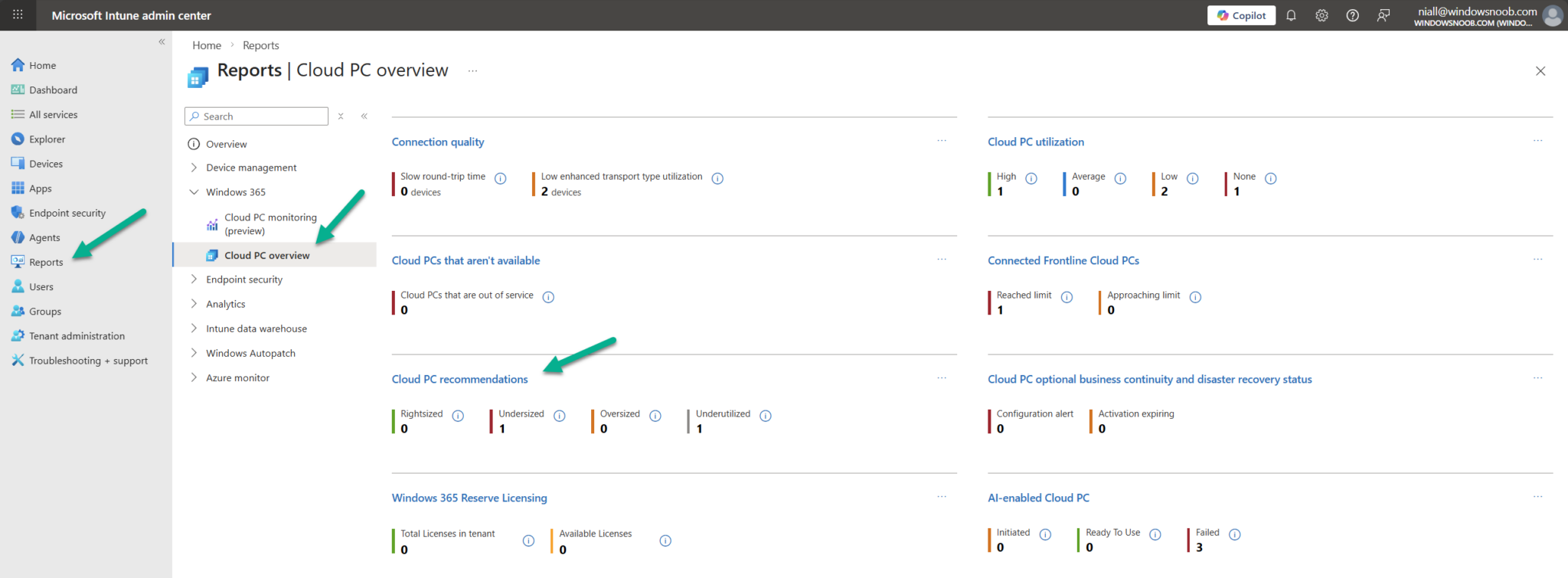
    You can now identify low utilization on Windows 365 Cloud PCs in the Intune portal directly. In the Reports node, expand Windows 365, select Cloud PC Overview and then select Cloud PC recommendations.

    cloud-pc-recommendations-2048x755.png

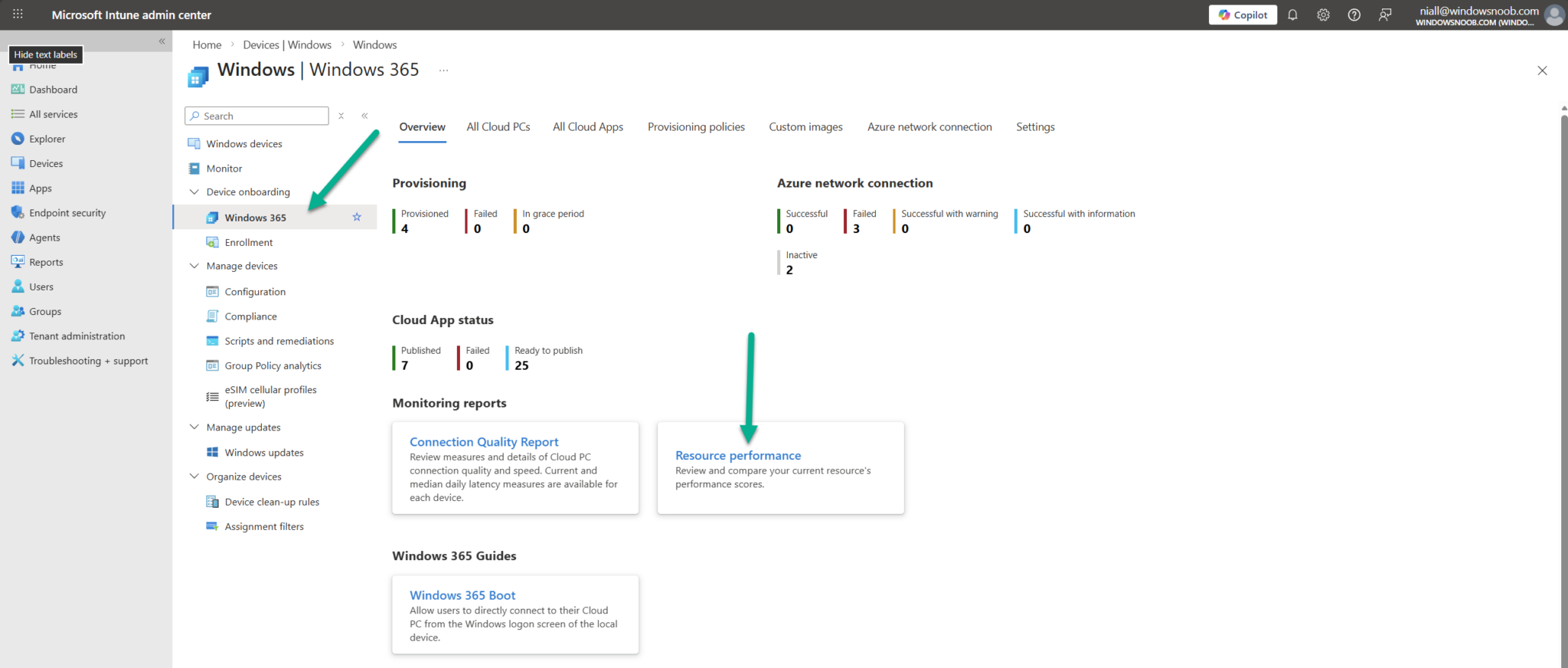
    Unfortunately this report only seems to cover Enterprise Cloud PC’s and we are focusing on Frontline Dedicated in this blog post. But there’s another way, in Devices, expand Device Onboarding, select Windows 365 and select Resource performance.

    resource-performance-2048x872.png

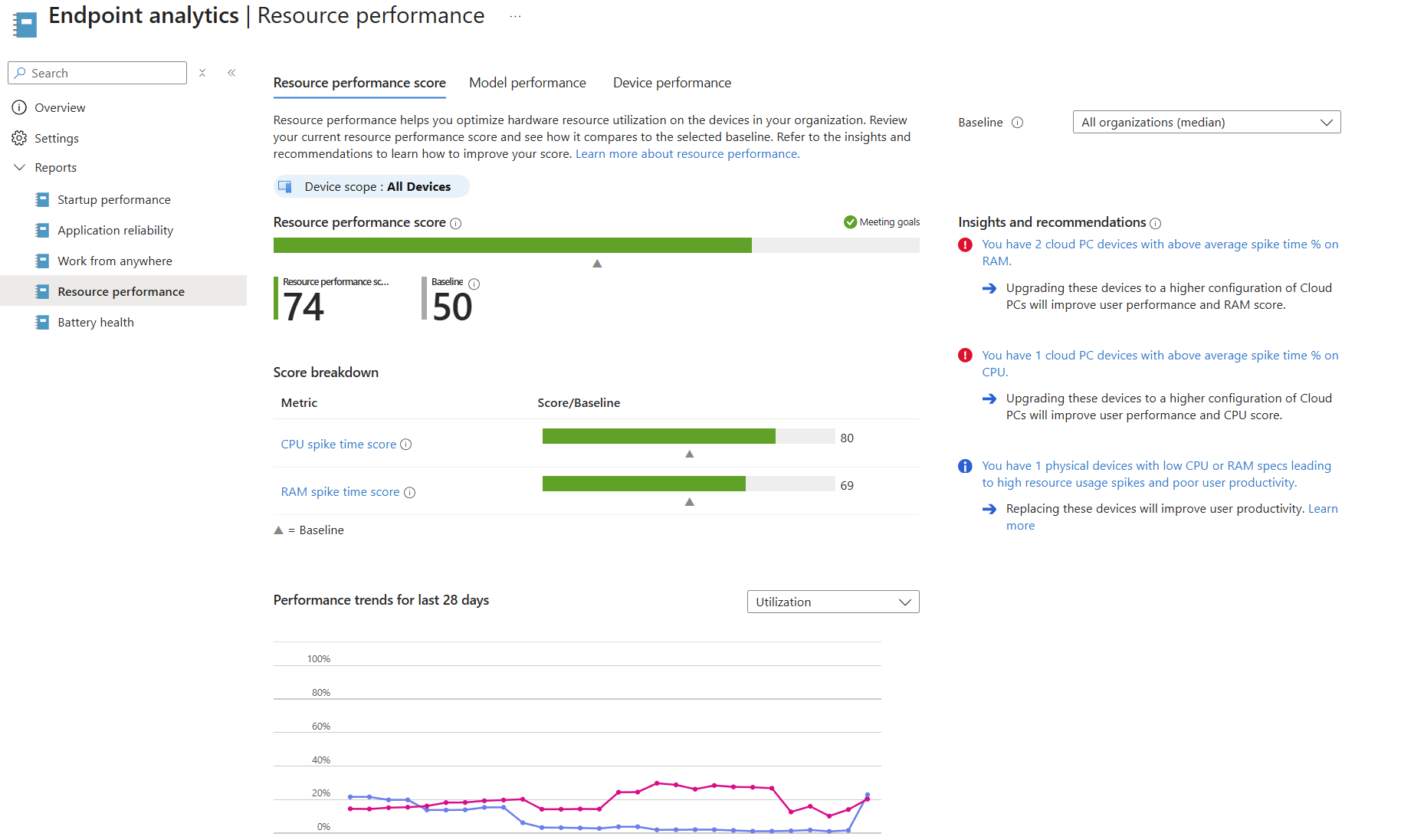
    This brings up Endpoint analytics with lots of resource performance details.

    endpoint-analytics.png

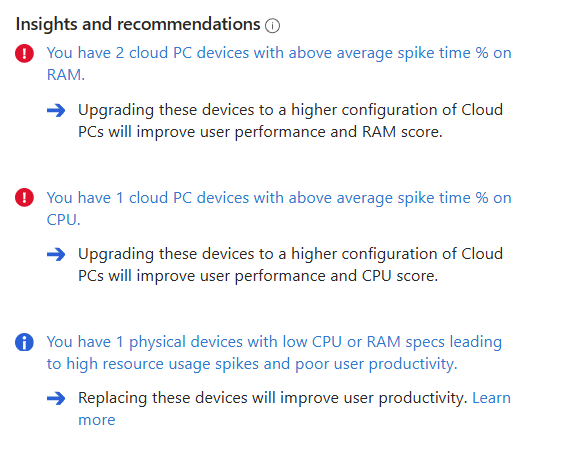
    You could click on the highlighted Insights and recommendations

    insights-and-recommendations.png

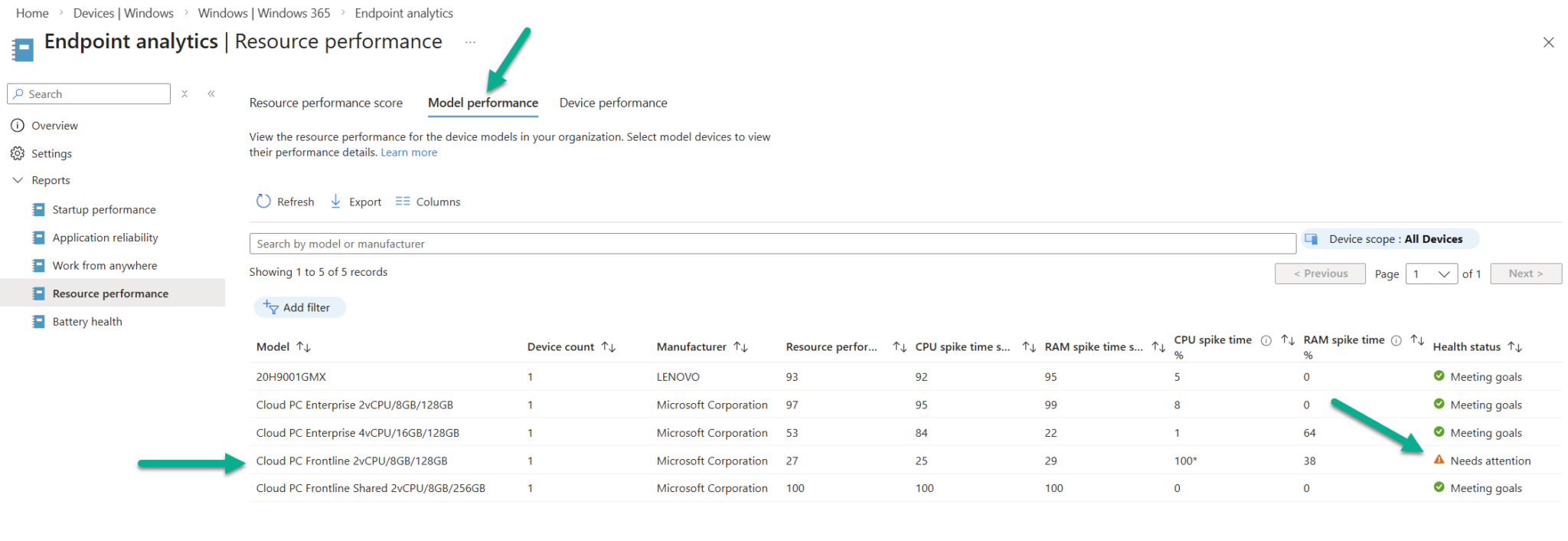
    or click on the Model performance or device performance tabs to get more details.

    And sure enough, there’s our Frontline Dedicated Cloud PC showing as needs attention due to CPU spike time and to a lesser degree, RAM spike time.

    needs-attention-2048x706.png

    Now that we’ve spotted the Frontline dedicated Cloud PC’s that need help, it’s time to fix  the problem.

    Resizing

    So let’s take a look at the new feature. Take note of the role, ip address and other requirements as detailed here.

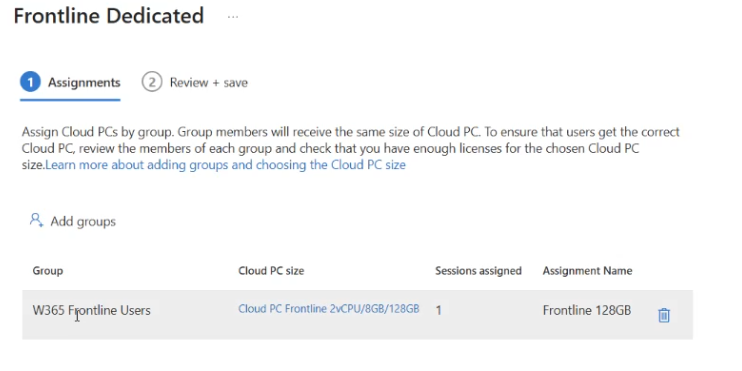
    To resize a Frontline Dedicated Cloud PC, locate it’s provisioning policy, and scroll down to Assignments, click Edit.

    click-edit-in-assignments.png

    Click on Cloud PC size highlighted in blue.


    click-on-Cloud-PC-size.png

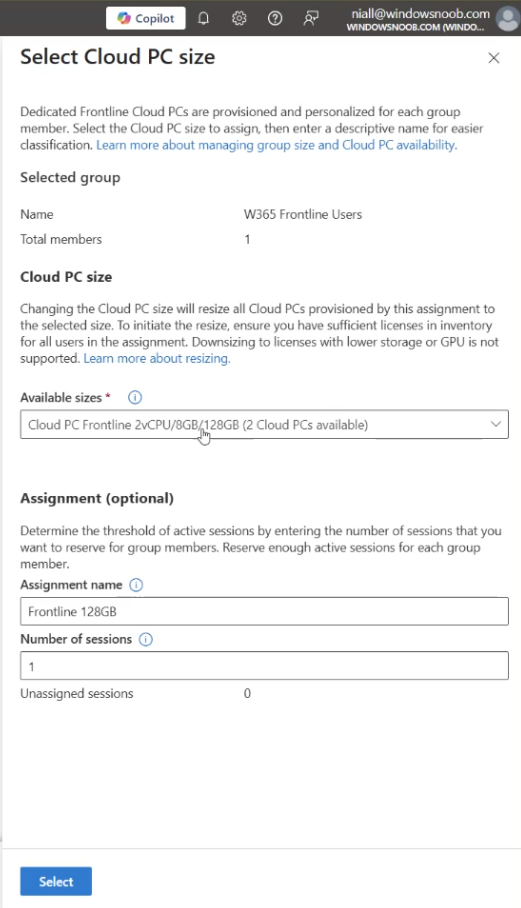
    This will bring up a Select Cloud PC size window where you can select from available sizes.

    select-Cloud-PC-size.png

    From there, pick an option to fix the problem, in this case we’ll resize the current Frontline Cloud PC from one sku to another via the Available sizes drop down, as it’s only an example of the resize operation.

    available-sizes.png

    Note: In reality, to fix this problem you’d want to resize to a vCPU with more power and possibly more RAM too based on the endpoint analytics report, however we don’t have either of those available in this tenant.

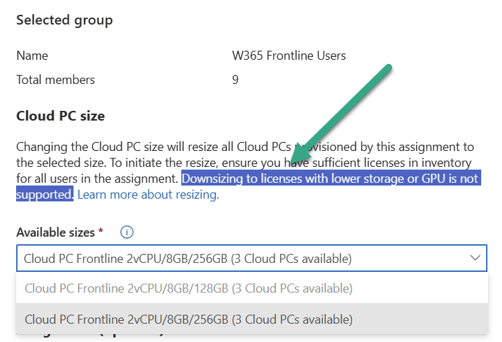
    Also to note, downsizing is not supported for lower storage or GPU.

    downsizing-not-supported.png

    Take note of the warning, which states that All the Cloud PCs provisioned from this assignment will be resized to the selected size. Connected Cloud PCs will be disconnected, and unsaved changes might be lost. This is important and you should most likely only resize when your Frontline users are not actually using these Cloud PC’s if possible.

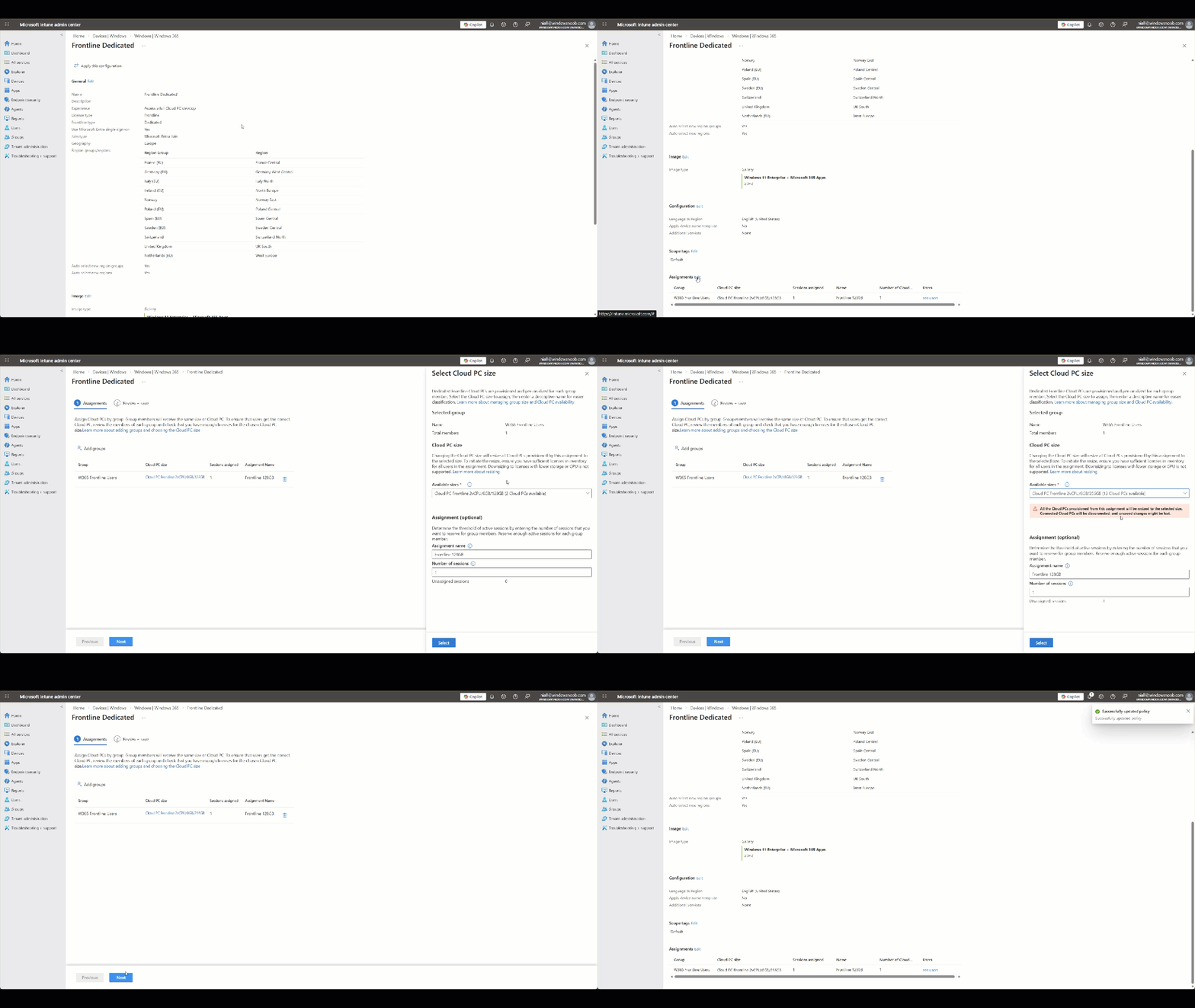
    Finally, click Next and click Update to update the provisioning policy assignment with the new resized SKU. You can see the entire operation in the GIF below.

    2026-03-22_20-01-37.gif

    Job done!

    Read more

    Summary

    Resizing Frontline Dedicated Cloud PC’s is now a reality and available today in the Intune console. You have to modify the provisioning policy to resize the Cloud PCs which can mean several Cloud PC’s being impacted from this change, rather than just one. Still, it’s a welcome change and we are glad to see it.

    See you in the next one!

  3. Introduction

    The Remote Desktop client app is commonly used for connecting to a variety of devices including:

    • Connecting to Azure Virtual Desktop (AVD)
    • Accessing Windows 365 Cloud PCs
    • Access Remote Desktop Services (RDS)
    • Connecting to remote PCs (when configured for RDP)

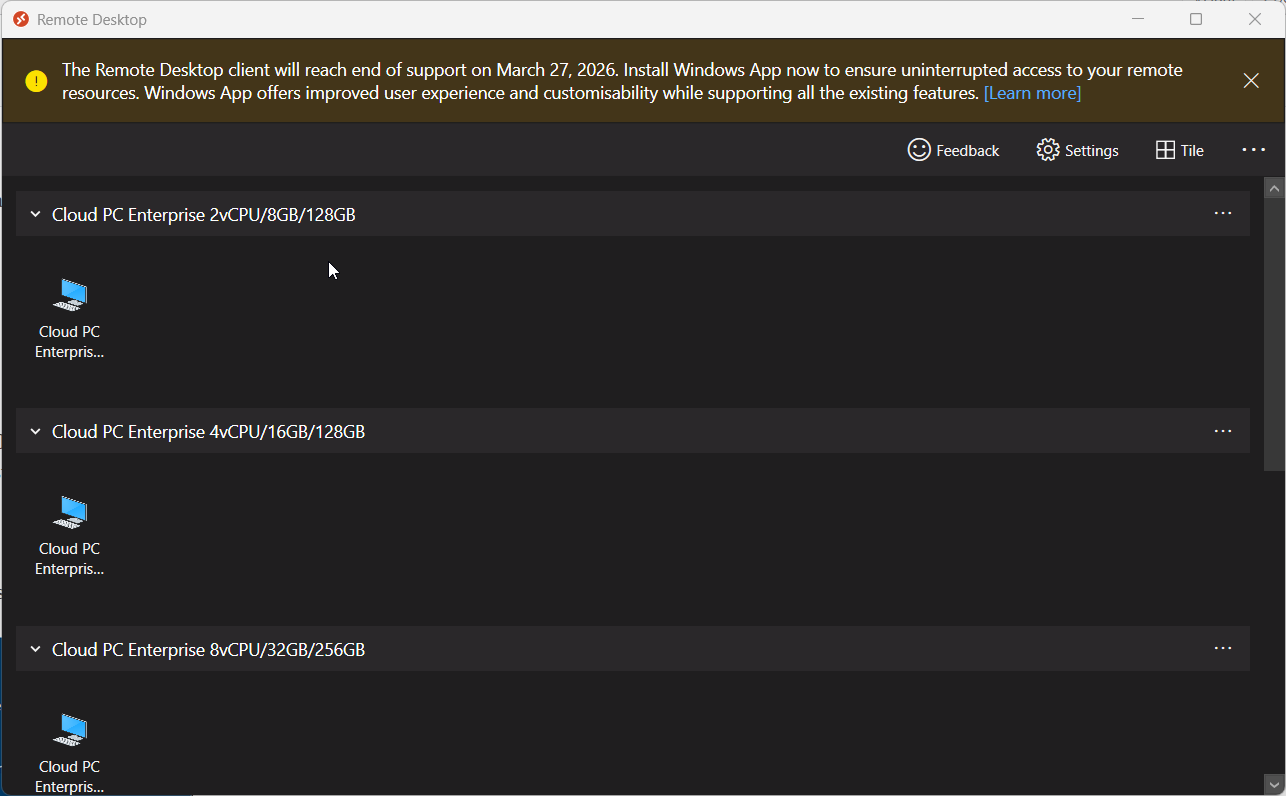
    The app is popular due to the fact that it has multi device support including Windows, macOS, iOS and Android, but it’s interface looks dated to say the least. Below you can see how it looks today including the end of support message on the top.

    dated-interface.png

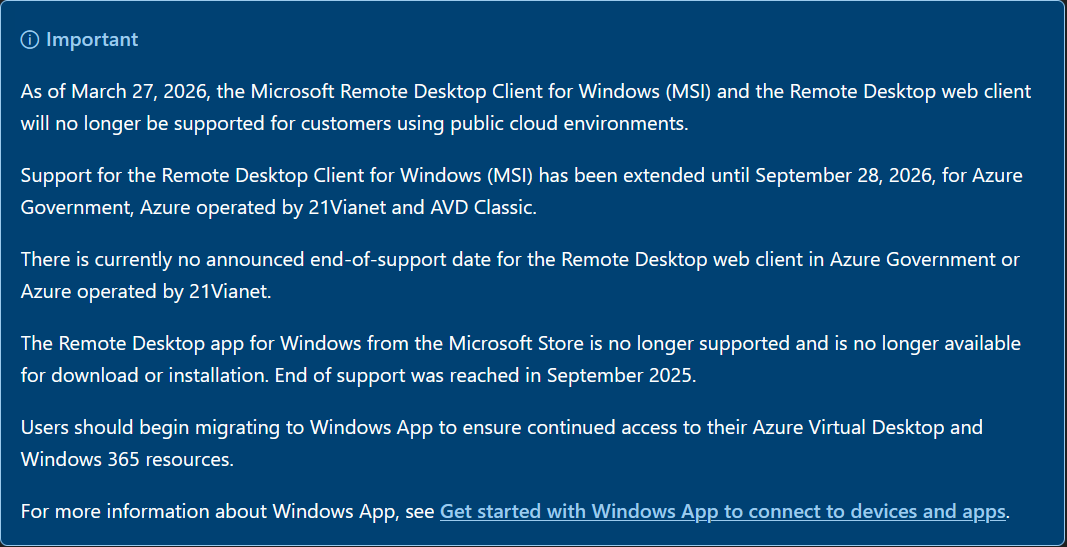
    The app is soon to be end of support as of March 27th, 2026 and you are reminded of that in the banner on the app itself (shown above) and via the downloads webpage shown below.

    end-of-support-notice.png

    You should start migrating the app on any devices that have it installed to the new Windows app. The remote desktop client app does not automatically upgrade to the Windows app so migrating it is needed. Migrating from the remote desktop client to the Windows App can be complicated. It can be used as-is or modified to suit your individual needs.

    It performs the following actions:

    • Installs the Windows App via MSIX package download
    • Optionally uninstalls the legacy Remote Desktop client
    • Sets registry keys to control auto-update behavior
    • Logs all actions to a specified log file

    Myself and my fellow MVP buddy Paul Winstanley look at a migration tool provided by Microsoft and show you how you can set this up in your Intune tenant based on the instructions that come with it.

    Setting it up

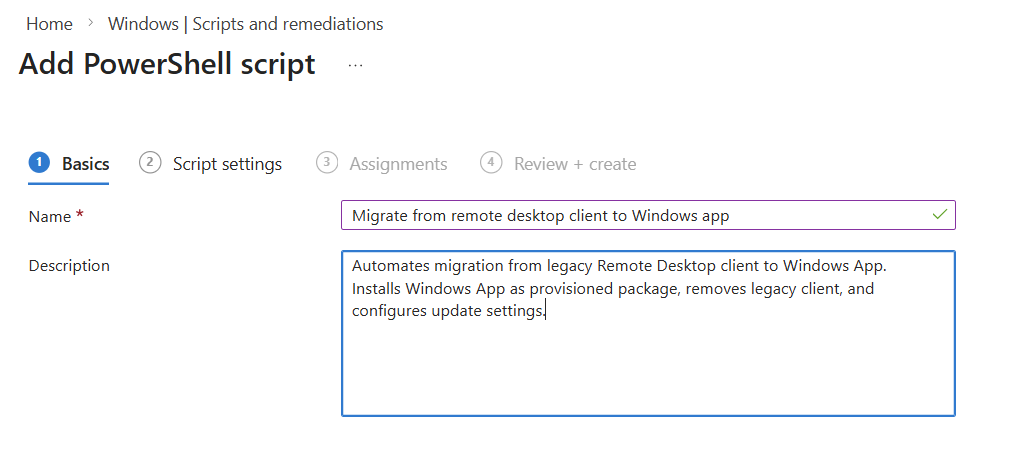
    To set it up do as follows, in Microsoft Intune select Devices, Scripts and remediations and select Platform scripts. In there click on Create and give the script a suitable name such as Migrate from remote desktop client to Windows app.

    platform-script-creation-1.png


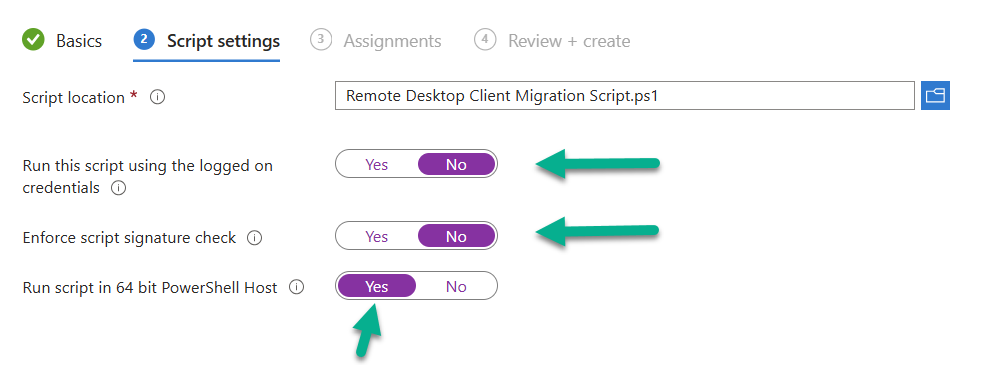
    Click Next and in Configure script settings point to the downloaded Remote Desktop Client Migration script and set the following options:

    script-settings.png

    These settings force the script to run in SYSTEM context (required to set registry keys and install provisioned packages, in addition to uninstall system-level apps).

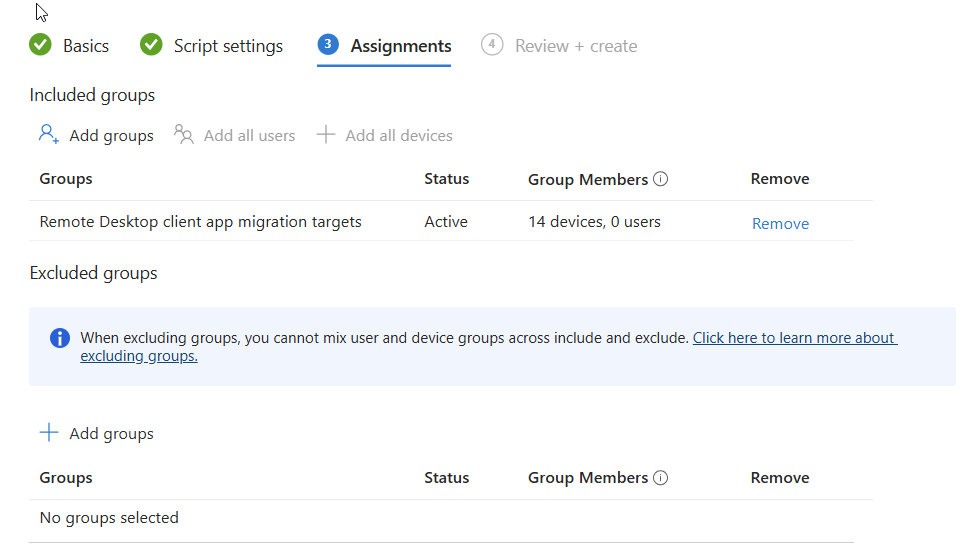
    Click Next and add a groupremote-desktop-client-group.png of one or more targets to migrate from the Remote desktop client agent to the Windows app. You could also exclude a group containing devices that already have the Windows app.
    Monitor the results

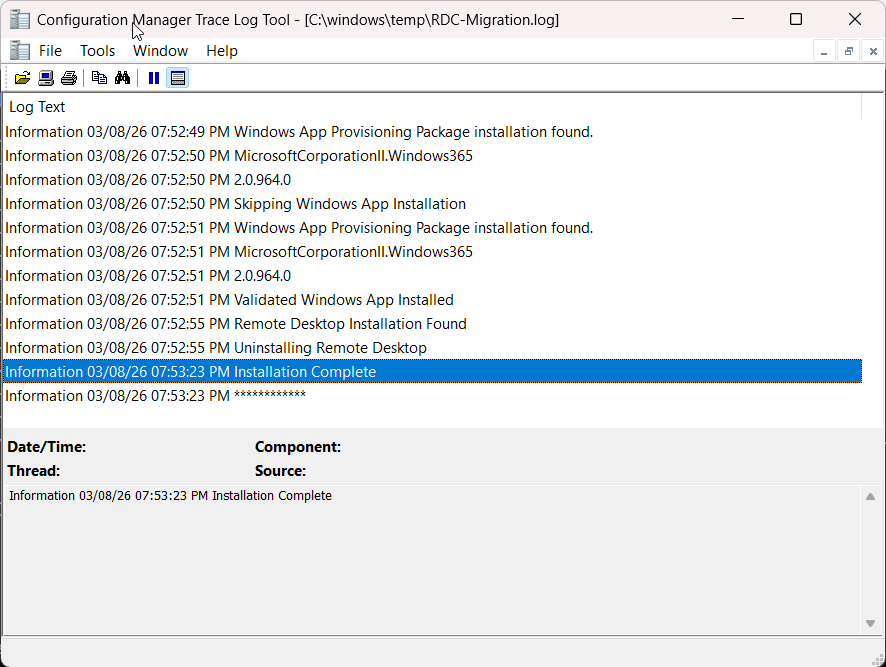
    After deploying out the script you can check the results via the log. The log (on the target clients) is available at $env:windir\temp\RDC-Migration.log. Below is an example of that.

    logfile.png

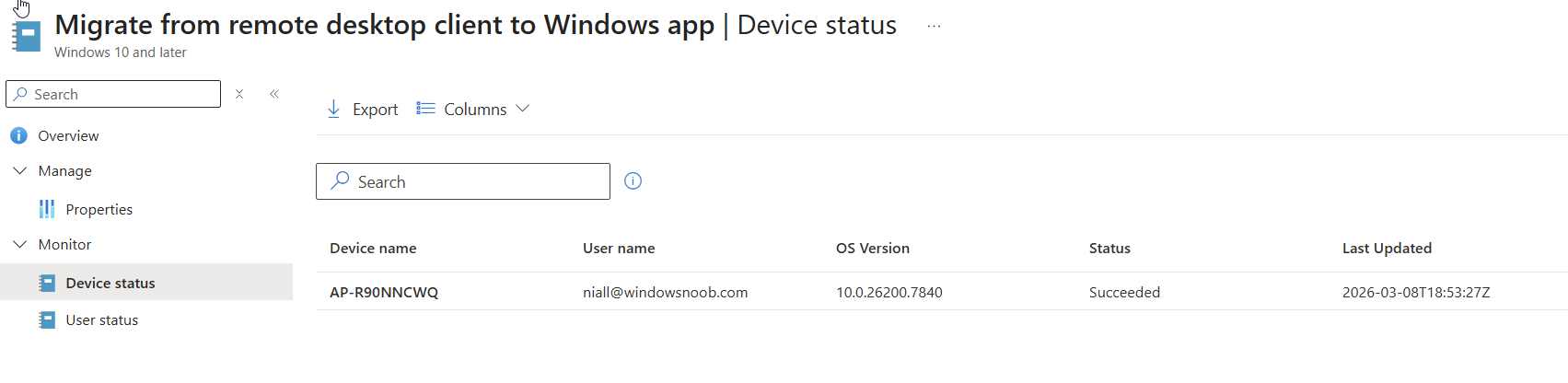
    Within Intune itself, you can look at the script results,

    migrated.png

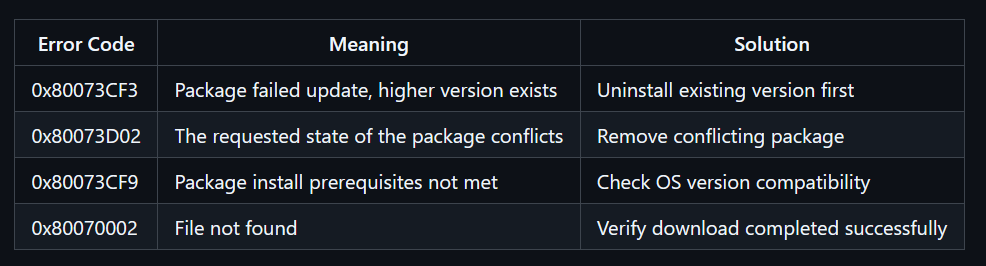
    if there are errors below are some common error codes.

    common-error-codes.png

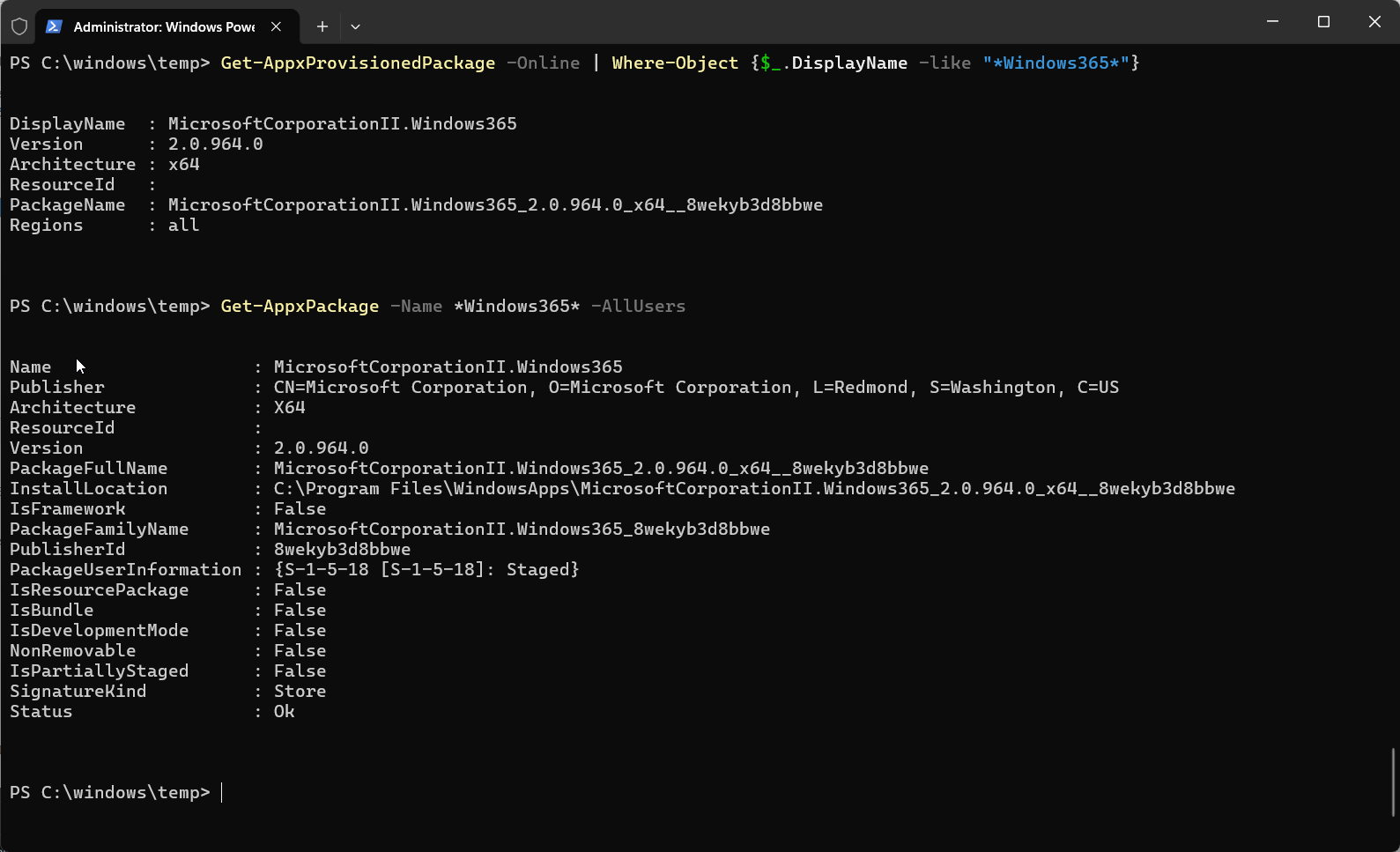
    If the Windows app is shown as installed in the log but not actually installed on the device you can run the following two Powershell checks to see why it’s reporting this.

    # Check provisioned packages
    Get-AppxProvisionedPackage -Online | Where-Object {$_.DisplayName -like "*Windows365*"}
    
    # Check user installation
    Get-AppxPackage -Name *Windows365* -AllUsers

    In our case the Windows app was not available on the device any more (had been uninstalled prior to deploying the migration script). But still Windows thought it was installed even though we logged off/logged on again prior to the test.

    troubleshooting-it.png

    Related reading

    Summary

    The impending end of support of the remote desktop client app is coming in less than 20 days, so it’s a good idea to migrate your install base to the new supported solution, the Windows app.

    Microsoft have been kind enough to provide a script, and it works as you’d expect a Powershell script from Intune. Powershell scripts however are limited when deployed this way and we think it would be better to deploy this migration tool as a Win32 app or even a remediation solution.

    For example, you might consider wrapping it with PSADT (Powershell application deployment toolkit) or similar and deploy it as a Win32 app to get better results, otherwise you might see issues relating to the Remote desktop client agent app being in use and thus not removed or that the user didn’t login yet. Most of the observed issues are listed in the troubleshooting section of the downloadable script.

    That’s it for this blog post we’ll see you in the next one!

  4. Introduction

    Windows 365 User Experience Sync (UES) is a cloud‑native capability designed to give users a seamless, consistent, and personalised Windows experience across Windows 365 Cloud PCs and Windows 365 Cloud Apps. Without UES in place on Frontline Shared devices, Windows personalisation, user settings, application settings, and application data are retained on logoff/logon which can be frustrating for end users who need to reauthenticate or reconfigure to set up their device how they need to use it, only to have to do this each time they log on to the Cloud PC.

    Instead of relying on traditional profile‑management tools, UES automatically preserves the settings every time the user signs in. Microsoft manages the UES infrastructure, vastly decreasing the implementation complexity and cost compared to other profile based solutions.

    At the core of User Experience Sync is dedicated, cloud‑hosted user storage that follows each user from session to session. When a user signs in, their individual storage is dynamically attached, providing immediate access to their personal settings and app data. As the user signs out, the profile is detached and stored securely ready for the next session.

    In this blog post myself and fellow MVP buddy Niall Brady overview this new feature and show you how you can set this up for Windows 365 Frontline Shared Cloud PCs and Cloud Apps. Myself and Niall were part of the private preview for the solution and were heavily involved at that stage. The feature was made generally available in November and we will be interested to see that changes have been made to the solution, based on our feedback, in that time.

    Requirements

    The following requirements are needed at present.

    • Windows 365 Frontline license
    • Access to required Windows 365 and Microsoft 365 endpoints
    • Intune management permissions

    Setting it up

    When it comes to setting up the Windows 365 User Experience Sync, the enablement of the feature is achieved in the configuration of the Frontline Shared Provisioning Policy. This can be done when creating a new policy, or an existing policy can be modified to add or remove the feature. Let’s focus initially on creating a policy and enabling the UES solution.

    In the Intune admin center, navigate to Devices | Device onboarding | Windows 365. Select Provisioning policies from the menu and choose Create Policy.
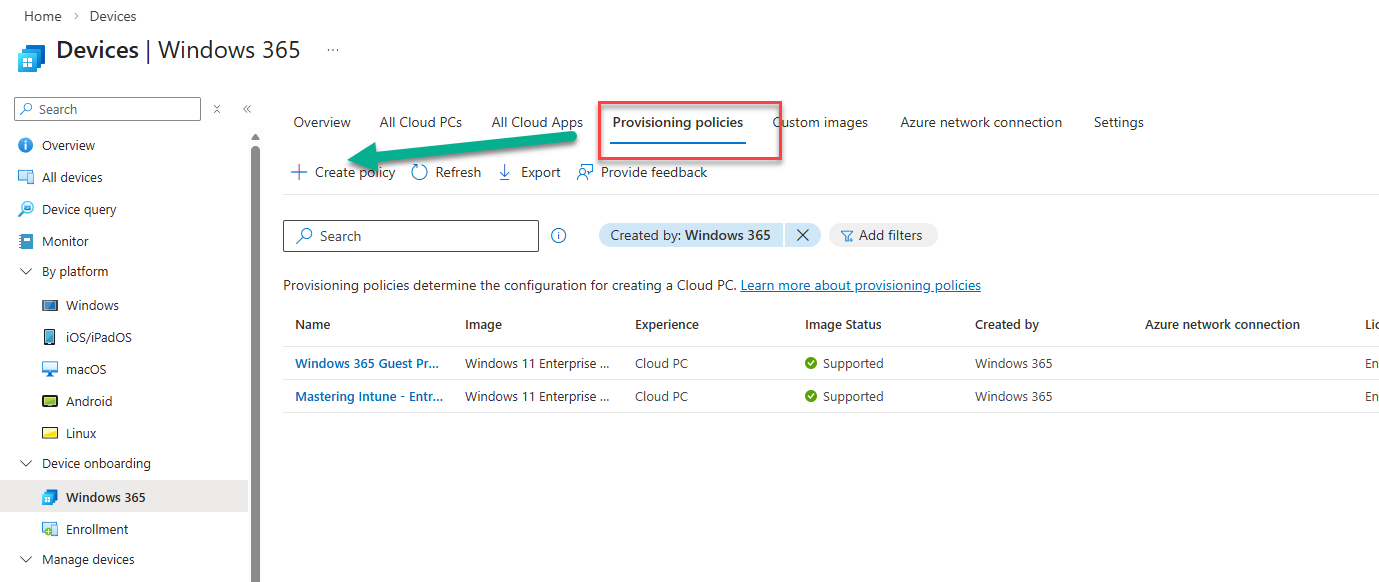
    image.png


    When creating the provisioning policy, ensure that you select Frontline as the License type and enable Shared from the Frontline type choice. For Experience, you can choose either Access a full Cloud PC desktop, or Access only apps which run in the cloud, since both Cloud PCs and Cloud Apps support UES.
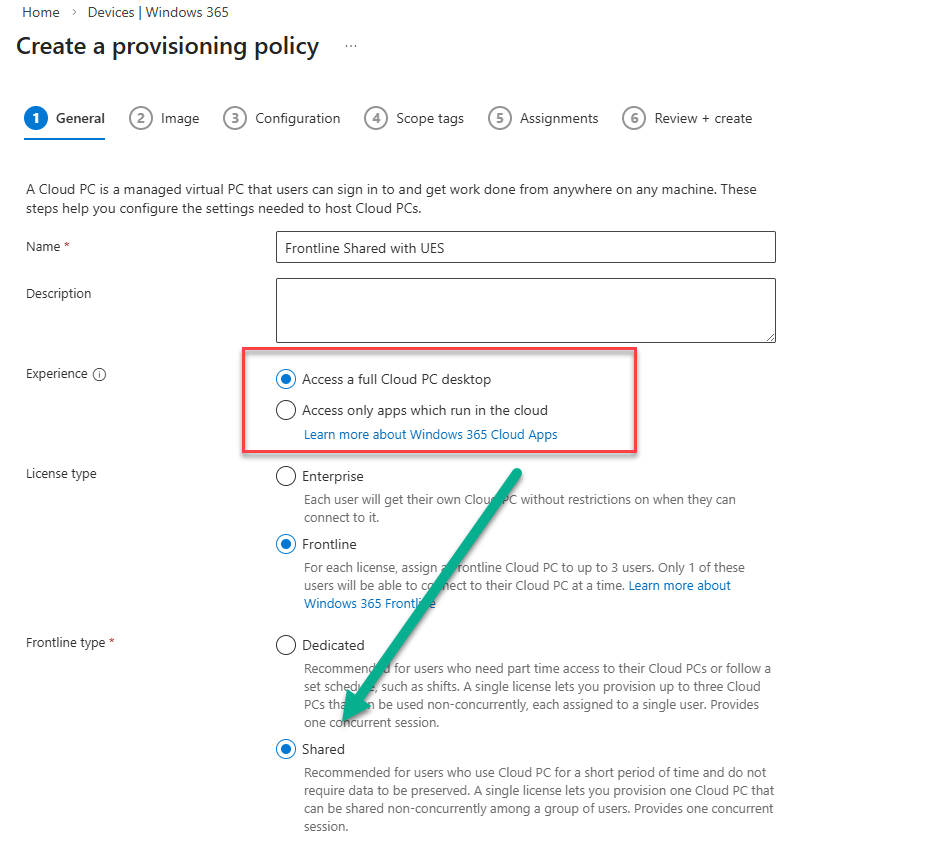
    image-1.png

    The Configuration section of the provisioning policy wizard is where we configure the UES solution. We have two choices to make; Enable user experience sync and User Storage Size. Check Enable user experience sync to turn on the feature.
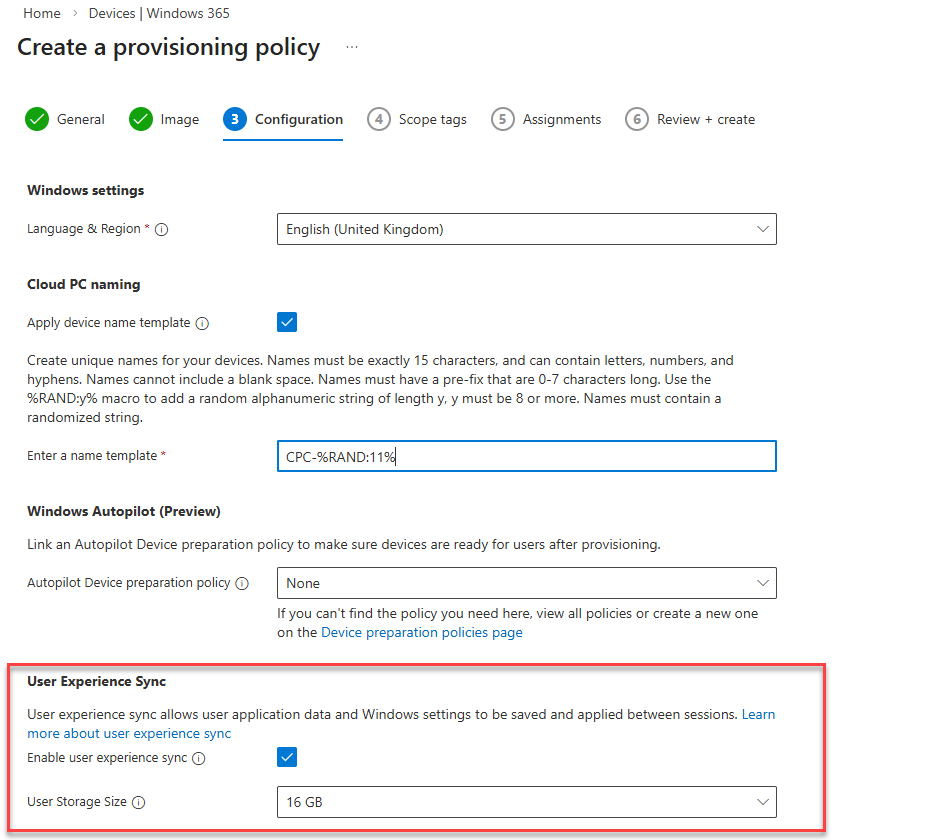
    image-3.png

    Managing the UES storage

    For the User Storage Size, Microsoft offer a predefined pool of user storage that comes included with your Frontline licence. The total available storage is determined by the Cloud PC’s OS disk size and is scaled based on the number of Cloud PCs assigned within the policy.

    For our Frontline model, we have a Cloud PC Frontline 2vCPU/8GB/128GB licence and 1 Frontline device, therefore the amount of pooled storage available to us is 128 x 1 or 128GB.

    The User Storage Size allows us to assign up to 64GB per user as you can see from the drop-down menu below.
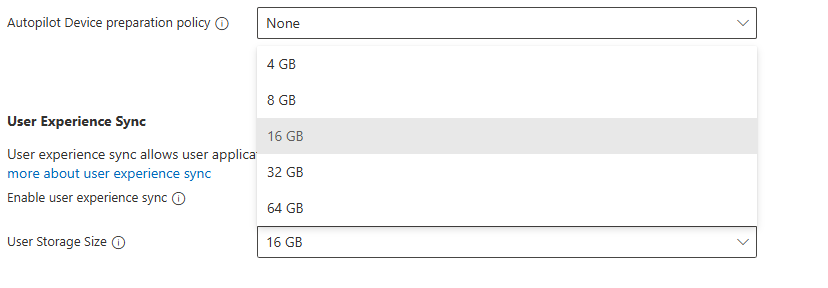
    image-4.png

    Be aware of the pooled disk space limitations when assigning the the User Storage Size.

    • Exceeded limits: When pooled storage runs out, new users can still sign in, but they receive a temporary profile and cannot create their own user storage. Users who already have allocated storage can continue signing in with their full personalised experience.
    • Exceeded tolerance period: If the pooled storage limit remains exceeded, a 7‑day tolerance window begins. After this period ends, the system automatically removes individual user storage starting with the one that has the oldest “last attach” timestamp. Once the total storage usage drops back below the limit, the tolerance period resets and won’t start again until storage is exceeded in the future.

    You can manage the user storage by selecting going to Provisioning policies and clicking your newly created policy.
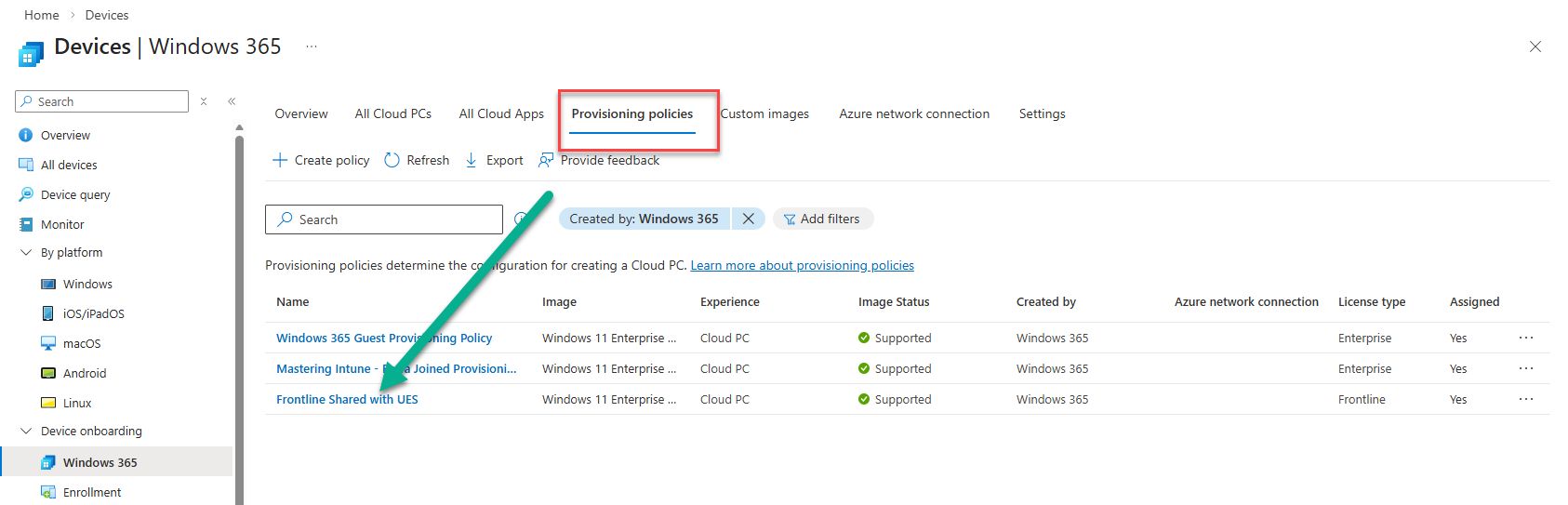
    image-5.png

    Next, select User storage and you will be presented with a view of the Storage information which includes the Total, Available and Used data. Since we are currently provisioning the devices, nothing will be used.
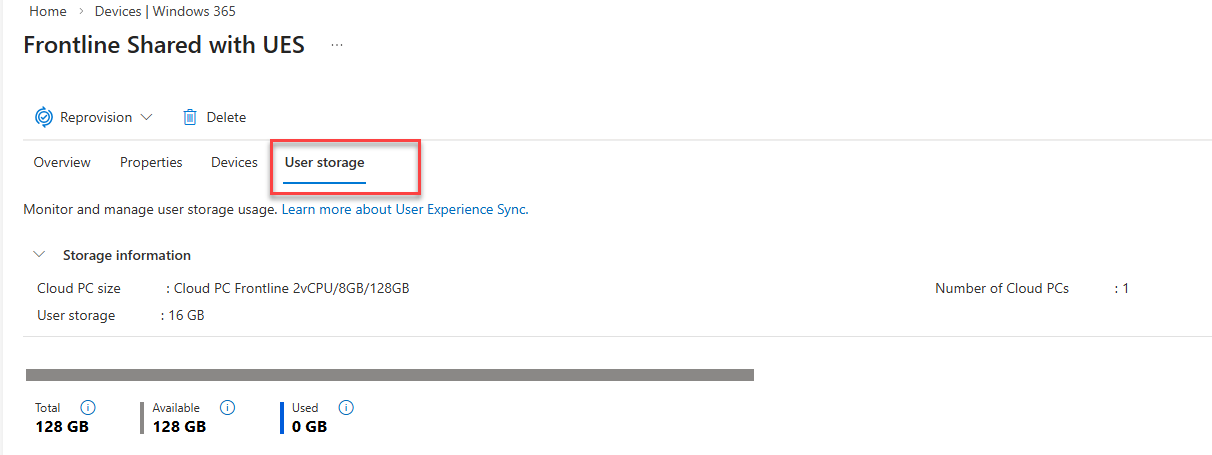
    image-6.png

    Some recommendations to assist with UES are to:

    • Enable OneDrive redirection
    • Manage Edge for cache and temporary data retention
    • Deploy Storage Sense to clean up temporary files, delete downloads and cloud backed files (OneDrive)

    You can set up alert monitoring for the user storage. This is achieved by navigating to Tenant administration | Alerts | Alert Rules and clicking Frontline Cloud PC User Experience Sync Storage Limits.
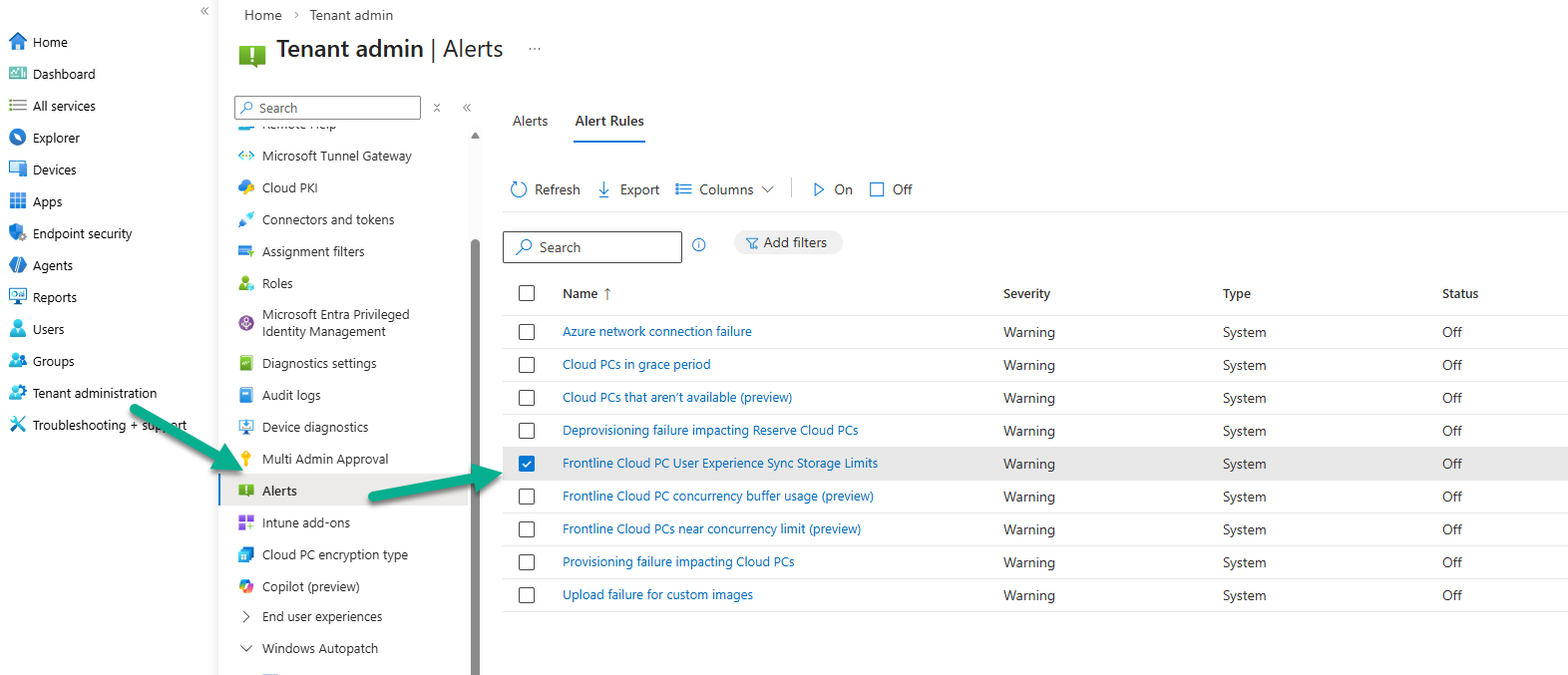
    image-8.png

    In the System rule view, you can set to alert when used space is Greater then or equal to a certain percentage. You can set a Severity for the alert, if the Status of the rule is On or Off, whether to have a Portal pop-up Notification and if someone should receive an Email alert. You can enter multiple recipients for the email.
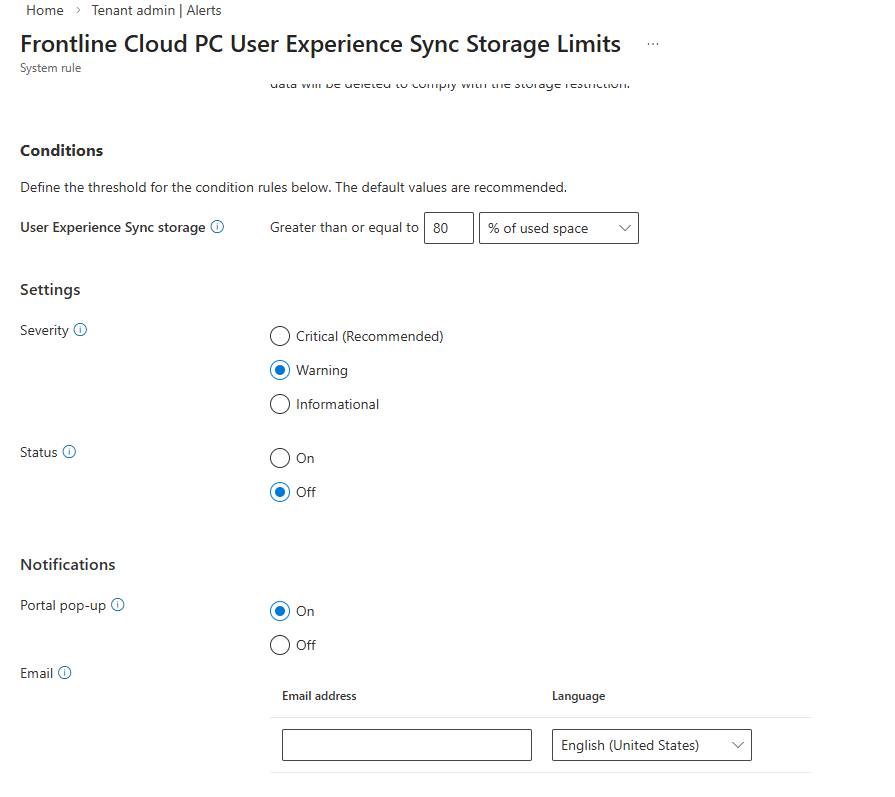
    image-9.png

    What’s Included and Exclude from User Experience Sync (UES)

    The following is included in the UES solution:

    User storage includes all data from C:\Users%username%, such as:

    • User settings and application data
    • Registry files, (NTUSER.dat and USRCLASS.dat)
    • Personal files and folders

    What’s not included:

    • Nonroamable application data
    • AppData\Local\Packages*\AC
    • AppData\Local\Packages*\SystemAppData
    • AppData\Local\Packages*\LocalCache
    • AppData\Local\Packages*\TempState
    • AppData\Local\Packages*\AppDat

    Nonroamable identity data

    • AppData\Local\Packages\Microsoft.AAD.BrokerPlugin_cw5n1h2txyewy
    • AppData\Local\Packages\Microsoft.Windows.CloudExperienceHost_cw5n1h2txyewy
    • AppData\Local\Microsoft\TokenBroker
    • AppData\Local\Microsoft\OneAuth
    • AppData\Local\Microsoft\IdentityCache

    The UES Experience

    When a user signs on for the first time to a Cloud PC or Cloud App with UES enabled, the personal storage will be created and attached to the session and capture of settings will be automatically enabled and redirected to the storage. On the next login, the UES will be reattached and any saved configuration loaded.

    Do bear in mind that UES does not roam or persist user installed applications, only settings and preferences are captured.

    On a Frontline Shared UES enabled device, we are loading the store app Sticky Notes for the first time. We are requested to authenticate to use the app on first run.
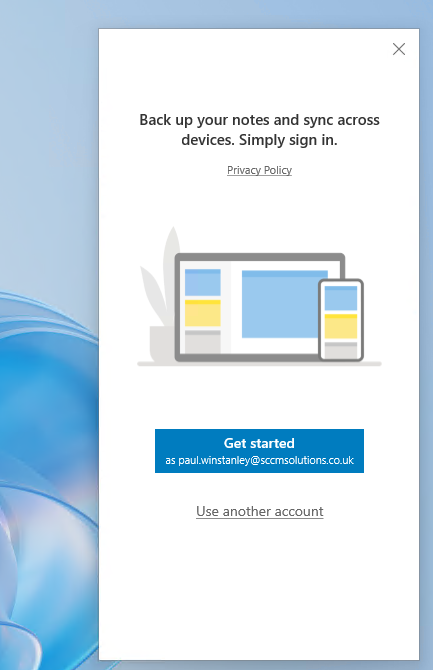
    image-10.png

    After authenticating, we can create content in the app with the expectation that this is stored within the UES storage and retained for our next session.
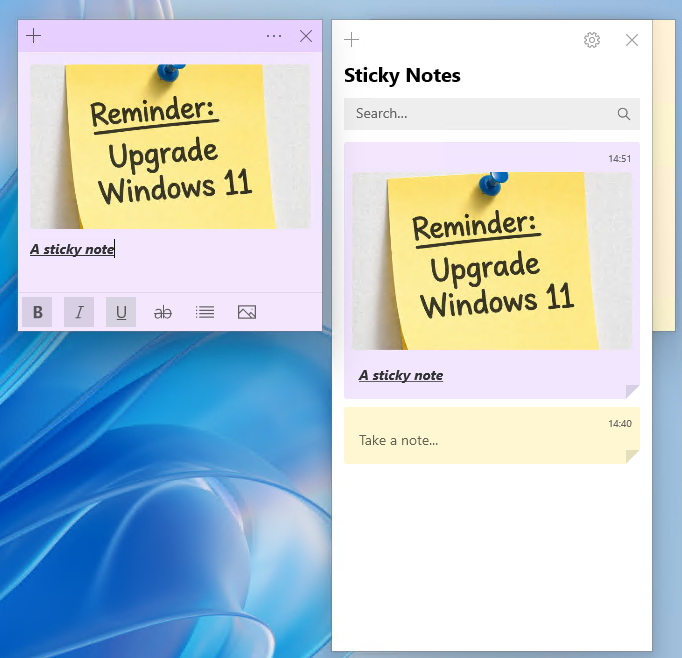
    image-14.png

    If we do not have Frontline Shared UES enabled, then the end user would need to re-authenticate with the Sticky Notes app on each logon to bring up their personalised notes.

    Installing apps

    Another thing to note is if the user downloads and installs an app, let’s say Firefox. While this works during the session that the user is logged on to, once they logoff/logon any remnant of that (shortcut, etc) are gone. If you want apps to persist then install them in the base image (custom image).

    Filling up the storage and reporting on usage

    One of the areas we fed back on during the private preview, was the lack of warning or information for the end user when the UES becomes full. In the screenshot below, for example, the user has downloaded too many ISO files and filled up their allocation of 16GB. The only message the end user gets is Couldn’t download – Disk full. This isn’t informative enough for the end user in our opinion. Improvements to the experience should be forthcoming and we hope that this is one which is being taken into account by Microsoft.
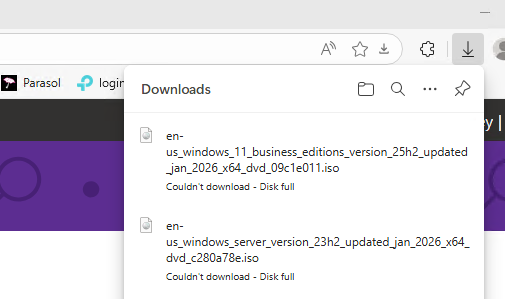
    image-11.png

    When it comes to usage, the admin can take a look at what allocation of their Total amount is in use in the User storage section of the Provisioning Policy. Remember from earlier, you need to click Provisioning policies and select your policy.

    image-5.png

    Select User storage to view. We can now see that 16GB from the Total of 128GB has been allocated to a user. These stats do not give us a real time view of what a user has actually used from that 16GB allocation. This is another area that we fed back on that we feel needs improvement.
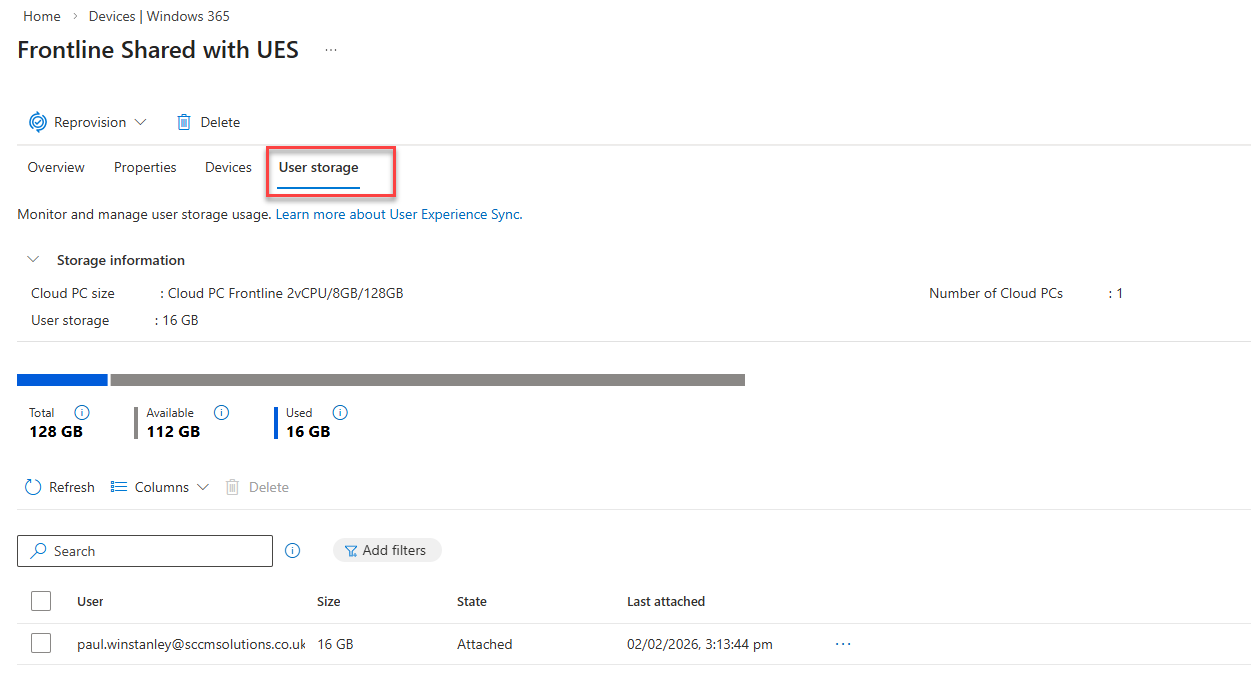
    image-15.png

    If we have set up alerts and total usage across all UES compromises the percentage stated in the rule, then the recipient of the alert rule will receive an email with details of the provisioning policy where the usage is a concern.
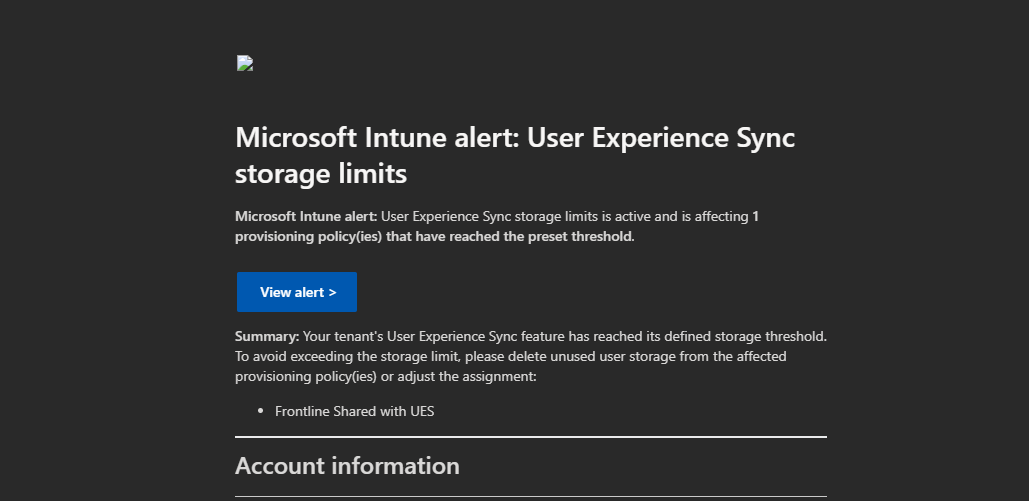
    image-17.png

    In Tenant administration | Alerts admins will be alerted with the relevant Severity and with a pop-up, if enabled.
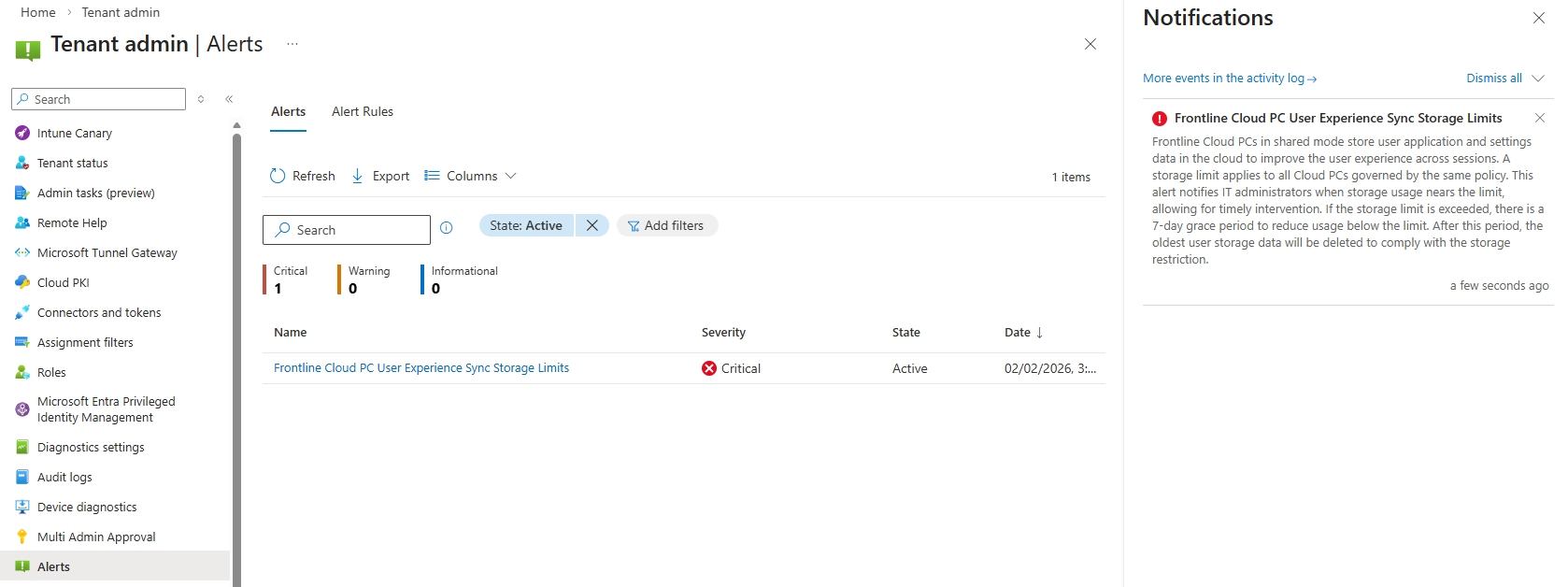
    image-18.png

    Amending an Existing Provisioning Policy

    To be able to amend an existing provisioning policy to add or remove UES, you first need to remove the the current group assignment from the policy.

    Navigate back to Provisioning policies and select your Frontline shared policy.

    Choose Properties.
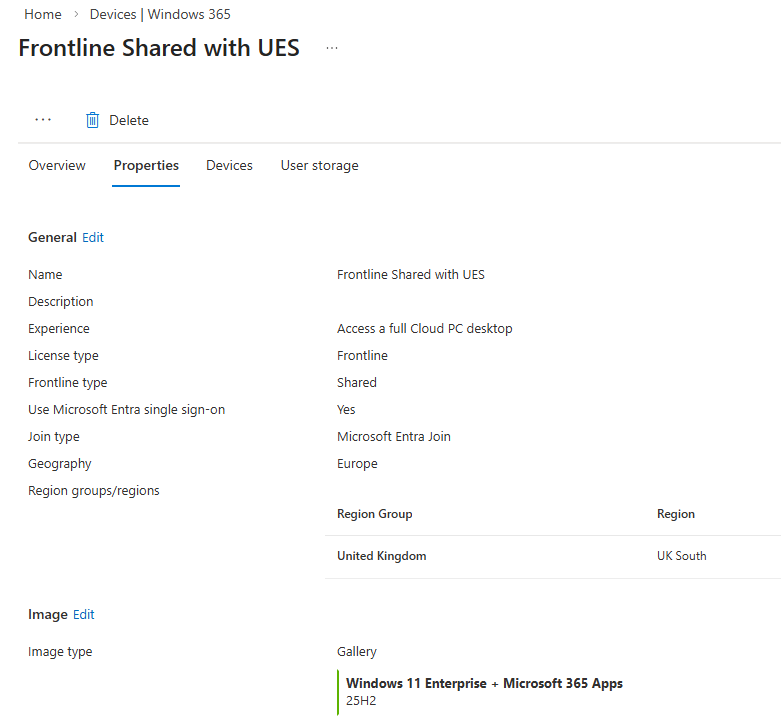
    image-19.png

    Scroll down to the Assignments and click Edit.

    image-20.png

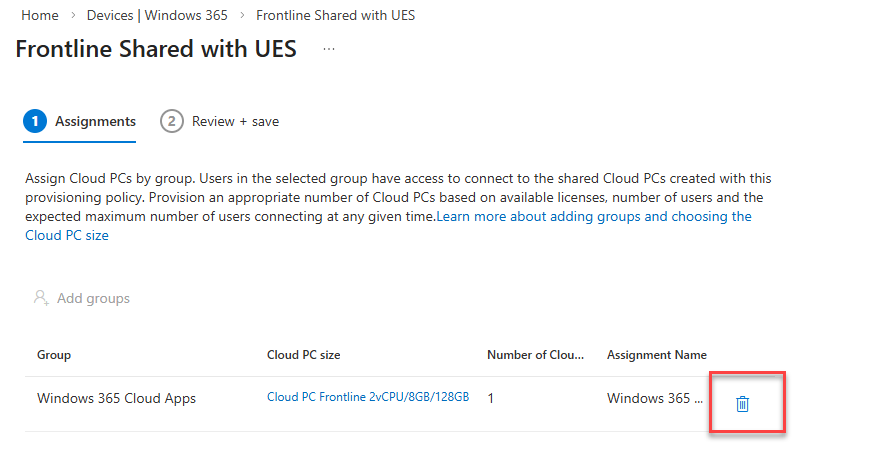
    Delete the assignment.

    image-21.png

    Click Remove to confirm the removal of the assignment. Click through the wizard to Update the policy.
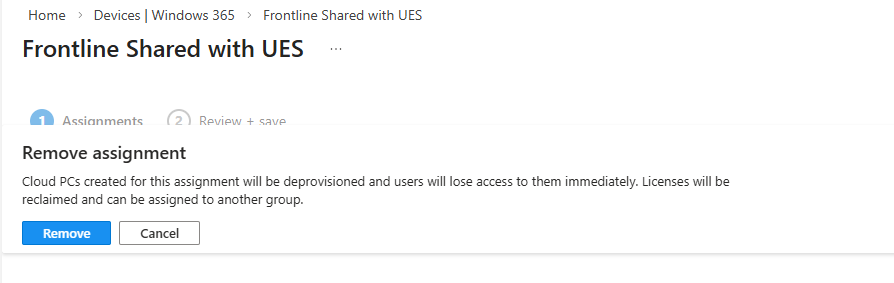
    image-23.png

    Now Edit the Configuration section of the policy.
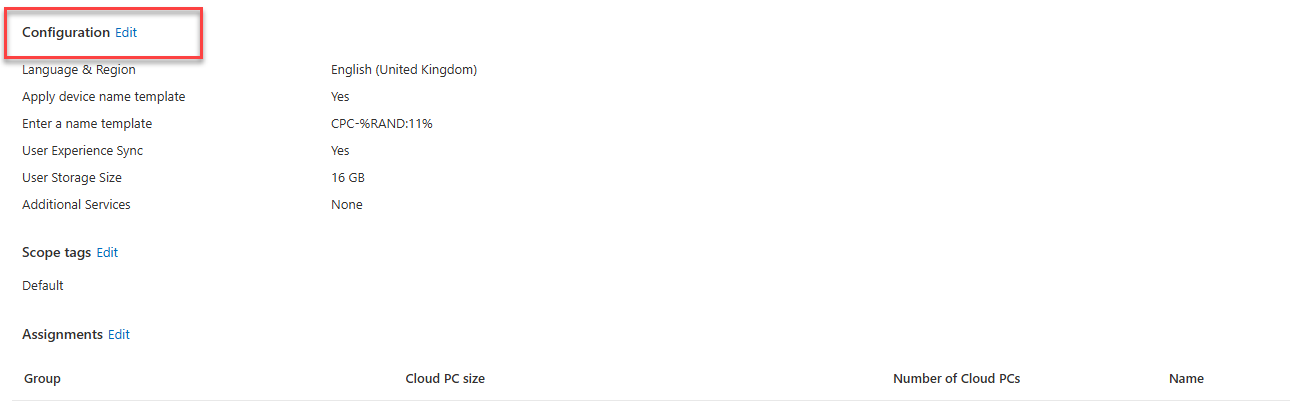
    image-24.png

    This is our UES policy with UES enabled. We can, therefore, remove UES by deselecting the Enable user experience sync checkbox. If this was a policy which never utilised UES, we could go into here and select to use and set a corresponding User Storage Size.
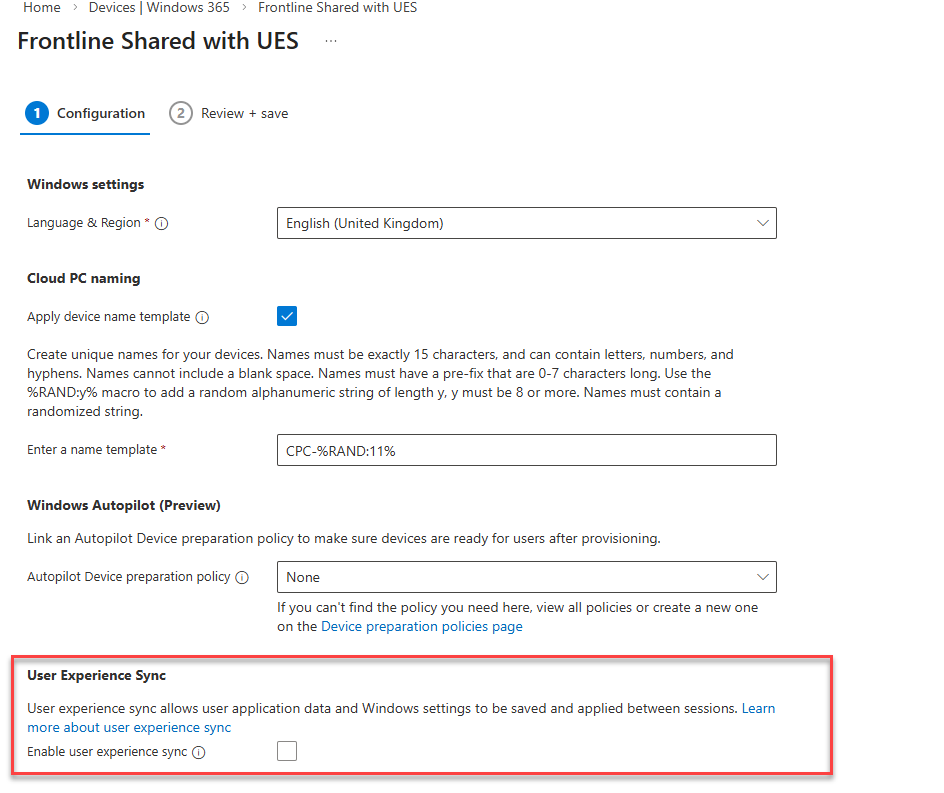
    image-25.png

    Once amended, Update the policy and head back to Assignments and Edit. Reassign the policy and enter the relevant Cloud PC size, select your Frontline subscription and Assignment details.
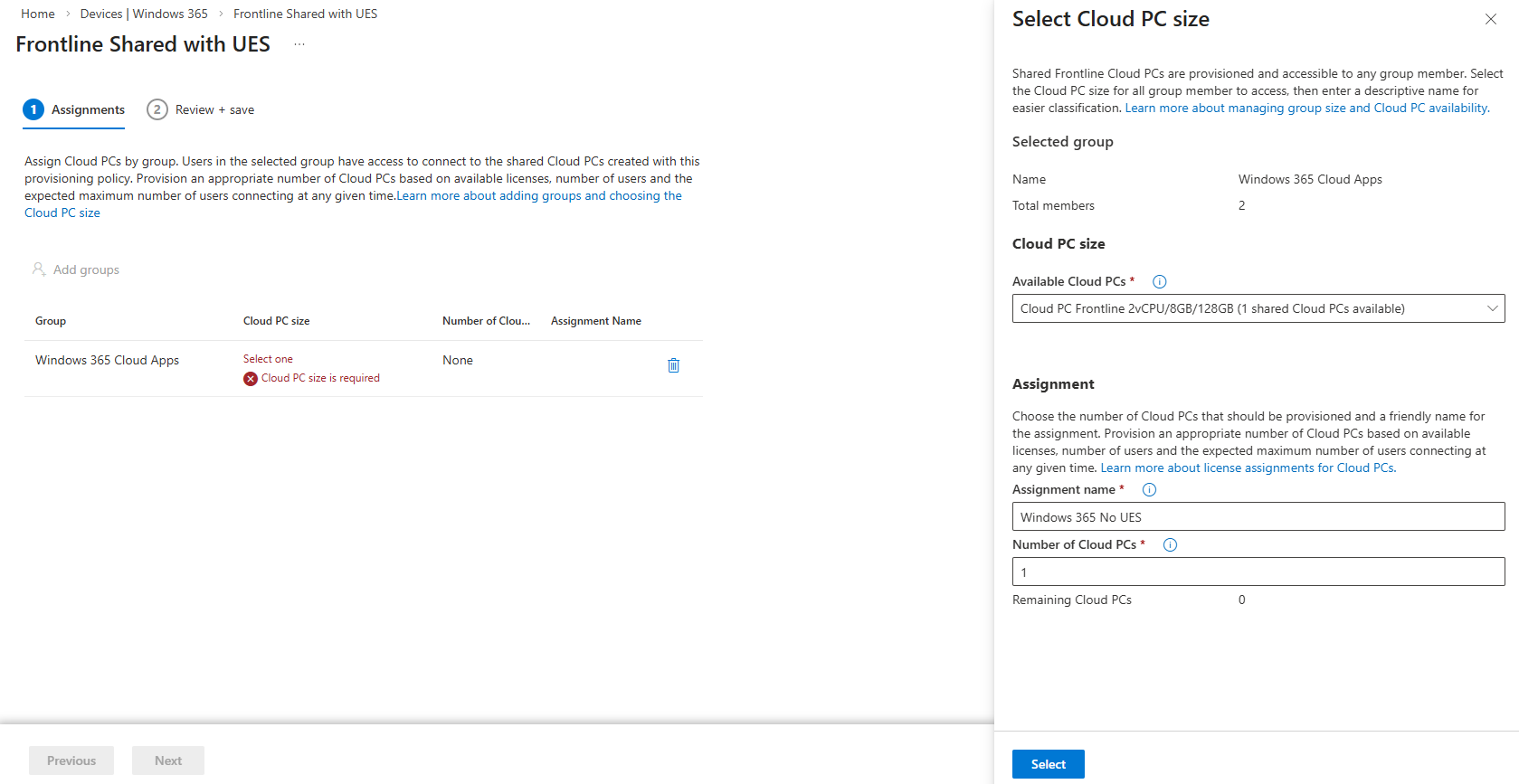
    image-26.png

    The Frontline shared devices will then be in a Provisioning state as the amended configuration is laid down.
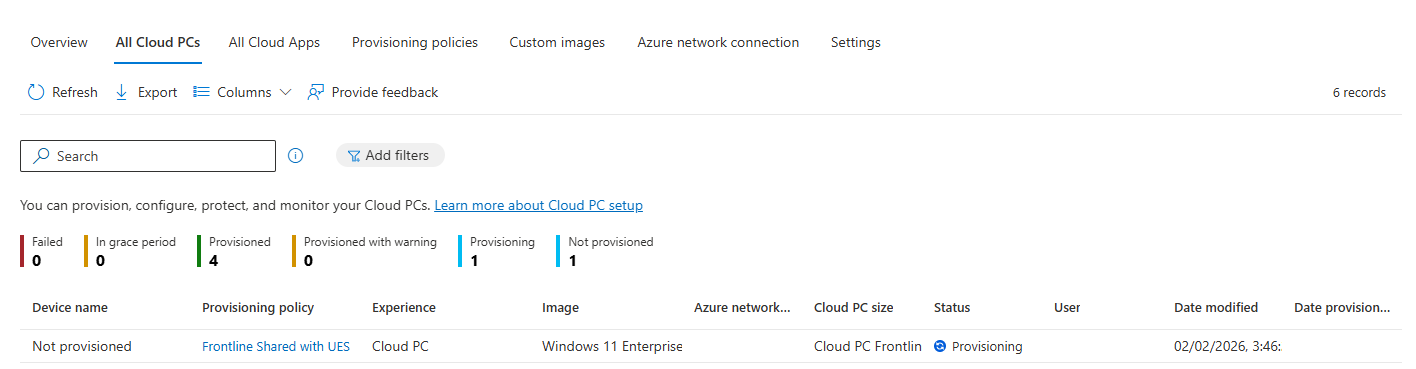
    image-27.png

    Read more

    Summary

    Windows 365 User Experience Sync is a welcome feature for Frontline Shared devices which has been on the wish list for some time now. It is very simple to get up and running, without all the complexity of other solutions and provides instant access to storage of settings and application data.

    Microsoft is taking into the account the feedback it received during the private preview and we should see some feature changes happening very shortly to improve the end user experience.

    We look forward to seeing how this new feature matures and develops over time and we’ll blog about the feature improvements as they are released.
  5. Introduction

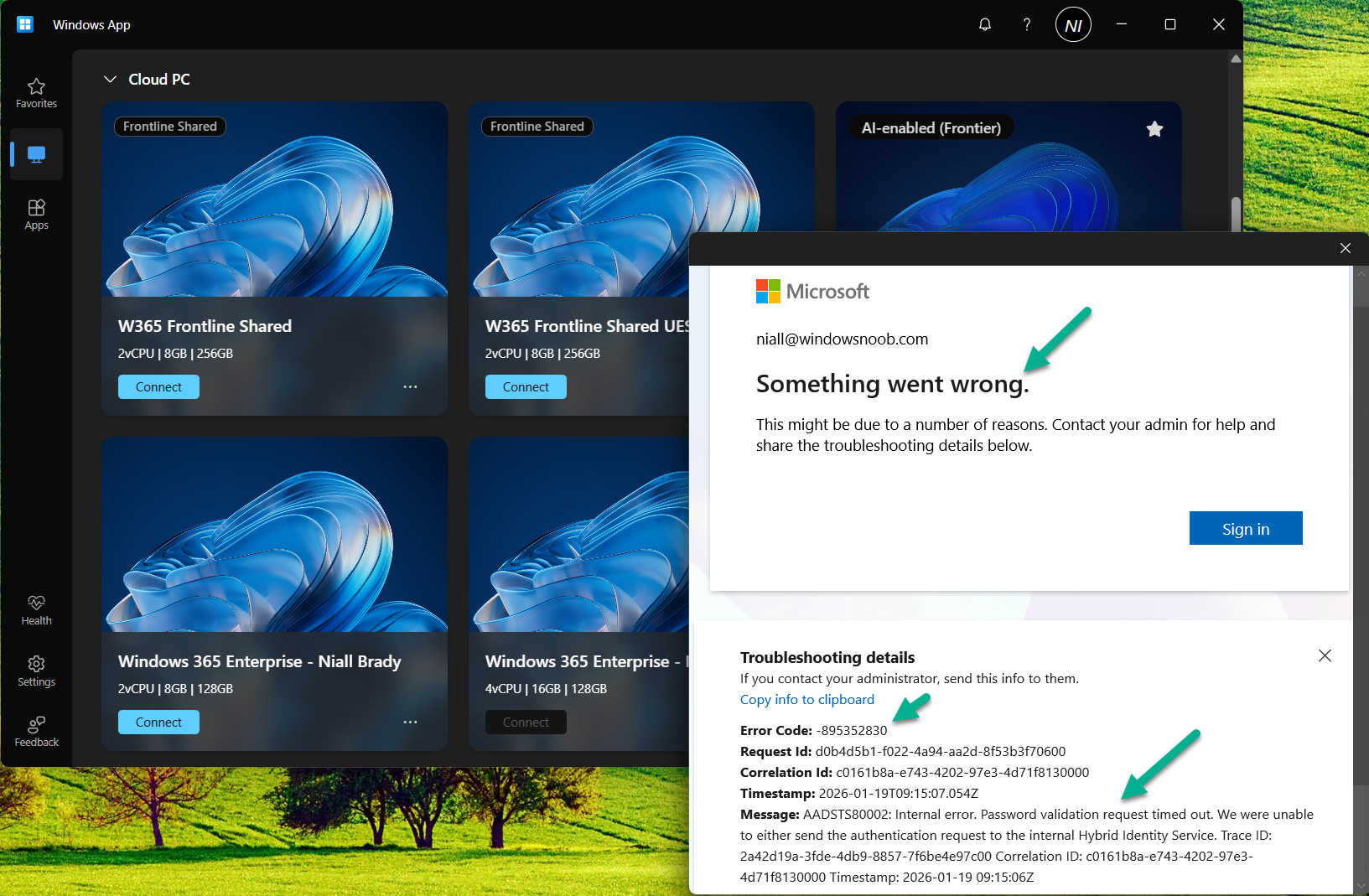
    I started my day as always and launched the Windows app, I clicked my Cloud PC, entered my credentials and after a short delay I got an error shown below.

    something-went-wrong.png

    The error shown above was “something went wrong” with a very not useful error code, -895352830. I tried this on multiple tenants with the same error code being generated.
    I asked Copilot what this meant and got the following details

    This code corresponds to an AADSTS65002 token/permission issue during authentication.
    Microsoft documentation shows the same error pattern:

    Error: -895352830 (0xCAA20002) — occurs when a Microsoft first‑party app is missing required preauthorized API consent, causing token broker authentication to fail.
    [learn.microsoft.com]

    This means the Windows App cannot obtain a valid authentication token due to a Microsoft Entra (Azure AD) app permission issue, often triggered by:

    • Broken SSO token broker
    • A corrupted local identity cache
    • A bad Windows Update interfering with Windows App authentication

    The last point above (a bad Windows Update) is indeed the cause.  More details below:

    January 2026 security patches (notably KB5074109) are currently breaking logins in the Windows App and Remote Desktop authentication:

    • Microsoft confirms widespread credential failures after the January 2026 update, impacting Windows App sign-ins for Azure Virtual Desktop & Windows 365.
      [theregister.com]
    • Users report the app immediately fails with authentication errors after pressing Connect.
      [theregister.com]
    • Removing KB5074109 restores normal Windows App login functionality (confirmed by multiple users on Jan 15–16, 2026).
      [learn.microsoft.com]

    According to theregister.com

    The upshot is that connecting to Windows 365 or Azure Virtual Desktop from the Windows App could be borked due to credential problems. Microsoft posted: “Investigation and debugging are ongoing, with coordination between Azure Virtual Desktop and Windows Update teams.”

    The problem is widespread and appears to affect every supported version of Windows, from Windows 10 Enterprise LTSC 2016, right up to Windows 11 25H2. Windows Servers 2019 to 2025 are also affected.
    Great, so now what ?

    Suggested workarounds are that you can connect to your Cloud PC using the soon to be unsupported Remote Desktop Client Agent available from here.
    I tried it, but it too failed to connect.

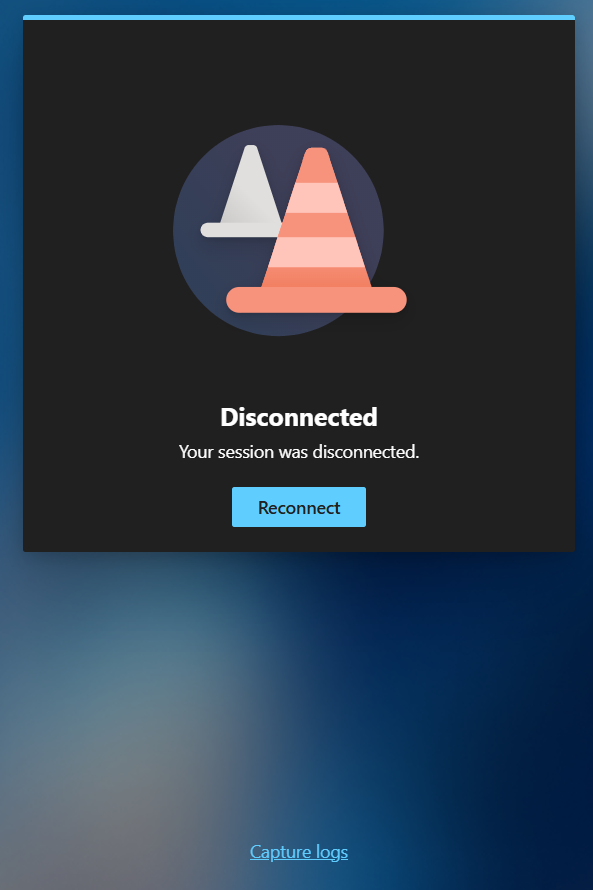
    Next, I tried via a web-browser, but that also didn’t work. The Cloud PC I’m trying to connect to is protected using the new CKIO feature and the web browser version does not support that.

    disconnected.png

    Verifying the problem

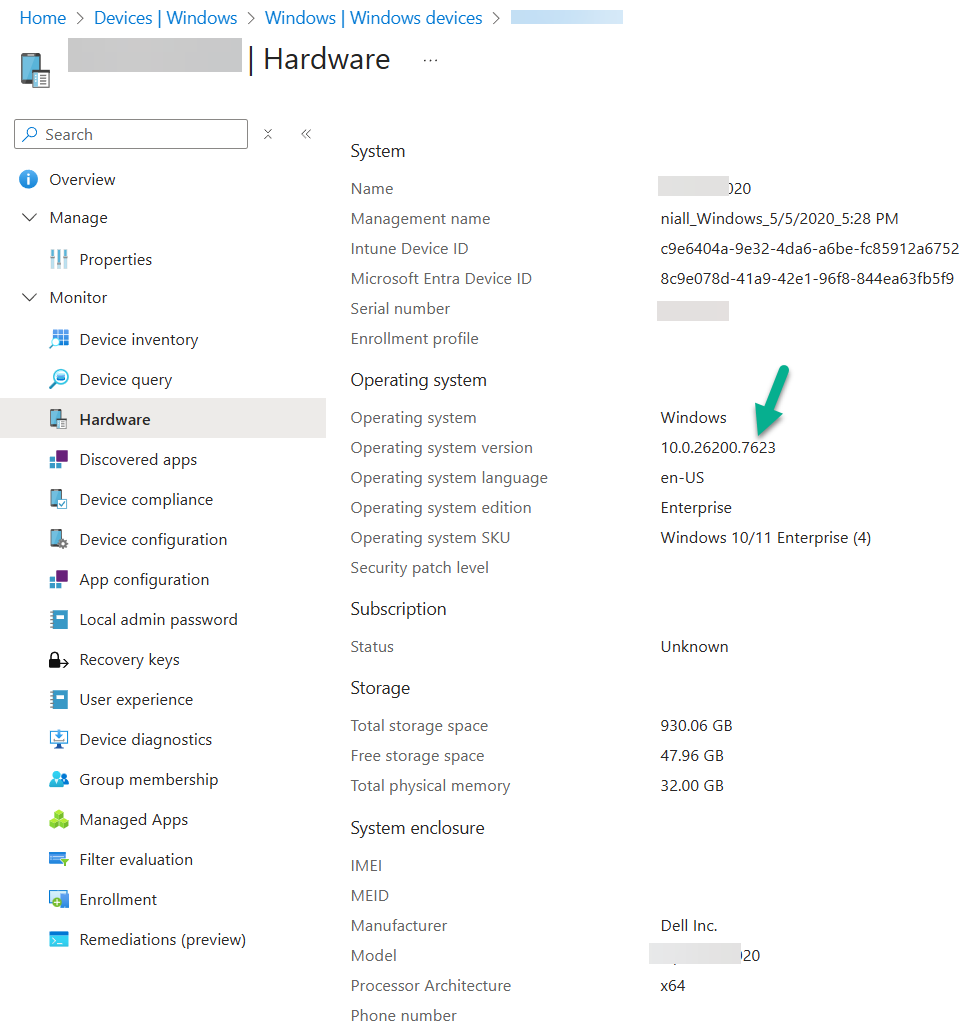
    A quick look in Intune, revealed that indeed the problematic CU was indeed applied to my Cloud PC’s and the PC I was making the connection from (Windows 11 25H2 ARMx64).

    Here’s a sample. As you can see below

    affected-version-2.png

    Below you can see the CU details…

    • 10.0.26200.7623
    • 10.0.26100.7623

    https://support.microsoft.com/en-us/topic/january-13-2026-kb5074109-os-builds-26200-7623-and-26100-7623-3ec427dd-6fc4-4c32-a471-83504dd081cb

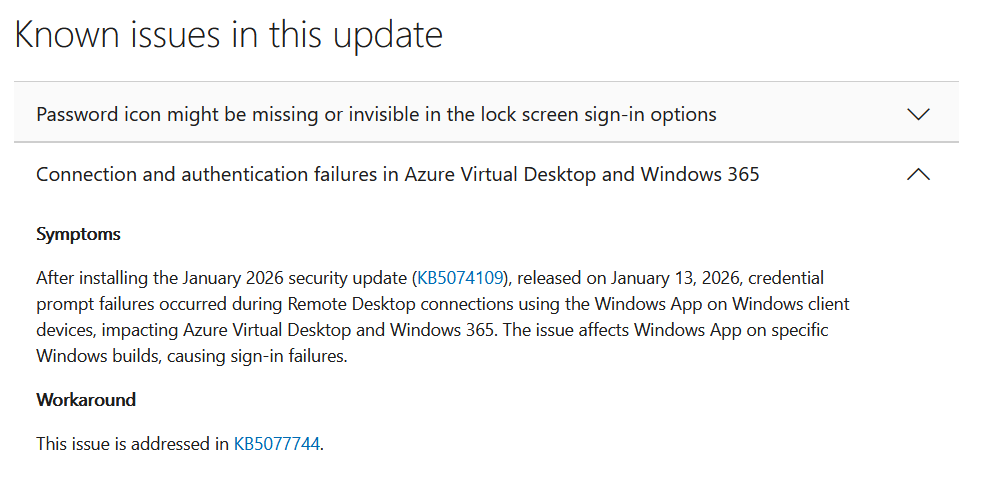
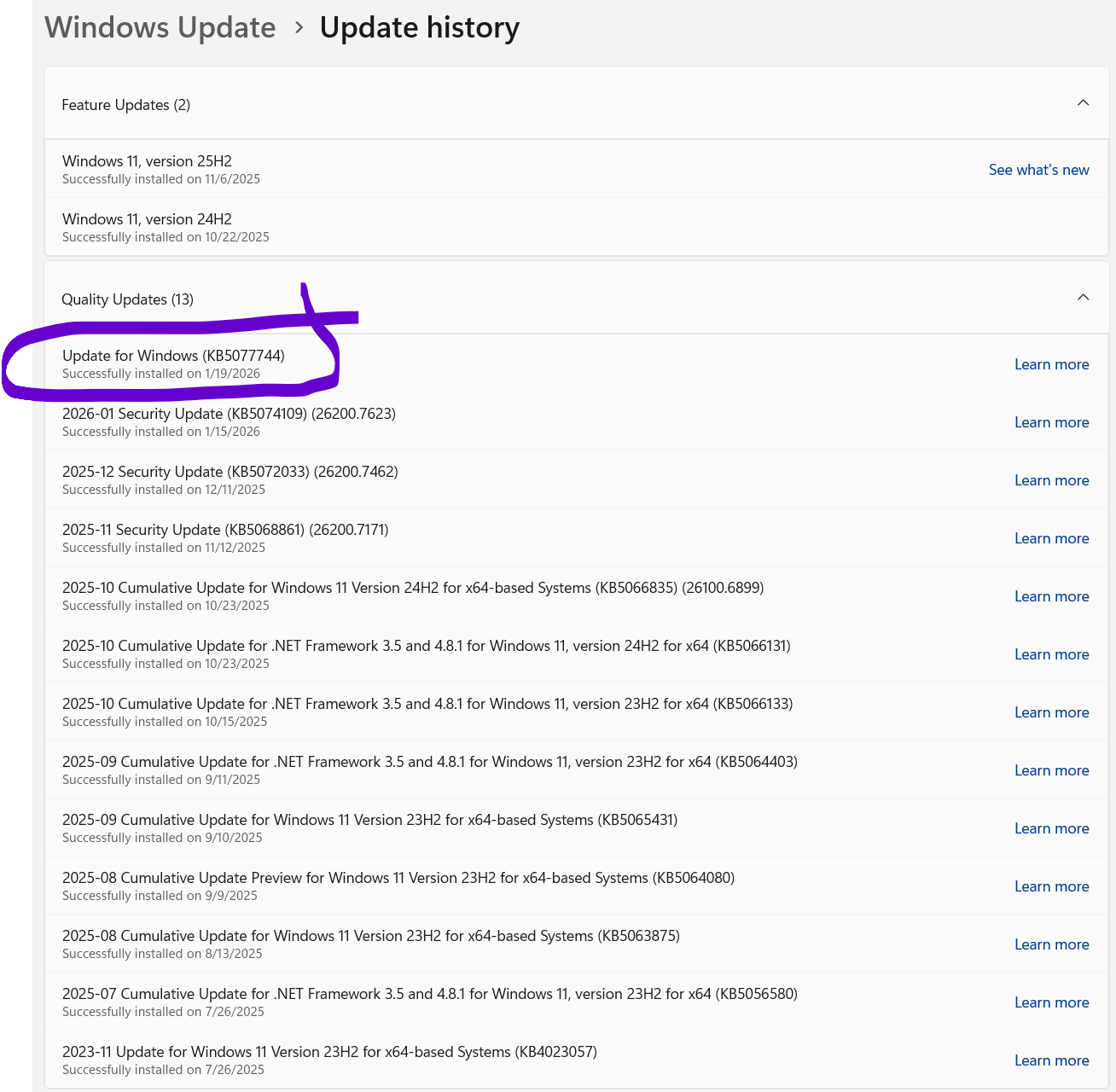
    and within that you can see the known issues including the suggested workaround, which is to install KB5077744.


    known-issues.png

    As it’s so new this update is not even available in Windows Autopatch so you cannot currently use expedite updates policy to deploy this.

    • KB5077744 is an Out‑of‑Band (OOB) update for Windows 11 25H2/24H2.
    • It is not delivered through Windows Update automatically and must be manually downloaded and installed from the Microsoft Update Catalog.
    • You must use the Microsoft Update Catalog to obtain the standalone package (MSU). [support.mi…rosoft.com]

    The fix

    As KB5077744 is only currently available (at the time of writing, 2026/01/19) via Microsoft’s Catalog, you must deploy it (the msu) from Intune by wrapping it as a Win32 app.

    Because Intune does not directly deploy .MSU updates as updates, the supported method is to wrap the MSU as a Win32 app and deploy it to your affected clients.

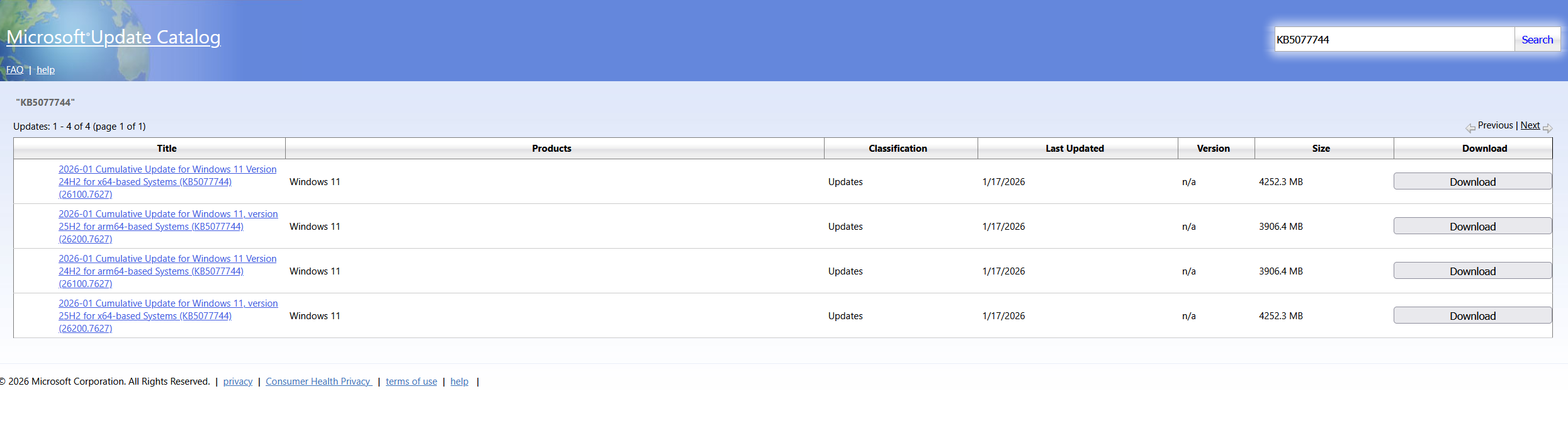
    Go to Microsoft Update Catalog and search for kb5077744.

    microsoft-update-catalog.png

    Download the update that is applicable to your Windows OS version. Be aware that the file size is big, my download was approx 3.6GB.

    Place the downloaded msu file and this Powershell script in a folder called KB5077744.

    here’s the contents of the Powershell script, modify it so that it has the exact file name of the msu file you downloaded otherwise it won’t install. Save the file as Install_KB5077744.ps1.

    wusa.exe windows11.0-kb5077744-x64_fb63f62e4846b81b064c3515d7aff46c9d6d50c8.msu /quiet /forcerestart
    exit $LASTEXITCODE

    Note: If you want to control reboot notifications and other options, package this instead using Powershell Application Deployment Toolkit and customize those options as necessary.

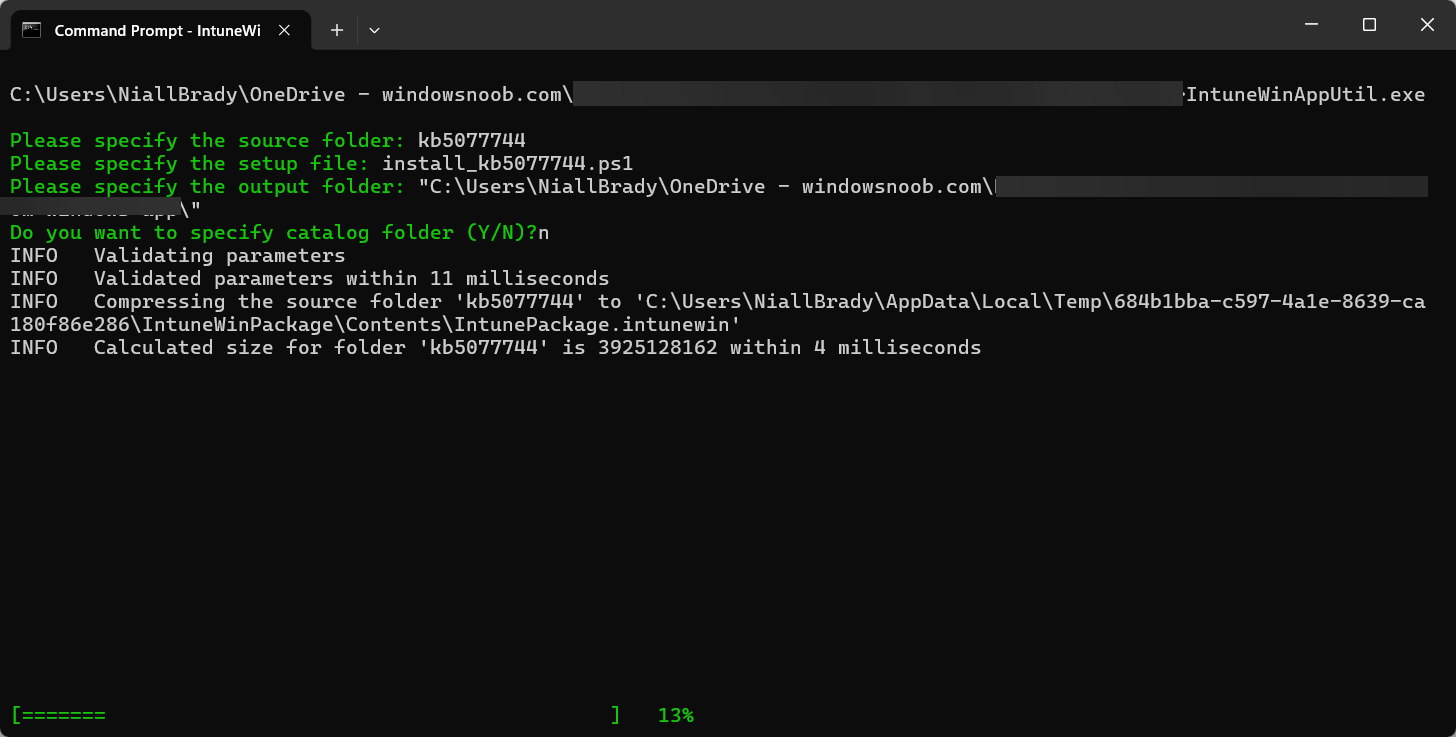
    Using Intunewinapputil.exe wrap the package as a Win32 app.

    wrap-the-package-using-intunewinapputil-

    Then add the Win32 app

    win32-app.png

    use this command line

    powershell.exe -ExecutionPolicy Bypass -File Install_KB5077744.ps1

    and the following detection script.

    $sysinfo = systeminfo.exe
    $result = $sysinfo -match "KB5077744"
    
    
    if ($result) {
    Write-Output "Found KB5077744"
    exit 0
    
    } else {
    Write-Output "KB5077744 not found"
    exit 1
    
    }

    Finally, after deploying the update to your affected clients, and waiting for it to install and restart, you’ll be able to connect again.

    Phew.

    What a relief.

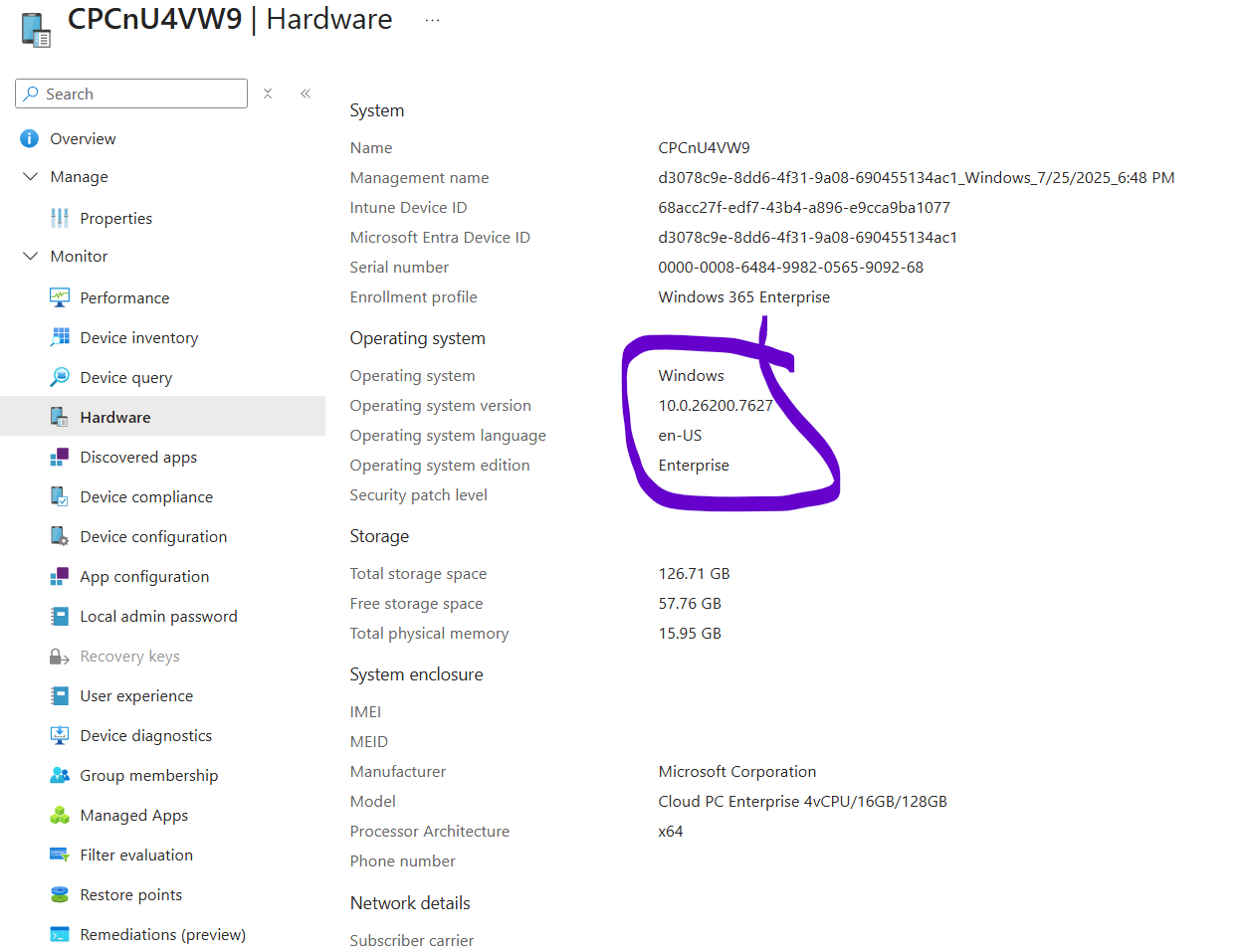
    The new Windows build number is highlighted below.

    10.0.26200.7627 from a Windows 11 25H2 Cloud PC.

    new-build.png

    and here you can see it successfully installed on the client

    kb5077744-successfully-installed.png

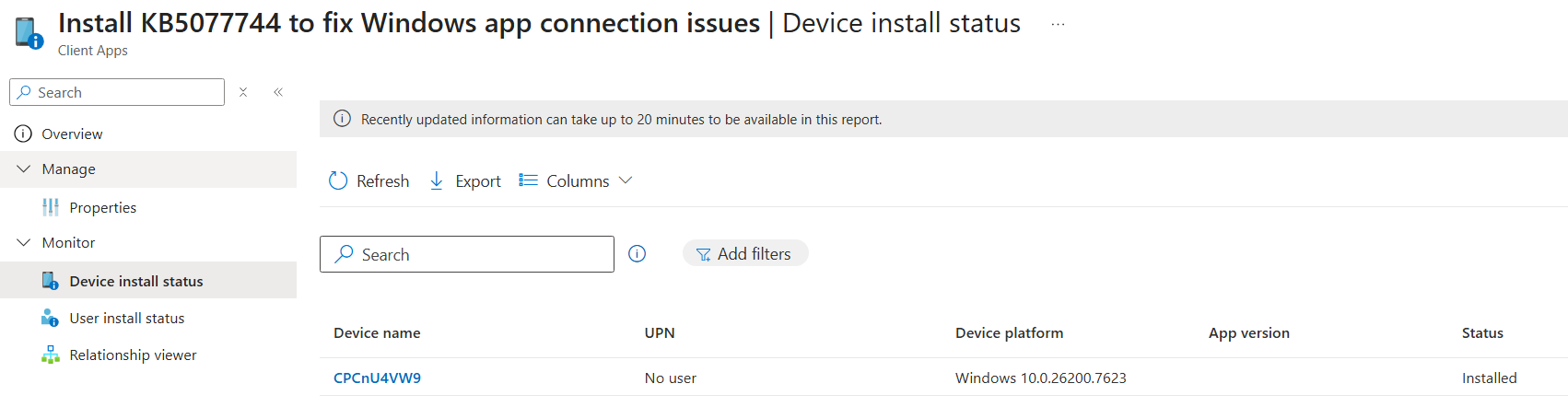
    and of course, via Intune, however Intune still has not yet updated the build number of the CPC yet in the Win32 app install status.

    update-installed-on-cloud-pc-via-intune.
    Update

    It seems you need to patch the host PC making the connection to the Cloud PC also, if it’s running x64 Windows and has the .7623 patch level (January update). Strangely I didn’t need to patch the ARM PC at all even though it had the .7623 patch level.

    Related reading

  6. based on what a previous guy said "

    Quote


    The task sequence execution engine starts the next installation before the current one is finished.
    The engine waits for an exit code from msiexec and starts the next installation right away, but in some cases msiexec is still doing stuff."


    I guess you could create a powershell script to check for msiexec process doing this and if so 'wait' until it's done, before installing the app,


    have you tried that ?


    here's some untested code that you could use as a wrapper for each app, maybe it will help


    [CmdletBinding()]
    param(
        [int]$TimeoutSeconds = 0,               # 0 = wait indefinitely
        [int]$PollIntervalSeconds = 3,          # how often to poll
        [switch]$Quiet                          # suppress non-verbose status messages
    )
     
    function Write-Info {
        param([string]$Message)
        if (-not $Quiet) { Write-Host $Message }
    }
     
    function Test-MsiInProgressRegistry {
        # Windows Installer sets this key while an MSI is actively installing
        $keyPath = 'HKLM:\SOFTWARE\Microsoft\Windows\CurrentVersion\Installer\InProgress'
        try {
            if (Test-Path $keyPath) {
                # Some builds create the key with values; treat existence as "busy"
                $item = Get-Item $keyPath -ErrorAction SilentlyContinue
                $props = $null
                try {
                    $props = Get-ItemProperty $keyPath -ErrorAction SilentlyContinue
                } catch {}
                return $true
            }
        } catch {}
        return $false
    }
     
    function Get-MsiexecProcesses {
        # Fetch msiexec.exe along with command lines (CIM needed for CommandLine)
        try {
            return Get-CimInstance Win32_Process -Filter "Name='msiexec.exe'" -ErrorAction SilentlyContinue
        } catch {
            # Fallback to Get-Process (no command line available)
            try {
                return (Get-Process -Name msiexec -ErrorAction SilentlyContinue | ForEach-Object {
                    [pscustomobject]@{
                        ProcessId   = $_.Id
                        Name        = $_.ProcessName
                        CommandLine = $null
                    }
                })
            } catch {
                return @()
            }
        }
    }
     
    function Test-MsiexecDoingWork {
        # Heuristic: if command line indicates an actual MSI operation (install/repair/uninstall/update)
        param(
            [Parameter(Mandatory)]
            $Proc
        )
        $cl = $Proc.CommandLine
        if ([string]::IsNullOrWhiteSpace($cl)) {
            # If we lack command line, be conservative: any msiexec process could be active
            return $true
        }
     
        # Common operation switches for msiexec:
        # /i, /x, /f*, /update, /uninstall, /package, /qn, /qb, /passive often accompany installs
        $patterns = @(
            '\s/([ix])\b',               # /i install, /x uninstall
            '\s/f[a-z]*\b',              # /f, /fa, /fu, etc. (repair)
            '\s/update\b',               # patch/update
            '\s/uninstall\b',
            '\s/package\b',
            '\.msi(\s|$)',               # explicit MSI file
            '\.msp(\s|$)'                # patch file
        )
     
        foreach ($p in $patterns) {
            if ($cl -match $p) { return $true }
        }
     
        # Sometimes msiexec runs as the service side without clear switches; if in doubt, treat as busy
        return $true
    }
     
    function Test-MsiBusy {
        # Returns $true if Windows Installer is likely busy
        $procs = @(Get-MsiexecProcesses)
        if ($procs.Count -gt 0) {
            foreach ($p in $procs) {
                if (Test-MsiexecDoingWork -Proc $p) {
                    return $true
                }
            }
        }
     
        if (Test-MsiInProgressRegistry) {
            return $true
        }
     
        return $false
    }
     
    # ----------------------------
    # Main wait loop
    # ----------------------------
    $start = Get-Date
    if ($TimeoutSeconds -gt 0) {
        Write-Info "Waiting for Windows Installer (msiexec) to finish (timeout: $TimeoutSeconds s, poll: $PollIntervalSeconds s)..."
    } else {
        Write-Info "Waiting for Windows Installer (msiexec) to finish (no timeout, poll: $PollIntervalSeconds s)..."
    }
     
    # If already idle, return immediately
    if (-not (Test-MsiBusy)) {
        Write-Info "Windows Installer appears idle."
        return
    }
     
    # Otherwise, poll until idle or timeout
    while (Test-MsiBusy) {
        if ($TimeoutSeconds -gt 0) {
            $elapsed = (New-TimeSpan -Start $start -End (Get-Date)).TotalSeconds
            if ($elapsed -ge $TimeoutSeconds) {
                Write-Warning "Timed out waiting for Windows Installer after $([int]$elapsed) seconds."
                exit 1
            }
            if (-not $Quiet) {
                $remaining = [math]::Max([int]($TimeoutSeconds - $elapsed), 0)
                Write-Host ("MSI busy... ({0}s remaining). Next check in {1}s." -f $remaining, $PollIntervalSeconds)
            }
        } else {
            if (-not $Quiet) { Write-Host "MSI busy... next check in $PollIntervalSeconds s." }
        }
        Start-Sleep -Seconds $PollIntervalSeconds
    }
     
    Write-Info "Windows Installer is now idle."


  7. Introduction

    While Windows 365 Cloud PCs deploy robust perimeter defences—encrypted transmission channels and multi-factor authentication that thwart network-level attacks—a critical vulnerability persists at the endpoint itself. Malicious software operating on local devices, particularly keystroke capture tools, can intercept sensitive information before it ever reaches the cloud environment. These endpoint-resident threats create regulatory exposure and potential financial damage that traditional cloud security measures cannot address.

    Windows Cloud IO Protection closes this gap by introducing a kernel-level driver and system-level encryption that sends keystrokes directly to the Cloud PC, bypassing OS layers vulnerable to malware. When enabled on a Cloud PC it enforces a strict trust model:

    • Only verified physical endpoints can connect.
    • Endpoints must have the Windows Cloud IO Protect MSI installed.
    • If the MSI is missing, the session is blocked and an error is displayed.
    This ensures a secure, uncompromised input channel between the Windows client and the Cloud PC.

    In this blog post myself and fellow MVP buddy Paul Winstanley overview this new feature and show you how you can set this up for Windows 365 Cloud PCs.

    Requirements

    The following requirements are needed at present. The feature is public preview and could change as this becomes Generally Available:

    • Host physical Windows 11 devices
    • Devices must have TPM 2.0
    • Host devices must have the Windows Cloud IO Protect agent installed
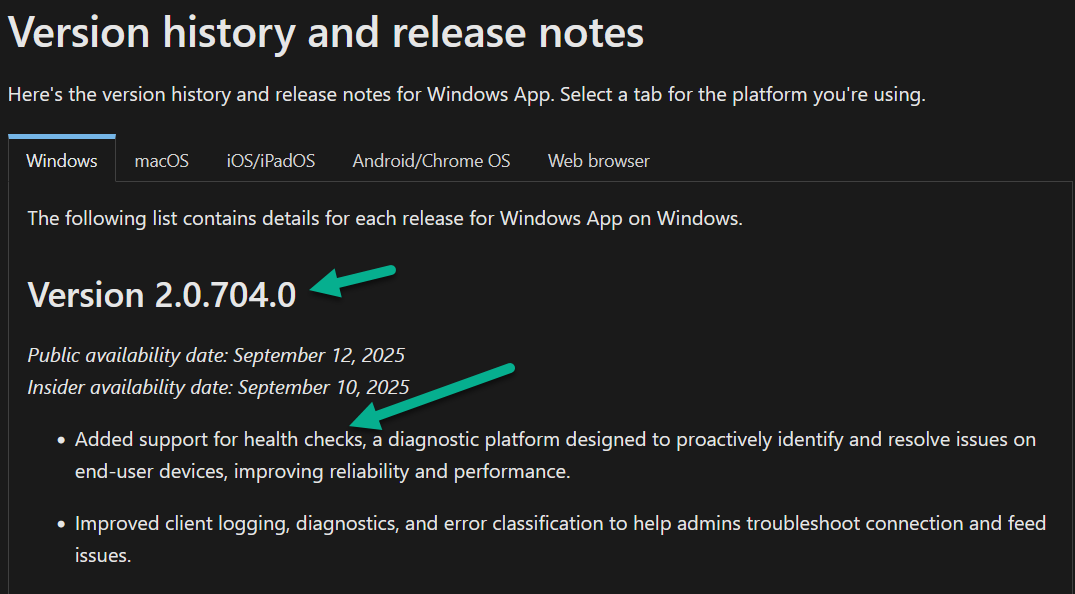
    • Windows App running 2.0.704.0 or later

    The following is not currently supported:

    • macOS
    • iOS
    • Android
    • Windows 365 Link
    • Using the Web client

    Setting it up

    When it comes to setting up the Windows Cloud Keyboard Input Protection feature, Microsoft has an interesting approach in that its documentation currently only supports using group policy to achieve this. The setting Windows Components > Remote Desktop Services > Remote Desktop Session Host > Azure Virtual Desktop > Enable Keyboard Input Protection needs to be enabled.

    During our testing phase, we were fortunate enough to be part of the private preview release, we had to set the following registry keys for Windows 365 devices, with just the former key being required for AVD devices:

    HKEY_LOCAL_MACHINE\SOFTWARE\Policies\Microsoft\Windows NT\Terminal Services\
    DWORD - fWCIOKeyboardInputProtection
    Value - 1
    
    HKLM\SYSTEM\CurrentControlSet\Control\Terminal Server\RdpCloudStackSettings
    DWORD - SecureInputProtection.KeyboardProtection.IsEnabled
    Value - 1

    To assist with this on your Entra only Cloud PCs, we have created an Intune proactive remediation script to set the values, if they are not present on your Windows 365 devices. These scripts need to be targeted to the Cloud PCs, and not the host devices.

    You can download the detection and remediation scripts from GitHub.

    Adding the Proactive Remediation script for Keyboard Protection

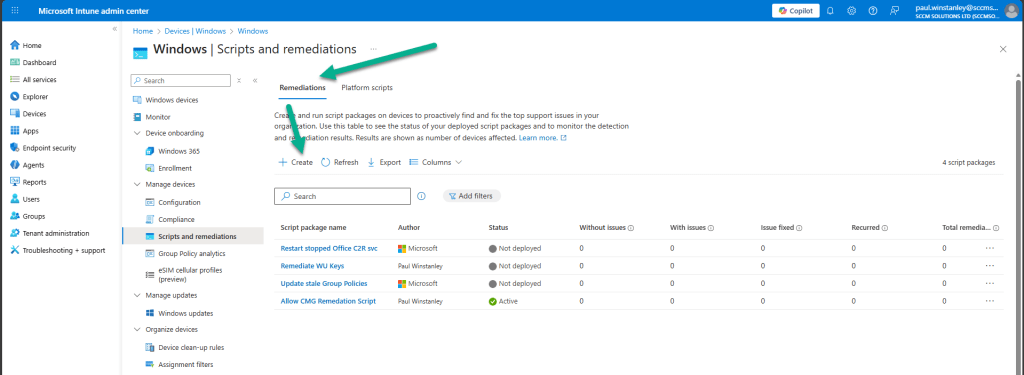
    In the Intune admin center, navigate to Devices | By platform | Windows | Manage devices | Scripts and remediations.

    Ensure you are in the Remediation view and click Create.

    image.png?w=1024

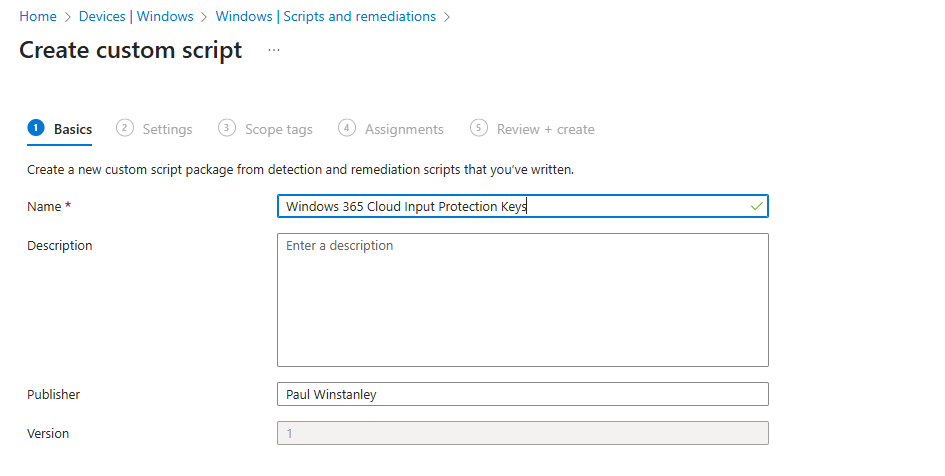
    Enter a Name for the custom script and add an optional Description. Click Next when done.

    image-1.png?w=945

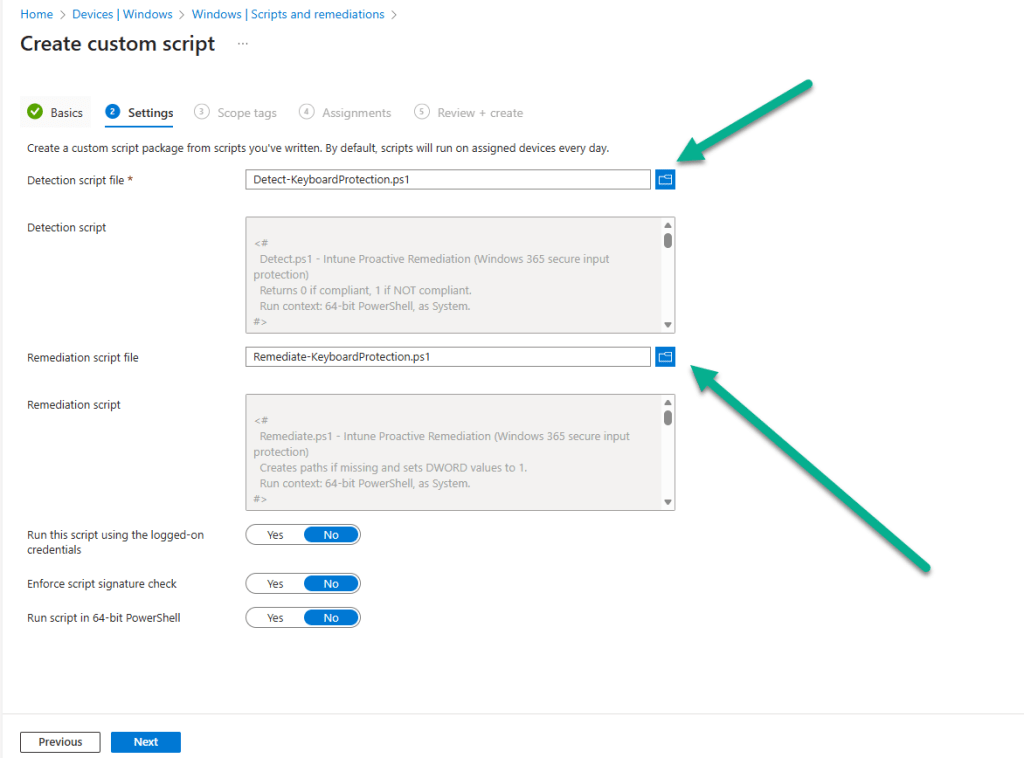
    Click the browse icon for the Detection script file and upload the Detect-KeyboardProtection.ps1 downloaded from GitHub. Repeat the process for the Remediation script file by uploading the Remediate-KeyboardProtection.ps1 script. Leave all other options as default and click Next.

    image-2.png?w=1024

    At the Assignments section, choose the group of devices that you wish to targeted. You can adjust the schedule for the execution of the remediation by clicking the Daily link under Schedule.

    image-3.png?w=797

    For example, for our testing we have set the remediation to run Hourly. Click Apply when you have made your adjustment.

    image-5.png?w=305

    The new schedule will be reflected accordingly in the Intune console.

    image-6.png?w=688

    When you have completed the proactive remediation wizard, you will see the new remediation listed and with a Status of Active.

    image-7.png?w=1024

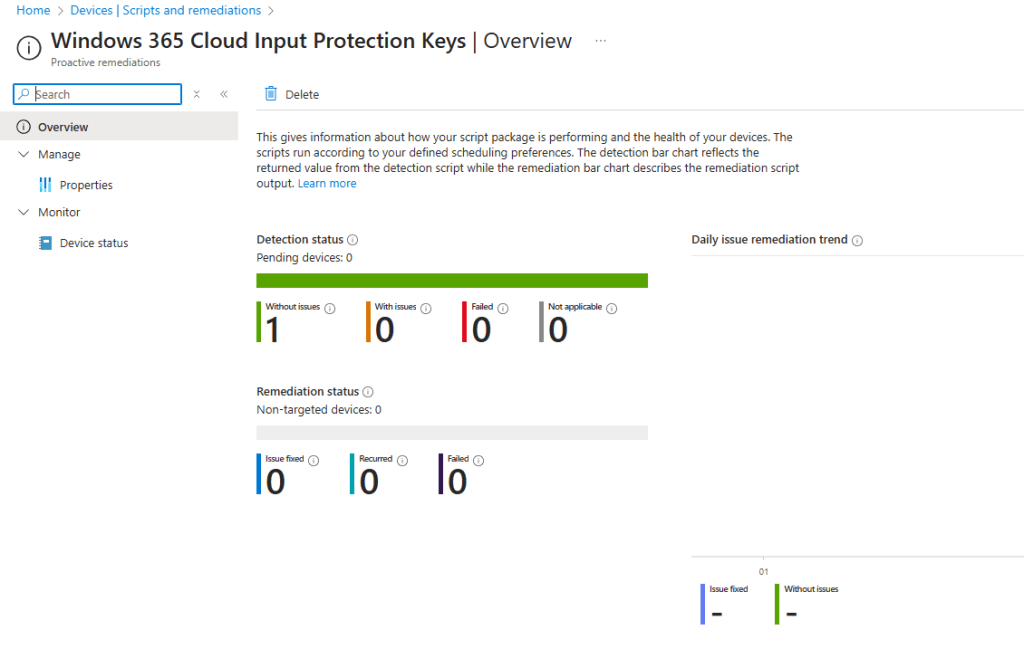
    When the script has executed against devices, the Detection status will be reported back to Intune with statuses of Without issues, With issues, Failed or Not applicable. Any Remediation status data will also be reported where applicable.

    image-8.png?w=1024

    Installing the Windows Cloud Input Protect MSI Agent

    Referring back to the Microsoft documentation, the MSI install is documented using a manual method of installation the application, and this would require local admin rights to achieve this. Instead, we can push the Windows Cloud Input Protect MSI via Microsoft Intune to an Intune managed host device.

    We can configure the application as a Win32 app and, therefore, we need to use the Microsoft Win32 Content Prep Tool, which you download from https://github.com/microsoft/Microsoft-Win32-Content-Prep-Tool, to convert the app into the .intunewin format.

    Here is a blog written back in 2019 on how to use the Content Prep Tool https://sccmentor.com/2019/02/17/keep-it-simple-with-intune-4-deploying-a-win32-app/

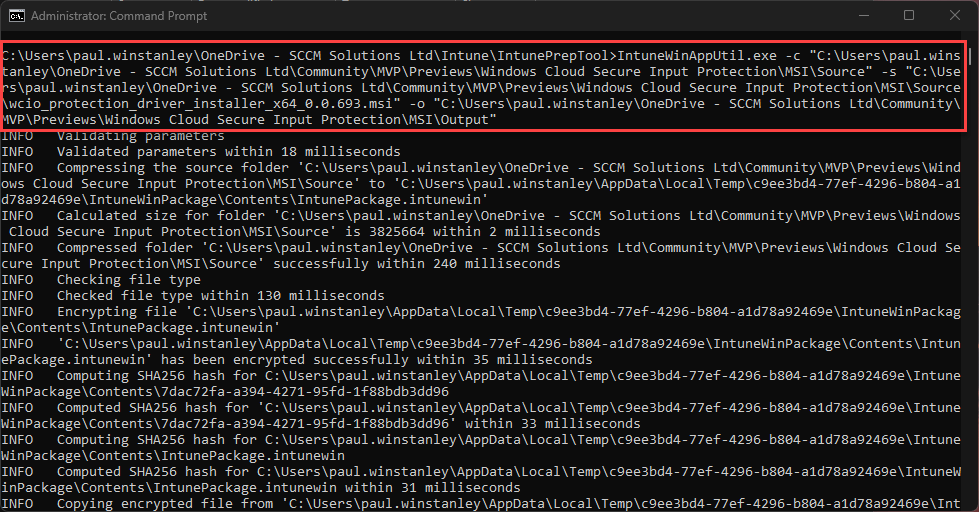
    We can package the MSI into the required .intunewin format with three simple switches:

    • -c – this points the tool to the source folder containing the binaries
    • -s – this points the tool to the setup file used to execute the application
    • -o – this tells the tool where to output the .intunewin to

    Once the tool is run, it quickly creates the .intunewin file for the Windows Cloud Input Protect MSI.

    image-10.png?w=979

    We can now take this file and import it into Intune when we create the Win32 app.

    Navigate to Apps | Platform | Windows, in the Intune admin center. Click Create.

    image-11.png?w=1024

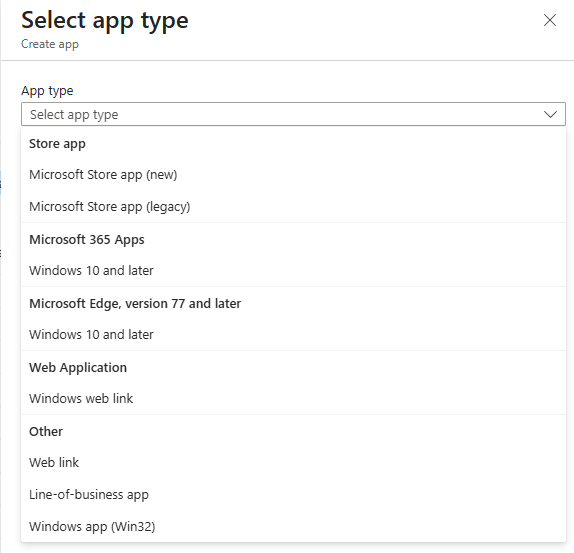
    From the App type drop-down, select Windows app (Win 32) and then choose Select.

    image-12.png?w=574

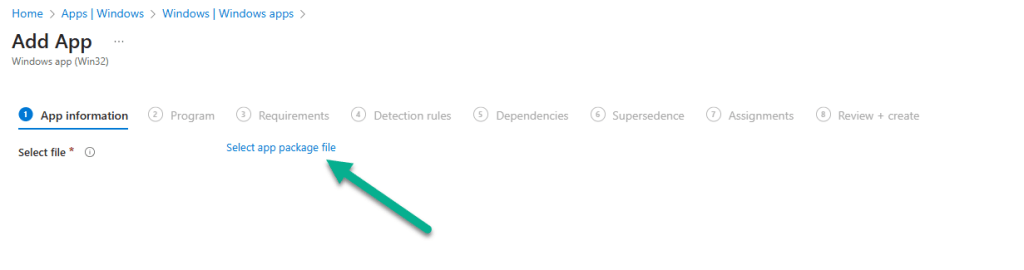
    You will now be navigating through the Add App wizard. Start by clicking Select app package file.

    image-14.png?w=1024

    Click the browse icon and locate the .intunewin file that you created. Click OK to upload the file.

    image-15.png?w=603

    Details will be automatically added to the App information fields. The only mandatory field you will need to complete is the Publisher field. Feel free to add any further information you require. Click Next when done.

    image-16.png?w=1024

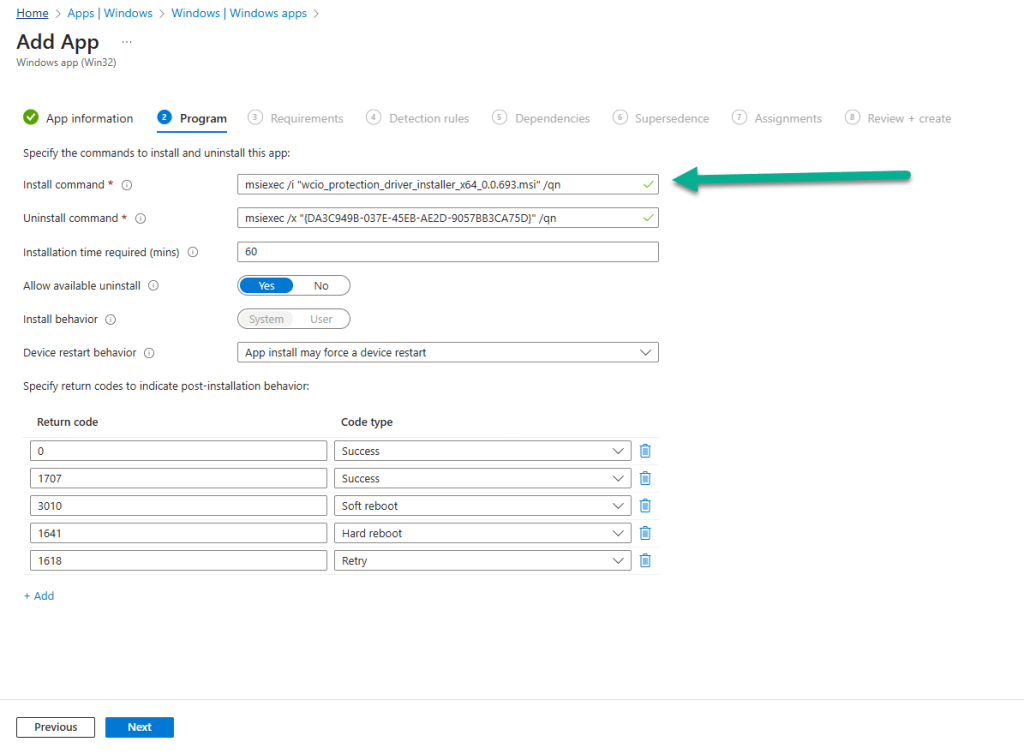
    In the Program section of the wizard, further details will be automatically added, such as Install command and Uninstall command. We will use these default values for our application. Click Next to continue.

    image-17.png?w=1024

    In the Requirements section, you can be selective on the specific requirements for the installation of the app. We have ensured that Yes. Specify the systems the app can be installed on is selected and we have chosen Install on x64 systems as we downloaded the x64 release of the MSI. You must also select a Minimum operating system level for the install. Click Next when you have completed this section.

    image-18.png?w=1024

    For the Detection rules, we have kept this simple and chosen Manually configure detection rules from the Rules format drop-down and chosen the MSI type, which automatically uses the MSI ID for the application.

    image-19.png?w=1024

    Finally, a reminder that when targeting the Windows Cloud Input Protect MSI agent, we are targeting Windows 365 host devices and not the Cloud PCs themselves.

    image-20.png?w=1024

    When the Windows Cloud Input Protect MSI agent installs, you will see an entry for the Windows Cloud IO Protection driver in Program and Features on your host device.

    image-21.png?w=1024

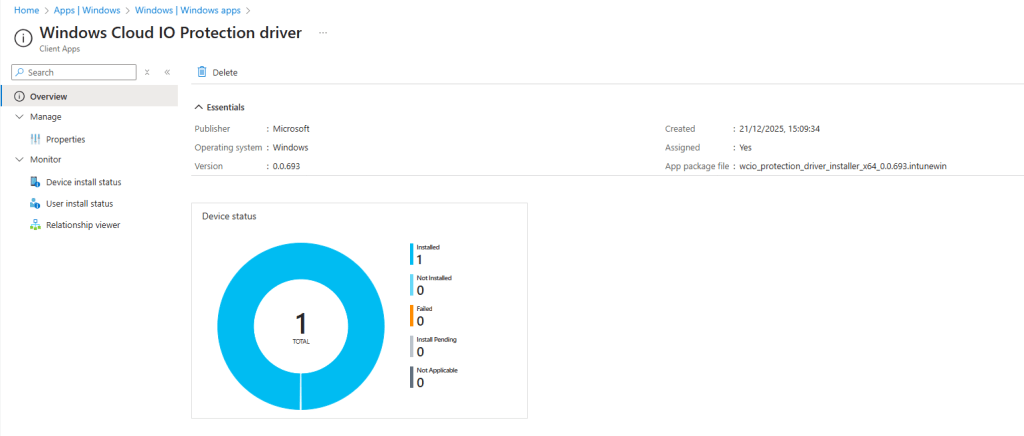
    and, hopefully, this is reflected in the Intune admin center in the apps Overview section.

    image-22.png?w=1024

    Connecting from a host device which is not running the Windows Cloud Input Protect MSI agent

    At present, there is no visual indication to let you know if the Cloud PC is running with keyboard protection enabled, and this was one of the feed back areas in the private preview. It is coming and we should expect something fairly soon.

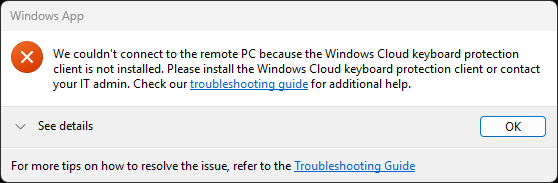
    When you attempt to connect from a device which is not running the agent, you will get the following error dialog box.

    image-23.png?w=558

    and Windows App will report similar. We expect to see something similar, like the AI-enabled heading on a device which has the AI features enabled. Fingers crossed that this arrives soon.

    image-25.png?w=1024

    Connecting from a non supported device platform can produce different error messages that are less intuitive. For example, the screenshot below shows the error when connecting from the Windows App on an Android device. Hopefully, support will be extended to other device platforms over time, and error messages updated to reflect the connection issue.

    image-26.png?w=1007

    Read more

    Summary

    Windows Cloud IO Protection is a powerful security feature that ensures keystrokes are encrypted and sent directly to the Cloud PC, bypassing OS layers vulnerable to malware. By requiring trusted endpoints with the protection agent installed, it creates a secure, uncompromised input channel that blocks keyloggers and prevents data leaks.

    Microsoft is taking into the account the feedback it received during the private preview and we should see some feature changes happening very shortly to improve the end user experience.

    Beyond this, we hope that support is adopted for all device platforms, so that this security feature becomes OS agnostic.

    We look forward to seeing how this new feature matures and develops before being released to production.

  8. Introduction

    Microsoft have invested a lot of time, effort and money on adding AI abilities to core parts of the Windows Operating System and the apps that run on it, for example Office 365 apps or dedicated AI apps such as Microsoft 365 Copilot.

    Myself and my good friend Paul Winstanley took a look at a new feature to add select AI features to Windows 365 Cloud PC’s and share our thoughts below.

    Windows 365 AI-enabled Cloud PCs run in Microsoft’s Cloud and stream AI-powered Windows to any device and platform. This allows you to use select AI features that would traditionally be found on physical NPU powered Copilot+ PC’s. Those select AI features are:

    • Improved Windows search
    • Click to Do

    You can test these AI features on any device using your Cloud PC for example, below you can see an AI-enabled Cloud PC available from an Android powered phone.

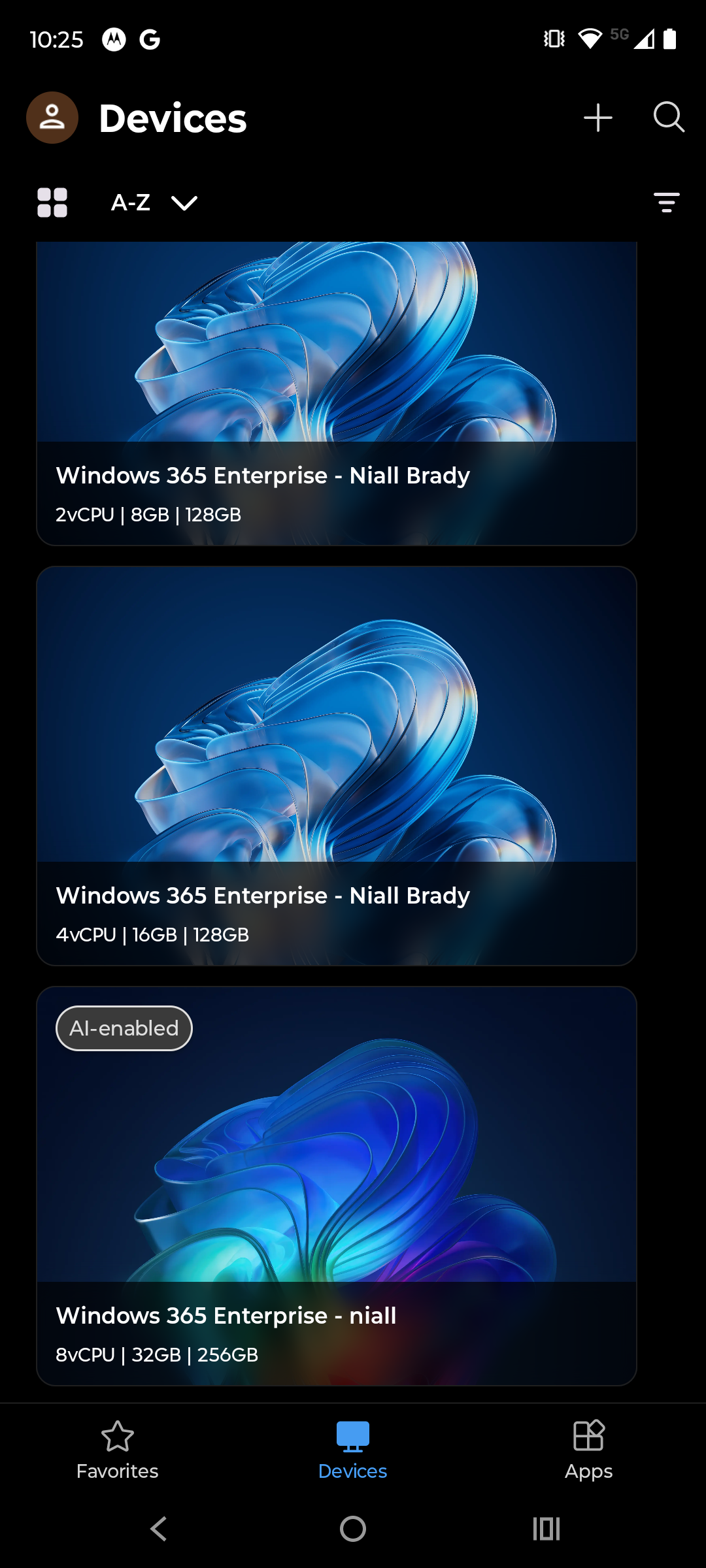
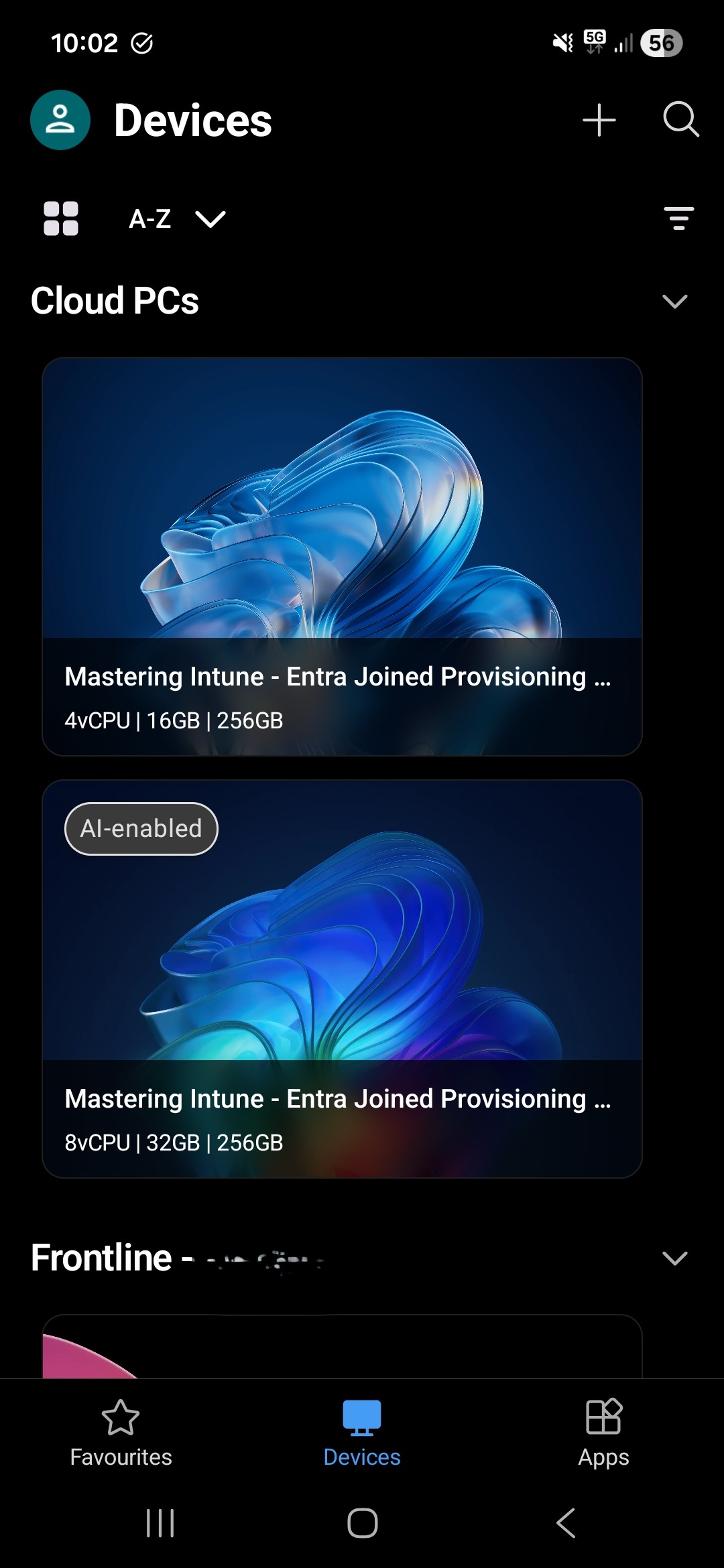
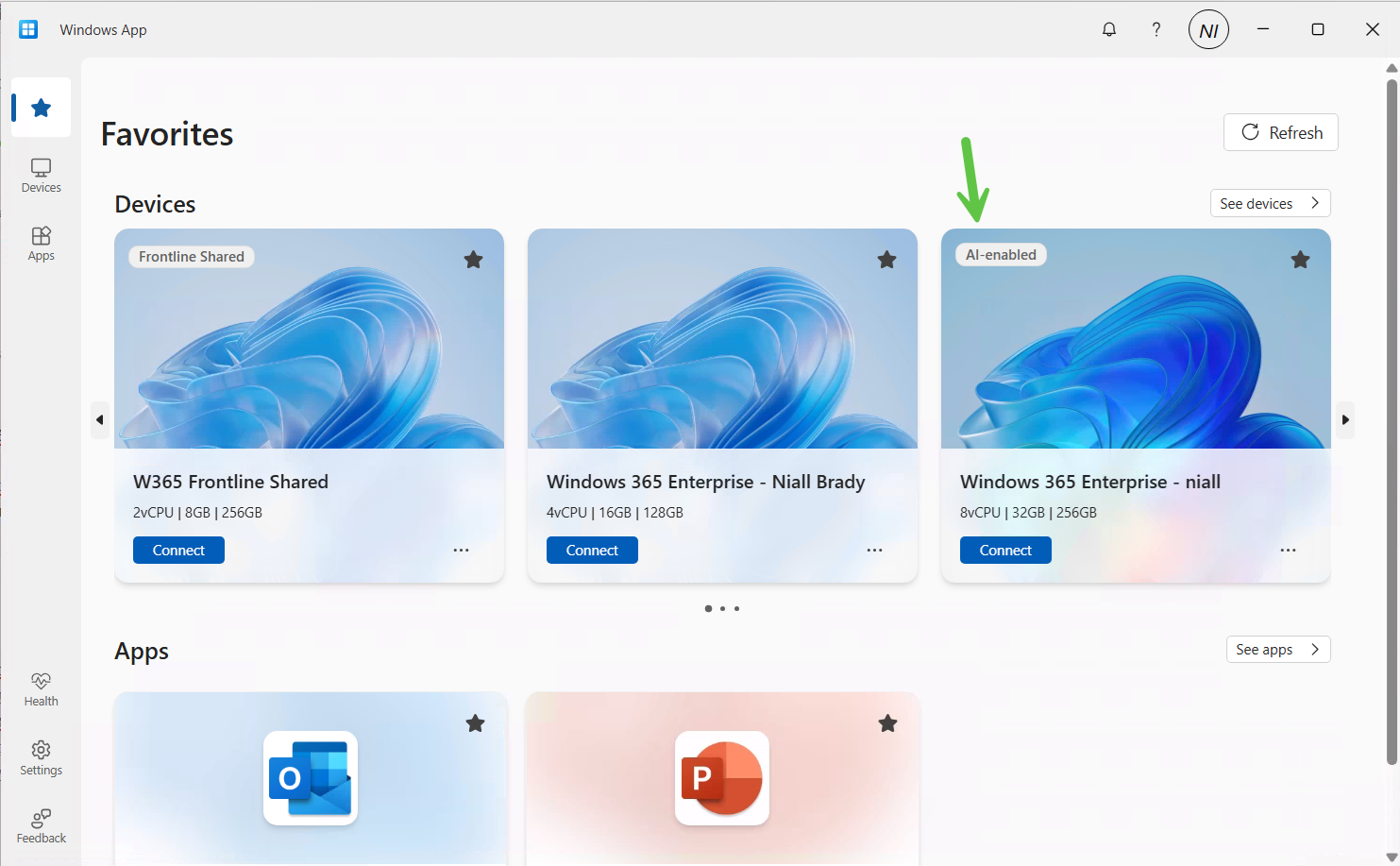
    Note: In the screenshots below from our Android phones, the AI-enabled Cloud PC has an AI-enabled label in the top left corner.


    Screenshot_20251213-102550_Windows-App-1

    1000007021-1.jpg

    But first, let’s take a look at what you need in order to set this up.

    Requirements

    The requirements below will most likely change as this becomes Generally Available, but to test it right now in this Frontier release you’ll need to do the following:

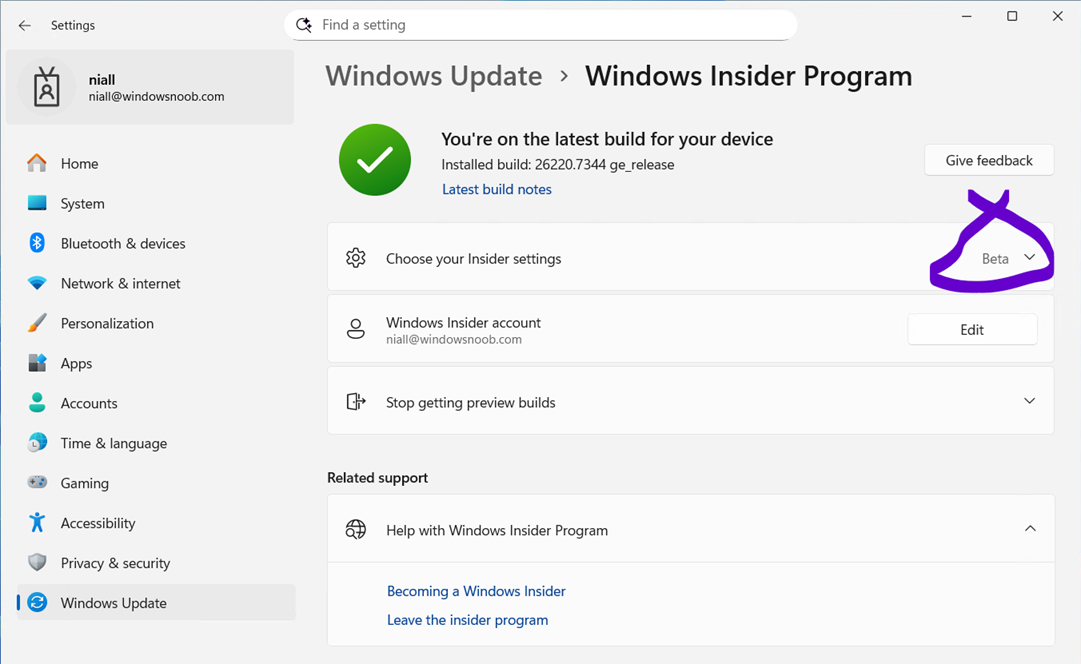
    • The end user must be registered in the Windows Insider program
    • The Cloud PC must be in the Windows Insider Beta channel
    • Enable Data diagnostics in your settings
    • Have a Cloud PC that supports AI abilities (8vCPU, 32GB ram, 256GB HDD)
    • The Cloud PC must be in a supported location

    Setting it up

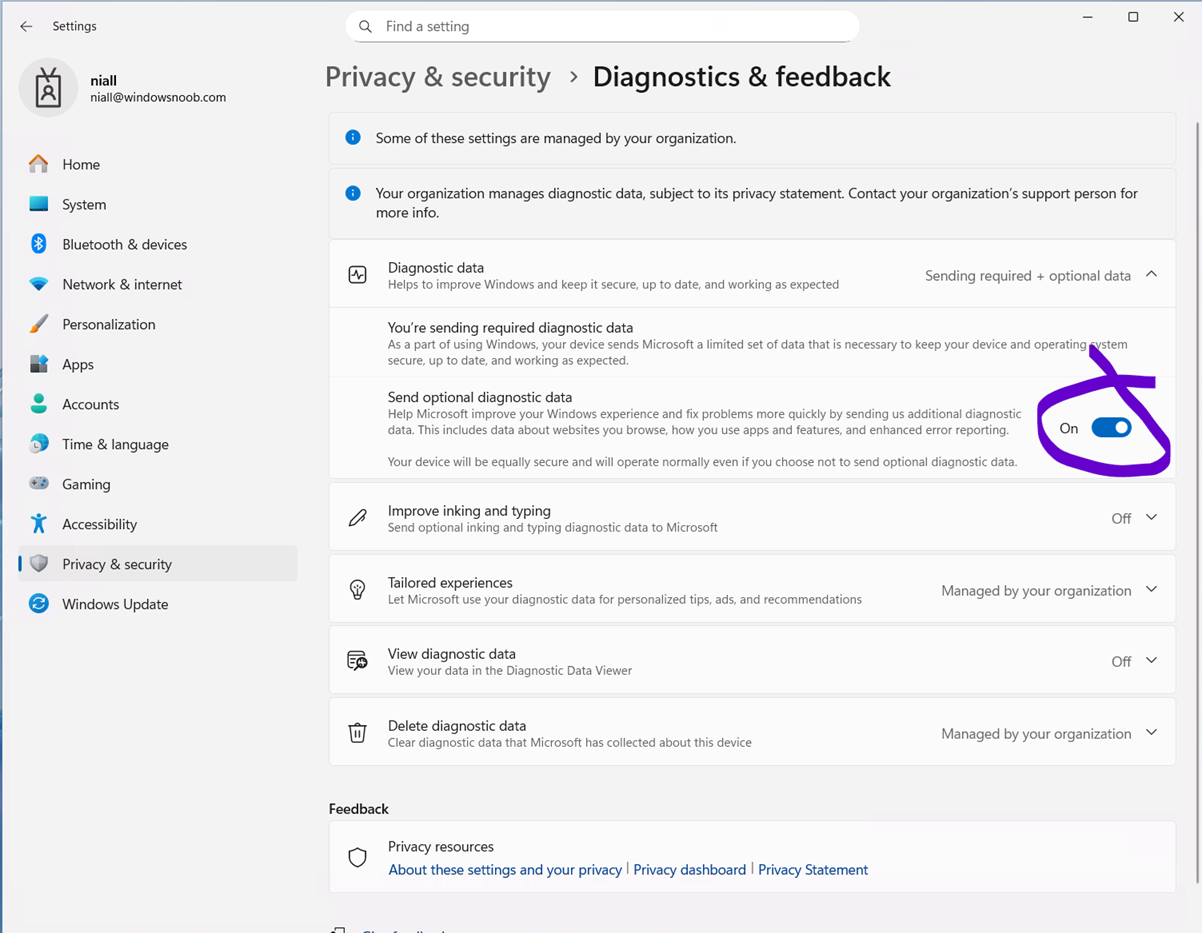
    To set it up make sure you’ve enabled data diagnostics in your Windows Privacy settings, as shown here. Set the Send optional diagnostics data to On.

    enable-optional-data.png

    Next, enroll into Windows Insider Program and select the Beta Channel (Recommended).

    beta-channel-recommended.png

    Once done you’ll most likely have to restart the CPC, so go ahead and do that.

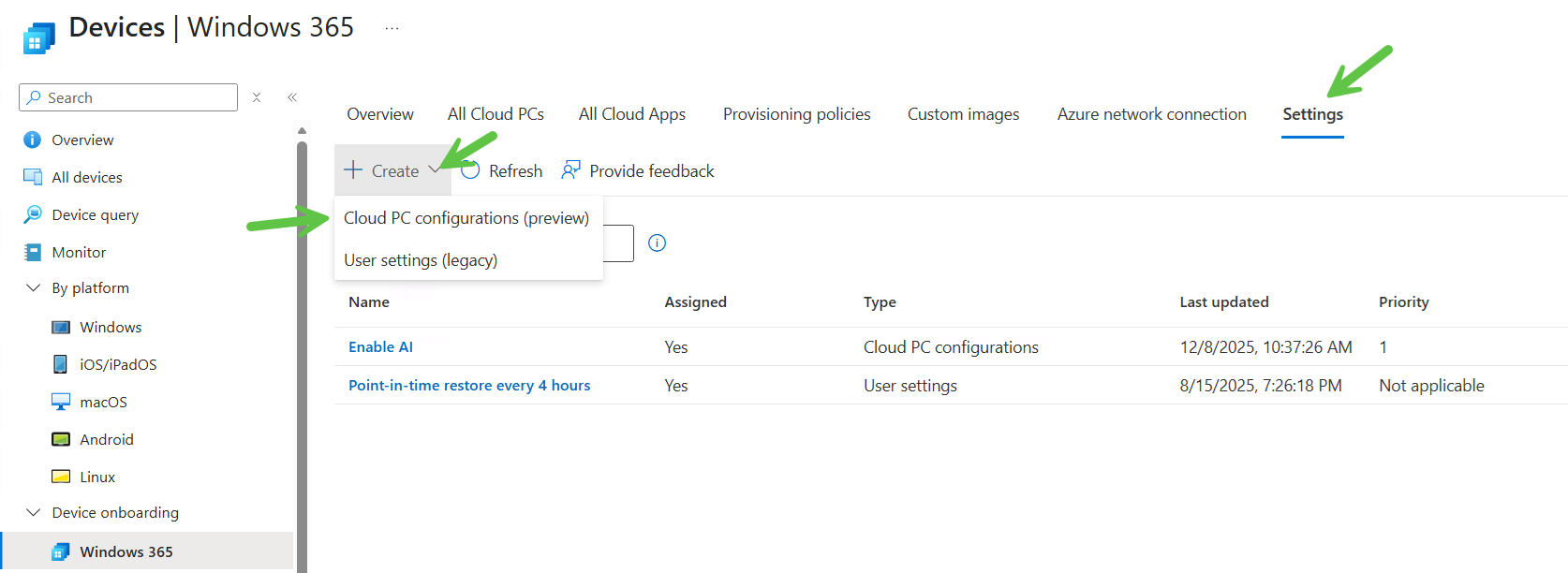
    Next, you’ll need to configure a policy (targeted to users) which enables the feature for Cloud PC’s that meet the minimum requirements. To do that select the Windows 365 node in Intune, click Settings and select Create to create the policy. Select Cloud PC configurations (preview) from the options presented.

    settings-create-1.png

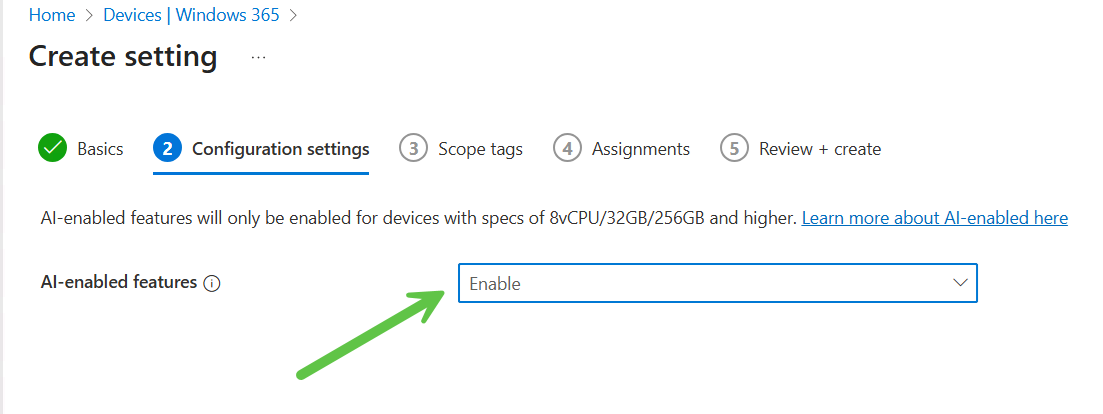
    In the Configuration settings part of the wizard, select Enable from the drop down menu to enable AI features.

    enable.png


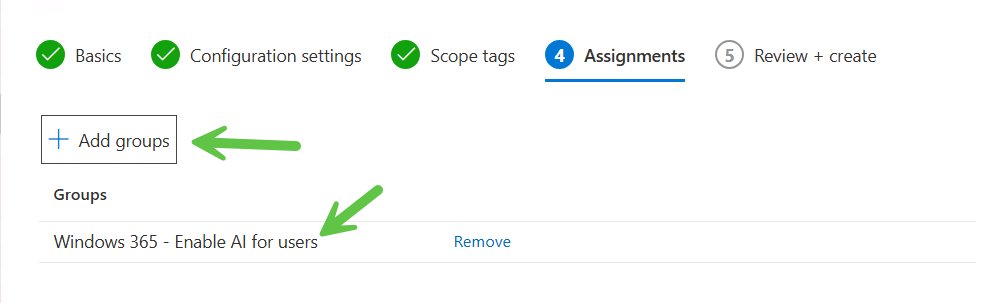
    and on the Assignments screen, select a previously created Entra Id group with users that will be using this new ability.

    deploy-to-a-group-containing-users.png


    Once done, make sure one or more users are in that group and the policy should flow to the CPC’s.

    Exploring the new AI abilities

    The first thing you’ll most likely notice is that your AI Enabled Cloud PC’s are now clearly labelled with an AI-enabled label in the Windows app.

    AI-Enabled-in-the-Windows-app.png

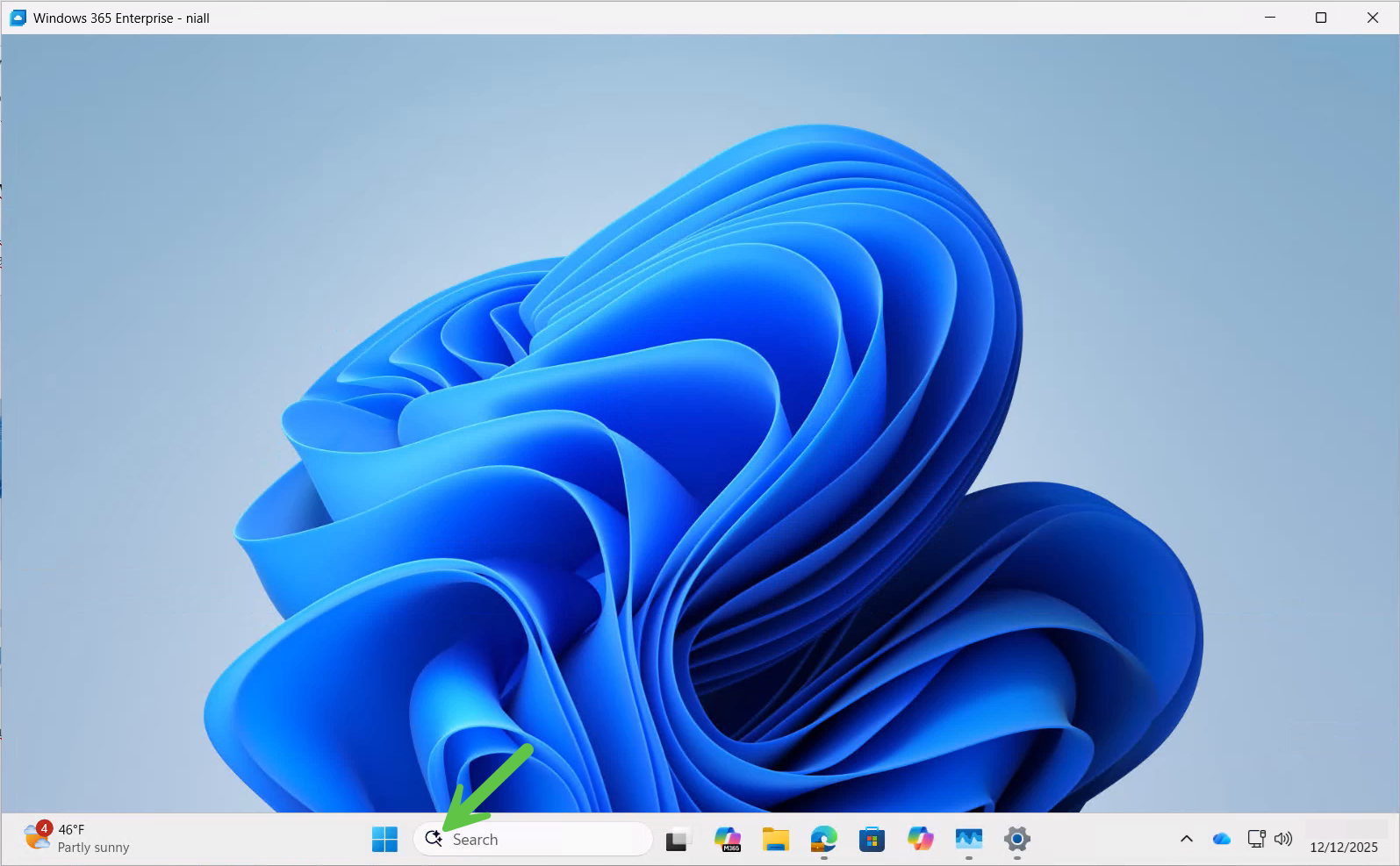
    After connecting to that Cloud PC, you’ll notice the search icon looks different.

    AI-enabled Cloud PCs are marked by a magnifying glass with a sparkle icon within the search box on the taskbar.

    Those of you who already have physical Copilot + PC’s will already be familiar with this new search icon.

    new-search-icon.png

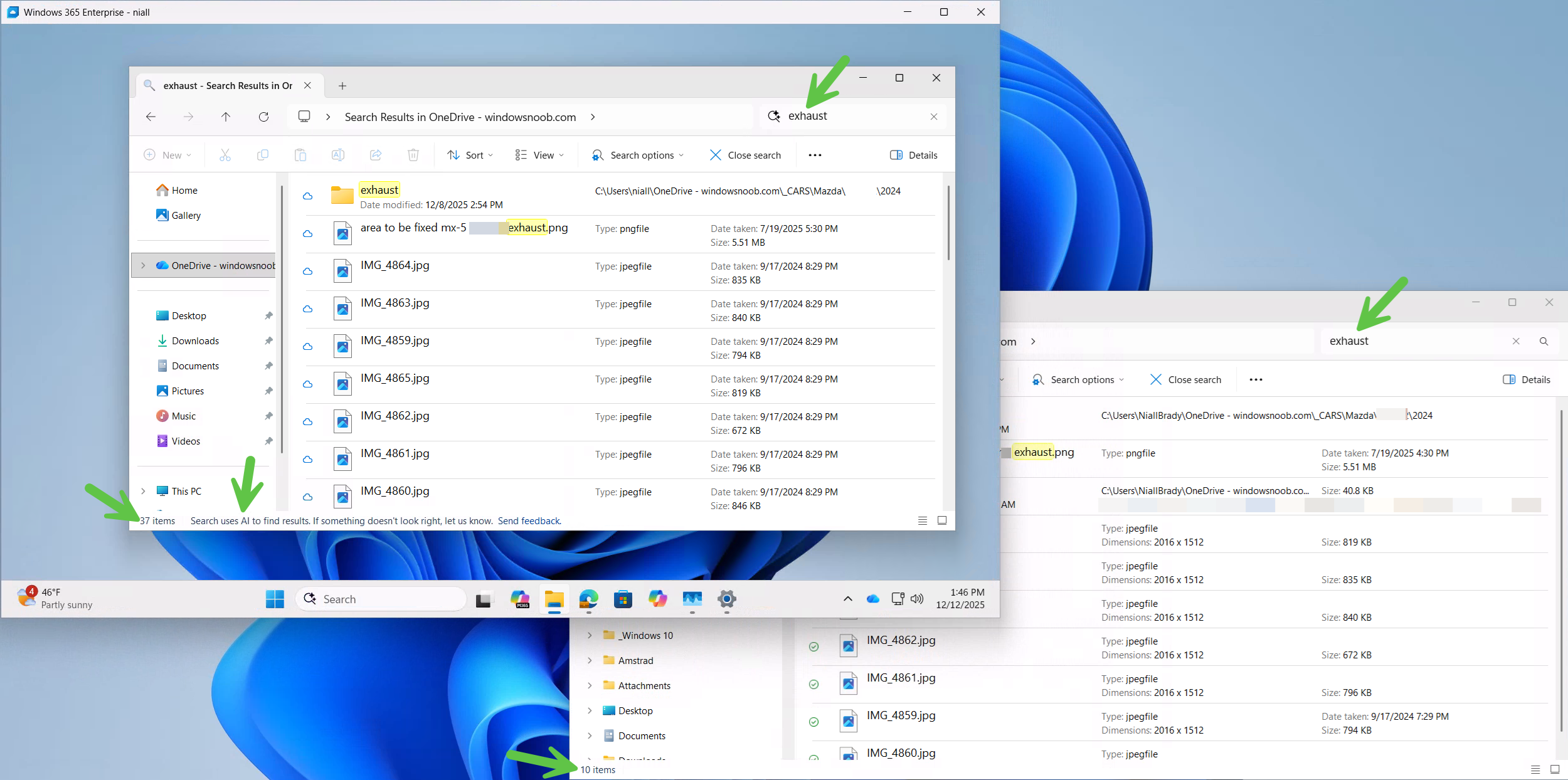
    The new AI search abilities are supposed to be better than built-in traditional search, so we put it to the test. We decided to start with by simply searching for a word via the search feature in Windows File Explorer on the users OneDrive. We performed the same search on the AI-enabled CPC as well as on a regular non-AI powered physical device.

    The AI search results are on the left, and the traditional search results on the right. Look at the difference, 37 hits versus 10, not bad at all.

    traditional-search-versus-AI-search-1.pn

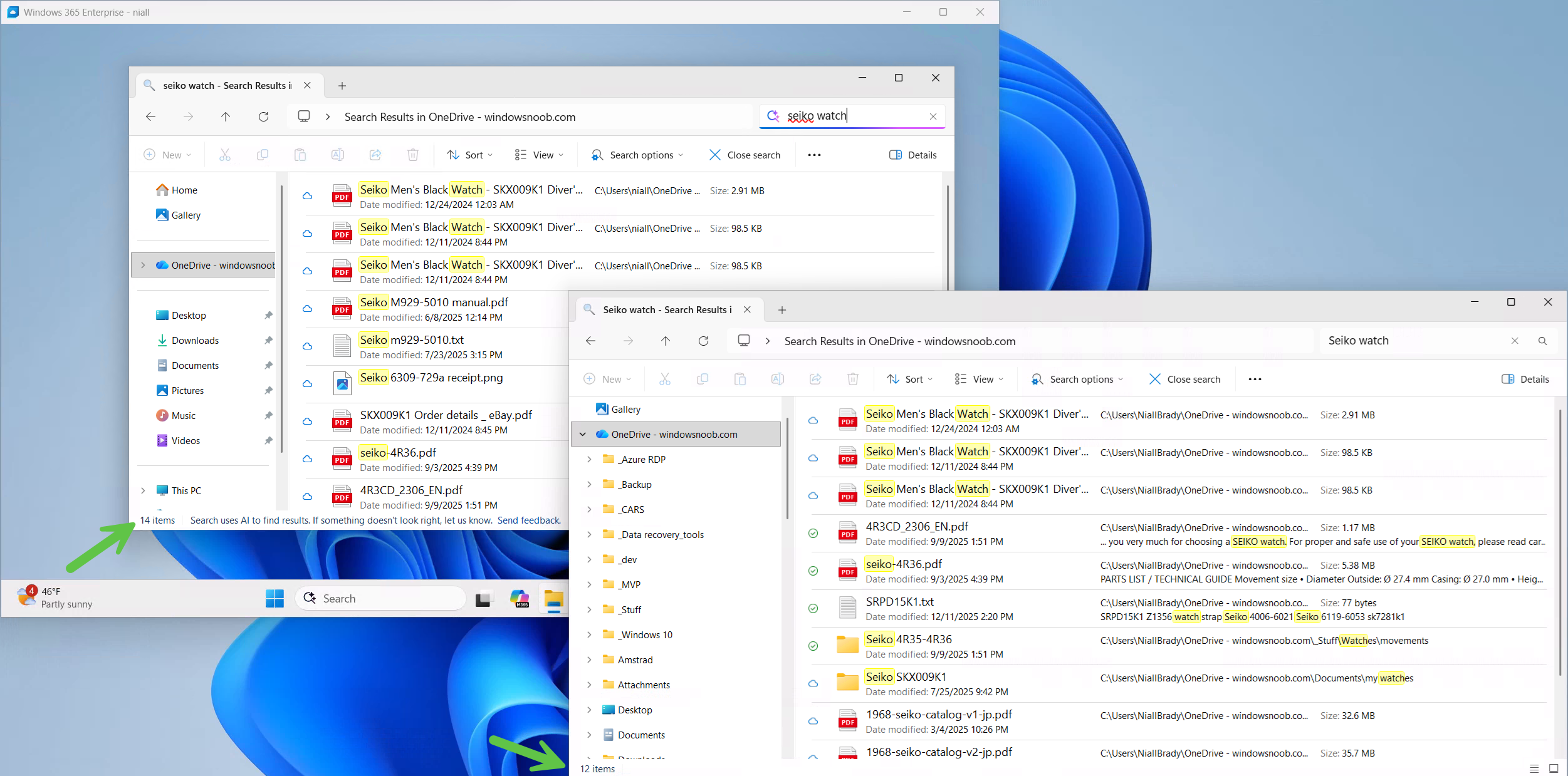
    Lets try another search. This time again, more results from the AI search versus traditional search.

    search-2.png

    Click to do

    Microsoft Click to do is a feature on all Copilot+ PC’s and Windows 365 AI-enabled Cloud PC’s. To use it simply search for it in the start menu and click the app.

    Click-to-do-app.png

    Once started, you can browse websites with pictures of text (for example) and press the Windows key + mouse click anywhere in the website. This can give you options to do things with what it sees, such as copy text within an image

    copy-text-from-web-site-images.png

    to paste into your favorite text editor,

    copied-text-pasted.png

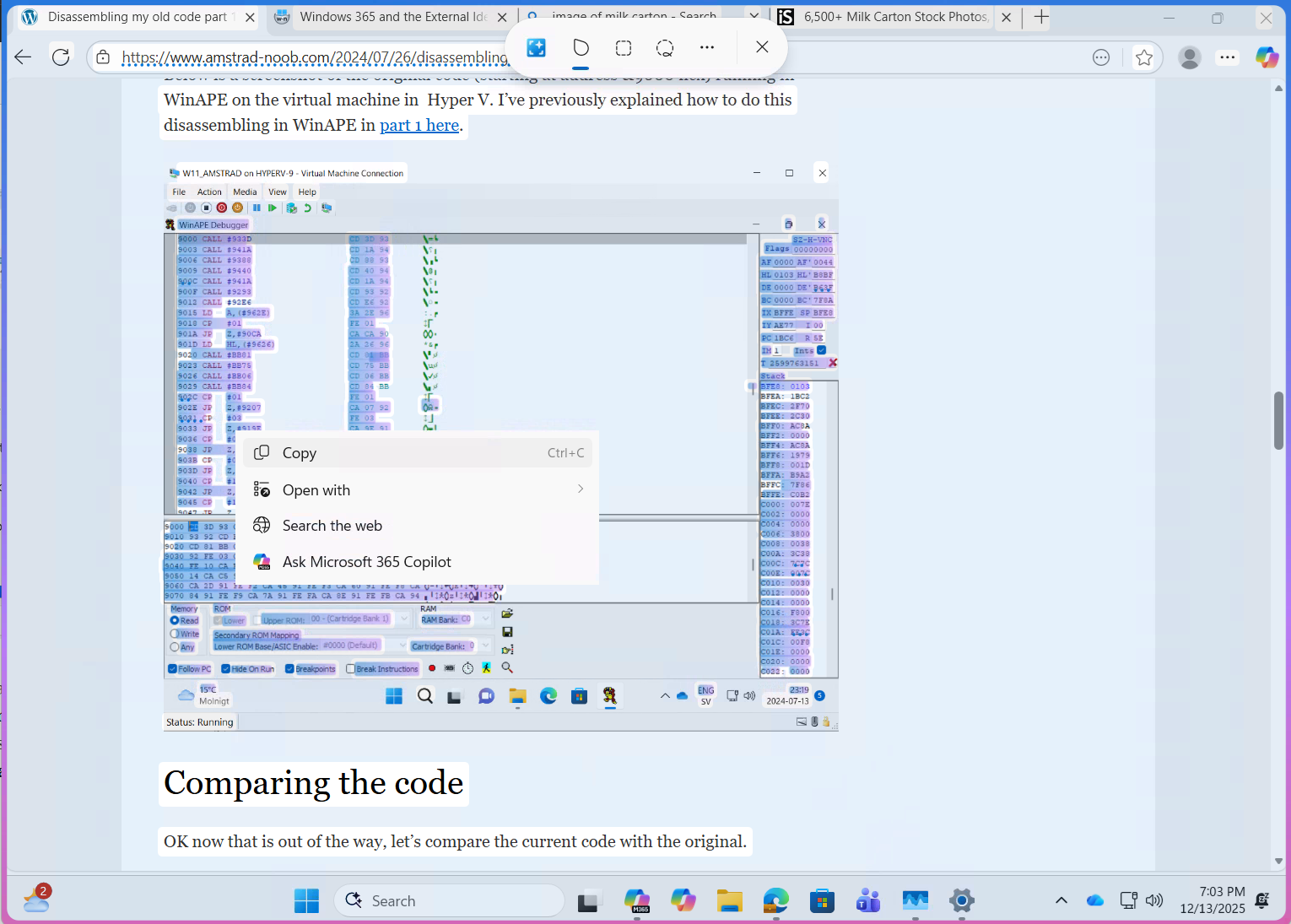
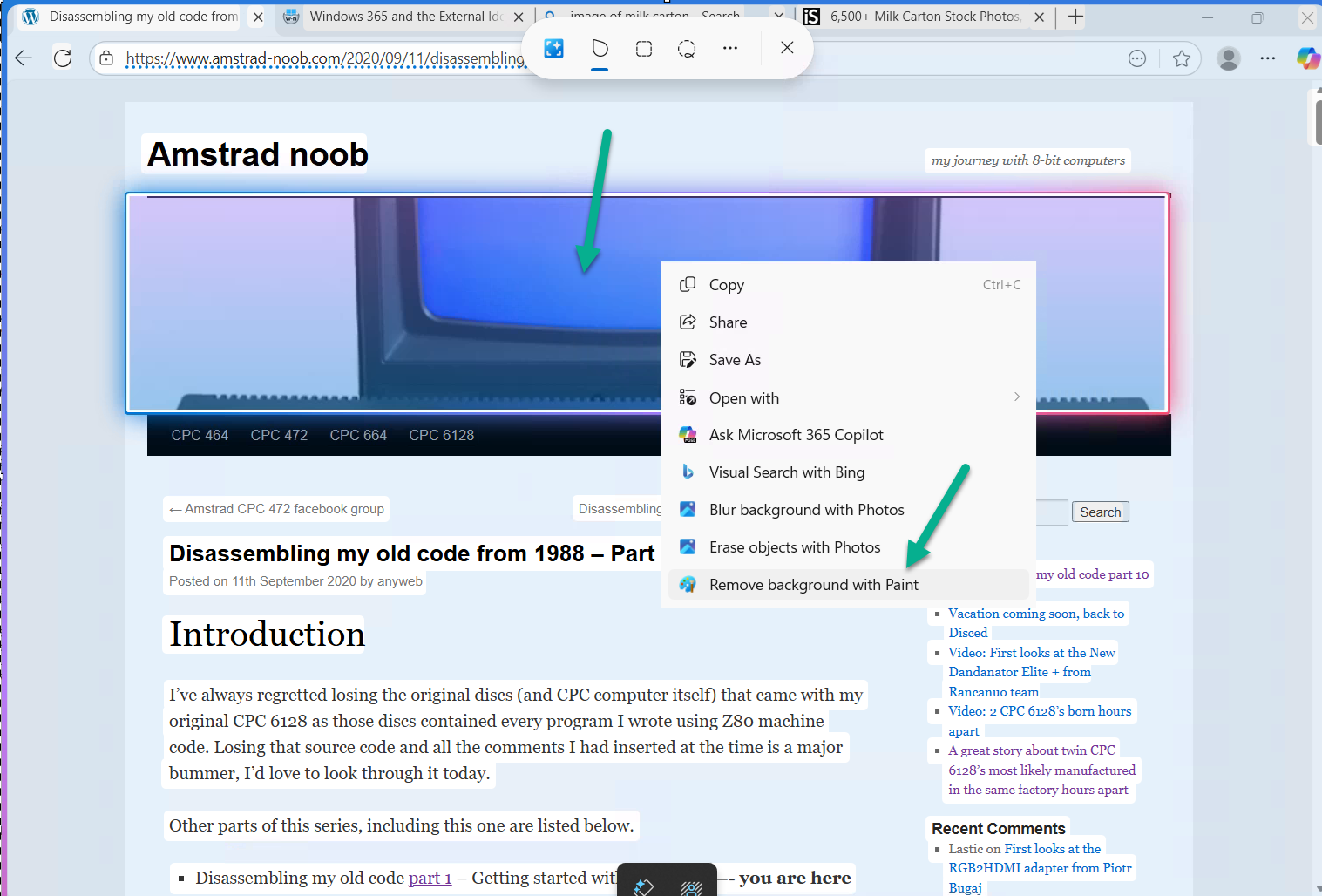
    Depending on what you click on you get more or less options, such as below when clicking on the image of a blue CRT.

    depending-on-what-you-click-on-you-get-m

    Cool!

    Changes in Intune

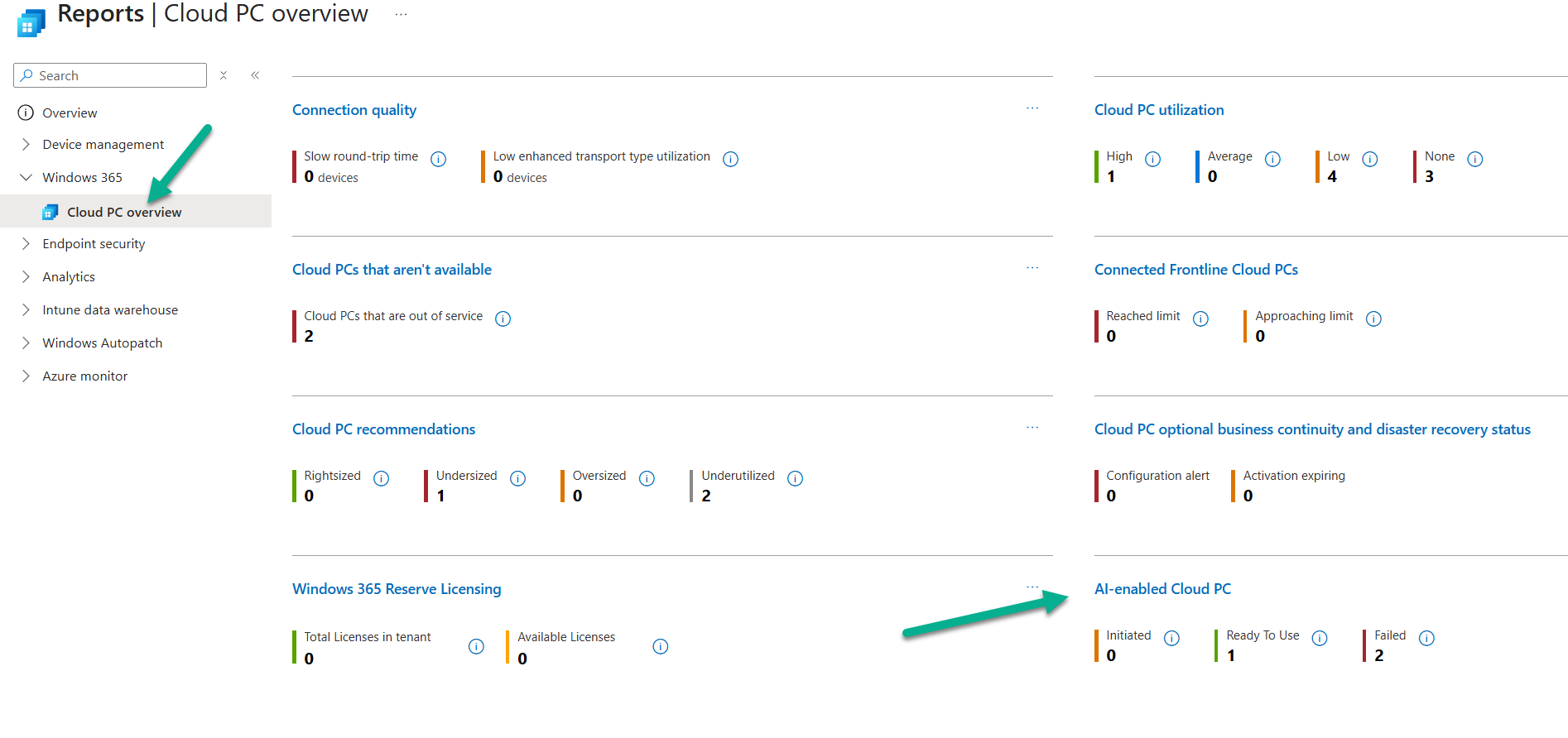
    When using Windows 365 AI-enabled Cloud PC’s there are some additional things that you can see in the Intune portal to reveal the finer details. There’s a report here to show AI-enabled CPC’s and what (if anything) is wrong with them. To find it select Reports, and select Cloud PC overview.

    reports-cloud-pc-overview.png

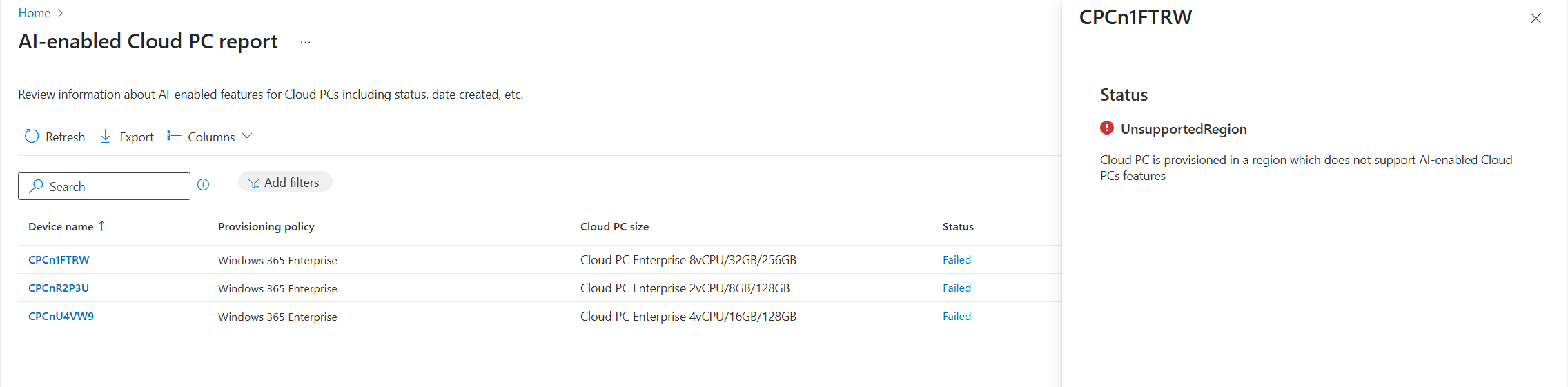
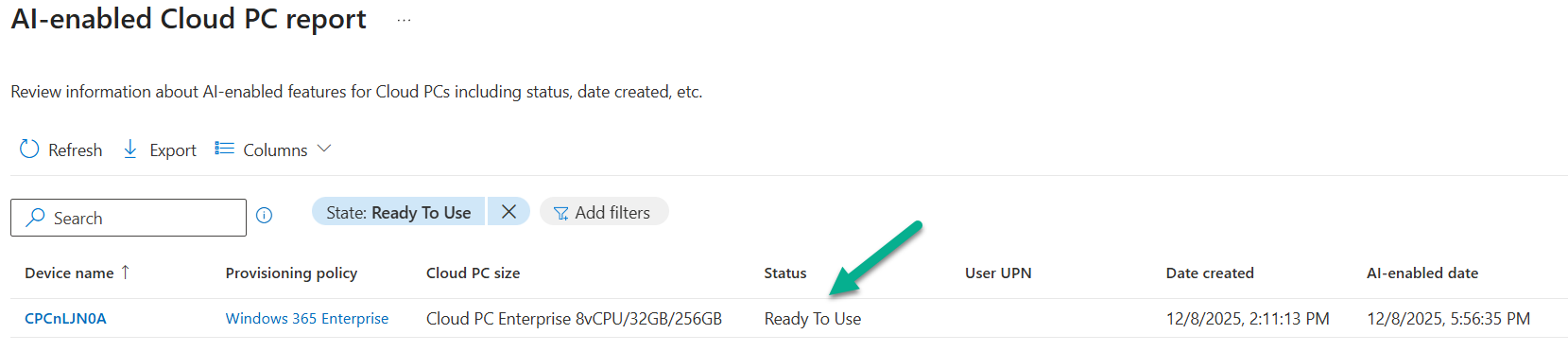
    Select the AI-enabled Cloud PC report, and you can then click through the Status column for any Cloud PC that has reported data up to Intune.

    region__not_supported.png

    Once you’ve fixed the issues reported, which in our case we provisioned the Cloud PC in a location that was not yet supported for AI-enabled abilities, you’ll see a new status of Ready to use.

    ready-to-use.png


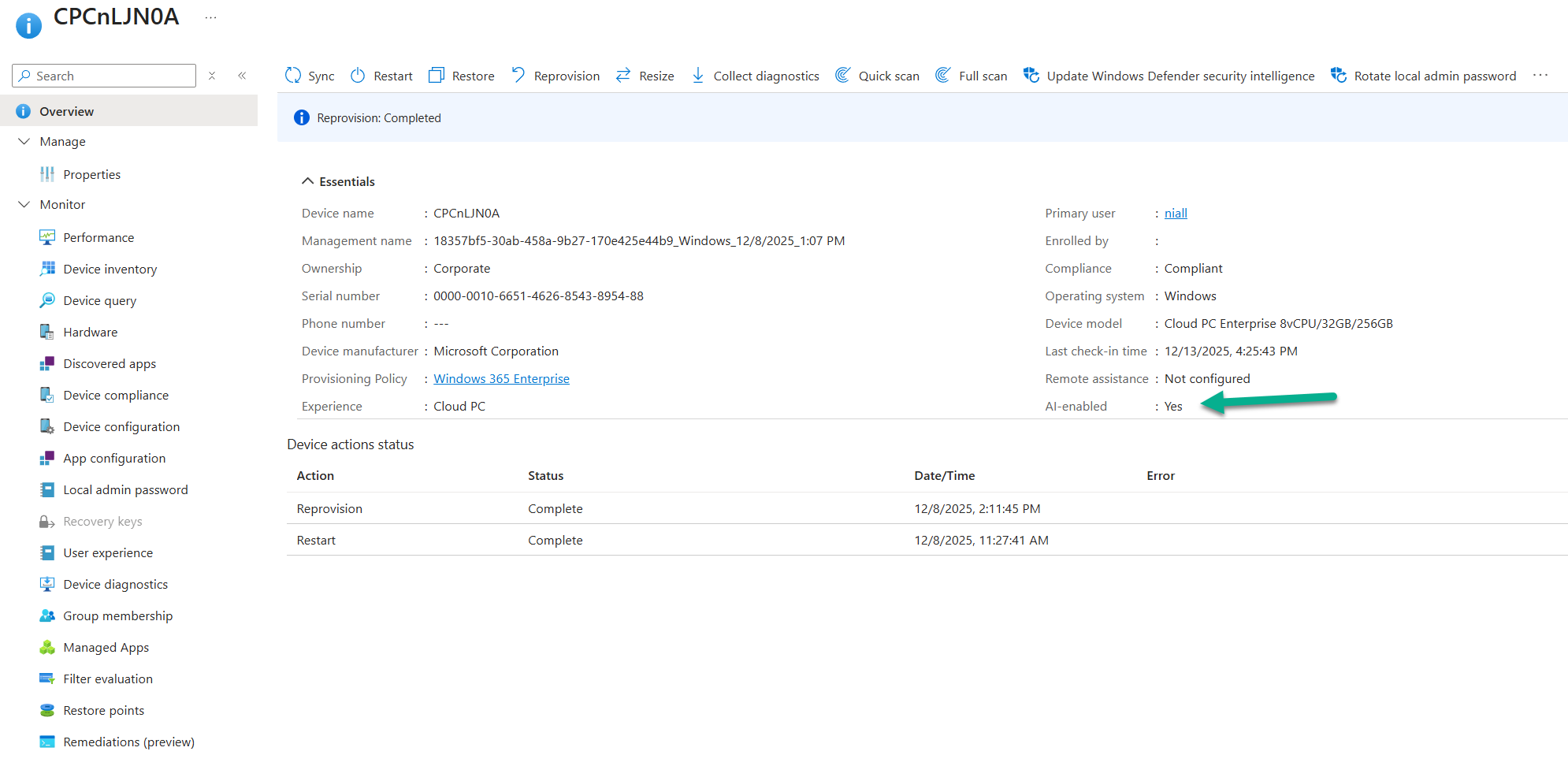
    You can also see a new status in Cloud PC’s overview, called AI-enabled, which will report Yes or No.

    ai-enabled-yes.png

    Read more

    Summary

    This new feature via the Microsoft Frontier Program has a lot of cool potential! It’s great to see that Microsoft is continuing its investment in Windows 365 Cloud PC development, and adding key features like this brings the power of AI to all devices, whether they are Android, macOS, Windows.

    We look forward to seeing how this new feature matures and develops before being released to production.

  9. Introduction

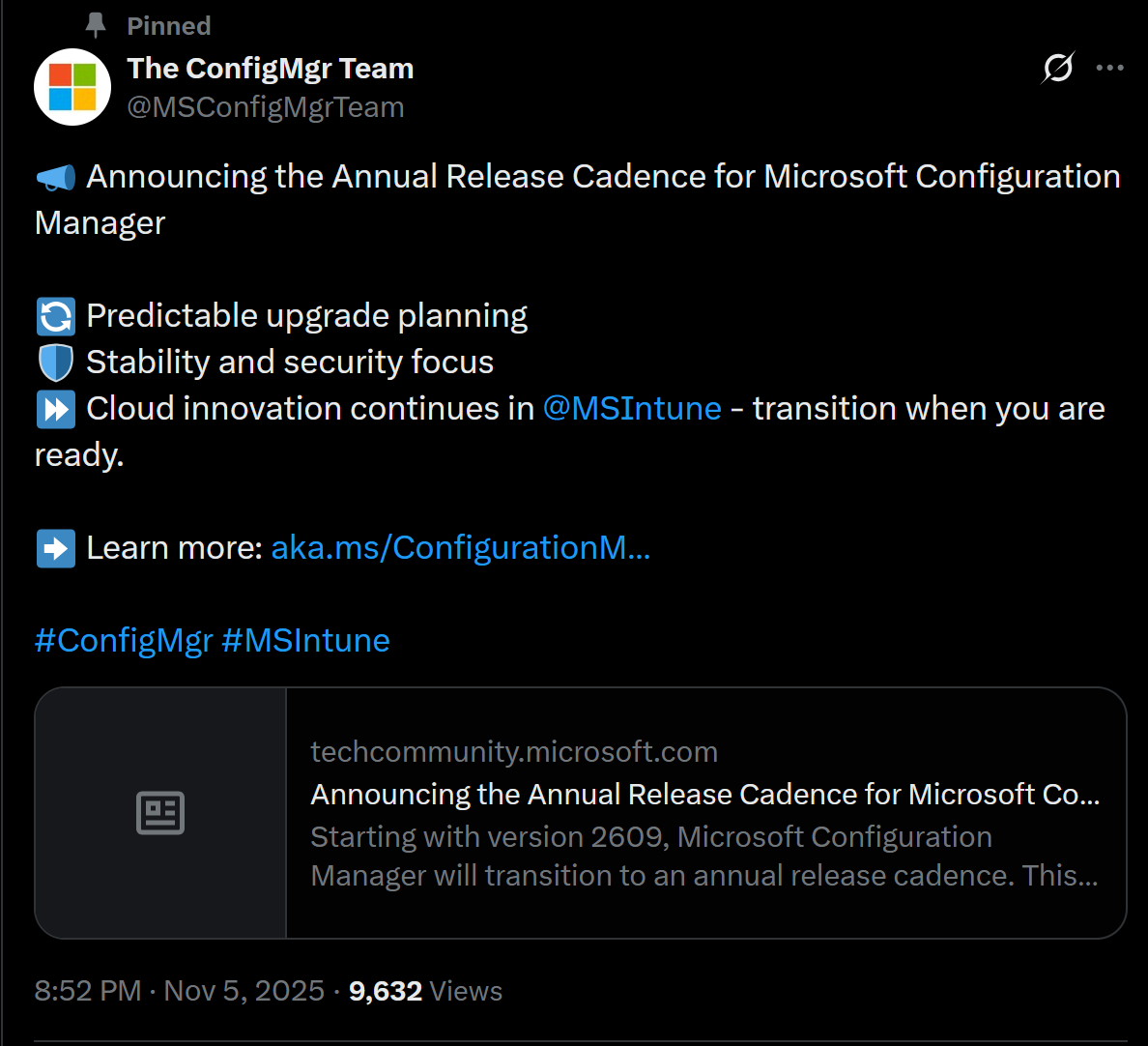
    Microsoft recently released a blog post outlining predictable changes to the cadence of update releases for SCCM formally known as System Center Configuration Manager. The pinned tweet below had some interesting replies which you can read yourself here.

    tweet.png

    The blog post didn’t even mention SCCM Technical Preview at all, but did TAG it as you can see here.

    tagged.png

    What exactly is SCCM Technical Preview ?

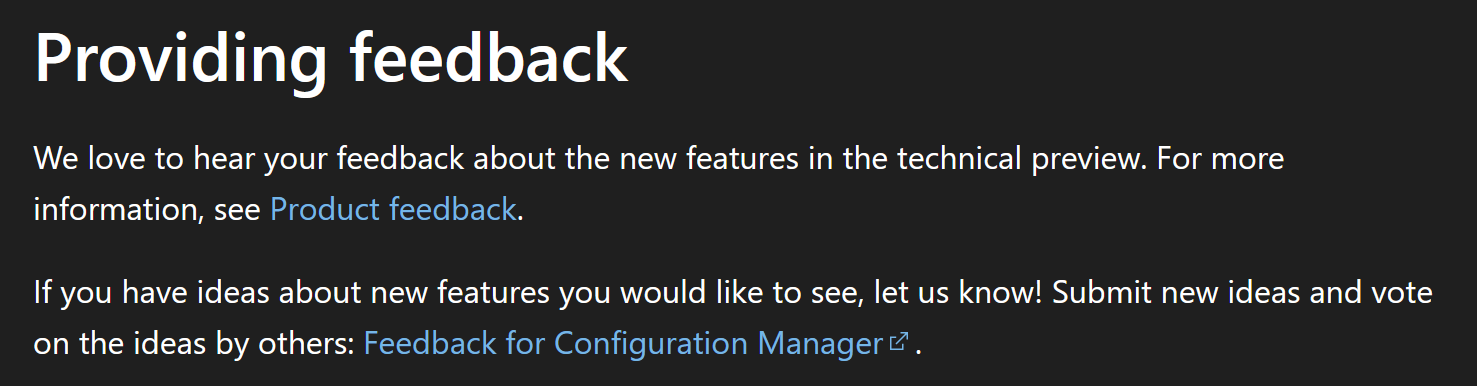
    SCCM Technical Preview has been a test release of Configuration Manager that has been released very regularly (at first) and developed for years allowing SCCM admins to test the latest and greatest features coming to the product in advance, and allowing them to give valuable feedback to the product team, thereby shaping the mainstream product (Microsoft Configuration Manager) into what it is today.

    product feedback.png

    Technical Preview launched publicly in May 2015 and that journey started a decade long coding frenzy, where a large team of motivated developers led by none other than the great David James (djammmer) developed great features at an outstanding pace, at least until the last few years when things slowed down to a noticeable crawl about a year after David left in October 2021.

    Without the Technical Preview releases you could argue that the move to the Cloud would have taken a lot longer.

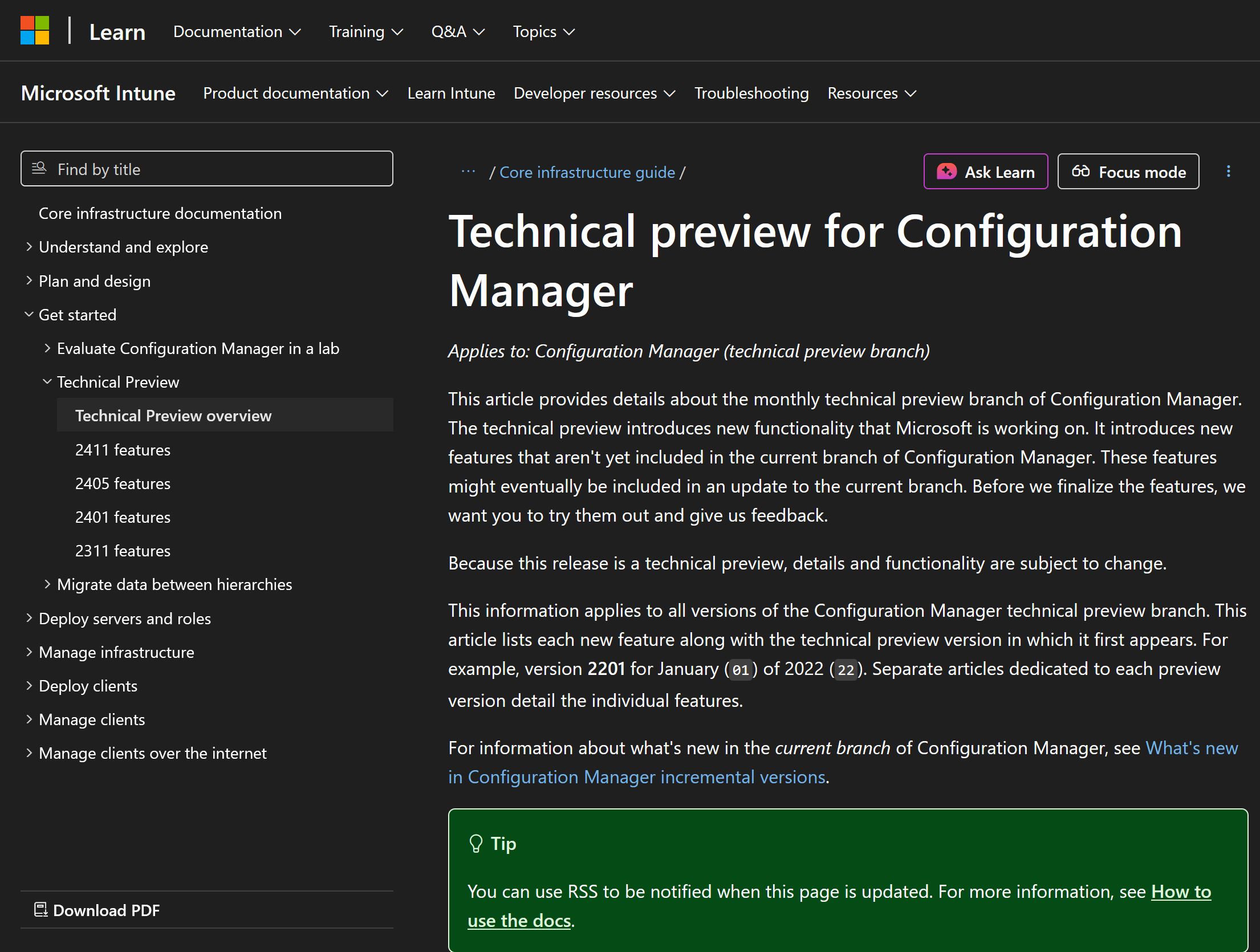
    Moving forward to today, the last documented release of SCCM Technical Preview was 2411 and you can still (at the time of writing) read documentation about that version here.

    learn docs.png

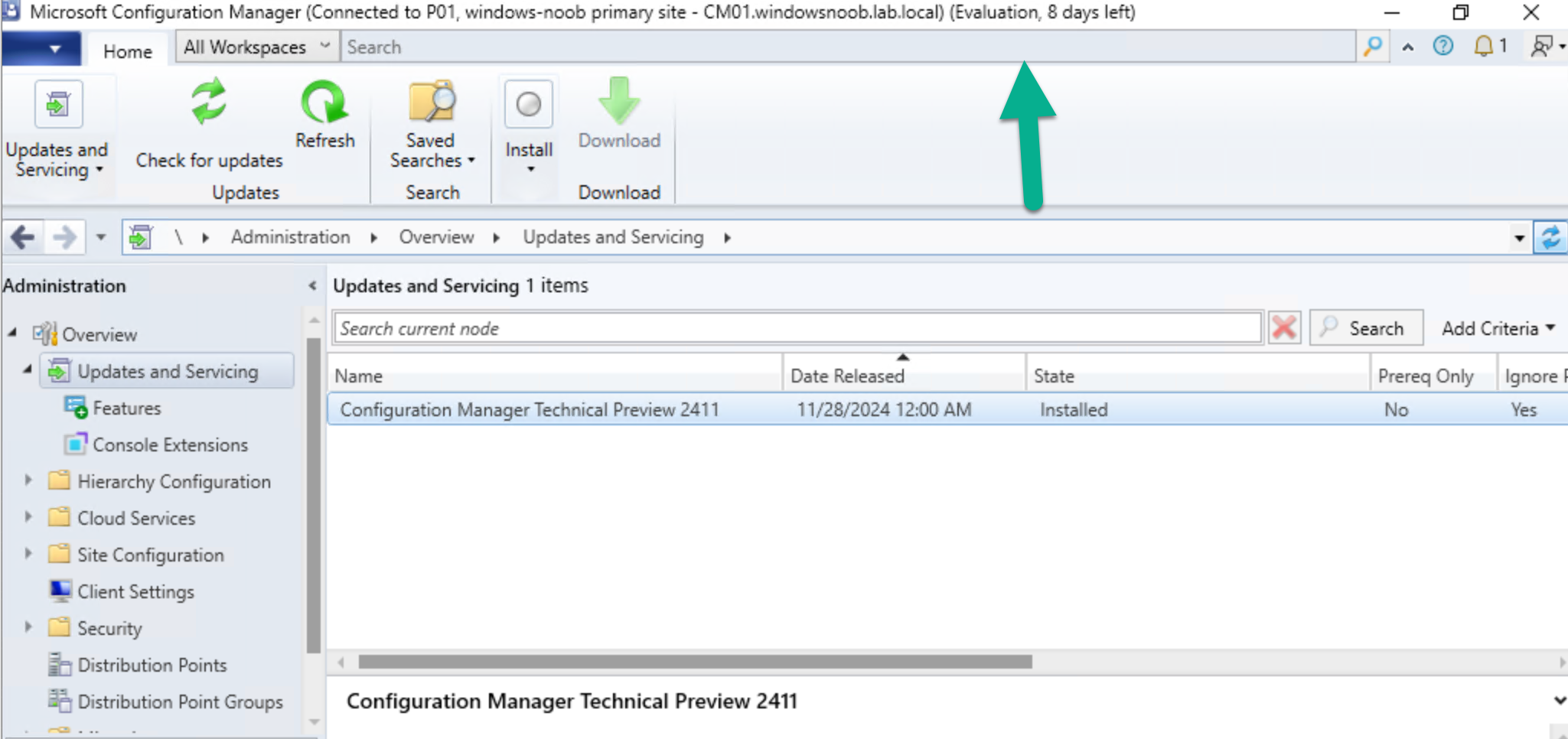
    I’ve personally tested and blogged about most of those releases over the last 10 years. Below you can see the timeline of upgrades I’ve done in my lab via the History feature within Configuration Manager.

    Note how it states Evaluation, 8 days left.

    And below are my many blog posts on the subject:

    Who cares ?

    My trusty SCCM Technical Preview lab support is coming to an end, and currently there’s no sign that Microsoft will do anything about it. It has 8 days left of support and after that, if Microsoft doesn’t release an update for Technical Preview, then it will become unsupported and unusable.

    I’ve pinged some of the official product teams on Twitter, asking if SCCM Technical Preview is dead but so far, there is no response. If they do update or reply I’ll post it here.

    This IMHO is a crying shame as many dedicated SCCM admins like me have updated these labs for years, and now those very same labs are left to die by the very company that encouraged us to not only use them, but to provide ongoing feedback.

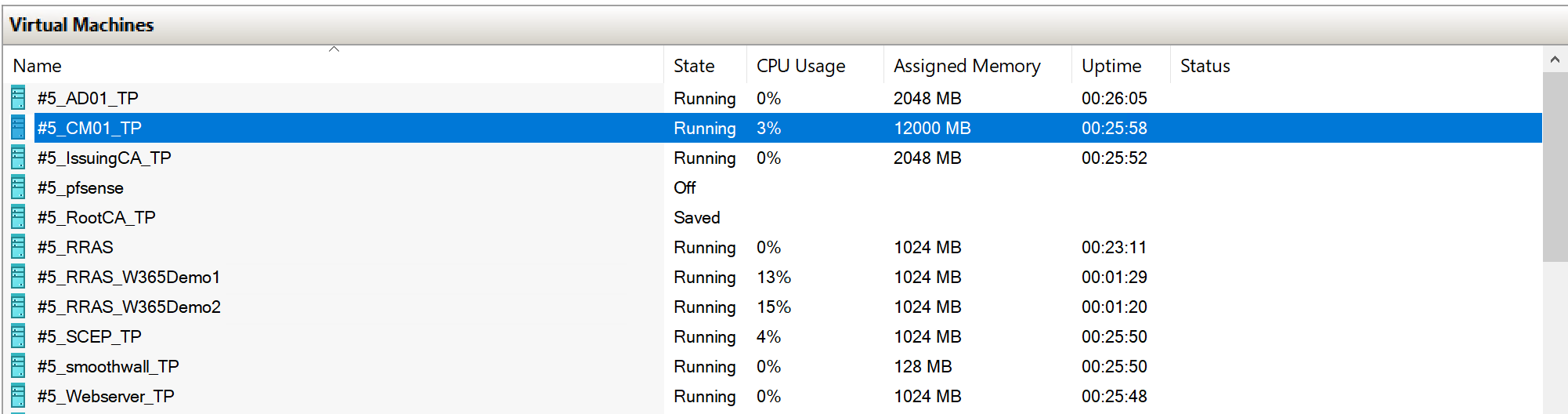
    My Technical Preview lab shown below, was used for things like setting up bitlocker management via Configuration Manager, Co-Management setup, Cloud Managed Gateway (CMG), hybrid management of Windows 365 Cloud PCs, tenant attach, OSD via CMG and most recently the integration of Microsoft Intune’s Cloud PKI & SCEP when I technically reviewed this great book from my friends Paul & David.

    my tp lab.png

    But now the clock is ticking and soon I won’t be able to even use the console.

    8 days left.png

    Is this the end of Configuration Manager Technical Preview ? it certainly looks like it and based on this quote in their opening paragraph, I think the answer is yes.

    Microsoft Intune is the future of device management, and all new innovations will occur there.

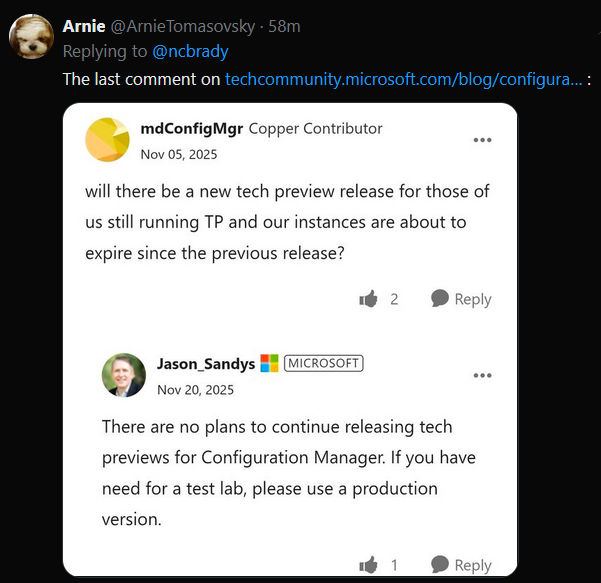
    Update: No sooner than I posted this I got an reply on Twitter from Arnie, and here it is, confirmation from Jason Sandys @ Microsoft that Technical Preview is no more.

    RIP

    Screenshot 2025-11-20 195556.png


  10. Introduction

    Ever wished you could spin up a Cloud PC not just for your employees, but for contractors, partners, or even external collaborators? Good news—External Identity (preview) support in Entra ID now makes that possible. You can invite external users into your tenant and give them access to Cloud PCs, extending the same secure, managed experience your internal users already enjoy.

    Of course, there are a few strings attached. Prior to deploying out Cloud PCs to outside identities, you will need to be aware of a number of significant requirements and limitations so that everything runs smoothly.

    In this blog post, myself and my good friend Paul Winstanley took a look at what you need to be aware of and how to set up and access.

    Requirements

    • The Cloud PC must be running Windows 11 Enterprise with the 2025-09 Cumulative Updates for Windows 11, version 24H2 (KB5065789) or later installed.
    • The Cloud PC must be Entra only joined, hybrid is not supported.
    • Single-sign on must be enabled in the provisioning policy.
    • Connection to the Cloud PC must be via the Windows App or browser.

    Limitations

    • User based Intune device configurations profiles will not be applied to the external users Cloud PC. Ensure you target the profiles to devices.
    • Windows 365 Enterprise, Business, and Frontline are supported, Windows 365 Government is not.
    • Cross-cloud users are not supported, i.e. you can’t invite users from Microsoft Azure Government or Microsoft Azure operated by 21Vianet.
    • Be aware of the token limitations for external identities – https://learn.microsoft.com/en-us/entra/identity/conditional-access/concept-token-protection#known-limitations
    • Authentication to on-premises resources with Kerberos or NTLM is not supported for external identities.

    Assigning the Windows 365 licence

    Assigning the licence should be a simple case of heading over to the Microsoft 365 admin center, navigating to Billing | Licenses and selecting the required Windows 365 subscription.

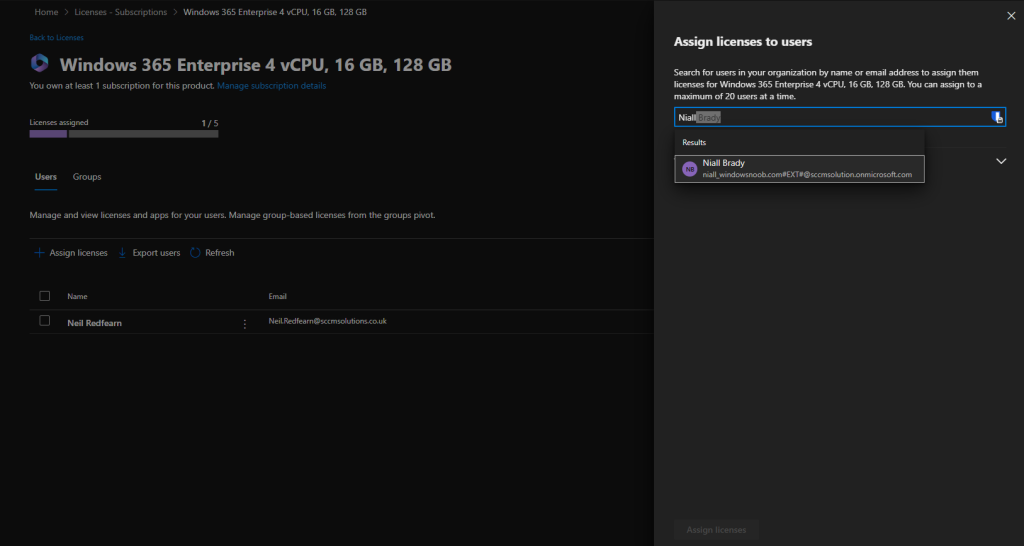
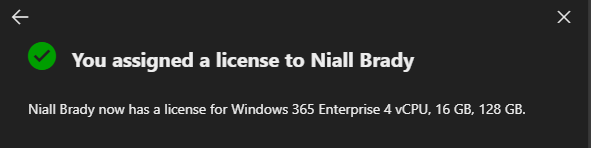
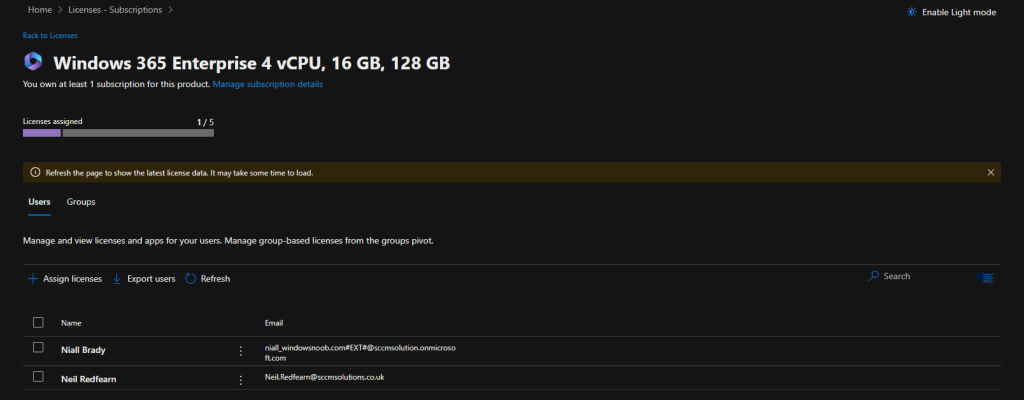
    When selected, we clicked Assign licenses and chose the guest user, in our case Niall’s guest account in Paul’s tenant. When finished we clicked Assign licenses.

    1.webp

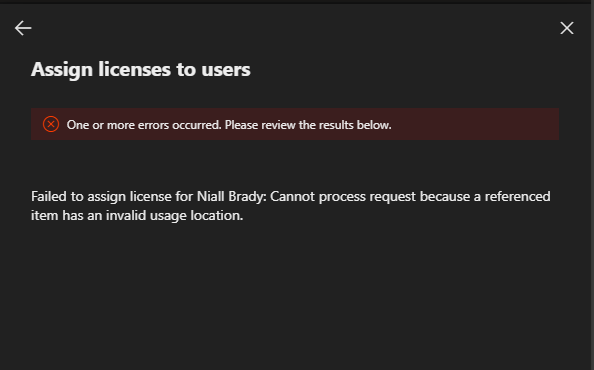
    In our tenant, we received the following error message ‘Failed to assign license for Niall Brady: Cannot process request because a referenced item has an invalid usage location.’ You may not receive this error and not have to perform the fix.

    2.webp

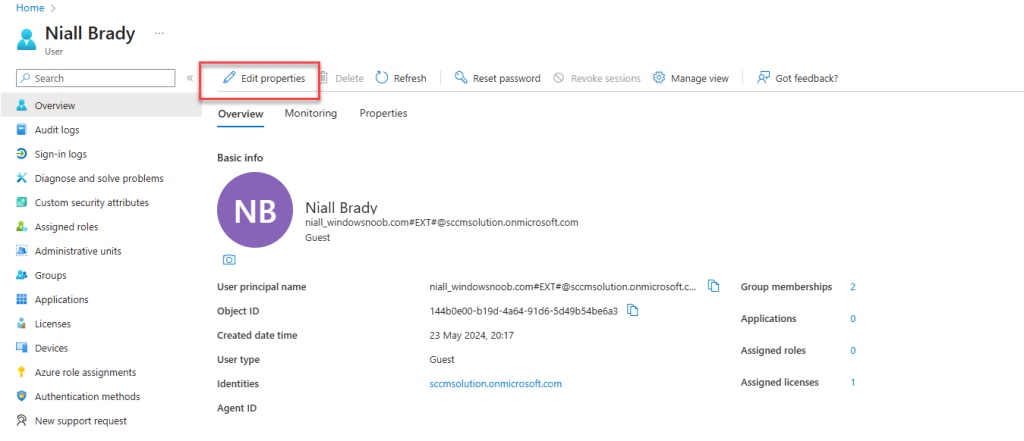
    To fix this up for us, we went to the Entra admin center and clicked on Users. We located Niall’s guest account and clicked Edit properties.

    3.webp

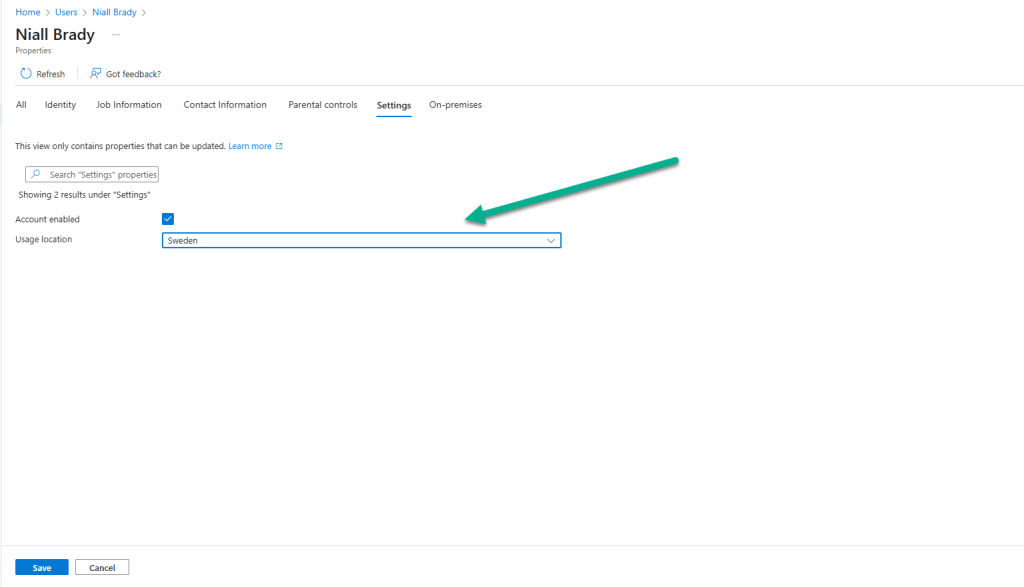
    Under the Settings menu, we clicked the Usage location drop-down and selected a location for his account, then clicked Save.

    4.webp

    After a short period of time, we were able to assign a licence to Niall’s account with no issue.

    5.webp
    6.webp

    Provisioning the Cloud PC for the External Identity

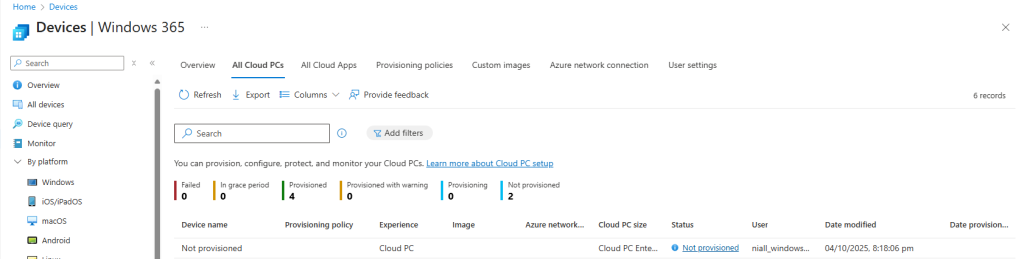
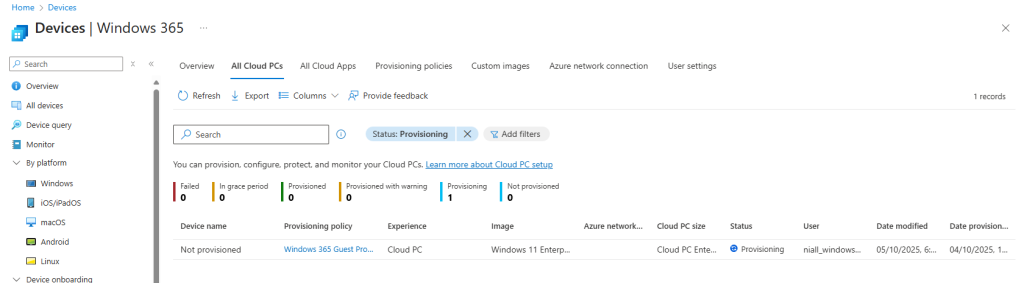
    Back in the Intune admin center, under Devices | Device onboarding | Windows 365 | All Cloud PCs there should be a Not provisioned Cloud PC. It reports as Not provisioned as the user has not been assigned a provisioning policy.

    7.webp

    To resolve this we can either create a provisioning policy and assign this or we can use an existing policy, so long as we have single sign-on enabled and that the Cloud PC is running with 2025-09 Cumulative Updates for Windows 11, version 24H2 (KB5065789) or later. If using an existing policy, take a look at the assignment to ensure that Niall’s account is targeted.

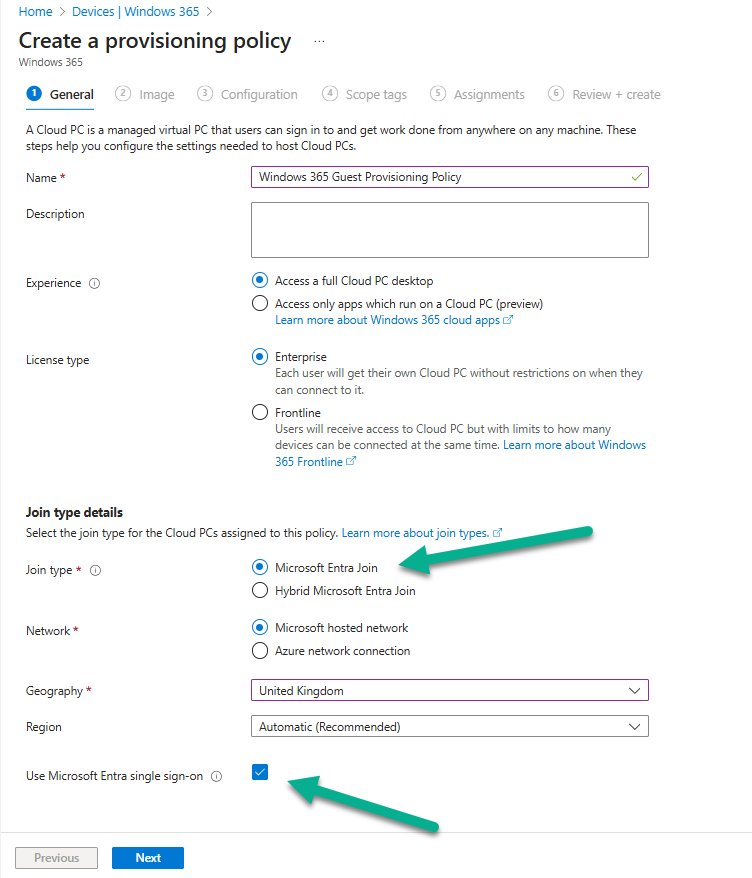
    We decided to create a new provisioning policy using the new 25H2 release of Windows 11. We navigated to Devices | Device onboarding | Windows 365 | Provisioning policies in our tenant and clicked Create policy.

    As mentioned, ensure Use Microsoft Entra single sign-on is enabled and Microsoft Entra Join is selected for Join type as hybrid is not supported.

    8.webp

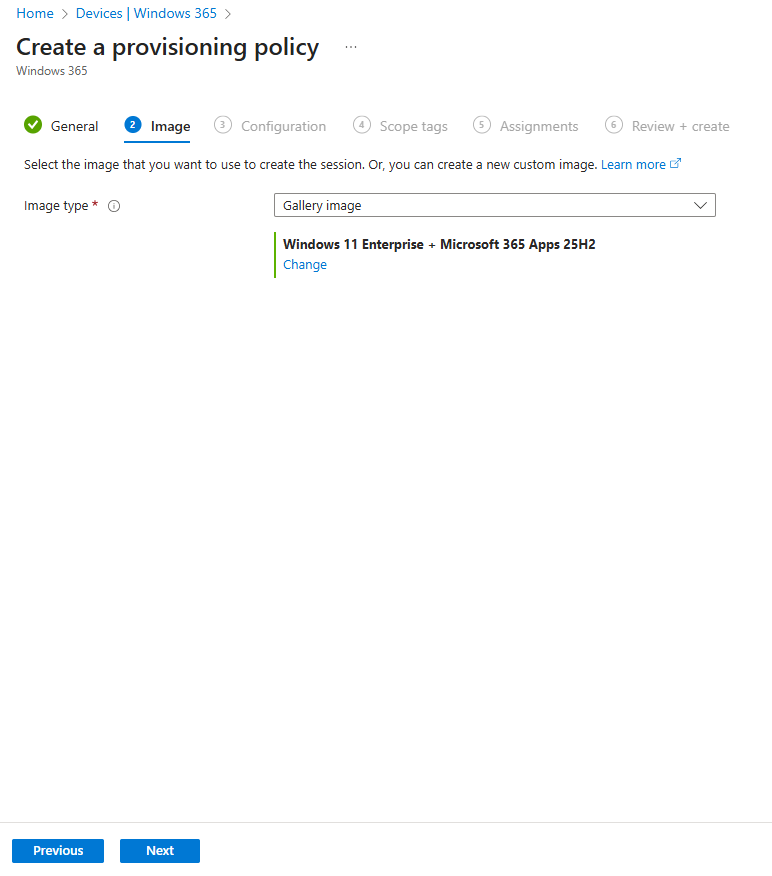
    We selected the Windows 11 Enterprise + Microsoft 365 Apps 25H2 gallery image to ensure that we met the O/S requirements.

    9.webp

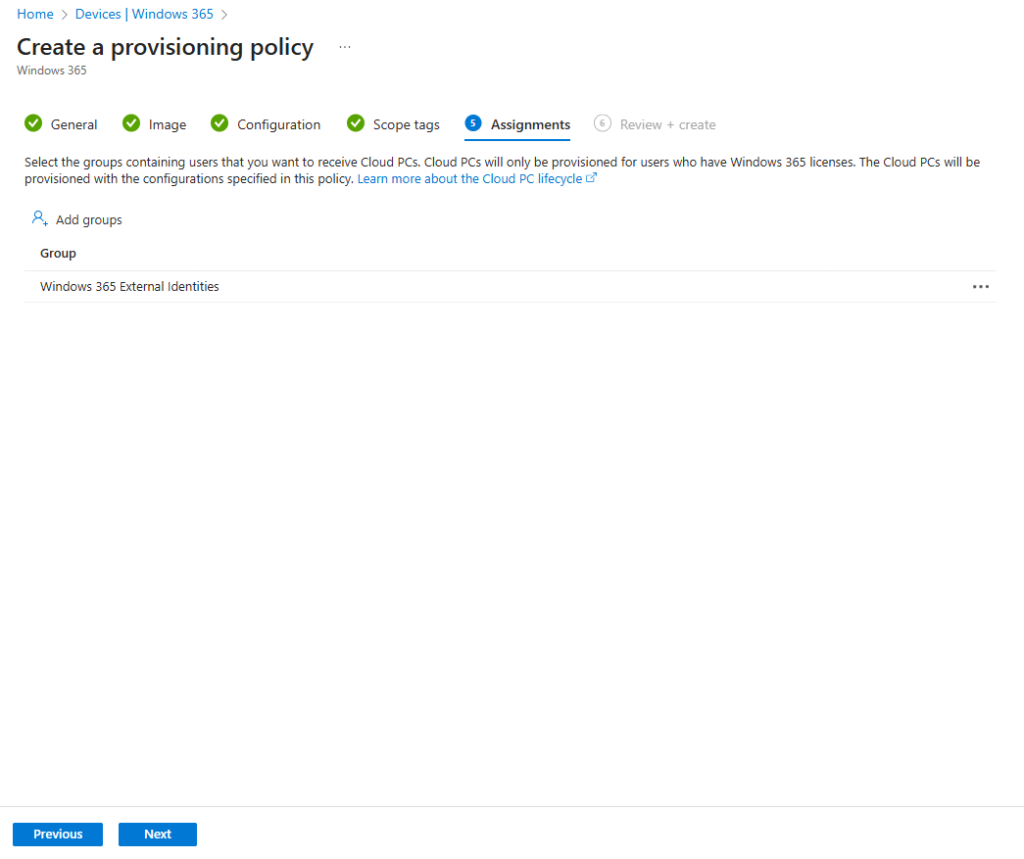
    When assigning the policy, we targeted a group called Windows 365 External Identities.

    10-1.webp

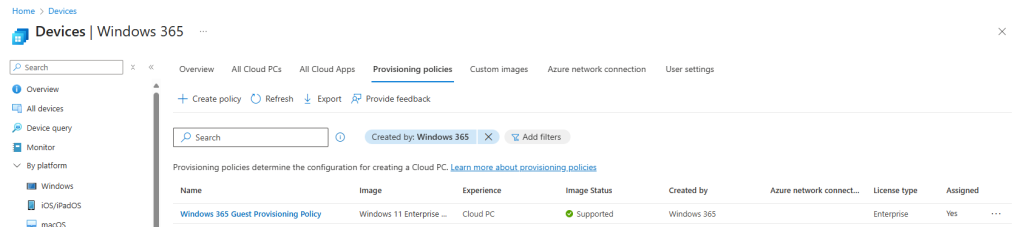
    After completing the provisioning policy wizard, the policy was visible.

    11.webp

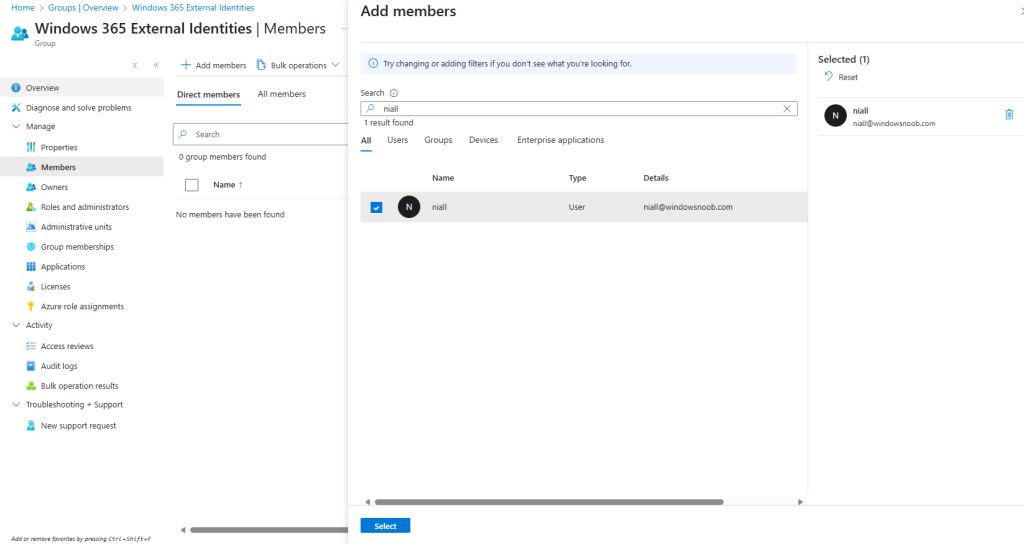
    Next, we simply added Niall’s guest account to the Windows 365 External Identities group. We navigated to Groups and searched for the group and added his account.

    12.webp

    Back in All Cloud PCs, a Cloud PC now reported a Status of Provisioning.

    13.webp

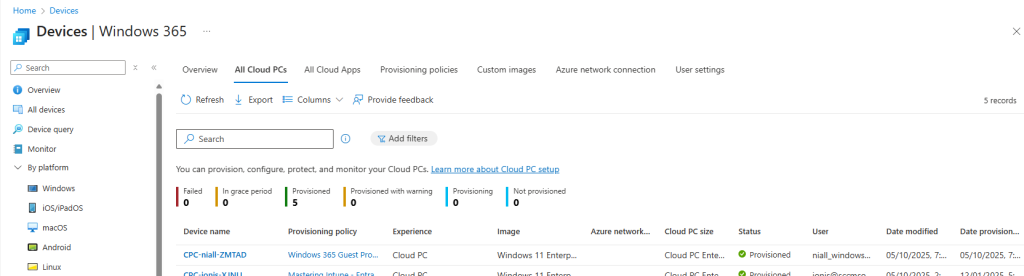
    After a period of time, the Cloud PC reported as Provisioned.

    14.webp

    Accessing the Cloud PC

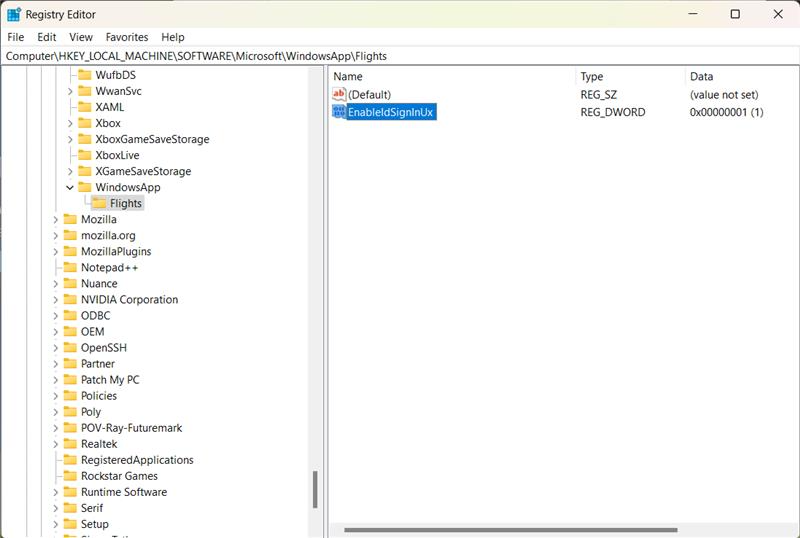
    The Cloud PC can be accessed via the Windows App or web browser, however prior to attempting to access the following registry key needs to be created on the host device.

    Computer\HKEY_LOCAL_MACHINE\SOFTWARE\Microsoft\WindowsApp\Flights
    DWORD - EnableIdSignInUx
    Value - 0
    image-23.webp

    There are slight variations to accessing via the app or the browser so let’s take a look at both. Also, thanks to our MVP friend Sune Thomsen for providing the details that steered us in the right direction to make this work!

    Windows App

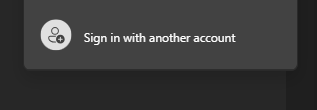
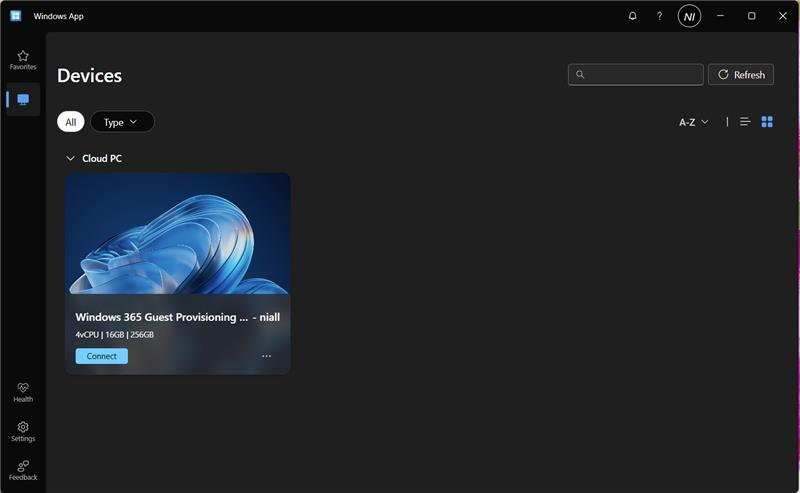
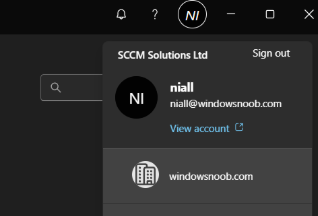
    The user must be authenticated in the Windows App. They need to click their account profile picture on the top right of the application and click Sign in with another account.

    image-24.webp

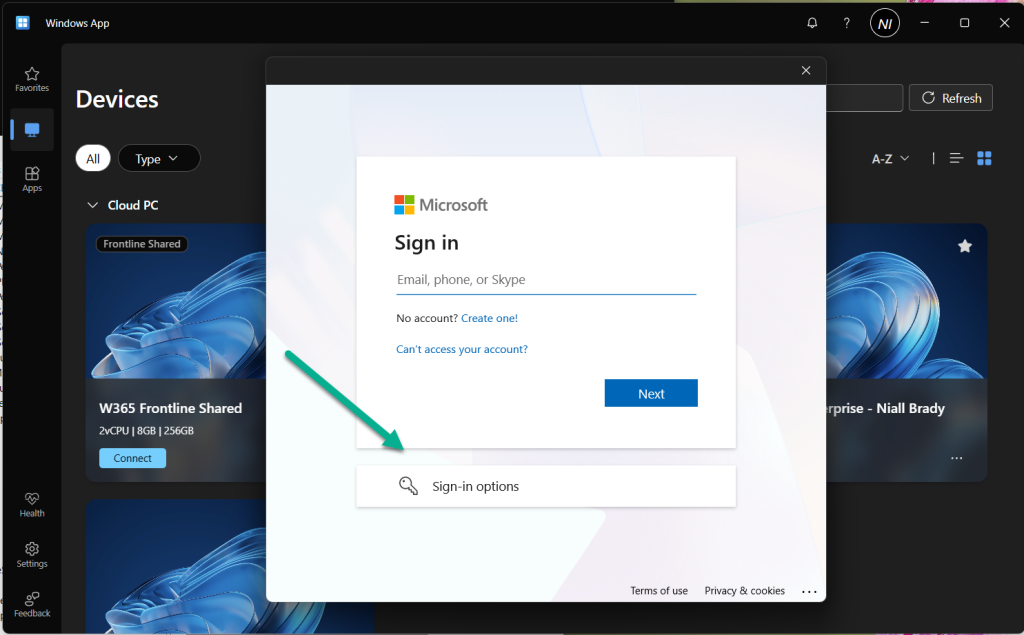
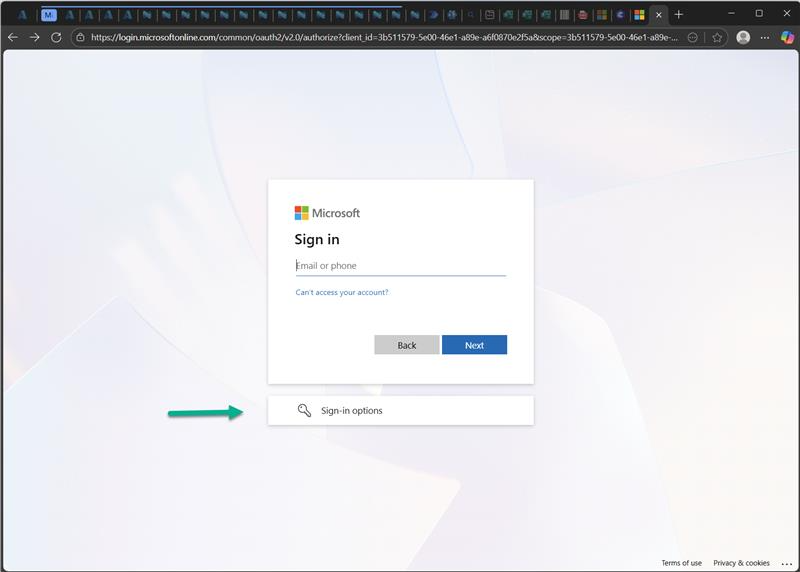
    If the registry key has been entered, then the following Sign in window will be displayed. Note Sign-in options is available. This would not be displayed if the registry key is not present. Click Sign-in options.

    image-26.webp

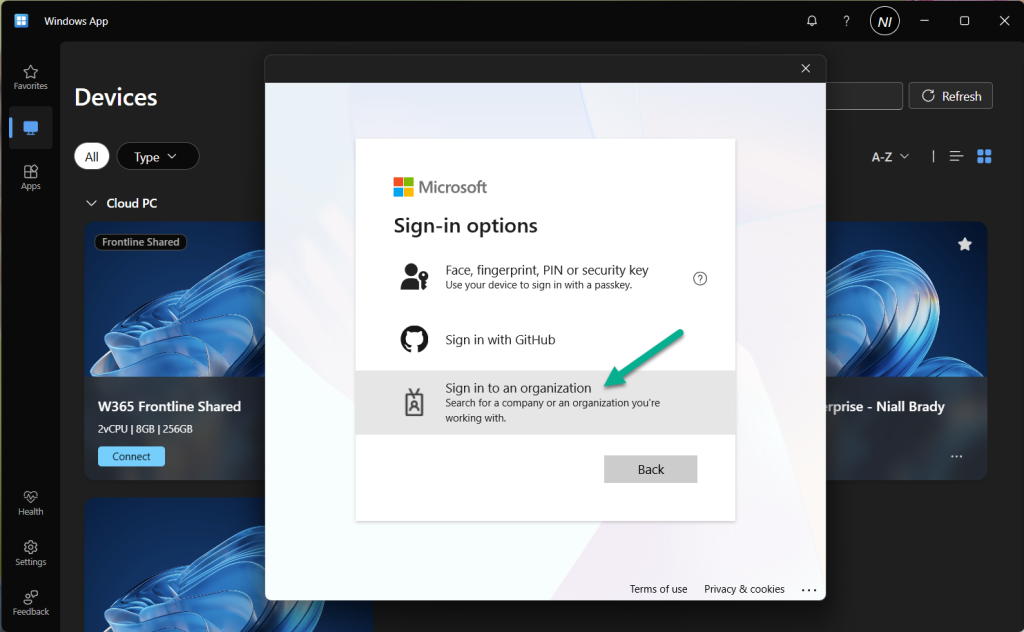
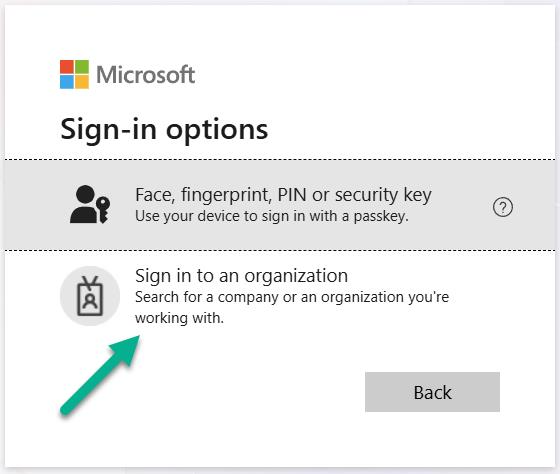
    The next step is to click the Sign in to an organization option.

    image-27.webp

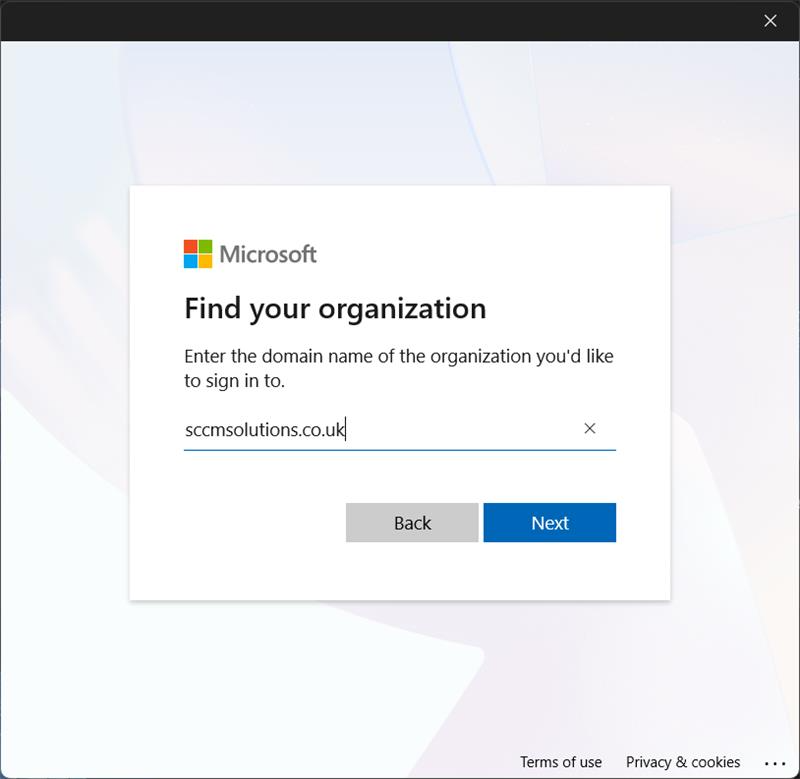
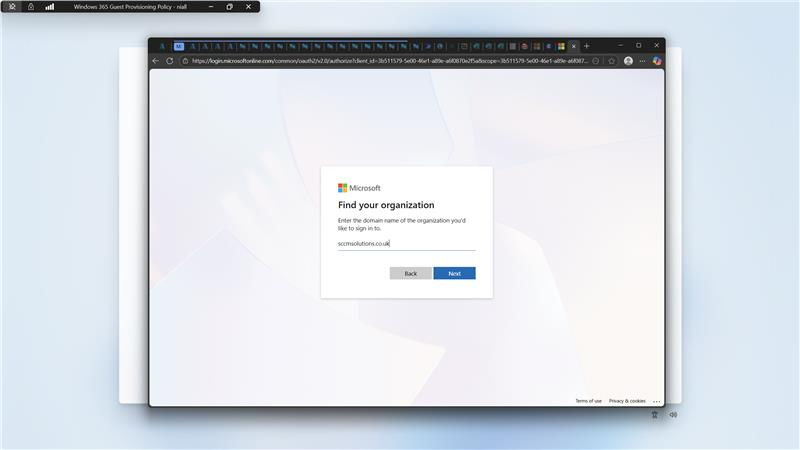
    and enter the domain of the organization hosting the Windows 365 Cloud PC. In our case, sccmsolutions.co.uk.

    image-28.webp

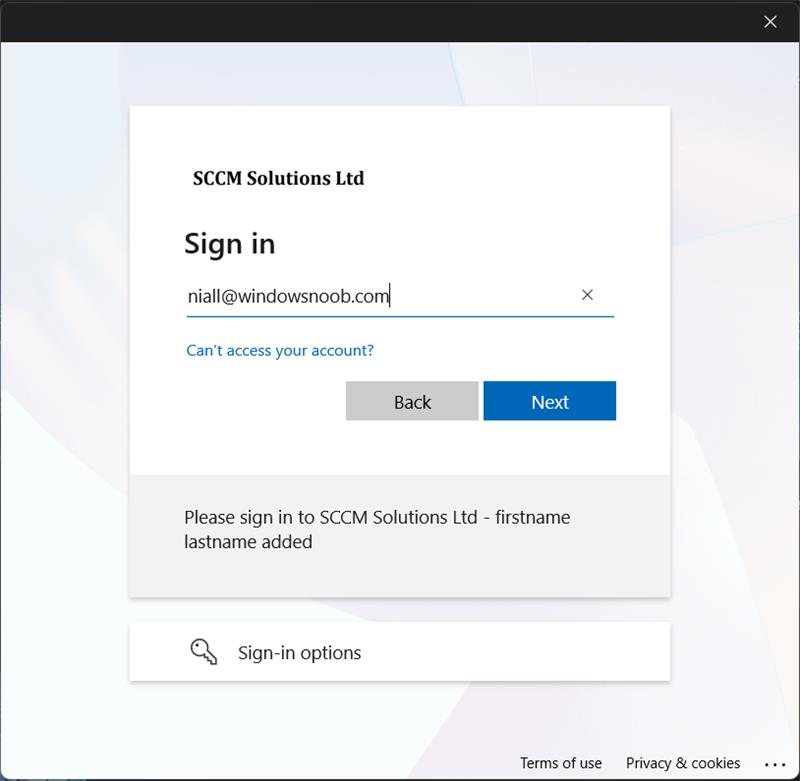
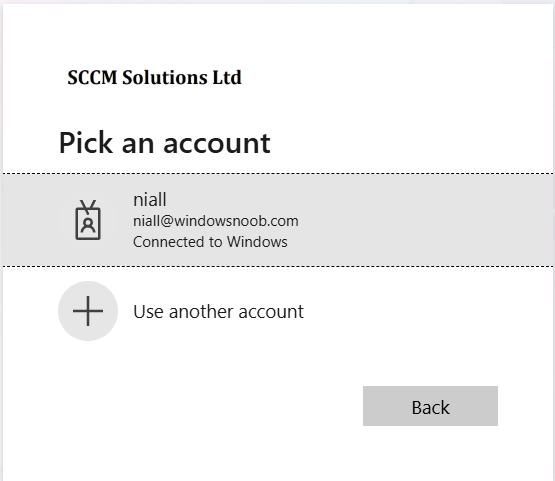
    Now, the guest account must authenticate in the tenant using their account credentials, and respond to any multi-factor authentication or other prompts.

    image-29.webp

    When authentication is complete, the user will be presented with their Cloud PC in the Windows app.

    image-30.webp

    The user is able to switch between organizations by clicking their account profile and selecting accordingly.

    image-31.webp

    Web Browser

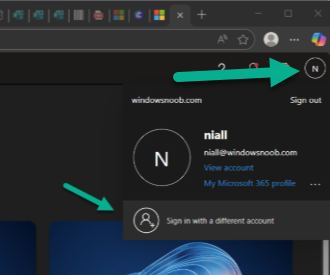
    When navigating to windows365.microsoft.com, the user will authenticate with their account. Then in the top right hand corner of the web page, the user clicks their profile and then chooses Sign in with another account.

    image-33.webp

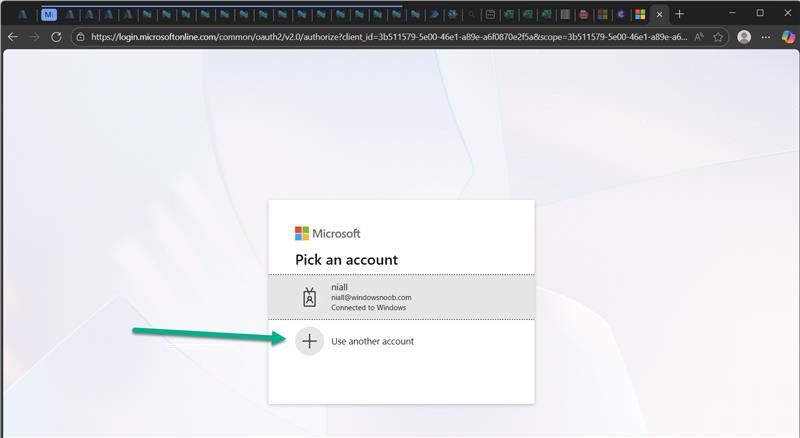
    Now, choose Use another account.

    image-34.webp

    The user will then have the Sign-in options available to select (if the reg key is present on the device).

    image-35.webp

    After selecting Sign-in options, choose Sign in to an organization.

    image-36.webp

    As with the Windows App, they enter the domain name of the organization hosting the Windows 365 Cloud PC.

    image-37.webp

    and authenticate with their user account.

    image-38.webp

    Finally, the user will be presented with the provisioned Cloud PC in the web browser.

    image-39.webp

    Using either Windows App or the web browser to log on to the Cloud PC, will allow the guest account access to the device, where previously they would have had to have had an account created in that tenant for them to have a Cloud PC assigned.

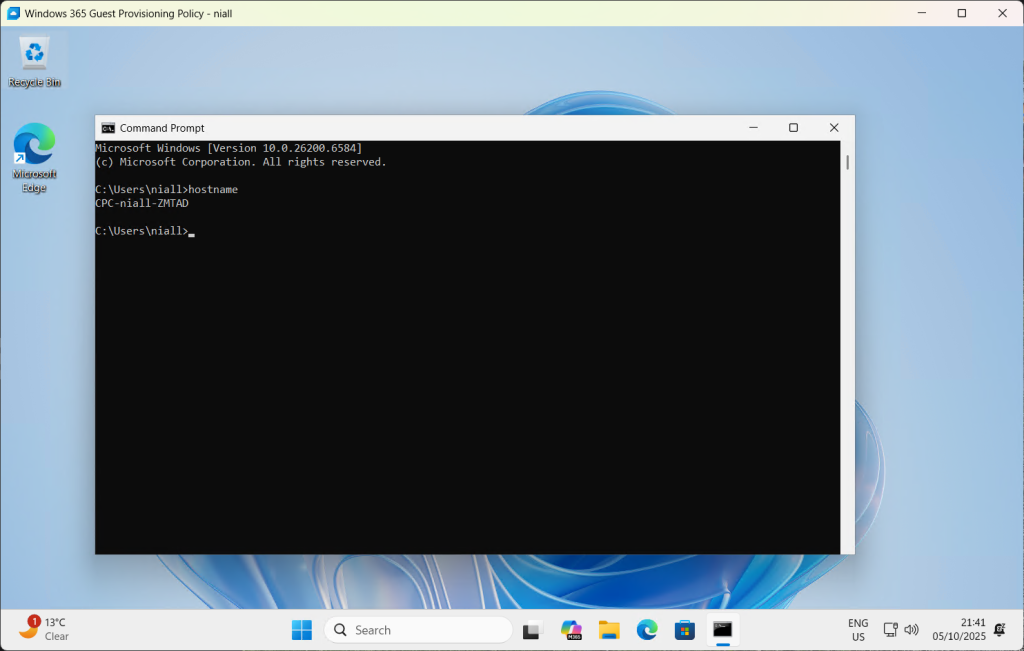
    As we can see, Niall’s account is accessing CPC-niall-ZMTAD in the sccmsolutions tenant.

    image-40.webp

    This is a hotly awaited addition to Windows 365 Cloud PC features. We look forward to using this feature with our customers. We hope that the registry key requirement is soon removed and is added as part of the installation of the Windows App, as this will help reduce steps required for onboarding for guest accounts.

    See you next time.

  11. Introduction

    In a previous post we took a look at how you can determine the health of the Windows app and you can read about that here. Please read it to understand the new feature and why this blog post improves things from an admin perspective.

    In this blog post myself and my good friend Paul Winstanley took a look at yet another Windows 365 related ability and that is an Intune remediation solution called Windows App Health Check Log Reader.

    Note: This remediation solution is not supported by Microsoft.

    If your Windows app detects a health issue it’s logged in the following log file:

    C\Users\<USERNAME>\AppData\Local\Temp\DiagOutputDir\Windows365\logs\health_checks.log

    But that log file is on the device hosting the Windows app used to connect to your Windows 365 Cloud PC’s and that requires remote access by an admin or some other way of grabbing the log to determine the issue.

    In this blog post we take a look at a remedition solution which does just that, it looks at  Windows devices that you target, determines if they have the Windows app installed and if that app matches a minimum version (needed for health checks), parses the health_checks.log file to see if there were any recent errors reported.

    If so, based on the cadence you select, it will copy that log to the root of your Intune logs folder, which is located at the following path:

    C:\ProgramData\Microsoft\IntuneManagementExtension\Logs

    Doing this allows you to grab the logs via the Intune console collect diagnostics ability. So let’s take a look at how it works.

    Get the scripts

    Head over to Github and download the 2 scripts here. They’ve changed a bit lately based on feedback we submitted, so do check regularly for updates.

    Once you’ve downloaded the scripts, extract them somewhere useful.

    health-check-remediation-scripts.png

    Create the remediation

    In Microsoft Intune, create a remediation solution using these 2 scripts.

    create-remediation.png

    On the Settings page, point it to the 2 scripts as appropriate.

    create-remediation-add-scripts.png

    Once done, assign it to some devices that you want to monitor the health of the Windows app on, we used an Entra Id group containing some devices with and without the Windows app installed and we set a cadence of every hour to see the results quickly, however in production you’ll probably want to set that to run once a day.

    assignments.png

    Analyzing the results

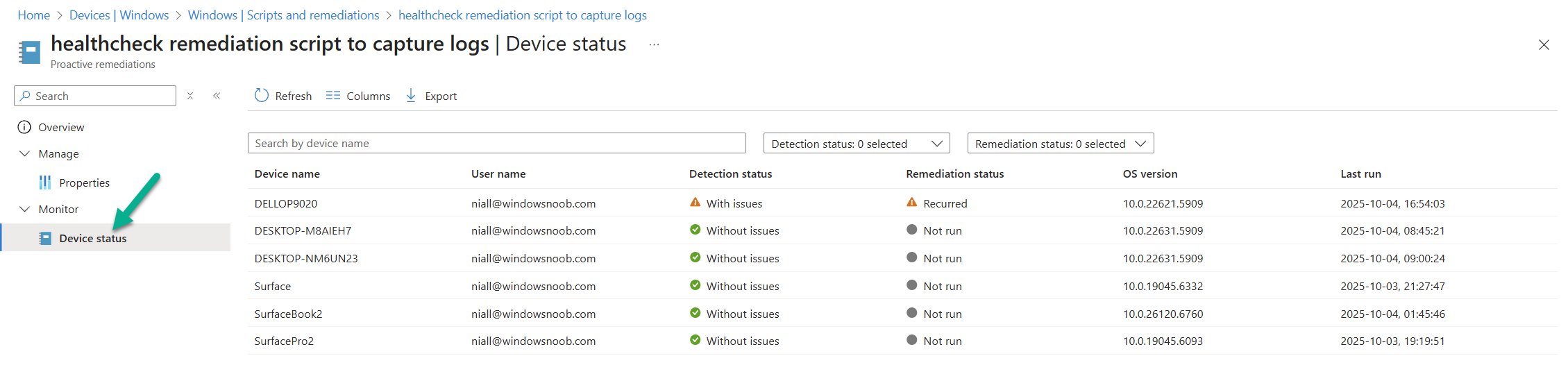
    After the remediation has run for some time, you can analyze the data it created by clicking on Device status in the remediation.

    device-status.png

    In here we can see that most devices are without issues (good) but one device reports a detection status of With issues and it has recurred.

    with-issues.png

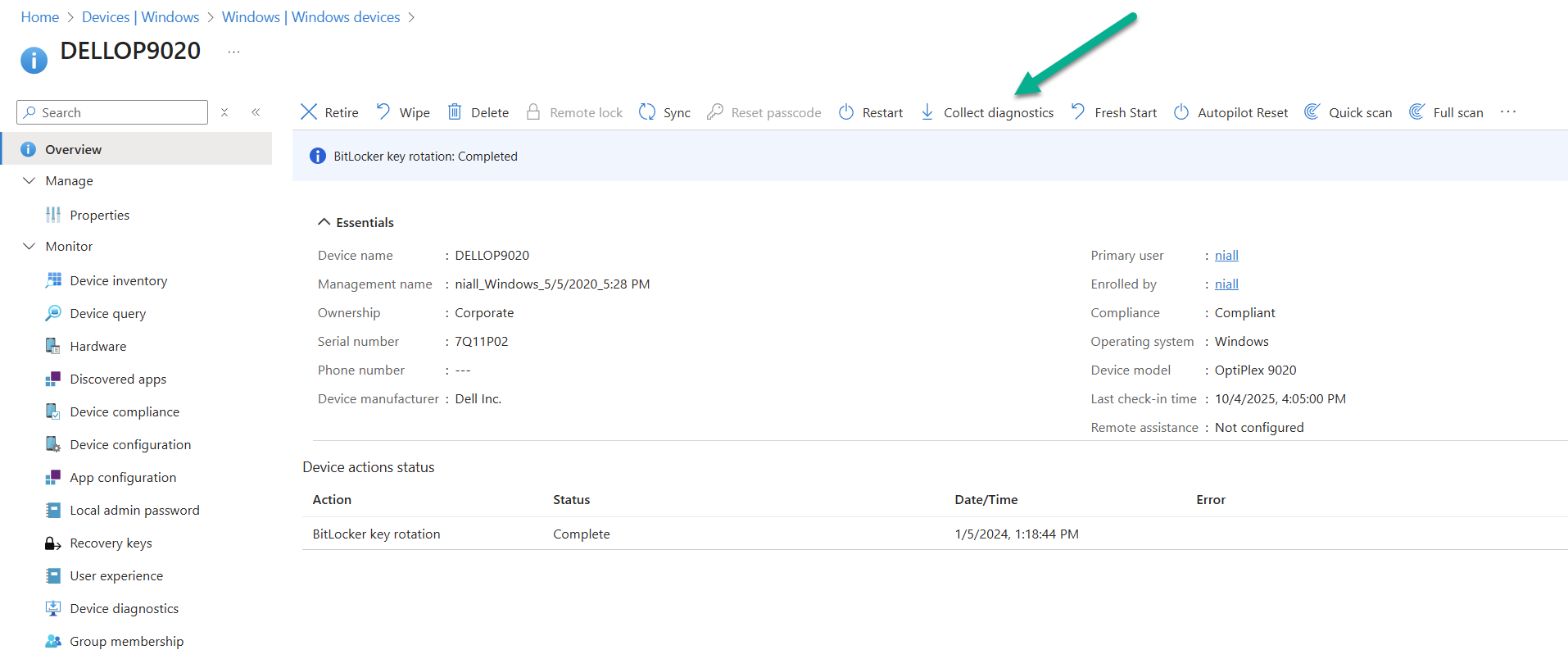
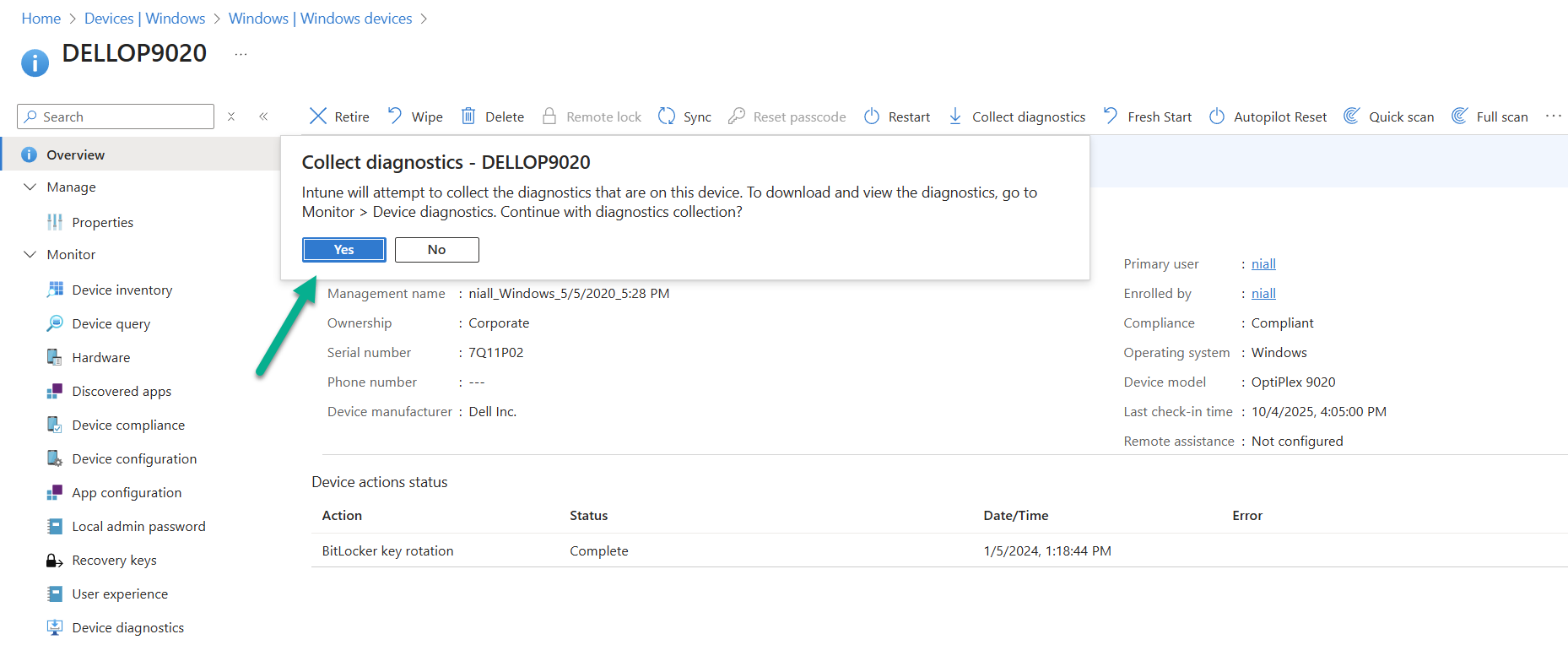
    Back in the Intune console, locate the device highlighted with issues, and click on the Collect diagnostics button.

    collect-diagnostics.png

    answer Yes when prompted.

    yes.png

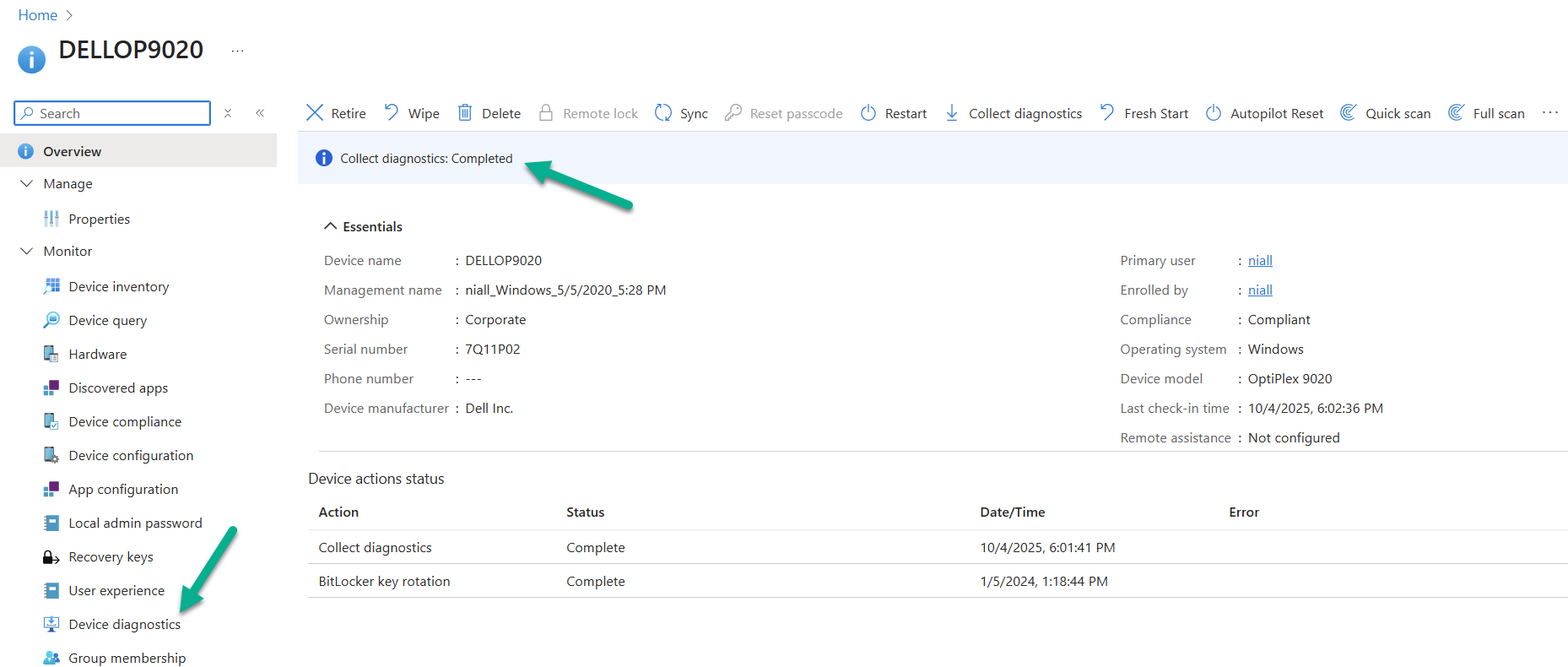
    After some time those log files will be captured and you’ll see the status has changed.

    collect-diagnostics-completed.png

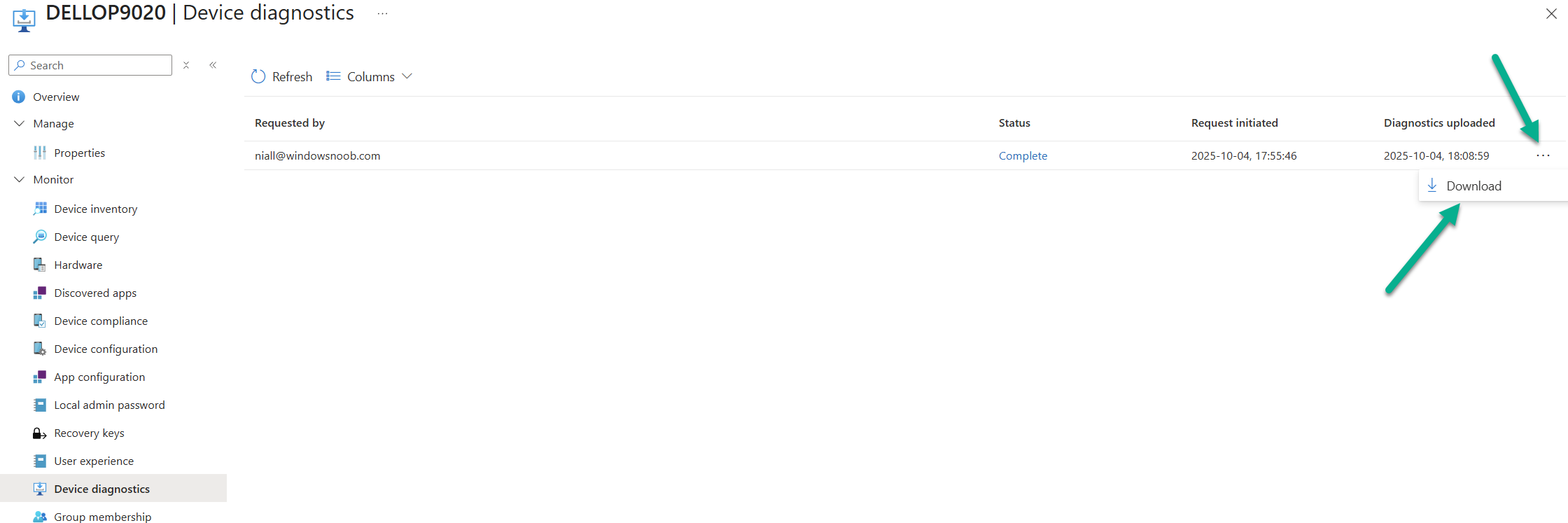
    Click on Device diagnostics to download those files, by clicking the three dots and then selecting download.

    download.png

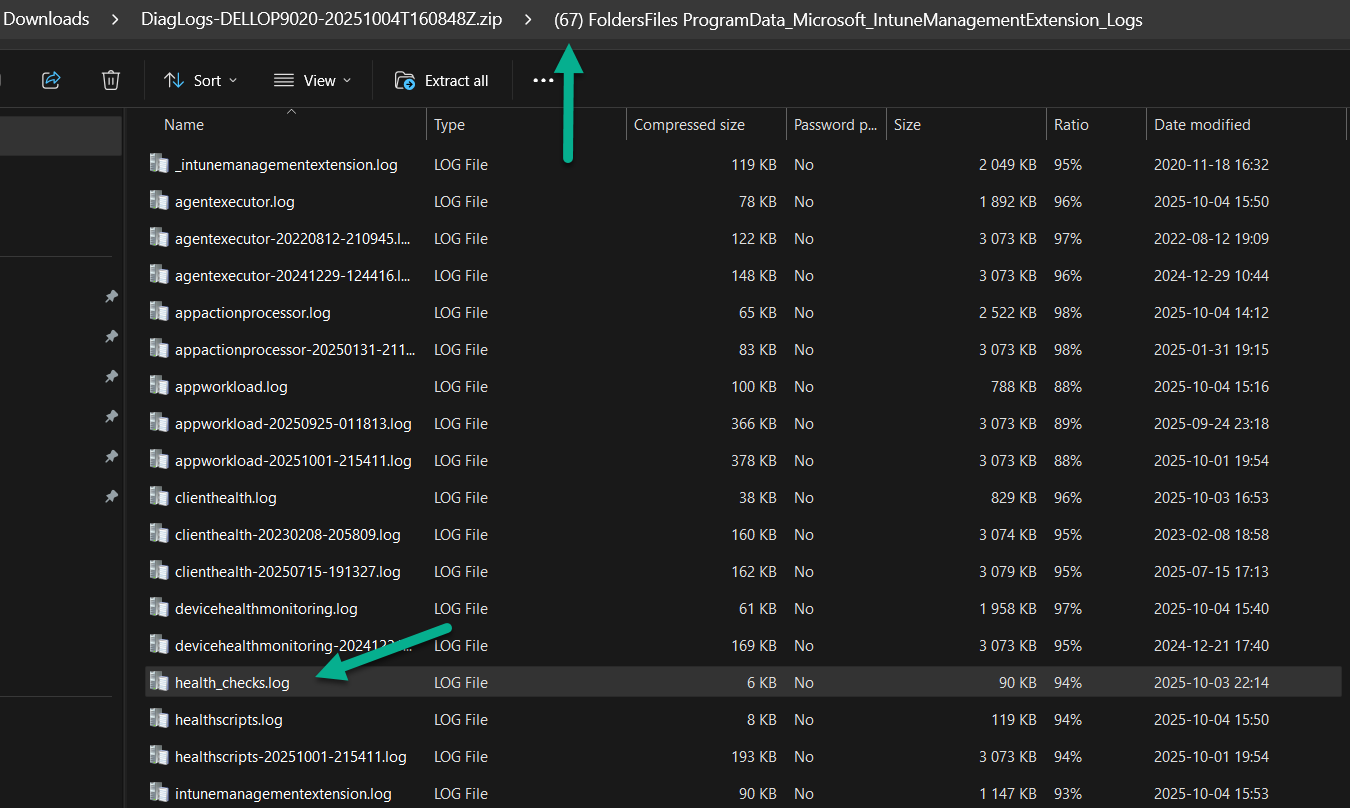
    Within the extracted ZIP file, locate the (67) FoldersFiles ProgramData_Microsoft_IntuneManagementExtension_Logs folder and you’ll see the health_checks.log file.

    67-folder.png

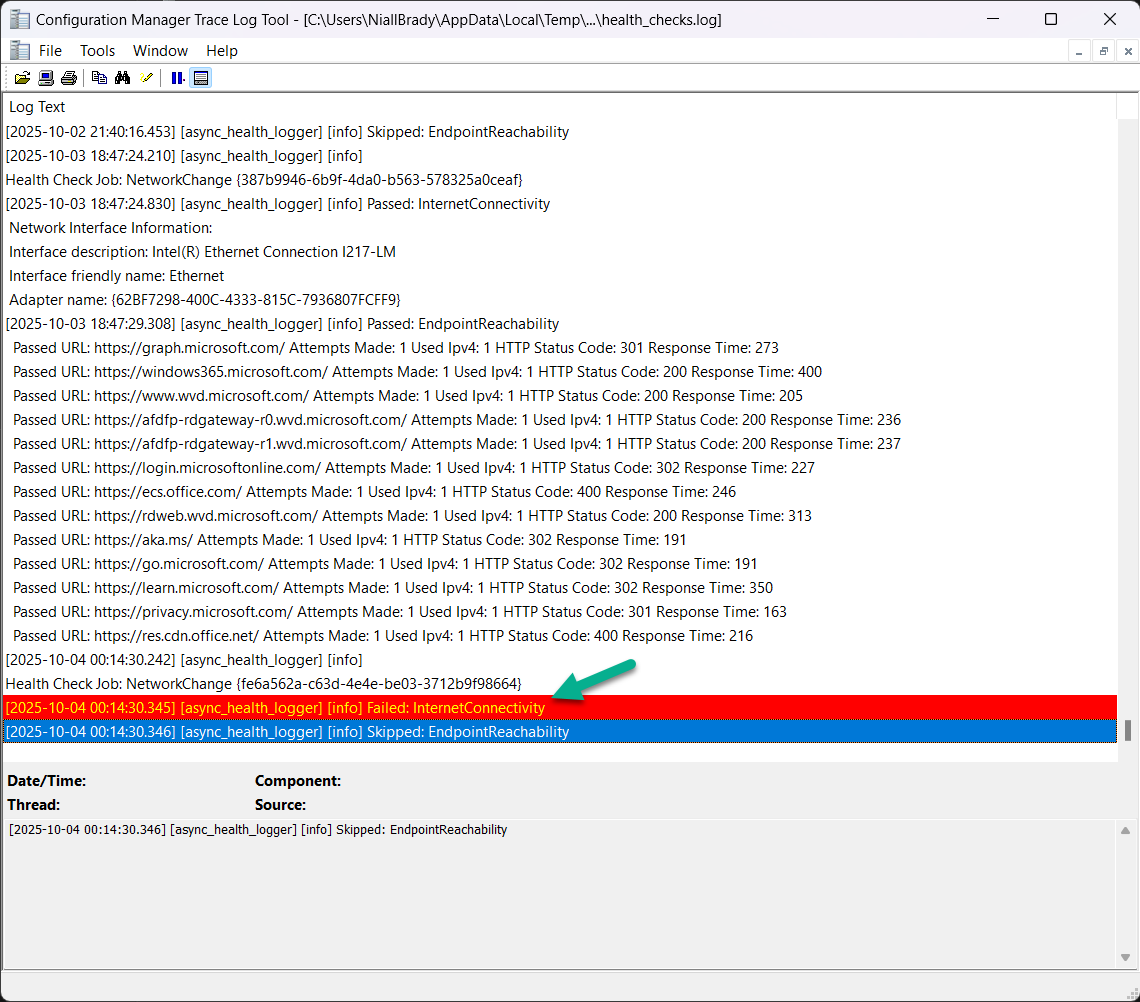
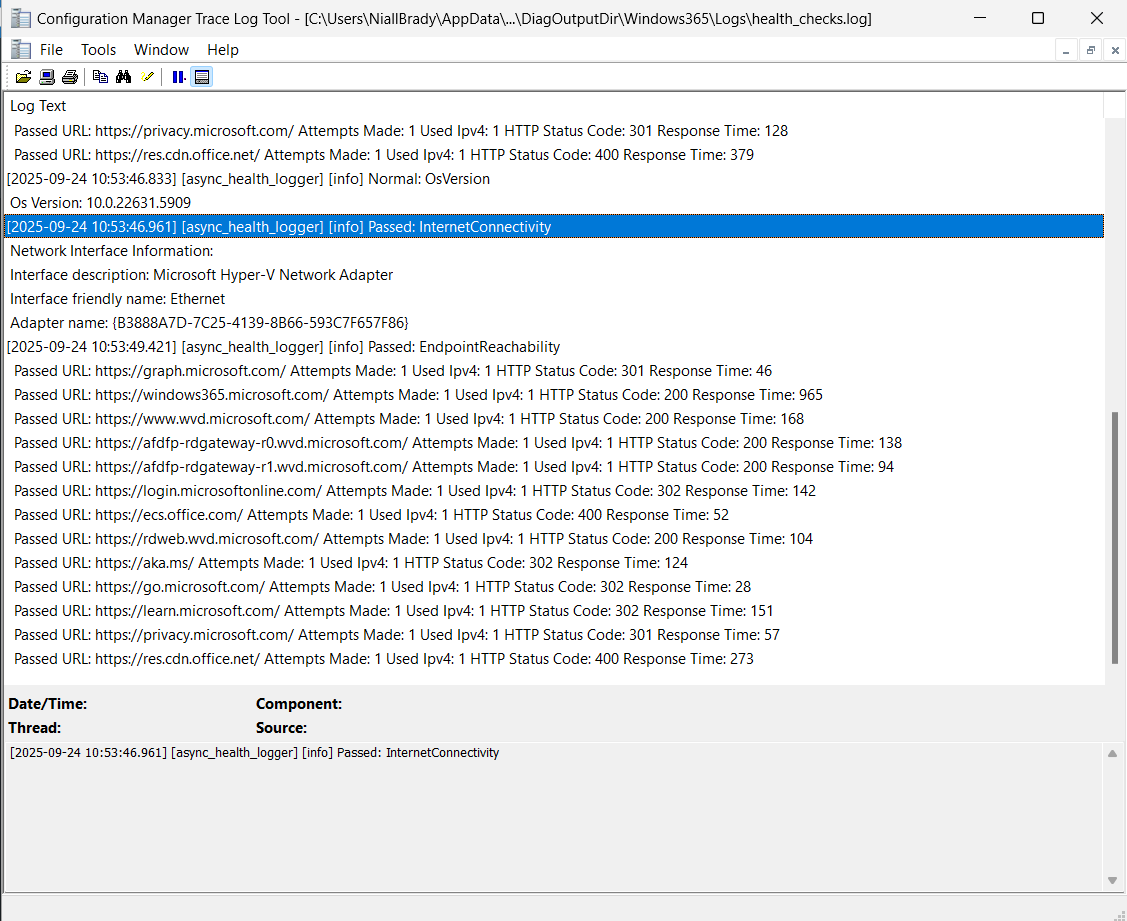
    Open that file in CMTrace to review the issue.

    failed-internet-connectivity.png

    That’s a result!

    With this new remediation solution, you (as an Intune admin) can automate the copying of the health_checks.log file to a location that is easy to remotely grab without needing to bother the end user or use remote access to their PC.

    Awesome.

    see you in the next one !

  12. Introduction

    Microsoft has just pushed out yet another new feature for Windows 365 and Azure Virtual Desktop environments which is called health checks. Myself and my good friend Paul Winstanley took a look at the new feature and wanted to share our thoughts with you.

    We looked at the new functionality of the Windows app on Windows devices but this new feature is available via the Windows app on the following platforms:

    • Windows: version 2.0.703.0 or later
    • macOS: version 11.1.8 or later
    • iOS: version 11.1.7 or later
    • Android: version 11.0.0.46 or later

    What are health checks ?

    Good question. Think of it as a way for the Windows app to carry out a series of checks to verify that everything is in place to ensure that you have a consistently good connection to your Cloud PC and if something is not right, to report that there’s a problem to you via the app and via logs.

    These checks happen if it detects a network change, or can be triggered manually by the end user or automatically when the Windows App itself starts or when the user makes a connection to a resource such as a Cloud PC or Cloud App.

    Let’s take a look

    In the current version of the Windows app (2.0.704.0 at the time of writing), the health checks ability has been added. Please note that it is gradually rolling out to all regions, so if you have updated your Windows app and still don’t see the health symbol, don’t panic, it’s on its way.

    To verify which version of Windows app you are running see here.

    current-version.png

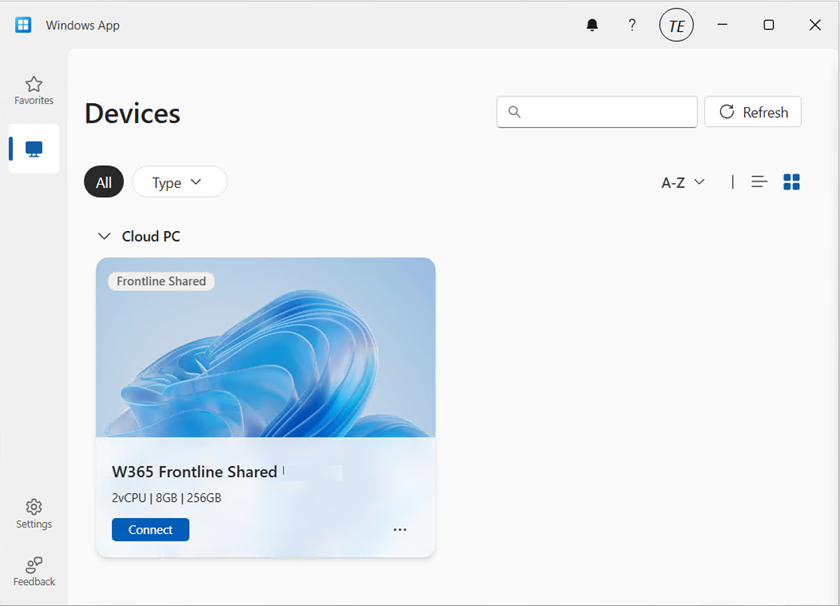
    Before the feature rolls out your Windows app will look something like this.

    before-health-check-added.png

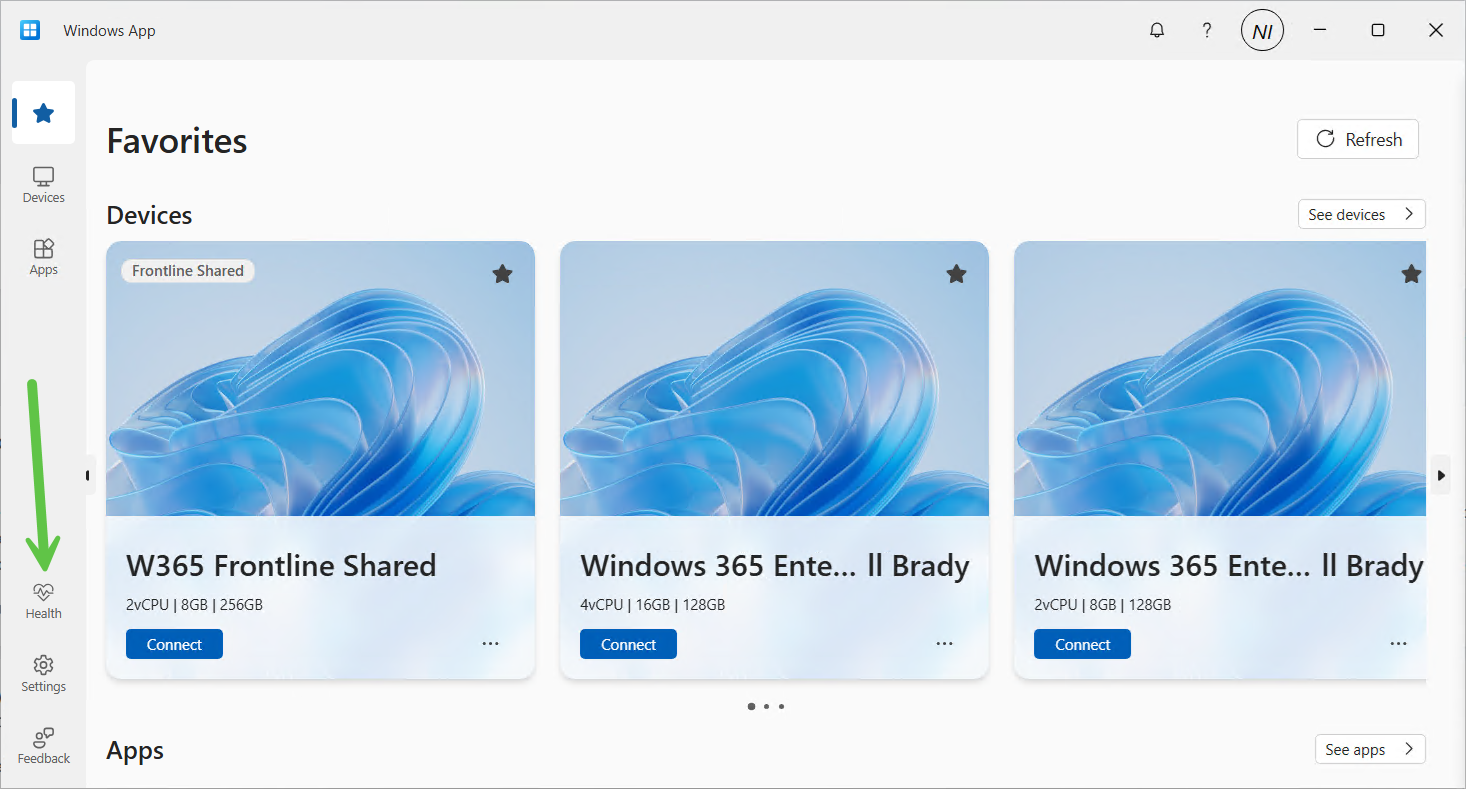
    After the health check feature is enabled for your region, the Windows app will appear something like this, notice the new heart shaped icon on the left menu highlighted with a green arrow.

    health-checks-enabled.png

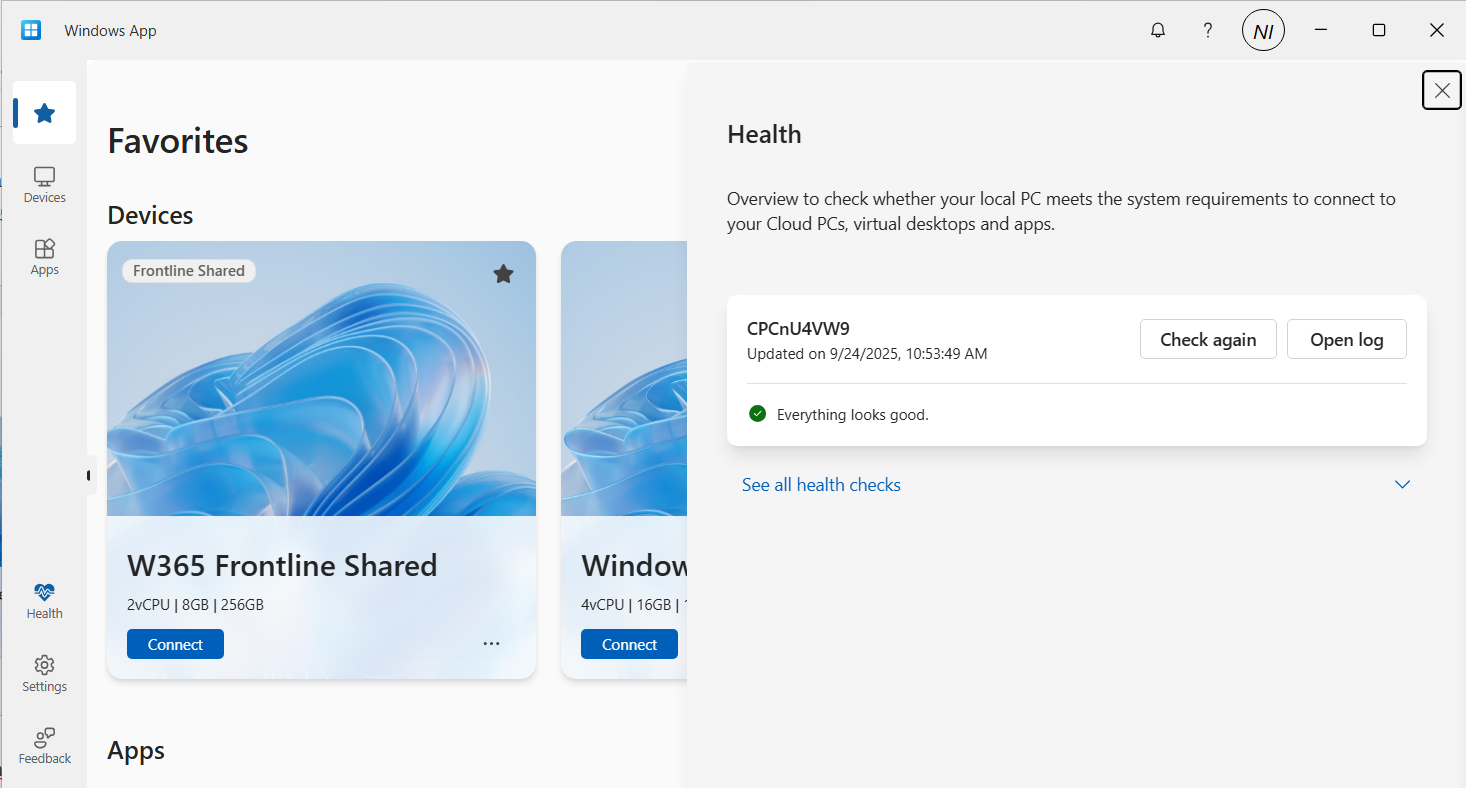
    Clicking it, brings up some information on the right side of the Windows app detailing the health of your connection.

    health-check-button-clicked-on.png

    In there you can see the computer name, and what it determines to be the state of the system, the date and time of the check and the result of the check, in this case Everything looks good.

    You can also manually check the health by clicking Check again which will kick off the health checks, or click on Open log to see a log file containing what it has checked and the results of that check.

    Below is what the log file content looks like when everything is OK.

    health-check-log-file.png

    The health_checks.log file location on Windows devices is:

    C\Users\<USERNAME>\AppData\Local\Temp\DiagOutputDir\Windows365\logs\health_checks.log

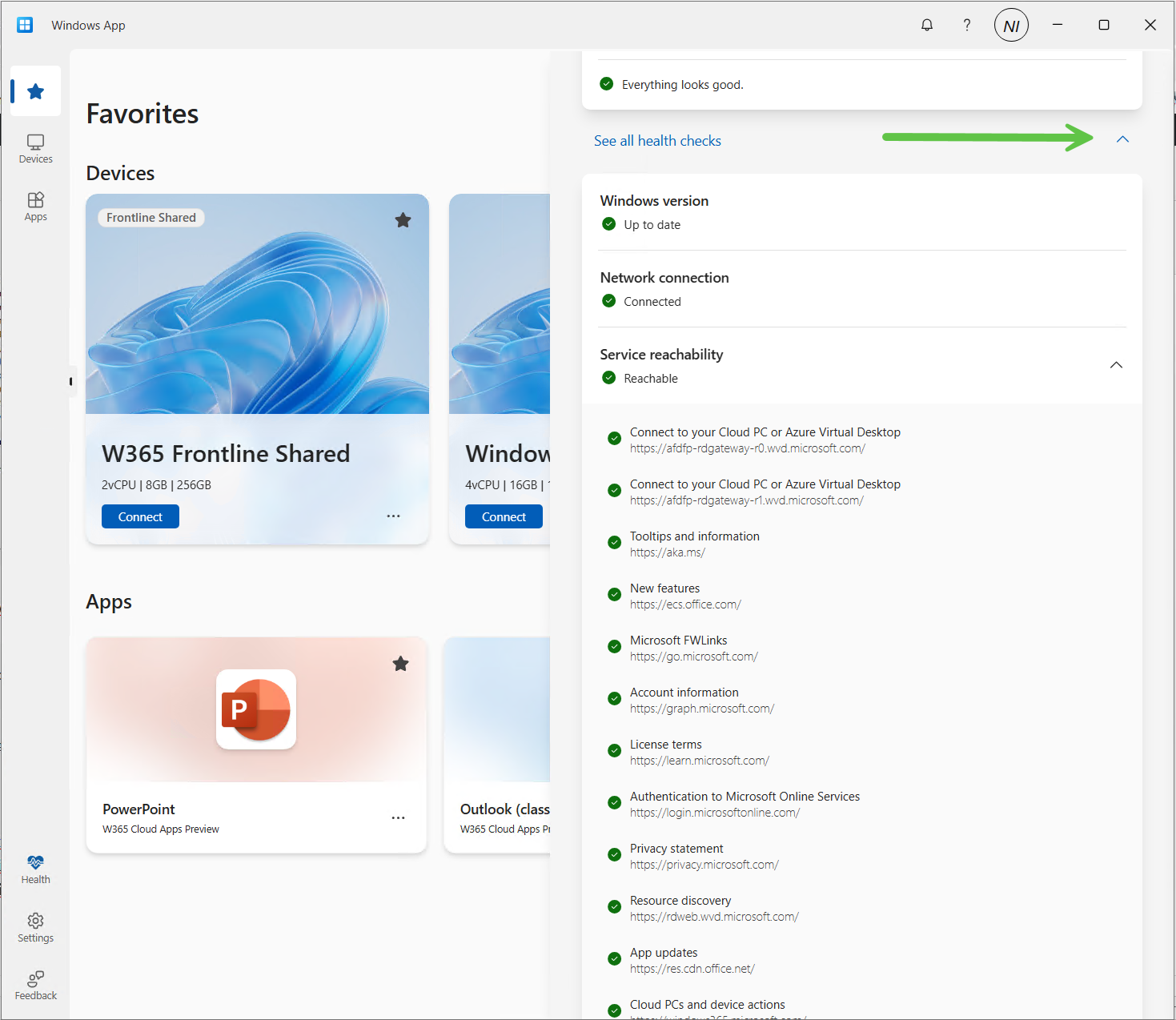
    You can also click on See all health checks to expand a list of what is checked.

    health-checks.png

    that’s all fine when everything is working, but what about when you have an actual problem ?

    Detecting network issues

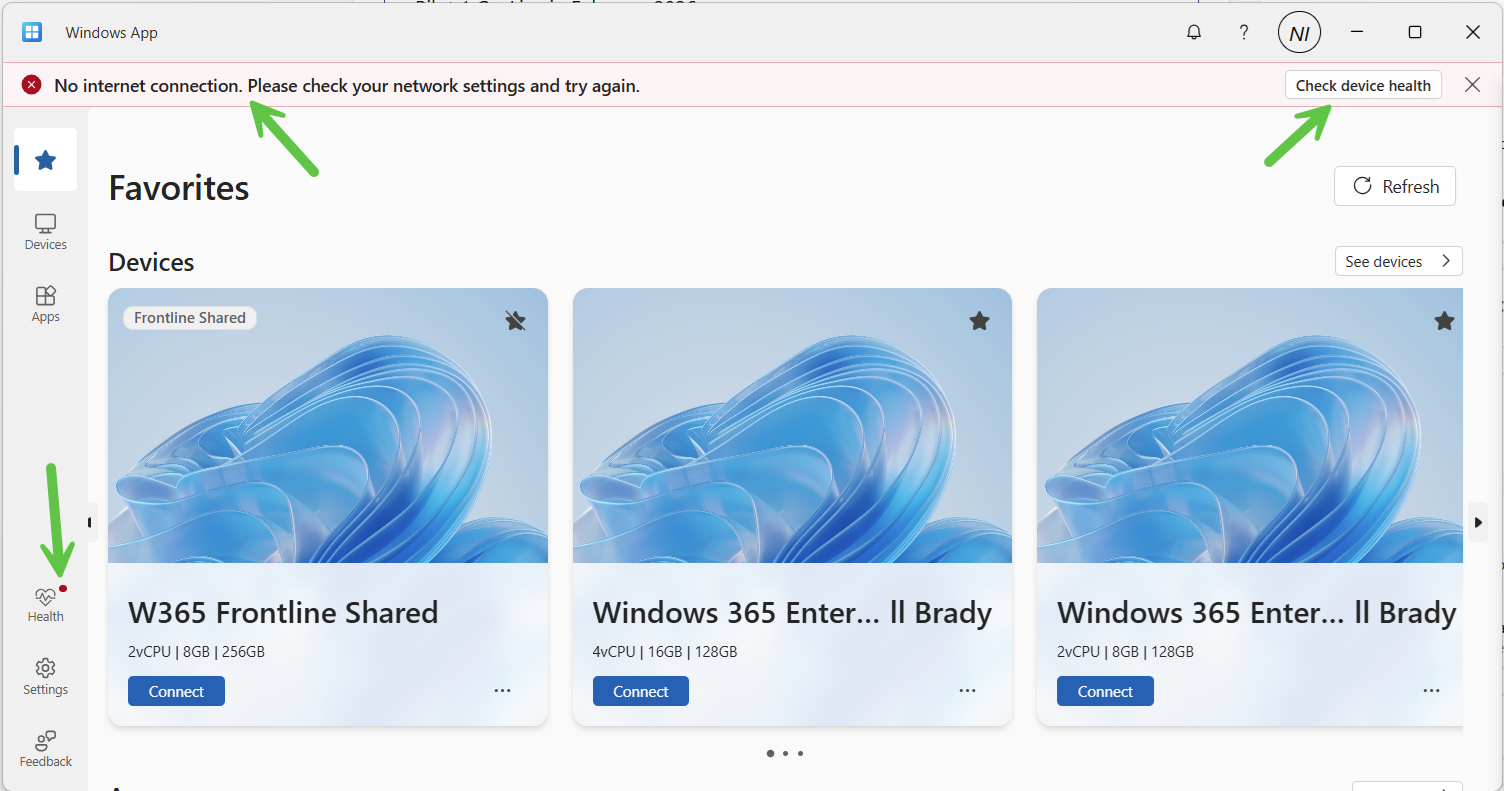
    If something is detected to be not working, such as a failure to reach a required endpoint, then the Windows app will alert you with a banner, and the Health Check icon will have a red dot to signify something is wrong. These changes to the Windows App appearance happen if a network change is detected.

    health-check-detected-a-problem.png

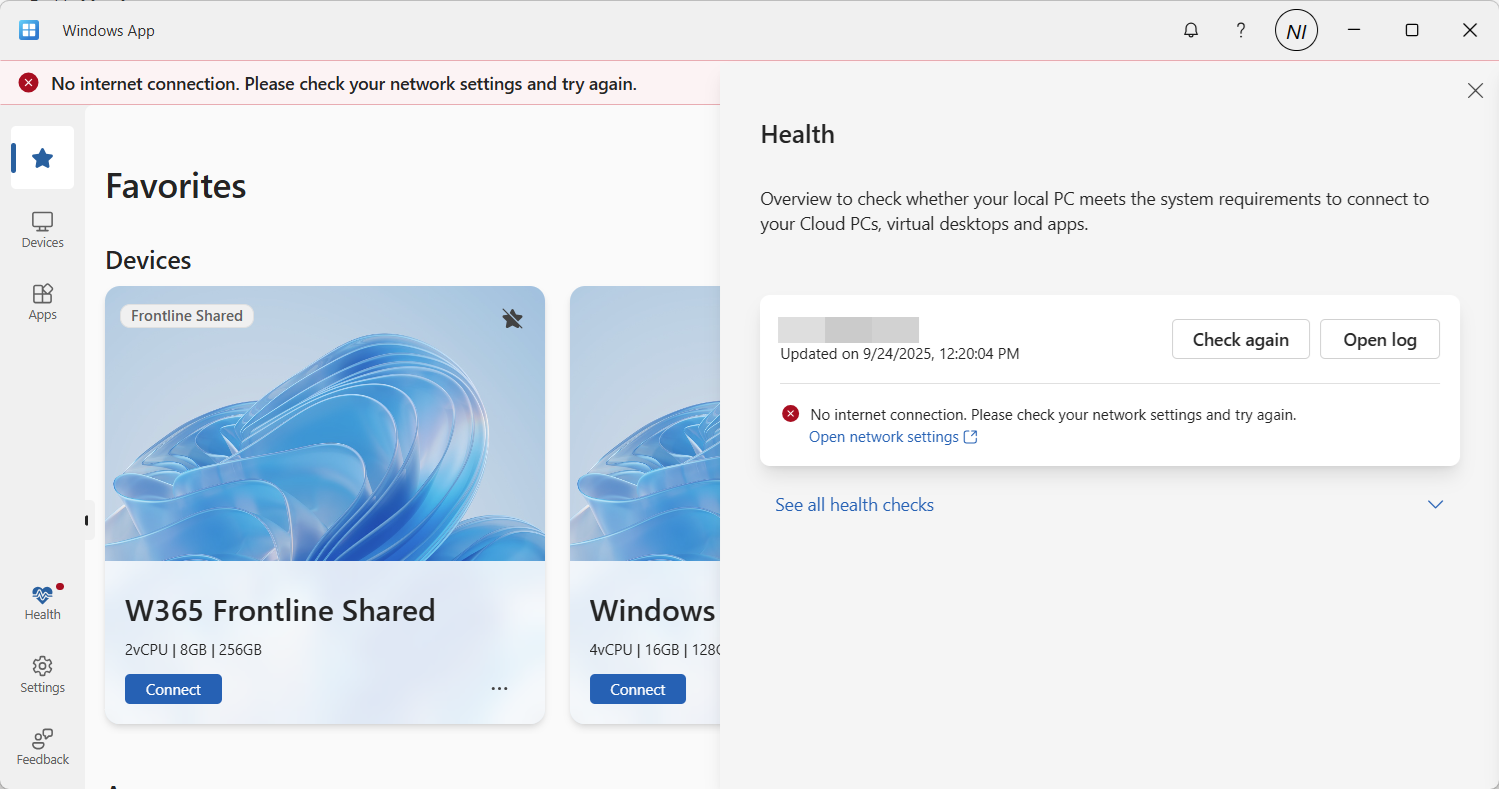
    Clicking on the health check icon itself, or clicking the Check device health warning button will allow you to check and reveal what the problem is.

    more-info.png

    At this point you have many options.

    • Check again
    • Open log
    • See all health checks
    • Open network settings

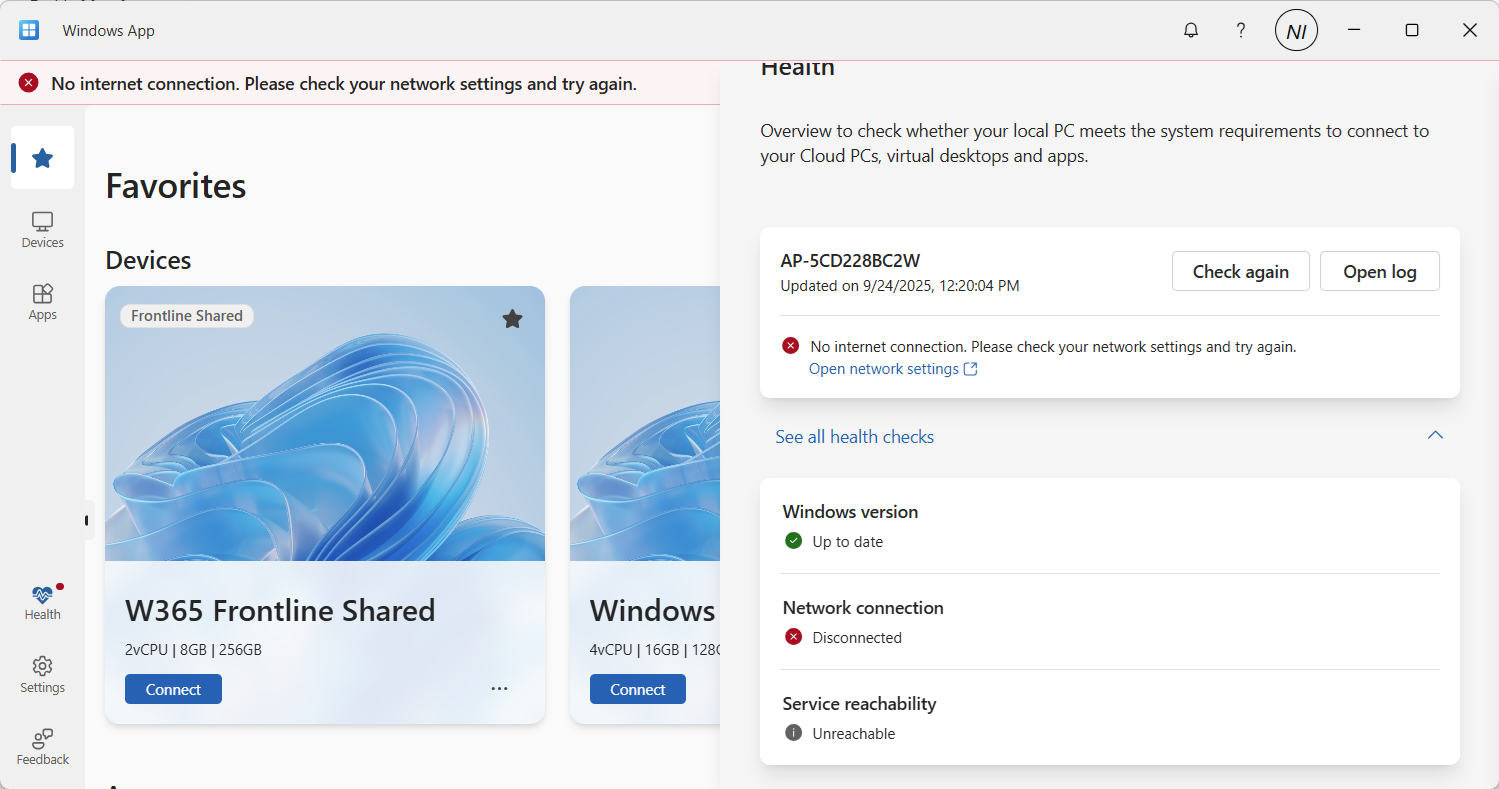
    Clicking on See all health checks in this example reveals that the network connection is disconnected.

    network-disconnected.png

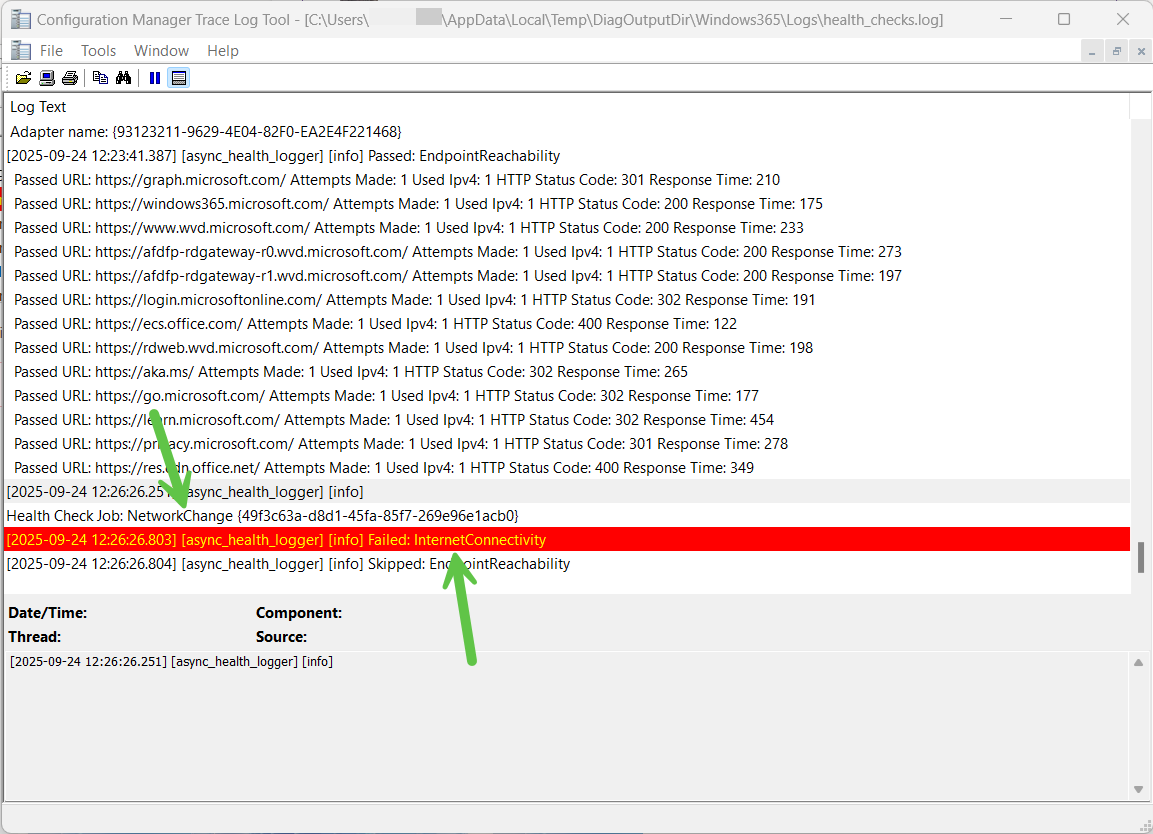
    And as mentioned above, that was detected when a network change was detected, as is revealed in the log file by clicking on Open log.

    network-change-example-1.png

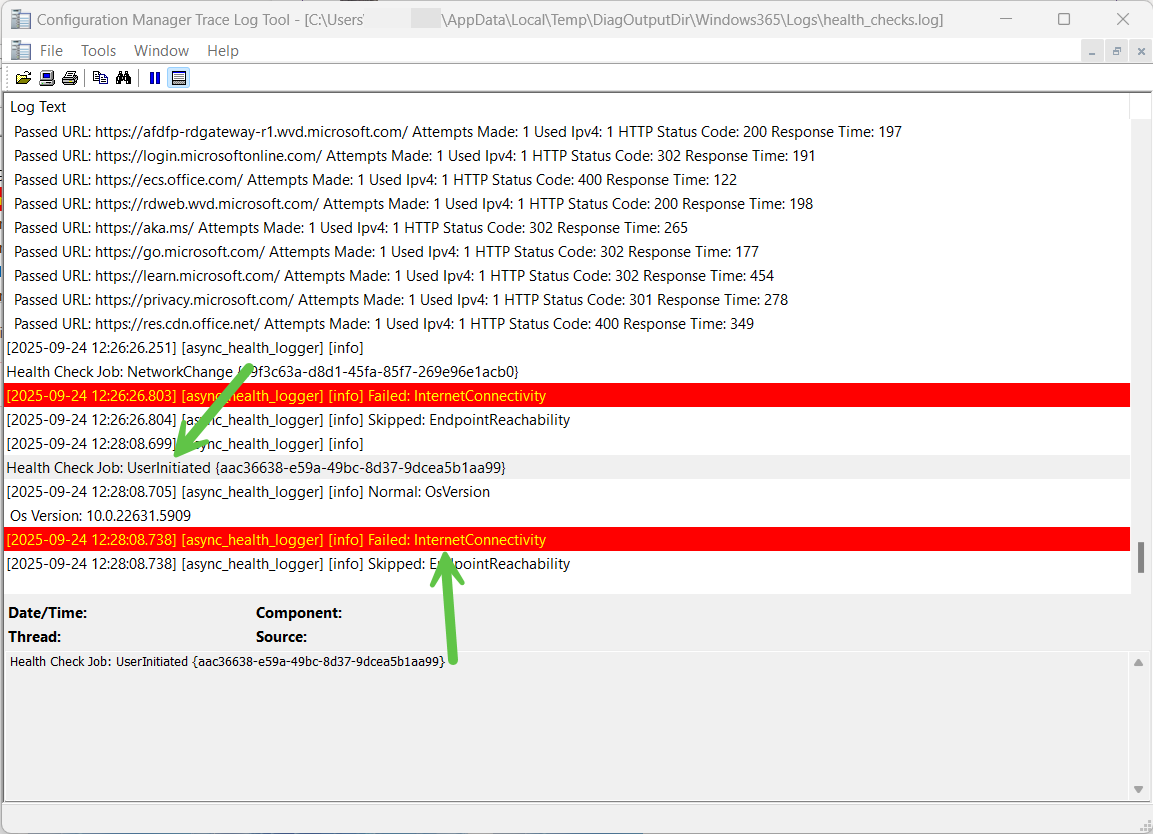
    Clicking on Check again in this failed state reveals (in the log) that this was a user initiated check.

    user-initiated-health-check-revealed-in-

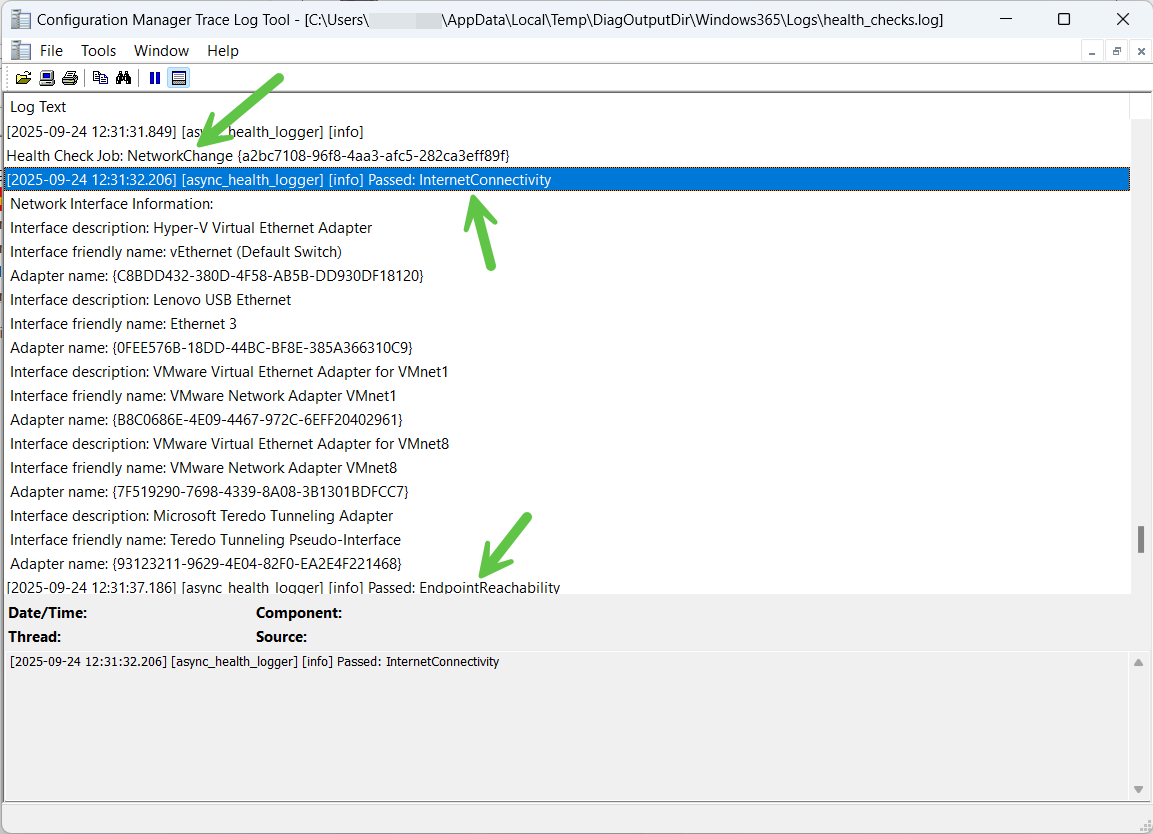
    After you’ve sourced the root of the problem (in this case the router was turned off to simulate a network failure), and resolved it, the log reveals that there was another network change, and this time all is good.

    network-change-reveals-all-is-ok-again.p

    So there you have it, automated and manual health checks are now possible using the new feature in the Windows app.

    More info

    You can get more info about the new feature from Microsoft below:

    Summary

    The new health checks feature is a very welcome addition to the Windows app, as more and more companies have complex environments that contains proxies, ssl inspection, network sniffers that can interuppt or block the necessary traffic routes.

    The health check feature highlights when there is a problem with one or more of these endpoints, and alerts the end user with a popup. The admin in their turn can utilize the health check log to get more info about exactly what is failing.

    Thanks Microsoft for the feature and in particular thanks to the very helpful PM, Pavithra Thiruvengadam.

  13. Introduction

    A new feature for Windows 365, and now in preview, is Windows 365 Cloud Apps. Instead of giving users a full remote desktop session, Windows 365 Cloud Apps are published as individual applications that run on a Cloud PC but look and behave like they are installed locally on the device. If you are familiar with Remote Apps, first introduced in Windows Server 2008 as part of Remote Desktop Services, then you will have an understand of how these operate. When Windows 365 Cloud Apps are published, you will be able to load up that individual application and if any interaction with another application is required, then that application will also fire up, even if it has not been published to the user.

    Note that Windows 365 Cloud Apps are only available to you with a Windows 365 Frontline subscription.

    myself and my good friend Paul Winstanley sat down to test run this new Windows 365 feature. It is nice and simple to set up so follow along.

    Create the Windows 365 Cloud Apps Provisioning Policy

    The first step is to create a provisioning policy for the Windows 365 Cloud Apps. This is done in the usual place for Windows 365 provisioning Devices | Device onboarding | Windows 365 | Provisioning Policies | Create Policy.

    You will notice a new Experience section in the policy wizard, here you will need to select Access only apps which run on a Cloud PC (preview) as the selection defaults to Access a full Cloud PC desktop. When you select the Access only apps which run on a Cloud PC (preview) option, Frontline will be automatically selected for License type and Frontline type will be Shared. All other options are greyed out as they are not applicable to Windows 365 Cloud Apps as mentioned earlier.

    Enter any other relevant information for join type, geography, region and SSO before proceeding through the wizard.

    image.png?w=998

    The selection of the Image type is crucial for Windows 365 Cloud Apps as the solution will make available any discoverable applications in the devices’ start menu (Appx and MSIX are currently not supported discoverable app type – therefore Teams is not available at this stage). You can import a custom image to take advantage of other applications which are not included in the Microsoft Gallery images.

    image-1.png?w=1019

    Clicking the View link for Apps available on the image will display a list of the Cloud Apps that will be available to you when the device is provisioned.

    image-2.png?w=1024

    When assigning the policy, you will need to select the Frontline Cloud PC size from your Available Cloud PC’s drop down and create an Assignment name and choose the Number of Cloud PC’s, this number will reflect the number of licenses that you have available to use.

    image-3.png?w=1024
    image-4.png?w=1024

    After creating your policy, the Frontline Shared device, which will host the Cloud Apps will being provisioning. You can view this under All Cloud PCs.

    image-5.png?w=1024

    Give the device some time to provision and once completed it will report as such.

    image-6.png?w=1024


    Publishing some Cloud Apps

    Whilst clicking though the menu system, you may have noticed a new All Cloud Apps option, this is where we need to go to publish the discovered apps, making them available to the assigned users.

    We can see that 32 items were discovered from the image we selected and their App status is currently set to Ready to publish.

    image-7.png?w=1024

    Simply select the apps you want to publish and click Publish.

    image-8.png?w=1024

    Confirm your choice to Publish the apps.

    image-9.png?w=1024

    The App status will change to Publishing.

    image-10.png?w=1024

    and will, very quickly, become Published.

    image-11.png?w=1024

    You now have the option to Unpublish apps. The process is identical. Select apps you want to remove and click Unpublish.

    image-12.png?w=1024

    Confirm to remove them.

    image-13.png?w=1024
    image-14.png?w=1024

    The App status will revert to Ready to publish.

    image-15.png?w=1024

    How to access the Windows 365 Cloud Apps

    Windows App is the place to go to access your Windows 365 Cloud Apps. Prior to publishing apps to the users, the application will display any device based Cloud PCs the user has access to.

    image-16.png?w=1024

    With apps assigned a new option Apps appears. Look out for it as it’s a subtle addition and you could miss it initially.

    image-18.png?w=1024

    Clicking on Apps will display the published apps that you have made available.

    image-19.png?w=1024

    You can make an app a Favorite by clicking the ellipses.

    image-20.png?w=464

    When launching an app a RemoteApp connection to the Frontline device will initiate and you may be prompted to authenticate along the way.

    image-21.png?w=1024

    and Allow remote desktop connection, depending on policies assigned to you.

    image-22.png?w=1024

    If this is the first time connecting to the Cloud App, it will take a little long to load up. You can click Configuring remote session to see that Windows is being prepared.

    image-23.png?w=1024

    You can identify the Cloud App from the icon on the Windows task bar, there is a Windows App logo on the top right hand corner of the icon.

    image-24.png?w=258

    Once launched, you will feel as it the application is running on locally on your device. Pretty cool!

    image-25.png?w=1024

    Things to note

    • To remove Cloud Apps from the All Cloud Apps view, you will need to delete the assignment of the provisioning policy.
    • Since Cloud Apps run as Frontline Shared, the management of them is identical to management of a Frontline Shared Cloud PC, so be aware of any max connection limitations due to licencing.
    • You can utilise policies assigned to Frontline devices, such as redirection. These will apply to Cloud Apps.
    • When using a custom image, Windows 365 Cloud Apps will use a PowerShell script to scan the Start Menu for apps, so ensure that your tenant policies do not require extra authentication for PowerShell scripts to achieve this.
    • Currently only apps discovered in the Start Menu are available. Microsoft are developing the ability to publish apps that are installed by Intune and are included in the Autopilot Device Preparation Policy associated with the Cloud App provisioning policy.

    We hope this blog post gives you a tester of this great new feaure.

×
×
  • Create New...

Important Information

We have placed cookies on your device to help make this website better. You can adjust your cookie settings, otherwise we'll assume you're okay to continue.