
anyweb
-
Posts
9284 -
Joined
-
Last visited
-
Days Won
371
Everything posted by anyweb
-
the only way you'll be able to 'shim' the computer name into thinking it's the serial number, is if you know exactly what method (or methods) the medical software uses to determine the computer name, do you know how they are doing this ? modern applications often don't just call GetComputerName(). They may query: WMI (Win32_ComputerSystem) Environment variables (COMPUTERNAME) Registry values Active Directory attributes Their own licensing service If that's the case, a simple shim won't help. You could try this easier alternative depending on the architecture: Run the software in a VM whose hostname remains the serial number. Ask the vendor for a revised license tied to a hardware ID instead of hostname. Use a license server if the product supports one.
-
Introduction In previous blog posts I took a look at Windows 365 Reserve, explained what it was and shared my thoughts about how to implement it and configuring it for use as a disaster recovery method in your organization. In this post, I wanted to address some additional items that did not show themselves clearly until after provisioning and using Windows 365 Reserve Cloud PC’s for some days, as this will help you plan accordingly. You can review the other posts in this mini-series below. First looks at Windows 365 Reserve Following up on Windows 365 Reserve Final thoughts on Windows 365 Reserve <- you are here Imagine the scenario, your sales workers are somehow hit with malware or a cyber attack, or some other disaster leaving their physical laptops rendered unusable. Luckily, you had some Windows 365 Reserve licenses purchased in advance and assigned them to those very same workers before the incident occurred. So far, so good. Once the incident occurred, you informed those sales workers to connect to their Windows 365 Reserve Cloud PC’s via the Windows app from any device that supported it. This allowed them to continue working until the damage from the Cyberattack was resolved and they could utilize their physical laptops again. Those sales workers logged back on to their physical laptops and completely forgot about their Windows 365 Reserve Cloud PC’s. What happens to those reserve Cloud PC’s and the 10 day window of opportunity that they are entitled to ? That’s what this blog post will focus on. 3 days remaining If you as the Intune admin fail to do anything about the Windows 365 Reserve Cloud PC’s after they did their job, then the clock will keep ticking and even if they are not in use, the 10 days left will expire, rendering them unusable. This becomes apparent in the Intune console, by locating the Windows 365 Reserve provisioning policy, and selecting the devices tab. Look at the Days left column, in the example below, it states only 3 out of 10. In addition, the end user will be notified in the Windows app, via the Windows 365 Reserve Cloud PC title itself, and via a notification (shown below) in the Windows app. This of course assumes that they are still using the Windows app, and assumes that the Windows 365 Reserve Cloud PC is still in use. Here’s the message in the Windows app, shown below. Keep in mind that they may no longer be using the Windows app as the disaster that forced them to use their Windows 365 Reserve Cloud PC may have been solved after a few days, allowing them to re-use their physical laptop, so you cannot guarantee that the end user will even see this warning in the Windows app, and thus, if the admin does not deprovision the Windows 365 Reserve Cloud PC, it will expire. Stopping the clock As an Intune admin, to stop the clock from using up more of these 10 days, you would need to select each of the Windows 365 Reserve Cloud PC’s that are provisioned and in use, and deprovision them. Below is an example of the action on one of the Reserve Cloud PC’s. After doing this action, the 10 day clock will stop ticking, meaning that you’ll still have usable days on that Windows 365 Reserve license for future needs in that time period (10 days per calendar year). Licenses allow up to 10 days of Cloud PC access per year for one user. Note: In case it’s not clear, if you do NOT deprovision your provisioned Windows 365 Reserve Cloud PC’s then they will keep running and use up all of those assigned 10 days. The only warning you’ll get is if you happen to be in the the Intune console looking at the Windows 365 Reserve provisioned Cloud PC’s, you’ll notice the 3 out of 10 days left warning. After deprovisioning the Windows 365 Reserve Cloud PC, the provisioning status will change to Not provisioned and the days left will stay at what days you have left. In previous posts on this subject I pointed out that you as the admin can allow the end user to provision, or even deprovision their Windows 365 Reserve Cloud PC by configuring settings in Intune to allow the end user to do these actions themselves (self-service) via the Windows app. But you should be aware that if an end user wants to start deprovisioning their Windows 365 Reserve Cloud PC, the action to do so isn’t as straight forward as provisioning it (set up your cloud pc). To illustrate this, look at the self service actions below for an end user to begin provisioning their own Windows 365 Reserve Cloud PC via the Windows app. End user provisioning action The end user provisioning action for a Windows 365 Reserve Cloud PC is referred to as Set up your Cloud PC and shown below. followed by once done, the Windows 365 Reserve Cloud PC will be available for use after the provisioning process is complete. End user deprovisioning action If you want your end users to also deprovision their Windows 365 Reserve Cloud PC after the disaster is over, then you’ll have to inform them to return it via the actions below. First, the user needs to locate their Windows 365 Reserve cloud pc in the Windows app, and then click on the … (elipsees) settings icon. From there, click on Return as shown below. This will prompt for confirmation, they need to agree to Delete all my saved data and return this Cloud PC. Once confirmed, the returning process will begin (or deprovisioning). This is a great way of empowering your end users to do the provisioning and deprovisioning actions themselves, but assumes that the users would actually be technically competent enough to do both. And to be honest, after whatever disaster prompted you to issue them these Reserve licenses in the first place is over, do you really think they’ll remember to deprovision (return) their Windows 365 Reserve Cloud PC ? Summary In the final part I took a closer look at what happens after the disaster is over and your users can begin using their physical devices again. You as the admin must remember to deprovision the provisioned Windows 365 Reserve Cloud PC’s when no longer in use otherwise you’ll lose out on remaining days available for the next disaster. It would be great if there was a reminder (Alert) that you could configure to remind the admin and/or Reserve users to deprovision (return) their Cloud PC’s after usage to save those unused days. There is an alert related to deprovisioning Windows 365 Reserve Cloud PC’s but it only covers the eventuality of deprovisioning failing on the Reserve Cloud PC, not actually reminding you to deprovision them once not in use. Your users can be educated to do this themselves but I would doubt that they’d remember to do so, once they regain access to their physical computer. Therefore it’s up to you the Intune admin to not only be proactive in selecting, provisioning and assigning Windows 365 reserve licenses in advance of a disaster scenario, but also to be reactive after the event and ‘clean up’ or deprovision the used Windows 365 Reserve Cloud PC’s. Failure to do so will mean that you’ll lose out on the remaining days and won’t have any reserve left for the next disaster scenario. See you in the next one!
-
Introduction In a previous blog post, First looks at Windows 365 Reserve, I explained what this new offering was, how to enable it and the expected outcome. However, I also pointed out the odd choice of having to wait 7 days after adding users to a AAD group targeted with a provisioning policy, prior to being able to provision or use the Windows 365 Reserve Cloud PC. Note: The 7 days delay is the initial delay that you the admin must wait BEFORE you can provision a Windows 365 Reserve Cloud PC for any of the assigned users. In other words, it’s forcing you the Admin, to be proactive, and I discussed that at length in the previous blog post on this subject. If you look at the Can be provisioned after column in the Cloud PC users tab of the provisioning policy, it will list Ready for Provisioning once that initial 7 days delay has passed. You can review the other posts in this mini-series below. First looks at Windows 365 Reserve Following up on Windows 365 Reserve <- you are here Final thoughts on Windows 365 Reserve In this post, I’ll take a look at what additional options are available after those initial 7 days delay have passed, and look at the Windows 365 Reserve Cloud PC itself. So let’s get started. First, let’s find the Windows 365 Reserve provisioning policy in Intune. It’s listed below with a Name of Windows 365 Reserve in the list of Provisioning policies that I’ve previously configured in my tenant. Interestingly, the Image for it is listed as Automatic, and the License type is Reserve. After clicking on that Windows 365 Reserve provisioning policy, we can see all the users that are assigned to that policy (they are in a group that the policy was assigned to) by clicking on the Cloud PC users tab. This is where the action happens with Windows 365 Reserve. But before we do, let’s also remind ourselves what the Windows 365 Reserve Cloud PC assigned to this user looks like in the Windows app. As you can see, it has a ‘Set up your Cloud PC’ clearly visible in the Reserve Cloud PC. This is because we enabled a setting in the previous blog post allowing the user to provision their Reserve Cloud PC themselves if desired (after the initial 7 days delay of course). Here’s that setting. So technically speaking, we could provision the Windows 365 Reserve Cloud PC as an admin via the Cloud PC users tab in the Windows 365 Reserve provisioning policy, or we could ask the end user to set it up via the Set up your Cloud PC option in the Windows app. Provisioning a Windows 365 Reserve Cloud PC as an admin For now, let’s see what happens when we select a user targeted by the previously created policy as an admin in Intune, via the Cloud PC users tab. Doing the above, after the 7 days License ‘wait or delay’ has passed, now allows you to select an available option for that user, and the option is Provision. Previously (before those 7 days wait pass) this option was greyed out (not available). Deprovision is not yet available as we have not yet provisioned a Windows 365 Reserve Cloud PC. Note: You can also select multiple users to provision them in bulk for those users at the same time. So let’s click on Provision. Once done, you get a popup telling you that users will be able to use their Cloud PC via the Windows app once it is fully provisioned. Clicking Provision again, starts that process and the provisioning status for that user, should change to Provisioning. Now in the Windows app, after clicking the Refresh icon (top right), we can see that the Windows 365 Reserve Cloud PC has changed colour, and has a spinning Windows circle to indicate that it is provisioning. After some time the Cloud PC is provisioned and the Provisioning status changes to Provisioned in Intune. Interestingly, the Days left column, shows 9 out of 10 for the newly provisioned Windows 365 Reserve Cloud PC, which means that the user only has 9 more days of usage of this disaster recovery Cloud PC. Additionally, in the Windows app, the spinning circle to indicate it’s provisioning, is no longer present, and the Windows 365 Reserve Cloud PC looks like any other that is made available to that user. If we go back to Intune, we can now see the Deprovision option is available for that selected user as the Cloud PC has been provisioned. Using the Windows 365 Reserve Cloud PC Now that the Windows 365 Reserve Cloud PC is provisioned for my user, I tried to launch it via the Windows app, but got an error. So I did that, I restarted the Windows app and it informed me twice (two popups which I didn’t get time to screenshot) that the Windows 365 Reserve Cloud PC was ready. And now, when clicking on that Cloud PC I’m prompted for credentials like any other Cloud PC. And after some time the desktop appeared. Success. So this means that your users targeted with this provisioning policy, and after the initial 7 day ‘wait’, will be able to self provision or and Intune Admin can provision a Windows 365 Reserve Cloud PC for them, allowing them to work for up to 10 days per year in a disaster recovery scenario. That is excellent. Summary I’m glad I returned to Windows 365 Reserve to see what additional options were available after the enforced initial 7 day delay after creating and assigning the initial provisioning policy. I also was pleasantly surprised with how easy it was to get going once the additional steps were done in the console. However, I find it odd that the Windows app itself couldn’t launch the Windows 365 Reserve Cloud PC after it was successfully provisioned, but instead gave the user an error telling them to restart the app. To me, that needs to be fixed and I’ll pass that info directly back to Microsoft. I hope this post helps you to understand more about Windows 365 Reserve and helps you to use it in your organization, any questions, post them below.
-
honestly, i think you'll need to go to the team that are in control of the ad naming scheme and get an exception for these devices OR contact the medical software manufacturer and ask them to modify their software to work with the companies AD naming scheme anything else will ultimately fail
-
you need to contact that software vendor and explain your customers computer naming standards/requirements and ask for assistance, have you tried that ? any hack you do to convince that software that the hostname or registry key pointing to the computer name may cause other issues with lots more software, so i'd start with the software vendor first
-

Management points critical 0mb
anyweb replied to Mark C's topic in System Center Configuration Manager (Current Branch)
what version of sccm is it and are you running in HTTP mode ? -
Management points critical 0mb
anyweb replied to Mark C's topic in System Center Configuration Manager (Current Branch)
I asked copilot about this and it replied as below: Yes. Based on similar SCCM/MECM cases, the**"Management Point = Critical, Size = 0 MB / 0 KB free space"** symptom is usually not an actual disk space problem, but a failure in the Management Point health check or status reporting. [windows-noob.com], [forums.pra...ldesai.com] For the specific post you linked, the key clues are: The issue started immediately after an OS upgrade from Server 2019 to 2022. Distribution Points report storage correctly. Only Management Points show 0 MB. Reinstalling the MP role did not help. [windows-noob.com] Known causes seen in the field MP Control Manager communication failures A remote MP can install successfully but still show 0 Bytes / Critical if the MP health checks fail. One documented case was caused by blocked ports (135/445), resulting in MP health failures until connectivity was restored. [forums.pra...ldesai.com] Status Summarizer reporting issues The "0 KB free storage space" message is generated by the Site System Status Summarizer. Sometimes the summarizer data becomes stale or invalid after site/system changes and may need re-evaluation or resetting after the underlying issue is fixed. [learn.microsoft.com], [anoopcnair.com] Permissions changes after OS upgrade Server upgrades can alter local group memberships, WMI permissions, firewall rules, IIS configuration, or ConfigMgr service permissions, causing the site server to fail retrieving status information from remote MPs. This is a common post-upgrade symptom reported for MP health issues. [learn.microsoft.com], [learn.microsoft.com] Firewall / RPC / SMB access Since the site server gathers status information remotely, blocked RPC or file-sharing communications can cause the console to show 0 MB even when the disks have plenty of space. [forums.pra...ldesai.com] Logs I would check first On the site server: mpcontrol.log sitecomp.log hman.log statmgr.log sms_site_system_status_summarizer.log On the affected MP servers: mpmsi.log mpsetup.log IIS logs Things I'd verify Can the site server access \\MPServer\admin$? Are RPC (135) and SMB (445) reachable? Does mpcontrol.log show successful HTTP/HTTPS tests? Is the SMS Executive service healthy? Are the MPs running the same supported ConfigMgr version after the Server 2022 upgrade? Does reinstalling the MP role recreate the issue immediately or only after status summarization runs? My suspicion, given the upgrade scenario and the fact that DPs report storage correctly, is that this is more likely a Management Point status collection/communication issue than actual storage detection, with mpcontrol.log and sms_site_system_status_summarizer.log being the most important logs to review. [windows-noob.com], [forums.pra...ldesai.com], [learn.microsoft.com] If you can provide excerpts from mpcontrol.log and sms_site_system_status_summarizer.log, I can help pinpoint the exact failure. -
Introduction Since the release of Windows 365 back in July 2021, Microsoft has been busy adding new features and abilities at a dizzying rate and the offering has become a global success story. 5 years have passed since it’s release and they are still adding new features. The latest is a feature called Windows 365 Reserve, but what is it exactly ? According to this page Windows 365 Reserve can be described as: “Your ready-to-use Cloud PC when the unexpected happens. Whether it’s a hardware failure, software issue, cyberattack, or short-term access need, Windows 365 Reserve ensures your workforce stays connected and your business keeps moving forward.” This definitely sounds to me like a disaster recovery type of scenario, when something goes wrong with a users physical laptop or desktop, or if it gets stolen or some other calamity happens to it but don’t confuse it with Microsoft’s dedicated Windows 365 Cross-region Disaster Recovery which is an add-on for Windows 365 Enterprise and Flex as that offers different capabilities to Windows 365 Reserve. Instead, think of this as a short-term Cloud PC access for users that use Physical PC’s but need access to their environment to continue working. What can the user do when a problem occurs ? The user can actually remain productive by using their assigned Windows 365 Reserve Cloud PC for up to 10 days (per year). And how does the user do that ? well if the Intune admin optionally configures Windows 365 Reserve settings to allow the end user to provision their own Reserve Cloud PC then that’s a self service win right there, otherwise the Intune Admin must do the actions on the provisioning policy itself (or use some automation). The caveat is that the user will still need a physical device of some sort to connect to their Windows 365 Reserve Cloud PC, but luckily there are many choices available such as Windows PC, macOS, iOS, Android, Linux via the Windows app or a web browser. Another point that’s worth noting and I’ll return to it a few times in this blog post is that setup of the Windows 365 Reserve Cloud PC’s must be done before any incident occurs so the Cloud PCs are ready for use by the users you target when needed, so not only must you set things up in advance, you also need to decide which users in your fleet are to be protected by this. Prerequisites Looking at these details, you can see there are some prerequisites. Each user requires a Windows 365 Reserve license. Licenses allow up to 10 days of Cloud PC access per year for one user. Users must also have: Windows 11 Enterprise Microsoft Intune Microsoft Entra ID P1 Windows 10 was included in the prerequisites but why even bother as it’s no longer supported except via ESU (Extended Security Updates). Regarding the other license requirements, if you have E3 or E5 then you are good to go. Licensing The licensing is a bit odd, in the admin portal you can see how many licenses are available but cannot assign them, that’s because you use the provisioning policy to actually assign the licenses. Another thing that’s really important here is you must not wait until a disaster happens for the end users you wish to protect with Windows 365 Reserve. Instead, you must add them to a group targeted by the provisioning policy (more of that later) in advance as the actual license assignment happens via that policy and needs to be done at least 7 days prior to usage. This detail is listed in the Windows 365 Reserve FAQ. The more I think about it, the more the word reserve in Windows 365 Reserve makes more sense, as you must reserve the Cloud PC for the user in advance of any issue, not after the effect. Creating the policy In Intune, browse to the Windows 365 provisioning node and create a new provisioning policy, give it a suitable name and select Reserve from the choices as the License type. When it comes to the Assignments step, point it to a previously created group where you’ve added your target users for Windows 365 Reserve. And that’s it. Once the policy is created the Windows 365 Reserve Cloud PC’s will remain in a state of Not Provisioned until you (or the end user, more of that below) take further action. Provisioning Reserve Cloud PCs That action must be taken on the provisioning policy level, after the policy is created, when needed by selecting the Cloud PC users tab. From there you can select one or more users (that are licensed/in the group) and if possible click on the Provision or Deprovision buttons which are greyed out in the screenshot below. Why are those buttons greyed out ? remember that 7 days in advance rule ? well if you haven’t waited 7 days you can’t do anything at this point and you cannot move forward. Pay close attention to the Can be provisioned after column as that’s when things can happen and that’s why preparing your Windows 365 Reserve provisioning policy well in advance of a problem (at least 7 days in advance) is super important. Not only that, but deciding who can avail of this feature is also important, if they are not licensed, and something bad happens, then this won’t help. You cannot assign a Windows 365 Reserve license to a user when the problem occurs and hope that this will help, as you’ll have to wait a full 7 days before provisioning the Cloud PC is even possible. User initiated provisioning As the Intune admin, you can modify the settings to allow end-users to initiate the provisioning of their Windows 365 Reserve Cloud PC via settings, shown here. The setting can be found in Windows app settings (preview) and is called Enable users to to provision new Cloud PC instances. Once enabled and deployed to your Windows 365 Reserve users, they will see a new option in the Windows app called Set up your Cloud PC. Side note, this option even appears in the web browser version of Windows app, shown below on a computer running Linux, via the Brave web browser. Fantastic! Using Reserve Cloud PCs A Windows 365 Reserve Cloud PC is basically the same as the 4vCPU, 16GB ram, 128GB storage SKU we are all familiar with, which is a good all round Cloud PC spec. So provisioning (aside from what I’ve mentioned above) and using one of the them is something that we should all be familiar with. There may be more SKU’s available in the future depending on demand. Summary Windows 365 Reserve is a great way of getting users back up to speed provided that an admin or disaster recovery team (business continuity) has already done the ground work well in advance of an ‘issue’ actually happening. In other words, the admin needs to be proactive, not reactive. In the real-world unfortunately there will be lots of reactive admins that want to give their users a Windows 365 Reserve Cloud PC, but cannot because they didn’t add the user to the assigned group(s) in time. I even asked Copilot the following question From an Intune admin perspective, would you say that most admins are proactive or reactive ? and below is the result. There are problems with the implementation that I’d like Microsoft to resolve and I wish I had been involved with a private preview of this feature. First of all, I’d suggest to remove the 7 days wait, that’s just a blocker in my opinion at least for those 60-70% of reactive admins mentioned earlier. If you even look at the common scenarios that this service is supposed to help with (according to Microsoft’s own documentation): Based on those Common scenarios, imaging you license only some of your users for Windows 365 Reserve, and let’s imagine that you are impacted by an outage or cyber incident and an entire team of users cannot work because they weren’t licensed for Windows 365 Reserve 7 days previously, then you have a problem that this cannot solve. I’d strongly recommend you read the FAQ, it’s very detailed! Aside from that, I really like the ability to offer the provisioning of the Reserve Cloud PC to the end user via the Windows app setting, that’s a bonus. And for disaster recovery teams that are proactive rather than reactive, this can be a win as the license fee is decent for what you get. Thanks Microsoft for letting me try it out!
-
well if you went with Intune management and Windows Autopatch then you wouldn't have to worry about that as it would take care of patching (clients) and the patch compliance. But you are still on-prem and not yet looking into Cloud management. Is anything blocking you from moving to all cloud or some cloud ?
-
what is your actual goal here ? what are you trying to accomplish ?
-
Cloud attach gives you more possibilities, you really should check out our series on the subject below, sure things/versions have changed but the concept remains the same Cloud attach - Endpoint Managers silver lining – part 1 Configuring Azure AD connect Cloud attach - Endpoint Managers silver lining – part 2 Prepare for a Cloud Management Gateway Cloud attach - Endpoint Managers silver lining – part 3 Creating a Cloud Management Gateway Cloud attach - Endpoint Managers silver lining – part 4 Enabling co-management Cloud attach - Endpoint Managers silver lining – part 5 Enabling compliance policies workload Cloud attach - Endpoint Managers silver lining - part 6 Enabling conditional access Cloud attach - Endpoint Managers silver lining - part 7 Co-managing Azure AD devices Cloud attach - Endpoint Managers silver lining - part 8 Enabling tenant attach Cloud attach - Endpoint Managers silver lining - part 9 renewing expiring certificates Cloud attach - Endpoint Managers silver lining - part 10 Using apps with tenant attach
-
Introduction I was browsing Twitter when I came across this post by well known Microsoft Senior Program Manager, Per Larsen. I clicked on the learn.microsoft.com link and saw the following info. Image with Developer Configuration (preview): This image provides a consistent, ready-to-use developer environment by preinstalling essential development tools and applying the required configurations across Windows and WSL Ubuntu. This image is available for Windows 365 Enterprise and Windows 365 Flex Dedicated mode. By standardizing the image with the necessary tooling and setup, this approach reduces onboarding time, minimizes manual configuration, and ensures a reliable and productive developer experience from first sign-in. There is more info about what’s included in the link, but it intrigued me enough to want to try it. For those that don’t know there are two types of images in Windows 365, Gallery and custom. Custom images are those you create yourself and upload to Intune for use with your provisioning policies, and Gallery images are pre-defined images created by Microsoft. But why would people be interested in this new release ? well the time to setup any computer let alone a Cloud PC with all these developer tools available and at the right version takes time and effort. Development using those preinstalled tools also takes time, so anything that can speed up and automate that process is a win. Also, if you are targeting a team of developers with this image you know they are all starting from the same set of tools and settings so you are getting consistency. Using the new gallery image I decided to try it out. If you want to test it out too all you have to do is create a new provisioning policy and select the Image with Developer Configuration (preview) from the options or edit an existing policy (with the same Gallery image change) and reprovision one or more devices targeted by that policy. I went with the latter option and modified an already existing Windows 365 Enterprise policy. After applying the changes to your existing provisioning policy, simply reprovision a target Cloud PC (2vCPU is NOT supported and GPU is NOT supported) and wait until it’s ready. Below you can see the edited provisioning policy with the Gallery image applied. And my Cloud PC is busy getting provisioned with the new Gallery image. After a while provisioning is complete and you’ll see the correct Gallery image listed. Looking at the developer features Once provisioning is complete, login to the newly deployed Cloud PC to review what’s there in the box. The image includes: Windows configuration and settings via registry. Desktop configuration settings File Explorer settings Taskbar settings Search and Start settings Service/features settings Developer tools installation, including PowerShell 7, Visual Studio Code (with extensions ms-vscode.powershell, ms-python.python, ms-vscode-remote.remote-wsl, github.vscode-pull-request-github, ms-edgedevtools.vscode-edge-devtools, and mspythondeprem.python-dependency-remediation), PowerToys, Python, Node.js, npm, nvm, git, GitHub, GitHub Copilot CLI (with Work IQ and Windows Dev Skills), Oh My Posh, UV tools, Azure CLI, .NET Runtime, .NET SDK, and WinApp CLI. Install and set up Windows Subsystem for Linux (WSL) with a WSL Ubuntu A bash script to configure the user environment in WSL Ubuntu Installation of the same developer tools within the WSL environment If an uninstall of the 3rd-party dev tools is desired, this script can be used to uninstall them. Below you can see some screenshots of what I found on this developer Gallery image. Initial login, nice dark theme, prompting you to login to your account. The start menu has a Developer Tools category which contains Git, Terminal and Visual Studio Code. And the Other category…why the Weather widget and Microsoft News, and the Microsoft Intune Management extension are listed is anyones guess, but it would make sense to move all the other stuff to the Developer Tools category. What’s installed.. The Github Copilot terminal greeting you is waiting for your input, so go ahead and use it. You can decide to trust the source folder in your usernames path, and then /login to your Github account using the terminal (which will in turn launch Edge to complete the action). After that you can optionally connect Copilot and add a subscription or use the free version. Running wsl –status reveals the Windows Subsystem for Linux installation. Cool! Summary This is actually a great release, having the ability to quickly spin up Windows 365 Cloud PC’s with Microsoft developer tools built-in is very nice indeed and means you as the Intune admin can target your developer teams with Cloud PC’s that provide them with the tools to do the job. If the team behind this could just spruce up the start menu categories to be more accurate, that would be nice, but from first looks, this is really a step in the right direction for getting your developers coding quickly.
-
SCCM and ADR Settings Questions
anyweb replied to keywan's topic in System Center Configuration Manager (Current Branch)
The most likely root cause is the ADR is not successfully completing its content download phase. The automatic schedule issue and the empty deployment package source point toward an ADR execution or deployment package problem rather than a Software Center problem. I'd start with: ruleengine.log patchdownloader.log wsyncmgr.log Those three logs will usually reveal exactly why the ADR isn't behaving as expected. If you can post the ADR screenshots and relevant ruleengine.log entries from the Patch Tuesday run, the root cause can usually be identified very quickly. -
SCCM 2007 SP2 prerequisites download
anyweb replied to EngiNerd's topic in Configuration Manager 2007
it's licensed software so cannot be uploaded to any internet archive sadly. -
a { text-decoration: none; color: #464feb; } tr th, tr td { border: 1px solid #e6e6e6; } tr th { background-color: #f5f5f5; } here's the full reply from my chat with Copilot, you should try it too Short answer: yes — your boundary configuration is very likely the issue. Using only Active Directory Site boundaries can absolutely cause exactly what you’re seeing: Clients resolve a boundary But don’t get a valid DP or fallback DP assignment Result = updates sit at 0% downloading ✅ Why this is happening SCCM content download (including updates) depends on: Client is inside a boundary That boundary is part of a boundary group That boundary group has a Distribution Point (DP) assigned With AD Site boundaries only, problems occur when: AD Sites are not accurately mapped to IP subnets (very common) Clients’ IP ranges are not tied to the correct AD site Subnet definitions in AD are missing or incorrect 👉 Result: Clients may: Fall into no boundary Fall into a boundary group without content locations Try to download from a DP they cannot reach Sit at 0% downloading indefinitely 🔍 Your specific situation Your IP ranges: 192.168.0.0 172.20.0.0 172.10.0.0 172.40.0.0 But you're using: ✅ Active Directory Site only 🚨 Problem Unless all these IP ranges are properly mapped in Active Directory Sites and Services, SCCM cannot correctly assign clients. This is extremely common in environments where: Networks expanded over time AD Sites weren't kept updated Multiple IP ranges exist in one logical site ✅ Recommended Fix (Best Practice) ✔️ 1. Add IP Range Boundaries Yes — you should absolutely create IP Range boundaries for each of your ranges. Example: Boundary Type Range IP Range 192.168.0.1 – 192.168.0.254 IP Range 172.20.0.1 – 172.20.0.254 IP Range 172.10.0.1 – 172.10.0.254 IP Range 172.40.0.1 – 172.40.0.254 👉 Adjust ranges appropriately to your subnet masks. ✔️ 2. Add them to the correct Boundary Groups Put all new IP range boundaries into your existing boundary groups Ensure each boundary group: ✅ Has a DP assigned ✅ Has site assignment enabled (if needed) ✔️ 3. Leave AD Site boundaries (optional) You can keep them, but: 👉 Best practice: Use IP range boundaries as primary Use AD Site boundaries only if you trust their accuracy 🔧 Additional things to check ✅ Check Boundary Group settings Verify: DP is assigned: Administration → Hierarchy Configuration → Boundary Groups Under References tab: ✅ Distribution Points listed ✅ "Use this boundary group for site assignment" if applicable ✅ Check fallback configuration If clients are failing to find content: Enable fallback (optional, but helpful) Configure: Neighbor boundary group relationships Fallback time (e.g., 20–60 minutes) ✅ Verify client logs On one affected machine, check: LocationServices.log Look for: Boundary detection Assigned boundary group DP location requests ContentTransferManager.log Look for: Stuck download attempts CAS.log Look for: Content location failures DataTransferService.log Look for: BITS download issues 🧪 Quick validation test On a problem client: Run: PowerShell ipconfig Show more lines Then check: PowerShell nltest /dsgetsite Show more lines 👉 Compare the AD Site vs actual IP If: IP doesn’t match AD Site mapping → confirmed root cause ✅ Expected result after fix Once IP boundaries are added: Clients correctly map to boundary groups SCCM returns valid DP locations Updates move from: 0% downloading → downloading → installing 💡 Pro Tips (real-world SCCM guidance) ✅ IP ranges are the most reliable boundary type ❌ AD Sites are often neglected → unreliable ✅ Always verify with logs, not assumptions ✅ If “0% downloading” appears → it's almost always boundary/content location ✅ Final Answer Yes — relying only on Active Directory Site boundaries is very likely causing your issue. 👉 You should: Add IP range boundaries for all your networks Associate them with your boundary groups Ensure DPs are correctly assigned
-
a { text-decoration: none; color: #464feb; } tr th, tr td { border: 1px solid #e6e6e6; } tr th { background-color: #f5f5f5; } from Copilot. 1. Add IP Range Boundaries Yes — you should absolutely create IP Range boundaries for each of your ranges. Example: Boundary Type Range IP Range 192.168.0.1 – 192.168.0.254 IP Range 172.20.0.1 – 172.20.0.254 IP Range 172.10.0.1 – 172.10.0.254 IP Range 172.40.0.1 – 172.40.0.254 👉 Adjust ranges appropriately to your subnet masks. ✔️ 2. Add them to the correct Boundary Groups Put all new IP range boundaries into your existing boundary groups Ensure each boundary group: ✅ Has a DP assigned ✅ Has site assignment enabled (if needed) ✔️ 3. Leave AD Site boundaries (optional) You can keep them, but: 👉 Best practice: Use IP range boundaries as primary Use AD Site boundaries only if you trust their accuracy
-
Introduction I’m sure by now that we are all aware of the coming changes to Secure boot certificates as documented by Microsoft here. To cut a long story short, when Secure Boot was introduced by Microsoft back in 2011 or so, they secured it with some default certificates which are set to expire in June 2026. Secure boot checks the bootloader and verifies it’s digital signature, if it’s trusted it allows it to run, otherwise it blocks it, which is a good way of blocking rootkits, bootkits and other low-level firmware attacks. Historically speaking Secure boot became part of UEFI 2.0 specification in January 2006, but Microsoft started rolling it out in 2011 including distributing the first Secure Boot signing certificates in 2011. These were later released to mainstream computers with the release of Windows 8 in October, 2012 where Microsoft required OEMs (Original Equipment Manufacturers) to enable Secure boot and ship systems with UEFI mode enabled. The original 2011 secure boot certificates were designed with a 15 year lifecycle, and in 2023 Microsoft introduced new 2023 certificate authorities. So here we are, all those years later, updating the bios (firmware) of modern laptops and desktops to ensure that they are capable of updating/supporting the new certificates prior to them expiring. There are plenty of good blog posts out there today showing you how to best deal with the Secure Boot certificate problem, but they are really focusing on supported, modern hardware, below are some examples. https://blog.mindcore.dk/2026/04/secure-boot-certificate-update-intune/ https://joymalya.com/intune-secure-boot-2023-certificate-update-rollout-part-1/ https://pureinfotech.com/windows-11-secure-boot-certificates-expiring-june-2026/ https://techcommunity.microsoft.com/blog/windows-itpro-blog/secure-boot-playbook-for-certificates-expiring-in-2026/4469235#community-4469235-_option2 What about older hardware ? But where does that leave older hardware that does support UEFI and secure boot, and should they be turned off/disposed of ? Security experts would most likely say yes to the latter question as they’d be wide open to rootkits/bootkits which is a painful reality when you consider the cost of new computers today thanks to the AI boom. I’m actually writing this article on an old Lenovo T570, which technically is old, it was released in 2017, but has been updated with Windows 11 25H2, and 32GB ram. It’s not the snappiest but it works fine for what I need. I looked at Microsoft Intune’s infamous secure boot status report and it showed me lots of red x’s for my older hardware even though I was already pushing out remediation scripts in my Intune lab to deal with the Secure boot certificates expiry mess. The following were looking sad: Lenovo T570 Dell Optiplex 9020 Microsoft Surface Pro 2 You can access this report in the Intune console by clicking on Reports, Windows Autopatch, Windows quality updates, Reports, and finally selecting the secure boot status report. You can see the details of the report that I ran below, the green arrow shows my Lenovo T570 is not up to date for any of the 4 certificates listed in the report. So I posted a tweet on Twitter (yeah, that’s what I call it) and got some instant feedback, which is the reason for this blog post. In the screenshot below you can see when the bios was last updated on my Lenovo (2024). Fellow MVP, Mike Terrill responded with some great advice. You should still be able to push the certs into the active db. However, the default db wouldn’t get the updated certs. If you did a factory restore of the bios, then the active ones would be replaced and need to be installed again. And he included some Powershell examples from his talk at MMS. I’m including his Powershell code below. All credit to Mike Terill and Gary Blok (I believe). $SecureBootRegPath = 'HKLM:\SYSTEM\CurrentControlSet\Control\SecureBoot' New-ItemProperty -path $SecureBootRegPath -name "AvailableUpdates" -PropertyType dword -Value 0x1844 -Force Start-ScheduledTask -taskname '\Microsoft\Windows\PI\Secure-Boot-Update' #verify get-securebootuefi -decoded -name DB | Where-Object {$_.Subject -match "2023"} | Select subject get-securebootuefi -decoded -name KEK | Where-Object {$_.Subject -match "2023"} | Select subject So basically I ran the code above on my Lenovo T570 (from an elevated prompt) and the results were interesting. Below we add a reg key and trigger a scheduled task. The registry value tells Windows to deploy all available certificate updates as documented here and/or here (thanks Jon). and reveal the certificate status after a reboot To my joy, the following day the secure boot status report looked much much better for my Lenovo. Success! thanks Mike! I also got info from another Twitter user and he advised me to look here for some additional advice for patching older systems. https://www.elevenforum.com/t/garlins-powershell-scripts-for-updating-secure-boot-ca-2023.43423/ I did of course try the same method on some other old computers (Microsoft Surface Pro 2, Dell Optiplex 9020) and while it had some success with some of the certs, it couldn’t update the Microsoft Corporation KEK 2K CA 2023 certificate. According to Copilot this was because the firmware on the Dell and Surface, was just too old. Perhaps, perhaps. But then why did my Surface Book 2, which has a firmware (bios) date of wait for it, 2015 update all of the 4 certificates without any issue. That remains to be seen. I’ll update this blog post as I learn more, I definitely don’t want to ‘trash’ some old computers just because their secure boot certificates can’t get updated, worst case scenario I’ll convert them to Linux. On My Surface Pro 2 it updates 3 out of 4, the 4th being the missing KEK certificate, just like on the Dell. Looking in the SYSTEM event viewer, Event ID 1803 is showing every time I trigger the scheduled task from the Powershell script. That links me to this: Understanding Secure Boot Events 1802 and 1803 – Microsoft Support Learn more Finally, if you want to learn more aboute this subject (better late than never) take a look at this Patch My PC webinar, or Johan Arwidmarks free training on the subject: https://patchmypc.com/events/secure-boot-2026-are-you-actually-covered/ https://academy.viamonstra.com/courses/mini-course-secure-boot-2026 Summary Windows Autopatch on it’s own is not enough for getting these systems up-to-date with regards to the Secure boot certificate expiry. There are remediation scripts which definetly help, but they are mostly aimed at modern hardware. Thankfully, you can update some older hardware by using the example script above, either manually or push it out via Intune/ConfigMgr after you have of course ensured that the bios version is the latest available and that Windows is up-to-date. Thanks again to Mike, the beer is on me at MMS in October
-
contact me on Teams, and i'll see if i have some time > niall@windowsnoob.com
-
pros versus cons means what is positive about the solution (pros) and what is negative about it (cons)
-
only what i posted directly above, which explains it quite well.
-
if you are only talking about the WSUS server then the following could be possible, but messy. Short answer: Yes, you can enable HTTPS on a WSUS server without a full PKI infrastructure, but you still need some form of certificate, and the approach has trade‑offs. 🔐 What WSUS requires for HTTPS WSUS itself doesn’t require a Microsoft AD CS / enterprise PKI. It only requires: An SSL certificate bound in IIS to the WSUS website Clients that trust that certificate So the real question is not “PKI or not,” but how you issue and trust the certificate. ✅ Your main options without PKI 1. Self-signed certificate (most common workaround) You can generate a self-signed cert directly on the WSUS server. Steps: New-SelfSignedCertificate -DnsName wsus.yourdomain.local -CertStoreLocation Cert:\LocalMachine\My Then: Bind it in IIS to the WSUS Administration site Configure WSUS to require SSL: & "C:\Program Files\Update Services\Tools\wsusutil.exe" configuressl wsus.yourdomain.local ✅ Pros No PKI needed at all Quick and simple ❌ Cons Clients won’t trust it automatically You must manually or via GPO: Export the cert Deploy it to Trusted Root Certification Authorities on all clients 2. Public certificate (rare for WSUS, but possible) If your WSUS server has a publicly resolvable name, you can use a certificate from a public CA (e.g., DigiCert, Let’s Encrypt). ✅ Pros Already trusted by clients No GPO distribution needed ❌ Cons Usually not practical (WSUS is internal) DNS + internet validation required 3. Private CA alternative (lightweight, not full PKI) If you don’t want “full PKI,” you can still: Stand up a minimal AD CS (even temporary) Or use tools like: OpenSSL CA Small internal CA solution This is technically “PKI,” but much lighter than a full enterprise deployment. ⚠️ Critical things people overlook 1. WSUS only secures metadata, not update binaries Even with HTTPS: Update content can still download over HTTP This is by design (Microsoft signs updates) So HTTPS mainly protects: Client ↔ WSUS communication Metadata integrity in transit 2. Required IIS configuration WSUS does not require SSL on all virtual directories. You should: Require SSL on: SimpleAuthWebService DSSAuthWebService ServerSyncWebService APIRemoting30 ClientWebService Do NOT require SSL on: Content Selfupdate 3. Group Policy must be updated After switching to HTTPS: Specify intranet Microsoft update service location Change: http://wsus:8530 To: https://wsus:8531 4. Firewall and ports Default WSUS HTTPS port: 8531 Ensure clients can reach it ✅ Recommended approach (real-world) If you truly don’t want a PKI: 👉 Use a self-signed certificate + GPO distribution This is the most common setup in smaller environments. 🧠 Bottom line ✅ You do NOT need a full PKI infrastructure ✅ You DO need a certificate ⚠️ The key requirement is certificate trust on clients
-
you can't convert from http to https without a pki infrastructure in place first. Moving to https means you need something to deliver and create those certificates, that's where the PKI infrastructure comes into play. There is something from Microsoft called enhanced http, but that's not the same thing, you can read about it here: https://learn.microsoft.com/en-us/intune/configmgr/core/plan-design/hierarchy/enhanced-http so if you truly want your SCCM and WSUS infrastructure and clients to operate in PKI (https) mode, then you'll need a PKI infrastructure in place, it's not that hard to setup if you follow my detailed guides. Test in a lab first !! below is the response from Copilot on this subject Short answer: No — you can’t properly convert SCCM (Configuration Manager) from HTTP to HTTPS without a PKI infrastructure. Why PKI is required SCCM’s HTTPS mode relies entirely on certificates for: Client authentication Site system role authentication (MP, DP, SUP, etc.) Encrypted communication between clients and site systems These certificates must come from a trusted Certification Authority (CA). That’s exactly what a PKI provides. Without it, SCCM has no trusted mechanism to validate identities. What happens if you try without PKI Clients won’t trust the management point Authentication will fail You’ll see certificate or communication errors (MP unreachable, client not approved, etc.) Core features like software deployment and inventory break Your realistic options ✅ Option 1 — Stay on HTTP (not recommended long-term) Works without PKI Less secure (deprecated in modern environments) Microsoft is pushing away from this model ✅ Option 2 — Use Enhanced HTTP (recommended middle ground) Does NOT require full PKI Uses self-signed certificates automatically managed by SCCM Provides encryption and improved security compared to HTTP Much easier to implement 👉 This is what most organizations do if they don’t have PKI. ✅ Option 3 — Build PKI and move to full HTTPS Requires: Active Directory Certificate Services (AD CS) Certificate templates (client auth, web server, etc.) Deployment of certs to clients and servers Most secure and fully featured option Recommendation If you currently have no PKI: Enable Enhanced HTTP first Plan PKI deployment separately Later transition to full HTTPS when ready Summary Mode Requires PKI Security Level Notes HTTP ❌ Low Deprecated direction Enhanced HTTP ❌ Medium Best without PKI Full HTTPS ✅ High Requires PKI
-
you haven't stated if you have a pki infrastructure in place, do you ? if not you'll need to set that up also, see > to convert SCCM and WSUS services to HTTPS i cover the process here, my recommendation is test this in a lab first and/or hire a pki consultant to assist with the job
-
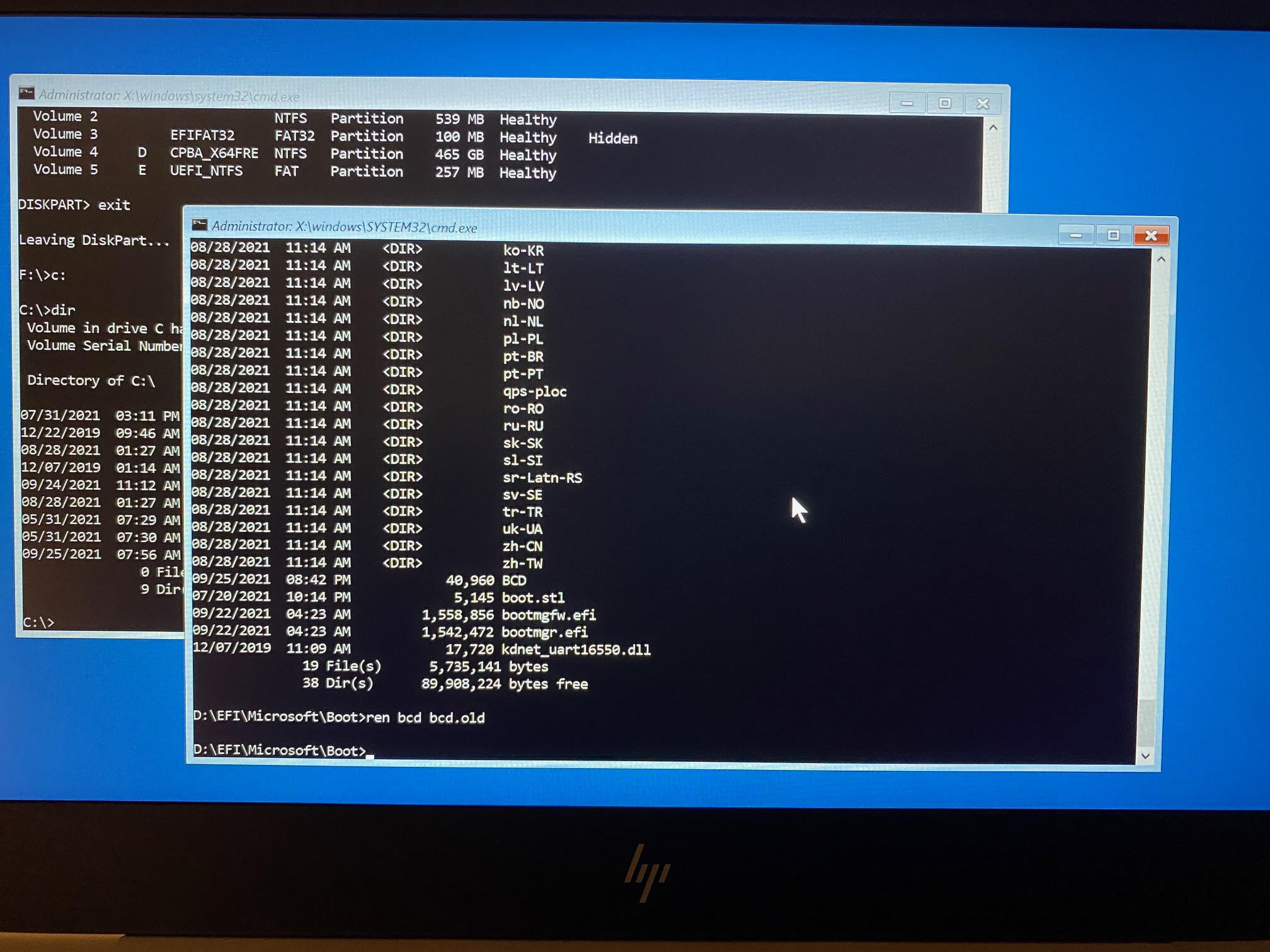
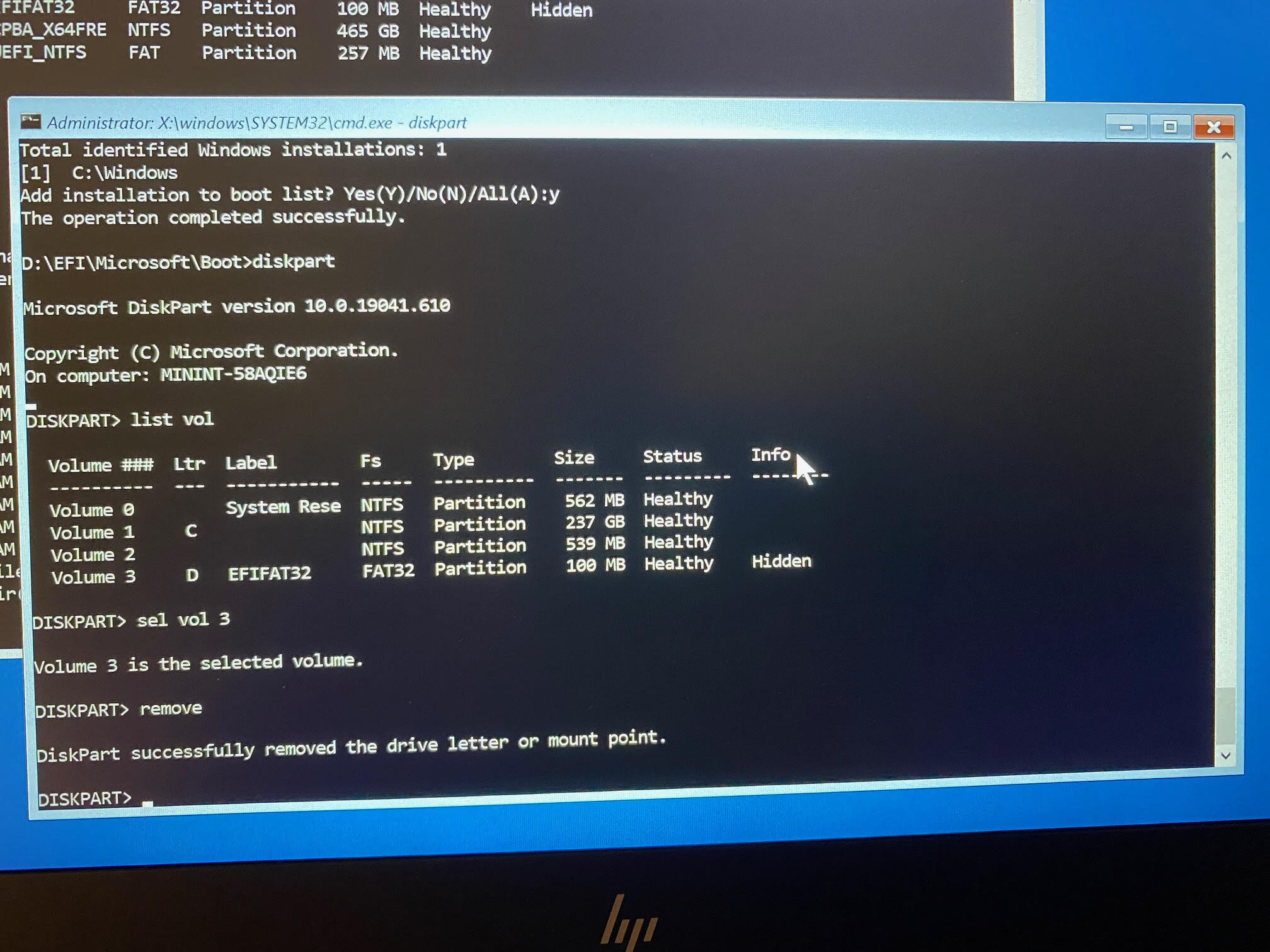
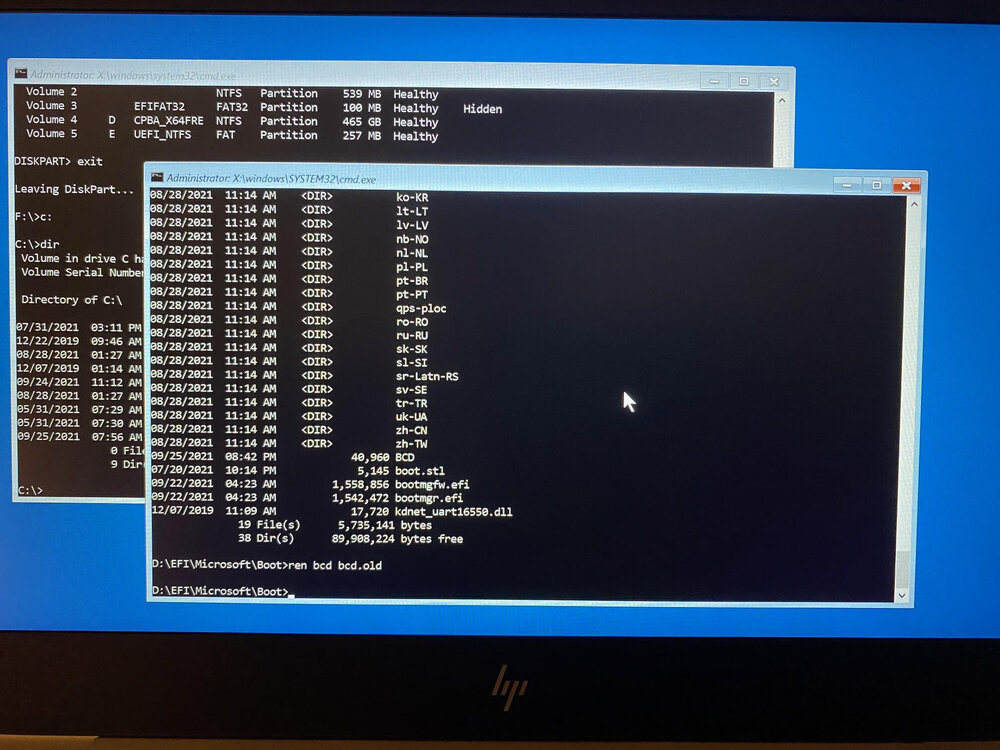
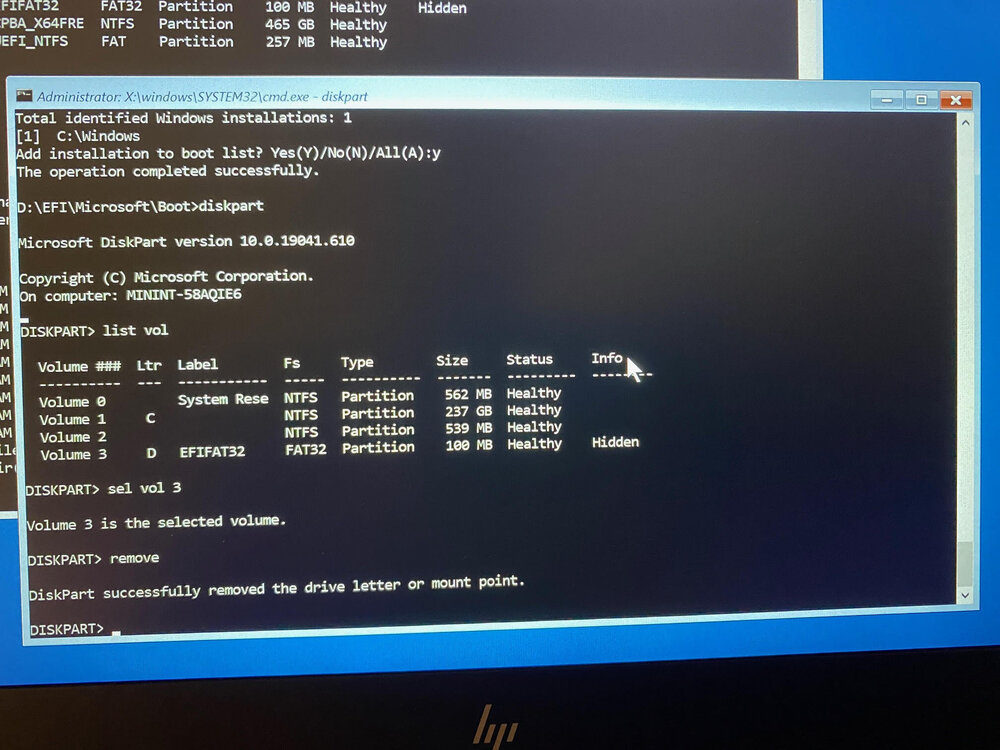
Introduction I bought a second hand replacement laptop for a mis-behaving Surface Pro 4 (jittery screen) and to save my time (the computer wasn’t mine) I decided to image it. Anyway, long story short, after I restored 82GB of data on the target laptop (HP 830 G5), I tried to boot it but got a HP bios error stating something like no operating system found, please reinstall the operating system. So I booted from some usb based Windows installation media and checked the partitions, all the data was there, Windows was there, it all looked good but obviously the boot loader was broken. I googled and found the following suggestions. Bootrec /fixmbr Bootrec /fixboot (Note: If this fails with access denied try BOOTSECT /NT60 SYS and then issue the command again) Bootrec /scanos Bootrec /rebuildbcd The problem however, is that after issuing Bootrec /rebuildbcd it stated “Total identified Windows installations: 0” which of course, didn’t leave me feeling super confident that this would work. The value should be 1 at a minimum. Another quick google and the advice out there all stated something like the following… bcdedit /export C:\BCD_Backup C: cd boot But that gave me the following error “The system cannot find the path specified” because there was no C:\boot folder. This folder doesn’t exist as this computer (Windows 10) is UEFI based and not legacy based as I guess the gazillion guides out there assumed. Due to the format change (legacy versus UEFI) this computer uses an EFI partition to store the boot files, but that partition doesn’t have a drive letter and the path to the BCD is different to all the guides out there, so how do you fix that ? To find the efi partition, boot from the Windows installation disc, and select Install. Next click on Repair your computer then select ->Advanced Options ->Troubleshoot ->Command Prompt. Once done, launch diskpart and then select the disk on your computer (most likely disk 0) like so diskpart sel disk 0 list vol that will show you the partitions on your computer. Then I selected each of the two SYSTEM partitions, and assigned a drive letter to them so I could view the files on them using sel vol x (where x is the volume number) assign After assigning a drive letter and exiting diskpart I could browse to that drive in another command prompt by typing it’s drive letter, for example: D: and view the files on it using: DIR I did this a few times to identify the correct drive, after I was done with that drive I removed the drive letter in the diskpart command prompt using: remove Once I identified the EFI partition I navigated to where the bcd files were located using: cd D:\EFI\Microsoft\Boot and that path was D:\EFI\Microsoft\Boot as shown below, note your EFI partition may end up on a different drive letter using the ASSIGN command. Now that I found the BCD, shown above, I removed the SYSTEM, READ ONLY and HIDDEN attributes from it before renaming it to bcd.old and then rebuilt the BCD. attrib bcd -s -h -r ren bcd bcd.old bootrec /RebuildBcd And that was it , all I had to do before rebooting was to un-assign the drive letter using the remove command. and finally, reboot the computer cleanly using wpeutil reboot I hope you found this useful, if you do please leave a comment and share this with others cheers niall
-
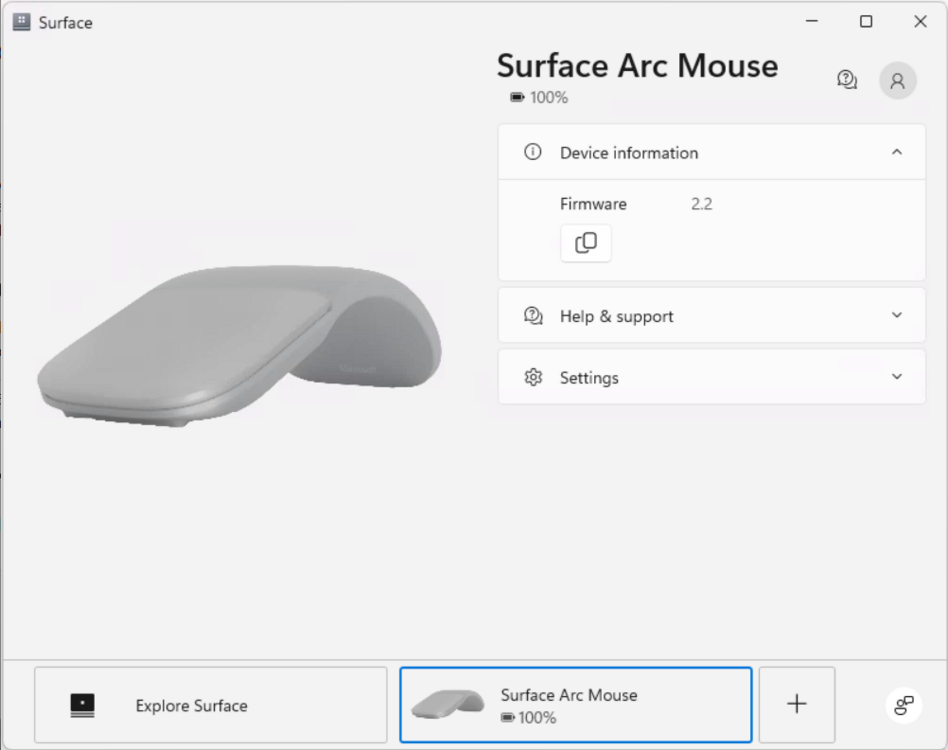
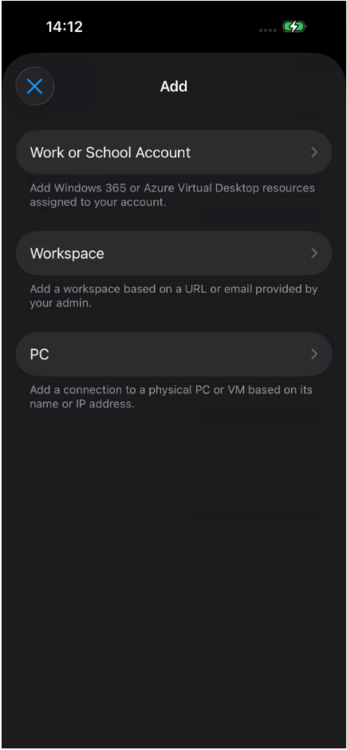
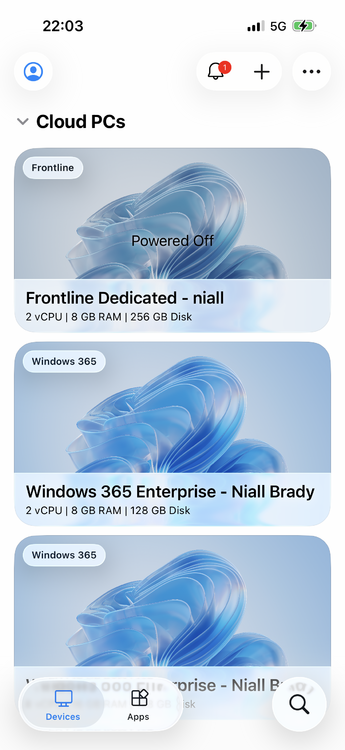
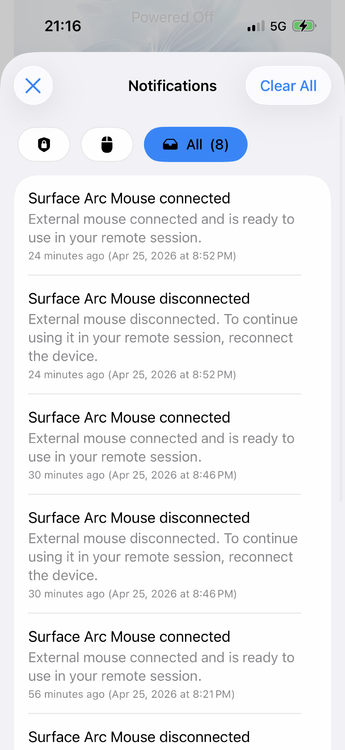
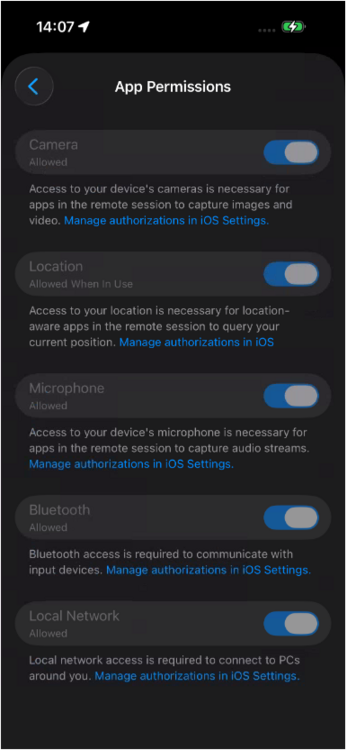
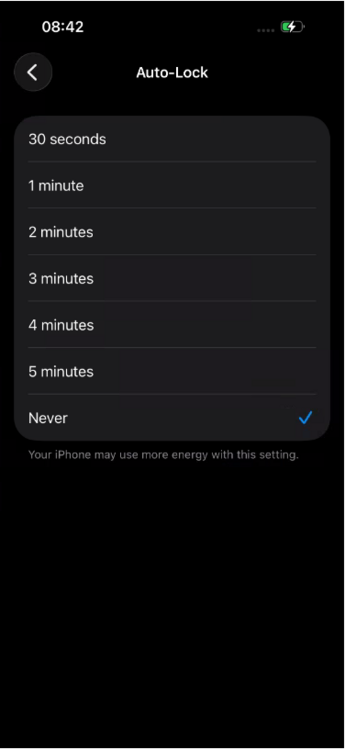
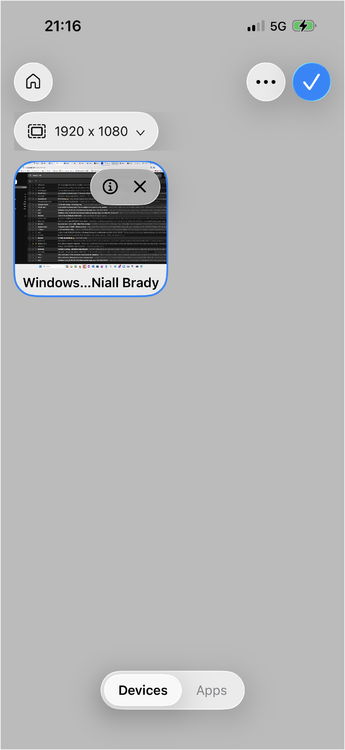
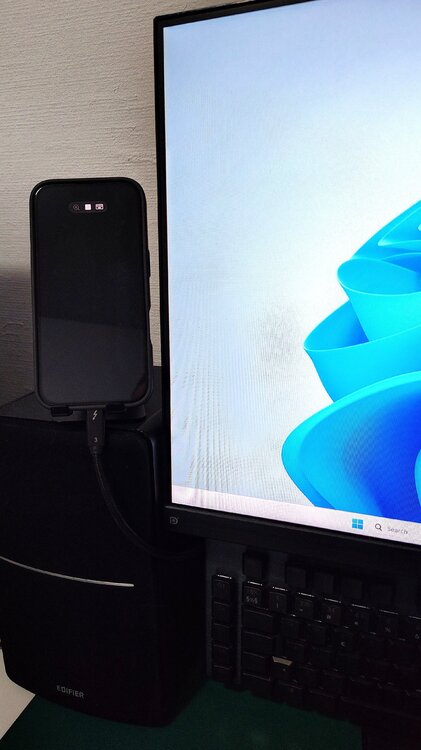
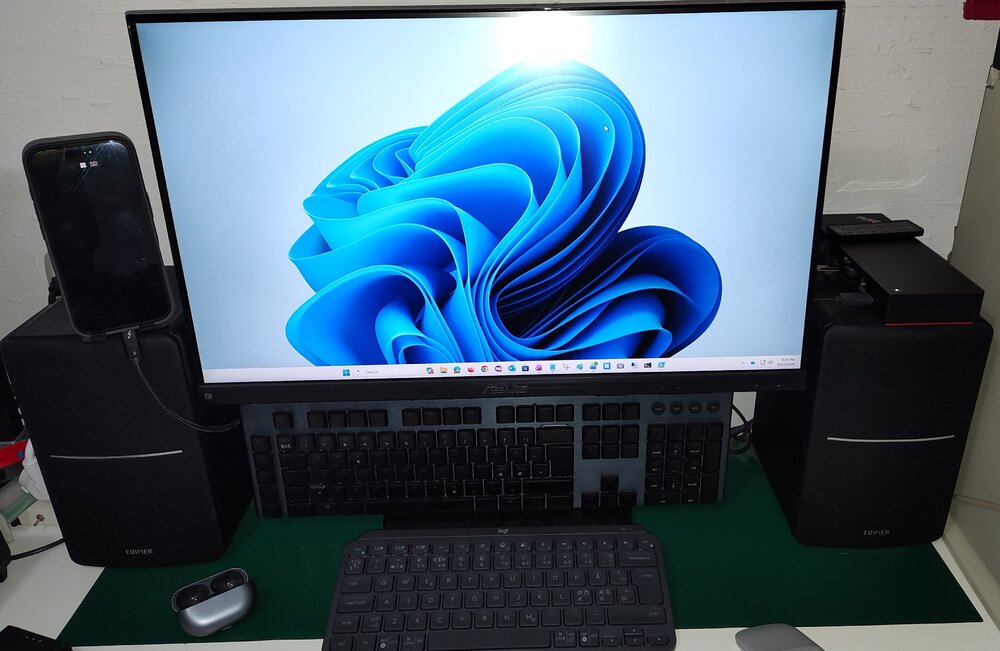
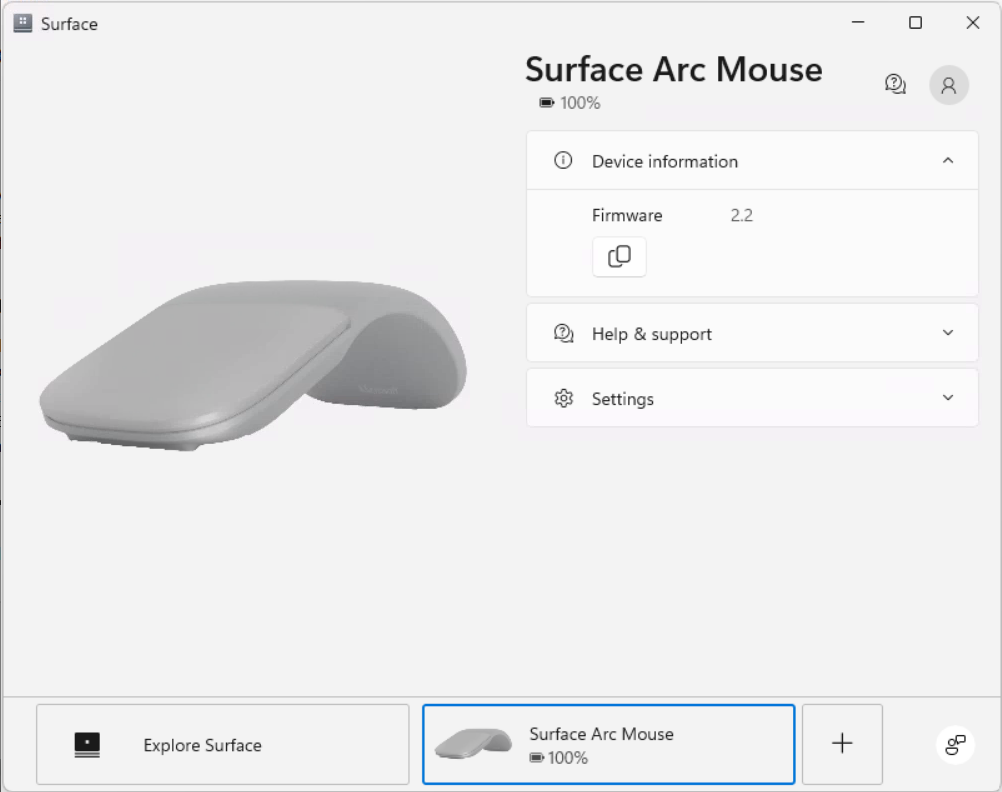
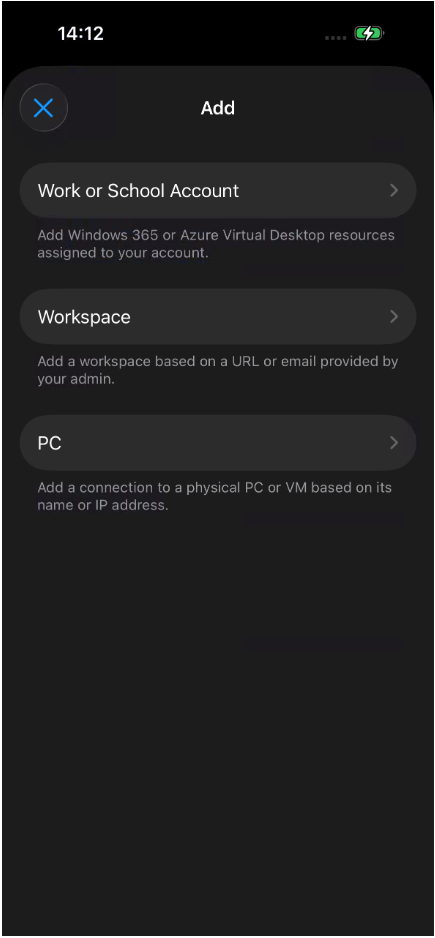
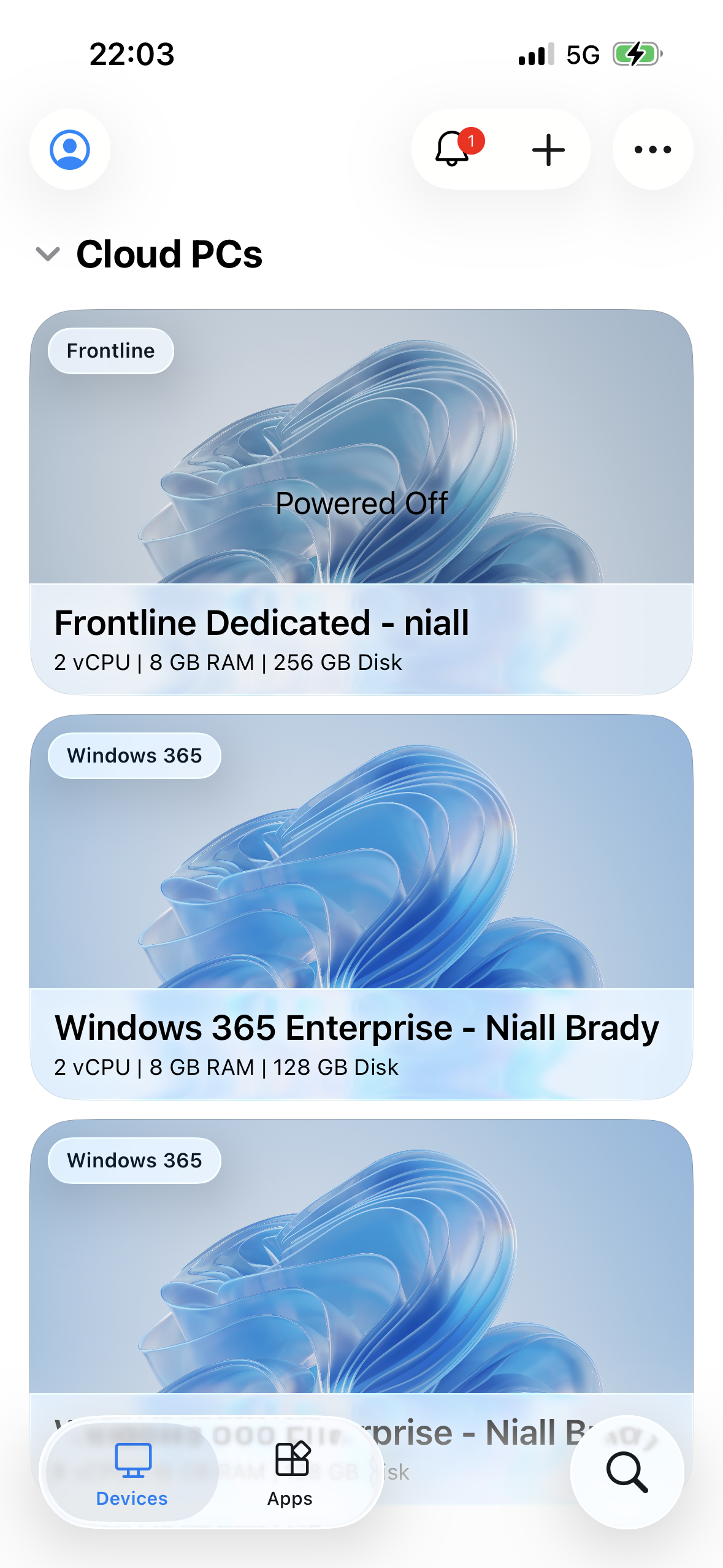
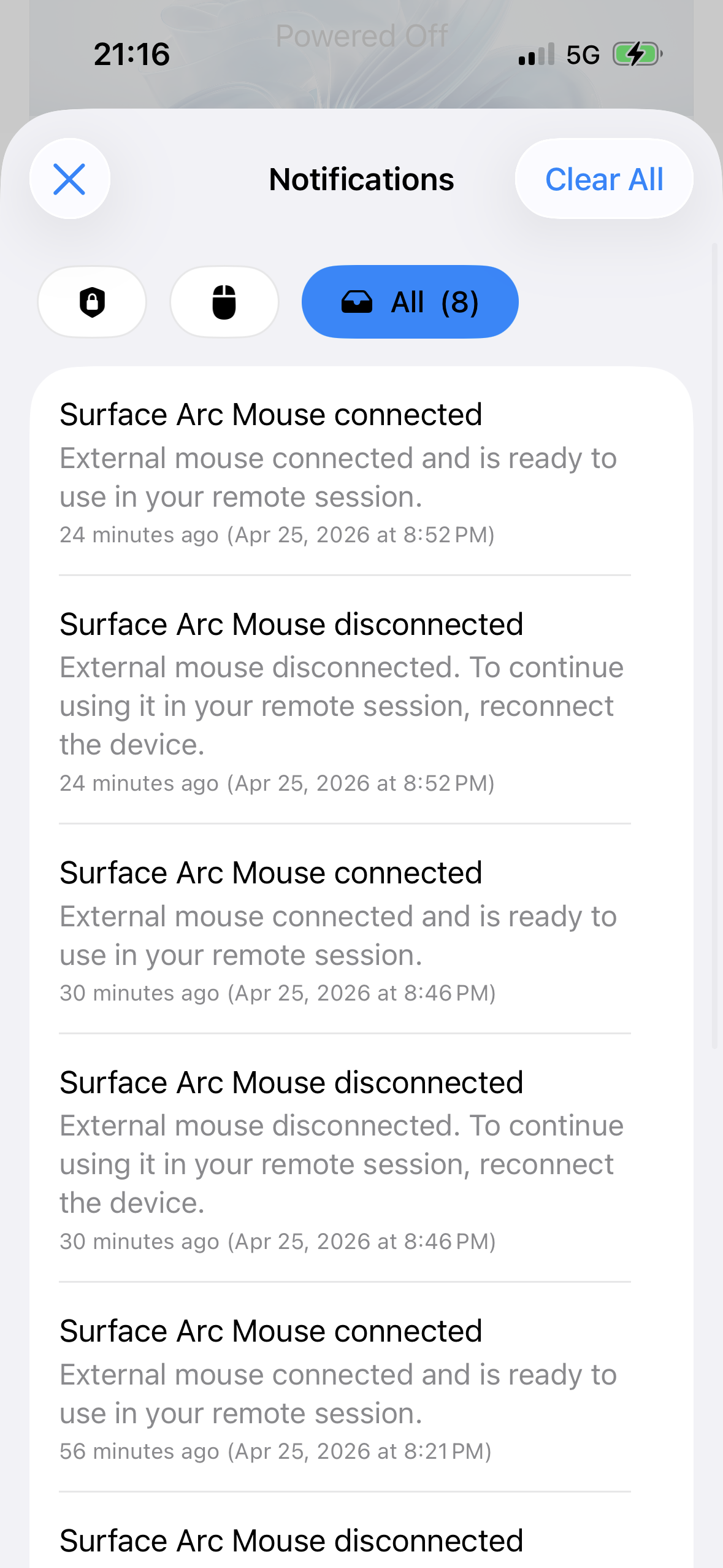
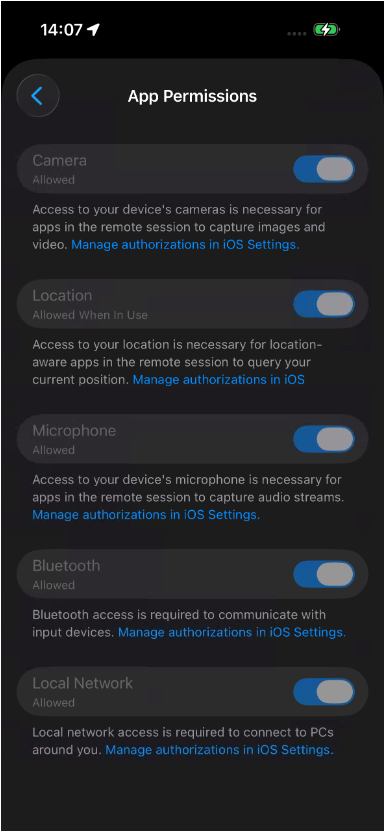
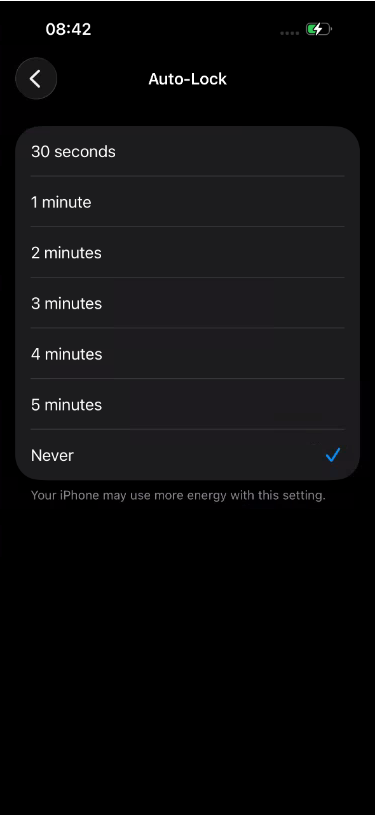
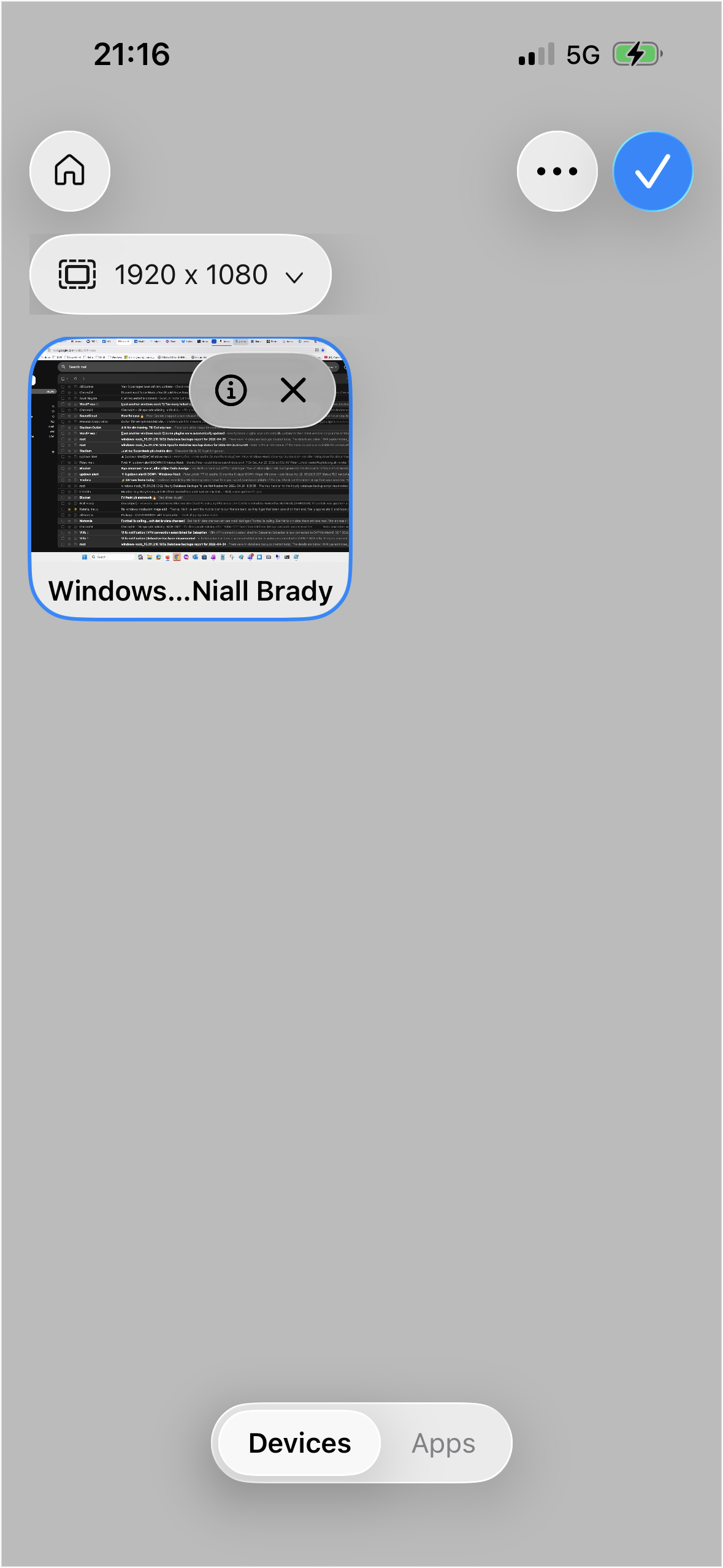
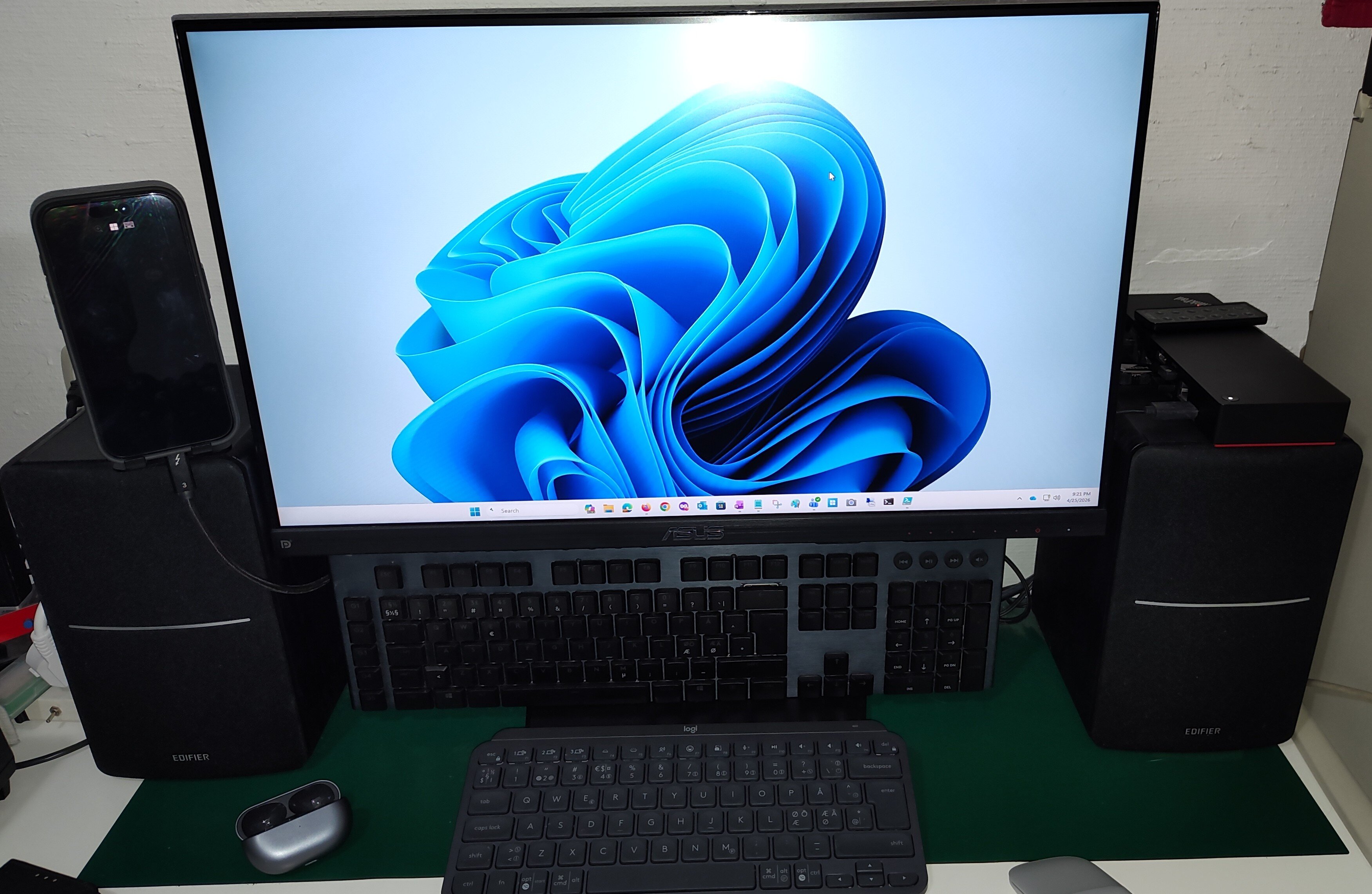
Introduction Microsoft released an update to Windows 365 recently that allows iPhone users to control the mouse via bluetooth when connected via a USB-C connected iPhone. In this blog post myself and my MVP buddy Paul Winstanley look at the new feature, review it’s capabilities, take it for a spin and give our thoughts. We previously tested accessing Cloud PC’s from a USB-C connected iPhone docked to a HP E-24M docking station/monitor combo, but the experience was not good as the only mouse support at that time was using the iPhone’s screen as a touchpad. Paired bluetooth mice did not work and neither did USB connected mice. Now however, Microsoft have solved that problem, at least if you use their mouse. This blog post is broken down into the following sections: Prerequisites Optional Extras Updating the firmware Pairing bluetooth devices Install the Windows app Configure Windows app permissions Configuring Auto-lock on the phone Connecting to your Cloud PC Video meetings Multi-monitor support Summary So let’s get started! Prerequisites As usual there are some prerequisites highlighted below: The Enterprise user must be licensed for Windows 365, Intune and Entra ID P1. Compatible Microsoft bluetooth mouse as documented here. Apple iPhone 15, 16 or 17 with USB-C support Optional extras to make the experience even better include: A monitor or docking solution capable of USB-C connection A bluetooth or USB connected keyboard A bluetooth headset A stand to support your iPhone while docked Updating the firmware Once you meet the prerequisites all you need to do is ensure the firmware of your supported Microsoft mouse is updated on a Windows PC to version 2.2 or later before starting. Download the firmware from here and verify the version of the firmware on a Windows PC via the Surface app. The strange thing about updating the firmware is you must first install the MSI (elevated), restart the computer then pair the mouse to the Windows computer, then wait 10 minutes for it to update. It’s all in the instructions. To verify the firmware version, install the Microsoft Surface app on that Windows computer, and you’ll see the firmware version in that app. If it doesn’t update, close and then re-open the app. Pairing bluetooth devices Now that the Microsoft Arc mouse firmware is up to date, simply pair it with your iPhone. Once done, you can optionally pair a bluetooth keyboard or use a USB keyboard plugged into the HP dock (monitor) and pair your bluetooth headset. Note: Even when you pair a bluetooth headset to your iPhone, when it’s connected via USB-C to a dock or external monitor it behaves differently and will always want to default to the audio capabilities of the docked monitor via USB-C. What this means in practice is that after you’ve docked to the HP monitor with your iPhone, and playback audio, the audio will come from the speakers in the monitor. To solve this, from the top right of the iPhone swipe down to show the widgets menu. Select the audio playback widget (top right of this screen). Click the speaker output option and finally, select your bluetooth headset. Install the Windows app At this point, install the Windows app from the Apple App Store if you haven’t already done so. Once installed click on + in the Windows app to add your work account, that will give you access to any Cloud PC’s provisioned for your account. After adding your work account, any Cloud PC’s made available to your account will show in the Windows app. Note: The notifications icon in the Windows app is useful to keep track of, click on it to see what it’s alerting you to. Configuring Windows app permissions In the newly installed Windows app, click on your username photo in the top left and select App permissions, flip the following settings to On. Camera Location Microphone Bluetooth Local network Configure Auto-lock on the iPhone On your phone, you may want to configure screen lock from the default 30 seconds to 5 minutes while using your Cloud PC, otherwise when your iPhone locks the screen you’ll be disconnected from your Cloud PC session. Below is what you’ll see when the iPhone screen locks. To configure it, open settings, Display and Brightness and scroll down to Auto-lock. Set it to your desired timeout and if necessary, but don’t forget to revert it after you are finished with the Cloud PC. For security reasons never leave your phone unattended when this is set this way. Connecting to your Cloud PC To connect to your cloud PC, once the above is done, simply plug in the USB-C cable from your docking solution/USB-C monitor. On your iPhone, open the Windows app, and click on your Cloud PC. It will appear on your HP monitor, but most likely in an incorrect resolution. To use the correct resolution, you’ll need to configure the resolution settings in your Windows app by clicking on the Windows icon and selecting the appropriate resolution, usually 1920×1080, or configure the desired resolution in the Windows app by clicking on your username photo, and selecting the option there. Video meetings To have a video meeting in Microsoft Teams, you must use the camera in your iPhone. Camera’s built into monitors or docking monitors are not supported, therefore you’ll probably want a stand to support your iPhone in a suitable location. Once the phone is placed in a suitable spot, you can use the phone's camera for Teams/Webex/Zoom meetings. Multimonitor support This solution only supports one monitor, the monitor that you are currently connected to. Dual monitors are not supported for this scenario. If you require dual or more monitors use a Windows computer with the Windows app, or macOS. Summary We were left very impressed, being able to work by simply bringing your iPhone to a desk that has a docking station with the Microsoft Arc mouse is actually a killer feature. You can absolutely work using this setup, and even receive phone calls on your phone while working on the Cloud PC. But while this is definitely a huge step forward for using your Cloud PC via an iPhone, there are still some gaps that hopefully will be solved in the future. We summarize them below: We would like to see the ability to use any popular bluetooth mouse (such as the Logitech MX Master) which allow connections from up to 3 different devices. The Microsoft Surface Arc mouse can only connect to one device and it does not feel as professional as the Logitech mice. We would also like to see better security or options regarding the auto-lock feature of the iPhone screen, in conjunction with the connection to your Cloud PC. Once the screen locks on your iPhone, it instantly disconnects your Windows 365 session which makes working hard/frustrating. Setting the timeout to 5 minutes or never helps, but it’s a security risk in an Enterprise. Also, why does the iPhone forget your chosen external resolution every time you connect, can’t we set that in the Windows app and make it stick? Thanks Microsoft for yet another update to Windows 365, this one really is well worth checking out. Highly recommended and a genuine use-case here! see you in the next one, Niall & Paul