



anyweb
-
Posts
9292 -
Joined
-
Last visited
-
Days Won
371
Everything posted by anyweb
-

using SCCM 2012 in a LAB - Part 1. Installation
anyweb replied to anyweb's topic in Configuration Manager 2012
correct, so adjust the user's rights appropriately so that they can add more pcs such as below Override the Default Limit of the Number of Computers an Authenticated User Can Join to a Domain You can override the default limit, using the following method: (via > http://support.microsoft.com/kb/251335) Expand the Domain NC node. This node contains an object that begins with "DC=" and reflects the correct domain name. Right-click this object, and then click Properties. In the Select which properties to view box, click Both. In the Select a property to view box, click ms-DS-MachineAccountQuota. In the Edit Attribute box, type a number. This number represents the number of workstations that you want users to be able to maintain concurrently. Click Set, and then click OK. -
so why not share what you found out so others can learn :-)
-
check your custom client settings that's what is most likely 'installing' the SCEP client, if you followed my guide, if you didn't follow it totally then you may have edited the default client settings which would apply to ALL computers in your hierarchy
-
well have you tested the script running in system context using psexec ? how are you doing the restart ? as the built in step or some other way ?
-
what does your smsts.log file say ?
-
Deploying Symantec Endpoint Protection with Task Sequence
anyweb replied to DizzleSizzle's question in How do I ?
exit code 1 usually means that it can't find the file, so are you specifying the file correctly ? -
I'm still in the process of writing the RTM guides which have got as far as part 9... they take a LOT of my time to do and prepare, and I do it all in my own time, once I feel I have the time/patience I'll reproduce them in word format or similar. cheers niall
-
on the client you are deploying have you verified if it has an ip address ? is it a virtual machine ? if so what type (vmware/hyperv ?)
-
then you need to configure Role Based Administration as I describe here.
-
the one thing that would worry me immediately is the number of concurrent connections to a Windows 7 client versus to a Windows Server
-
it's best practise to target the ADRs and antimalware policies and custom client settings to specific collections that are created to target the correct machines, if you target the All Systems collection with these ADRs, custom client settings and custom antimalware policies then you are targeting everything and then you'll realise that making custom antimalware polcies (for servers for instance) just won't work in your scenario.
-
note that this is taken further in System Center 2012 Configuration Manager Service Pack 1 - see here for details.
-
SCCM 2012 Design decisions for resilience
anyweb replied to danhall123's topic in Configuration Manager 2012
1000 users would tell you not to use a CAS, one primary with some dp's underneath should be good enough ! you can throttle with dp's now -
SCCM 2012 upgrade to SCCM 2012 SP1 Final
anyweb replied to Damien's topic in Configuration Manager 2012
early 2013 -
yup that's about right, see my words on the subject from above
-
this part of the guide is specifically about Endpoint Protection, can you please raise your question as a new topic elsewhere ? also f.y.i installing configuration Manager 2012 on Server 2012 is NOT supported until Service Pack 1 is released (early 2013 timeframe)
-
SCCM 2012 upgrade to SCCM 2012 SP1 Final
anyweb replied to Damien's topic in Configuration Manager 2012
SP1 beta to SP1 final will not be a supported route, SP1 beta is for lab use only (not production) http://www.niallbrady.com/2012/06/20/how-can-i-upgrade-system-center-2012-configuration-manager/ -
SCCM 2012 upgrade to SCCM 2012 SP1 Final
anyweb replied to Damien's topic in Configuration Manager 2012
yes upgrade from RTM to SP1 final will be supported, you'll do it from a top down method in your hierarchy, so cas first, then primaries then secondaries and your clients.. -
that was a guess, the guidance is early 2013 so anytime in the first quarter i assume
-
AD Schema Extension: Endpoint Requires it?
anyweb replied to rrasco's topic in Configuration Manager 2012
also make sure you've spelled System Management container correctly, the Component Status Logs will reveal your issue,. right click on one that shows up as red, choose show all, then read the logs for the failure messages see below as before, double check every part of my guide as you've made a mistake somewhere...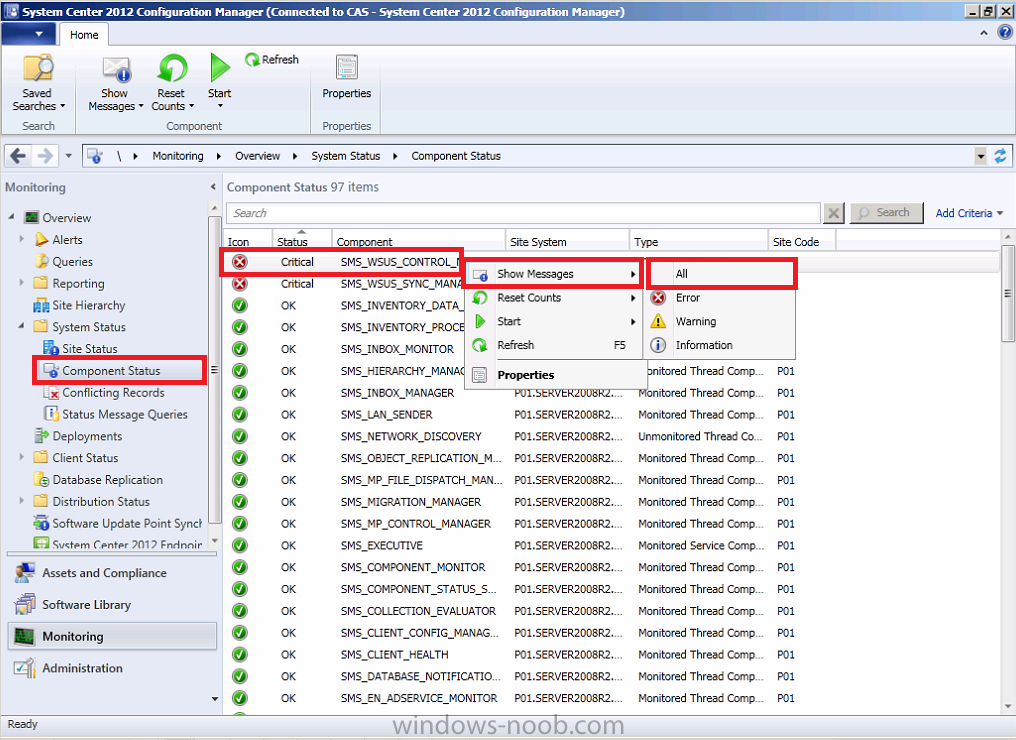
-
well what error are you getting now ? are you running this via PXE boot or within Windows ?
-
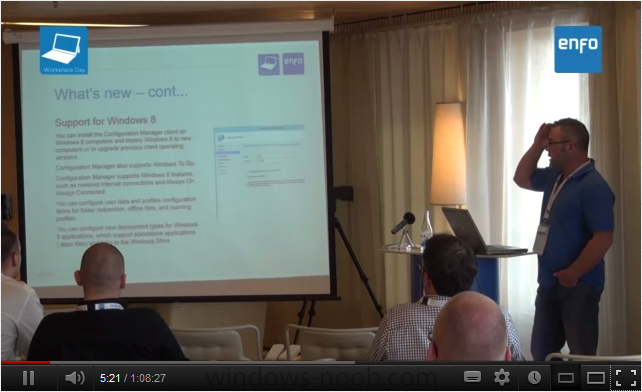
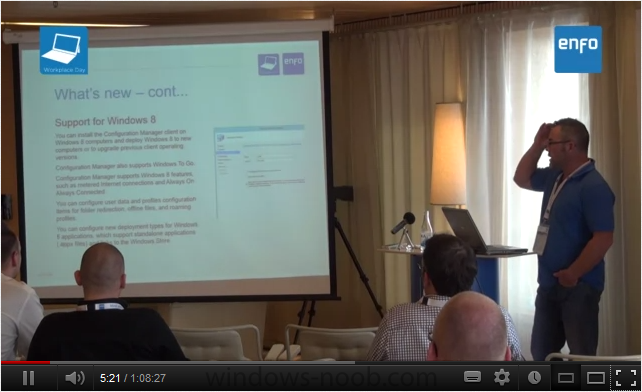
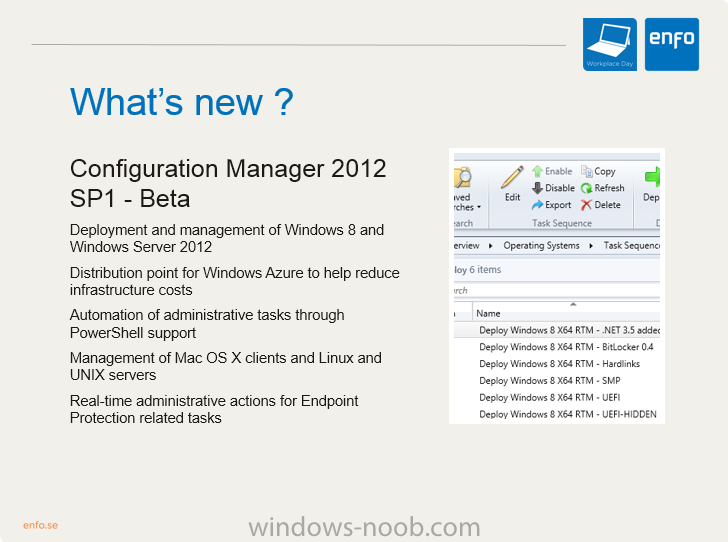
hi all, the video of my session at the Enfo Workplace day in Malmo Sweden is now online, please have a look, share and tell me what you think of it :-) and here's my PowerPoint from the event (PowerPoint 2013) download it here > Deploying Windows 8 with System Center 2012 Configuration Manager Service Pack 1.pptx cheers niall
-
AD Schema Extension: Endpoint Requires it?
anyweb replied to rrasco's topic in Configuration Manager 2012
if you follow my guides then you won't have to wait, there's obviously something wrong with your setup, check your component status logs in the monitoring workspace, they'll reveal the problem Part 1 (hierarchy with CAS) describes everything you need to do to get the schema working -
AD Schema Extension: Endpoint Requires it?
anyweb replied to rrasco's topic in Configuration Manager 2012
your original question was to which I replied no, that said I would recommend you DO extend the schema as it will make everything you do easier and you won't have to supply workarounds like dns entries and so on here are the requirements for Endpoint Protection: http://technet.micro...y/hh508780.aspx and here's some info about why you should extend the schema Determine Whether to Extend the Active Directory Schema for Configuration Manager http://technet.microsoft.com/en-us/library/gg712272.aspx Applies To: System Center 2012 Configuration Manager, System Center 2012 Configuration Manager SP1 When you extend the Active Directory schema for System Center 2012 Configuration Manager, you can publish site information to Active Directory Domain Services. Extending the Active Directory schema is optional for Configuration Manager. However, by extending the schema you can use all Configuration Manager features and functionality with the least amount of administrative overhead. If you decide to extend the Active Directory schema, you can do so before or after you run Configuration Manager Setup. Considerations for Extending the Active Directory Schema for Configuration Manager The Active Directory schema extensions for System Center 2012 Configuration Manager and System Center 2012 Configuration Manager SP1 are unchanged from those used by Configuration Manager 2007. If you extended the schema for Configuration Manager 2007, you do not have to extend the schema again for System Center 2012 Configuration Manager or System Center 2012 Configuration Manager SP1. Similarly, if you extended the schema for System Center 2012 Configuration Manager with no service pack, you do not have to extend the schema again for System Center 2012 Configuration Manager SP1. Extending the Active Directory schema is a forest-wide action and can only be done one time per forest. Extending the schema is an irreversible action and must be done by a user who is a member of the Schema Admins Group or who has been delegated sufficient permissions to modify the schema. If you decide to extend the Active Directory schema, you can extend it before or after setup. Four actions are required to successfully enable Configuration Manager clients to query Active Directory Domain Services to locate site resources: Extend the Active Directory schema. Create the System Management container. Set security permissions on the System Management container. Enable Active Directory publishing for the Configuration Manager site. For information about how to extend the schema, create the System Management container, and configure setting security permissions on the container, see Prepare Active Directory for Configuration Manager in the Prepare the Windows Environment for Configuration Manager topic. For information about how to enable publishing for Configuration Manager sites, see Planning for Publishing of Site Data to Active Directory Domain Services. The following clients and mobile devices that are managed by the Exchange Sever connector do not use Active Directory schema extensions for Configuration Manager: The client for Mac computers The client for Linux and UNIX servers Mobile devices that are enrolled by Configuration Manager Mobile device legacy clients Windows clients that are configured for Internet-only client management Windows clients that are detected by Configuration Manager to be on the Internet The following table identifies Configuration Manager functions that use an Active Directory schema that is extended for Configuration Manager, and if there are workarounds that you can use if you cannot extend the schema. Functionality Active Directory Details Client computer installation and site assignment Optional When a new Configuration Manager Windows client installs, the client can search Active Directory Domain Services for installation properties. If you do not extend the schema, you must use one of the following workarounds to provide configuration details that computers require to install: Use client push installation. Before you use client installation method, make sure that all prerequisites are met. For more information, see the section “Installation Method Dependencies” in Prerequisites for Computer Clients. Install clients manually and provide client installation properties by using CCMSetup installation command-line properties. This must include the following: Specify a management point or source path from which the computer can download the installation files by using the CCMSetup property /mp:=<management point name computer name> or /source:<path to client source files> on the CCMSetup command line during client installation. Specify a list of initial management points for the client to use so that it can assign to the site and then download client policy and site settings. Use the CCMSetup Client.msi property SMSMP to do this. [*]Publish the management point in DNS or WINS and configure clients to use this service location method. Port configuration for client-to-server communication Optional When a client installs, it is configured with port information. If you later change the client-to-server communication port for a site, a client can obtain this new port setting from Active Directory Domain Services. If you do not extend the schema, you must use one of the following workarounds to provide this new port configuration to existing clients: Reinstall clients and configure them to use the new port information. Deploy a script to clients to update the port information. If clients cannot communicate with a site because of the port change, you must deploy this script externally to Configuration Manager. For example, you could use Group Policy. Network Access Protection Required Configuration Manager publishes health state references to Active Directory Domain Services so that the System Health Validator point can validate a client’s statement of health. Content deployment scenarios Optional When you create content at one site and then deploy that content to another site in the hierarchy, the receiving site must be able to verify the signature of the signed content data. This requires access to the public key of the source site where you create this data. When you extend the Active Directory schema for Configuration Manager, a site’s public key is made available to all sites in the hierarchy. If you do not extend the Active Directory schema, you can use the hierarchy maintenance tool, preinst.exe, to exchange the secure key information between sites. For example, if you plan to create content at a primary site and deploy that content to a secondary site below a different primary site, you must either extend the Active Directory schema to enable the secondary site to obtain the source primary sites public key, or use preinst.exe to share keys between the two sites directly. Attributes and Classes Added by the Configuration Manager Schema Extensions Planning for Configuration Manager Sites and Hierarchy -
first of all this set of guides is actually for the Release Candidate version, the RTM guides (latest) are the most up to date and most applicable you can find them all here. as regards your current issue, if you followed the guides step by step then you'd have installed Configuration Manager as a user (SMSadmin) and that user will automatically have the permissions needed, did you use that user or did you install the console (and everything else) as domain admin ?