
anyweb
-
Posts
9292 -
Joined
-
Last visited
-
Days Won
371
Everything posted by anyweb
-

SCCM Troubles - R3 installation not working...
anyweb replied to Mr.G's topic in Configuration Manager 2007
please take a look at this post from Jason as well - http://myitforum.com/cs2/blogs/jsandys/archive/2011/01/17/configmgr-client-hotfix-queries.aspx which references a recent blog from Microsoft about the client hotfixes - http://support.microsoft.com/kb/2477182 are you getting any further ? -
SCCM Troubles - R3 installation not working...
anyweb replied to Mr.G's topic in Configuration Manager 2007
its receiving the policy but nothing much more read this post for troubleshooting advanced client installation http://support.microsoft.com/kb/925282 -
SCCM Troubles - R3 installation not working...
anyweb replied to Mr.G's topic in Configuration Manager 2007
doesnt look like it's run yet, how long have you waited and have you succeeded in deploying anything to this client yet ? -
well have you seen the guides here, they are specifically for WDS in Windows Server 2008 http://www.windows-noob.com/forums/index.php?/forum/65-windows-deployment-services/ I need the full error that you are receiving, can you please post it here
-
is the client on the same vlan as the dhcp server ? did you configure any DHCP scope options ? did you configure WDS ?
-
SCCM Troubles - R3 installation not working...
anyweb replied to Mr.G's topic in Configuration Manager 2007
take a look at this post, does it give you some ideas ? could be that the update worked and your still looking at old data, have you verified the client version ON a client (not from the server) -
Deleted package continuously trying to distribute to DP...
anyweb replied to MRaybone's question in Troubleshooting, Tools, Hints and Tips
nice, did it work ? and did you do this on the primary or central ? -
OSD XP Deployment
anyweb replied to Keslaa's question in Deploying Windows 10, Windows 8.1, Windows 7 and more...
can you post the script you are testing with ? -
SCCM Troubles - R3 installation not working...
anyweb replied to Mr.G's topic in Configuration Manager 2007
have you verifed that the patch has installed on the clients ? -
have you tried adding a SLP (server locator Point)
-
SCCM Troubles - R3 installation not working...
anyweb replied to Mr.G's topic in Configuration Manager 2007
so you have pushed the client with the hotfix again ? or what have you done exactly ? where are you checking for the version of the client ? -
why not just create a run command line step called Add Local Admin which does as follows:- cmd /c net localgroup "Administrators" "DOMAIN\%USERNAME%" /add you can get the %USERNAME% via a frontend HTA by prompting the user at the start of the installation, or via computer variables or other methods...
-
well i think it's cleaner and more efficient (less prone to error) to add/remove users/computers to the respective Active Directory Security Group , what if you have to add say 100 new computers ? 1000 ? hopefully othes will add their opinion here also
-
SCCM Troubles - R3 installation not working...
anyweb replied to Mr.G's topic in Configuration Manager 2007
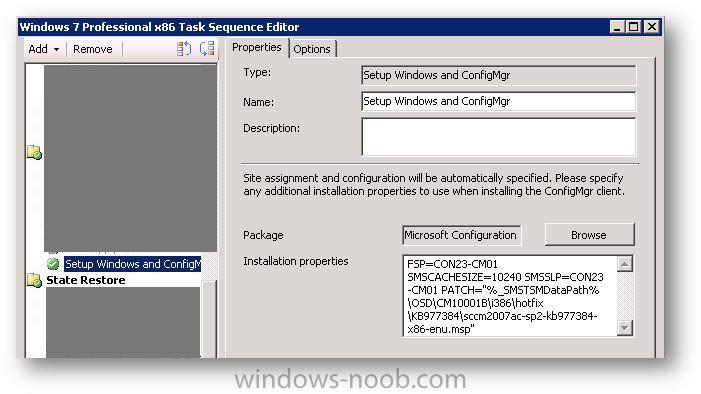
you need the clients patched as well, if they are not, then the client version will be reported at the SP2 level... see below:- Configuration Manager 2007 R3 System Requirements Primary and secondary site servers in the hierarchy, remote Configuration Manager consoles, and remote providers must install the update described in Article 977384 (http://go.microsoft.com/fwlink/?LinkId=199896) at the Microsoft Support site before you install Configuration Manager 2007 R3. Other than the hotfix, Configuration Manager 2007 R3 does not introduce significant changes to supported site system and client requirements from those required for Configuration Manager 2007 R2 and Configuration Manager 2007 SP2. Configuration Manager 2007 R3 Client System Requirements To use power management in Configuration Manager 2007 R3, you must first install the update described in Article 977384 (http://go.microsoft.com/fwlink/?LinkId=199896) at the Microsoft Support site to client computers in your organization. Other than the hotfix, the Configuration Manager 2007 R3 client requirements and supported operating systems are the same as the Configuration Manager 2007 SP2 client requirements. For more information about client requirements, see Configuration Manager 2007 SP2 Supported Configurations. to automatically add the hotfix required you can use this method http://blogs.technet.com/b/deploymentguys/archive/2010/08/13/automatically-populate-the-patch-property-for-the-configmgr-2007-client-installation.aspx or use the Patch property as described here, here and here sample patch property in a ts below:-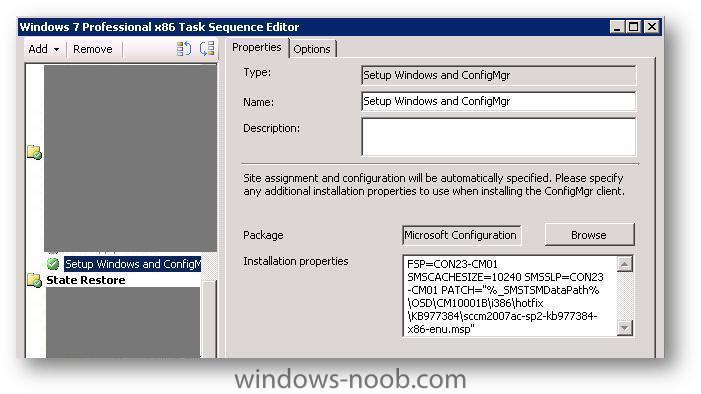
-
yup do that, i'm pretty sure i reference the ports needed to be opened in the guides... i'll recheck
-
and how are you adding computers/users to the collection ?
-
the advantage is that you set the collections up (one time) and create the appropriate queries for those collections, all you have to do after that is add (or remove) computers (or users) to the respective Active Directory Security Group, this makes things Dynamic in nature and needs a lot less work in the ConfigMgr console than if you were adding computers/users manually to the collections and/or advertising the software to those resources separately
-
great work ! and glad it's working now
-
Having issues pushing IE7 through SMS 2003
anyweb replied to emmathews83's question in Software Update Point
using psexec, try running the install script as SYSTEM, do you see the same problem ? here's how http://myitforum.com/cs2/blogs/jmarcum/archive/2010/08/25/150872.aspx cheers niall -
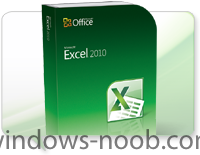
Albert, Chew, Product Manager for Excel, kicks off Excel's 25th anniversary celebration. Excel is perhaps the most revolutionary tool for looking at numbers since the invention of the digital calculator. It has dramatically changed the way we analyze data and has improved productivity for everyone. Last year marked the 25th Anniversary of the Microsoft Excel franchise, and though I have only been the Excel Product Manager for the last two years, I have a clear memory of the early days of Excel and how it changed the way people work back in 1985. Let me share a fond memory of Excel with you. Back in 1985, I vividly remember visiting my sister while she was busy at work for a luxury car dealer as an accountant. Prior to them using computers, all accounting related functions were done manually using pen, calculator and large sheets of ledger paper. As I approached her office, I could see several rows of accounts clerk heads down, busy writing and punching away on their oversized calculators. Fast forward one year, and when I visited my sister they had several shared computers loaded with some program called Excel. Both she and I were amazed at how easy analyzing data had become with a simple piece of software. In my many years of using the application, I've come to liken Excel to a Swiss army knife: it's a useful program to have whether you are at work, home or school. While most people would use it for keeping simple lists, balancing budgets, or to complete their statistics homework, there are some very creative individuals who have used Excel in unimaginable ways. As part of the 25 year celebration, we've worked with some of these inventive folks and pulled together this montage video that showcases their work. Here's a video that gives you a taste of the crafty ways people have used Excel. Seeing inventive ways people have used Excel is just one of the reasons why I love my job as the Excel product manager. Another key reason is the rich history that comes with one of the first software apps that Microsoft brought to market. Although Excel may not be in any fancy museum (outside of Redmond), it has as rich a history as any other software ever created. To give you a glimpse of where it all began and how it evolved, we've created a two part documentary video series. Watch the videos and take a trip down memory lane with us. The 25th Anniversary celebration would not be complete with some great heart-warming stories from the loyal fans and customers. I personally would like invite you to submit your own memories of Excel and ways it has helped you over the years. Over on the Excel Facebook page, we're running a little contest, and all you have to do is share your favorite memory of Excel, get your friends to vote for your submission, and you'll be entered for a chance to win an Xbox & Kinect package. It's been an awesome ride for Excel of the last 25 years, and I hope you'll join us for the next 25. If you haven't already, become a fan of Excel on Facebook where you can get tips and tricks, learn from our growing community and contribute to the discussion. We'd love to hear from you. To you loyal Excel fans, I thank you for all your support over the years. --Albert Chew via > http://blogs.office.com/b/microsoft-excel/archive/2011/01/12/happy-25th-anniversary-excel.aspx?utm_source=twitterfeed&utm_medium=twitter
-
Microsoft is currently preparing the Release Candidate build of Internet Explorer 9 and WinRumors has learnt of a new change. Microsoft is currently testing builds of Internet Explorer 9 that include the ability to re-position the tabs to below the address bar. The current public beta build does not include this capability and Microsoft is expected to build this into the Release Candidate. Users can turn the functionality on by selecting “show tabs below address bar” after right clicking in the tab area of Internet Explorer 9 (see video below). The option will address some complaints from the public beta. Microsoft has also improved the UI of the browser tabs and buttons in Internet Explorer 9 RC. The build features square tabs and minor UI enhancements to the address bar buttons in Internet Explorer 9. Microsoft has also updated its download manager so that it now displays the transfer speed without the need to hover over individual downloads. Microsoft is expected to release Internet Explorer 9 Release Candidate on January 28. The latest Internet Explorer 9 RC escrow build is 9.0.8073.6003. Microsoft announced earlier this month that the beta version of Internet Explorer 9 has surpassed 20 million downloads, making it the most downloaded beta release of Internet Explorer ever. The download rate of Internet Explorer 9 beta has grown by 5 million each month since its release on September 15, 2010. Internet Explorer 9 RC is expected to include UI tweaks and minor changes to some functions in Internet Explorer. Microsoft will also introduce a new Tracking protection feature in Internet Explorer 9 RC that will allow consumers to address their concerns about being tracked on the web. Recently, a new Internet Explorer 9 beta build leaked to the web, originally reserved for close partners and TAP testers. The build, version 9.0.8027.6000, began showing up on popular file sharing websites in late November. The leaked version includes bug fixes, stability improvements and the latest rendering engine seen in the recent developer Platform Preview. It appears, from the digital signature, that the build was compiled as recently as November 19. Microsoft’s previous Platform Preview 7 build was labeled 9.0.8023.6000. WinRumors posted exclusive screenshots of the new leaked Internet Explorer 9 beta build. Microsoft recently released an updated platform preview build of Internet Explorer 9. Version 7 now includes 354% better JavaScript performance according to WebKit SunSpider benchmarks. In keeping with previous platform preview builds, this latest version, Platform Preview 7, does not contain the Internet Explorer 9 UI elements. Internet Explorer 9 beta made its debut on September 15 to a fanfare of Gorillaz appearances and anticipation of Microsoft’s new look browser. The next generation browser has received a warm welcome from tech enthusiasts, developers and the media. The browser has been so popular that it grabbed 0.25% of browser market share in just two weeks. via > http://www.winrumors.com/internet-explorer-9-rc-will-introduce-show-tabs-below-address-bar-option/#ixzz1Apesvis8
-
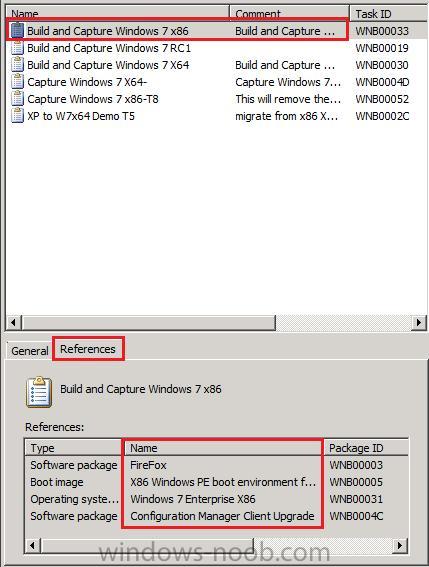
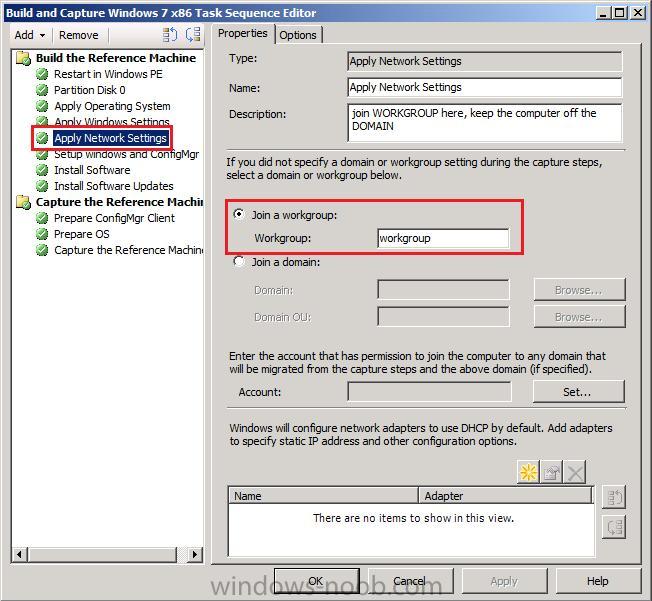
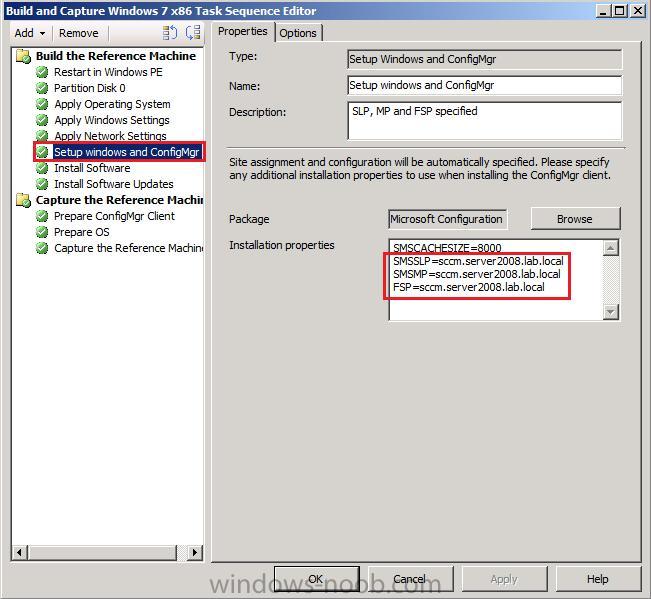
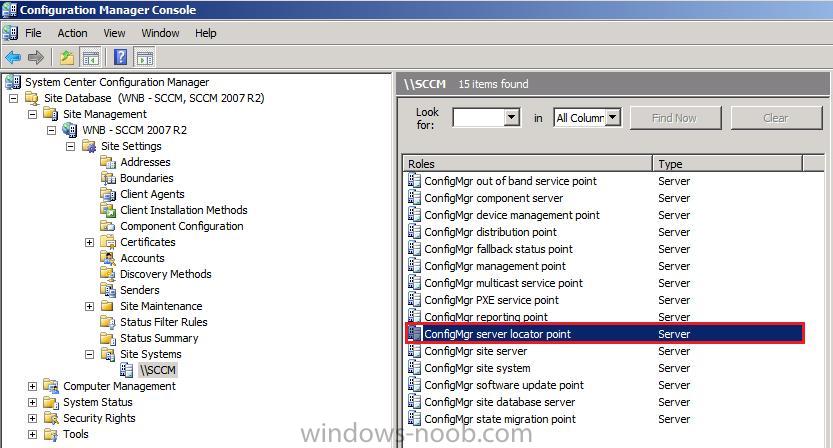
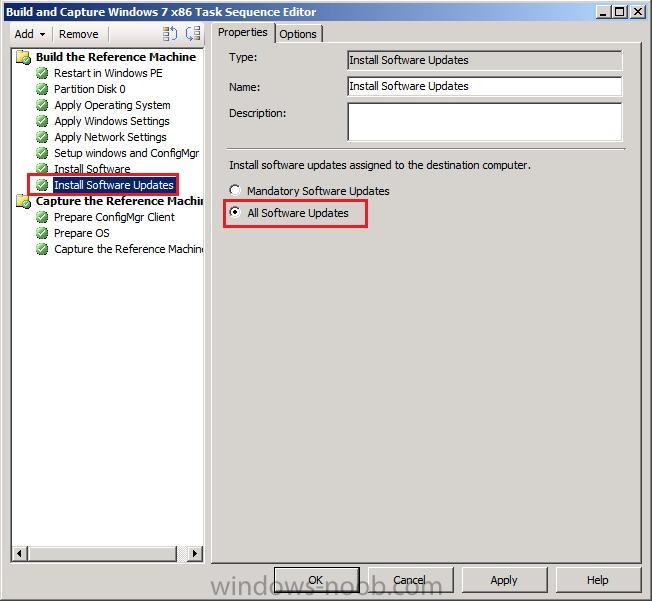
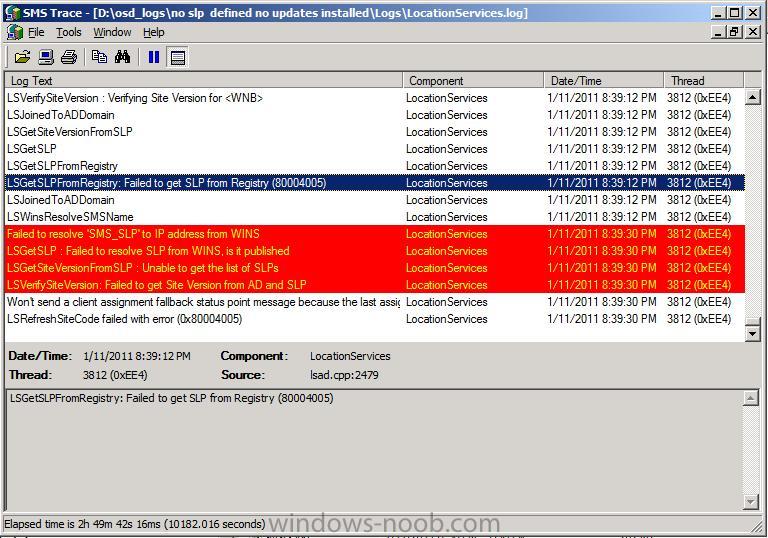
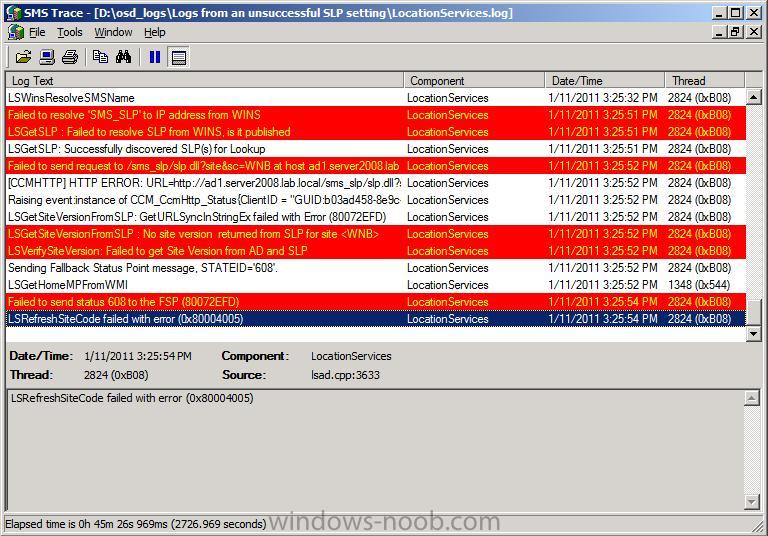
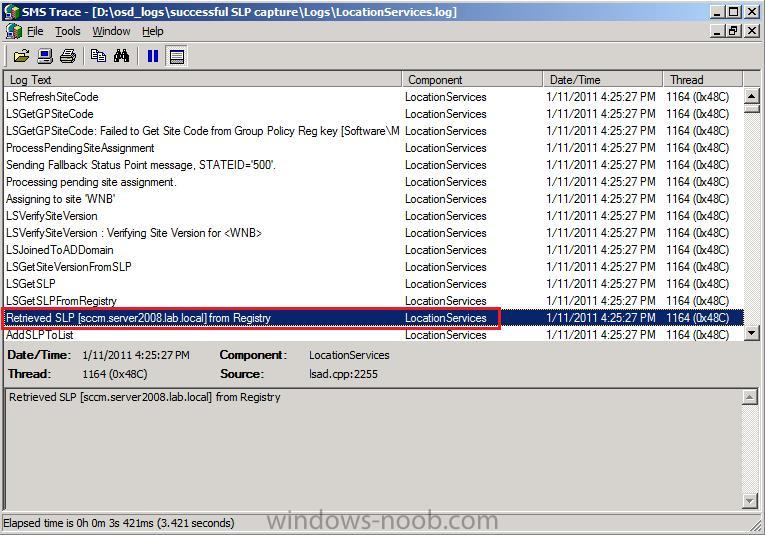
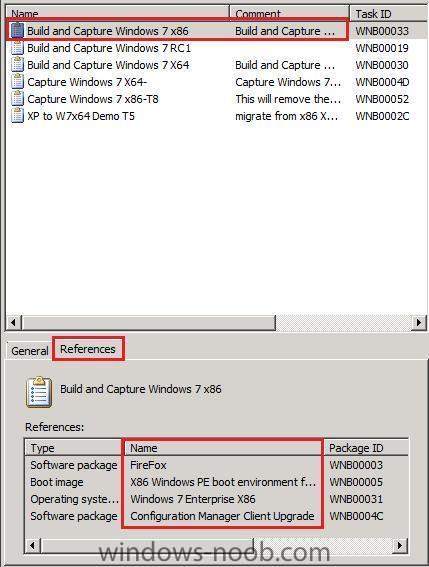
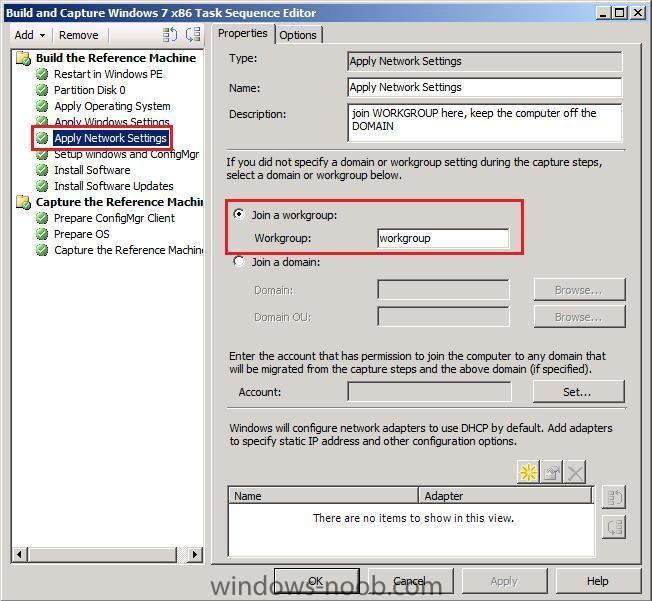
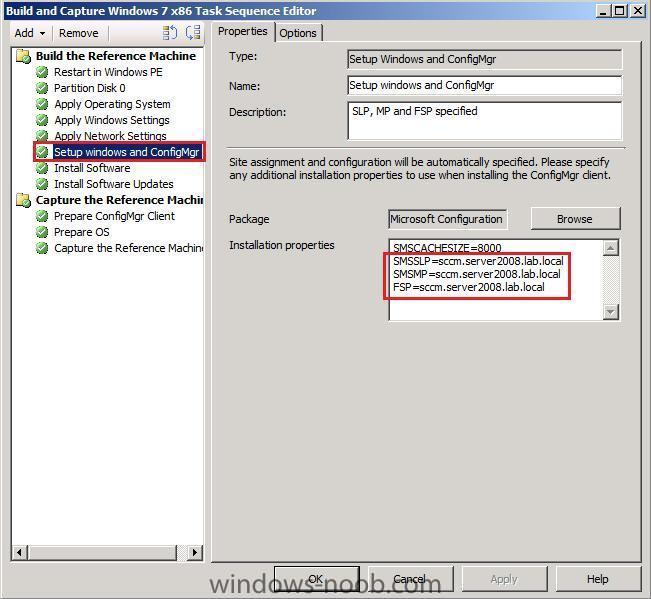
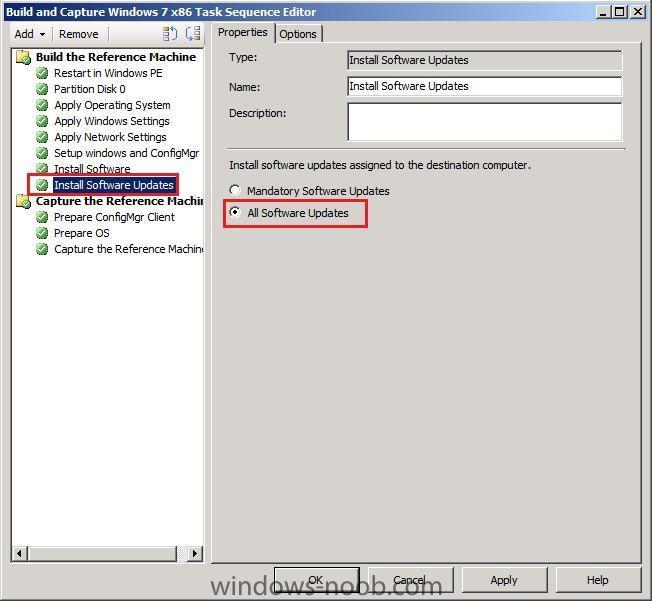
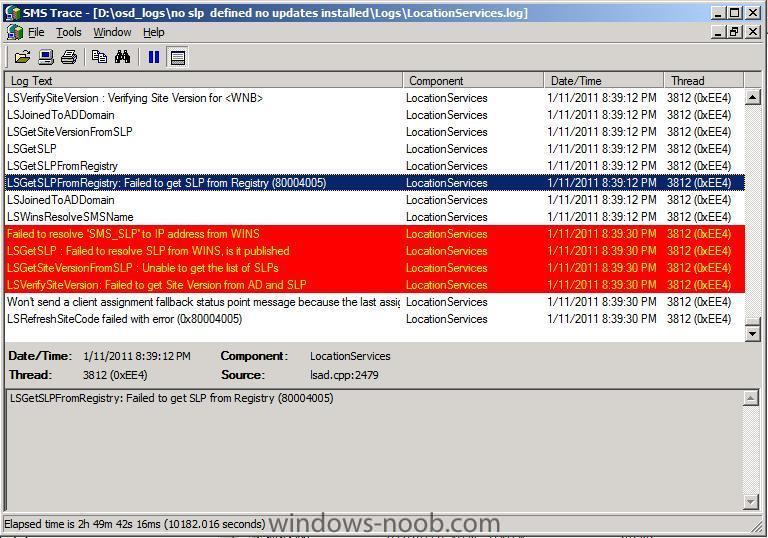
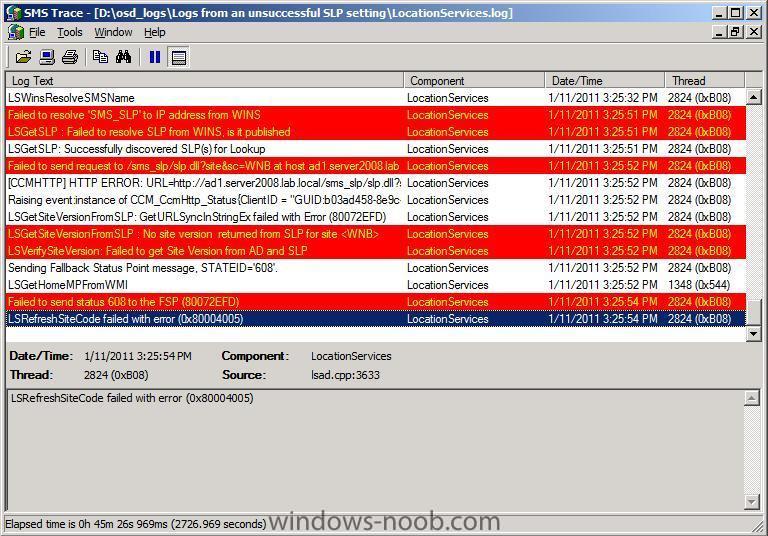
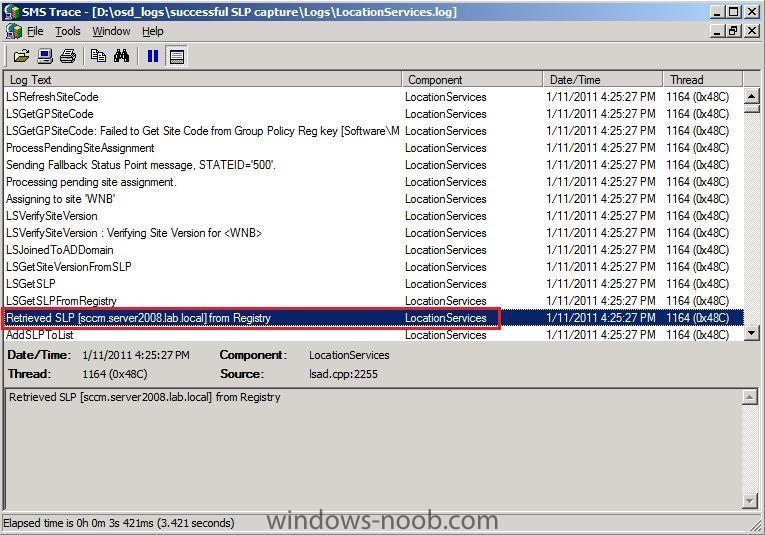
During Build and Capture you'll most likely want to have the latest Windows Updates in your Capture Image and as part of the Build and Capture process, your computer will be in a Workgroup. This presents some challenges in that the client won't know where to go for windows updates etc, but we can help it find those updates with a Server Locator Point by Installing that role on our SCCM server. Note: You must have created a Deployment Management Task containing windows updates applicable for the OS you are installing in your Build and Capture task sequence, and the Deployment Management Task must be targetted to a collection that your build and capture computer will be in during OSD deployment. A suitable collection would be the Deploy Windows 7 Collection Note: You need only one server locator point for the Configuration Manager 2007 hierarchy, even if you have multiple sites. In a multi-site hierarchy, install the server locator point in the central site. If you install a server locator point in the middle of the hierarchy, it will have no knowledge of sites above it in the hierarchy. From Technet:- Planning and Deploying Clients for Configuration Manager 2007 How to Assign the Fallback Status Point to Configuration Manager Client Computers How to Specify the Server Locator Point for Configuration Manager Client Computers How to Create a Server Locator Point in Configuration Manager To install the Server Locator Point Role In the Configmgr console, Expand Site Database, Site Management, <Site Name>, Site Settings, Site Systems, highlight your site server. Check to make sure that the role does not already exist on one the site system that you are going to install it on. If it does then you do not need to install it (and it won't show up in the list of new roles that can be installed). To Install the role, right click the server that you want the role installed on and select New Roles, click Next, Select the Server Locator Point Role, Click Finish. The Build and Capture Task Sequence Now that the SLP role is installed we'll need to create a Build and Capture task sequence. I will supply you with one I've made for Windows 7 X86. Build and Capture Windows 7x86 with SLP.xml You can import this task sequence directly into SCCM and simply change the packages that it references:- So let's take a closer look at the task sequence, first of all it wipes the computer, and installs Windows 7, then it applies some windows settings, all standard stuff, next it joins a Workgroup in the Apply Network Settings step. Do not join a domain here, we are creating a master image here so we want it clean. The next step is where the magic happens, here we specify some switches for the Setup Windows and ConfigMgr step, Specifying the SLP, FSP and MP during Client Installation. You may be wondering why we are also specifying the Management Point and Fallback Status Point. If you have extended the Active Directory schema for Configuration Manager 2007, many client installation properties are published in Active directory and read automatically by the Configuration Manager 2007 client. For a list of the client installation properties published in Active Directory, see About Configuration Manager Client Installation Properties Published to Active Directory Domain Services. However as we are in a workgroup, we cannot query the AD site, we want our client to know where the Management Point is and also the Fallback Status Point (to report any client installation failures.) Our next step simply installs some software, Mozilla Firefox in this example task sequence, in your production environment that could be several steps (Installing Office 2010, Symantec Antivirus, etc), and this is followed by the actual Install Software Updates step. Note: If we don't specify the SLP in the Setup windows and ConfigMgr step then this step will simply time out and do nothing except generate an error in our Task Sequence. How can I see that the SLP is correctly defined ? Look on your client and find the LocationServices.log file (typically c:\windows\system32\ccm\logs), it should reference the following line (obvioulsy your SLP will be different to mine) If you don't specify the SLP in the Setup Windows and ConfigMgr step then you'll see the following errors (note the RED) If you enter the SLP but enter it incorrectly (spelling mistake or other) then you'll see something like this References:- Server Locator Point Determine If You Need a Server Locator Point for Configuration Manager Clients - Technet How to Create a Server Locator Point in Configuration Manager - Technet How to Specify the Server Locator Point for Configuration Manager Client Computers - Technet Fallback Status Point Determine If You Should Install a Fallback Status Point for Configuration Manager Clients - Technet How to Create a Fallback Status Point in Configuration Manager - Technet How to Assign the Fallback Status Point to Configuration Manager Client Computers - Technet Management Point Configuration Manager Client About Configuration Manager Client Installation Properties - Technet Forums Install and Capture fails if specified any windows updates or software to install, 0x00000004 - Microsoft Technet forums ConfigMgr "Install Software Updates" task failing when building a reference machine - CoreWorx's blog

-
Install Office 2010 based on a variable
anyweb replied to Kingskawn's question in Deploy software, applications and drivers
is the os 64bit ? what does your smsts.log file say