
anyweb
-
Posts
9292 -
Joined
-
Last visited
-
Days Won
371
Everything posted by anyweb
-

Introducing the windows-noob.com FrontEnd HTA ver 1.0
anyweb replied to anyweb's question in Frontends, HTA's and Web Services
check your bdd_pkgmgr.log.txt what does it say, it will be in c:\_smstasksequence\smsosd\osdlogs\ while the language packs are installing (but not after) -
how did you create your language package ? did you use the sp1 language package or windows 7 lp ? what does your bdd_pkmg.log file reveal ?
-
good questions, 1. not sure yet, will have to find out when that happens but i would assume that the superseded updates will overwrite the old ones. (ie: replace) 2. no unless you remove the configmgr client first as they are different hierarchies and versions.
-
using SCCM 2012 in a LAB - Part 1. Installation
anyweb replied to anyweb's topic in Configuration Manager 2012
that version of SQL is not supported, the supported versions are listed below:- Database Requirements SQL Server 2008 SP2 with CU 7 SQL Server 2008 R2 with SP1 and Cumulative Update 4 SQL Server Express 2008 r2 WITH SP1 and CU 3 is supported only on secondary sites SQL Reporting Services is ONLY reporting solution For Supported Configurations information, visit http://technet.microsoft.com/en-us/library/gg682077.aspx. -
are you applying any network drivers in an apply driver package step ? what hardware is this ? virtual ?
-
what does your smsts.log file say about the error ?
-
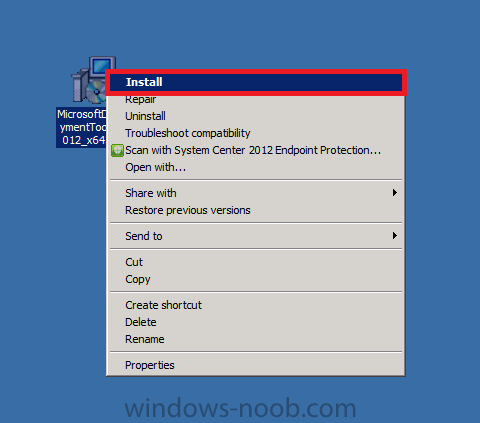
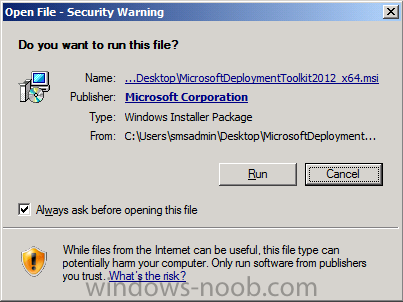
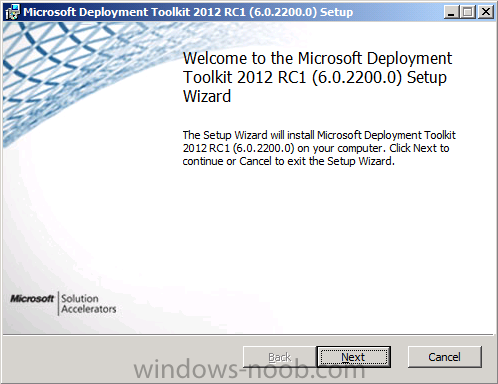
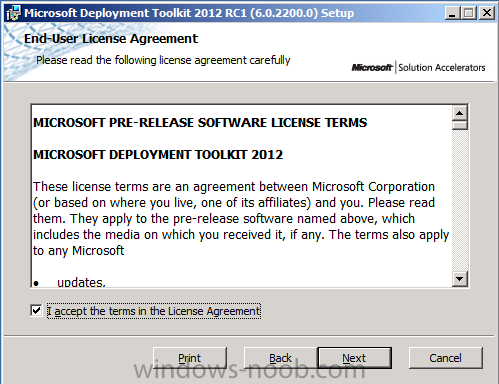
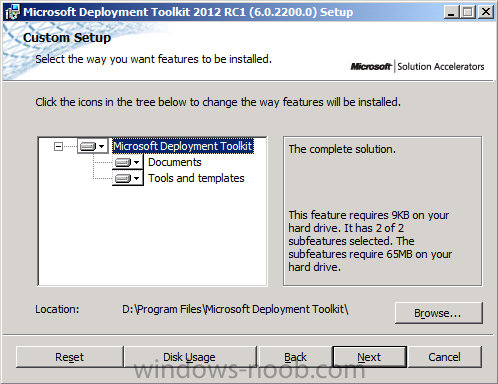
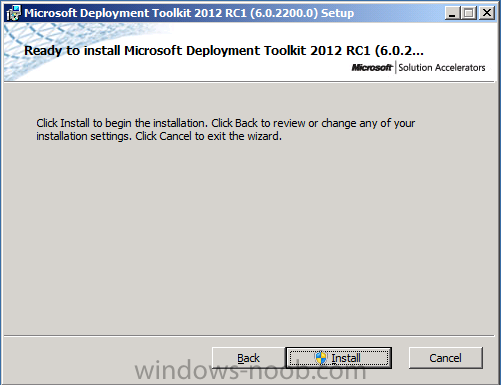
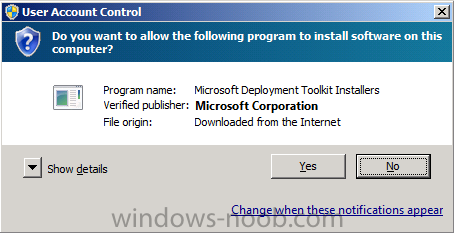
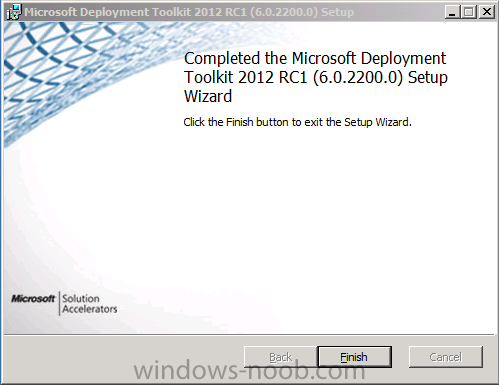
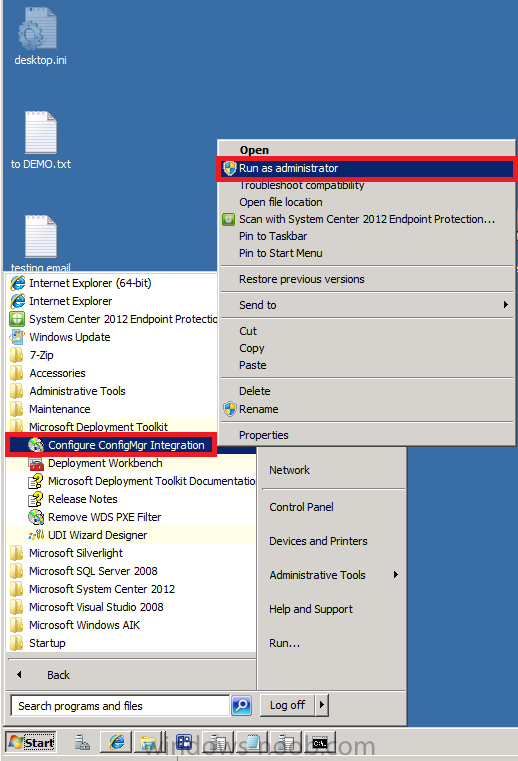
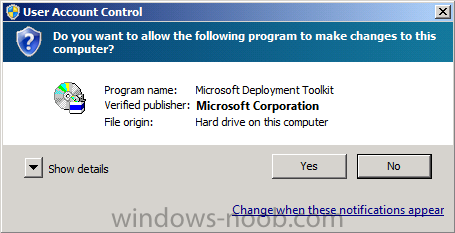
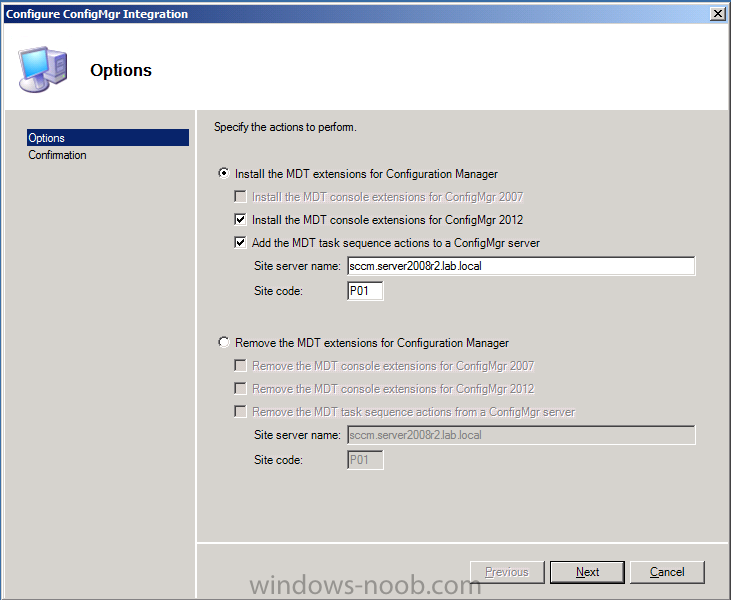
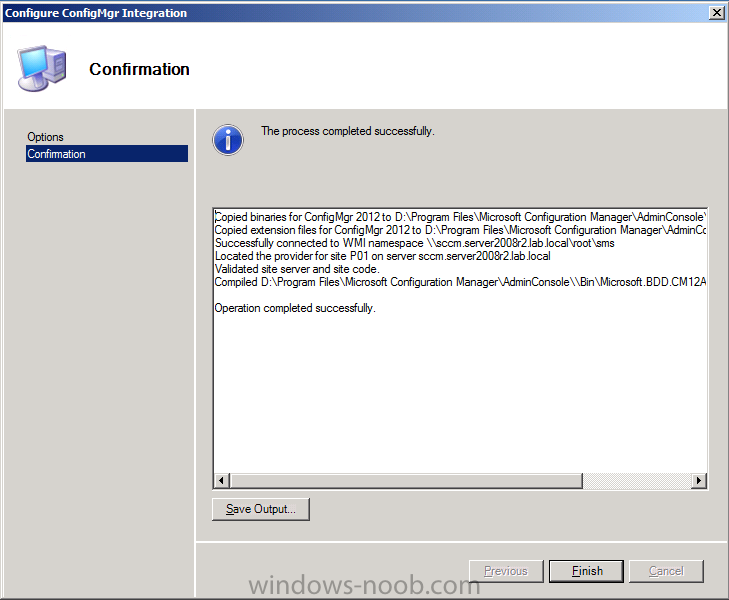
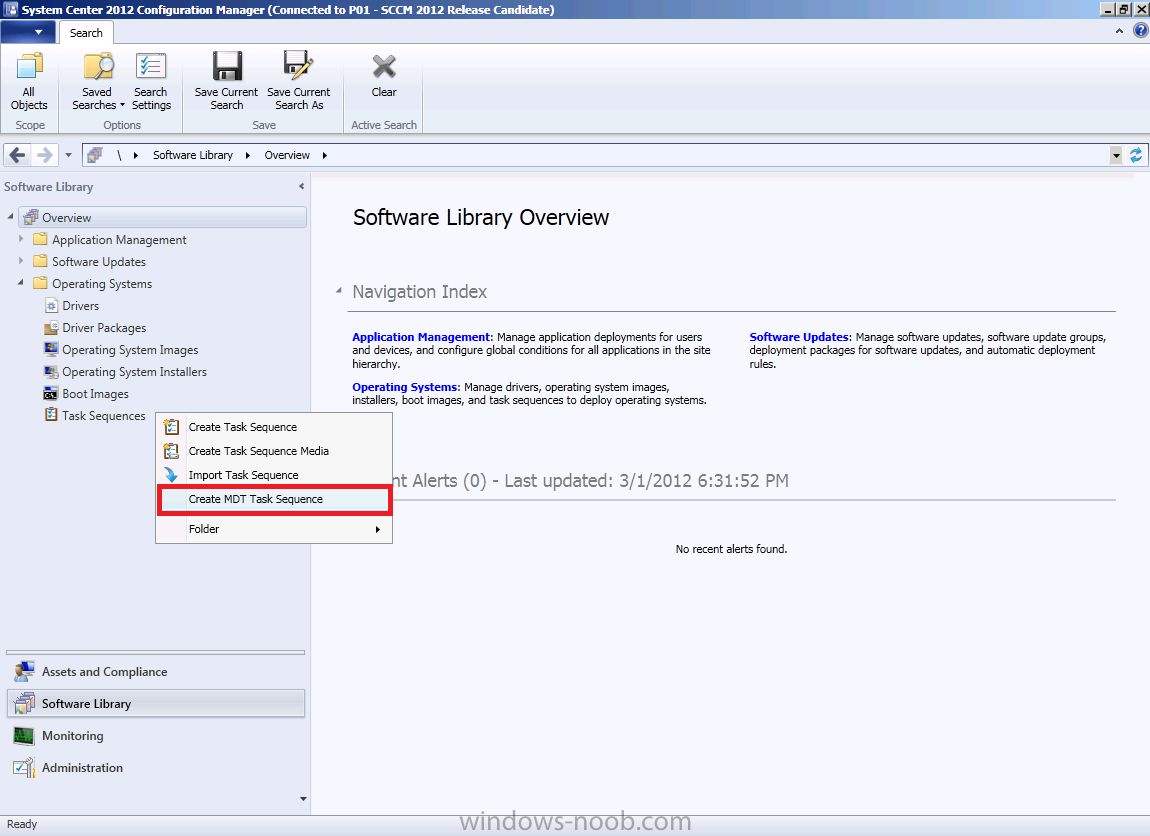
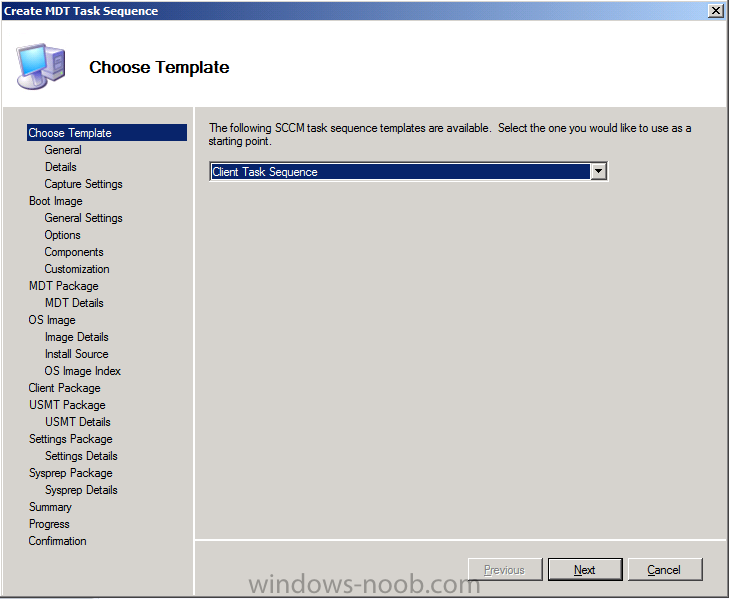
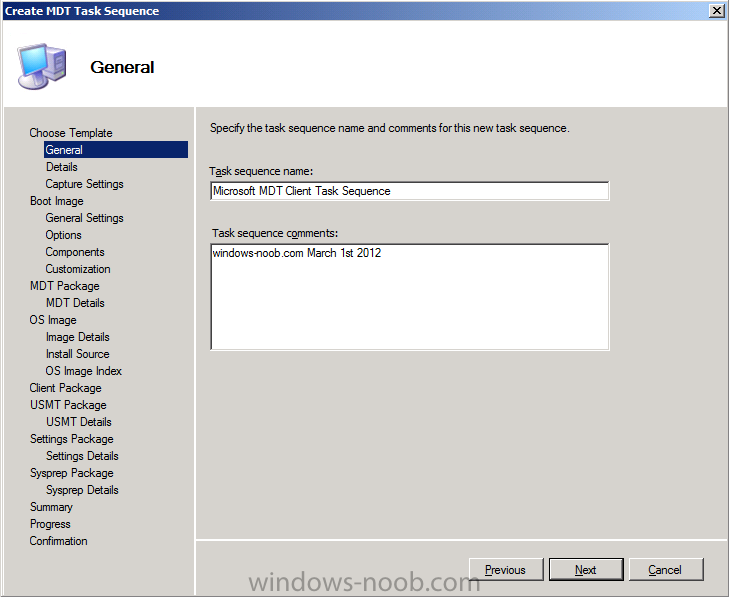
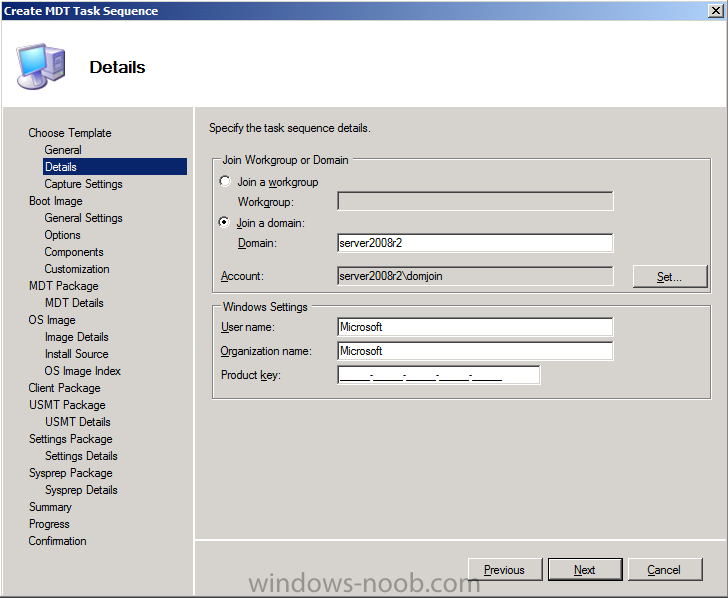
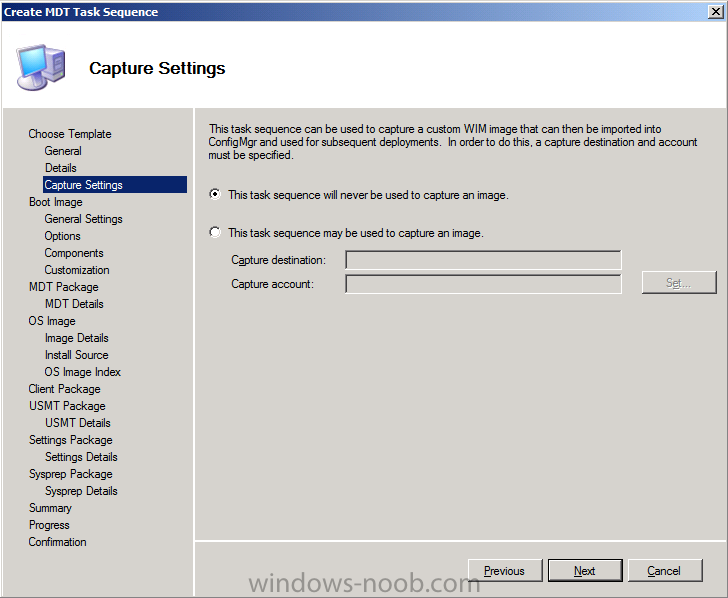
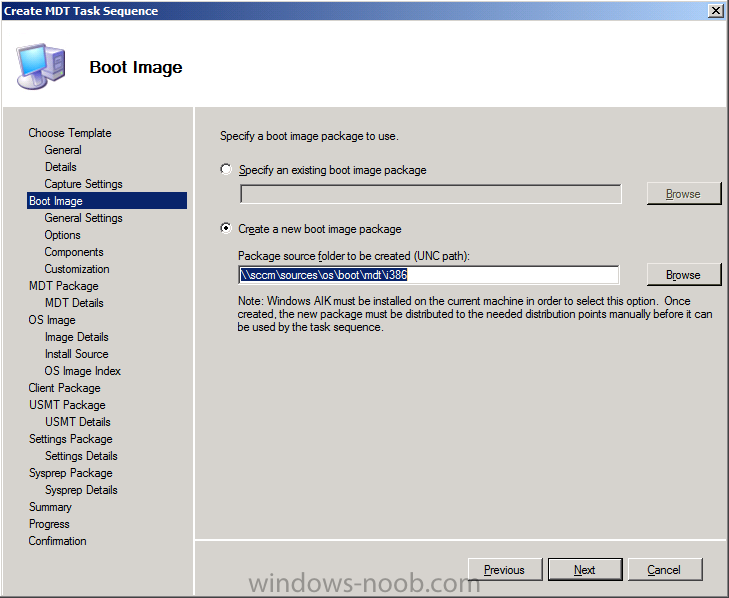
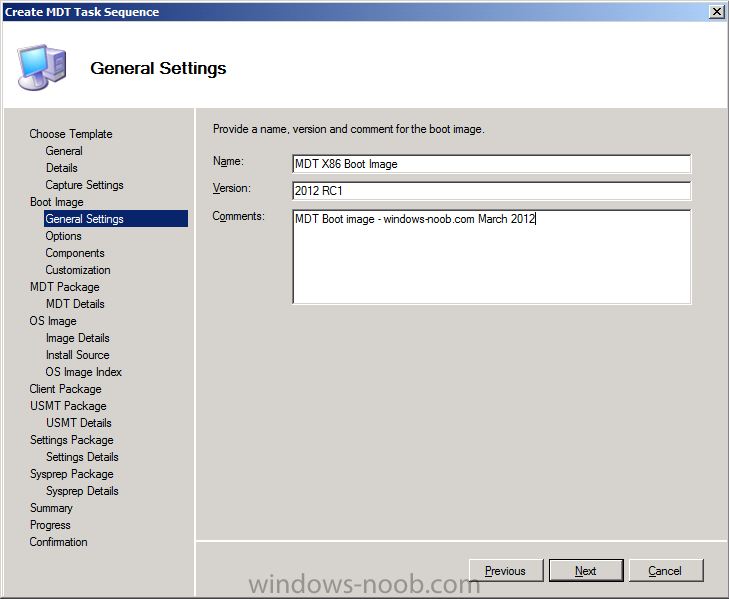
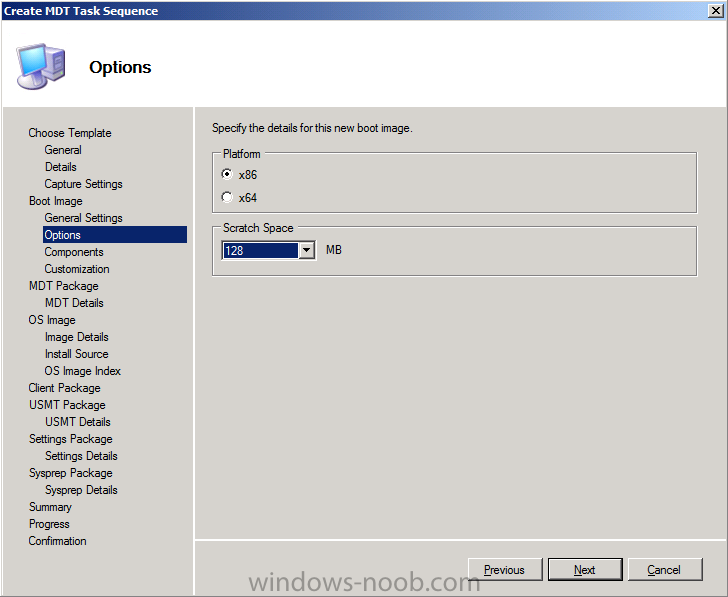
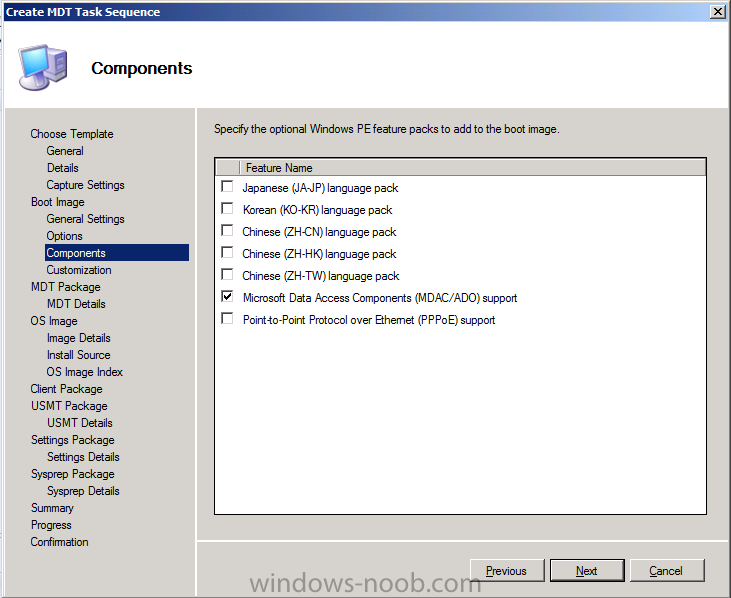
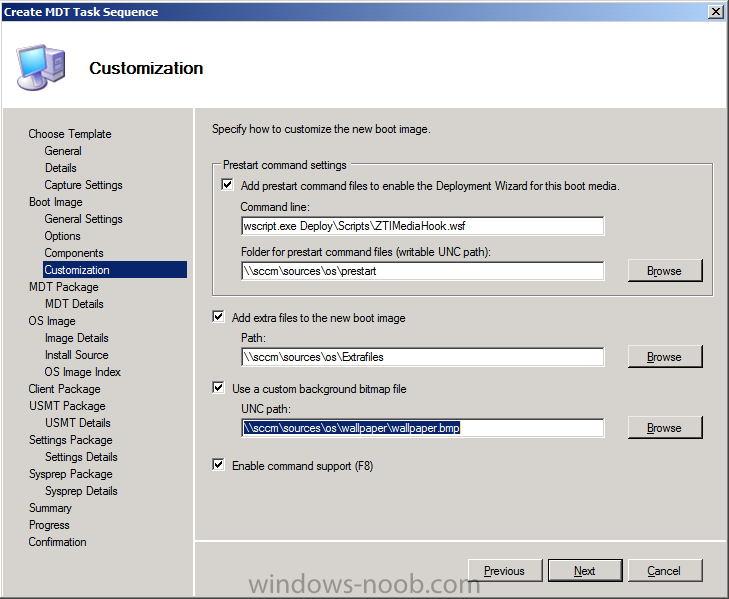
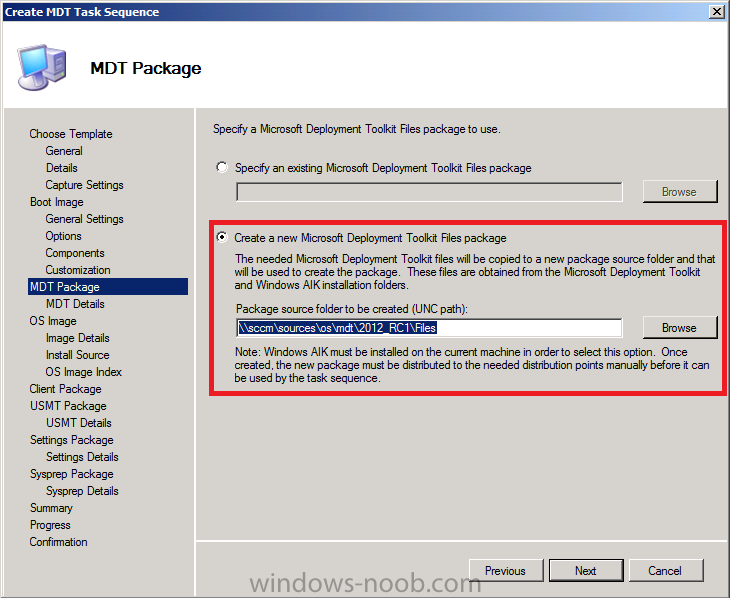
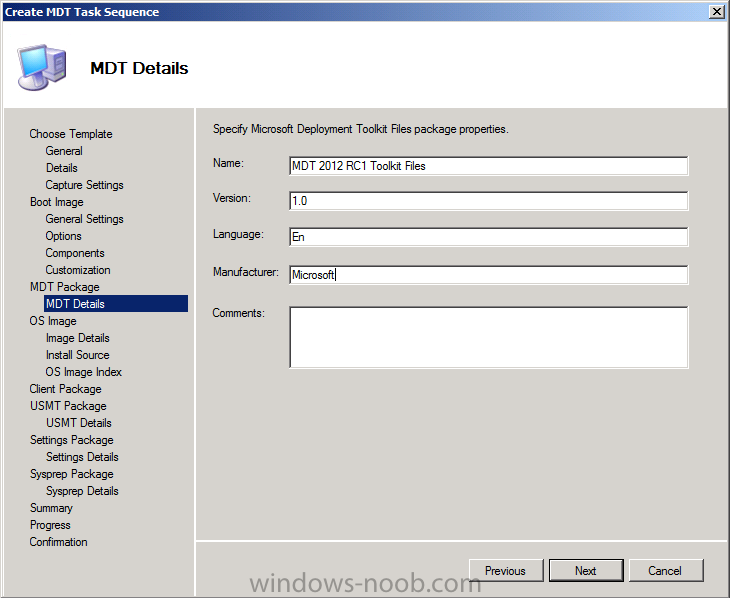
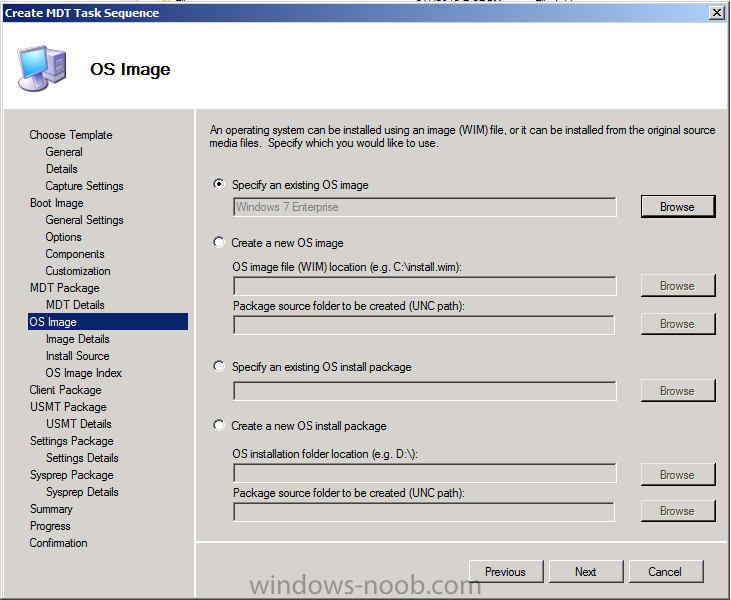
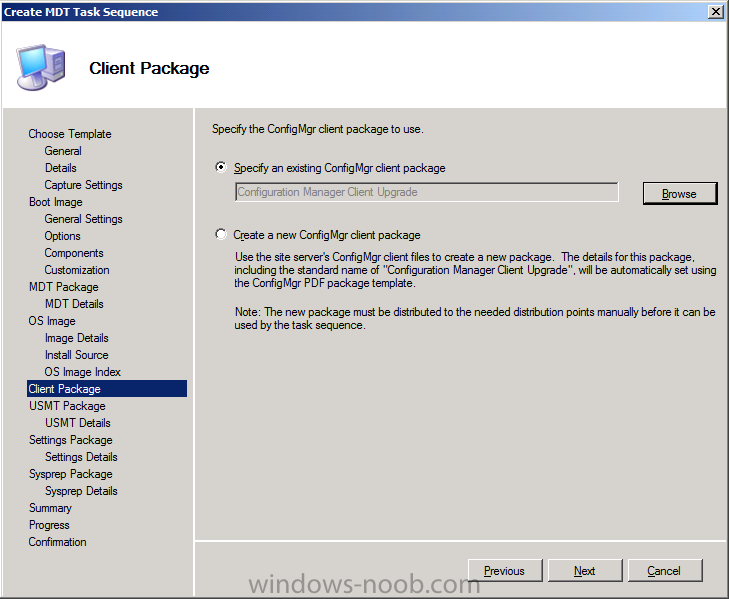
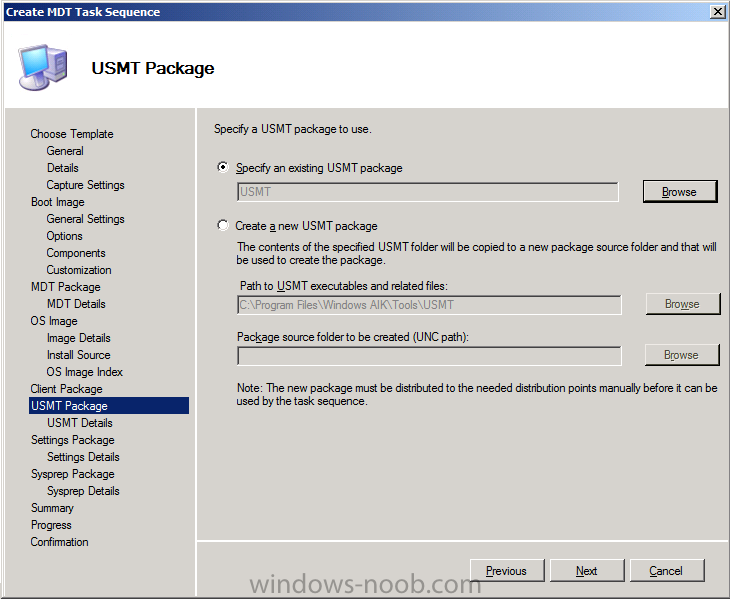
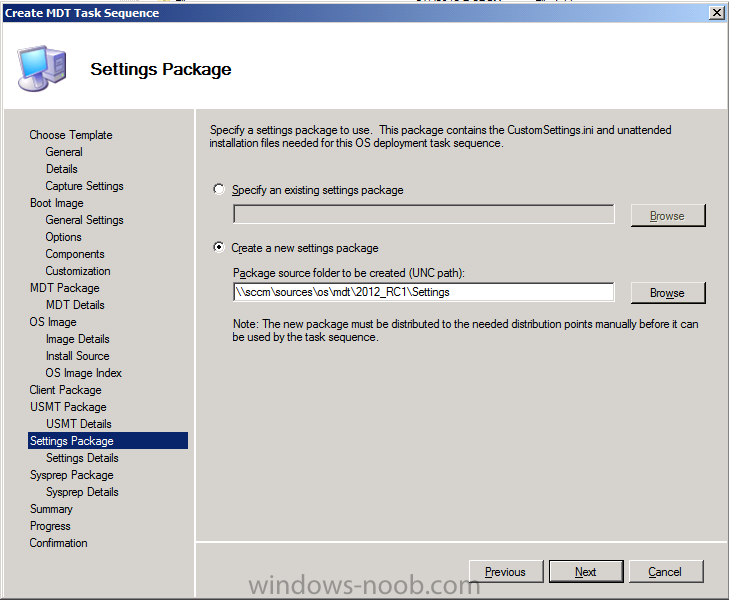
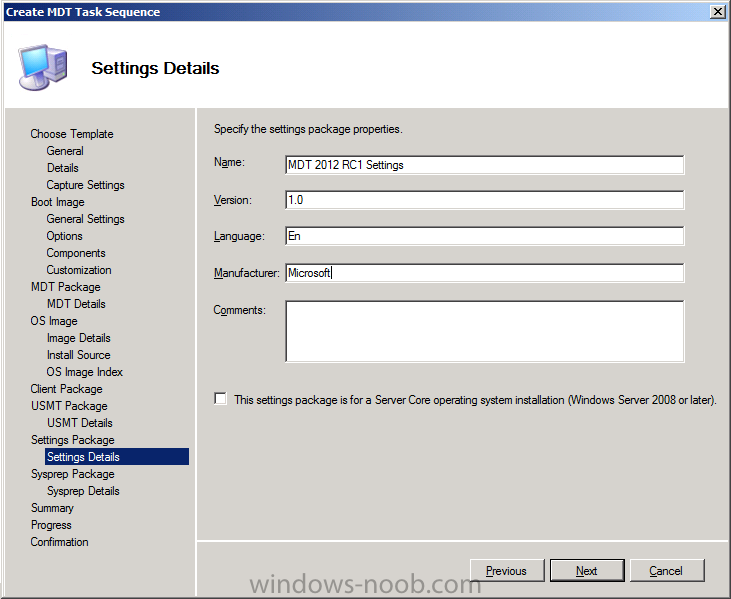
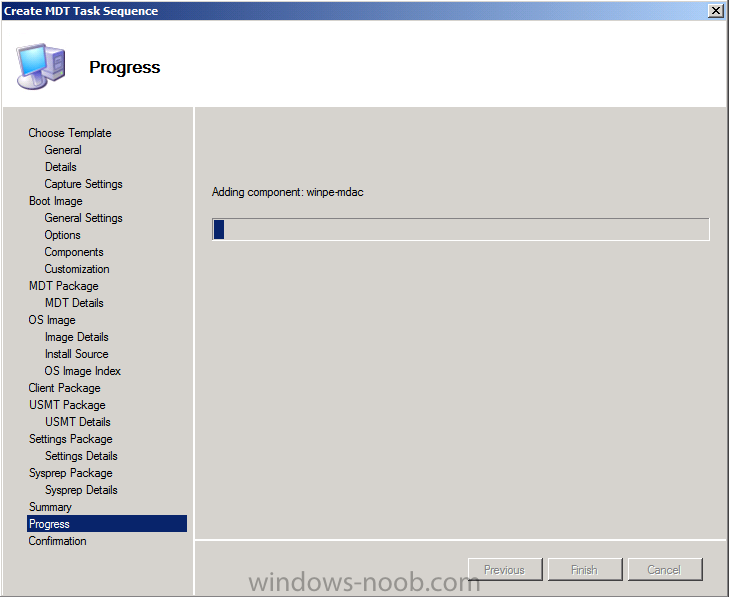
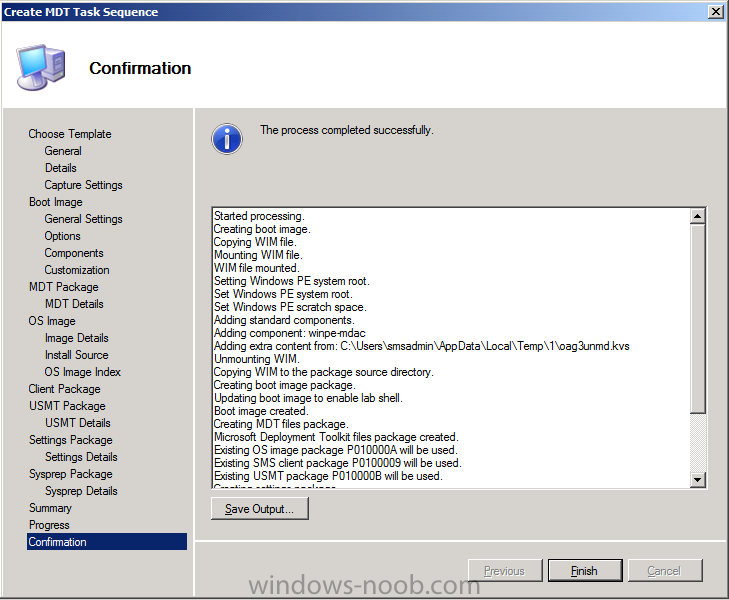
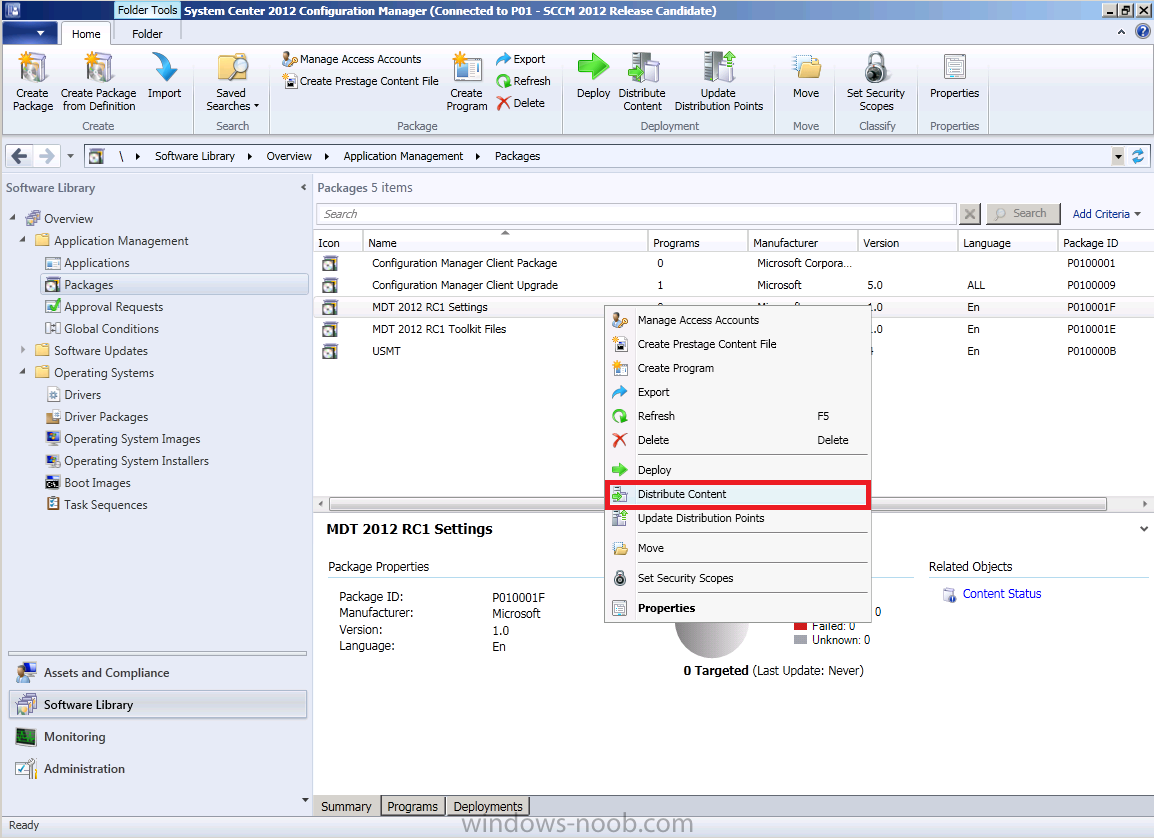
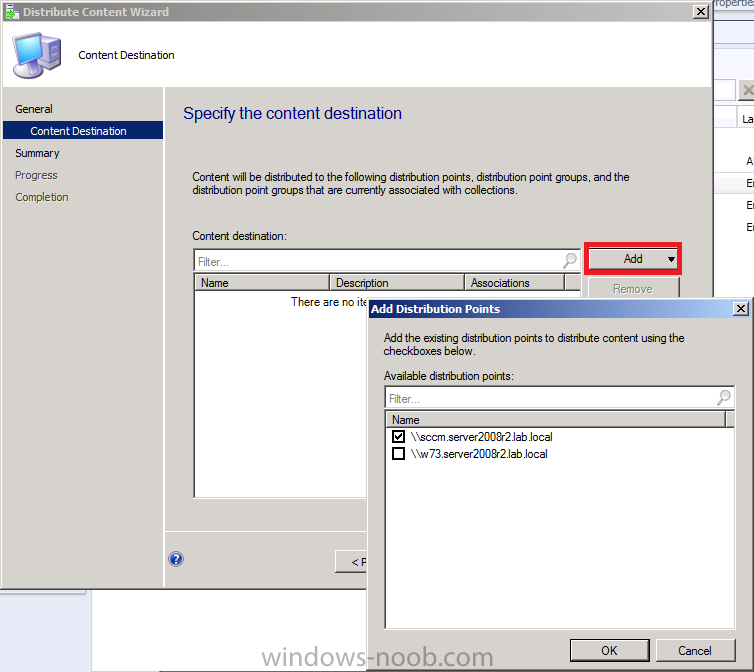
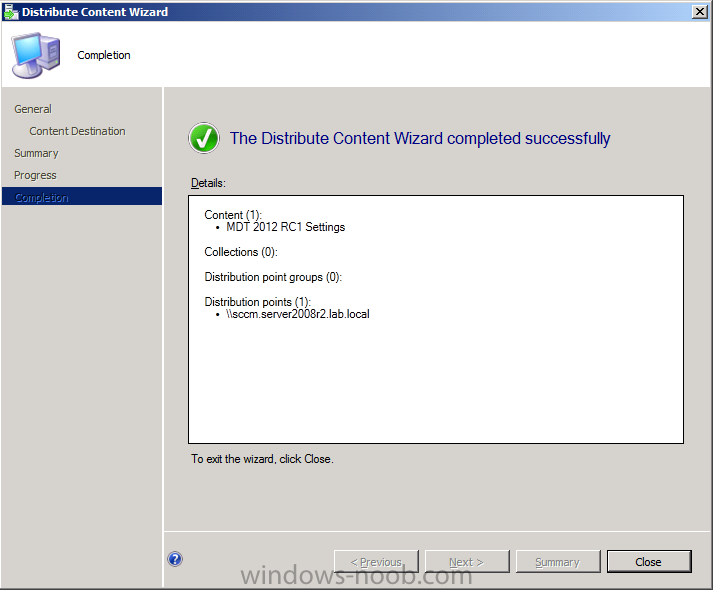
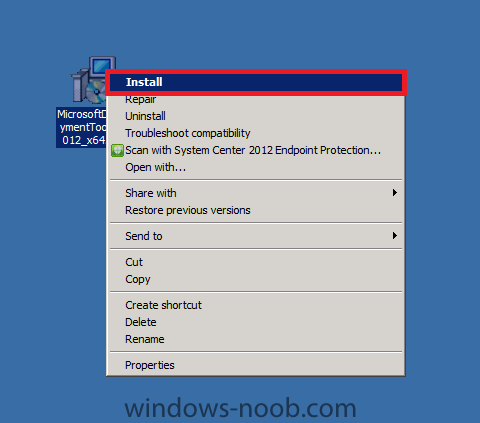
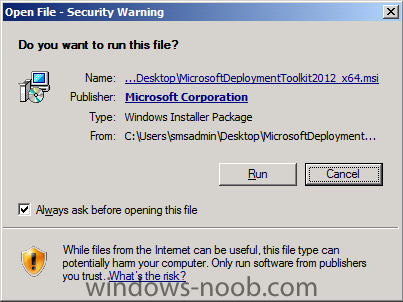
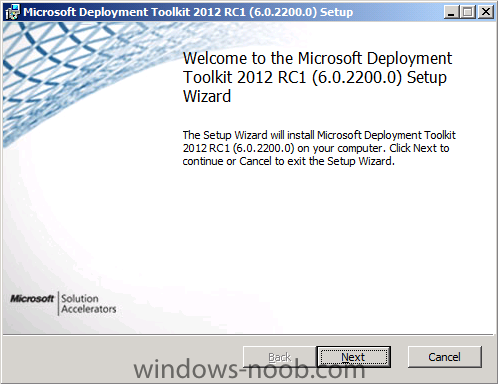
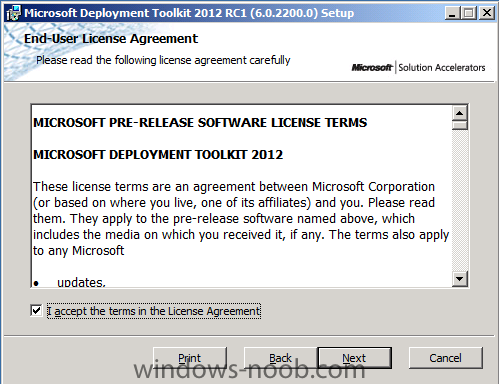
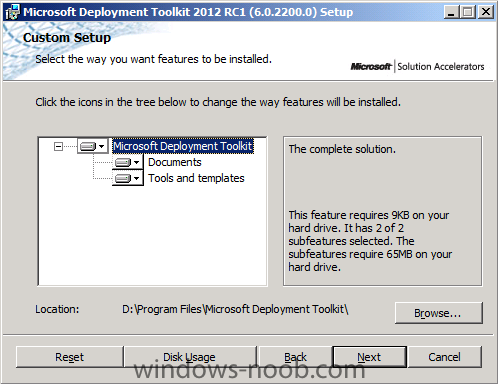
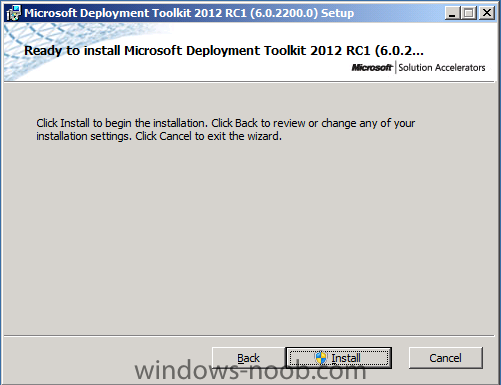
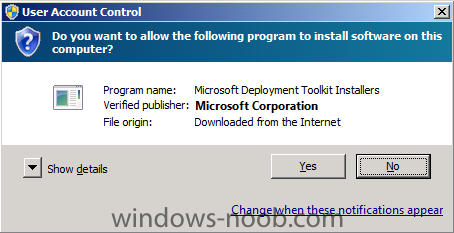
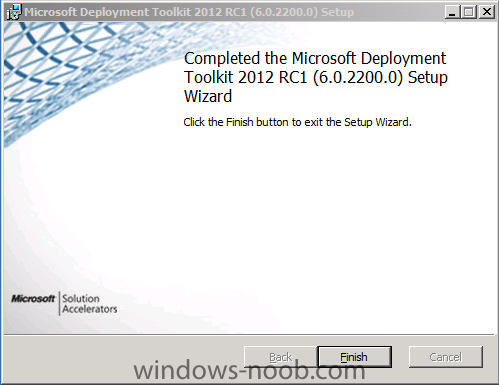
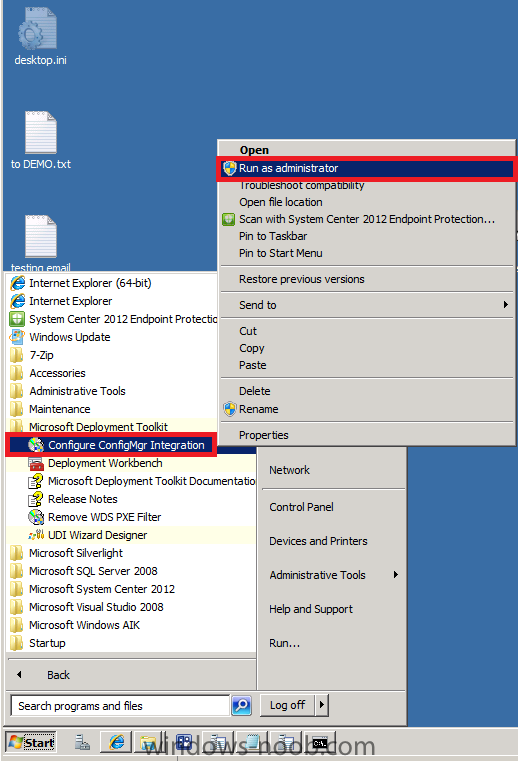
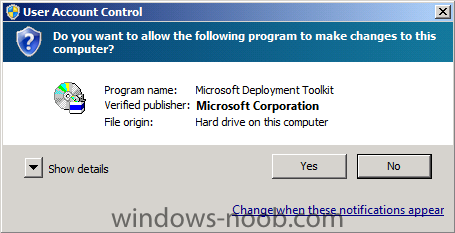
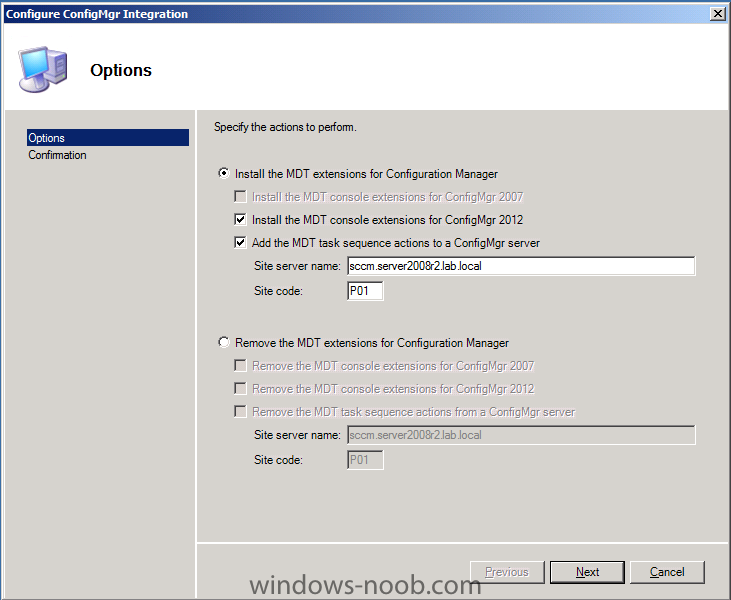
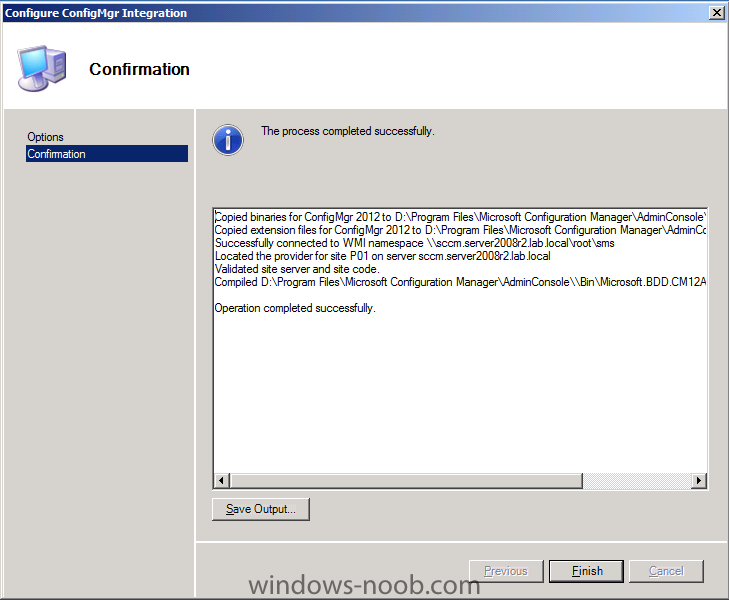
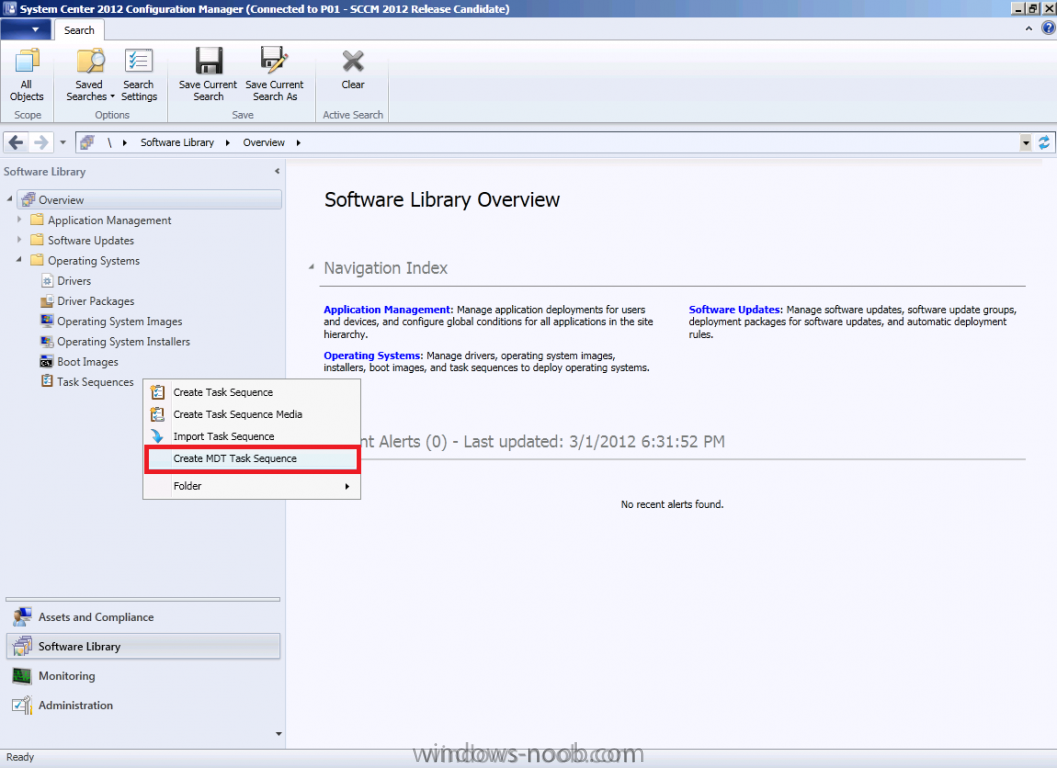
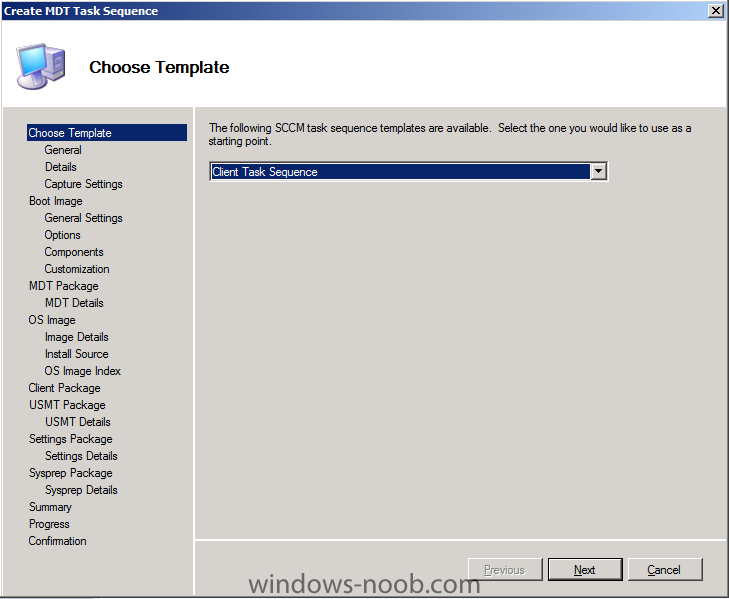
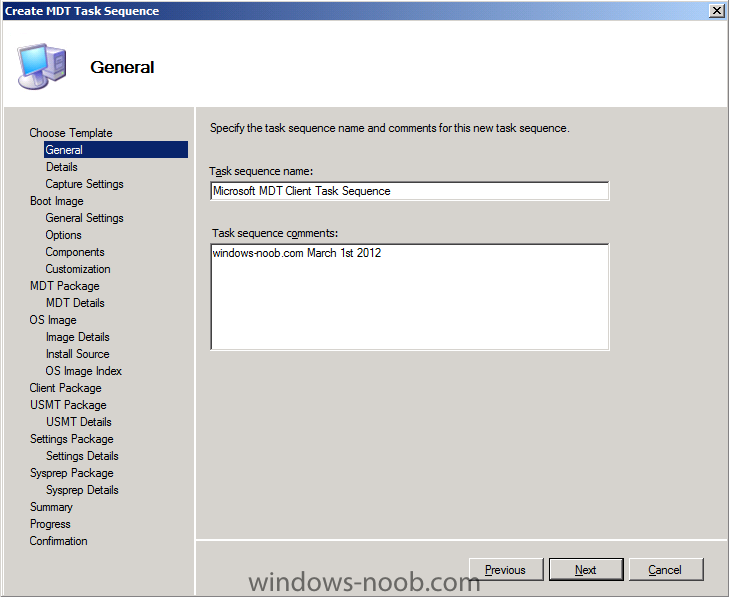
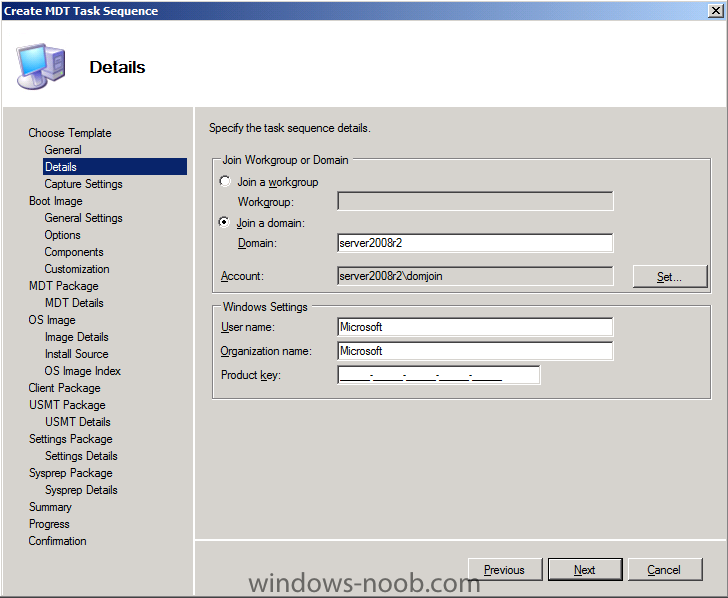
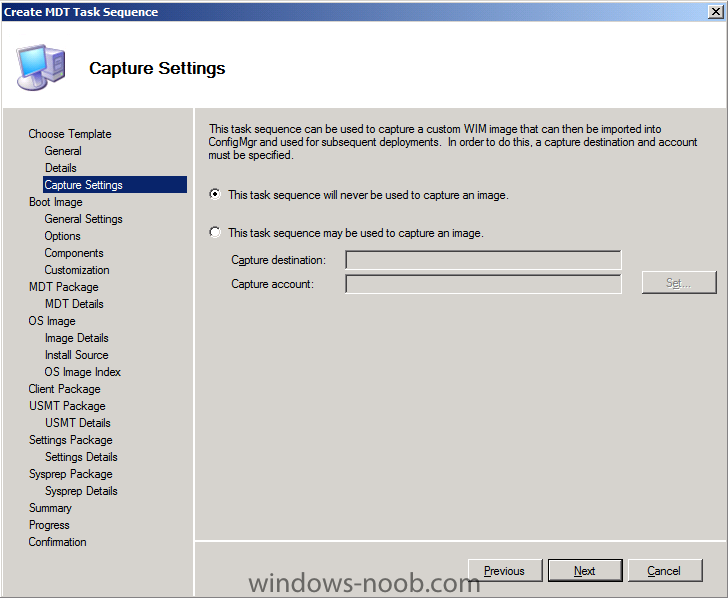
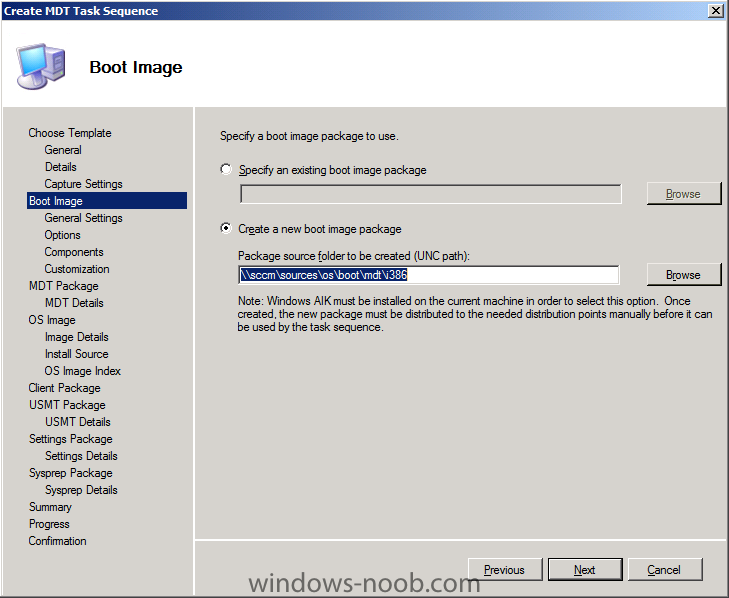
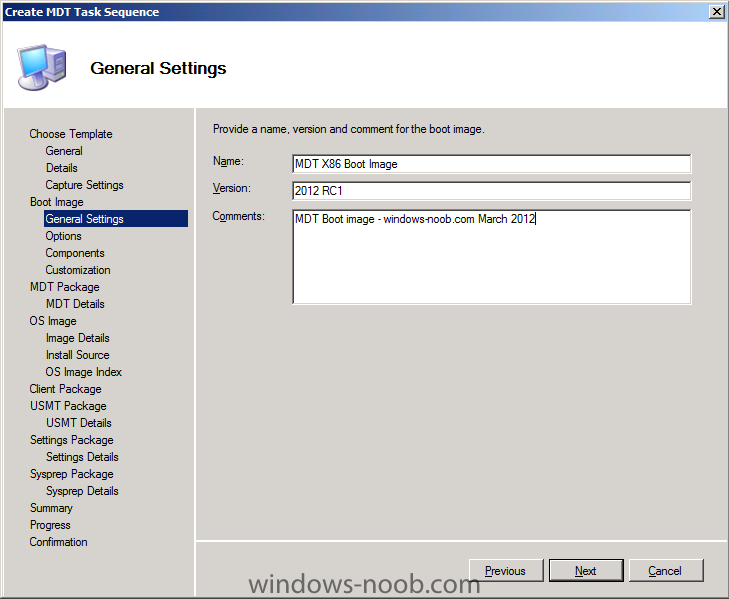
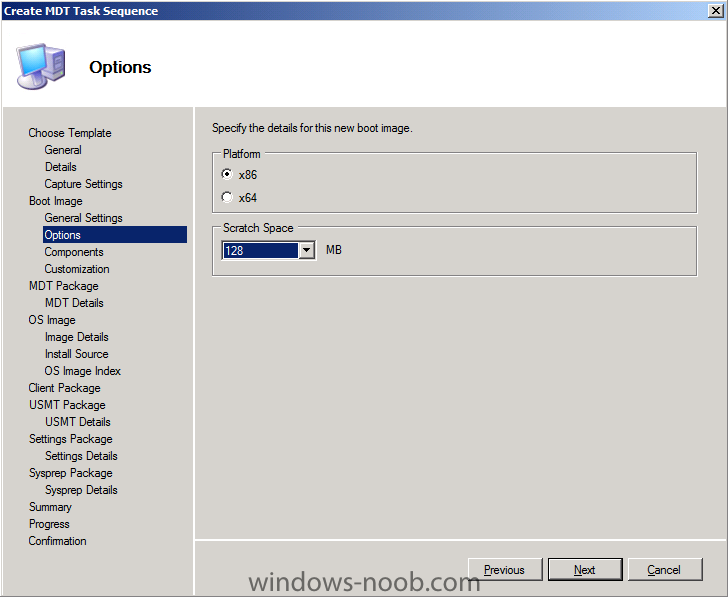
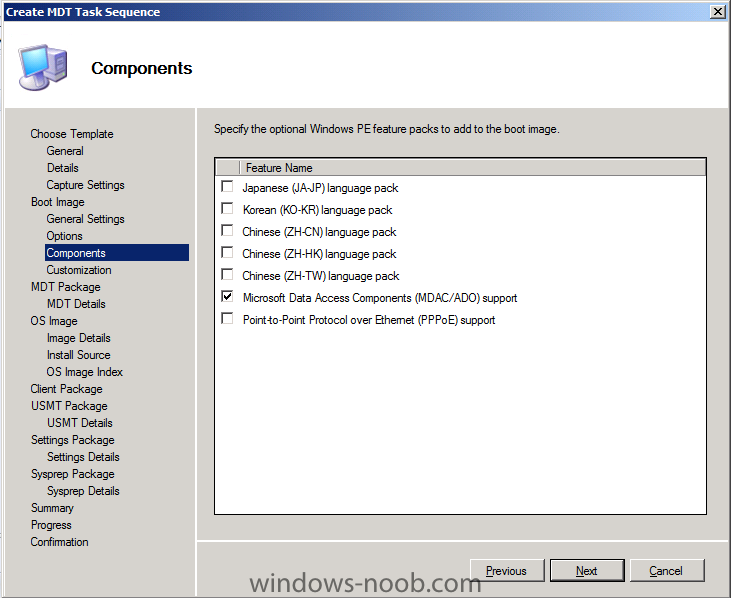
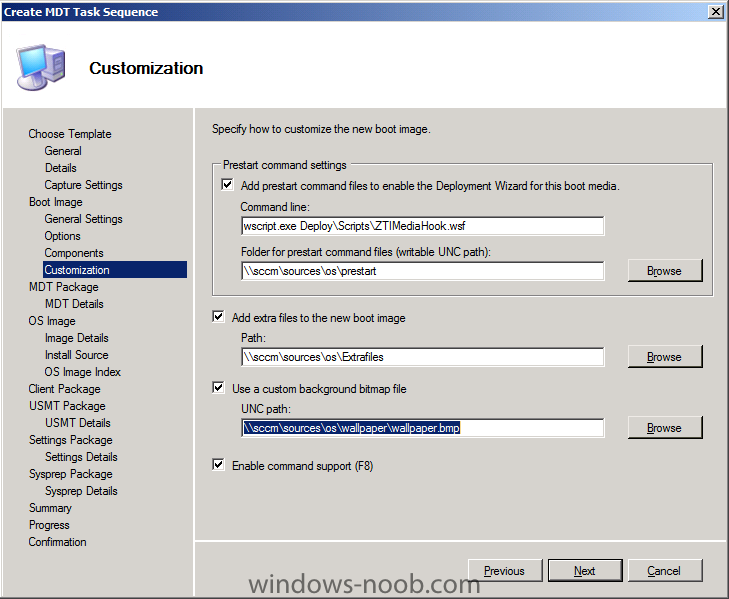
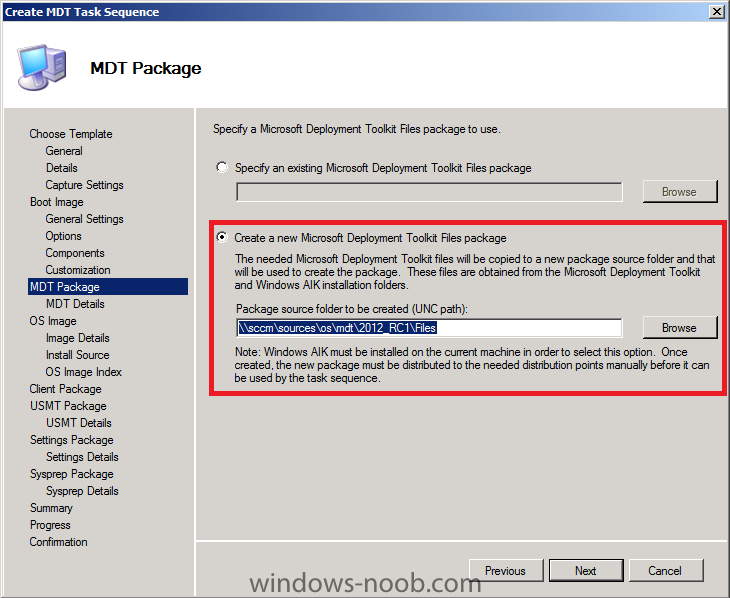
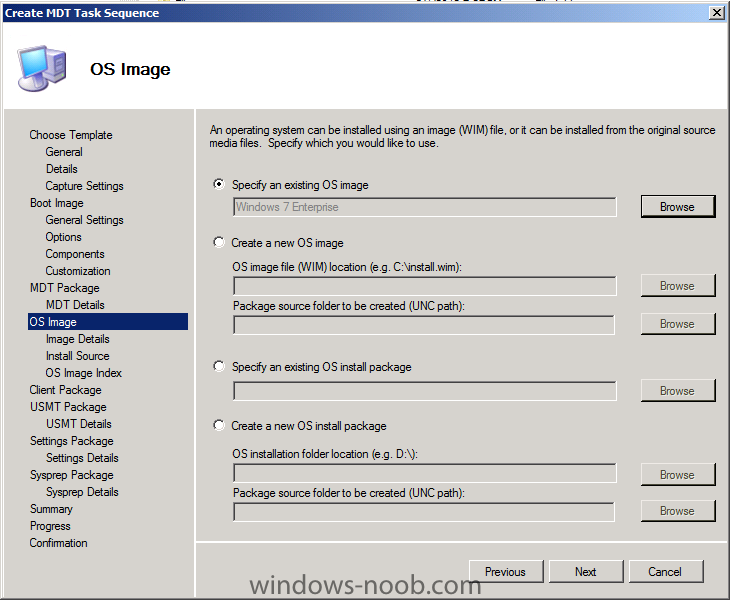
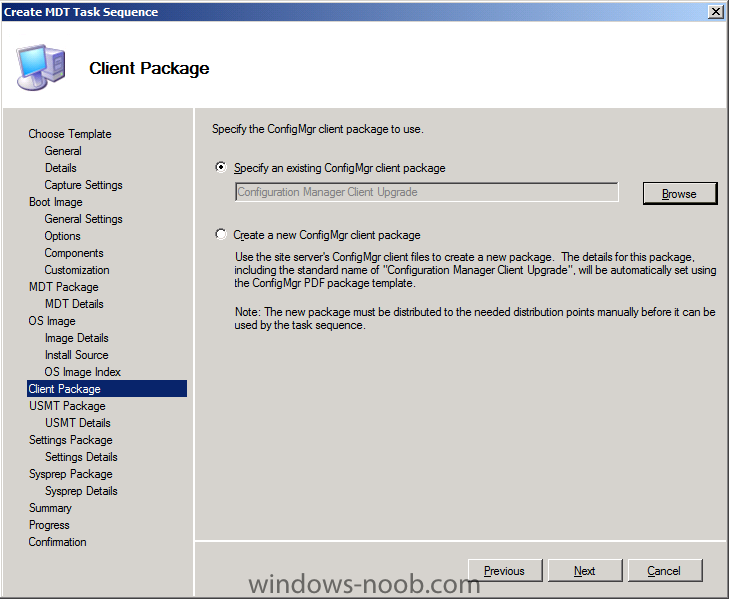
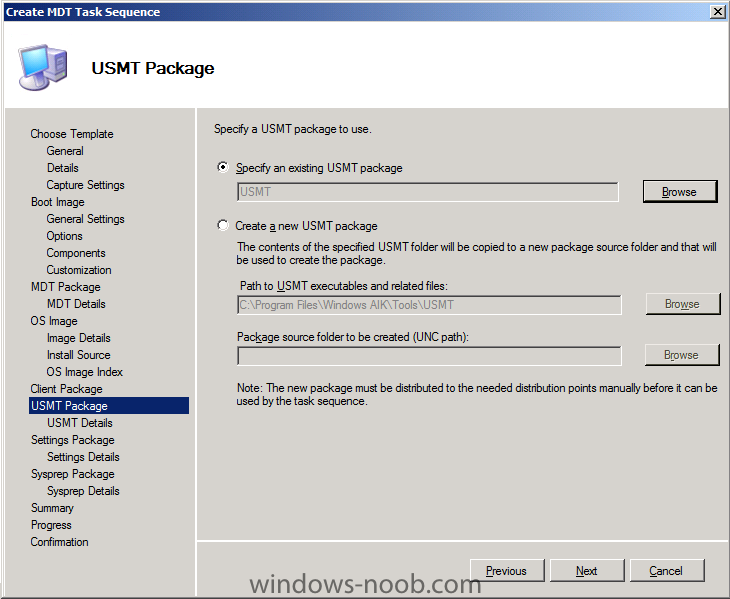
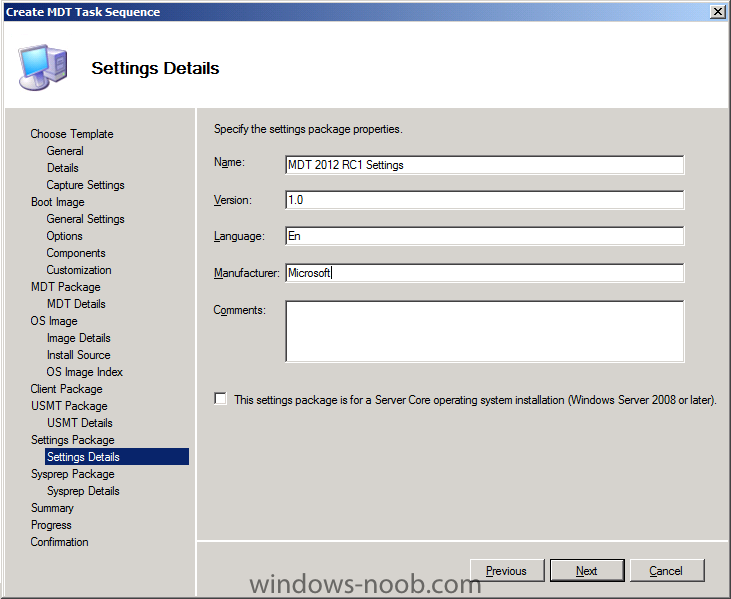
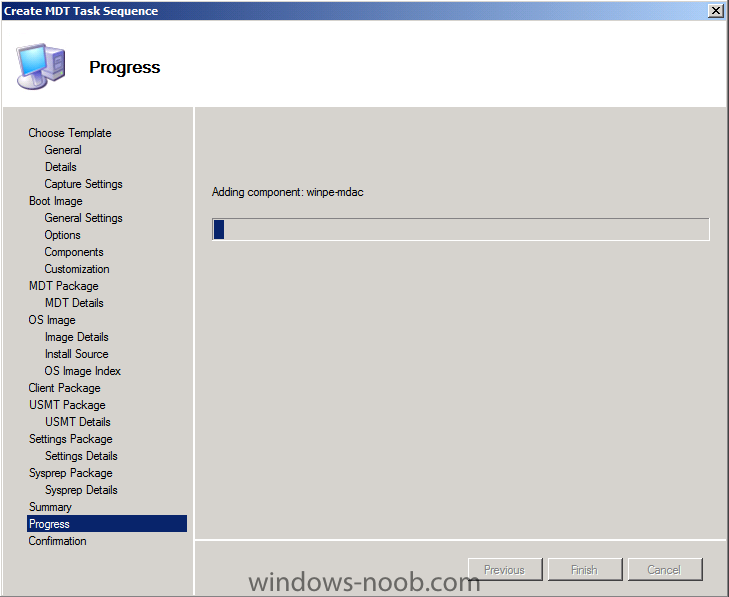
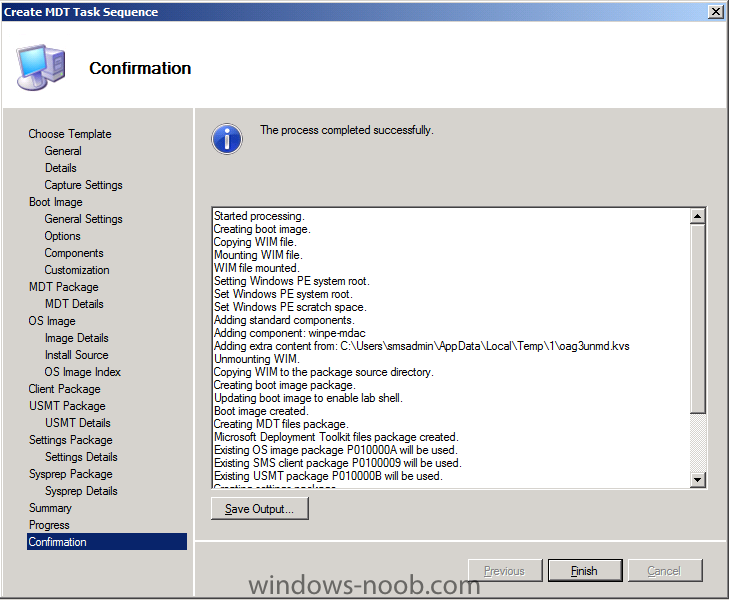
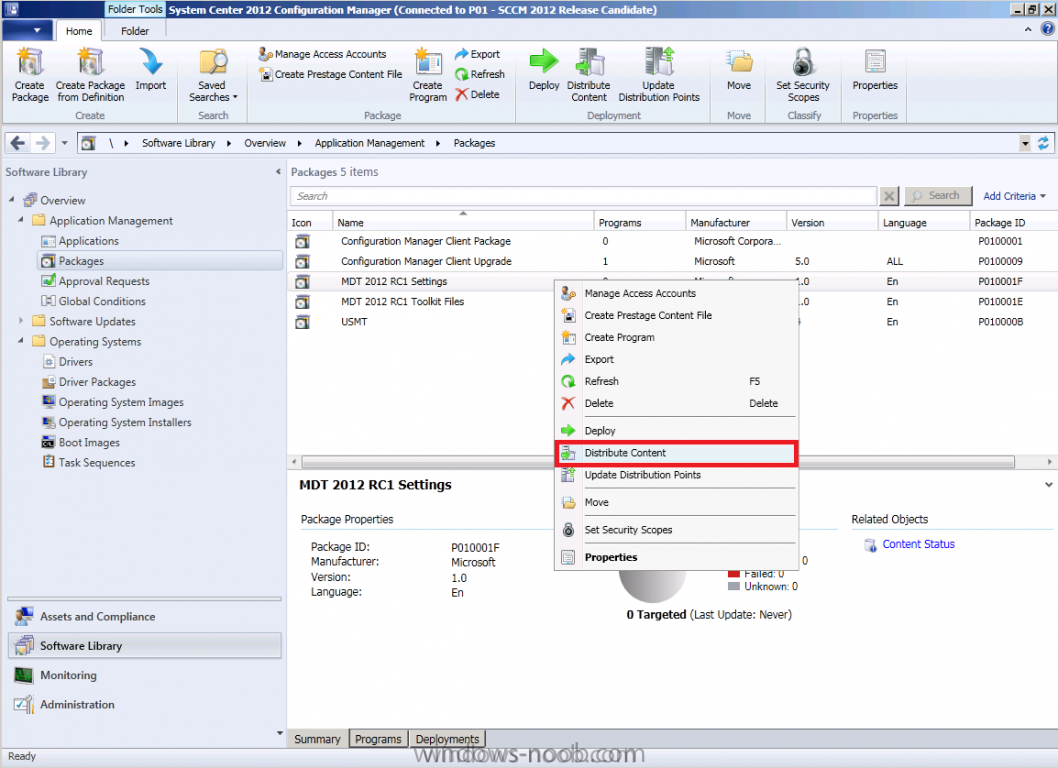
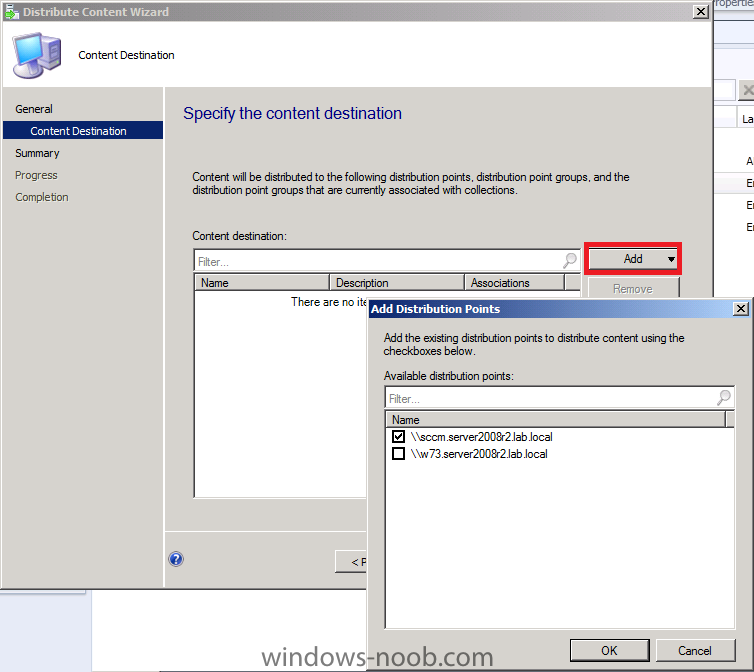
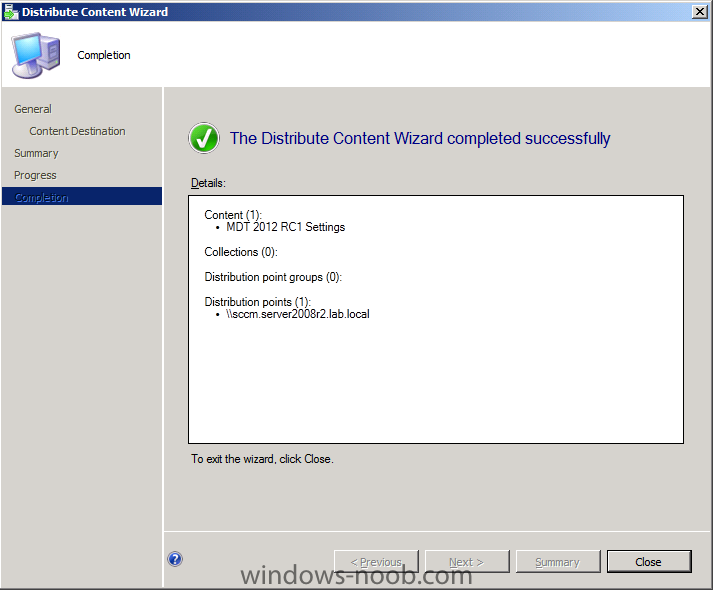
In Part 1 of this series we got our AD and SCCM servers ready, and then we installed System Center 2012 Configuration Manager as a standalone Primary site. In Part 2 we configured the SCCM server further by adding some Windows Server roles necessary for the following Configuration Manager 2012 functionality, Software Update Point (SUP) and Operating System Deployment. In Part 3 we configured the server further by Enabling Discovery methods and creating Boundary's and Boundary Groups. In Part 4 we configured Client Settings, Added roles and Distributed the Configmgr Client to our Computers within the LAB, then in Part 5 we enabled the Endpoint Protection Role and configured Endpoint Protection settings and targeted a collection called All Windows 7 Computers with these settings and policies. In Part 6 we configured our SUP further to Deploy software updates to our All Windows 7 Computers and Build Windows 7 X64 collections. In Part 7 we used the Build and Capture process to create our Base Windows 7 X64 wim image. In Part 8 we created a USMT 4 package to migrate the users data using hardlinking and then we imported the captured image into ConfigMgr and created a Deploy Windows 7 X64 task sequence. We created a Deploy Windows 7 X64 Collection and set some User Device Affinity collection variables. In Part 9 we created an Application, and created a deployment type for that application to only install if the Primary User was True for that device (User Device Affinity), we then copied our Task Sequence (duplicated it), deployed the new Task Sequence, added a computer to the new collection and then PXE booted the computer to the Deployment Menu. In Part 10 we monitored the Deployment process in a lot of detail to how UDA sent state messages and we verified that our application installed on the users Primary Device, in addition we modified our collection variables, and added a prestart command to our boot image to prompt for the SMSTSUdaUsers. In Part 11 we setup the Reporting Services Point Role and verified that reporting was working. In Part 12 we demonstrated a new feature in ConfigMgr which allows us to Patch operating system WIM images using Offline Servicing. This means that you can apply Windows Updates by using Component-Based Servicing (CBS) to update the your previously captured WIM images. In Part 13 we looked at how Role Based Administration is used within ConfigMgr and we created a new custom role to allow a user (or users within a Security Group) to view Software Update Reports. This is useful because you will probably want one team to take care of configuring and deploying software updates, and to grant another (Management etc) the capability of reviewing Compliance Reports. In Part 14 we performed a side-by-side migration from Configuration Manager 2007. In Part 15, we deployed Windows 8 Consumer Preview to see if it was possible, and indeed it was (it's not supported by Microsoft however). Now we will integrate the recently released MDT 2012 RC1 with Configuration Manager to avail of new features (features and enhancements which can help to make large-scale desktop and server deployments smoother than ever) that it provides through MDT Integration. Having MDT integrated with ConfigMgr will give you lots of benefits and abilities so I would definitely recommend you integrate it. Note that in order to download this build of MDT you have to be registered with the MDT program on Connect. Step 1. Download MDT 2013 and Install it. Note: Perform the following on the ConfigMgr 2012 server as SMSadmin MDT 2013 is available from the following location. As we are using Server 2008 R2 (64bit OS) we will download and install the 64 bit version of the software (MicrosoftDeploymentToolkit2013_x64.msi). If your ConfigMgr console is open, close it and then install the MSI by right clicking on the downloaded MSI file and choose Install. when the open file security window appears choose Run the Welcome to MDT wizard appears, click next accept the EULA if you want to continue and click next and next you get to choose where you want to isntall MDT, we will install it on D:\Program Files\Microsoft Deployment Toolkit\ so set your path accordingly click next, and then click Install answer yes to the UAC prompt and finally it's installed by clicking Finish. Step 2. Integrating MDT with Configuration Manager Note: Perform the following on the ConfigMgr 2012 server as SMSadmin Now that you have installed MDT you want to integrate it (Configure ConfigMgr Integration) with ConfigMgr. We do this to gain access to tools and features that MDT provides from within the ConfigMgr console. In the start menu, locate the newly installed Microsoft Deployment Toolkit application and expand it, locate the Configure ConfigMgr Integration shortcut and right click, choose Run as Administrator. click yes when prompted by UAC review the pre-populated options and click next and review the Confirmation, make sure there are no issues reported otherwise your MDT Integration has failed Step 3. Create a MDT Task Sequence in ConfigMgr Note: Perform the following on the ConfigMgr 2012 server as SMSadmin We need the following MDT components to be created: MDT Boot image MDT Toolkit Files MDT Settings To create these MDT components so that we can use them later on, we run a wizard by creating a MDT Task Sequence. The wizard will guide you through creating these packages. The MDT boot image (for example) gives you extra abilities over the standard ConfigMgr boot image such as the ability to display a HTA. Start up the ConfigMgr console and browse to Software Library, Operating Systems, right click on Task Sequences and choose Create MDT Task Sequence. Choose a Template, there are several provided in the drop down menu, we will choose Client Task sequence fill in the Task Sequence name and comments for Details, fill in your Domain Join credentials We are not going to catpure an image with this Task Sequence, as we are only using this Task Sequence to create the needed MDT Files and Settings packages... for boot image, specify a previously created (empty folder) UNC path, eg: \\sccm\sources\os\boot\mdt\i386 fill in some MDT boot image details and for options specify the X86 architecture and set your scratch space (environment for MDT to use in WinPE) to 128MB (to allow drivers etc...) next select your optional WinPE components (language, MDAC/ADO support and PPoE) and fill in your prestart, extrafiles and wallpaper options (all optional), make sure to leave F8 command prompt selected Next we get to create our MDT Toolkit Files package, so select the Create a new Microsoft Deployment Toolkit Files package option, point it to a previously created path such as \\sccm\sources\os\mdt2013\files fill in details about the MDT Toolkit Files package..be descriptive as it's common to have different versions of MDT Files in your lab (in the future) for OS Image, specify an exiting image, select the Windows 7 X64 image we captured in part 7 and then select our previously created Configuration Manager Client Package and our previously created USMT 4 package for the Settings Package, we choose to create a new Microsoft Deployment Toolkit Settings Package, point it to \\sccm\sources\os\mdt2013\settings fill in the Settings Package details choose No Sysprep package and click next through the summary to Confirmation, answer Yes to any UAC prompt that may appear, at this point you can go take a long coffee break as this takes quite some time to mount the WIM image (boot) and create the packages and do it's magic.. and finally it's done ! Step 4. Distribute your new MDT packages and boot image to your distribution points Note: Perform the following on the ConfigMgr 2012 server as SMSadmin At this point, i'm sure we are all aware how to distribute content in ConfigMgr, and now we have some new packages (MDT Files, MDT Settings) and a new MDT boot image to distribute to our dp's. I'll show you how to distribute one of these, you can do the rest. Select the MDT Settings package in Software Library, Packages, right click it and choose Distribute Content select your distribution point(s) and continue through the wizard.. Note: Please don't forget to repeat the above process for the MDT Files, and the MDT boot image. In the next part of this series we'll look at what we can do with MDT within ConfigMgr.


-
How can I make troubleshooting failed deployments easier
anyweb replied to anyweb's question in boot images
if you are using a 64bit boot image (and you should only use that when build and capturing a 64bit os, you can DEPLOY both 32bit and 64bit os's with an x86 or 32 bit boot image) then you need the correct architecture programs, egg: if 64bit boot image, use Trace64.exe -
Microsoft Unveils Its Next-Generation OS, Windows 8
anyweb replied to anyweb's topic in Windows News
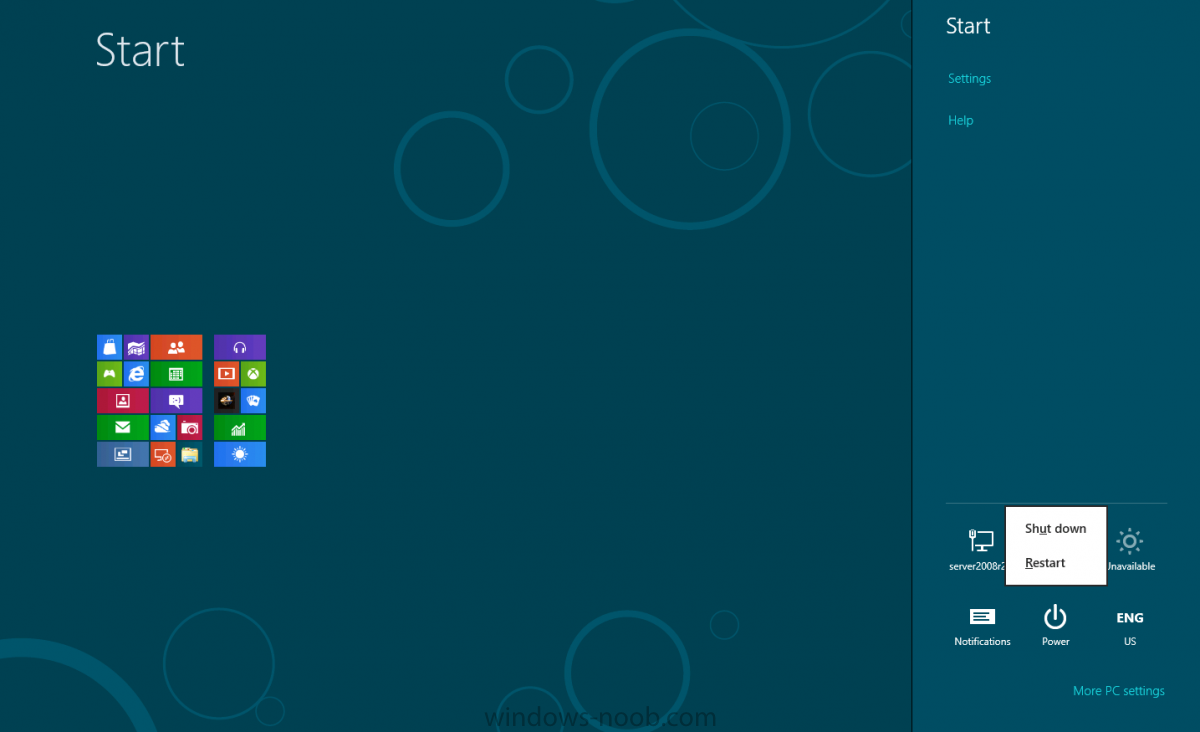
theres even more options for power on the right side of metro (bring your mouse pointer to the bottom right of the screen), click on settings and theres power options, and shutdown is available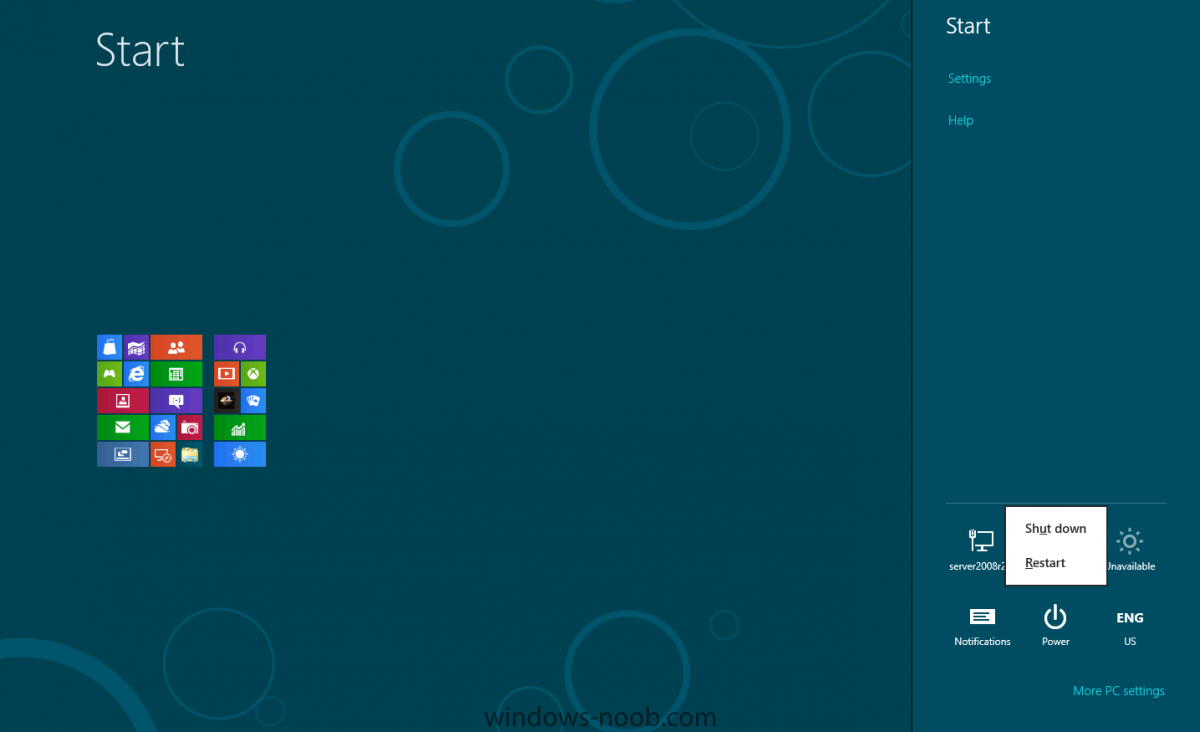
-
Microsoft Unveils Its Next-Generation OS, Windows 8
anyweb replied to anyweb's topic in Windows News
you can right-click on the Metro thumbnail and you get an extended menu including power options and the control panel have you looked at any of the options there ?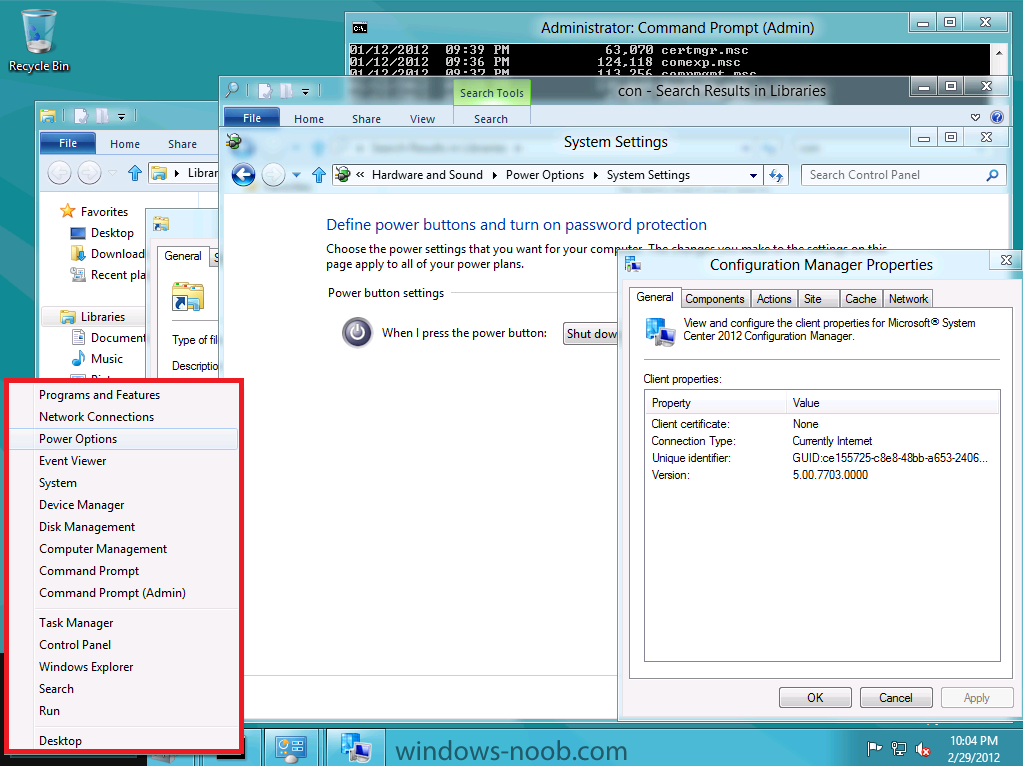
-
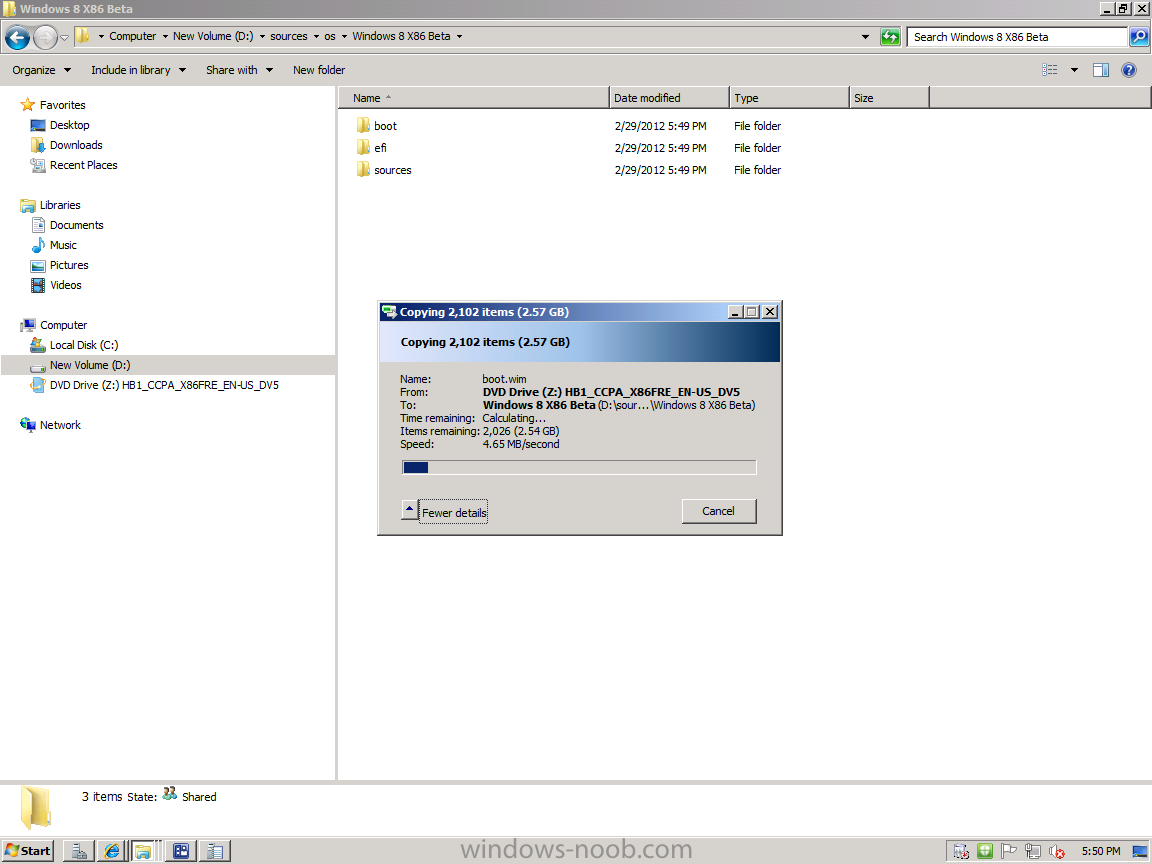
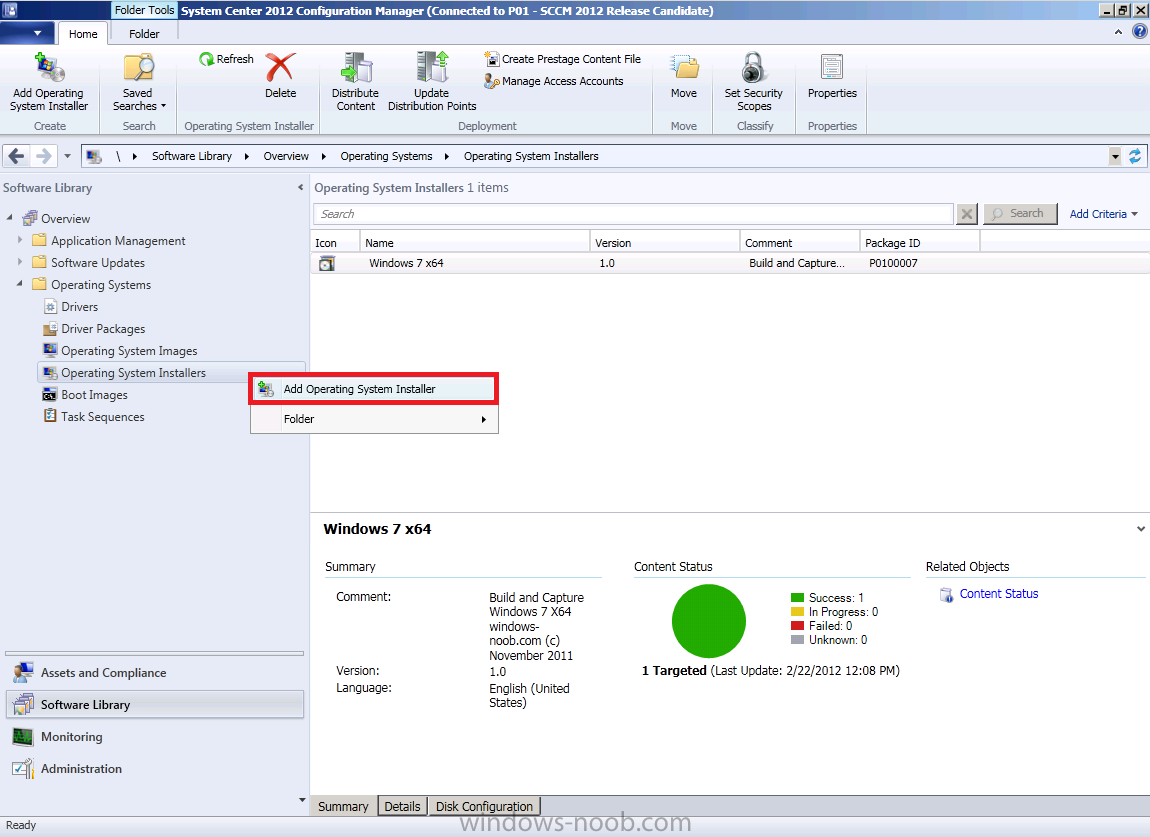
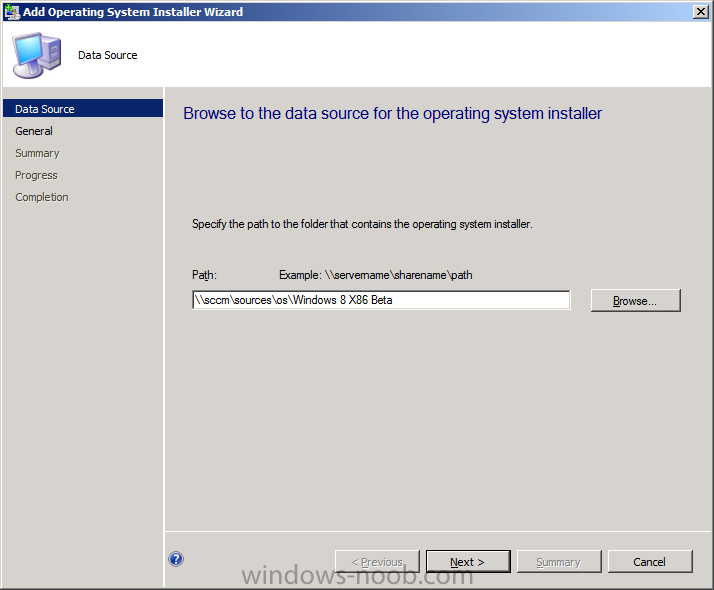
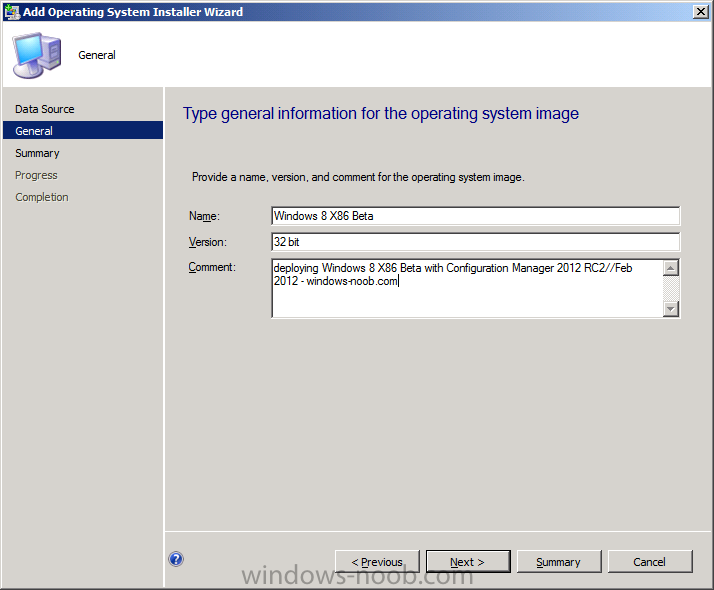
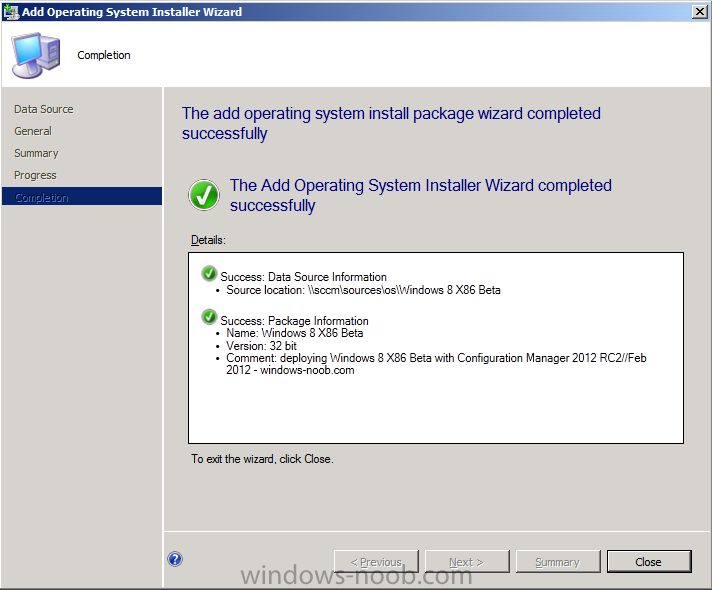
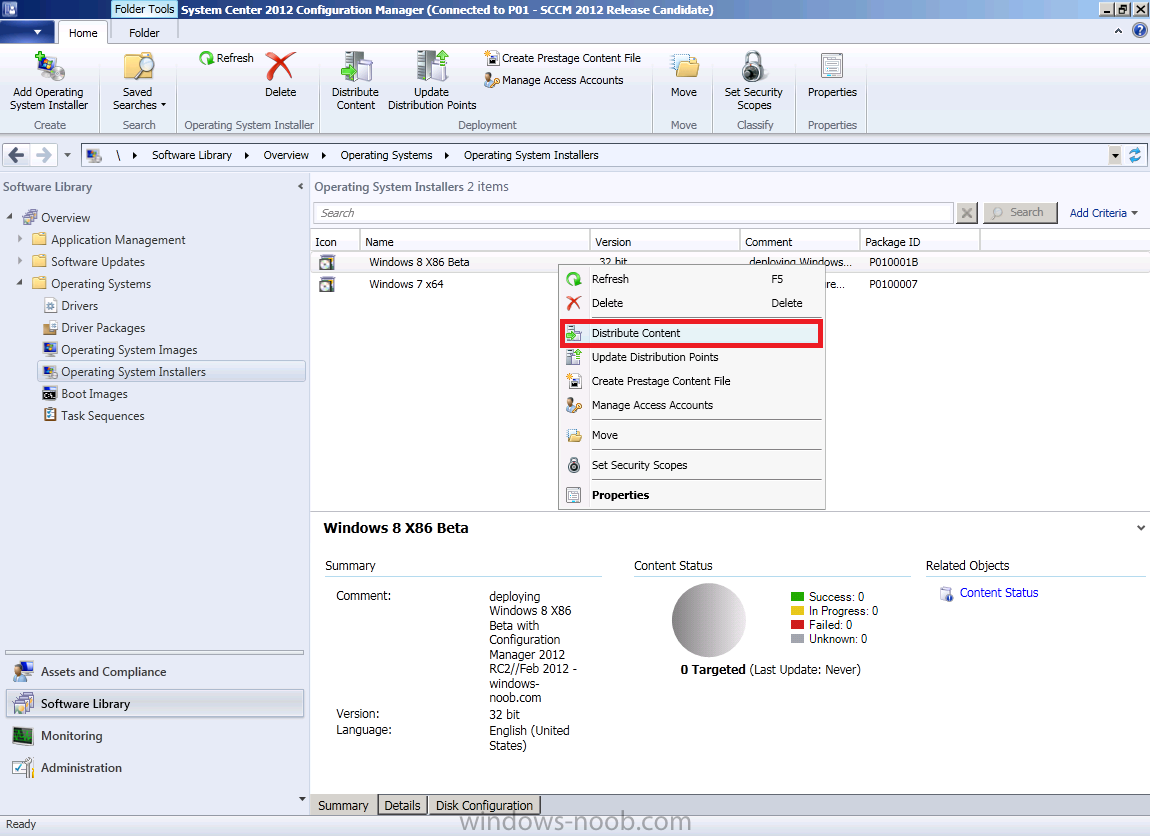
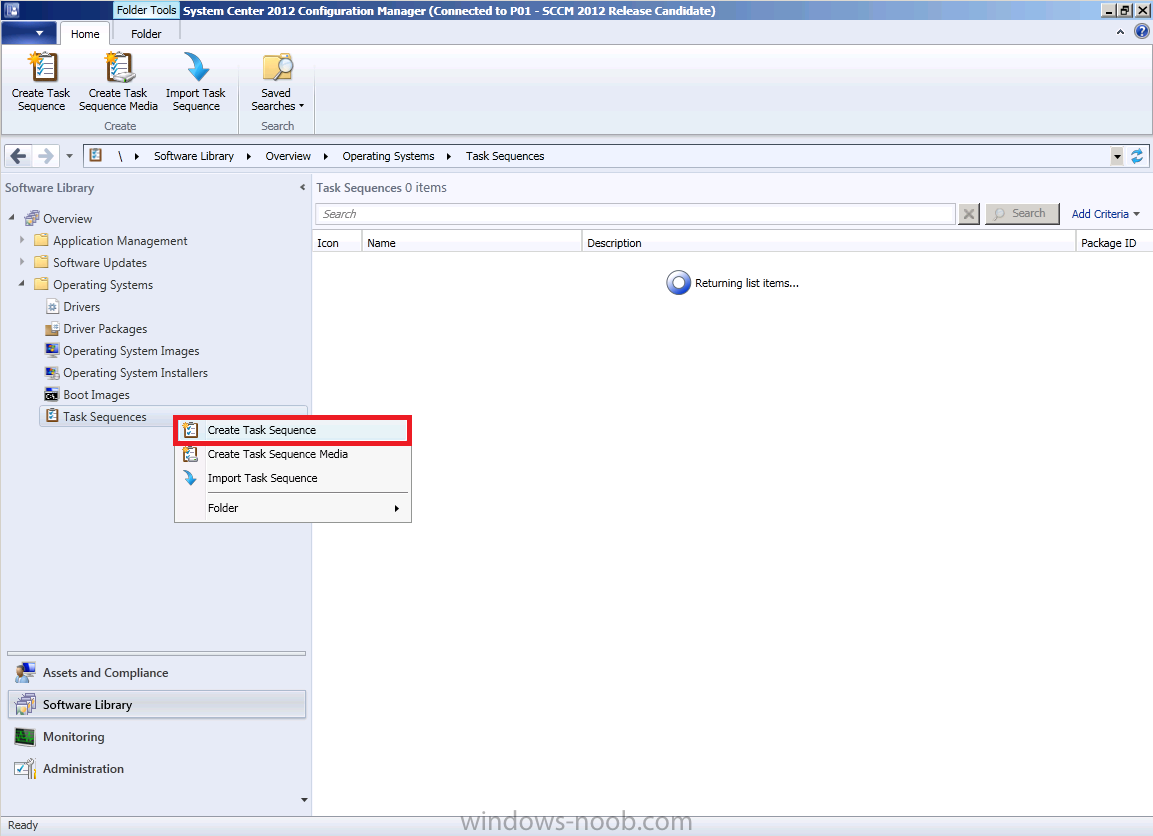
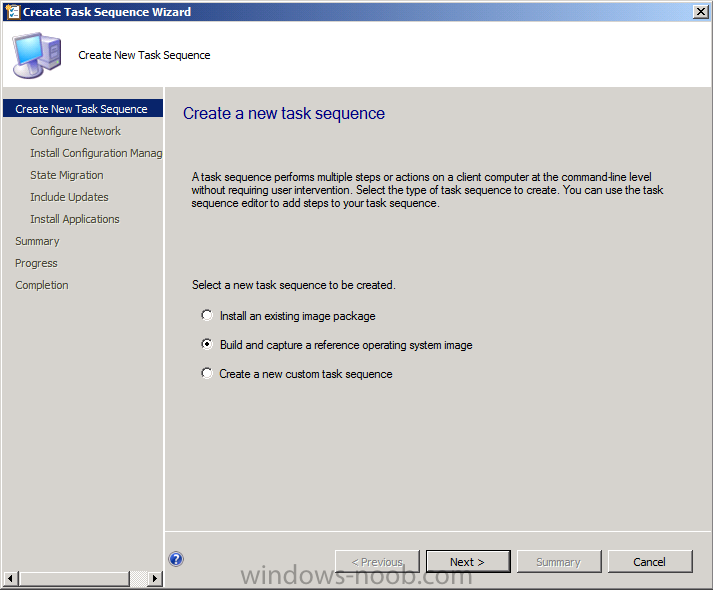
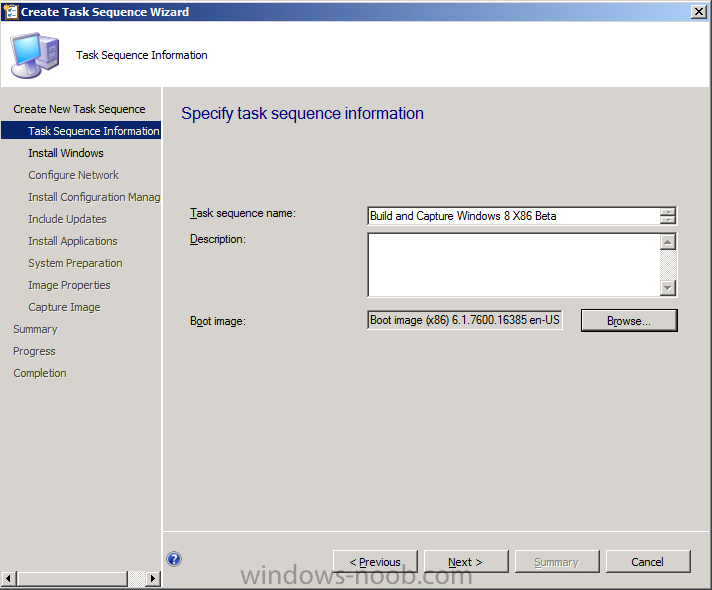
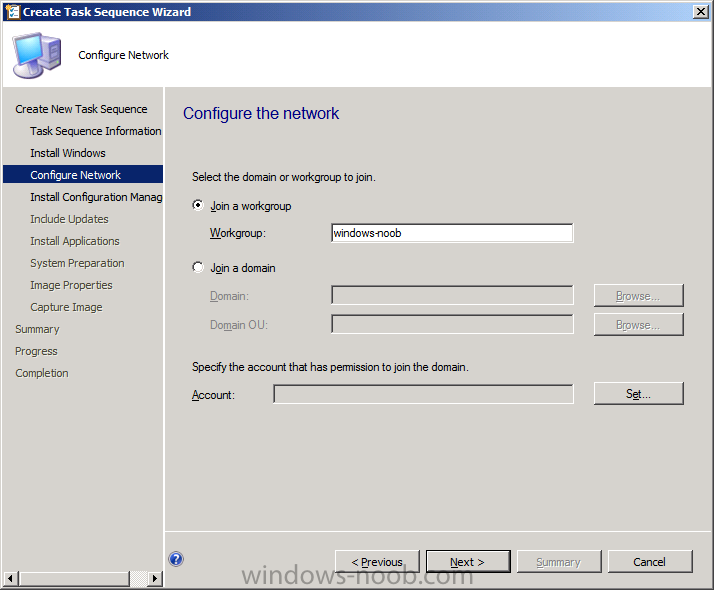
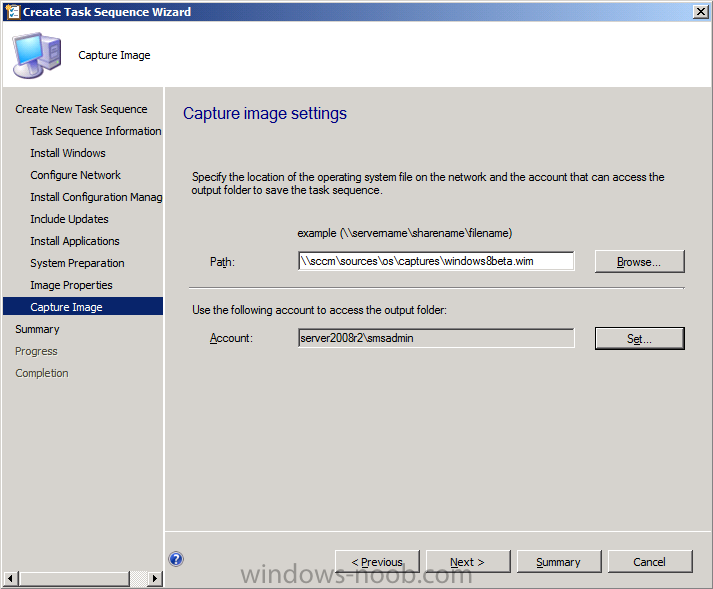
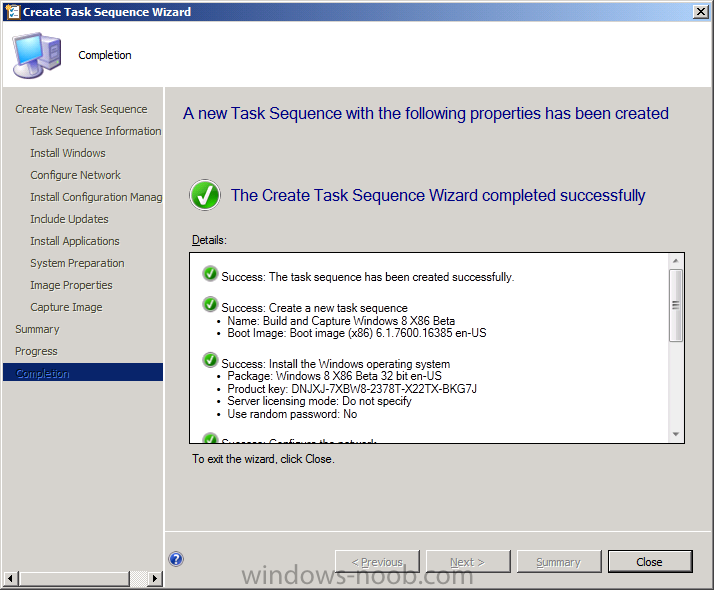
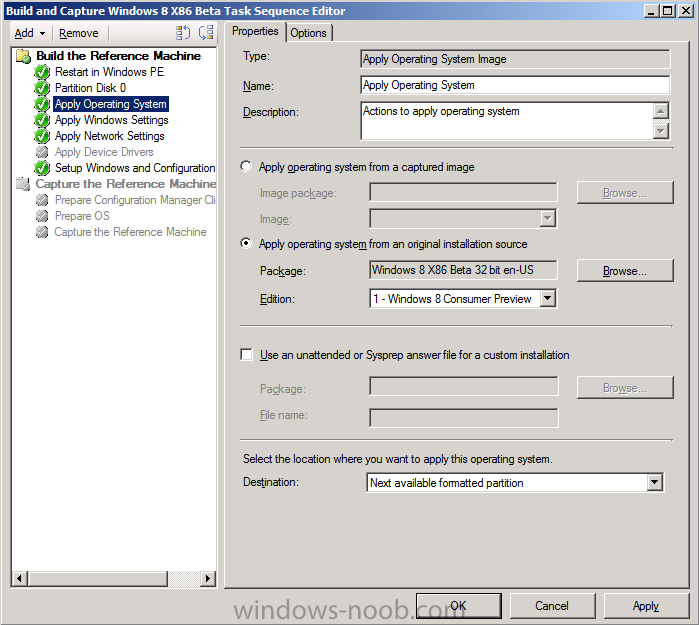
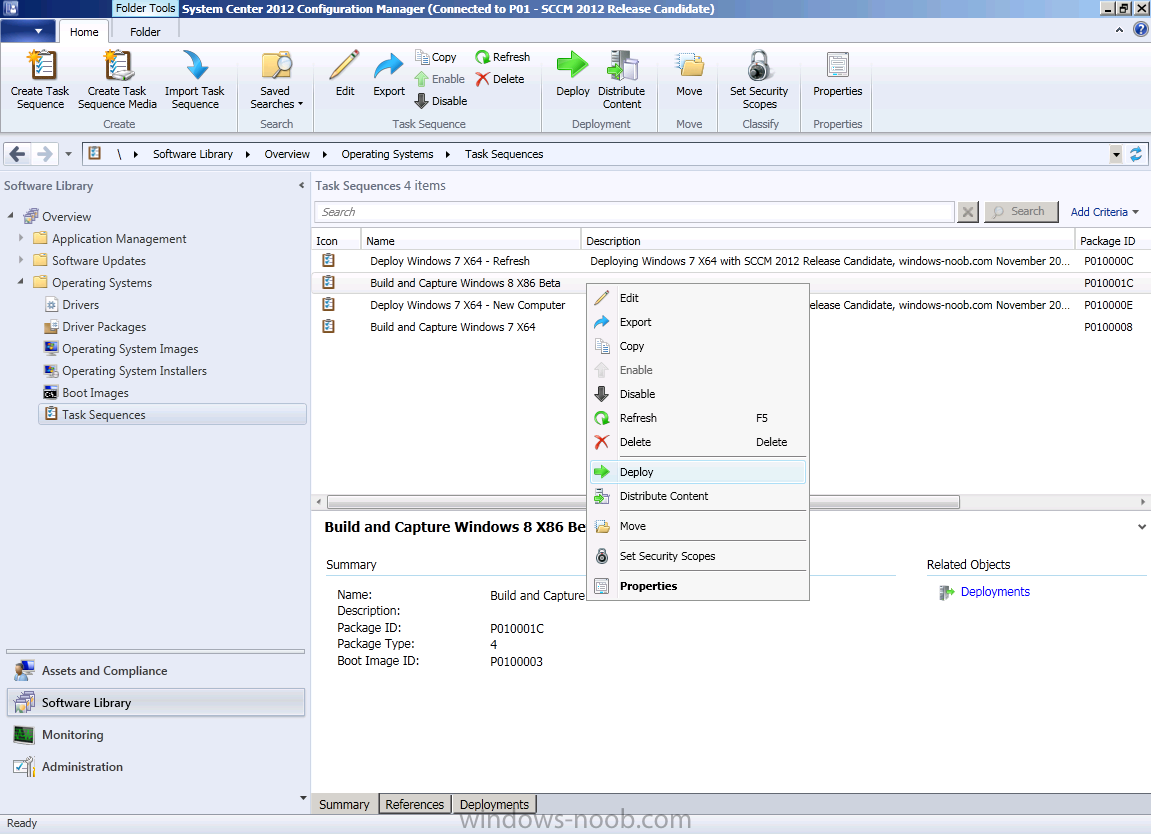
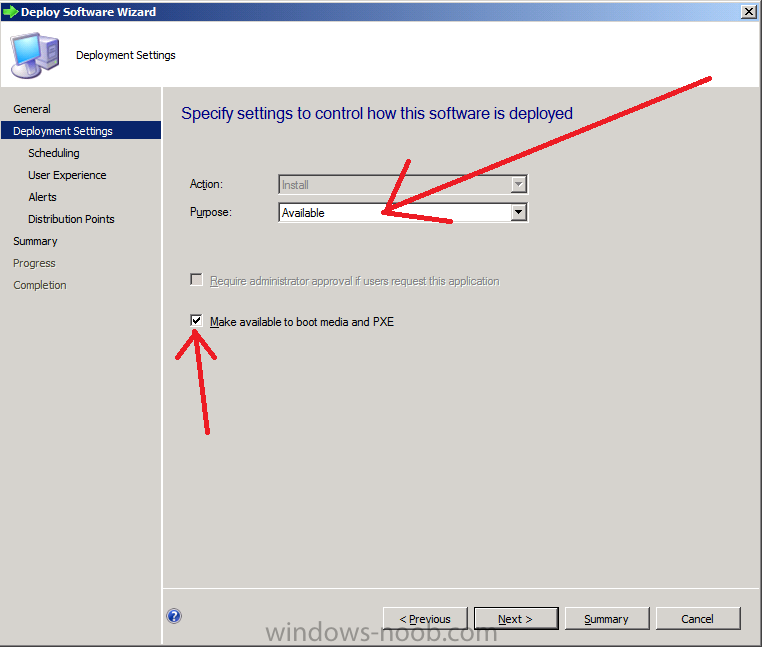
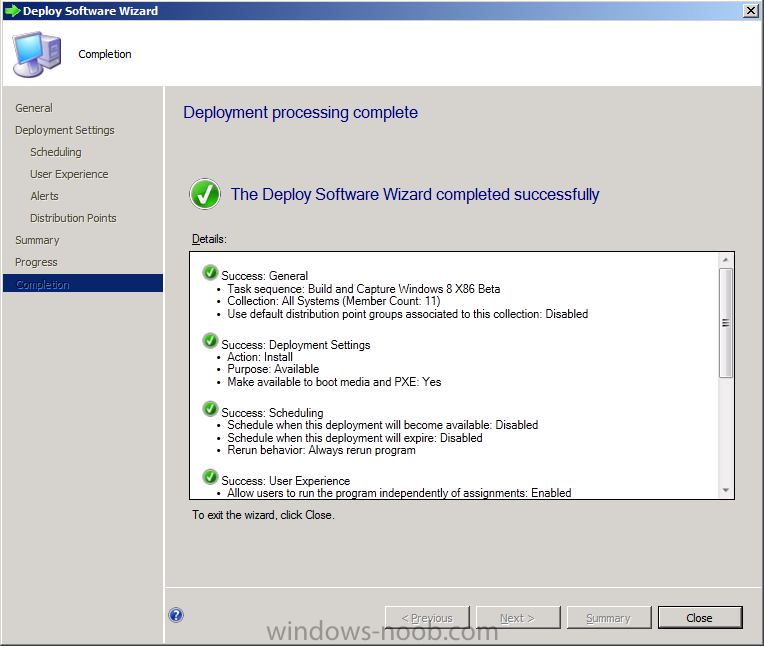
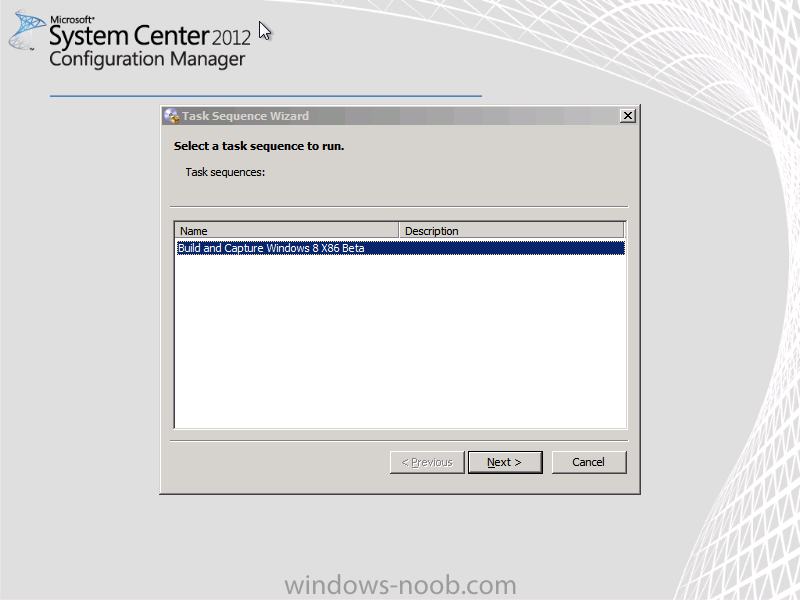
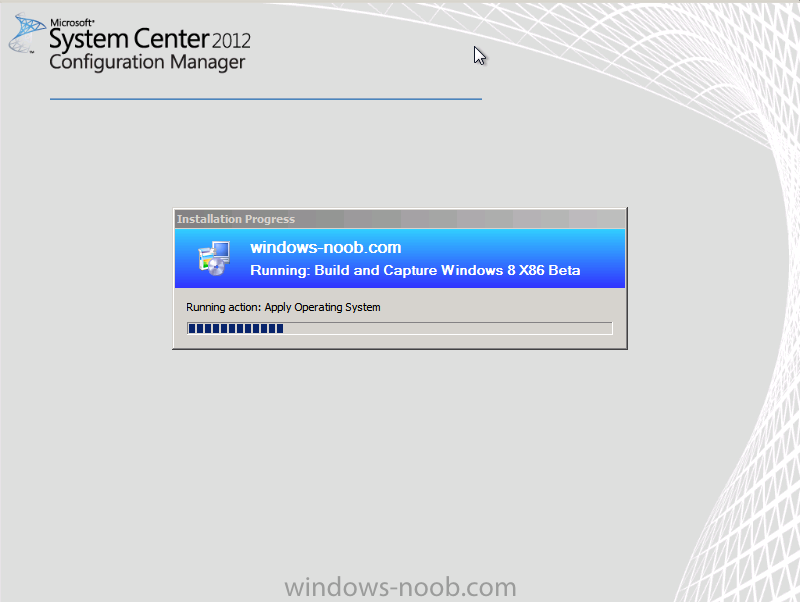
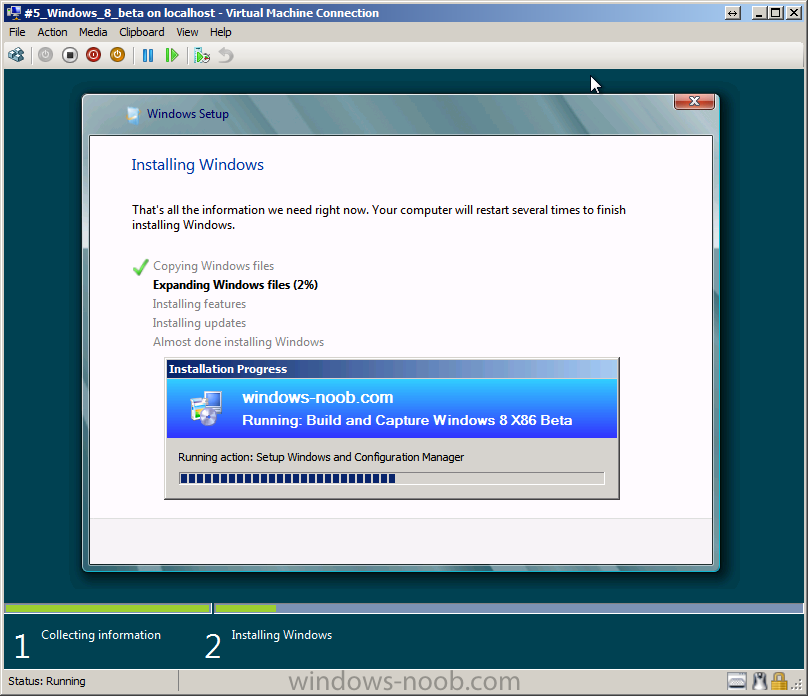
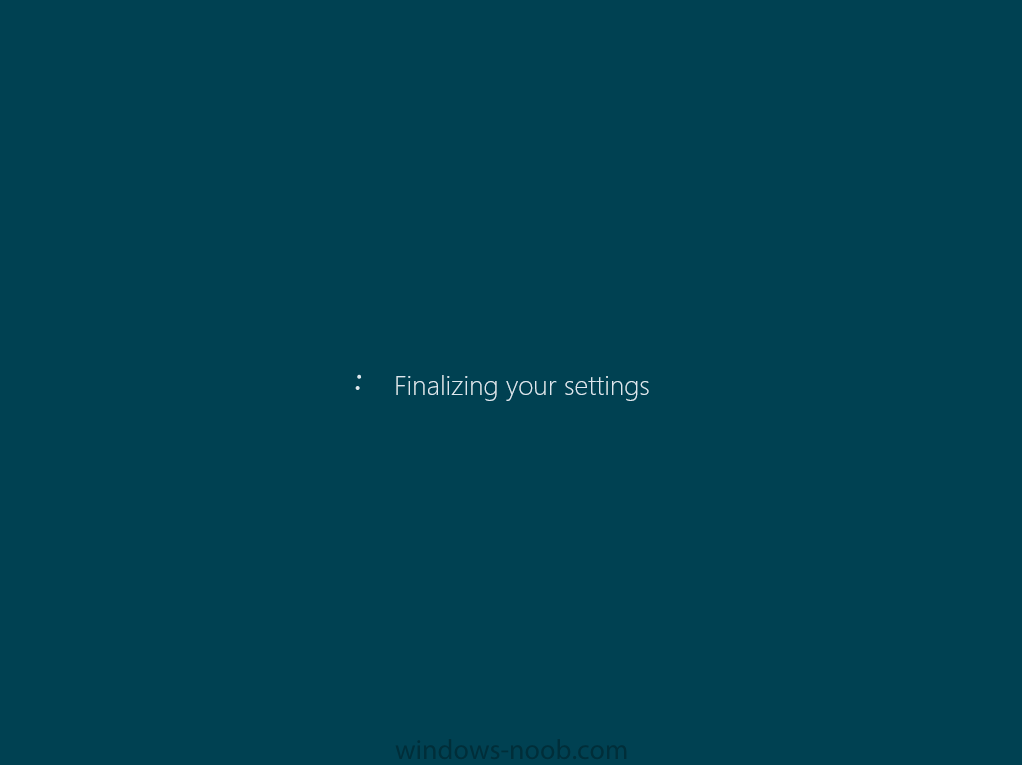
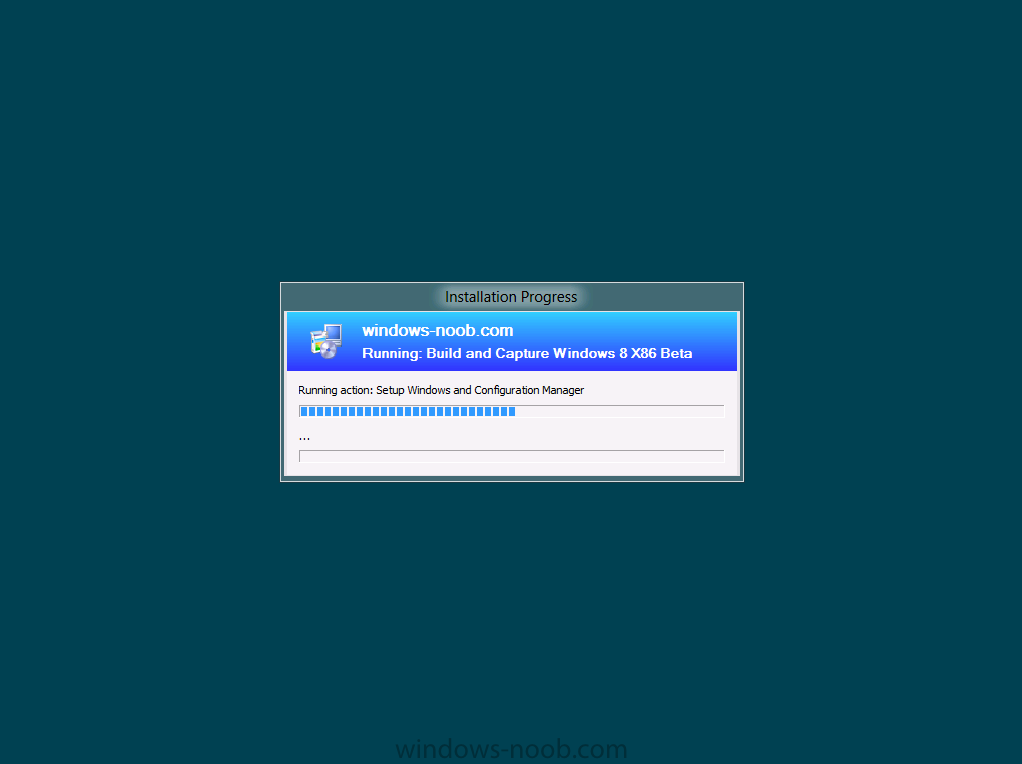
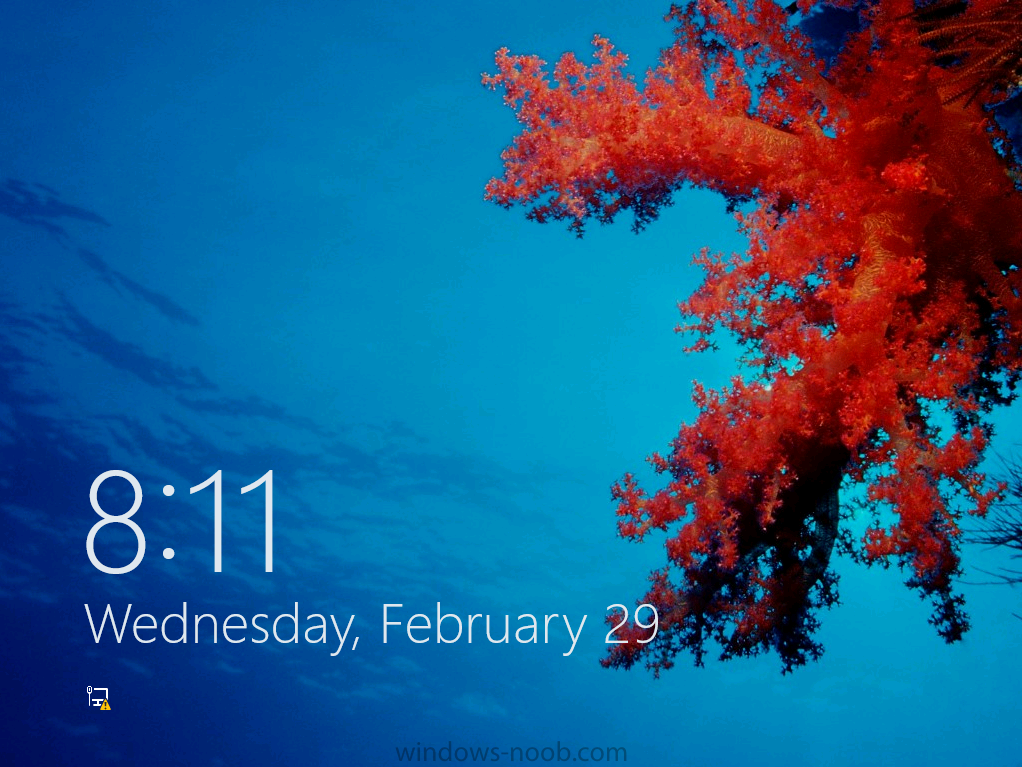
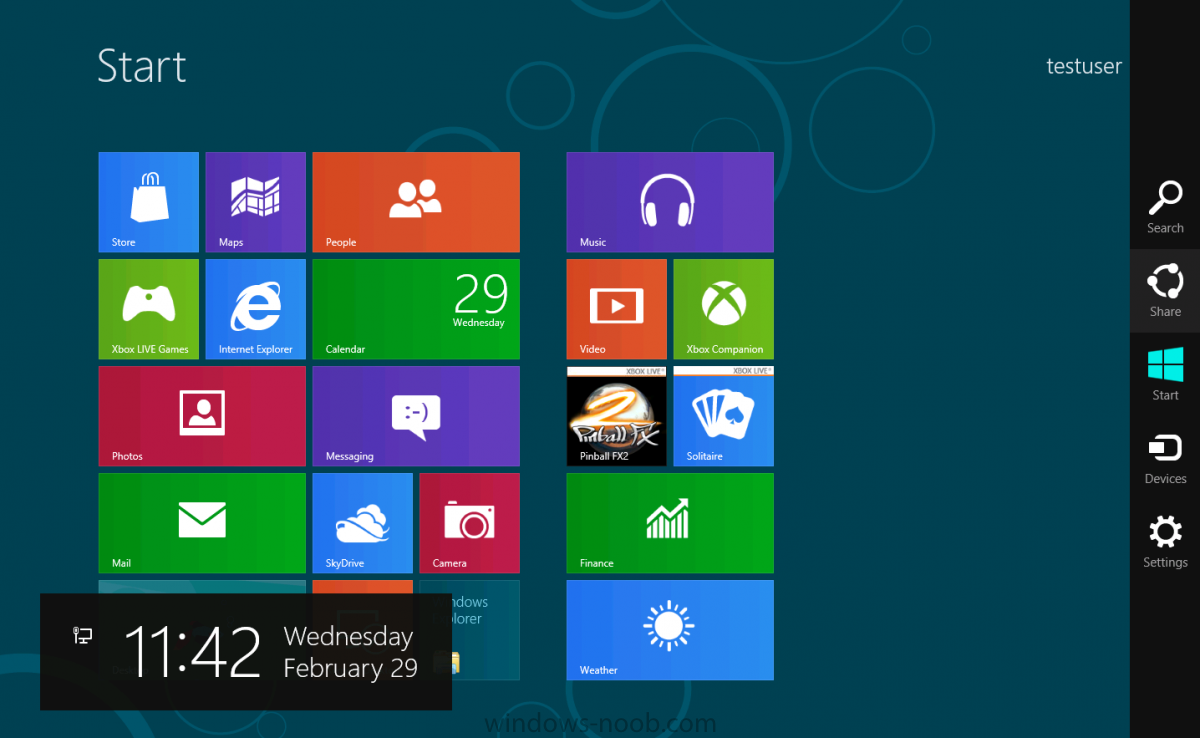
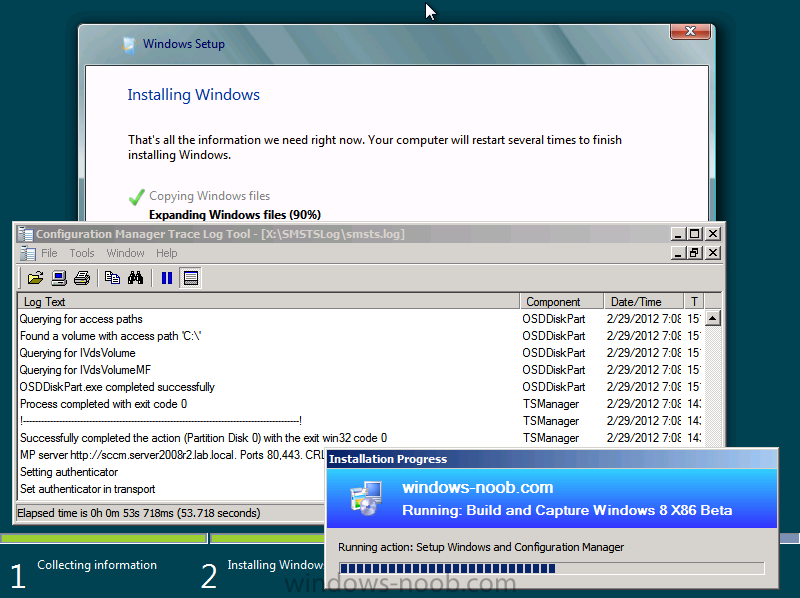
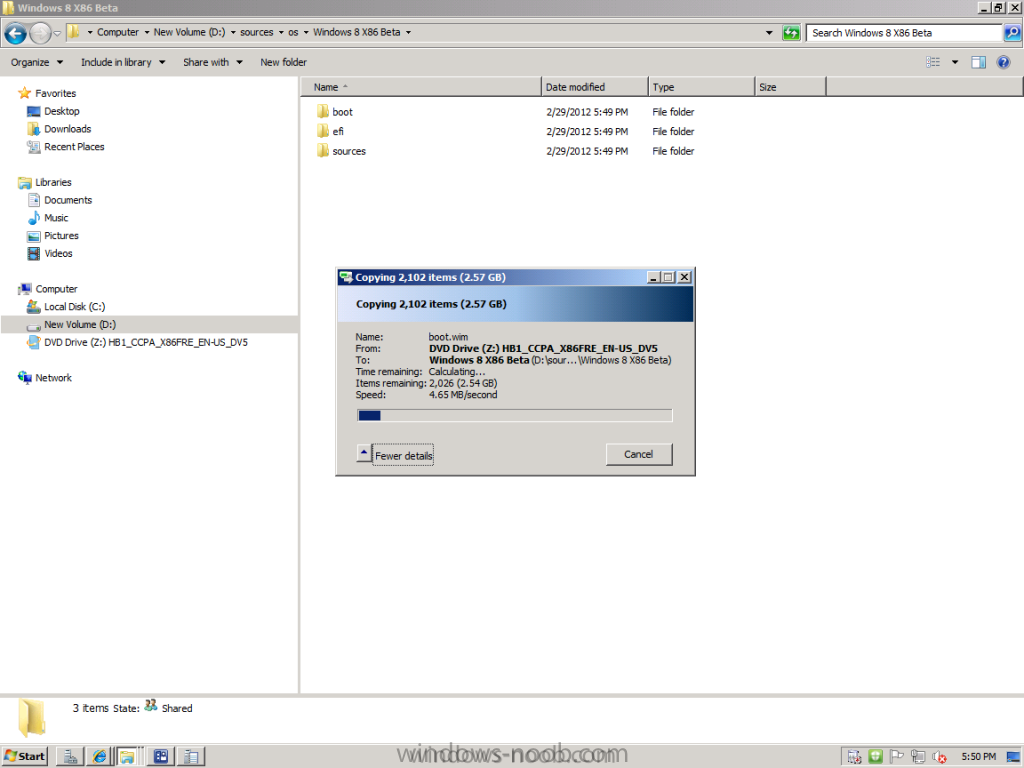
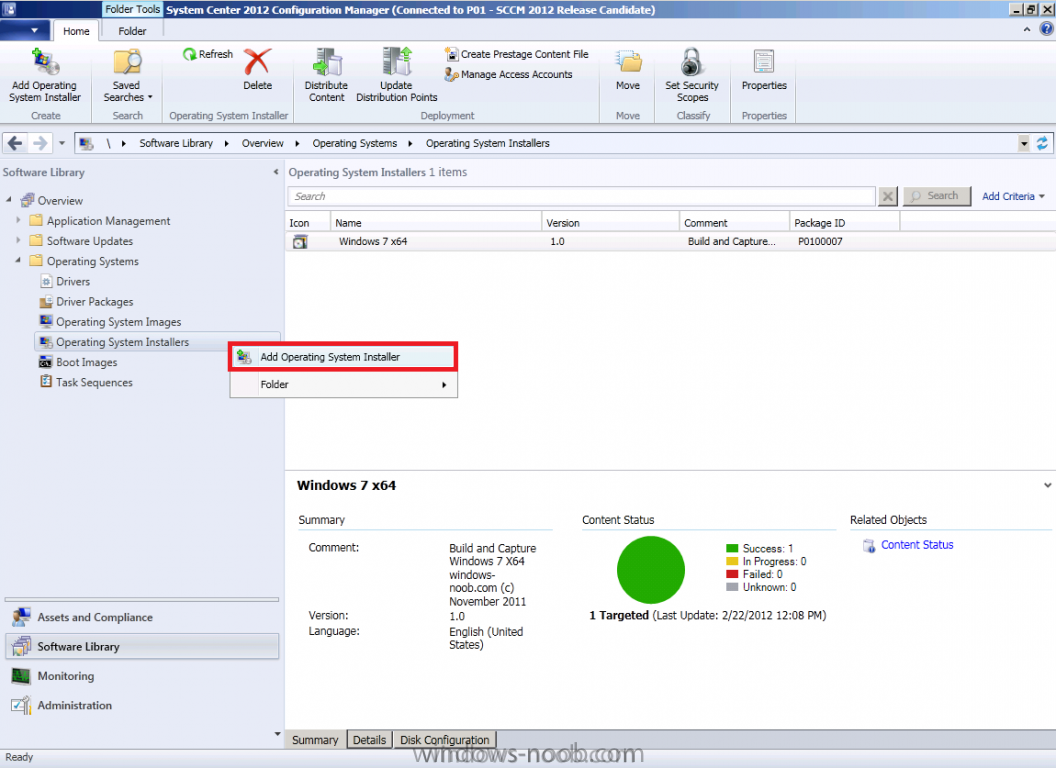
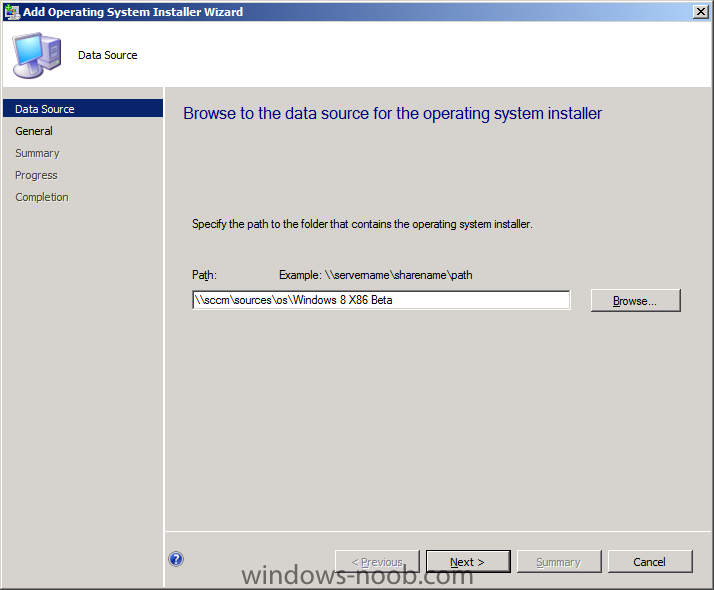
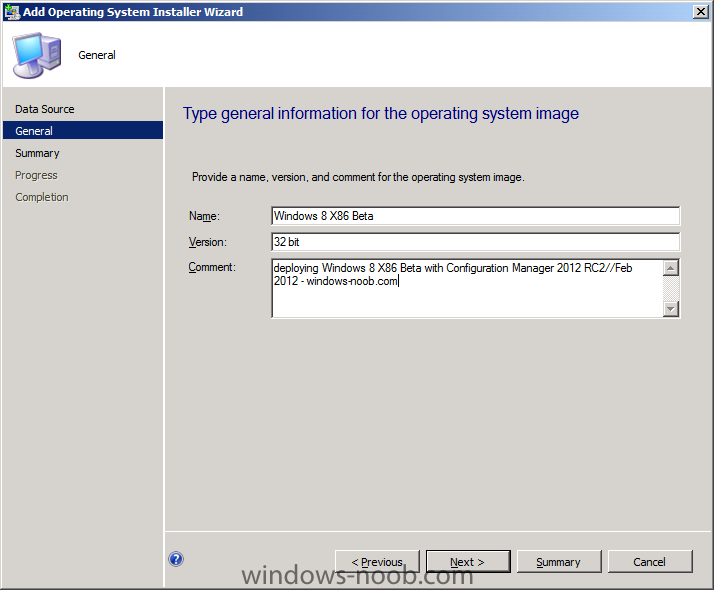
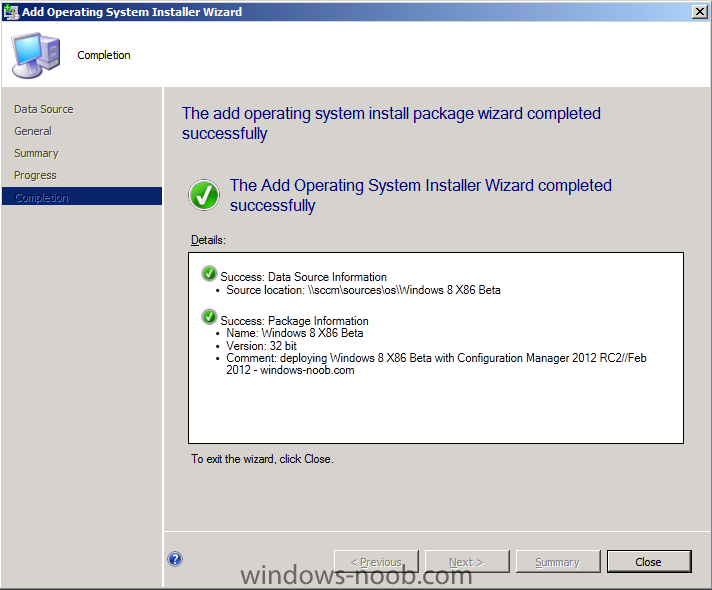
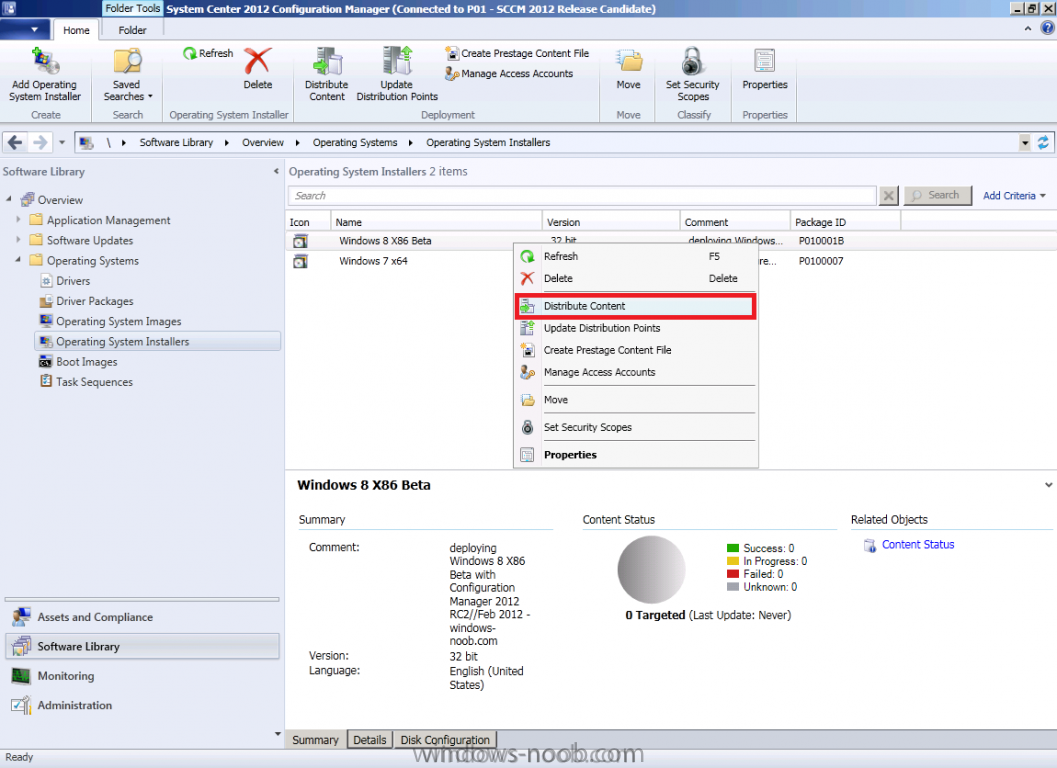
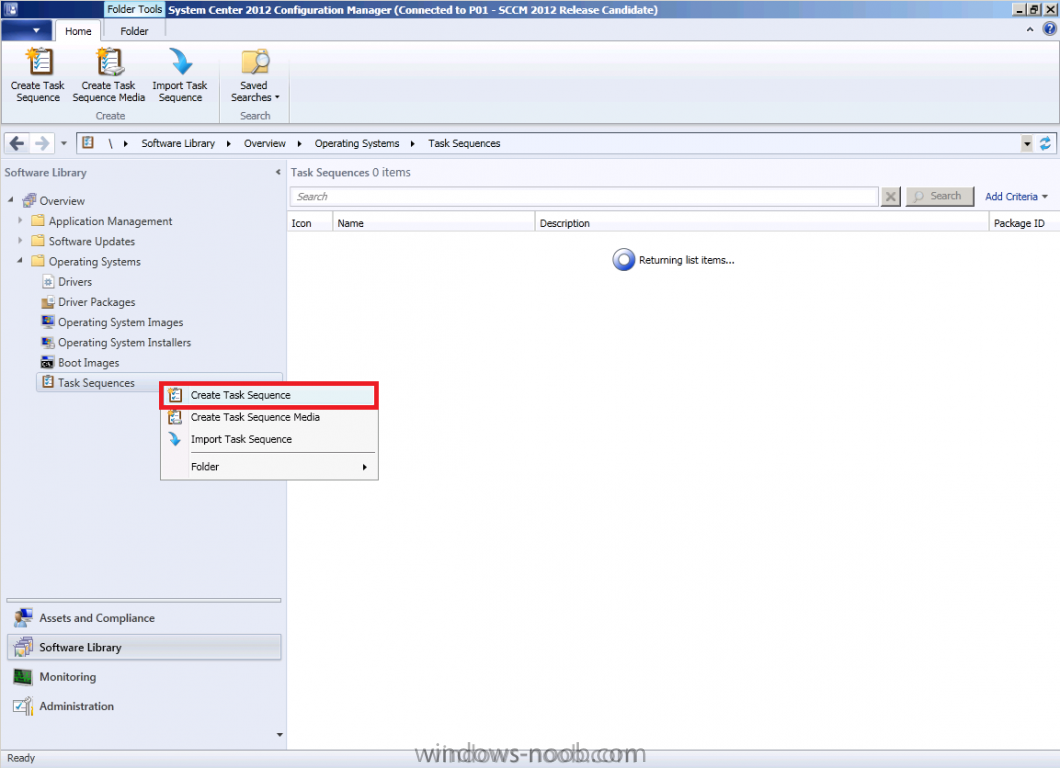
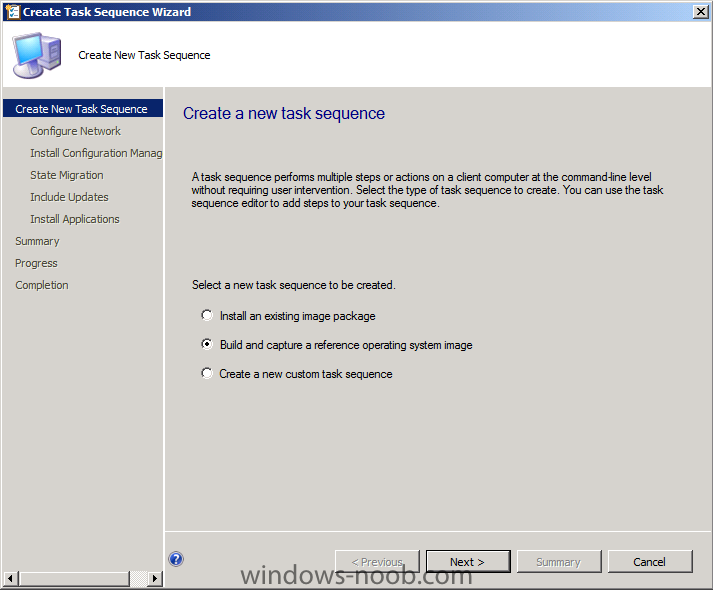
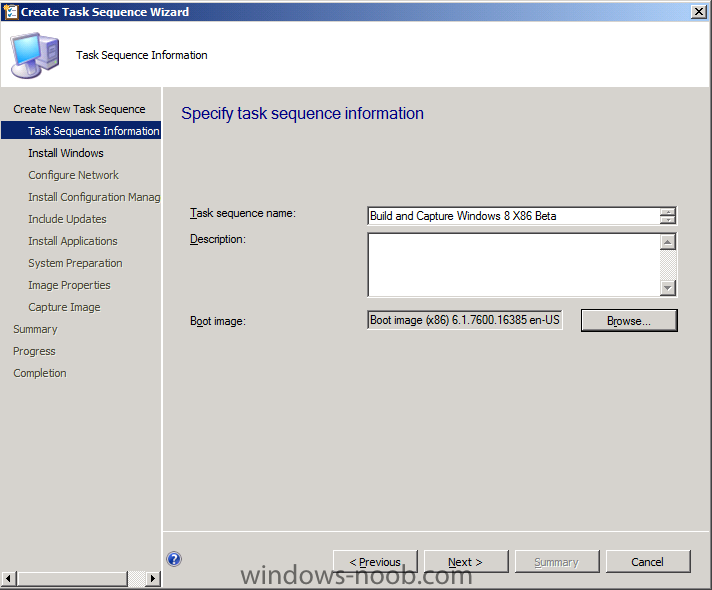
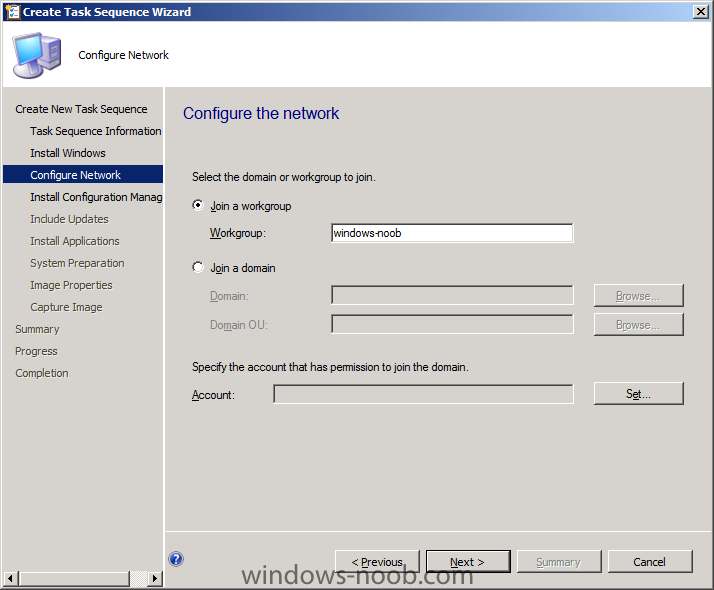
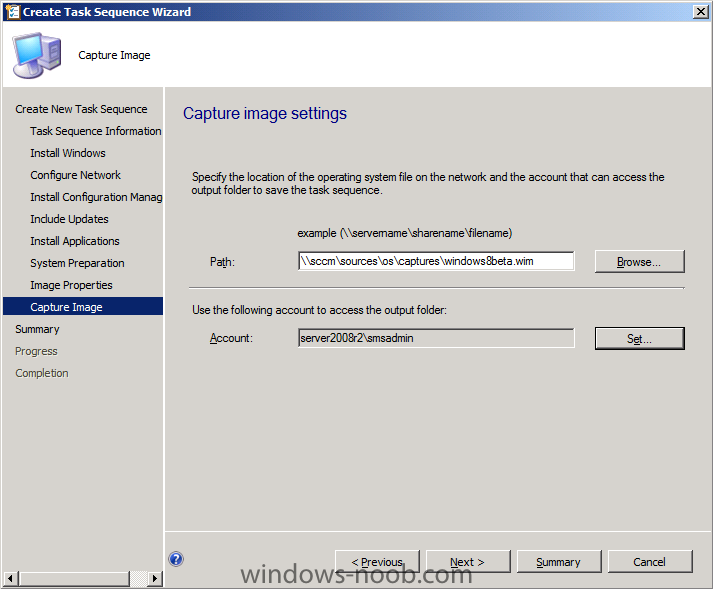
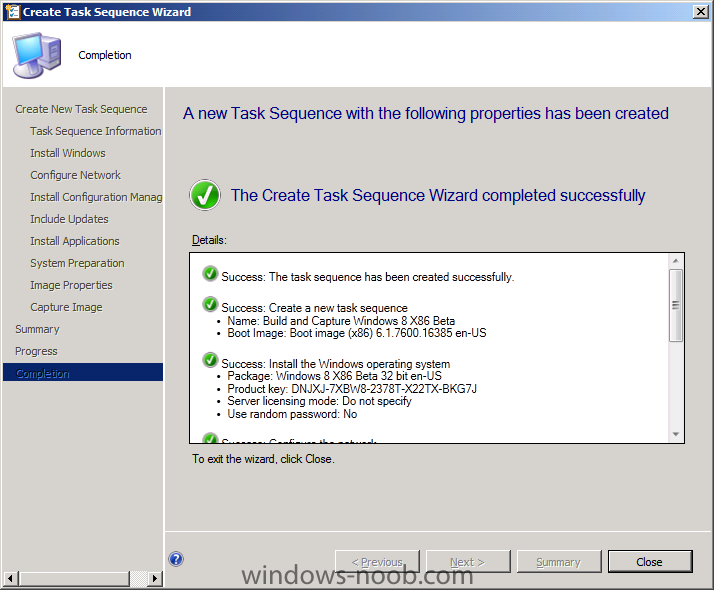
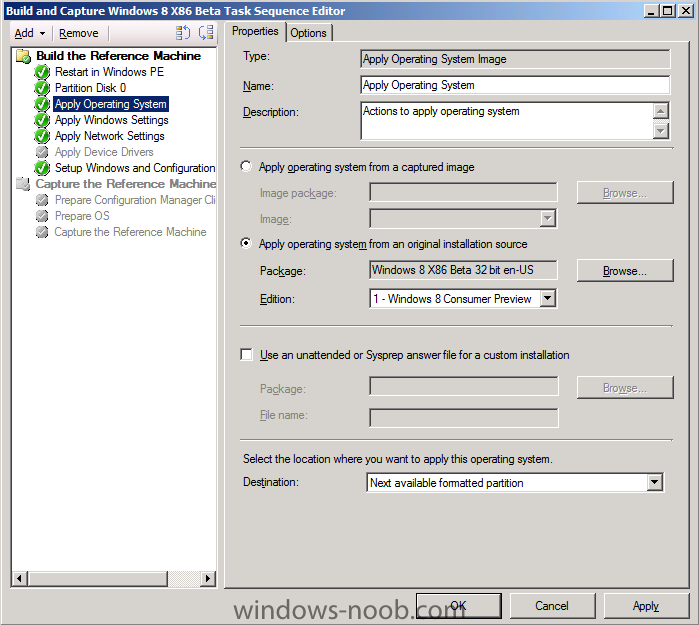
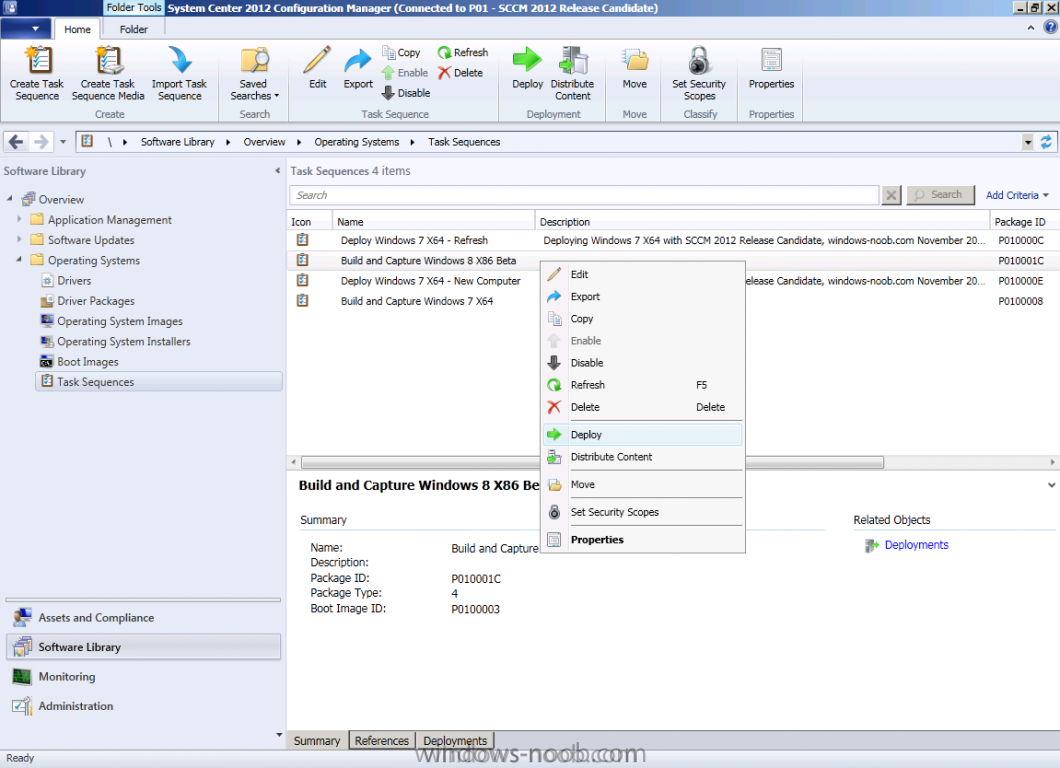
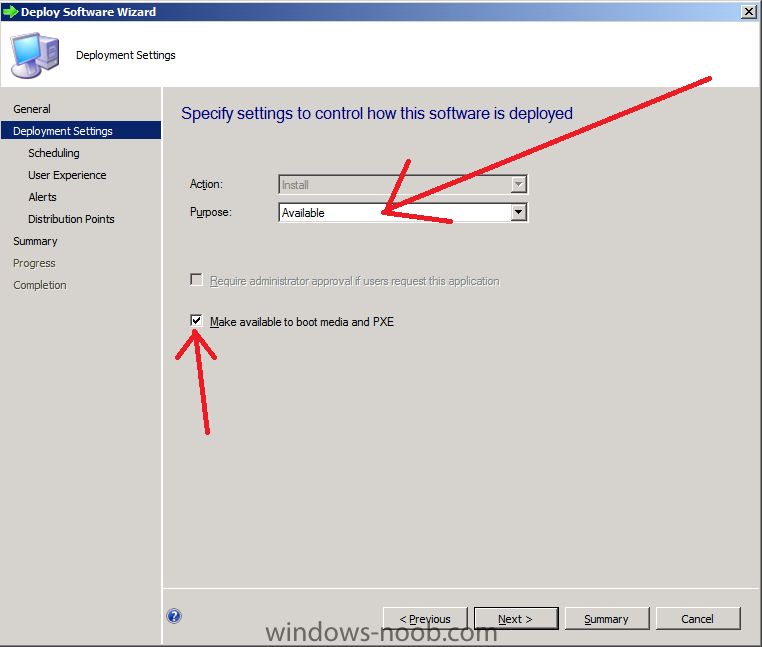
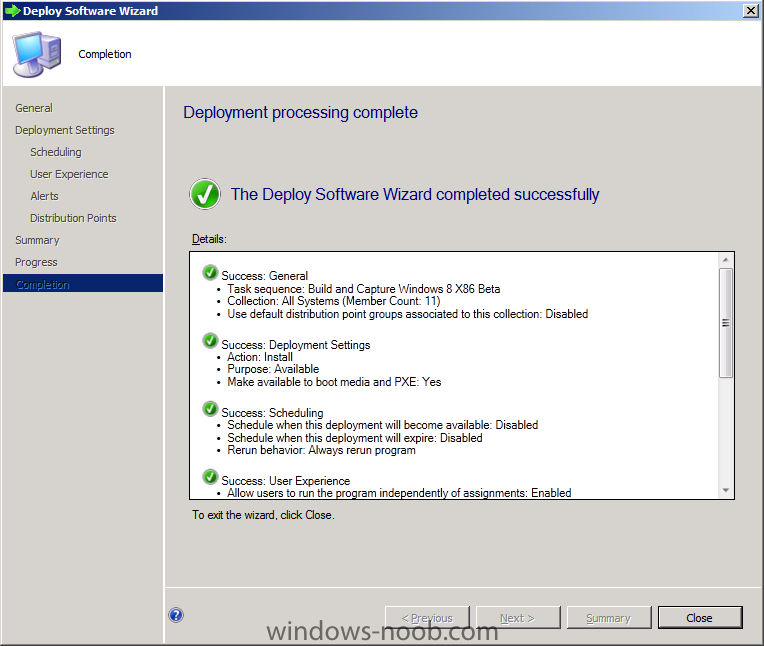
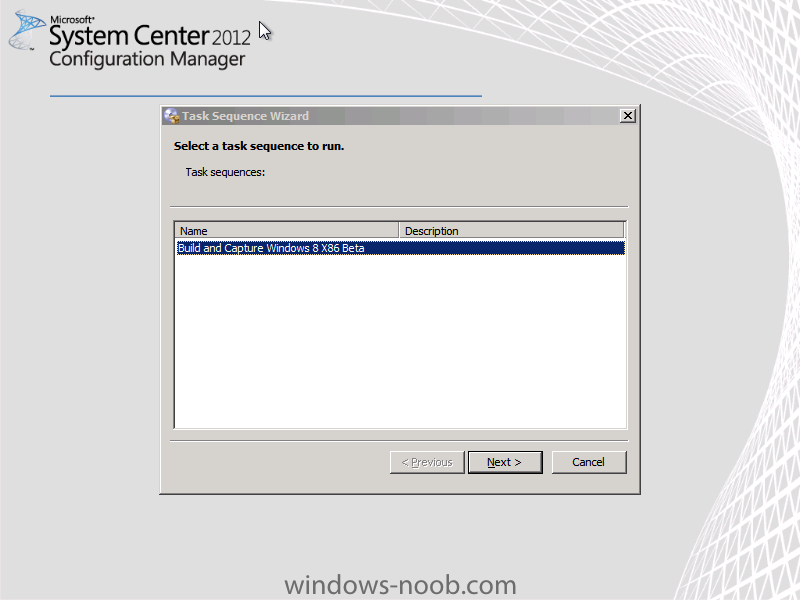
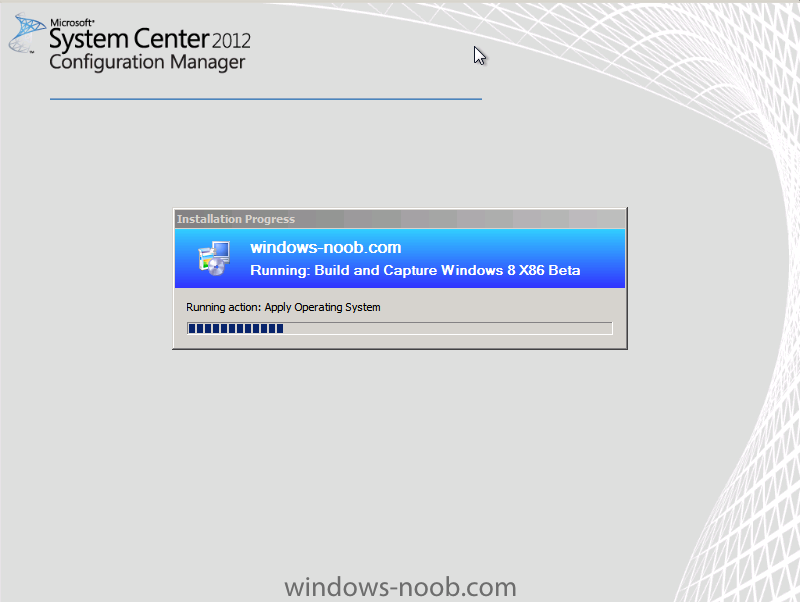
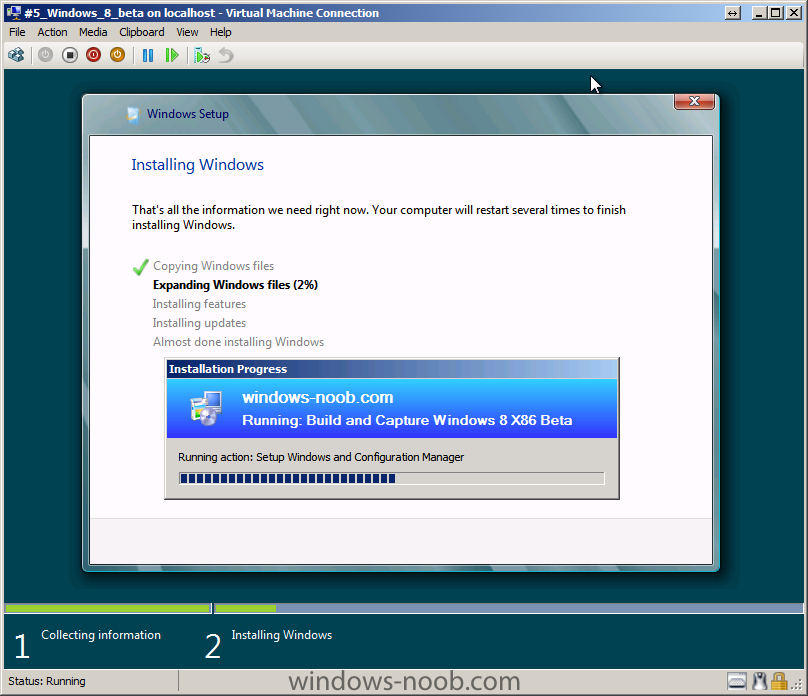
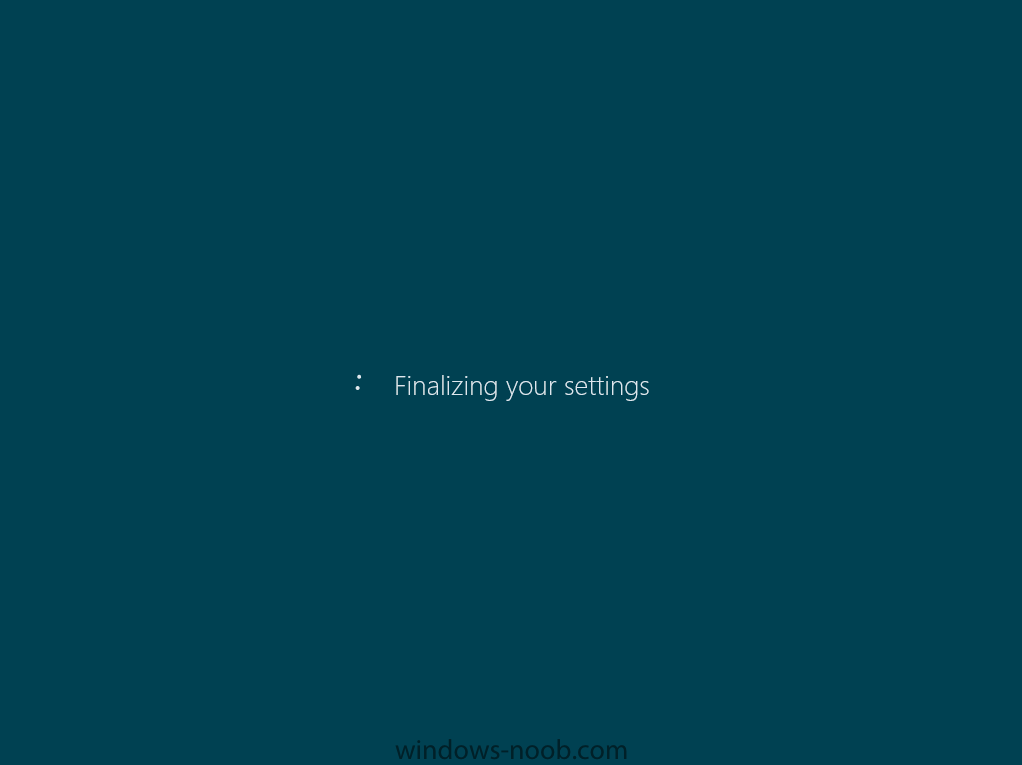
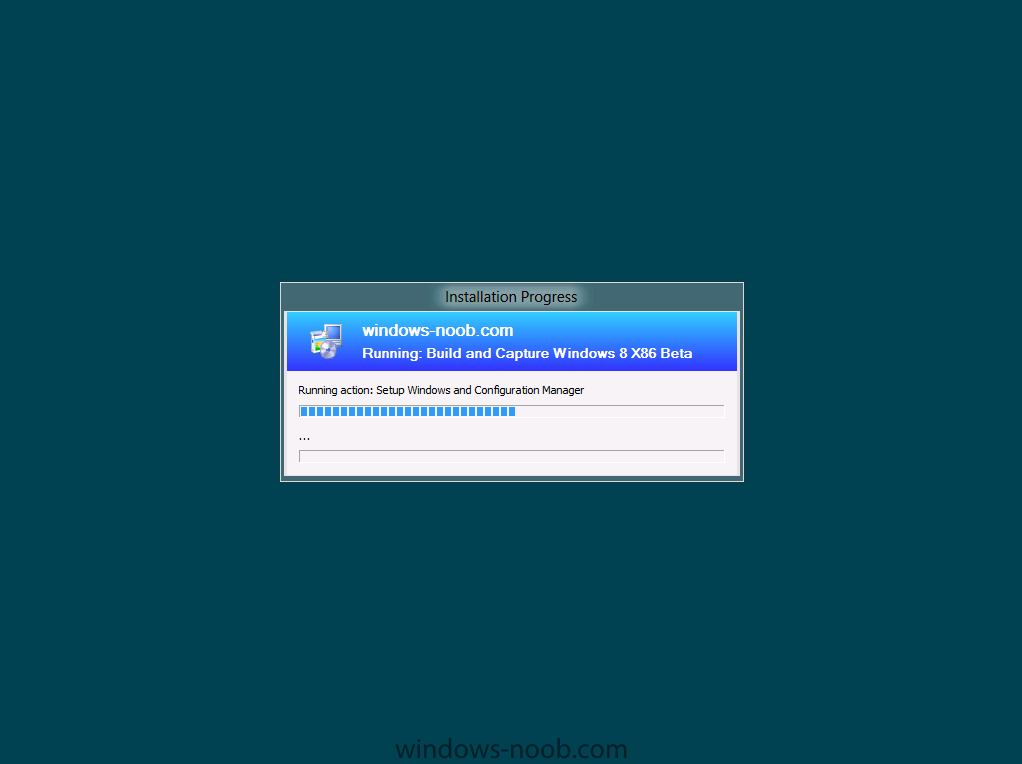
In Part 1 of this series we got our AD and SCCM servers ready, and then we installed System Center 2012 Configuration Manager as a standalone Primary site. In Part 2 we configured the SCCM server further by adding some Windows Server roles necessary for the following Configuration Manager 2012 functionality, Software Update Point (SUP) and Operating System Deployment. In Part 3 we configured the server further by Enabling Discovery methods and creating Boundary's and Boundary Groups. In Part 4 we configured Client Settings, Added roles and Distributed the Configmgr Client to our Computers within the LAB, then in Part 5 we enabled the Endpoint Protection Role and configured Endpoint Protection settings and targeted a collection called All Windows 7 Computers with these settings and policies. In Part 6 we configured our SUP further to Deploy software updates to our All Windows 7 Computers and Build Windows 7 X64 collections. In Part 7 we used the Build and Capture process to create our Base Windows 7 X64 wim image. In Part 8 we created a USMT 4 package to migrate the users data using hardlinking and then we imported the captured image into ConfigMgr and created a Deploy Windows 7 X64 task sequence. We created a Deploy Windows 7 X64 Collection and set some User Device Affinity collection variables. In Part 9 we created an Application, and created a deployment type for that application to only install if the Primary User was True for that device (User Device Affinity), we then copied our Task Sequence (duplicated it), deployed the new Task Sequence, added a computer to the new collection and then PXE booted the computer to the Deployment Menu. In Part 10 we monitored the Deployment process in a lot of detail to how UDA sent state messages and we verified that our application installed on the users Primary Device, in addition we modified our collection variables, and added a prestart command to our boot image to prompt for the SMSTSUdaUsers. In Part 11 we setup the Reporting Services Point Role and verified that reporting was working. In Part 12 we demonstrated a new feature in ConfigMgr which allows us to Patch operating system WIM images using Offline Servicing. This means that you can apply Windows Updates by using Component-Based Servicing (CBS) to update the your previously captured WIM images. In Part 13 we looked at how Role Based Administration is used within ConfigMgr and we created a new custom role to allow a user (or users within a Security Group) to view Software Update Reports. This is useful because you will probably want one team to take care of configuring and deploying software updates, and to grant another (Management etc) the capability of reviewing Compliance Reports. In Part 14 we performed a side-by-side migration from Configuration Manager 2007. Now we will test deploying Windows 8 Consumer Preview. Note: This is a Windows 8 Consumer Preview OS being installed using a release candidate product so your results may vary and of course it's not supported by Microsoft. I'm only doing this because I want to see if it's possible to deploy Windows 8 with the current release of Configuration Manager 2012 and of course it's fun :-) Windows 8 Consumer Preview System Requirements Windows 8 Consumer Preview works great on the same hardware that powers Windows 7: Processor: 1 gigahertz (GHz) or faster RAM: 1 gigabyte (GB) (32-bit) or 2 GB (64-bit) Hard disk space: 16 GB (32-bit) or 20 GB (64-bit) Graphics card: Microsoft DirectX 9 graphics device or higher To use touch, you need a tablet or monitor that supports multitouch To access Windows Store and to download and run apps, you need an active Internet connection and a screen resolution of at least 1024 x 768 To snap apps, you need a screen resolution of at least 1366 x 768 Step 1. Get the ISO and Extract the contents on your Configuration Manager 2012 server Download Windows 8 Consumer Preview from here, I used the X86 ISO (Windows8-ConsumerPreview-32bit-English.iso) for my Guide. I then Mounted that ISO in my Configuration Manager 2012 RC 2 Hyperv virtual Machine and extracted the contents to \\sccm\sources\os\Windows 8 X86 Beta Step 2. Add the Operating System Installer Image and Distribute Content In the Configmgr Console, expand Software Library, Operating Systems, Operating System Installers, right click and choose Add Operating System Installer browse to the path where we extracted it in Step 1 fill in some details about the image and click next through to the summary Once added, distribute the content to your DP's by right clicking the image and choose Distribute Content. and continue through the wizard just like you've done before with Windows 7's installer image. Step 3. Create the Build and Capture Task Sequence In task sequences, right click and choose Create Task Sequence Choose the Build and Capture a reference operating system image option fill in the details and choose a X86 boot image as we are Build and Capturing the X86 Windows 8 image... Note: if you are trying with the X64 image, then use a X64 boot image. for the Install Windows step, select the following options, for Product key, use the key listed here otherwise the Setup Windows and Configmgr step will fail (error 31) later on in the process. for network select to join a workgroup select your Configmgr Client in the next step then next your way through on to the Capture image step, fill in your capture details click next through to summary Now right click the task sequence and choose Edit, Disable the Entire Capture Group (for now) and also disable the apply device drivers step. Step 4. Deploy the Build and Capture Task Sequence Right click on the task sequence and choose Deploy, point it to the All Systems Collection (this is a LAB so this is OK, don't deploy task sequences to All Systems in production please....) make sure it's set to Available and enable PXE click your way through to completion of the wizard.. Step 5. PXE boot a new virtual machine and start the process PXE boot your Virtual Machine (create a new one in hyperV), Press F12 for Network boot then you'll see the now familiar and very nice Configuration Manager 2012 splash screen select your Build and Capture Task sequence and press enter, it starts applying the OS and the Operating System installation starts..notice the color scheme is slightly different to what we are used to, and I like it ! before it reboots it might be an idea to monitor the SMSTS.log file using cmtrace and after the first reboot we get our first look at Windows 8 Consumer Preview setting up :-) and another reboot takes place..before Windows 8 finalizes settings and then Setup Windows and ConfigMgr does it's work.. and we are done ! Conclusion: ConfigMgr rocks, and Windows 8 Consumer Preview rocks !! more screenshots coming soon when bandwidth allows...currently it's worse than 56k dialup !!!

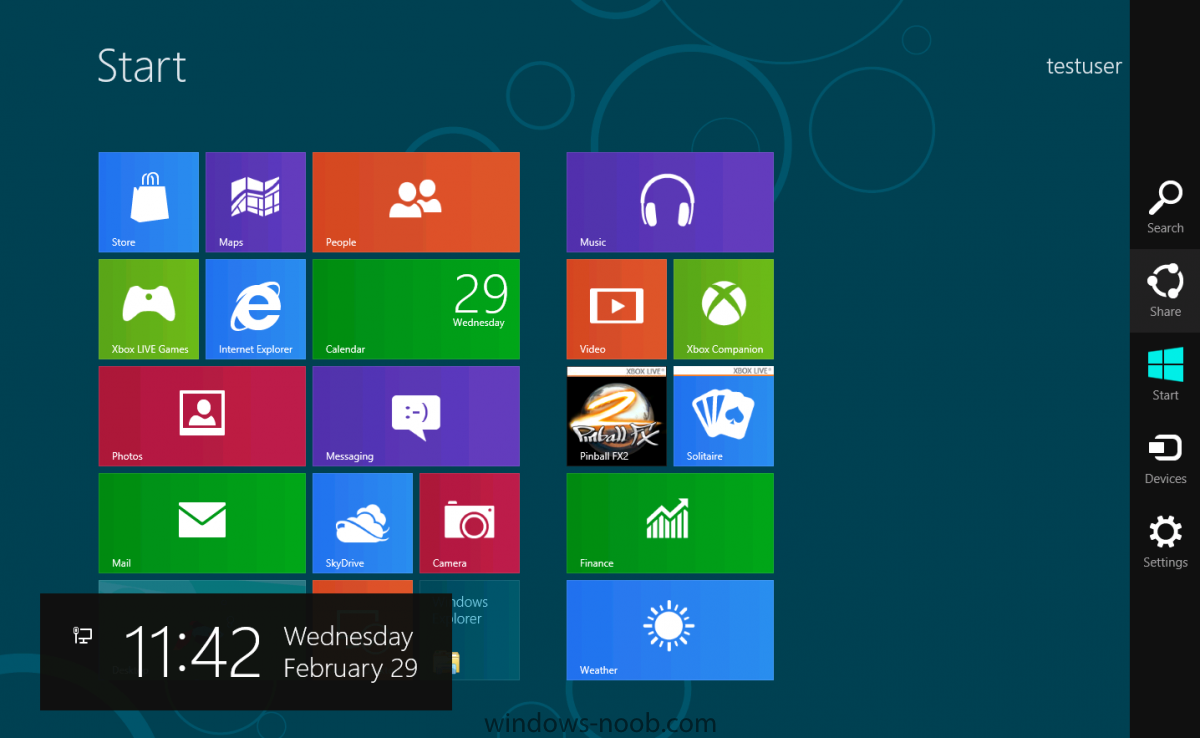
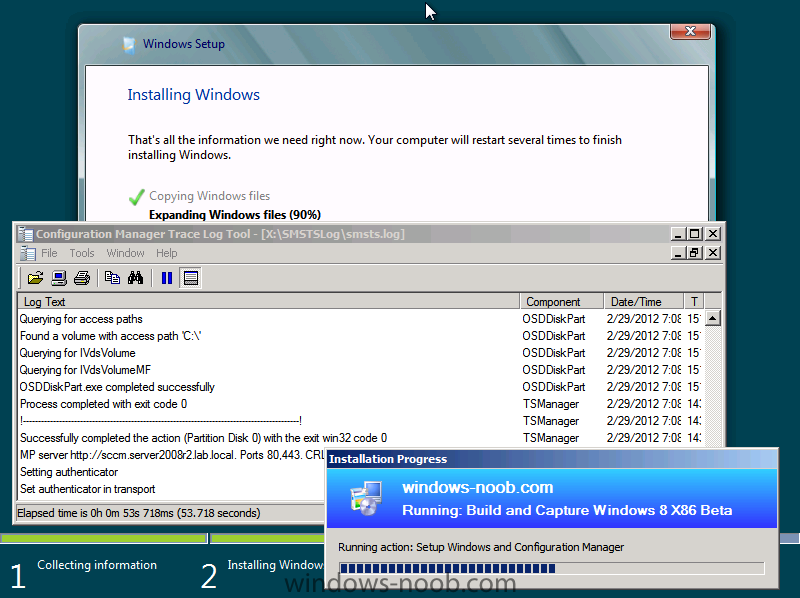
-
BARCELONA — Microsoft showed off the newest version of the company’s operating system, called Windows 8, on Wednesday. Windows 8 is the biggest redesign of the company’s software since Windows 95, said Steve Sinofsky, the president of Windows, who introduced the new operating system during the Mobile World Congress at a poolside event where waiters handed guests glasses of champagne and small tapas and snacks were served. “Windows 8 is a generational change in the Windows operating system in the design, functionality and implementation,” Mr. Sinofsky said. Microsoft has planned two versions of its Windows 8 software. One is designed around a touch interface and will be available on Microsoft tablets, and the other is for PCs and is designed to work with a mouse and keyboard. Both share the same aesthetic and navigation. Mr. Sinofsky said that company worked to make sure that people who were switching between using Windows on a smartphone, tablet and laptop would not be confronted with any break in their use of the software as they cycled between devices. “There are too many hard stops between tablets and devices and smartphones,” he said. “This makes them much more harmonious and seamless.” Julie Larson-Green, the head of design for Windows 8, demonstrated the new software on a specially designed Samsung tablet and said that the company aimed for the interactions with the software to be “fast and fluid.” The new interface, which looks similar to the software used by Microsoft’s new line of smartphones, Windows Phone, takes some cues from the app-centric home screens popularized by Apple and Google. It revolves around animated tiles, called Metro. After users sign in to their Microsoft account, the software populates the tiles on their home screen with information from accounts around the Web, including Facebook, Twitter and Skydrive, Microsoft’s cloud-based storage system. Ms. Larson-Green said that several applications would also come installed on the Windows 8 software, including Xbox Live, Internet Explorer and a custom-built video and music player that lets users purchase and stream albums and movies. For Windows users who prefer the familiar, drag-and-drop desktop-oriented layout of the operating system, there is also a desktop application that whisks away the tiles to reveal the original Windows interface. Although Microsoft demonstrated an earlier version of the Windows 8 software last fall, Mr. Sinofsky said that company had made more than 100,000 changes to the code, based on feedback from developers and designers who tested the early version. The preview is available for download, although Microsoft executives did not provide details about when the software would officially go on sale. During the preview, however, users will be able to download applications from a Windows Store, although the only applications available will be free. The company will add a buying mechanism, most likely before the final version of the software is released. “It’s the only operating system that lets you switch between devices,” Mr. Sinofsky said. “So you can truly pick the form factor that you want to use without compromising.” via > http://bits.blogs.nytimes.com/2012/02/29/microsoft-unveils-its-next-generation-os-windows-8/
-
Windows 8 Consumer Preview ISO images Windows 8 Consumer Preview ISO files (.iso) are provided as an alternative to using Windows 8 Consumer Preview Setup. If you are on a PC running Windows and want to install the consumer preview on another partition, another PC, or a virtual machine, we recommend you download Windows 8 Consumer Preview Setup and use the built-in tools for converting an ISO image into installation media, such as a DVD or USB bootable flash drive. You can find additional information, including a list of supported upgrades, in the FAQ. Note before you download: Windows 8 Consumer Preview is prerelease software that may be substantially modified before it’s commercially released. Microsoft makes no warranties, express or implied, with respect to the information provided here. Some product features and functionality may require additional hardware or software. If you decide to go back to your previous operating system, you'll need to reinstall it from the recovery or installation media that came with your PC. You can download them from here http://windows.micro...S/windows-8/iso
-
well does your loadstate.log file reveal any issues ?
-
Capture image for Windows 7 64 bits computer
anyweb replied to lcusson's topic in Configuration Manager 2007
the recommended best practise way is to Build and Capture Windows 7 as described here Using SCCM 2007 Sp2 to deploy Windows 7 Deploy 7 (4 parts) -
Multiple OSD task sequences and boot images
anyweb replied to hyperspd7's question in Troubleshooting, Tools, Hints and Tips
if you are build and capturing windows 7 X64 then you'll need a x64 boot image, if you are not capturing, ie: just deploying images then you can use one x86 boot image to deploy both x64 and x86 wim images -
are you having this problem in Configuration Manager 2012 or CM07 ?
-
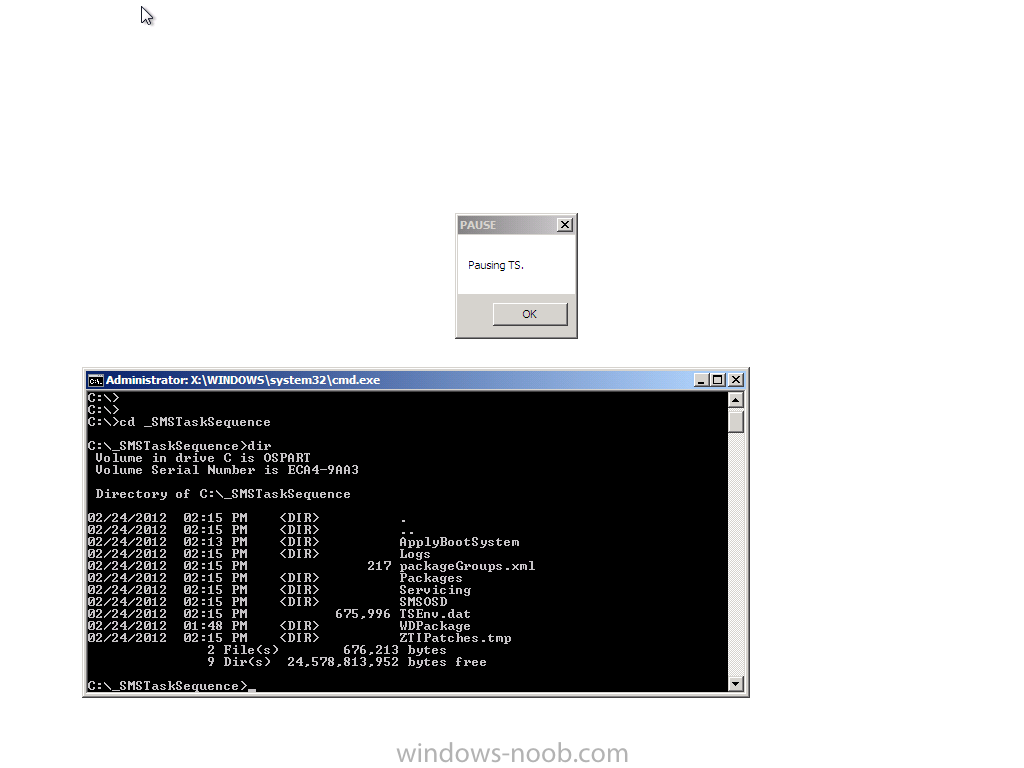
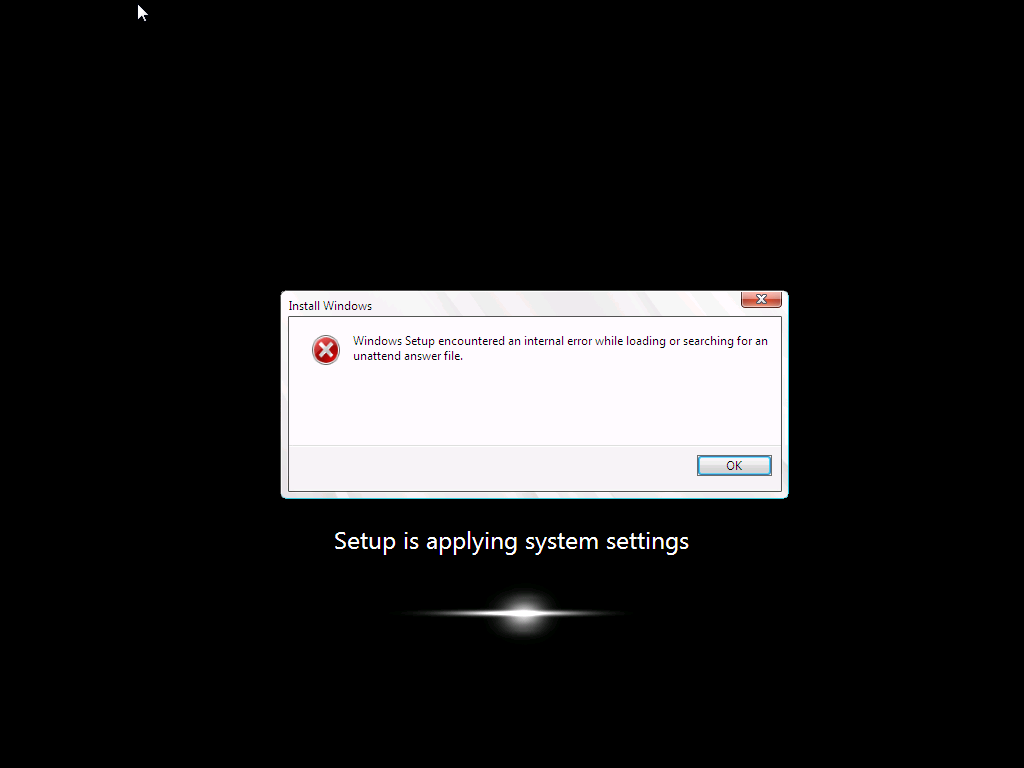
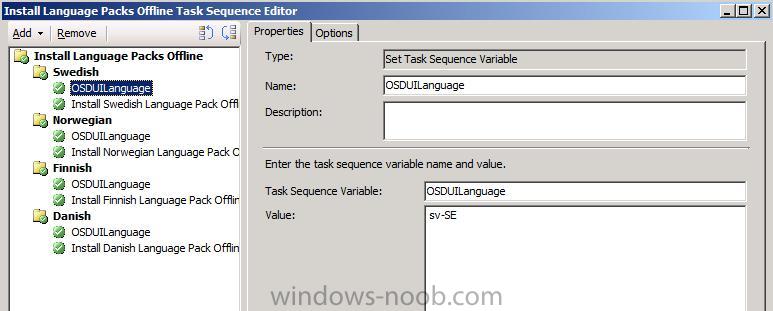
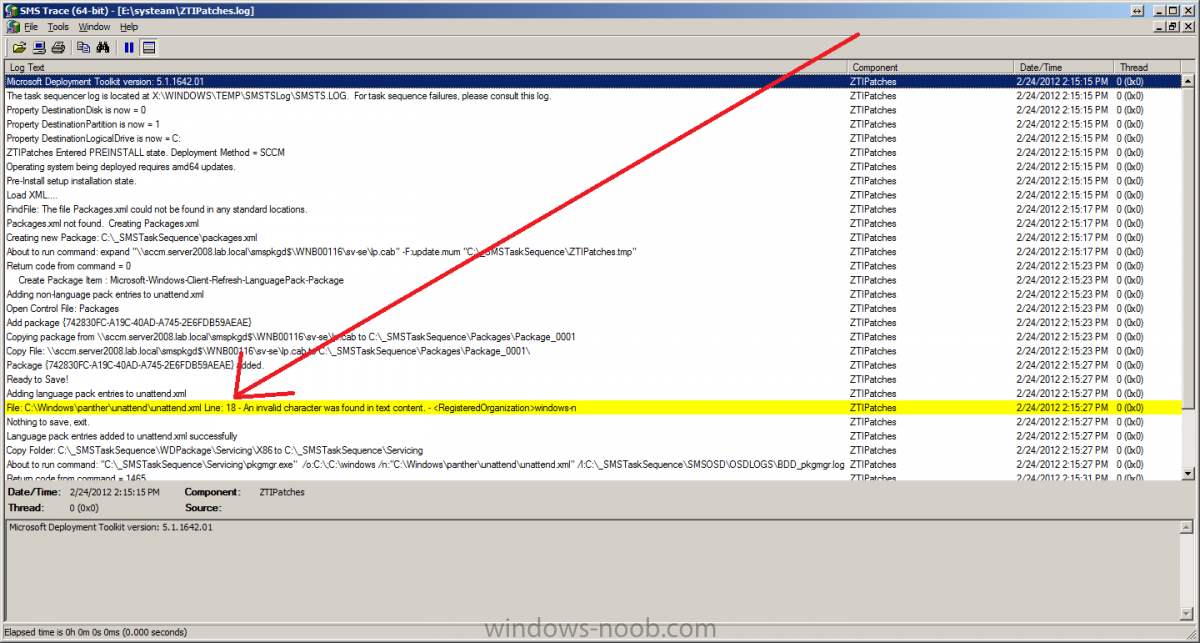
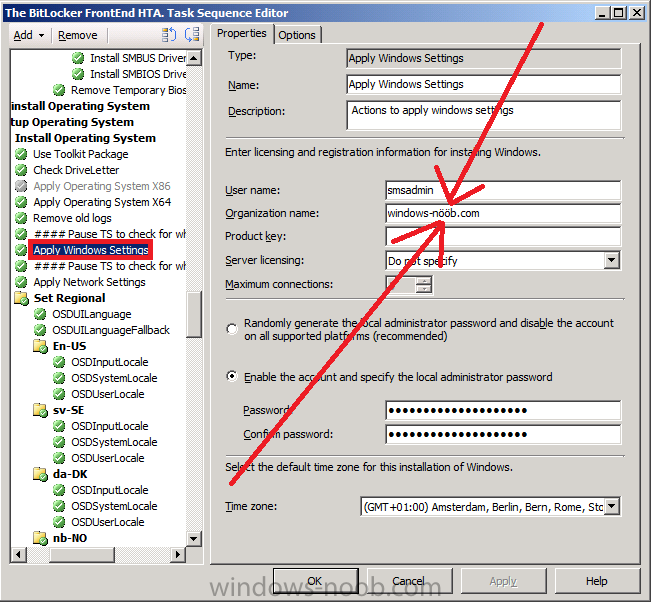
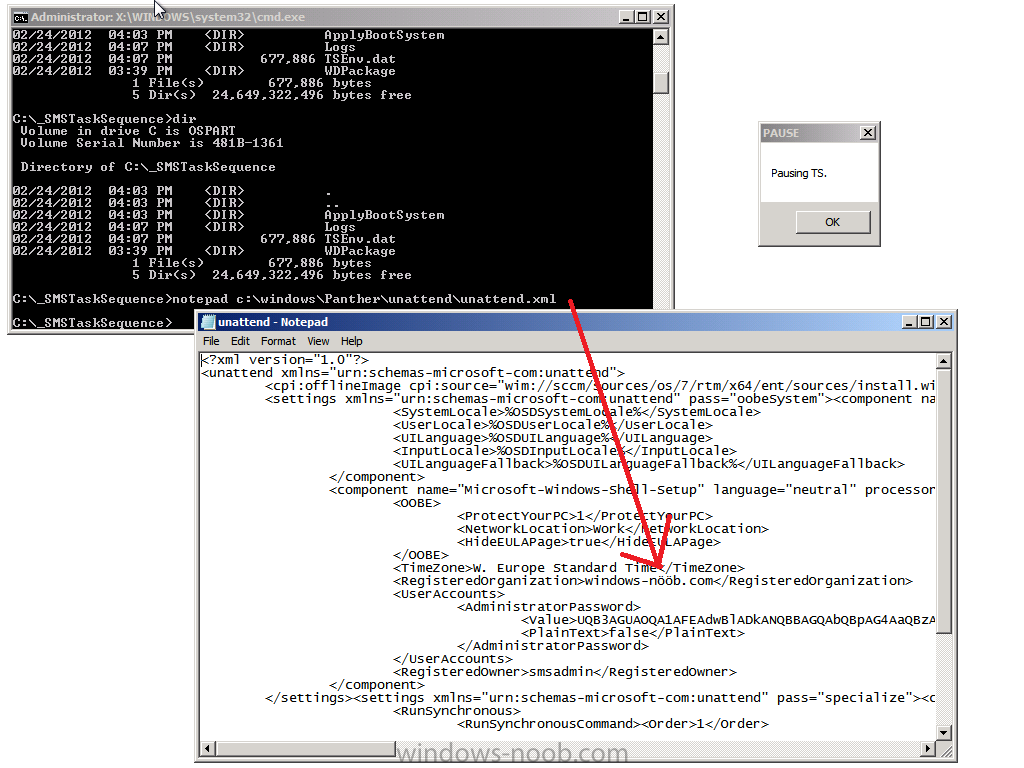
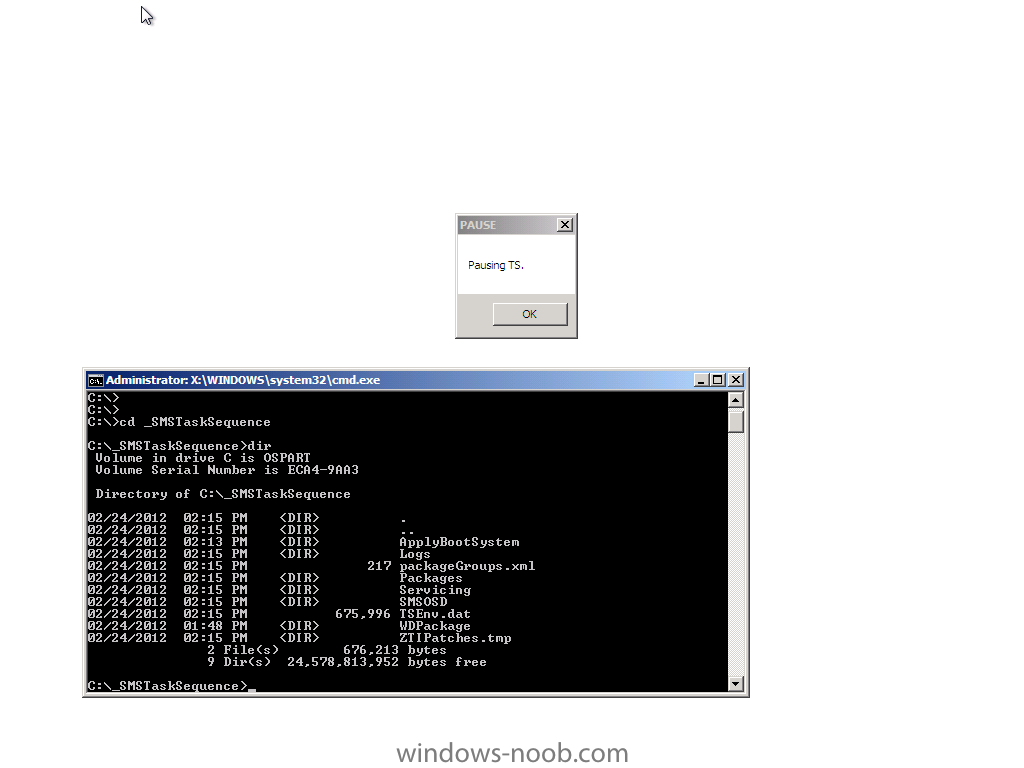
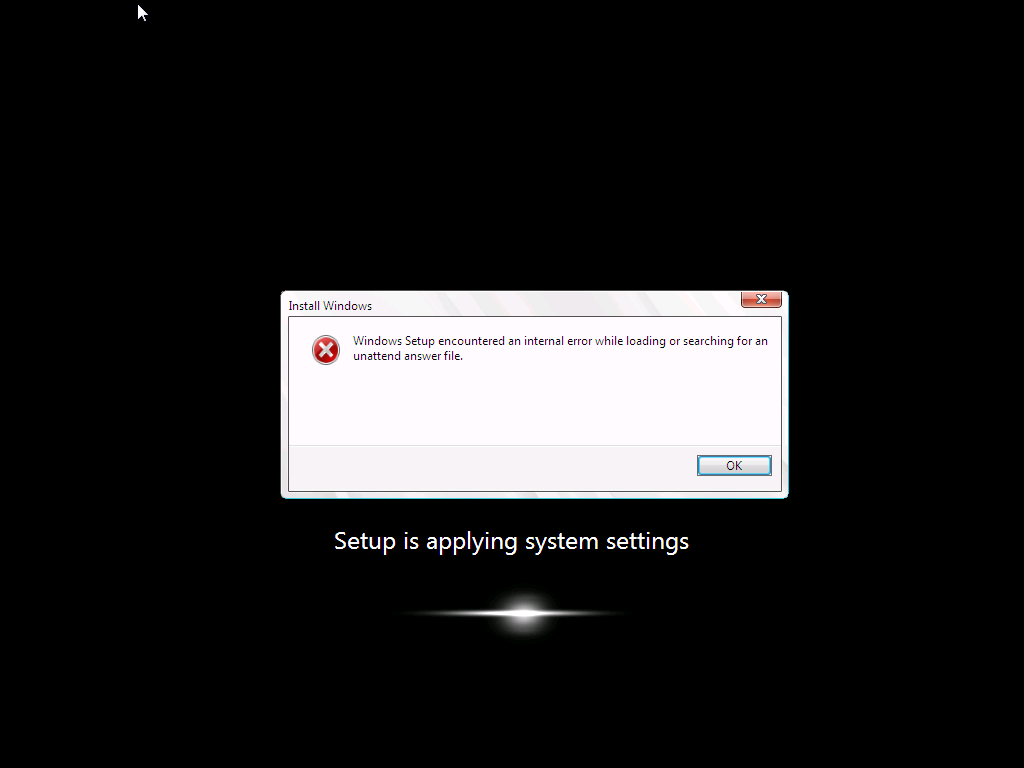
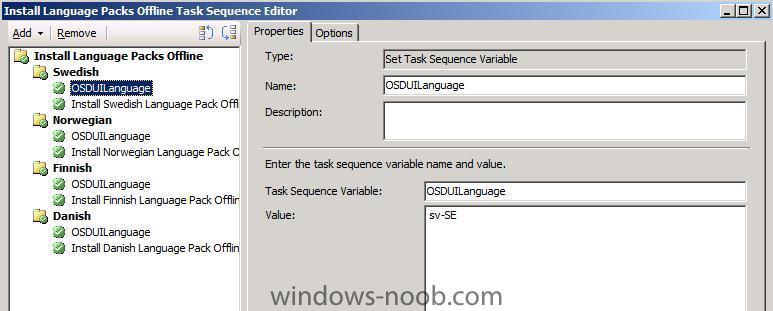
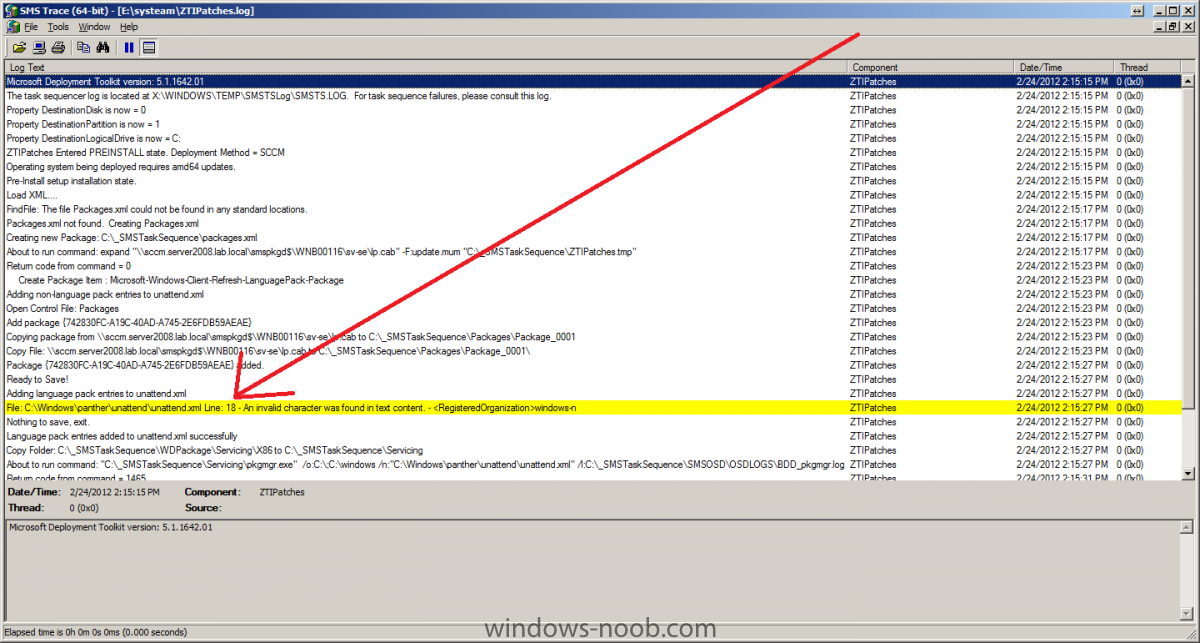
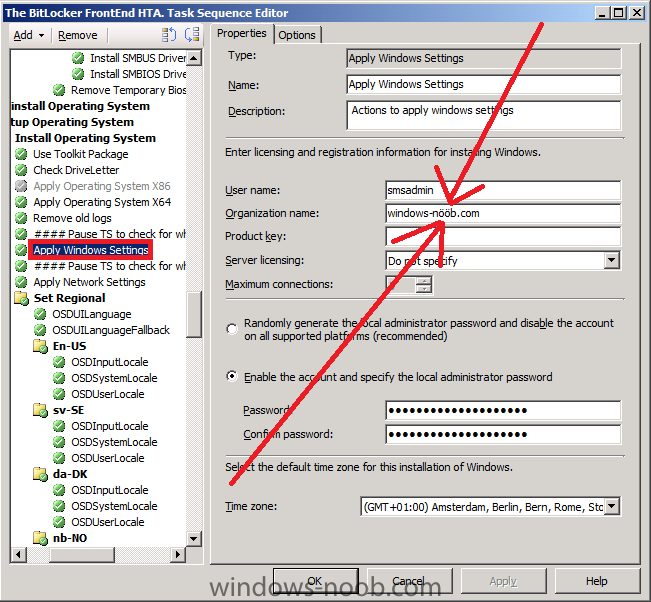
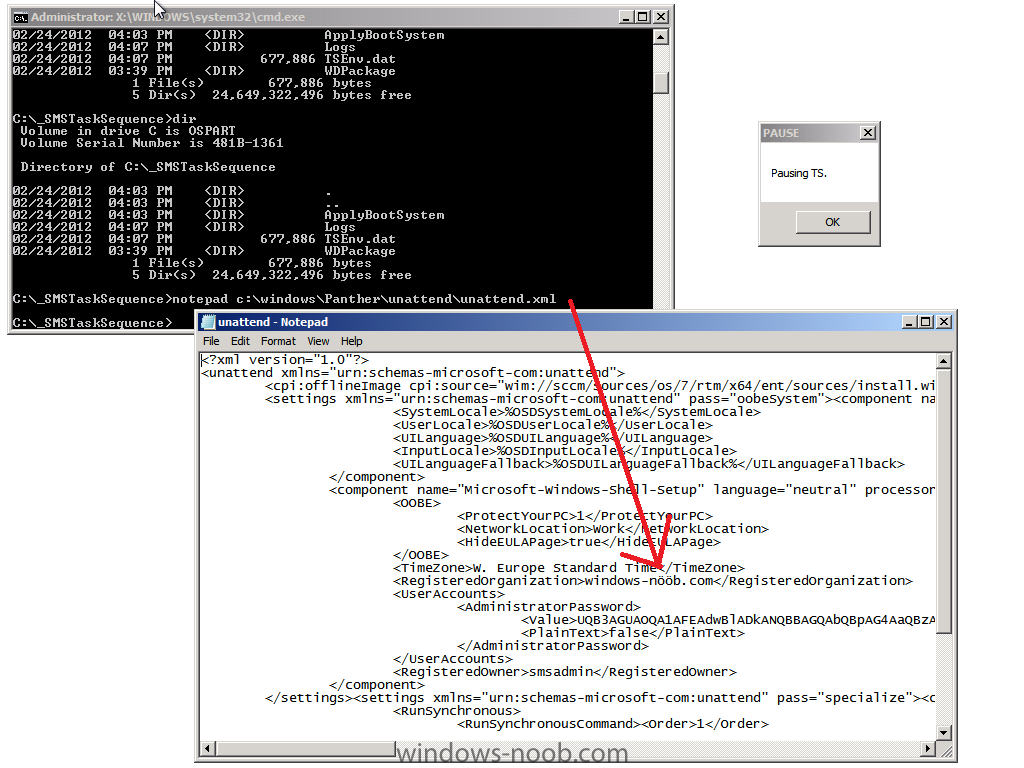
I came across this problem yesterday and after troubleshooting it for a few hours (initially thought it was related to a language pack package versioning issue) the eureka moment arrived, all thanks to reading the logs on the client. First of all let me describe the issue, it was a fairly standard task sequence to install Windows 7 Enterprise X86 Service Pack 1 with Offline Language Packs and it was failing just after the setup windows and configmgr step (after the first reboot) during windows setup. So what error did the customer see ? When they applied the language pack offline step, the Setup Windows and Configmgr step would restart the computer into Windows Setup and at this point shortly after, the installation would fail with the following error message Windows setup encountered an internal error while loading or searching for an unattend answer file As this was a language pack installation, and as the failure only started happening when the customer added language packs I presumed that there was something wrong with either:- The unattend.xml file used The language pack The steps in the task sequence used for installing the Language Pack The unattend.xml File So I set about determining what was causing the actual issue. First of all I needed to rule out the unattend.xml file itself which is specified in the Apply Operating System Step (needed so that the offline language package variables values can be injected), by replacing it with a known good one, stragely though I got the same error, the language pack was failing to install and windows setup was failing. As part of this troubleshooting I used a technique called pausing the task sequence to review logs/files before and after steps were taking place. I'd highly recommend you try pausing your task sequence if you are having issues debugging it. I would pause the task sequence and verify that the unattend.xml file was in the right place, it was present in c:\windows\panther\unattend\unattend.xml and it looked correct. Anyway, what I noticed from using a known good XML file was that the following error was present in the BDD_pkgmgr.log.txt logfile. followed shortly after by which told me that DISM was failing to inject the offline language pack and was having issues with parsing the unattended answer file, but didn't tell me why.... But I was using a known good unattend.xml file so what could possibly be wrong, were the logs lieing to me, it didn't make sense as the unattend.xml file looked fine, even after the Setup Windows and configMgr step, so something else must be wrong, right ? The language pack The next test I did was to rule out the Install Language Pack step itself, so I disabled that step (the group actually) and the installation of Windows 7 continued without any problems at all. Great, it must be the language pack ! The image the customer was deploying was Windows 7 Enterprise X86 Service Pack 1, so I made sure they downloaded the language pack files for that version of Windows, yes there are language pack files for both X86 and X64 so I wanted to be sure they were using the right ones, In addition, I recreated the language package used in the deployment task sequence, redistributed it to the distribution points and added that new package into the task sequence. I started another installation and noticed that the Apply Language Pack offline step was running through very quickly, normally when installing a language pack it takes some time to complete, this is an indication that something is wrong. Once again, dism pointed to the exact same failure as noted above, ok, i've ruled out the customers Unattend.xml file, I've ruled out the Language pack what else could it be. The steps in the task sequence Finally I looked very closely at each step in the task sequence involved in the Language pack installation, I examined each of the Set Task Sequence variable steps and made sure they were correct and that they were in the correct sequence and indeed that these steps were occuring after Apply windows settings, apply network settings but before Setup Windows and configMgr, they were all fine... and in the right place. This didn't make sense I must have missed something, so I set about reading all of the logs once again to try and determine what was going wrong. Reading the Logs I initiated another installation and paused the task sequence just before Setup Windows and configMgr, I brought up a command prompt and browsed to C:\_SMSTaskSequence in there were all the logs I needed. The first Log to look at was the SMSTS.log file, normally i'll look for the word failed or in Trace32.exe search for any red lines (indicating an error). Neither helped.. nothing jumped out at me. so then I opened the ZTIPatches.log file (this file is used to log information when installing updates or language packs offline) and it was there I had the Eureka moment huh ? could this be true, ok I opened the Unattend.XML file that the customer had and Registered Organization was not present, so I started another installation and opened the c:\windows\panther\unattend\unattend.xml file that was present, still no Registered Organization, so i let the installation continue right up until after the Apply Windows Settings Step and at this point the unattend.xml file DID have the Registered Organization field present, infact, it's added in the Apply Windows Settings step. And what I saw was the Eureka moment, the Registered Organization had a Swedish character present in it's name, i'm not going to name that company but I will show you what it could look like here so that was it !, I changed the Registered Organization name, by removing the Swedish characters and replacing them with standard 'o's and the problem was resolved and DISM worked correctly and the language packs got installed. Basically what this meant was that DISM wanted to interpret the unattend.xml file in order to know what it had to inject into the offline image, it couldn't understand the unattend.xml file due to the Swedish characters being present and therefore bombed out of what it was doing with a parse error message. Replacing the Registered Organization name with one that contained only English characters allowed DISM to work correctly and all was good. The log files really don't lie ! I wanted to post this incase any of you run into the same issue.. The moral of the story:- If you are using Offline Language Packs and they are failing to install, verify the following logs for any details that will give you a clue to the issue. SMSTS.log ZTIPatches.log BDD_PKGMGR.log.txt Oh and if you are in a European country that uses Non-English alphabetical characters be sure to check the Registered Organization field in your Apply Windows Settings Step and if necessary remove any strange characters if they are complained about in your ZTIpatches or SMSTS.log file. cheers niall
-
- 2
-

-
is the computer in a collection that the task sequence is advertised to ? what does your smspxe.log file reveal ?
-
how long did you wait ? did you reboot after adding the configmgr site server computer account as a local admin ?
-
and are you sure about the version ? 7678 is RC1, 7703 is RC2
-
first do this to enable better logging and understanding of what is going on when testing USMT migration strategies.. and see what it reveals ok ? don't forget to enable verbose logging (/v:13) you'll probably need to use the Merge rule and to be aware of USMT conflicts and precedence as described here
-
using SCCM 2012 in a LAB - Part 1. Installation
anyweb replied to anyweb's topic in Configuration Manager 2012
you should install those roles as part of setup, why wouldn't you want to ? -
SMS 2003 to SCCM 2012 - remote client deployment
anyweb replied to pxedave's topic in Configuration Manager 2012
nope it cannot uninstall the SMS 2003 client, you'll see that logged in ccmsetup.log, it can only deal with ConfigMgr Client's from 2007 and onwards -
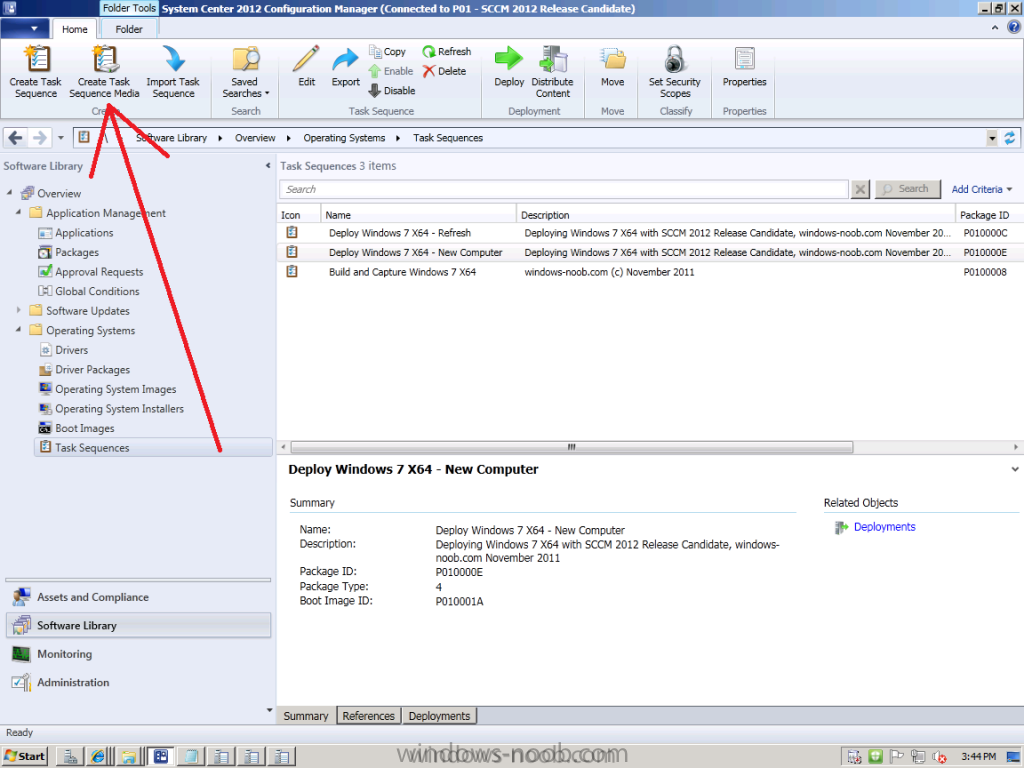
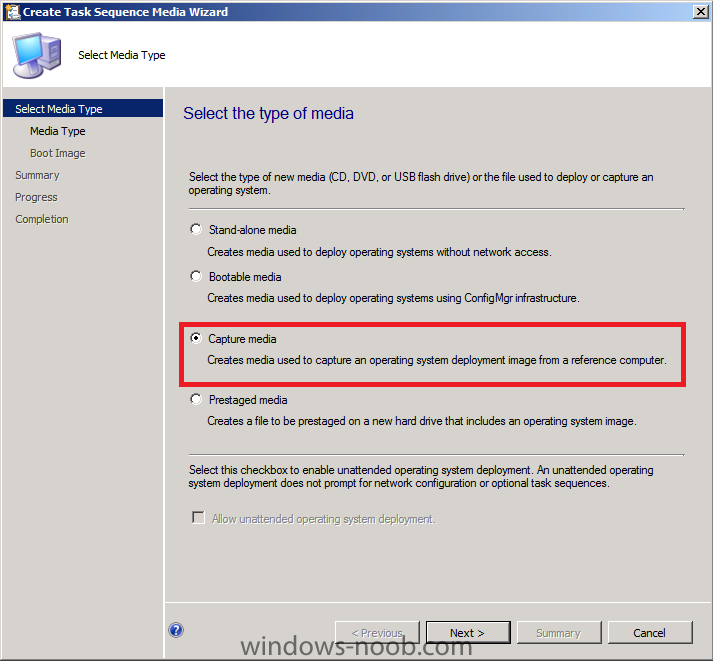
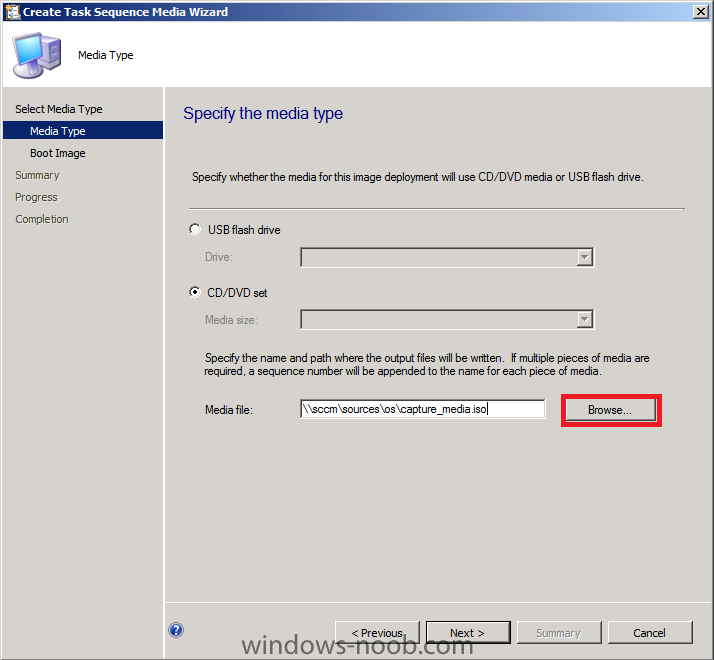
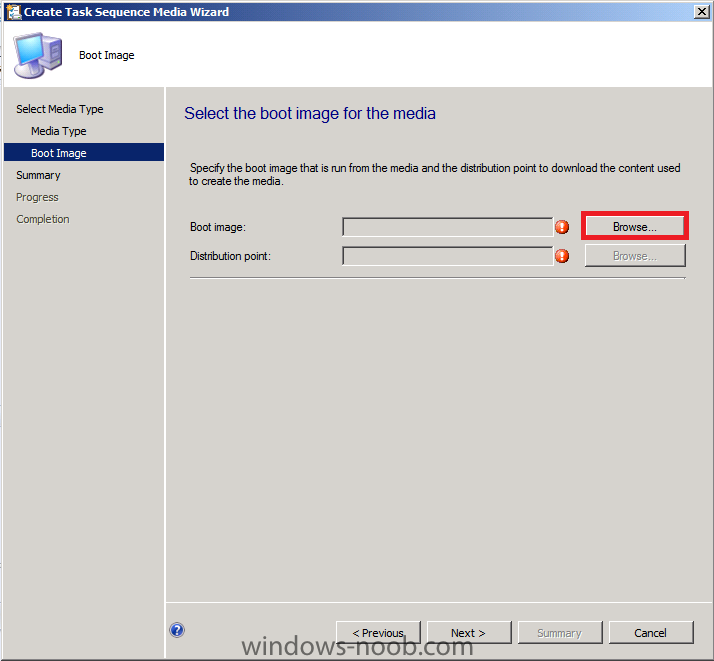
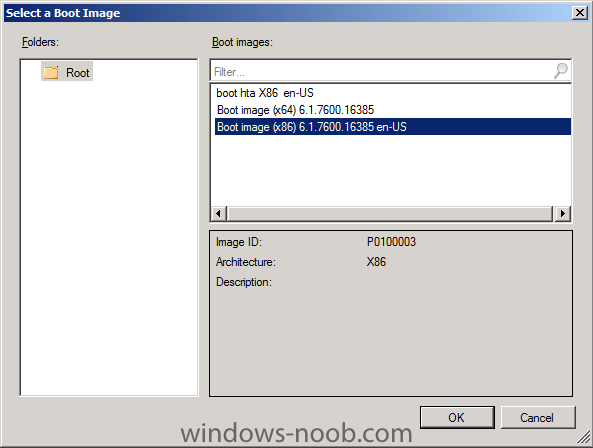
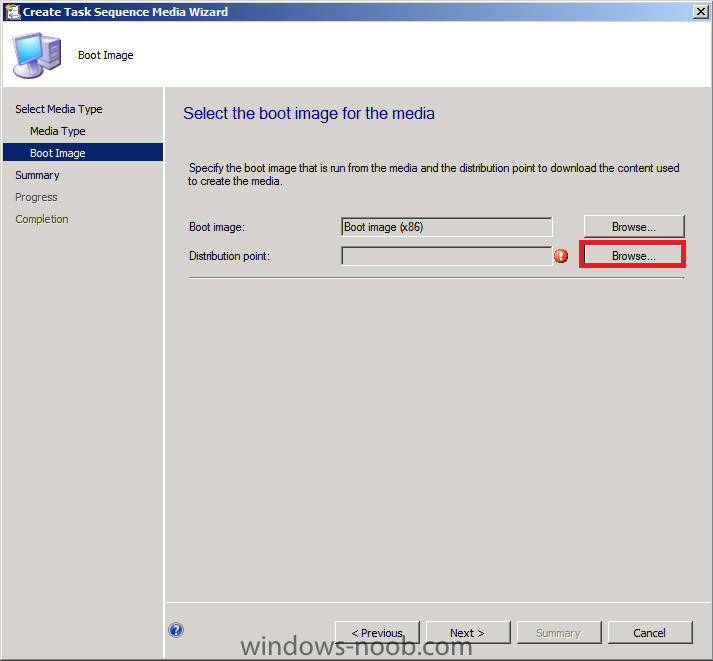
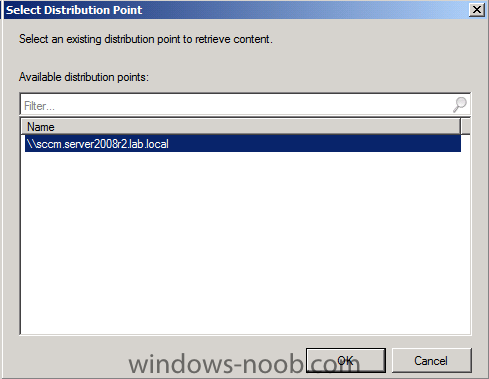
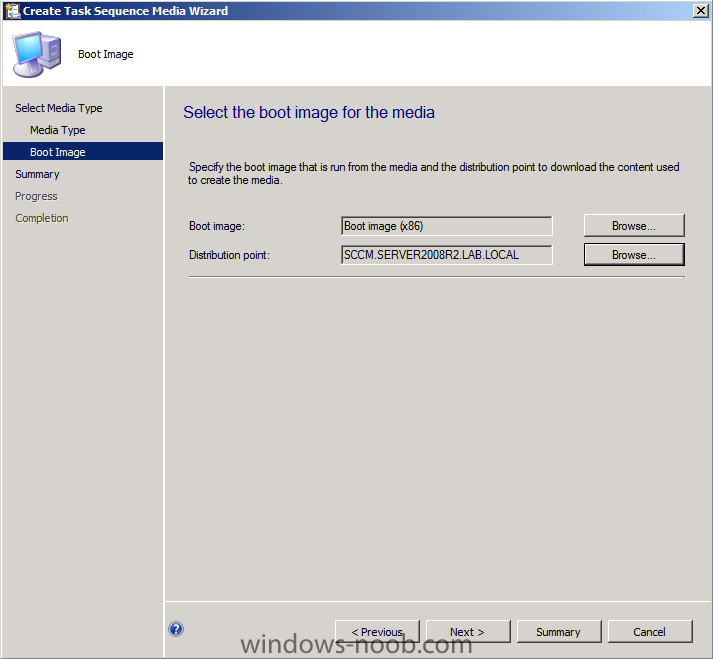
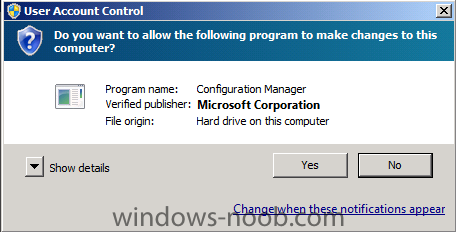
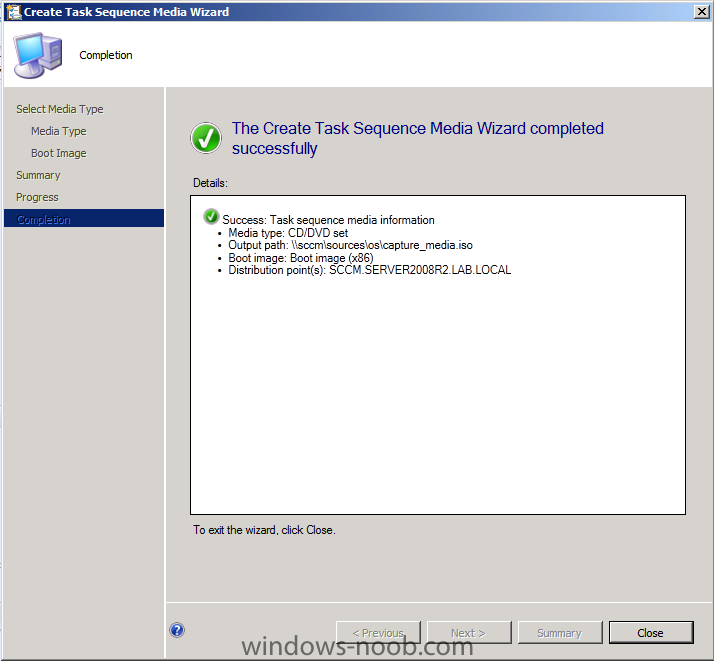
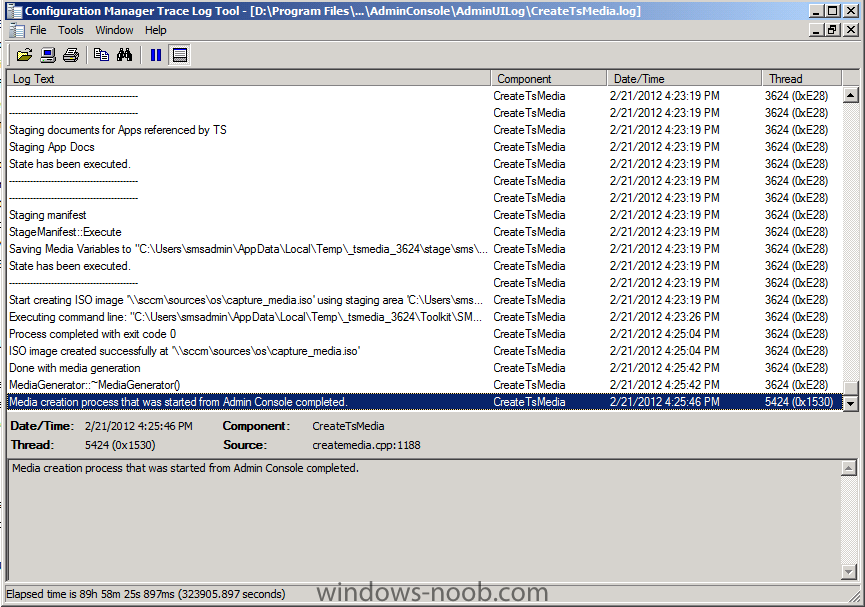
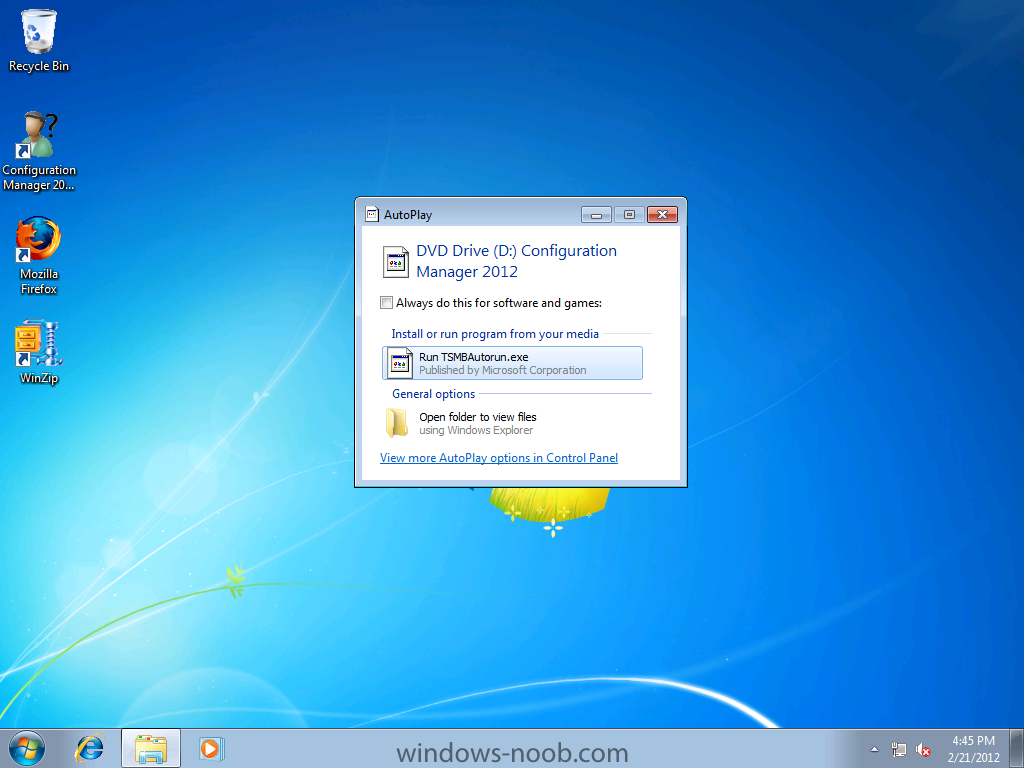
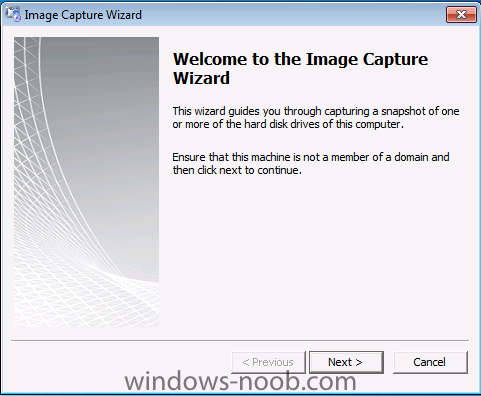
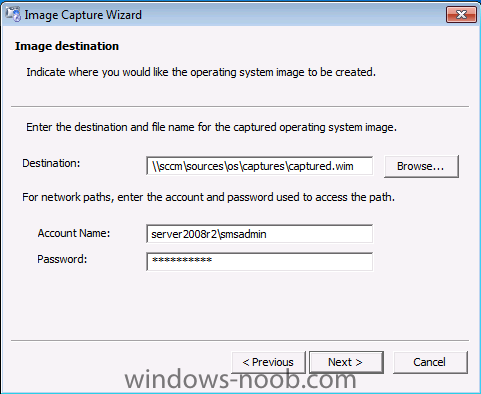
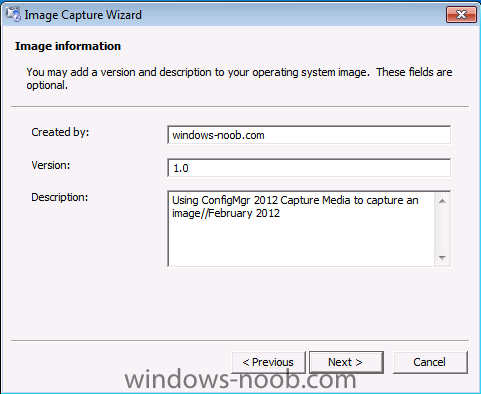
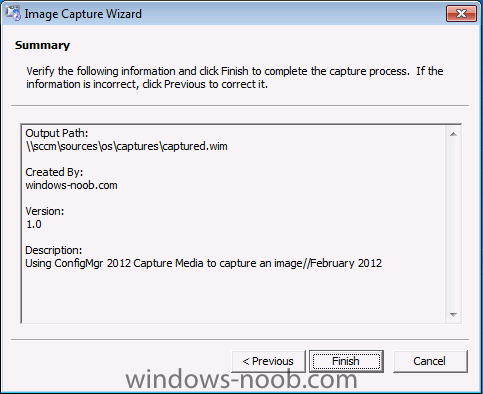
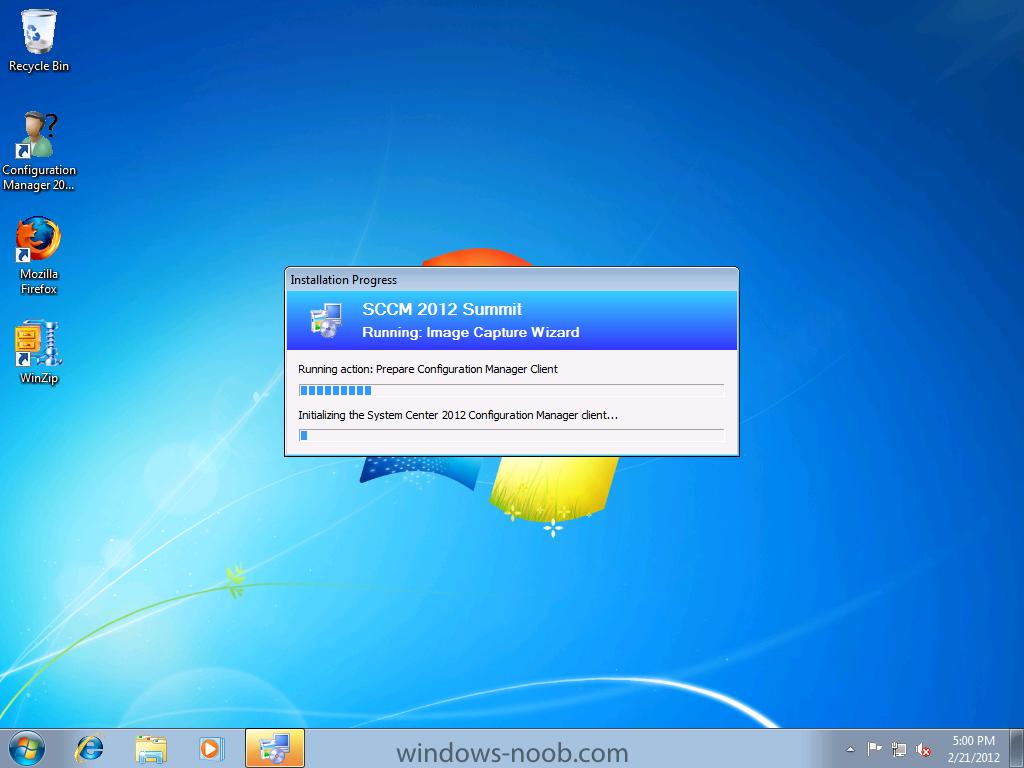
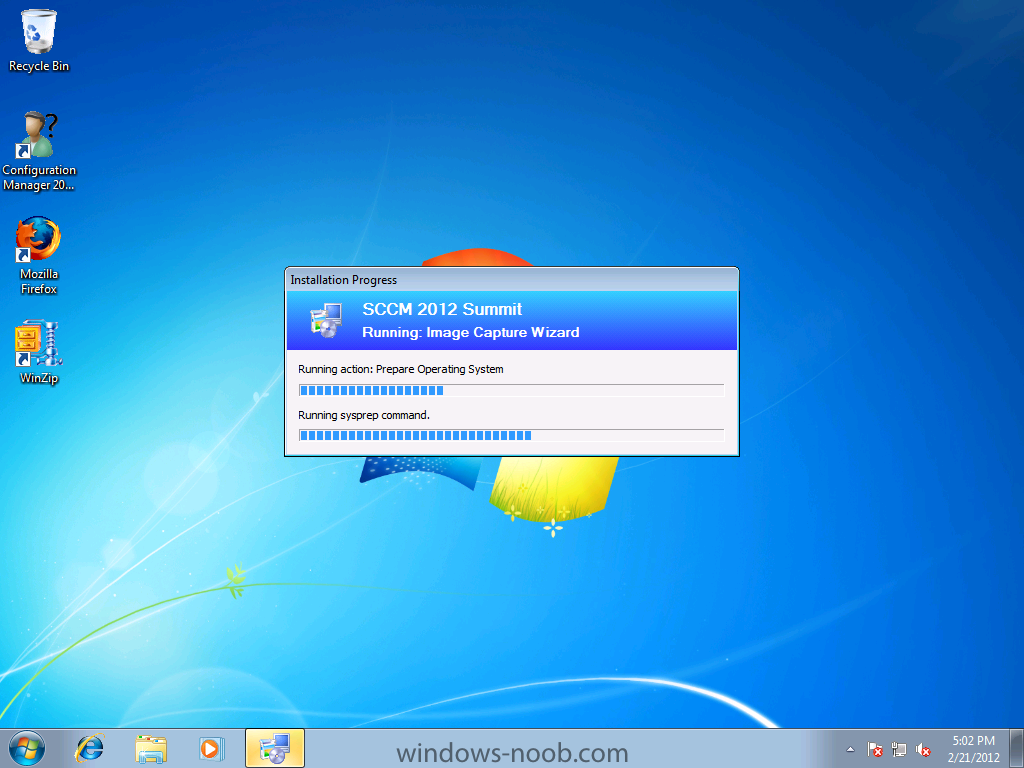
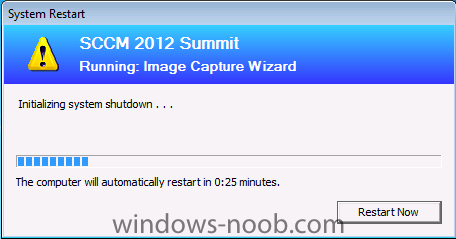
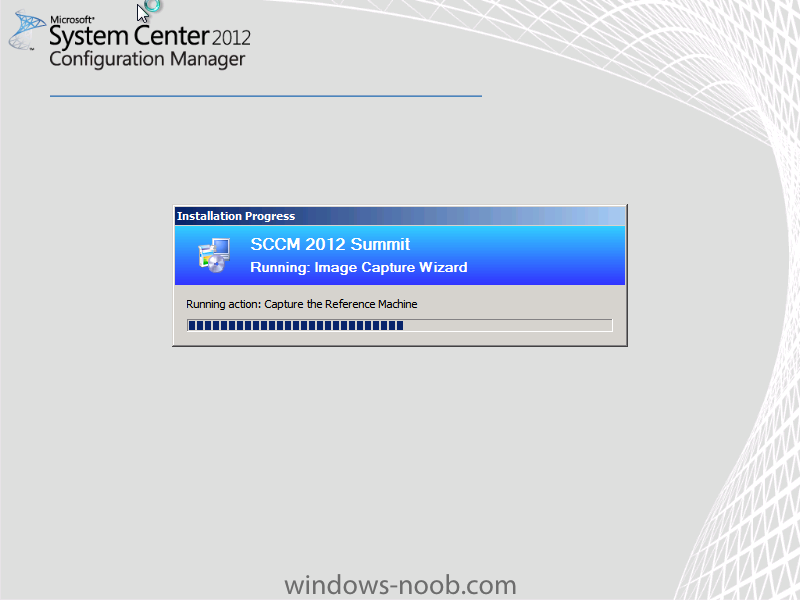
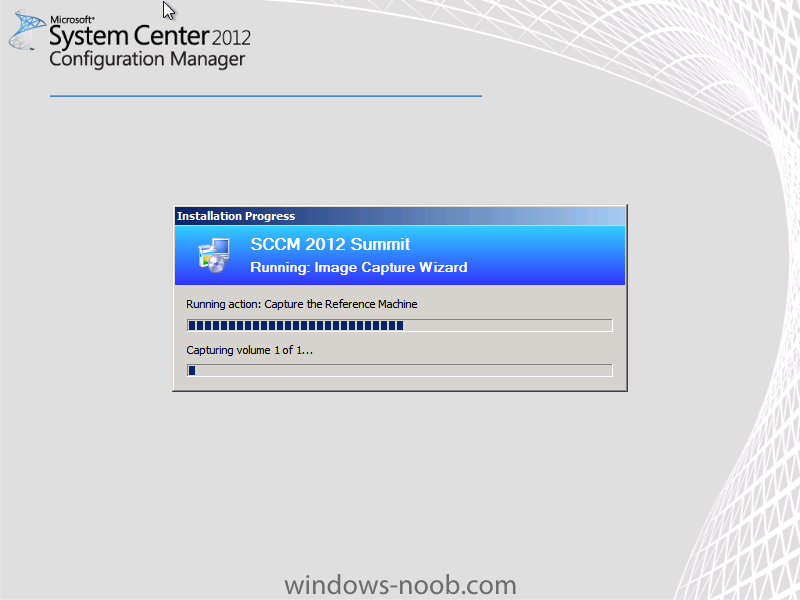
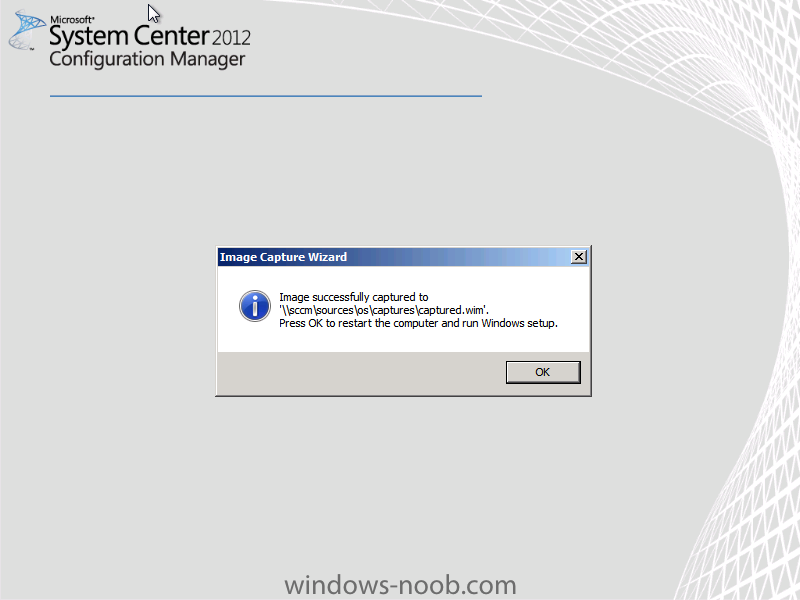
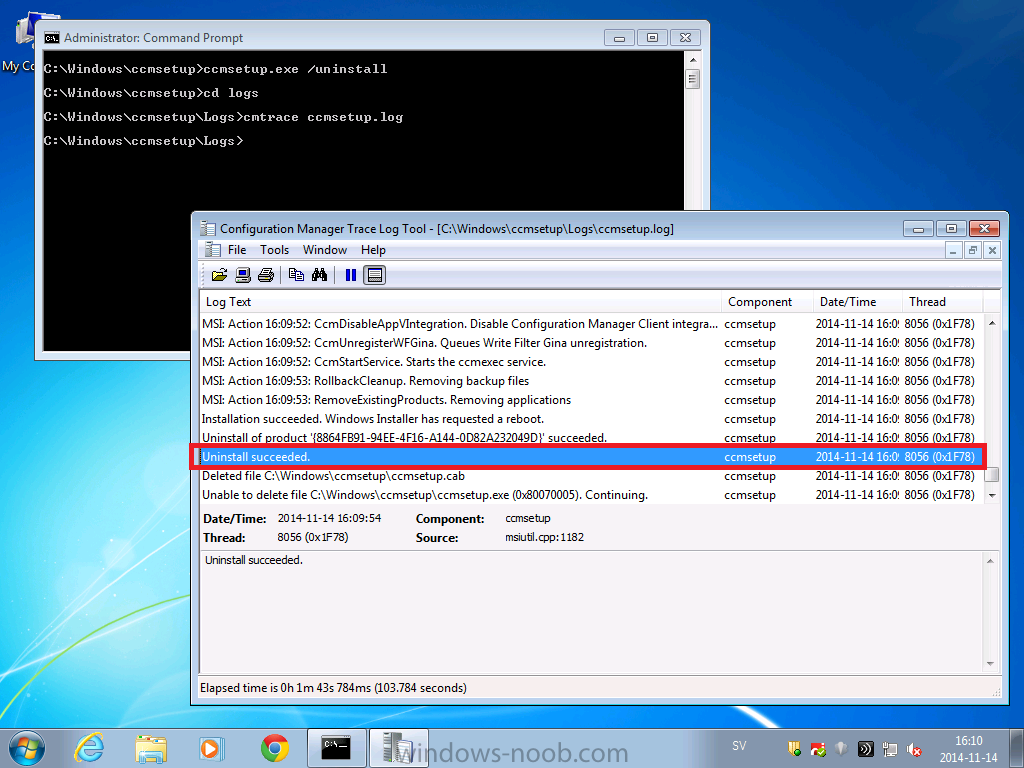
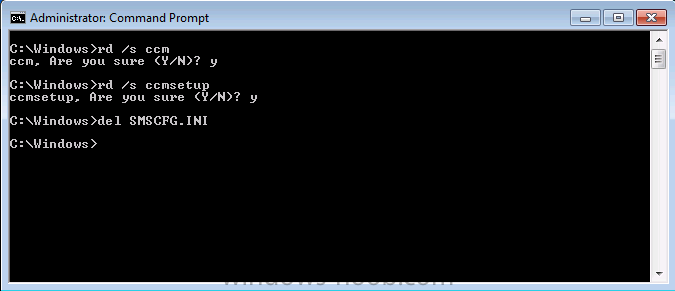
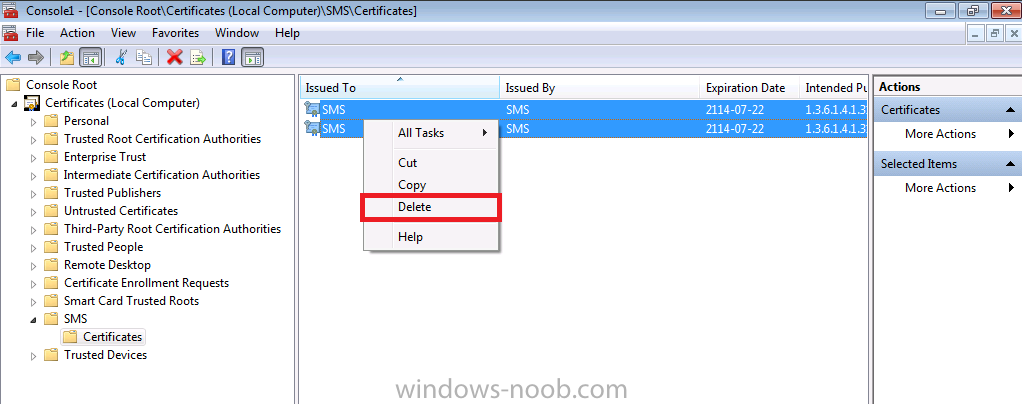
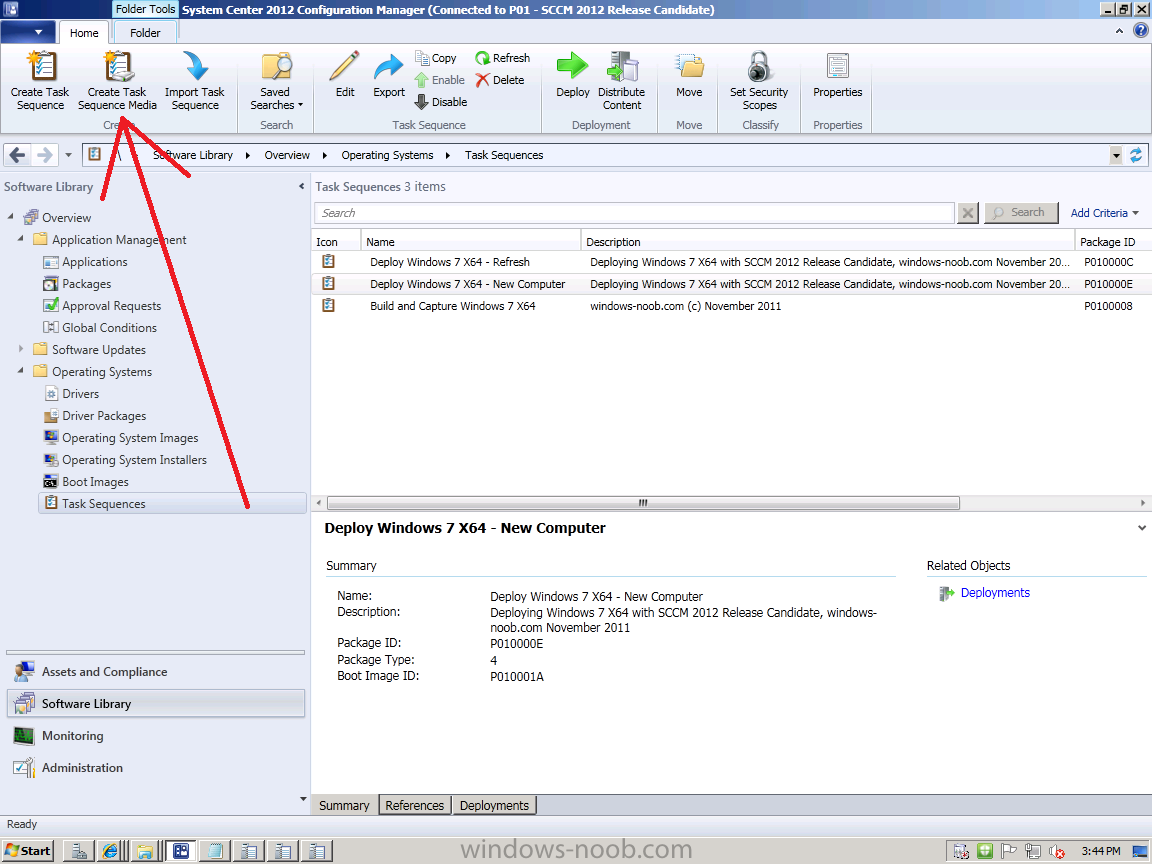
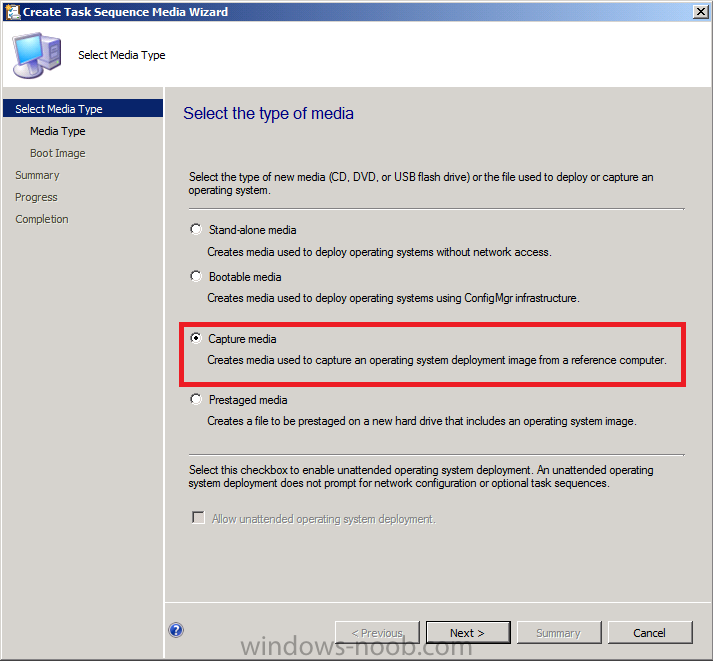
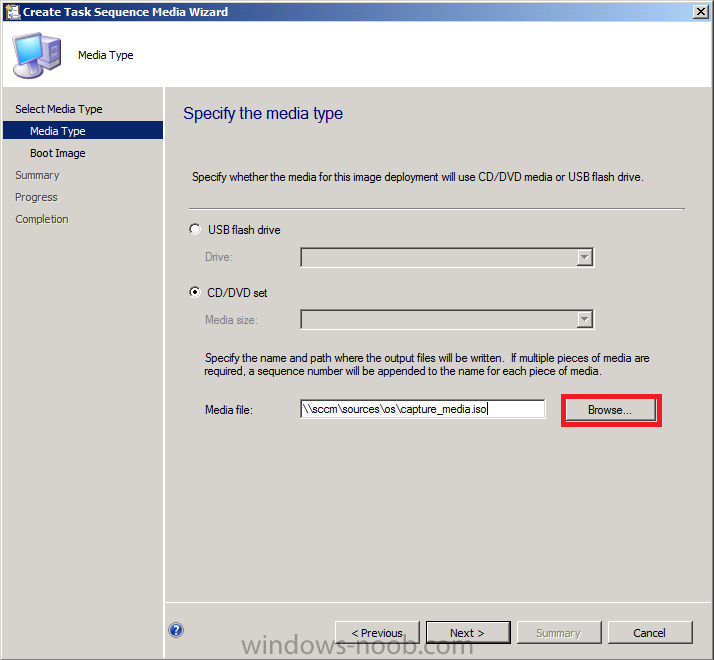
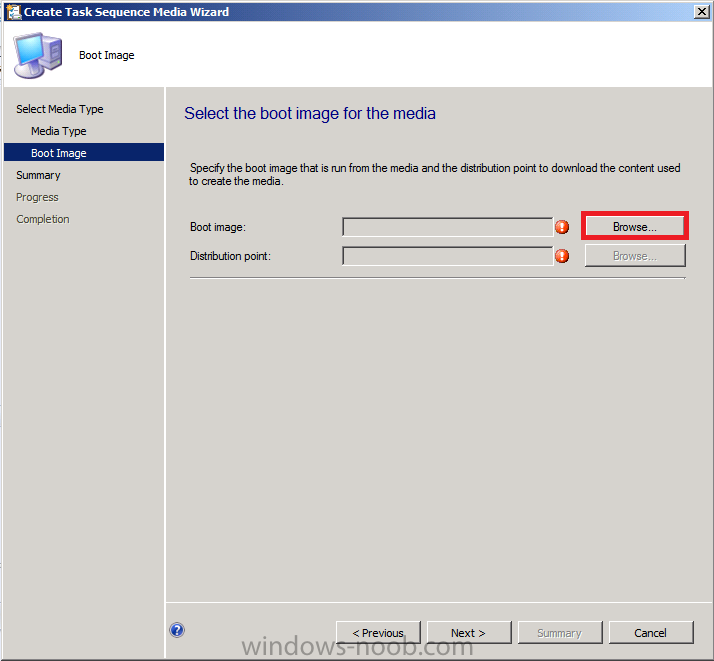
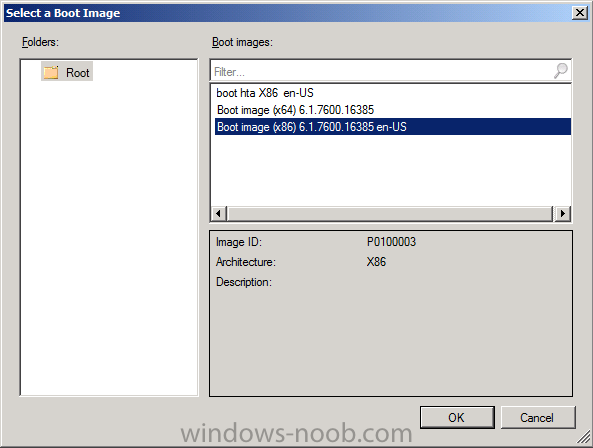
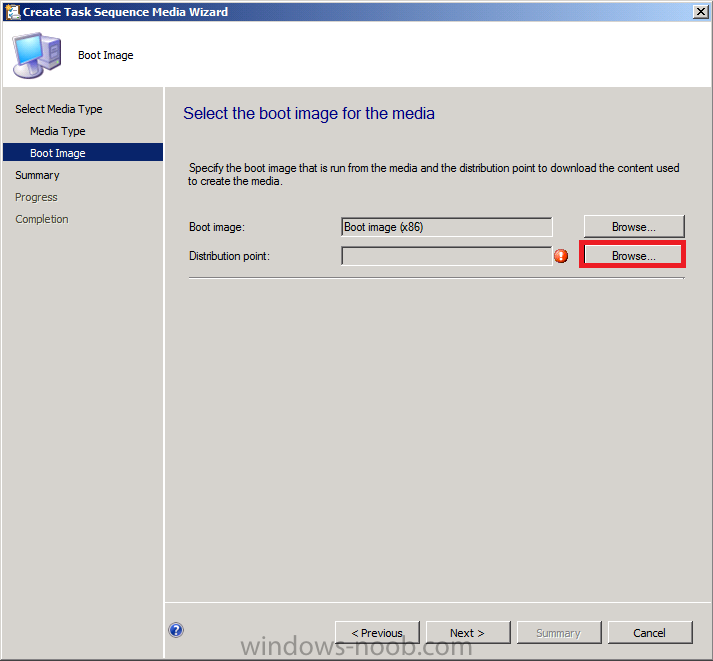
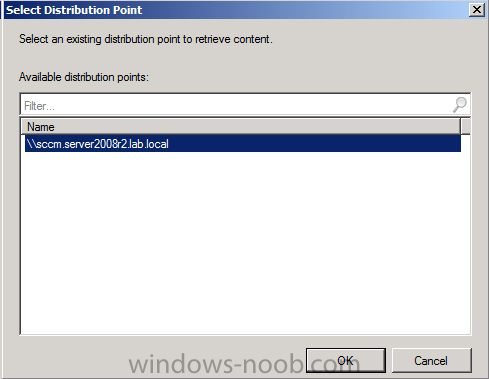
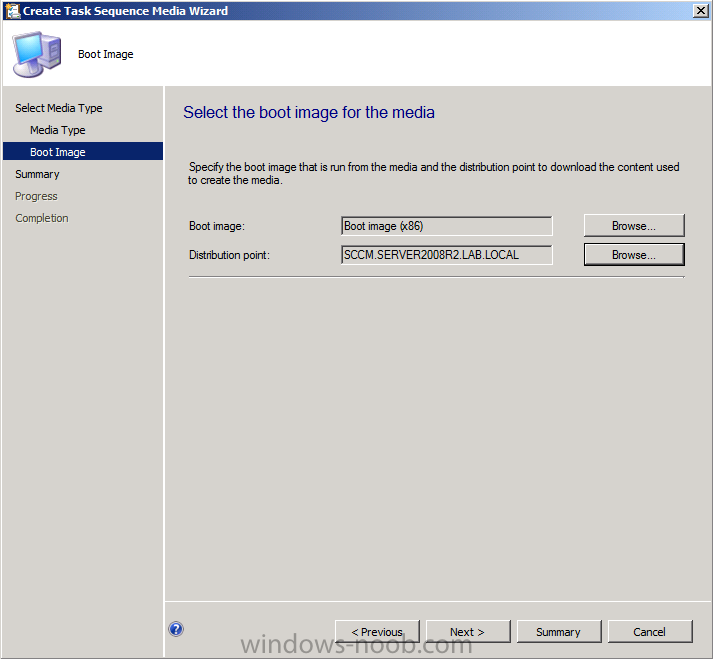
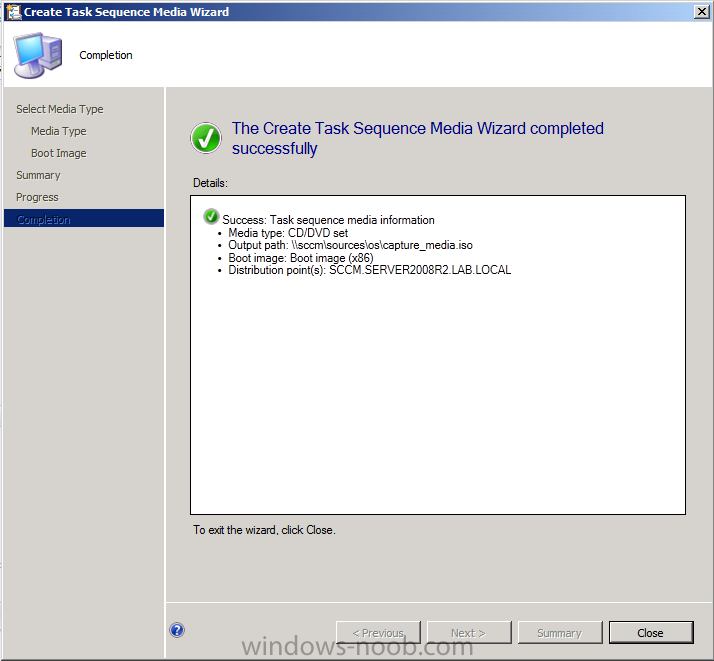
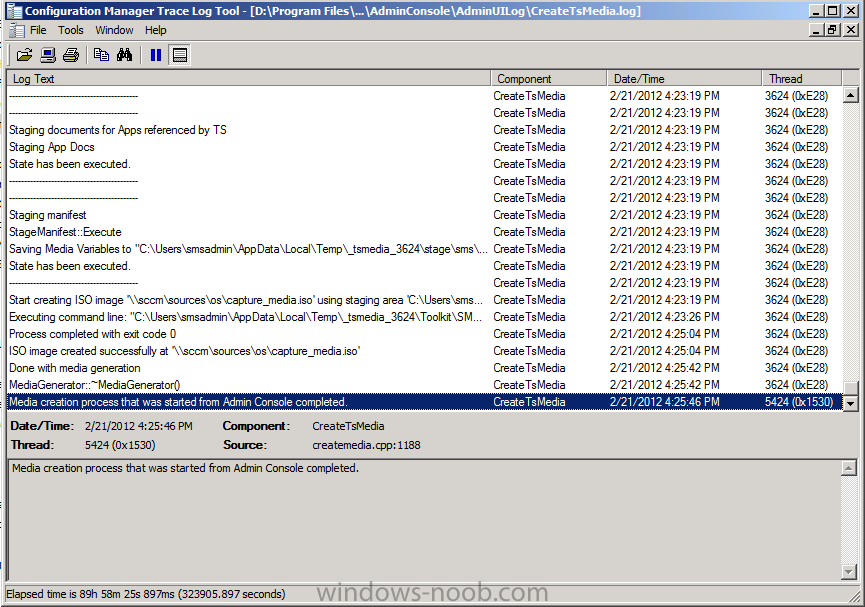
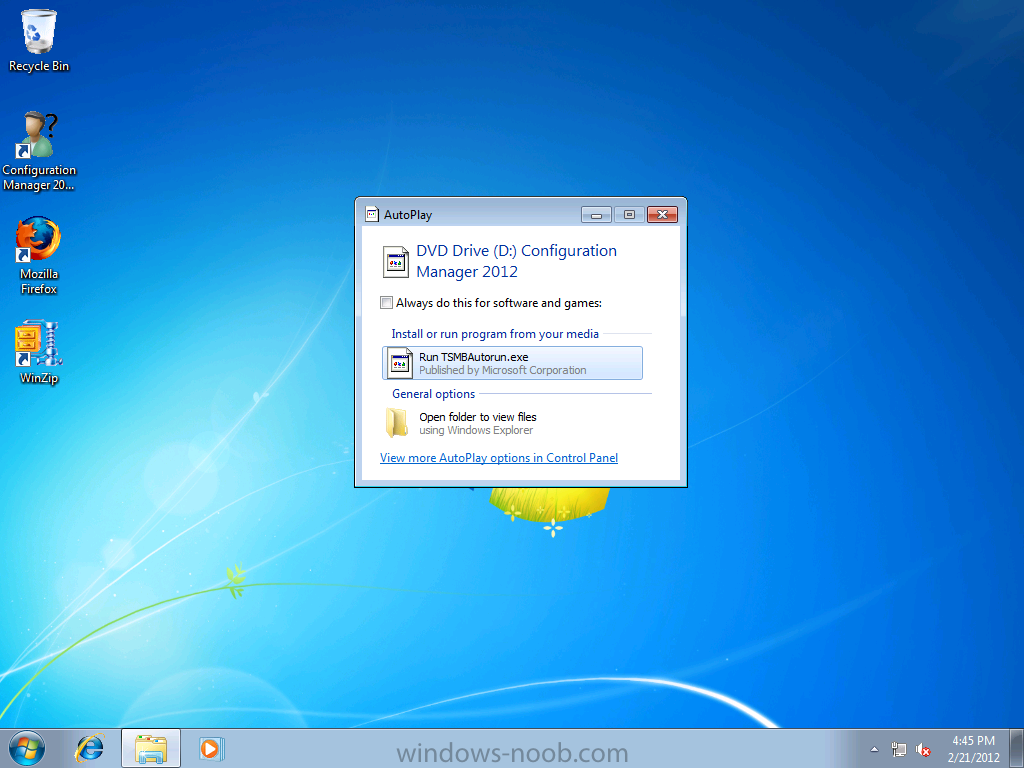
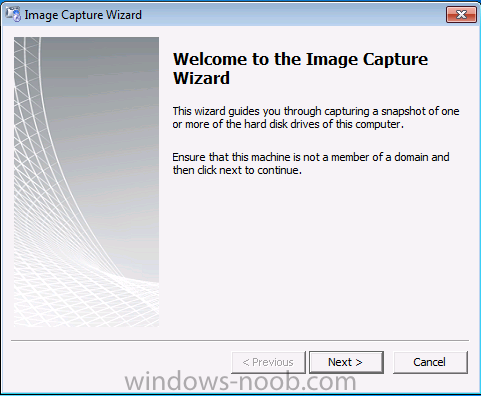
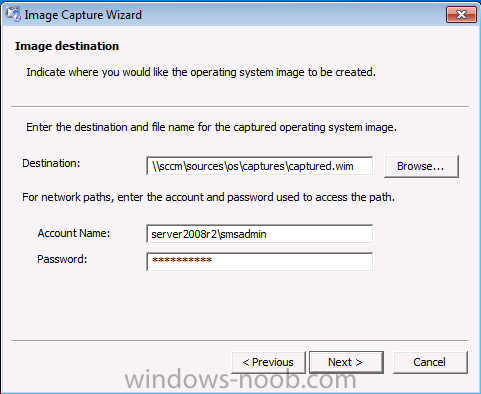
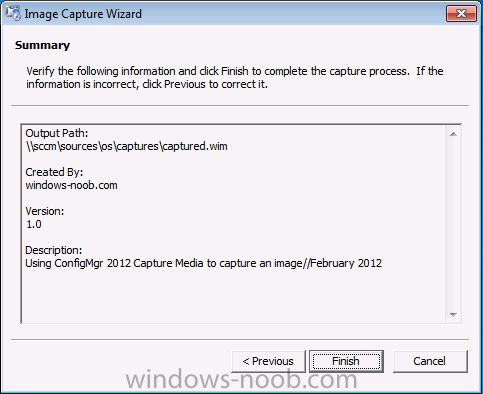
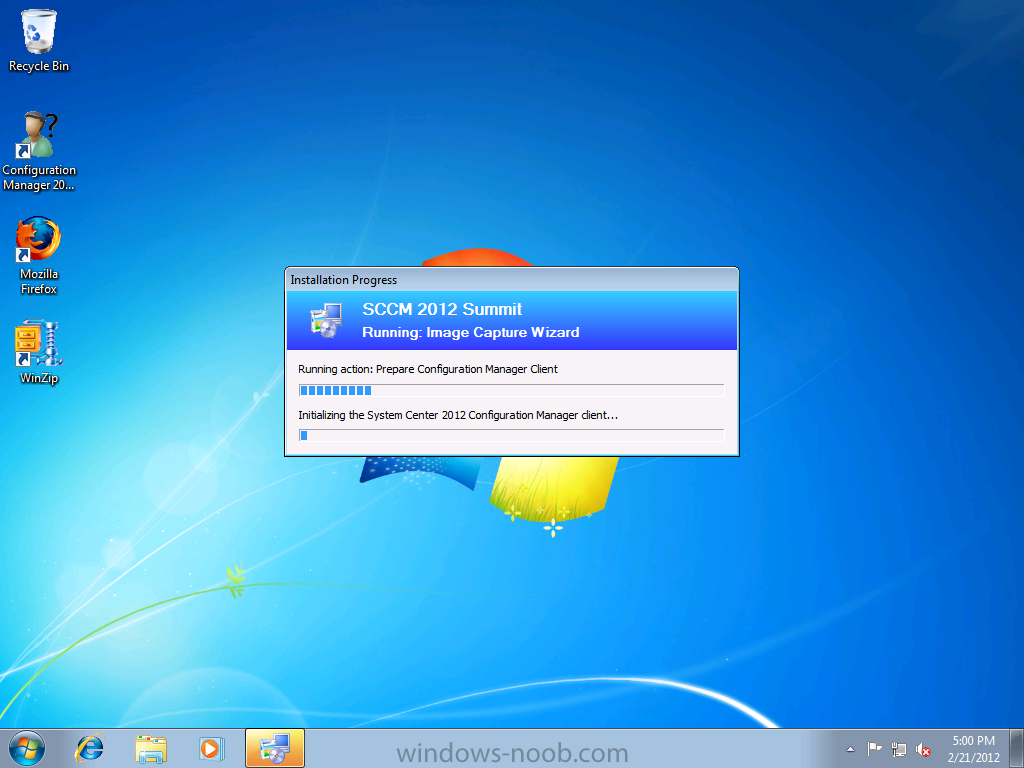
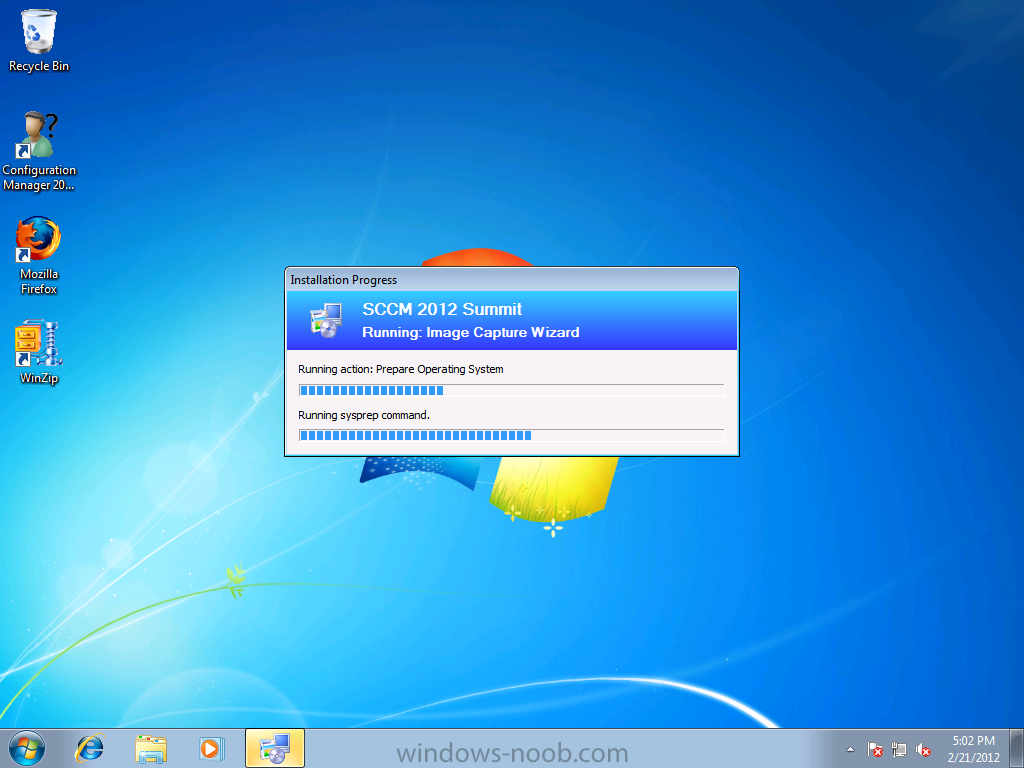
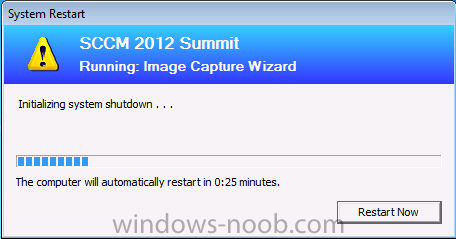
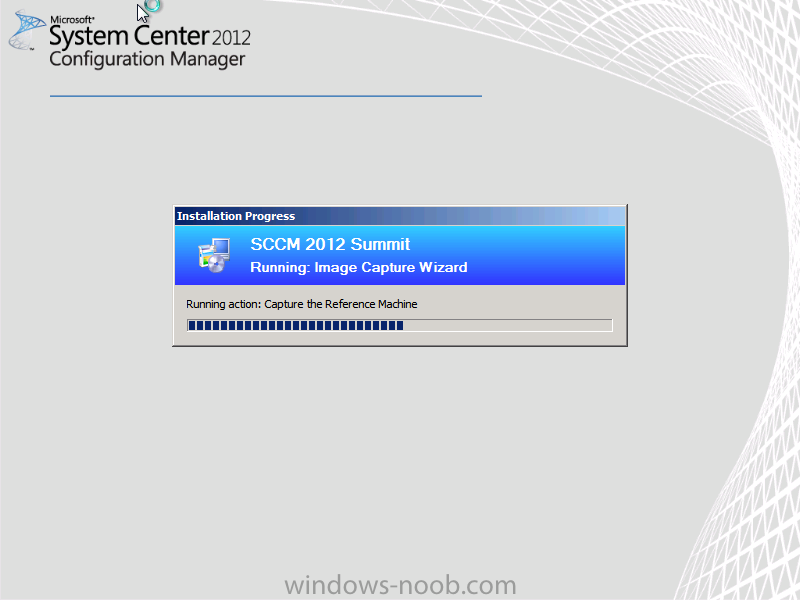
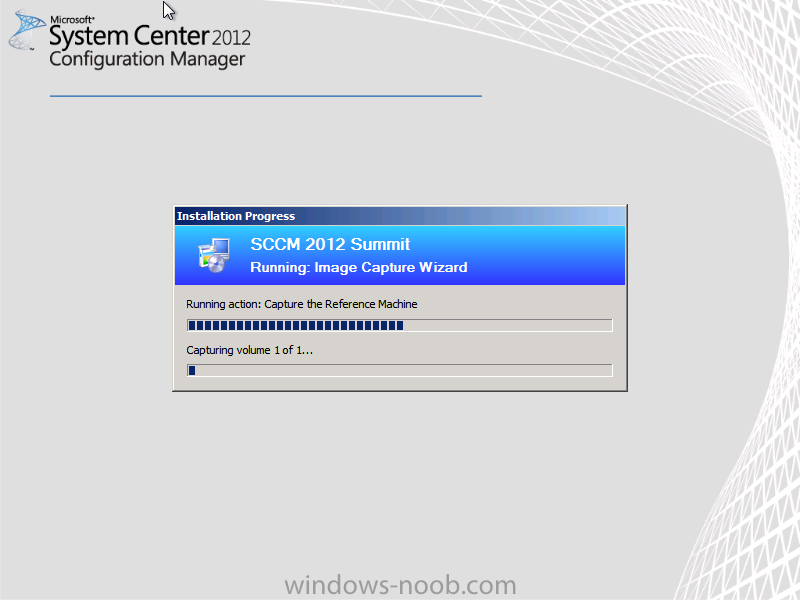
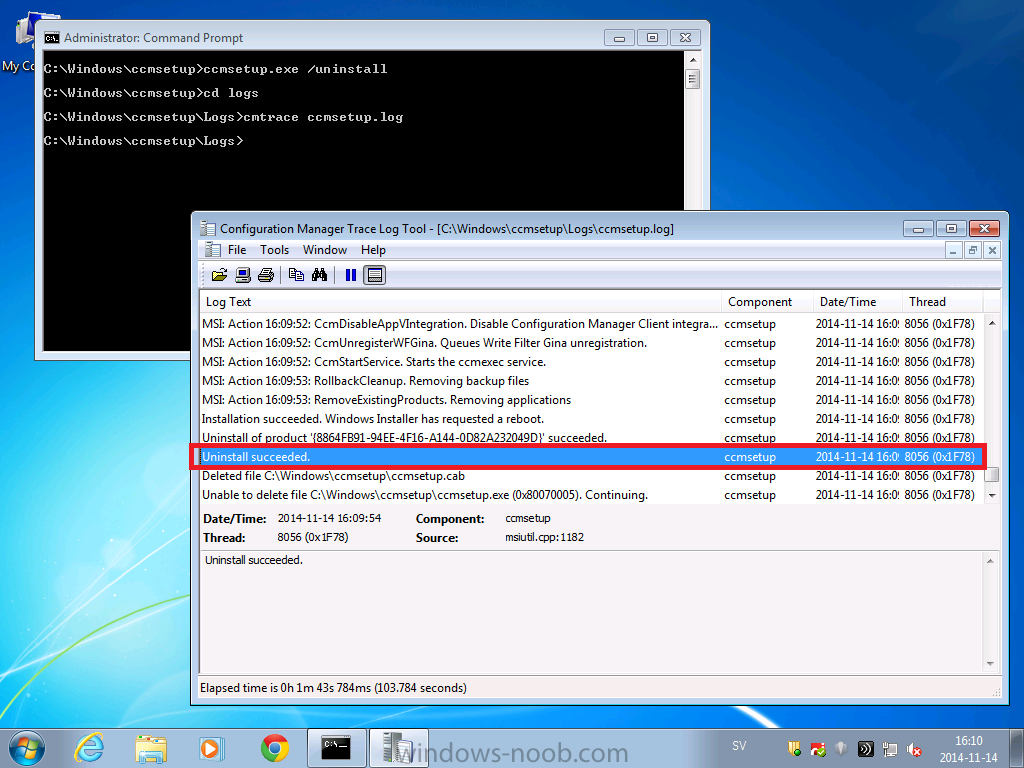
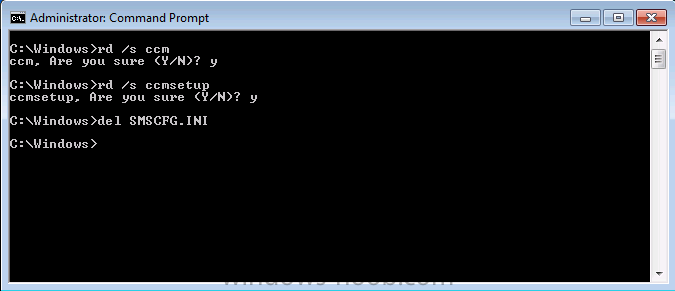
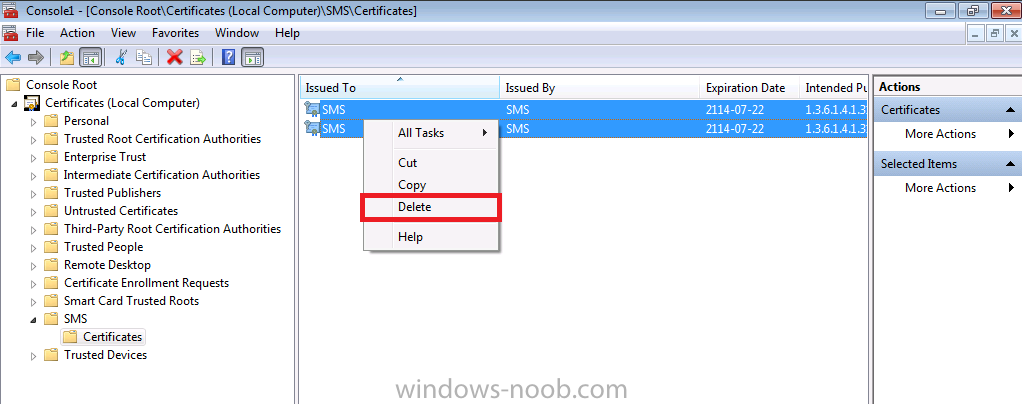
Normally you would want to automate building your reference image using Configuration Manager or MDT or a mixture of both. So if for example you want to capture a reference image you could do so using a fully automated Build and Capture task sequence in System Center 2012 R2 Configuration Manager. In this post however, I'll explain how you can capture an image manually and Configuration Manager 2012 provides a method of doing just that called Capture Media. This media is created as an ISO file which you burn directly to CD/DVD or mount in a virtual machine and use. But first you need to make sure that the image you want to capture is in the right state, listed below workgroup joinedIn order for the image to be captured the computer must be a member of a Workgroup, In other words, the machine you want to capture the image from must not be joined to a domain. Tip: It's recommended that you build your master image without joining a domain as domain join can impact an image and make troubleshooting problems that occur later on, harder. Settings get applied when you join a domain, such as Group Policies are set, software may be installed, registry keys might be changed. Keeping a computer off the domain before capturing it, eliminates these and other potential issues. I'd recommend you use Virtual Machines (Hyperv, Vmware Workstation) or whatever virtual software you like to create the 'image' you want to capture. Step 1. Create the Capture Media Perform the following on the Configuration Manager server as a SMSadmin. Open the ConfigMgr console, click on Software Library, Operating Systems, expand Task Sequences. In the ribbon click on Create Task Sequence Media when the Create Task Sequence Media wizard appears click on Capture Media click next and browse to the path of where you want to store the ISO file, give it a name like capture_media.iso click next, then click on browse beside boot image select your X86 boot image Note: if you are trying to capture x64 UEFI hardware such as the Microsoft Surface Pro 3, you must use a x64 boot wim. click ok, then click on Browse beside Distribution Point select your distribution point now your selected boot image and distribution point are listed, click next to continue through the wizard if you get a UAC prompt accept it finally the media is done ! if you need to troubleshoot it's creation look at the CreateTSMedia.log file in your confmgr LOGS dir. (D:\Program Files\Microsoft Configuration Manager\AdminConsole\AdminUILog) Step 2. Remove the Configuration Manager client if installed Run Ccmsetup.exe /uninstall from the C:\Windows\CCMsetup folder, you can monitor the CCMSetup.log file to verify it uninstalls successfully as shown below Once done remove the following:- delete any logs and files left behind in the ccmsetup and ccm folders delete c:\windows\smscfg.ini delete the two SMS certs for the local computer in CertMgr.Msc Step 3. While in Windows, start the ISO/CD/DVD on the Workgroup Computer Perform the following on the computer which you want to capture an image of as a local administrator. if you are using virtual hardware (hyperv or vmware) just mount the ISO on your workgroup computer (click on Media, Insert Disc, browse to the ISO location), otherwise burn the ISO to cd/dvd and insert that burned cd/dvd into the computer you need to capture. While still in Windows (do not try to boot from this ISO/CD/DVD) you should see the following click on Run TSMBAutorun.exe Welcome to the Image Capture Wizard appears, click next.. Enter a path and name for the WIM file, I chose \\sccm\sources\os\captures\captured.wim and then enter the credentials of a user with permissions to write to that location enter some Image Information review the summary and click finish to start the capture process, notice how it prepares the config manager client and then it syspreps before rebooting into Windows PE to capture the system and the capture begins ! success ! all done, the image is captured. Troubleshooting Tips: If there is no CCM client installed, check for the SMSTS.log file in C:\Users\Administrator\AppData\Local\Temp\ If you have the CCM client installed and you see an error in SMSTS.log (probably in C:\Windows\CCM\Logs or C:\Windows\SysWow64\CCM\logs) which sates Waiting for CCMExec service to be fully available, locate the SMS Agent Host service in services.msc and start the service. If you get the following error after inputting the Capture path and Network credentials "The network location cannot be reached. For information about network troubleshooting, see Windows Help. (Error: 800704CF; Source: Windows)" then verify you entered the credentials correctly, in addition you can test mapping a network drive using the same path and same credentials, if it fails, reboot the computer and try the wizard again