
anyweb
-
Posts
9276 -
Joined
-
Last visited
-
Days Won
371
Everything posted by anyweb
-

client push install with Non-Default IIS port
anyweb replied to High Tower's topic in Configuration Manager 2007
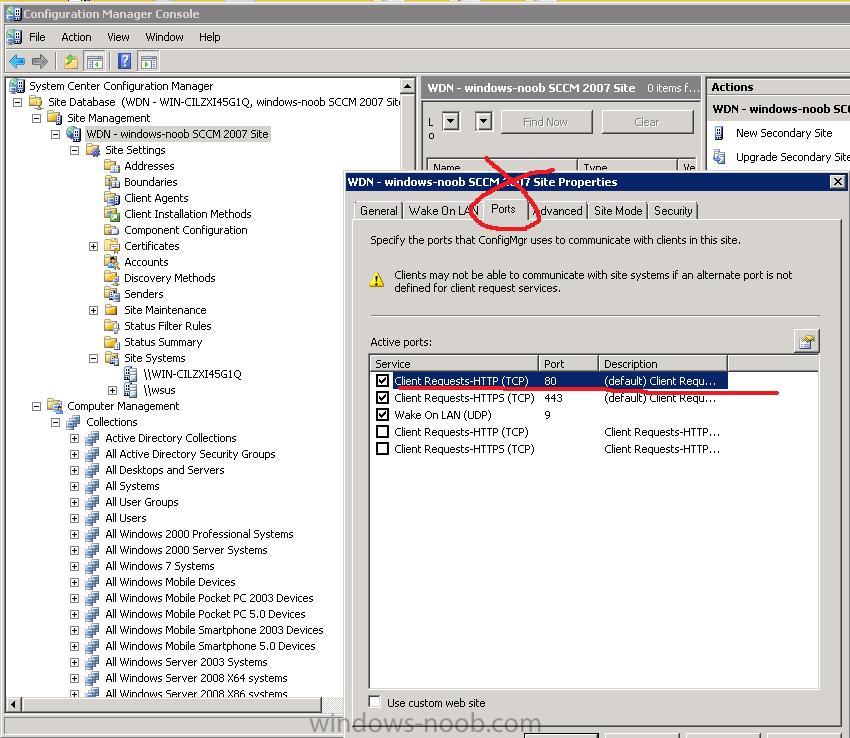
the port is defined when you install SCCM as in this screenshot if you want to change it, then go into site settings and right click, choose properties, then ports as below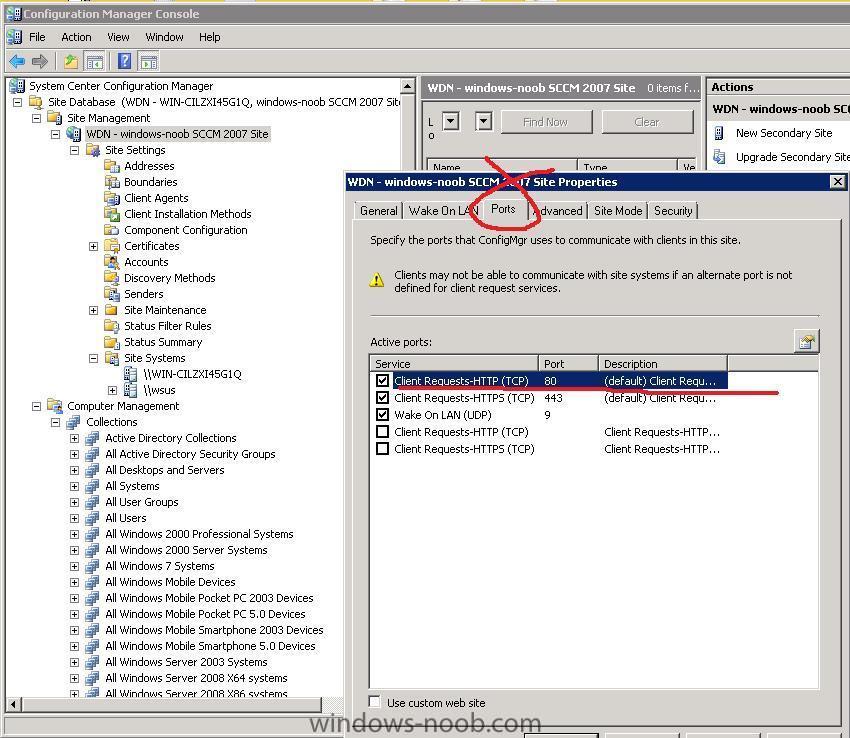
-
hi all the site will change look and feel very very soon, to get an idea of what it will look like then please browse it's sister site linux-noob.com cheers anyweb
- 1 reply
-
- 1
-

-
client push install with Non-Default IIS port
anyweb replied to High Tower's topic in Configuration Manager 2007
where on your sccm server did you define it for port 200 ? -
client push install with Non-Default IIS port
anyweb replied to High Tower's topic in Configuration Manager 2007
i need more info about your setup, server os etc -
Package Advertisements
anyweb replied to thepede's question in Deploy software, applications and drivers
in your site settings, client agents, what is your Policy Polling Interval (minutes) set to ? it's listed under Computer Client Agent -
Package Advertisements
anyweb replied to thepede's question in Deploy software, applications and drivers
and if you manually do the action i just said on the client, how long does it take ? -
how can I deploy Windows Server 2008 using SCCM 2007 - 3 Part Guide
anyweb replied to anyweb's question in Deploy Server 2008
where did you create the cd ? I assume that you created it on the other primary server or within that boundary, or not ? -
Package Advertisements
anyweb replied to thepede's question in Deploy software, applications and drivers
if you initiate a Machine Policy Retrieval and Evaluation Cycle, then it should speed up the process considerably, how long is it taking from you creating an advertisement to a client seeing it ? -
whatever you can see in unattend.xml or sysprep.inf should be able to be substituted as a collection variable as long as you do a Gather (ztigather) beforehand and Configure (zticonfigure) afterwards both scripts are part of the Microsoft Deployment Toolkit and already present in a standard MDT task sequence start your testing by doing TimeZone first, then when you have it working, expand by adding one more variable at a time, here are the values for timezone by the way (scroll down) http://technet.microsoft.com/en-us/library/cc772783.aspx cheers anyweb
-
Deployment of software not working?
anyweb replied to deconinckg's question in Deploy software, applications and drivers
on the client side verify (for testing) that the firewall is off. on the client side do an nslookup test to verify that there are NO dns issues on the server side verify in ConfigMgr all systems collection that the client you are trying to push software to is listed as Client=Yes and Approved=Yes cheers anyweb -
i'm available on msn messenger and gmail, just add me and we'll talk about it, i think it's the quickest way forward for you anyweb AT ....hotmail.com
-
take a look at this post, but it looks like you are going about things the wrong way http://isatechie.blogspot.com/2009/05/how-...site-child.html did you format the server completely ?
-
try adding your settings to Collection Variables instead, much easier to manage, for example create a collection variable called TimeZone and give it a value of 110 then do a deployment and watch what the timezone ends up being set to cheers anyweb
-
hi, do you have any computer that is connected to the router that i can remotely connect to ?
-
if i was you and I had the problems you now have, I would start from scratch and build a new SCCM server and rebuild the packages, collections and push out the client software to the clients, it will take time but then you will be totally in control of it all, right now you are in control of a mess that doesn't work if you decide to reinstall using the same site code then take a look at this
-
The geek world might be all over Windows 7, and the rest of the world might be sticking to Windows XP for now, but there is also this Windows Vista operating system lingering around. Microsoft has just released the final version of the second service pack for Windows Vista and Windows Server 2008. Fixes > http://technet.microsoft.com/en-us/library...036(WS.10).aspx For Windows Server 2008 customers, there's also a list of improvements. Hyper-V will now be a part of Windows Server 2008, instead of it being a separate download, turning it into a "fully integrated feature", " including one free instance with Windows Server 2008 Standard, four free instances with Windows Server 2008 Enterprise and an unlimited number of free instances with Windows Server 2008 Datacenter." Other changes include improvements in WebDAV, power management, and more. The service pack comes in a single package which will work on both Windows Vista and Server 2008. There's a 32bit version and a 64bit version. Note that SP1 is a pre-requisite before installing SP2 (SP1 came integrated on Server 2008). In addition, people who used vLite to alter their base Windows installation may not be able to install Service Pack 2 because required components may have been removed. There's a "workaround": happy re-installing. via > http://www.osnews.com/story/21559/Windows_...08_SP2_Released
-
Product Key Problems
anyweb replied to theozmanbo's question in Deploying Windows 10, Windows 8.1, Windows 7 and more...
yeah my dell oem vista installs just fine on Dells and they are activated straight away, no need to even enter a key, so are you deploying on Dell's which came out AFTER vista shipped or before ? -
i have the same problem with Virtual Server 2005 r2sp1 on my home lab server (Windows 2008 ent), but its only for the pxe boot section, everything else is fine so i live with it, i don't have any virtual extensions in my CPU so I'm not using hyperv .... could be that, or could be something else, so i hope we find out why, this only applies to my VIRTUAL clients, if I boot a real computer to the same server it PXE boots just fine do you have any virtual support in your CPU ?
-
Deploy XP SP3 Network Installation with SCCM SP1
anyweb replied to High Tower's question in Deploy XP
hi Service Pack 3 is not an OS therefore you cannot deploy it as an operating system, you need to deploy it as a standard application so you'll need to first create a Package for SP3, then create a Program, the Program should point to the EXE file and should contain the Switches required to install the service pack, for example WindowsXP-KB936929-SP3-x86-ENU /quiet /forcerestart /forceappsclose /d:c:\temp\sp3 /log:c:\temp\sp3\xpsp3.log then advertise the package to a test group of XP computers, good luck -
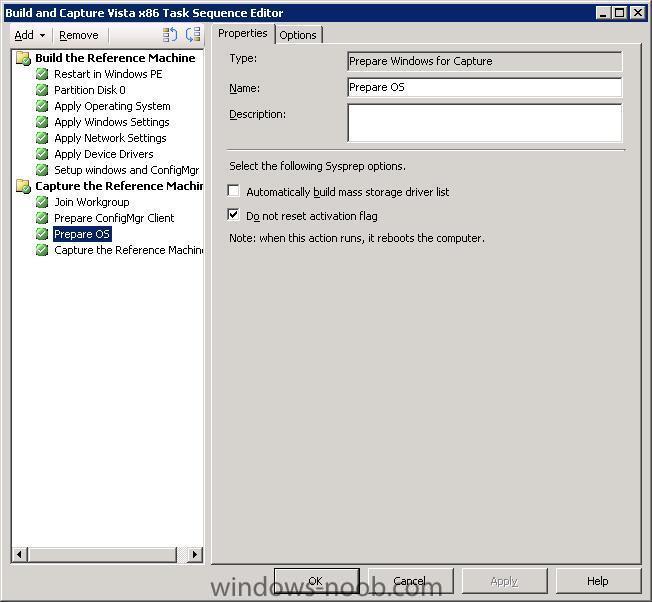
from your log above which sounds like you have booted the system using windows PE instead of running this part of the task sequence within windows...
-
be the first to post about it here, try and see how far you get
-
how can I target applications to specific hardware
anyweb replied to anyweb's question in Deploy software, applications and drivers
feel free to start a new topic explaining how you did it with screenshots :-) -
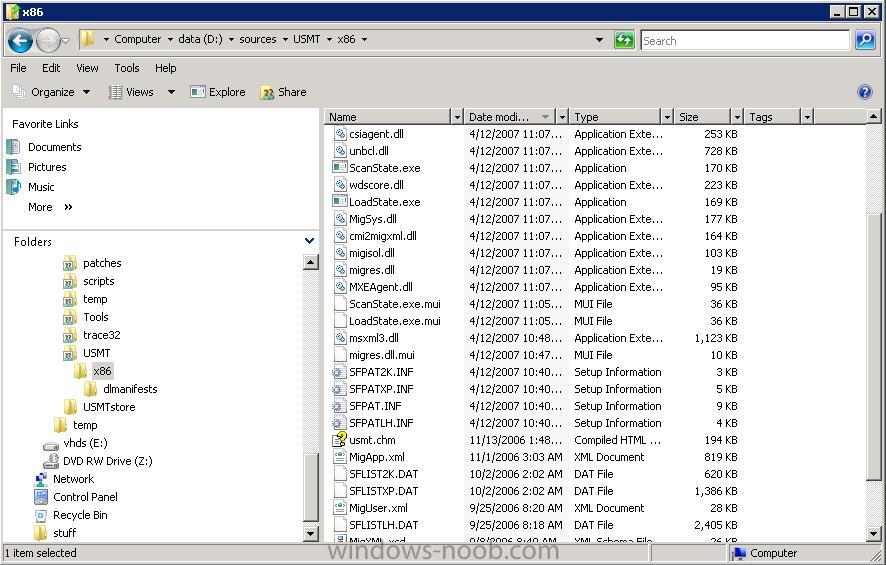
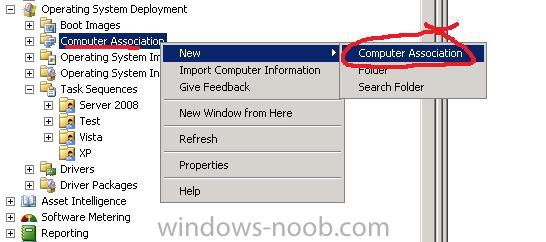
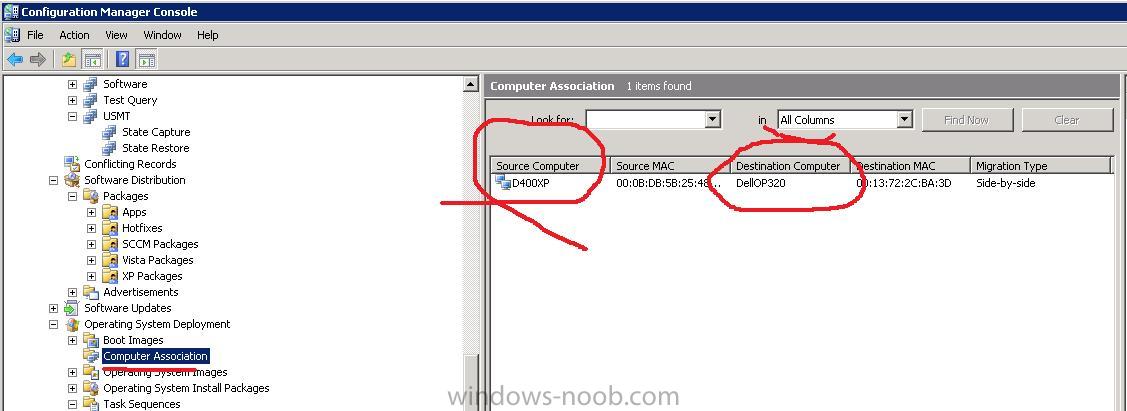
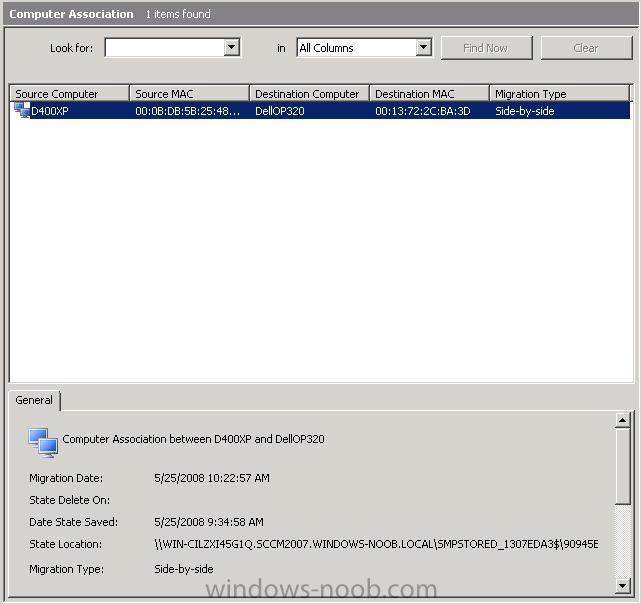
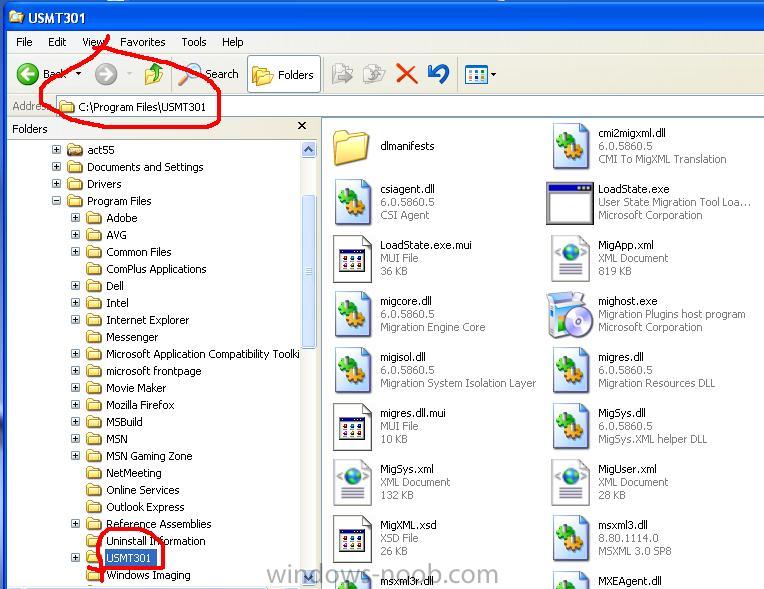
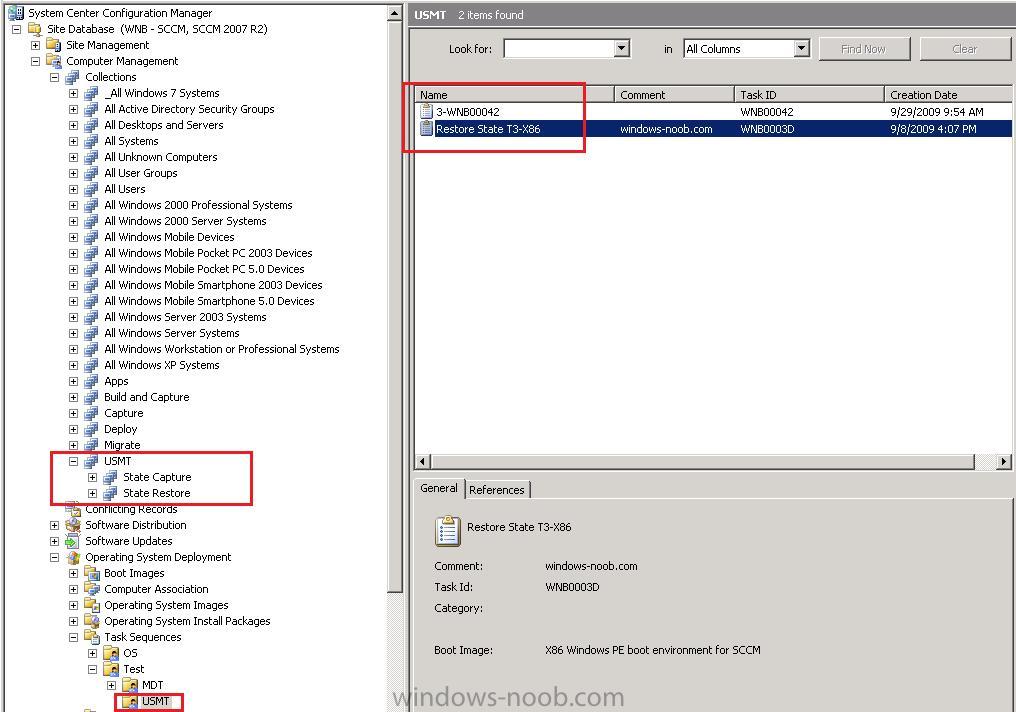
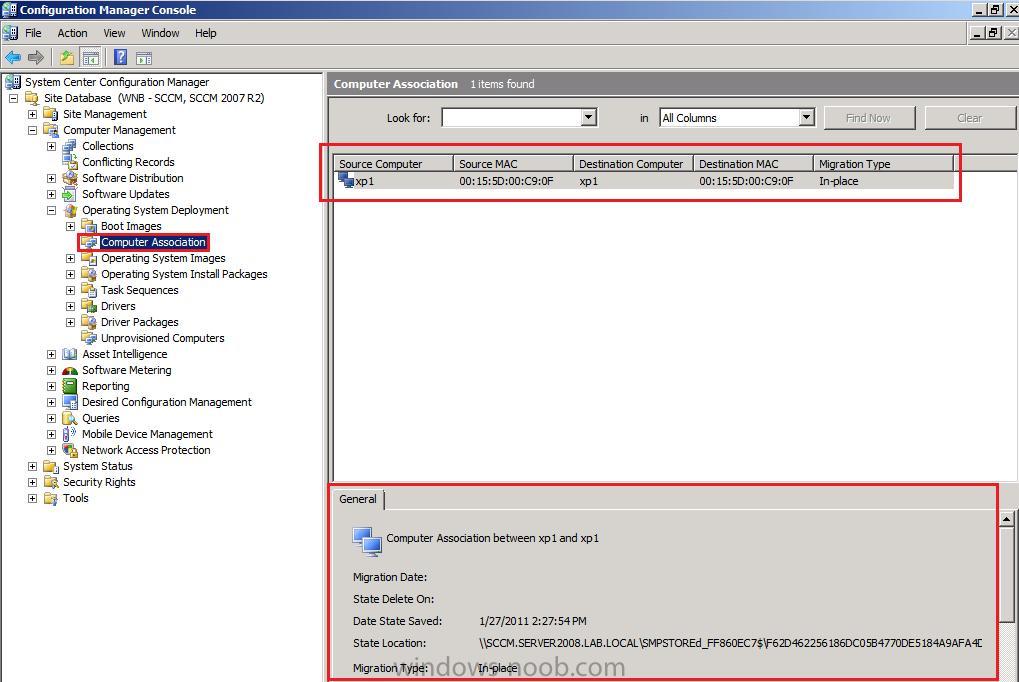
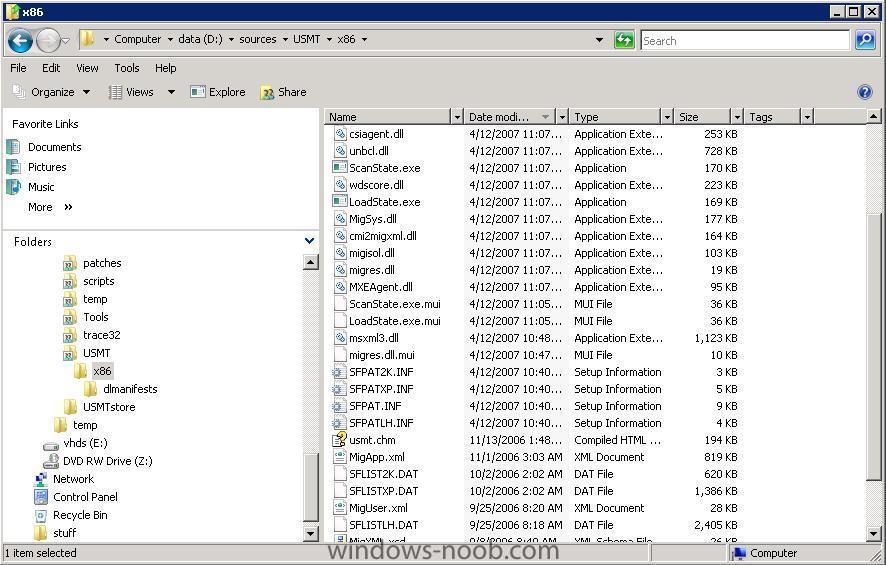
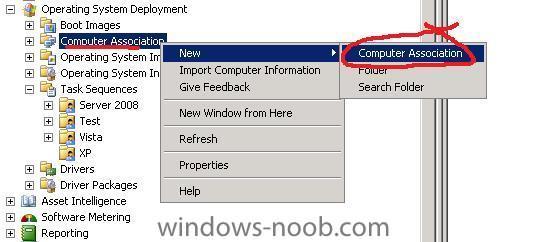
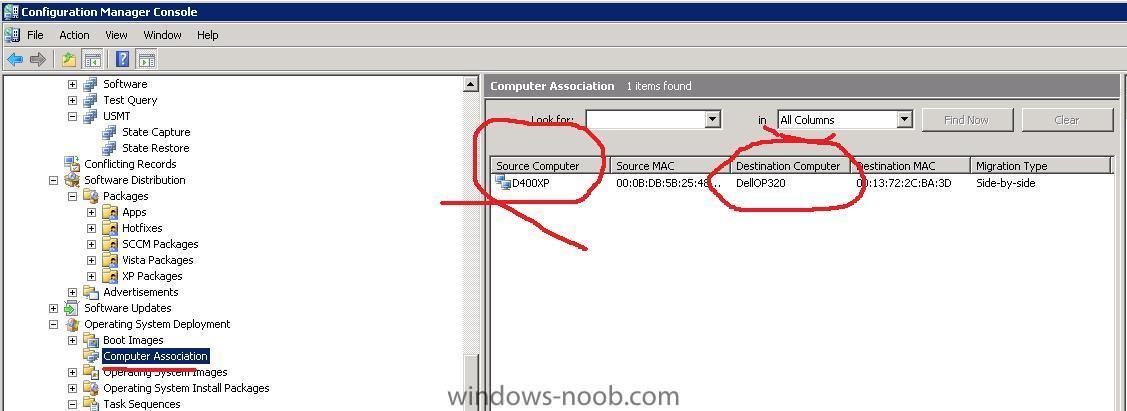
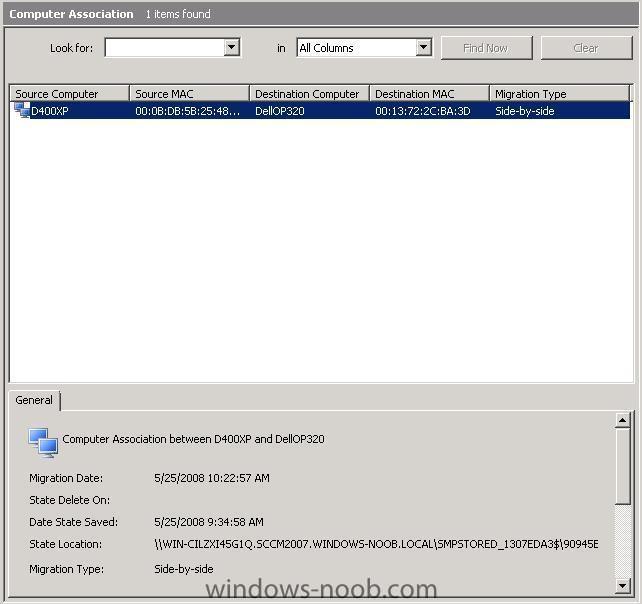
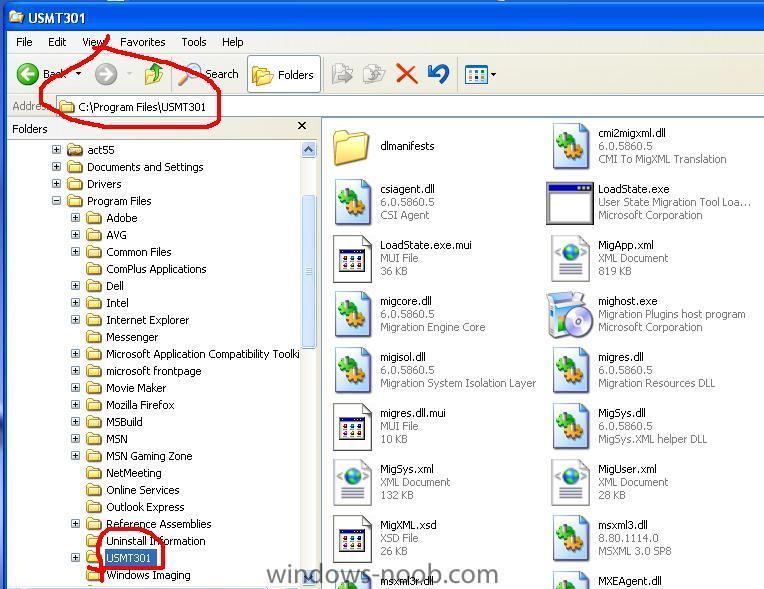
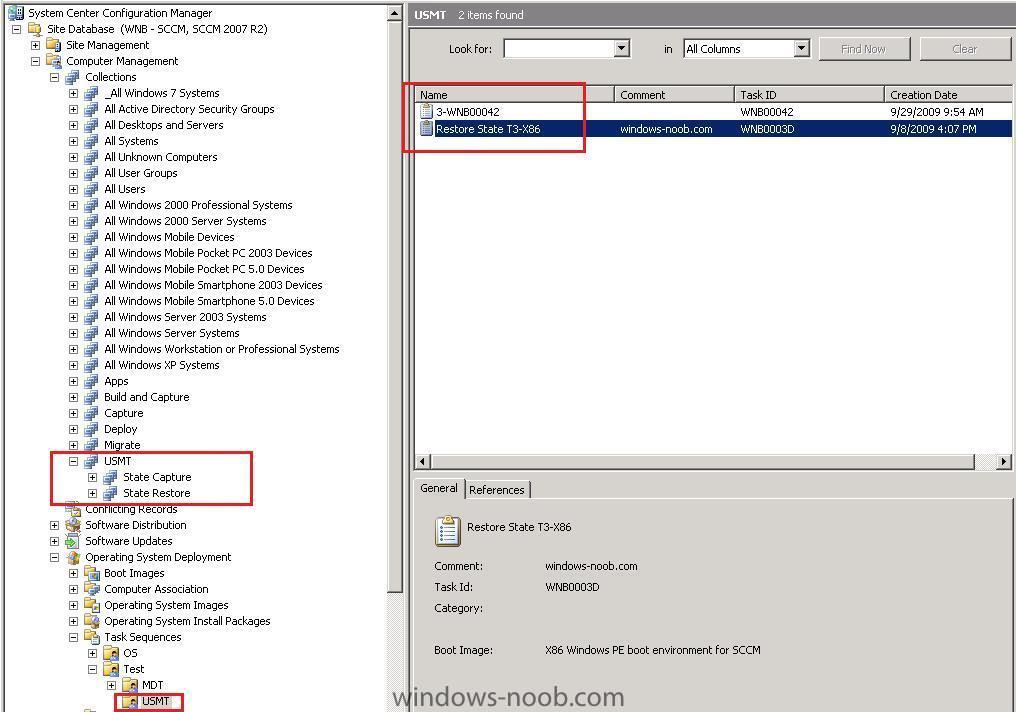
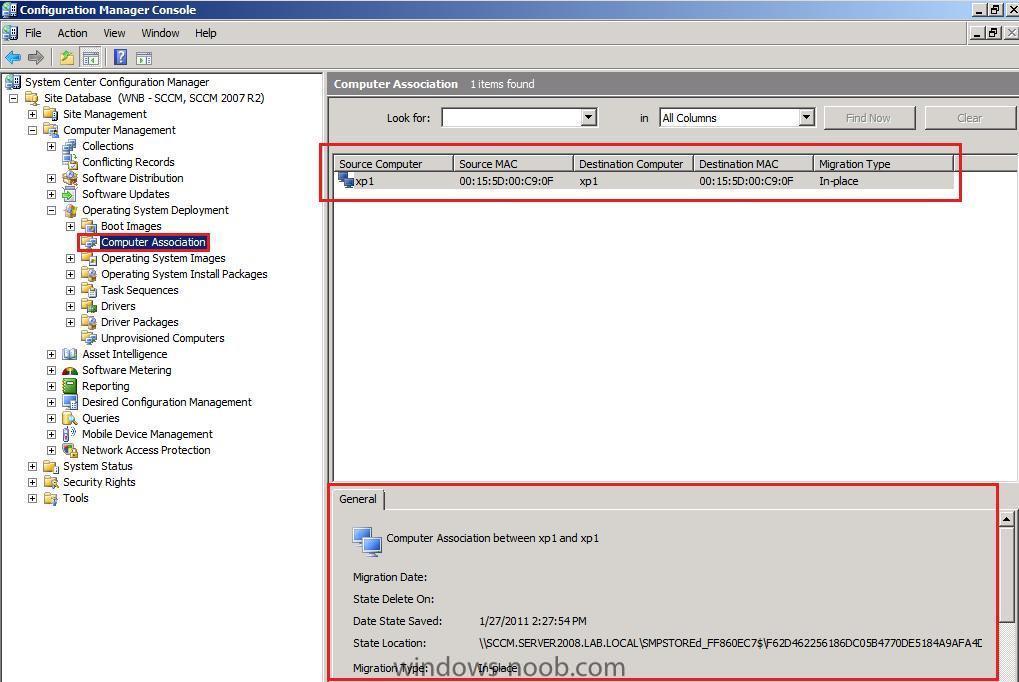
How can I use USMT 3.0.1 in SCCM ? First download USMT from here http://www.microsoft.com/downloads/details...;DisplayLang=en * run the downloaded MSI by double clicking on InstallUSMT301_x86.msi, accept all defaults. Note: You need to install USMT on an XP client computer (you cannot install it on Windows Server) * create a share on your SCCM server called USMT * copy the entire USMT program files to your sccm server, eg: copy all files and folders within C:\Program Files\USMT301 from your XP computer to your SCCM server, create a package in SCCM called USMT 3.01 and point it to the folder you created on the server eg: \\server\source\usmt\x86 The USMT package does not need a program. you can then use that USMT package within Task Sequences to capture or restore the users state In the Operating System Deployment node, right click on Computer Association and create a new association between your Source and Destination pc's, once the association has been setup you can utilise your Task Sequence to do a State Capture or State Restore. You can view your active Computer Associations, by clicking on Computer Association, in the right pane, if you select an association, you can get Migrations details including when the State was captured, when the state was Restored and when the data will be deleted. Testing USMT When I test USMT with a SMP I separate the scanstate (capture) and loadstate (restore) sections of a task sequence into two separate task sequences targetted to two separate collections Steps in the Task Sequence You can create two separate task sequences to test Capture user state and Restore User State as below:- Capture State Task Sequence 1. Request State Store 2. Capture User State 3. Release State Store (without this you may get an error of 0x80004005) Restore StateTask Sequence 1. Restart the Computer step (use currently installed Operating System) 2. Request State Store 3. Restore User State 4. Release State Store that way i can quickly test usmt state capture and usmt state restore, you'll find that 9 times out of 10 your failures will be in the scanstate section and reading the scanstate.log and scanstateprogress.log files will assist you greatly. (Don't forget to Enable Verbose logging in the Task Sequence Capture User State step). Side-by-Side versus In-place SCCM Operating System Deployment supports the following scenarios: - New Machine (previously called New Computer) - Wipe-and-Load (previously called Refresh) - This is where users keep there existing hardware - Side-by-side (previously called Replace) - In-place migration Side-by-side You can initiate a Side-by-side migration by associating your source and destination computers and PXE booting the source, In-place To get an In-place migration, simply advertise your OSD Task Sequence to a computer while Windows is running, ie: do not PXE boot the computer, it will start the Task Sequence (or you start it in RAP) and automagically and your USMT status will be registered as In-place. Note that the details won't appear in the Computer Association pane immediatly, you can actually browse your SMP (state migration point) in Windows Explorer and see the data coming in, shortly after that, the association will be listed in the computer association node... Custom XML Examples Migrating the My Videos Folder The following is a custom .xml file named CustomFile.xml that migrates My Videos for all users, if the folder exists on the source computer. <?xml version="1.0" encoding="UTF-8"?> <migration urlid="http://www.microsoft.com/migration/1.0/migxmlext/CustomFile"> <component type="Documents" context="User"> <displayName>My Video</displayName> <role role="Data"> <detects> <detect> <condition>MigXmlHelper.DoesObjectExist("File","%CSIDL_MYVIDEO%")</condition> </detect> </detects> <rules> <include filter='MigXmlHelper.IgnoreIrrelevantLinks()'> <objectSet> <pattern type="File">%CSIDL_MYVIDEO%\* [*]</pattern> </objectSet> </include> </rules> </role> </component> </migration> Migrating Files and Registry Keys This table describes the behavior in the following example .xml file. <migration urlid="http://www.microsoft.com/migration/1.0/migxmlext/testfilemig"> <component type="Application" context="System"> <displayName>File Migration Test</displayName> <role role="Data"> <rules context="System"> <include> <objectSet> <pattern type="File">%ProgramFiles%\USMTTestFolder\* [uSMTTestFile.txt]</pattern><pattern type="File">%ProgramFiles%\USMTDIRTestFolder\* [*]</pattern> </objectSet> </include> </rules> </role> </component> <component type="System"> <displayName>Registry Migration Test</displayName> <role role="Settings"> <rules context="UserAndSystem"> <include> <objectSet> <pattern type="Registry">HKCU\Software\USMTTESTKEY\* [MyKey]</pattern> <pattern type="Registry">HKLM\Software\USMTTESTKEY\* [*]</pattern> </objectSet> </include> </rules> </role> </component> </migration> Migrating Specific Folders from Various Locations The behavior for this custom .xml file is described within the <displayName> tags in the code. <migration urlid="http://www.microsoft.com/migration/1.0/migxmlext/test"> <component type="Documents" context="System"> <displayName>Component to migrate all Engineering Drafts subfolders without documents in this folder </displayName> <role role="Data"> <rules> <include> <objectSet> <pattern type="File"> C:\EngineeringDrafts\* [*]</pattern> </objectSet> </include> <exclude> <objectSet> <pattern type="File"> C:\EngineeringDrafts\ [*]</pattern> </objectSet> </exclude> </rules> </role> </component> <component type="Documents" context="System"> <displayName>Component to migrate all user documents except Sample.doc</displayName> <role role="Data"> <rules> <include> <objectSet> <pattern type="File"> C:\UserDocuments\* [*]</pattern> </objectSet> </include> <exclude> <objectSet> <pattern type="File"> C:\UserDocuments\ [sample.doc]</pattern> </objectSet> </exclude> </rules> </role> </component> <component type="Documents" context="System"> <displayName>Component to migrate all Requests folders on any drive on the computer </displayName> <role role="Data"> <rules> <include> <objectSet> <script>MigXmlHelper.GenerateDrivePatterns ("\Requests\* [*] ", "Fixed")</script> <script>MigXmlHelper.GenerateDrivePatterns ("*\Requests\* [*] ", "Fixed")</script> </objectSet> </include> </rules> </role> </component> <component type="Documents" context="System"> <displayName>Component to migrate all Presentations folder from any location on the C: drive </displayName> <role role="Data"> <rules> <include> <objectSet> <pattern type="File"> C:\*\Presentations\* [*]</pattern> <pattern type="File"> C:\Presentations\* [*]</pattern> </objectSet> </include> </rules> </role> </component> </migration> The above is via Technet Here is a list of the CSIDL (constant special item ID list) values and here is how USMT uses them. LoadState is slow ? If you are finding that the loadstate process is slow, make sure to enable verbose logging and verify if the miguser.xml file to include additional items for backuphas been modified, if it has verify that the conte4xt is set to User and not System eg: <!-- This component migrates Outlook PST Files --> <component type="Documents" context="System"> change to <!-- This component migrates Outlook PST Files --> <component type="Documents" context="User">
-
How does USMT store user state? Although there are a few different formats that one can choose from, we call all of them a "migration store." The different formats are as follows: Uncompressed migration store: choosing this format produces a containing a .dat file containing all files selected for the migration. Settings and other information are stored in an additional .mig file. Compressed migration store: choosing this format produces a directory containing a single compressed file containing all files and settings included in the migration. This file has a .mig extension and cannot be opened without USMT. Compressed and encrypted migration store: choosing this format results in the same experience as the compressed migration store, however the file is also encrypted with the provided key string. Below are the Scanstate command line options needed to select the above Migration Stores. Storage options StorePath Indicates a folder where to save the files and settings (for example, StorePath cannot be c:\). You must specify StorePath on the ScanState command line except when using the /genconfig option. You cannot specify more than one StorePath. /o Overwrites any existing data in the store. If not specified, ScanState will fail if the store already contains data. You cannot specify this option more than once on a command line. /encrypt /key:KeyString or /encrypt /key:"Key String" or /encrypt /keyfile:[Path\]FileName Encrypts the store with the specified key (password). Encryption is disabled by default. With this option, you will need to specify the encryption key with one of the following ways: /key:KeyString specifies the encryption key. If there is a space in KeyString, you will need to surround it in quotes. /keyfile:FilePathAndName specifies a .txt file that contains the encryption key We recommend that KeyString be at least 8 characters long, but it cannot exceed 256 characters. /key and /keyfile cannot be used on the same command line. /encrypt and /nocompress cannot be used on the same command line. Important You should use extreme caution with this option because anyone that has access to the ScanState command line script will also have access to the encryption key. For example: scanstate /i:miguser.xml /i:migapp.xml \\fileserver\migration\mystore /encrypt /key:mykey /nocompress Disables compression of data and saves the files to a hidden folder named "File" at StorePath\USMT3. Compression is enabled by default. You can use the uncompressed store to view what USMT stored, troubleshoot a problem or you can run an antivirus utility against the files. You should only use this option in testing environments because we recommend that you use a compressed store during your actual migration. /nocompress and /encrypt can not be used on the same command line. However, if you do choose to migrate an uncompressed store, LoadState will migrate each file directly from the store to the correct location on the destination computer — without a temporary location. For example: scanstate /i:miguser.xml /i:migapp.xml \\fileserver\migration\mystore /nocompress
-
Windows 7 Starter Edition, a sort of My First Operating System, always carried with it a massive braindead bug feature that limited the amount of applications you could simultaniously have open at just three. Yes, past tense, because someone over in Redmond apparently looked up and smelled the roses, and suggested removing this silly limitation. And so they did, according to Paul Thurrot. via > http://www.osnews.com/story/21547/Microsof...Three_App_Limit