
anyweb
-
Posts
9277 -
Joined
-
Last visited
-
Days Won
371
Everything posted by anyweb
-
 the error translates to The number of round trips to the server exceeded the maximum limit. Source: Windows Update Agent ----- i'd suggest you patch the wim file with offline updates (offline servicing) monthly to avoid having to install the million or so updates available to Windows 7 during deployment
 -
what updates did you add via offline servicing ?
-
Clear Required PXE deployments Not Working - SCCM 2012 R2
anyweb replied to dhileep's topic in Configuration Manager 2012
have you checked if it has an obsolete record ? -
what do you see logged in smspxe.log when you try to reimage another device ?
-
Patch Tuesday happens once a month, every month, for the last number of years. But this months patch Tuesday, didn't happen because Microsoft declined to release any updates as per their blog post here. Our top priority is to provide the best possible experience for customers in maintaining and protecting their systems. This month, we discovered a last minute issue that could impact some customers and was not resolved in time for our planned updates today. After considering all options, we made the decision to delay this month’s updates. We apologize for any inconvenience caused by this change to the existing plan. MSRC The good news is patching will resume next month as normal. UPDATE: 2/15/17: We will deliver updates as part of the planned March Update Tuesday, March 14, 2017. Questions have been asked as to why the patches were delayed this month, and so far, no real answers, could it be issues with the recent 0 day SMB flaws discovered ? or is it to do with the patch build system, either way we have to wait for more info from Microsoft. cheers niall

-
Baffling PXE boot issue
anyweb replied to UltimateIdiot's topic in System Center Configuration Manager (Current Branch)
sounds like you are missing network drivers in the boot image for the hardware in question, can you press f8 and grab the smsts.log file available in x:\windows\temp\smstslog -
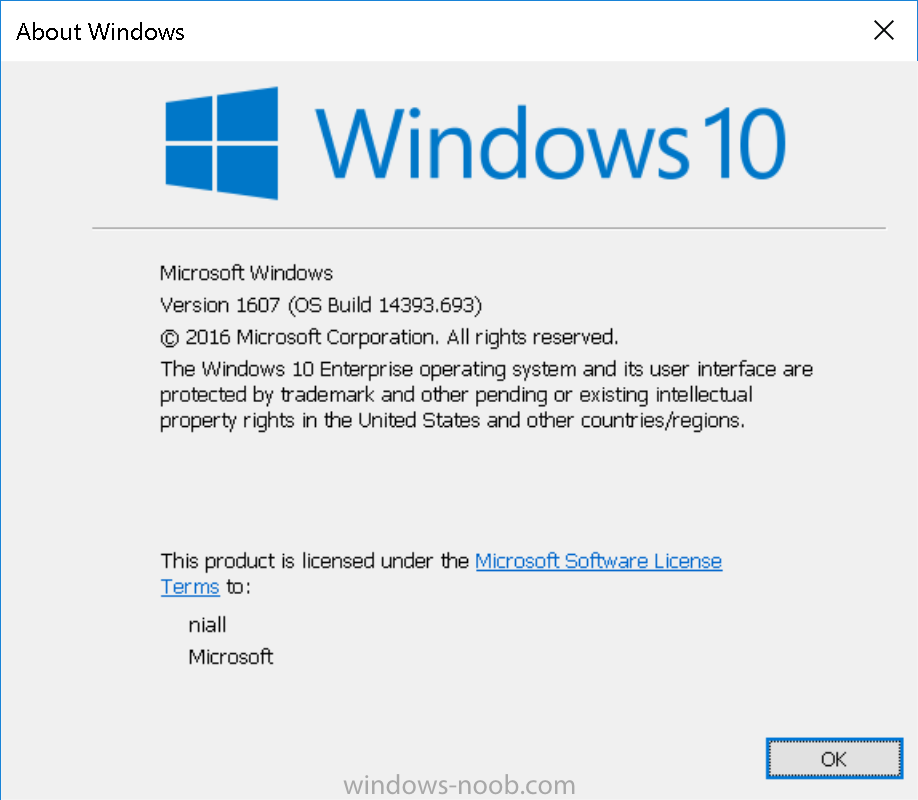
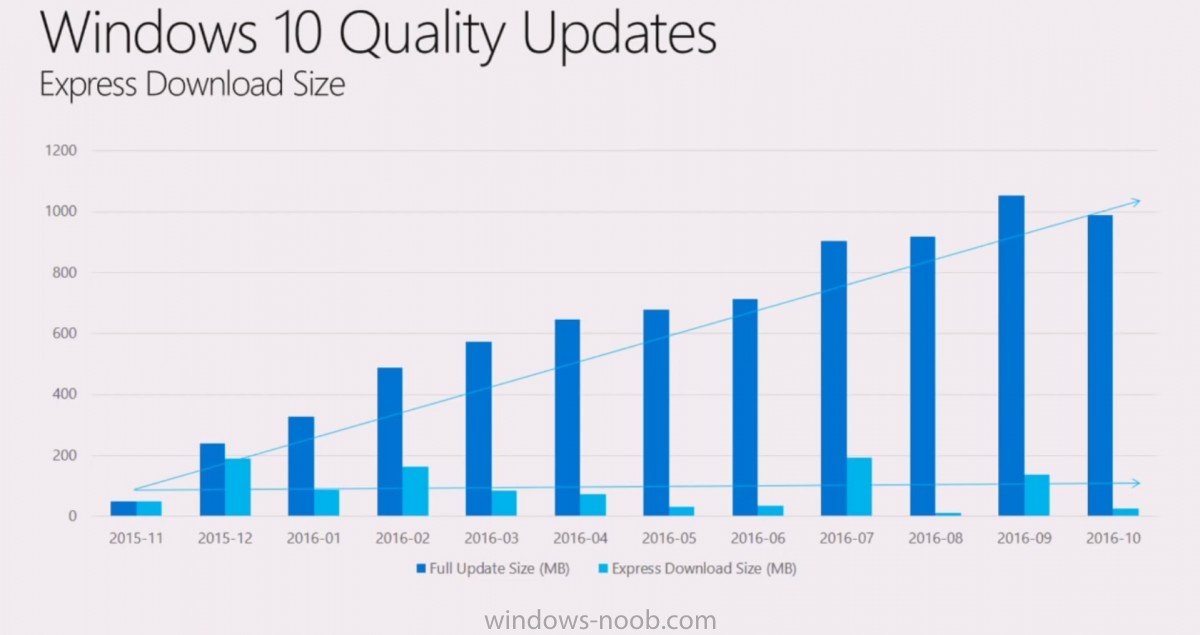
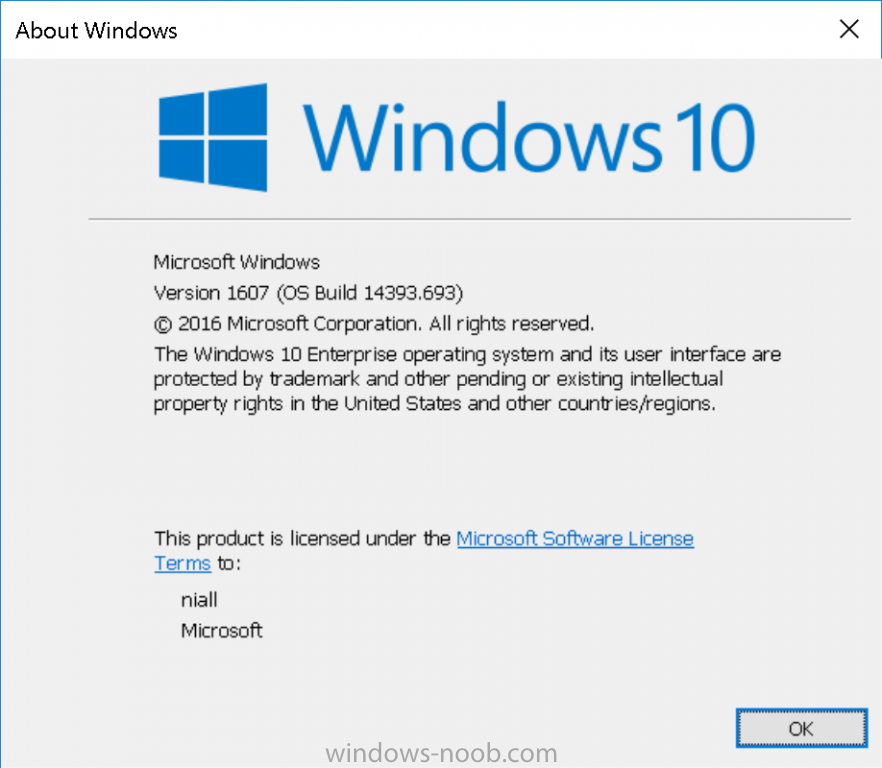
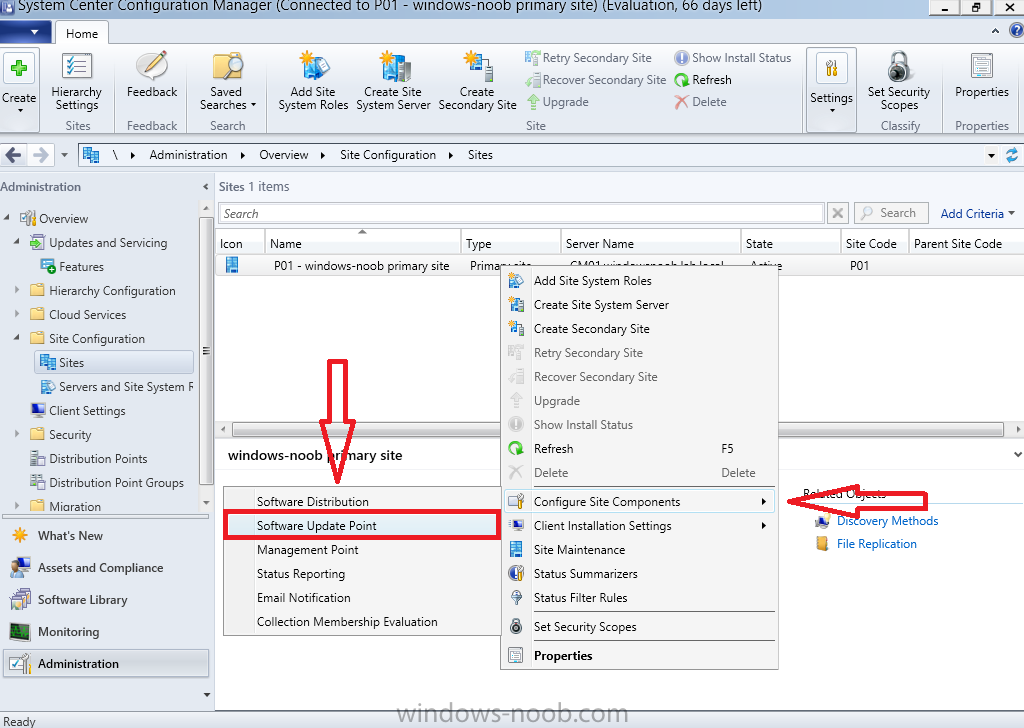
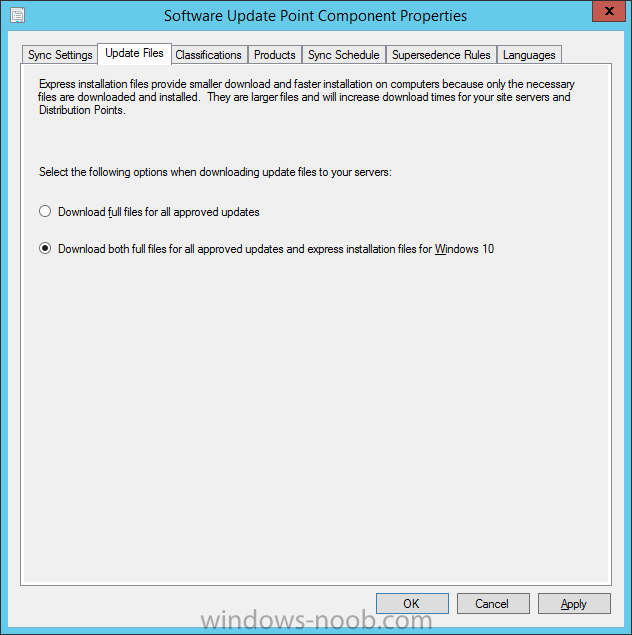
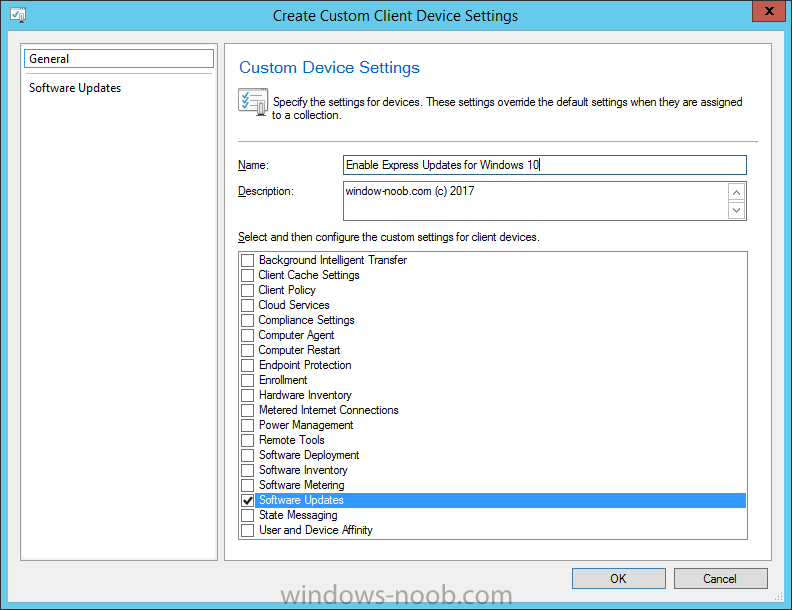
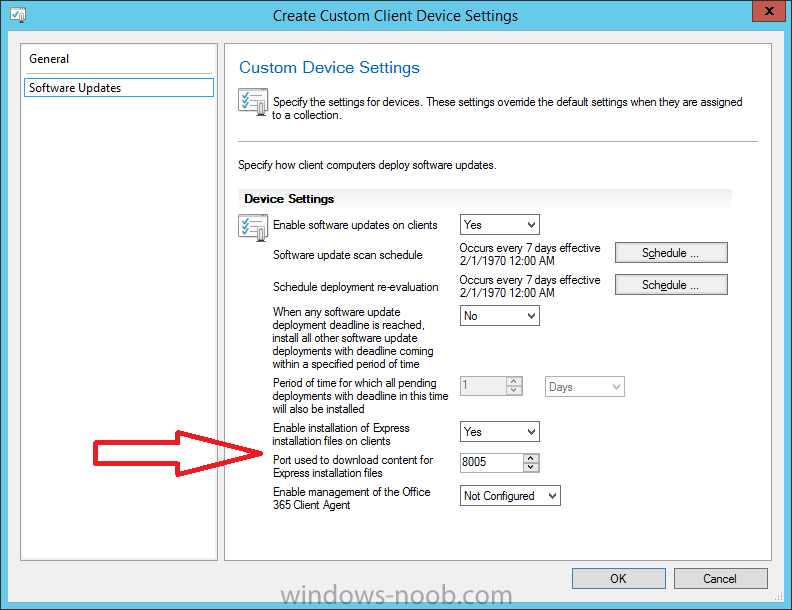
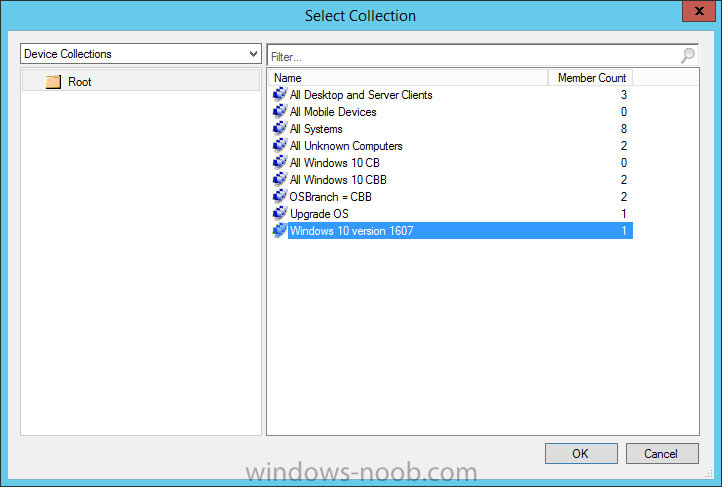
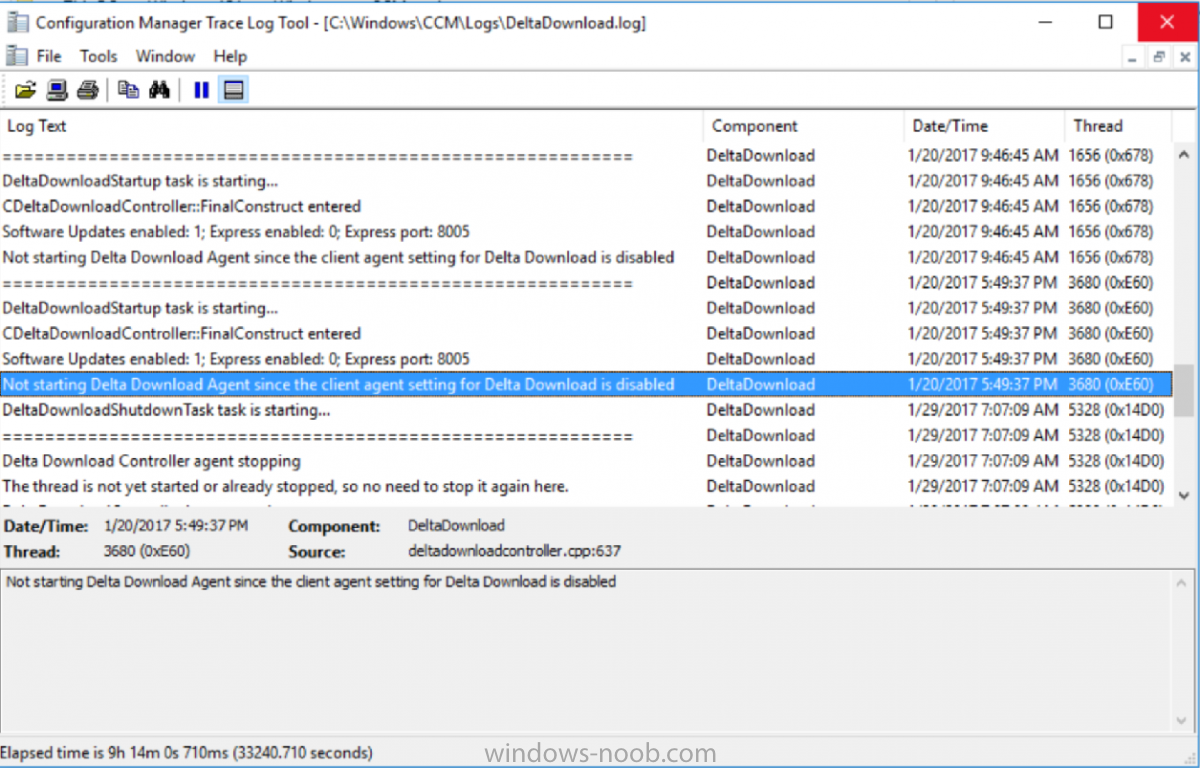
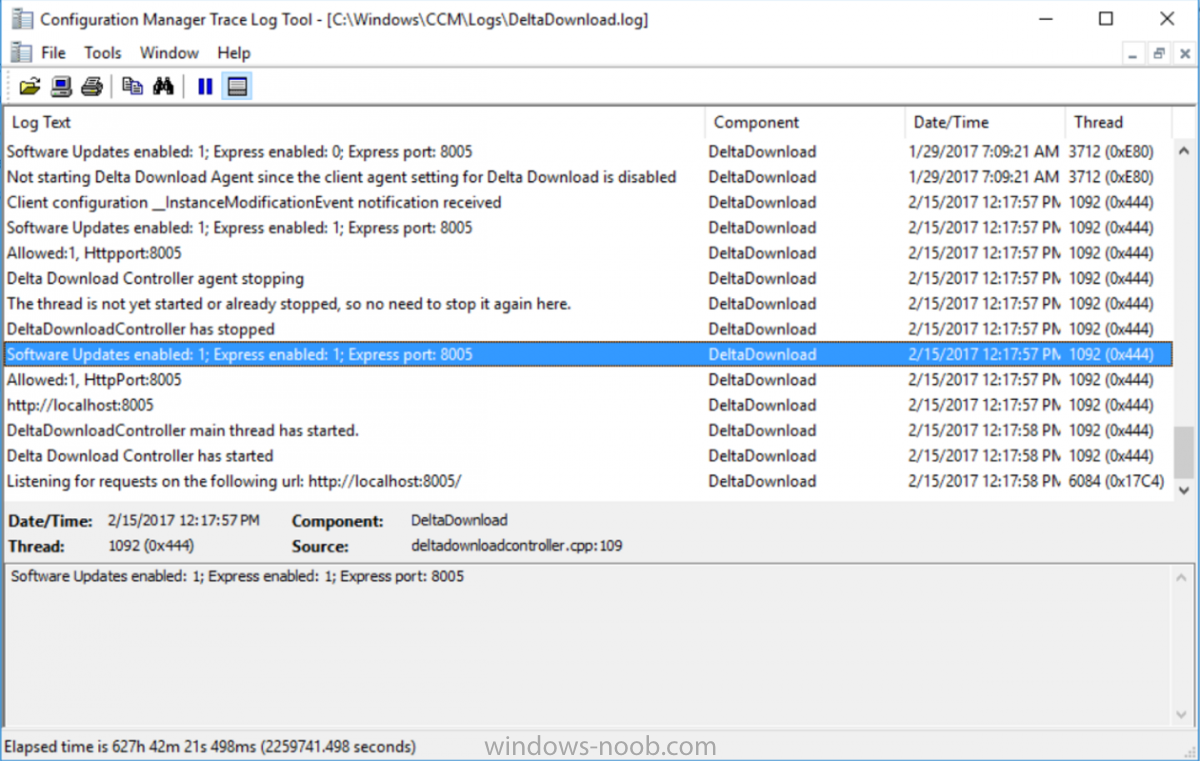
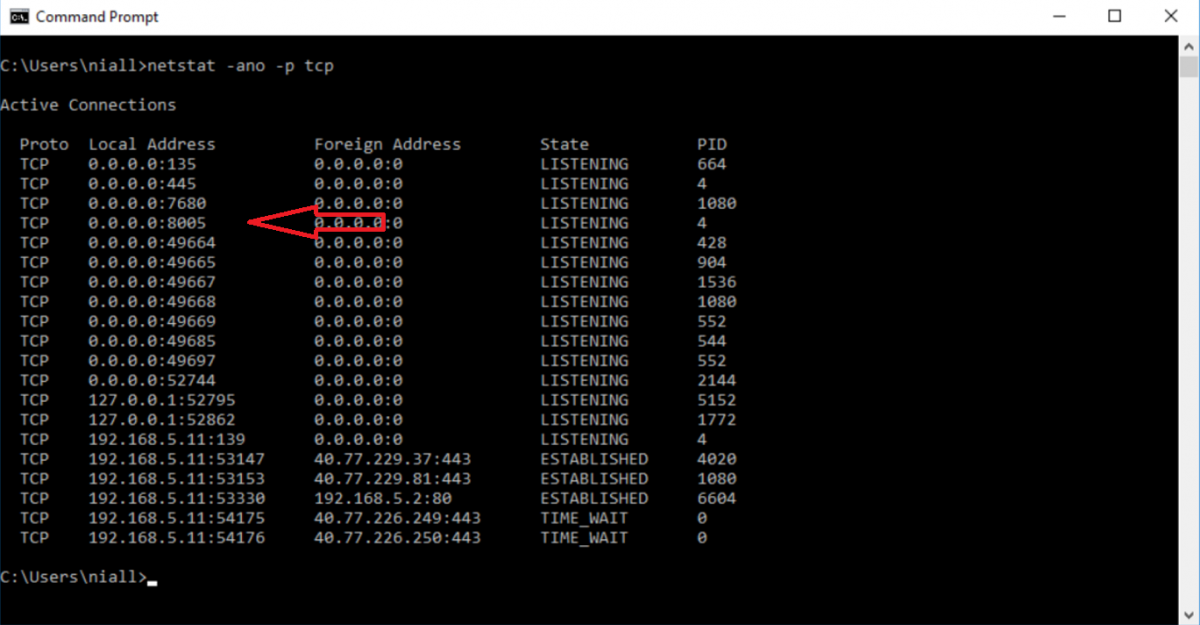
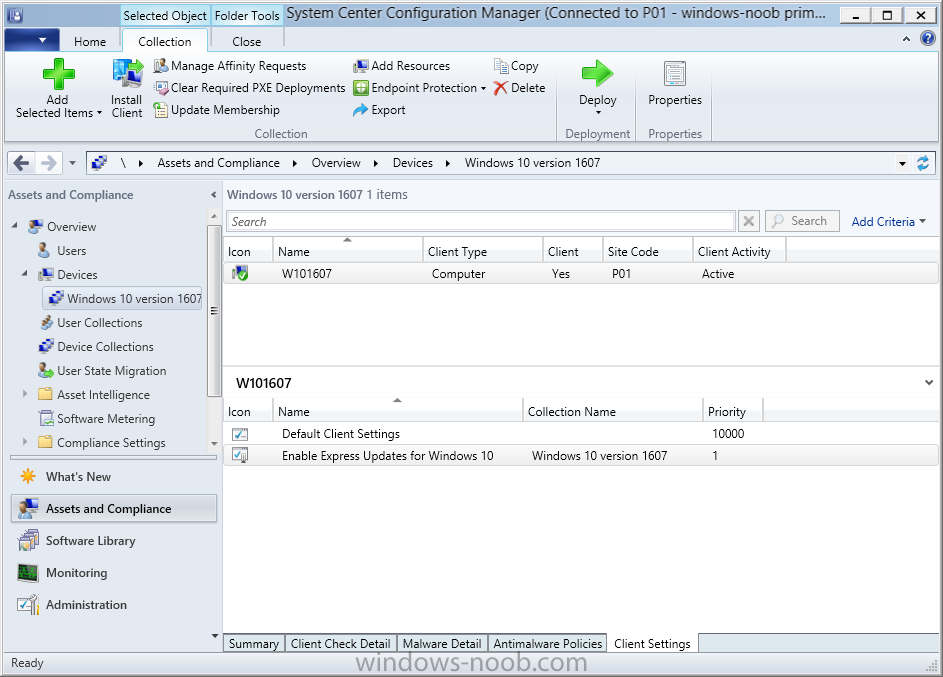
Introduction Windows 10 Enterprise first shipped in July 2015 with Windows 10 version 1507, and since then there have been 2 versions, Windows 10 version 1511 and Windows 10 version 1607. In spring of this year (2017) we will see another version of Windows 10 released (Creators Update), which will most likely be Windows 10 version 170x (the x is because I don't know what month it will release). Every version of Windows 10 needs to be patched and those patches are released monthly, as each month goes by the patches are getting bigger and as a direct result, they are slower to transfer to the clients. Express Updates versus Full Updates When Microsoft releases security patches for Windows 10 on a monthly basis (called Quality Updates), these patches are cumulative, meaning everything in the previous months patches will be included in the latest cumulative update. This patch size growth continues through the lifecyle of the Windows release until after a year or so the cumulative update package itself can be over 1GB in size. For ConfigMgr admins that's a lot of content to send to your distribution points and Window 10 clients every month. What would of course be better is if only the difference between previous months updates were distributed and that's what Express Updates facilitate.The graph above shows the difference in size between full updates and express updates. Express updates are the 'delta' or contain changed content between the current and previous releases. Enabling Express Updates support in Windows 10 version 1607 Microsoft have added the ability to use express updates in Windows 10 version 1607 (and LTSB Enterprise 2016) with the cumulative update released on patch Tuesday (January 2017 release) as detailed here. If your version of Windows 10 is later than Windows 10 version 1607 build 14393.693 you are good to go (on the client side) with express updates. Express updates from Microsoft will be released from February 14th 2017 onward. Note: If you have a previous version of Windows 10, then they will not be able to use express updates. Enabling Express Updates support in ConfigMgr The capability (for dealing with express updates) has been added to System Center Configuration Manager (Current Branch) version 1610, but it is not yet visible in the console, the GUI components will be enabled with a hotfix for ConfigMgr due to be released soon. If you want to experiment with configuring express updates in ConfigMgr today, you can do so using SCCM Technical Preview, the capability was actually added in the 1612 TP release (see here). For this guide I'll use the latest available Technical Preview release available at time of writing and that is SCCM version 1701 Technical Preview. Below are details about the addition. Express files support for Windows 10 Cumulative Update – Configuration Manager can support Windows 10 Cumulative Update using Express files. This functionality is only supported in Windows 10 version 1607 with a Windows Update Agent update included with the updates released on January 10, 2017 (Patch Tuesday). For more information see https://docs.microsoft.com/sccm/core/get-started/capabilities-in-technical-preview-1612#express-installation-files-support-for-windows-10-updates. There are two components that need to be configured in ConfigMg, client settings and the Software Update Point role settings. to configure ConfigMgr do as follows: In the Configuration Manager console, navigate to Administration > Site Configuration > Sites select your Primary site and right click, choose Configure Site Components then Software Update Point. Click on the Update Files tab and select the second option (not enabled by default) which is Download both full files for all approved updates and express installation files for Windows 10. Note: Selecting this option will allow you to use express installation files however keep in mind that those packages may become much bigger (on the server) than cumulative update packages as they contain deltas of all the cumulative updates released. This means that transferring express installation files to your distribution points may be larger than what you experience today with Cumulative Update packages, but express installation files downloaded to the client will only be small in size (the actual delta). Apply your changes and close the Software Update Point properties. Next, you need to enable Express Updates on clients and you do that via the Client Settings. In the Configuration Manager console, navigate to Administration > Client Settings and create a custom client device settings. Give it a suitable name like Enable Express Updates for Windows 10 and select the Software Updates node. Click on Software Updates in the left pane and change the option Enable installation of Express installation files on clients from No to Yes. The port beneath it is used by the ConfigMgr client agent to communicate with the distribution point (on this port) for downloading of those express files. Once done, right click and choose deploy to deploy the custom client settings to a suitable collection containing Windows 10 version 1607 computers with the January 2017 cumulative update installed. any computers in that collection will get the custom client settings as you see here Once you have applicable computers in that collection you can verify that they have the client settings applied by checking the following DeltaDownload.log log (on the client) in this location: C:\Windows\CCM\Logs\DeltaDownload.log as shown here, before receiving the client settings defined above and after receiving the client settings, look for Software updates Enabled: 1; Express Enabled: 1; Express Port: 8005 and with a simple netstat command you can see that it is listening on that port netstat -ano -p tcp That's it ! for more info about this topic see this video by Michael Niehaus. Cheers Niall.

-
use Powershell and Get-WindowsUpdate.log the upgrade logs for Windows 10 will only be present if it actually starts the upgrade and they'll be in C:\$WINDOWS.~BT\Sources\Panther look for setupact.log and setuperr.log attach them here once found. cheers niall
-
hi, what you can do is press f8 while it's deploying, and use cmtrace (or notepad) to monitor the smsts.log file available in x:\windows\temp\smstslog\smsts.log realtime to see what is working or not if you want you can attach that log here so we can see the failure, good luck and welcome to the forums !
-
so what exactly do you see on the client when you are pxe booting ?
-
SCCM2016-1606升级到1610问题
anyweb replied to radish's topic in System Center Configuration Manager (Current Branch)
any chance you can translate this into english, my chinese is not that good... -
did you use offline servicing to update the WIM file or some other method, if so what?
-
ah good stuff, glad you solved it
-
no if this is in WinPE then it's another problem so can you post your smsts.log file ?
-
are you running this in Windows ? if so the task sequence engine runs as the system account so you cannot see what it pops up, you need to use serviceUI.exe from the MDT toolkit to pop up your powershell gui this post will give you the ideas needed to get it to work
-
ive seen this happening on Windows 7 to Windows 10 upgrades, i'll see if i can find the cause... found it, if you are indeed going from Windows 7 to Windows 10 do this.. install KB2952664 before attempting to run the upgrade (on Windows 7) if you are not upgrading windows 7 then please attach the logs and more info.
-
that's an interesting result if it's true, thanks for the info
-
you can change the search criteria to only see what you want
-
they are not downloaded, look at the download column, the list of updates in the configmgr console is just an index of those that are available so no problem, you can customize the servicing plan to look for the language you want, eg: Feature update to Windows 10 Enterprise, version 1607, en-us
-
have you tried plugging it in to a different USB port ?
-
from the logs you emailed to me, here's your problem Setting the custom destination variable 'Drivers' to 'C:\_SMSTaskSequence\Packages\' it should be Drivers01 as per the blog post (step 6), read it again and follow it exactly.
-
ok those two logs don't give me enough info, the smsts.log (not the good one...) is missing most of the info we need to see the real failure, the log has probably rolled over, you need to increase the size of the smsts log file in windows.... try this.... Create a new Run Command Line action as the first action in the task sequence by clicking Add / General / Run Command Line, in the new Run Command Line action, set the name to Change CCM Logging options and then add the following command line: cmd /c REG.exe ADD "HKLM\SOFTWARE\Microsoft\CCM\Logging\@GLOBAL" /v LogLevel /t REG_DWORD /d 0 /f & cmd /c REG.exe ADD "HKLM\SOFTWARE\Microsoft\CCM\Logging\@GLOBAL" /v LogMaxHistory /t REG_DWORD /d 3 /f & cmd /c REG.exe ADD "HKLM\SOFTWARE\Microsoft\CCM\Logging\@GLOBAL" /v LogMaxSize /t REG_DWORD /d 5242880 /f do that capture the new smsts.log (or smsts*.log), email the logs to me and let's see what they tell me
-
Windows 10 Deployment (Getting stuck after OS Install)
anyweb replied to curtblunt's question in Microsoft Deployment Toolkit (MDT)
can you attach the smsts.log file please -
Introduction If your users are complaining that they cannot enroll devices or are having related issues you should do some initial troubleshooting, and one of those things you should check is the Service Health of the Microsoft Intune service to verify that the issue is not a user or configuration issue, but how do you do that ? Intune Preview health status In Intune Preview, click on any of the blades (apart from the Access Control, Manage Users and Open Classic Intune Portal blades) in the Intune dashboard, for example click on Manage Apps highlighted in red below Click on Help and Support And then click on See the current status of the service link on the right pane This will bring you to the Office 365 Service Health page, which will list the service health status of the following: Office 365 Portal Azure Identity Protection Identity Service Microsoft Intune and if any problems are detected you’ll get a report of what those problems were, in this particular case we can see there are no issues with Microsoft Intune, however the Office 365 Portal has some issues with reports. You can also click on the View History link (top right) to get more info about what’s been happening in the last 30 days. Or use the search field to search for say Microsoft Intune or click on any found Id, to get more details Note that the Intune classic portal, has a link to check for Service Health, under Admin, Overview, but it will link you back to the Office Portal as described here. Recommended reading https://blogs.technet.microsoft.com/enterprisemobility/2016/12/07/public-preview-of-intune-on-azure/ https://docs.microsoft.com/en-us/intune/whats-new/whats-new-in-microsoft-intune cheers ! niall
-
- 1
-

-
can you include the smsts.log pls