anyweb
Root Admin
-
Joined
-
Last visited
Everything posted by anyweb
-
scripts can only be downloaded from windows-noob.com by logged in members, chances are @Abnranger67x was not a logged on member when he tried to download it
-
please re-read the blog post, basically this allows you to easily let standard users (non-administrators) change (or confirm) their regional settings that are set during Windows Autopilot, this occurs AFTER Windows Autopilot is finished
-
why not try disabling DCOM hardening, > https://support.microsoft.com/en-us/topic/kb5004442-manage-changes-for-windows-dcom-server-security-feature-bypass-cve-2021-26414-f1400b52-c141-43d2-941e-37ed901c769c.
-
-
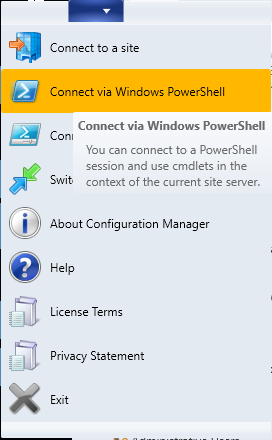
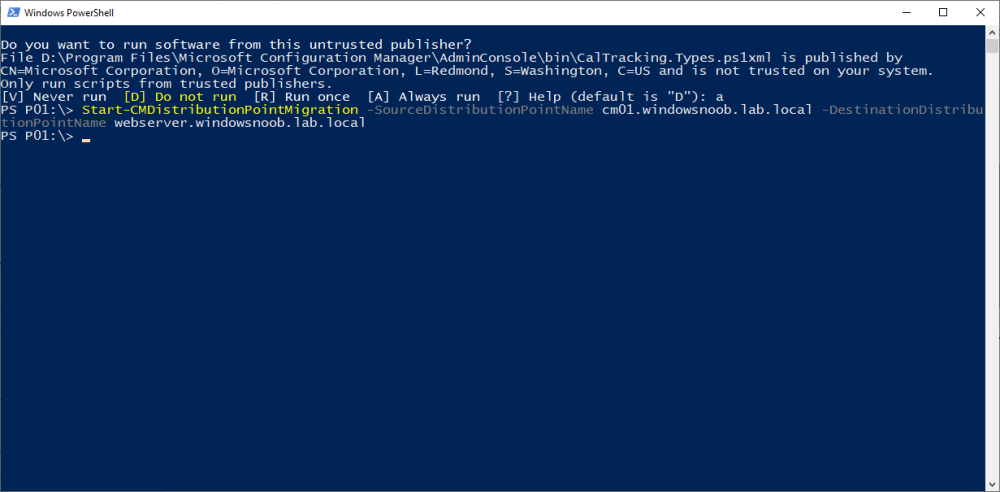
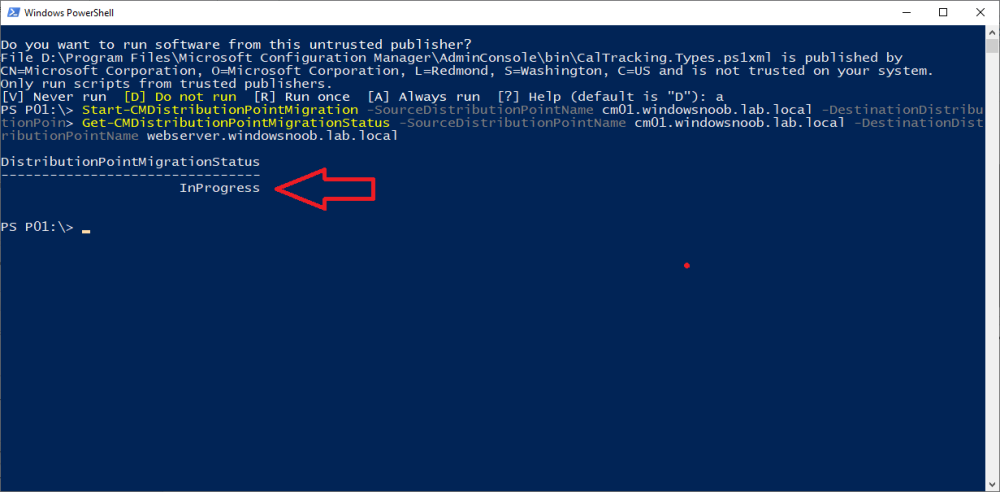
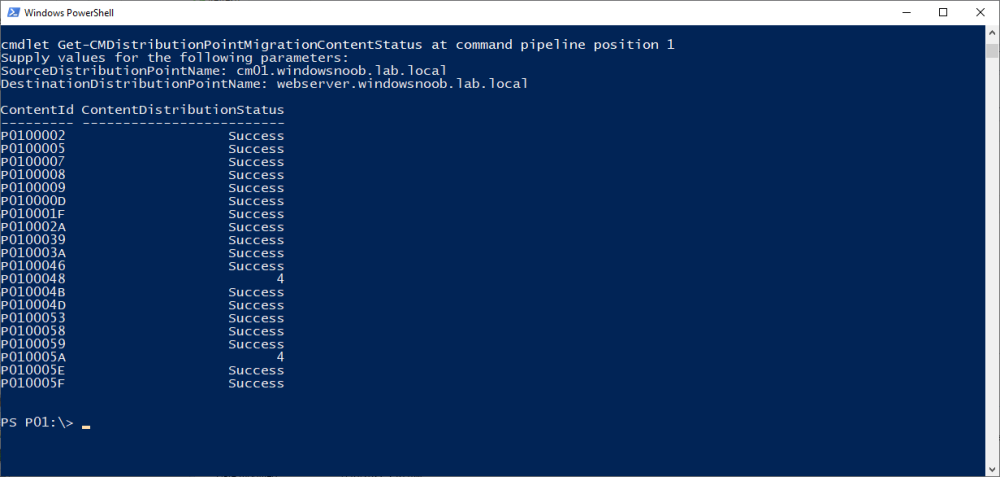
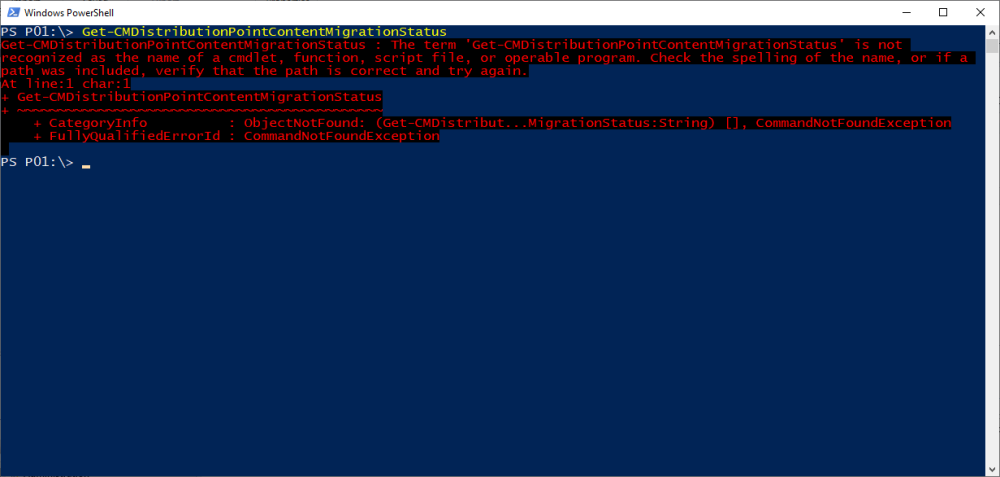
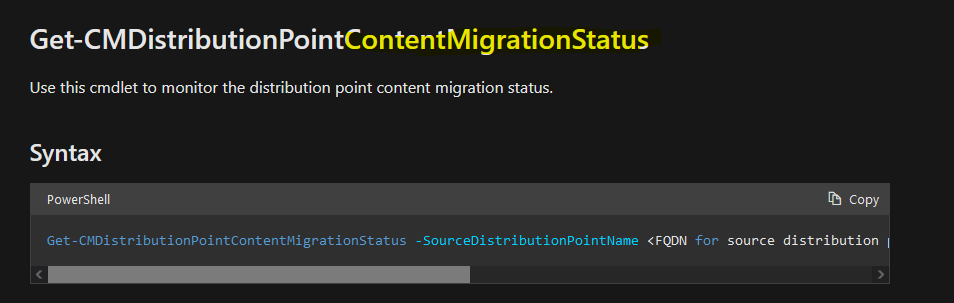
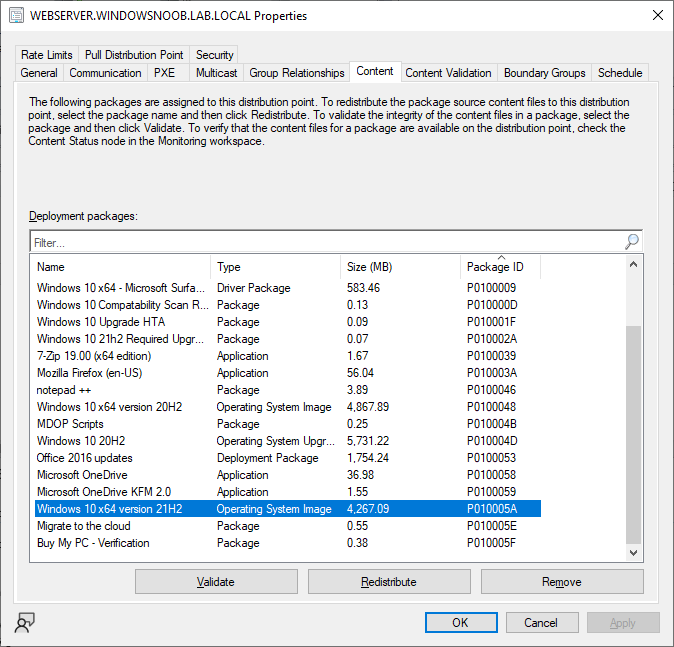
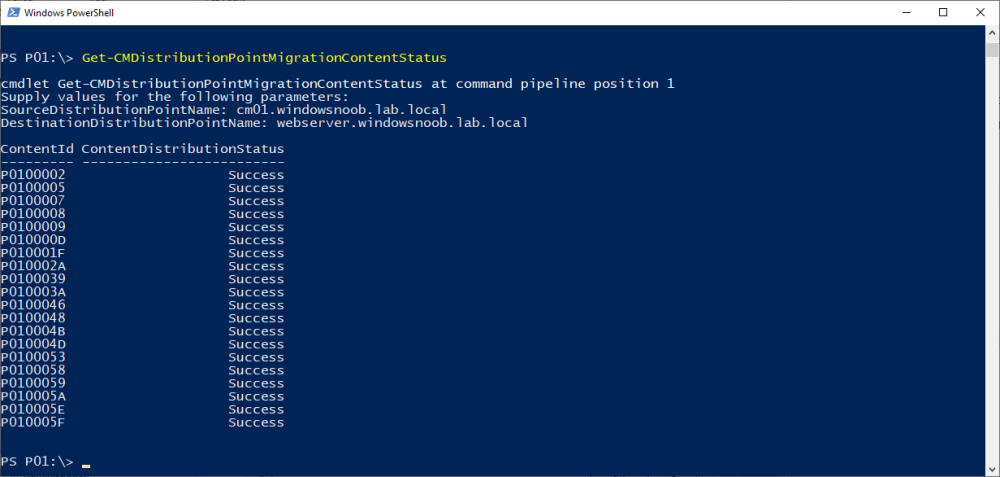
Introduction Microsoft released another Technical Preview release, this time 2207, and it has a new feature, Distribution point content migration. According to the official blog post this will come in handy when you need to migrate your distribution point content from one dp to another, in particular because of the first 2 points listed below. As I don't have either (1) or (2) I will test scenario (3). Step 1. Satisfy the prerequisites One of the prerequisites is that the user performing the migration has the "Copy to Distribution Point" permission enabled under the Distribution Point permissions. As my user account is a Full Administrator, that requirement is already met. The other requirements are listed below. If you want to deprecate the source distribution point, make sure that the source and destination distribution points have the same boundary group. The destination distribution point should be installed already and able to receive the content. Step 2. Migrate a distribution point using Powershell As the current solution does not work in the Console, we need to use Powershell to do the migration. On the Configuration Manager server, open a Powershell cmd prompt via the console, and try the following Start-CMDistributionPointMigration -SourceDistributionPointName <FQDN for source distribution point> -DestinationDistributionPointName <FQDN for destination distribution point> for example... Start-CMDistributionPointMigration -SourceDistributionPointName cm01.windowsnoob.lab.local -DestinationDistributionPointName webserver.windowsnoob.lab.local as shown here... The fact that it didn't error was a good start. Step 3. Monitor the migration using Powershell As the ability to monitor this via the console is not yet available, you'll need to once again monitor things using Powershell. The command this time is Get-CMDistributionPointMigrationStatus -SourceDistributionPointName <FQDN for source distribution point> -DestinationDistributionPointName <FQDN for destination distribution point> Let's give it a try. Get-CMDistributionPointMigrationStatus -SourceDistributionPointName cm01.windowsnoob.lab.local -DestinationDistributionPointName webserver.windowsnoob.lab.local The result should tell you if it's in progress, completed and so on. Step 4. Monitor the content being migrated The docs incorrectly listed the cmdlet as Get-CMDistributionPointContentMigrationStatus but that doesn't work, see below. Here is a screenshot of the docs... (as of 2022/07/10), I've informed them of the error, so I'm sure it'll be fixed soon Using the power of the TAB key, I figured out the correct command and here it is: Get-CMDistributionPointMigrationContentStatus I think that the status (4) means that it's still in progress but I've asked the Microsoft Product Group for comment. As you can see below the source DP lists this packageID as a large package so it will take more time to complete. and sure enough, after more minutes in transit, the status changes from 4 to Success So there you have it, content migration from one distribution point to another using Powershell built into ConfigMgr works very nicely indeed, is that cool or what ? Related reading https://techcommunity.microsoft.com/t5/configuration-manager-blog/configuration-manager-technical-preview-version-2207/ba-p/3567090 https://docs.microsoft.com/en-us/mem/configmgr/core/get-started/2022/technical-preview-2207 cheers niall

-
-
-
-
-
the ruleengine.log should give you some clues as to why it's taking time to do what you expect, take a look at this old blog post which will hopefully give you some ideas about going deeper with your troubleshooting
-
have you looked at your SQL firewall ports on the primary, there are several errors connecting to it in the start of the log *** [08001][2][Microsoft][SQL Server Native Client 11.0]A network-related or instance-specific error has occurred while establishing a connection to SQL Server. Server is not found or not accessible. Check if instance name is correct and if SQL Server is configured to allow remote connections. For more information see SQL Server Books Online. *** Failed to connect to the SQL Server, connection type: SCCM02-SHA.company.LOCAL MASTER. ERROR: Failed to connect to SQL Server 'master' db.
-
can you share the entire ConfigMgrPrereq.log, feel free to remove any private info first
-
on that server open a cmd prompt and do gpupdate /force if there's anything 'wrong' with the domain join, that'll tell you, particularly if it was a domain joined vm that was snapshotted back in time, that can drop the trust relationship
-
have you tried adding this to your unattend.xml ? <?xml version="1.0" encoding="utf-8"?> <unattend xmlns="urn:schemas-microsoft-com:unattend"> <settings pass="oobeSystem"> <component name="Microsoft-Windows-Shell-Setup" processorArchitecture="amd64" publicKeyToken="31bf3856ad364e35" language="neutral" versionScope="nonSxS" xmlns:wcm="http://schemas.microsoft.com/WMIConfig/2002/State"> <OOBE> <HideEULAPage>true</HideEULAPage> <ProtectYourPC>1</ProtectYourPC> <HideLocalAccountScreen>true</HideLocalAccountScreen> <HideOnlineAccountScreens>true</HideOnlineAccountScreens> <HideWirelessSetupInOOBE>true</HideWirelessSetupInOOBE> <SkipUserOOBE>true</SkipUserOOBE> <SkipMachineOOBE>true</SkipMachineOOBE> <HideOEMRegistrationScreen>true</HideOEMRegistrationScreen> </OOBE> <RegisteredOrganization></RegisteredOrganization> <RegisteredOwner></RegisteredOwner> <TimeZone></TimeZone> </component> </settings> <cpi:offlineImage cpi:source="wim://<server-name>/<share-name>/operating%20systems/windows%2010%20education%20x64%201703/sources/install.wim#Windows 10 Enterprise" xmlns:cpi="urn:schemas-microsoft-com:cpi" /> </unattend>
-
while you are at it check out https://techcommunity.microsoft.com/t5/windows-it-pro-blog/don-t-wait-for-june-15th-set-your-own-ie-retirement-date/ba-p/3298143
-
great that you got it working ! now regarding your UPN, you'll have to modify the script to work with your custom layout, and modify the $user and $upnsuffix variables to suit your environment, that's up to you to solve you might need to pull this info from Active Directory if it's available there
-
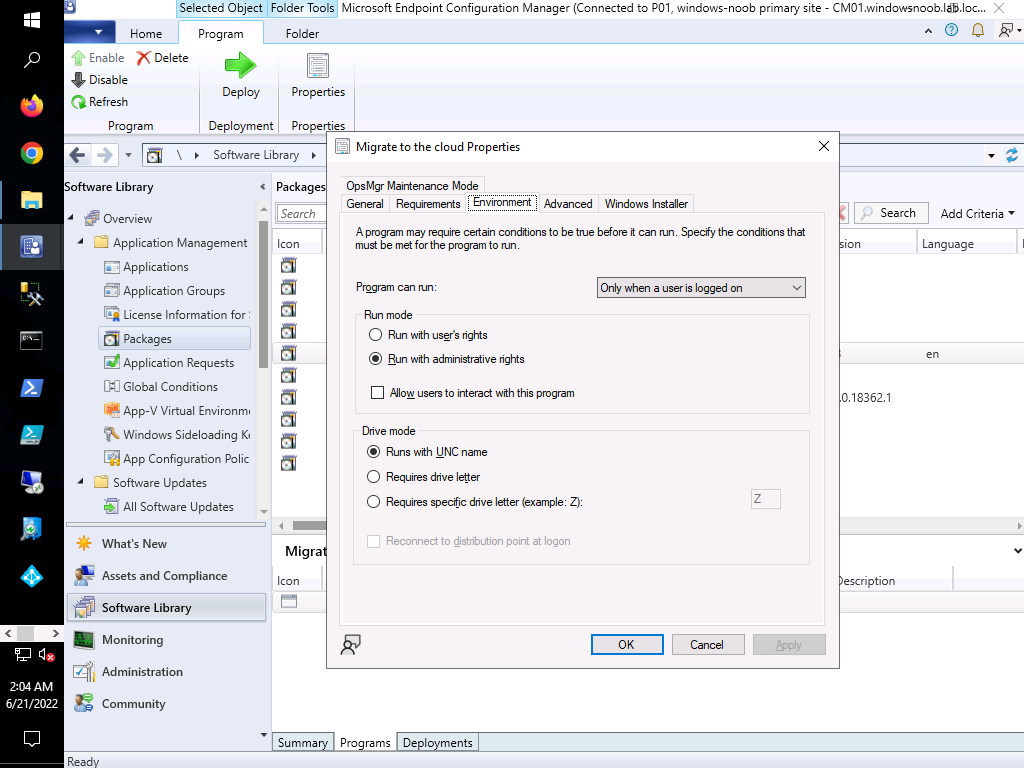
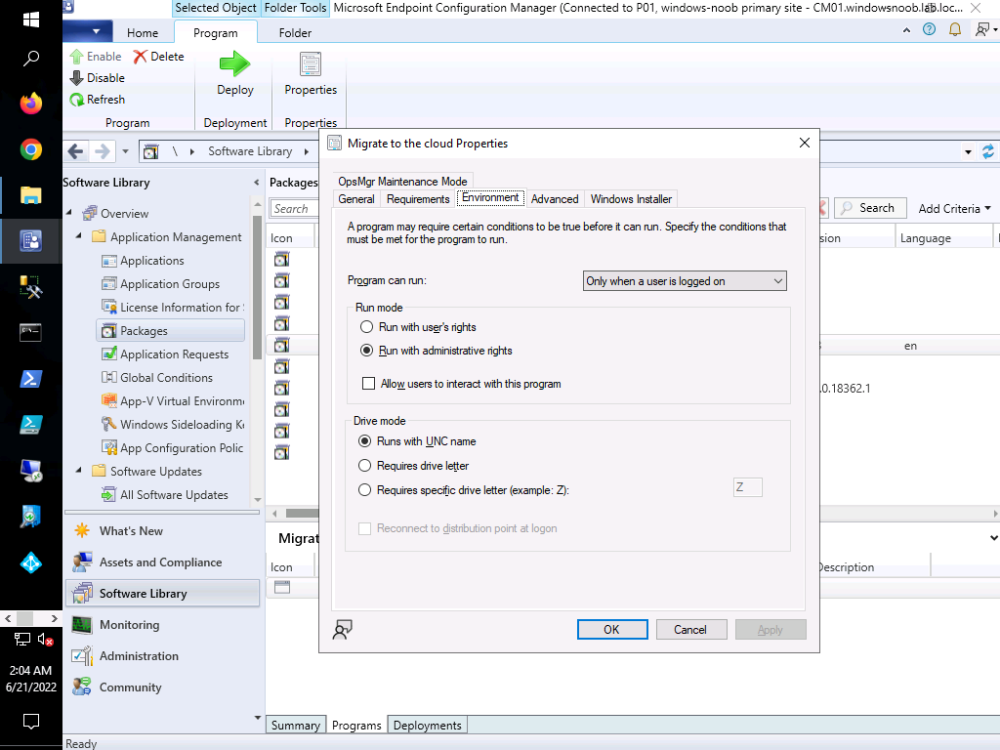
it must run under system context, so set it like i show in the picture below
-
hi @ryand274 did you modify the step to create the scheduled task in any way, it's very sensitive to any changes secondly, how are you testing this, i'd recommend you take a look at part 3 where I explain how to troubleshoot things
-
if you want the device bitlockered BEFORE a user logs on then do it via OSD as I explain here https://www.niallbrady.com/2022/03/06/new-video-escrow-bitlocker-recovery-password-to-the-site-during-a-task-sequence-in-configuration-manager-2203/
-
yes a user must be logged on, i've got my new lab at 2203 now in e-http mode, i haven't enabled Bitlocker Management yet for reports check my posts on that here
-
it takes time to get my lab up and running, and i have a day job, but i'm working on it... i'll let you know when i'm done
-
i'll get one of my labs up to 2203 without bitlocker management, and try testing this...
-
and this is using e-http instead of PKI ? is everything else working fine in this environment eg: deployment of applications to the client ?
-
there must be something missing, how are you connecting to the VM exactly ? are you RDP'ing to it (don't do that) or connecting to it from within the hyperv host secondly, have you tried creating a brand new vm with a virtual TPM (and no iso mounted) to see does it behave differently and lastly, don't use the section highlighted here (set it to disabled), this is for pre-Windows 10 operating systems...
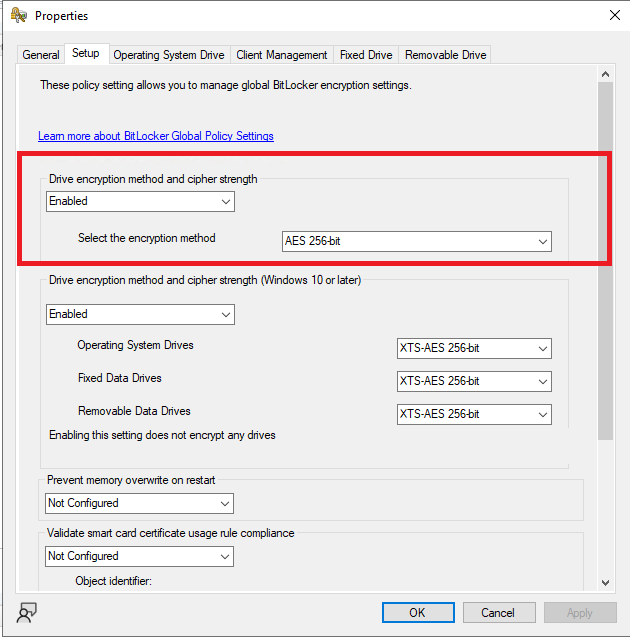
-
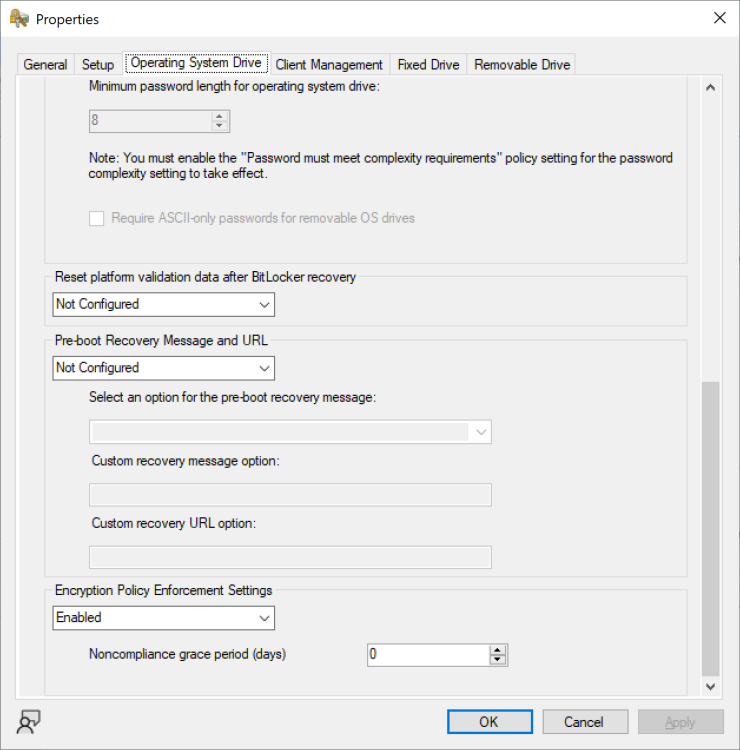
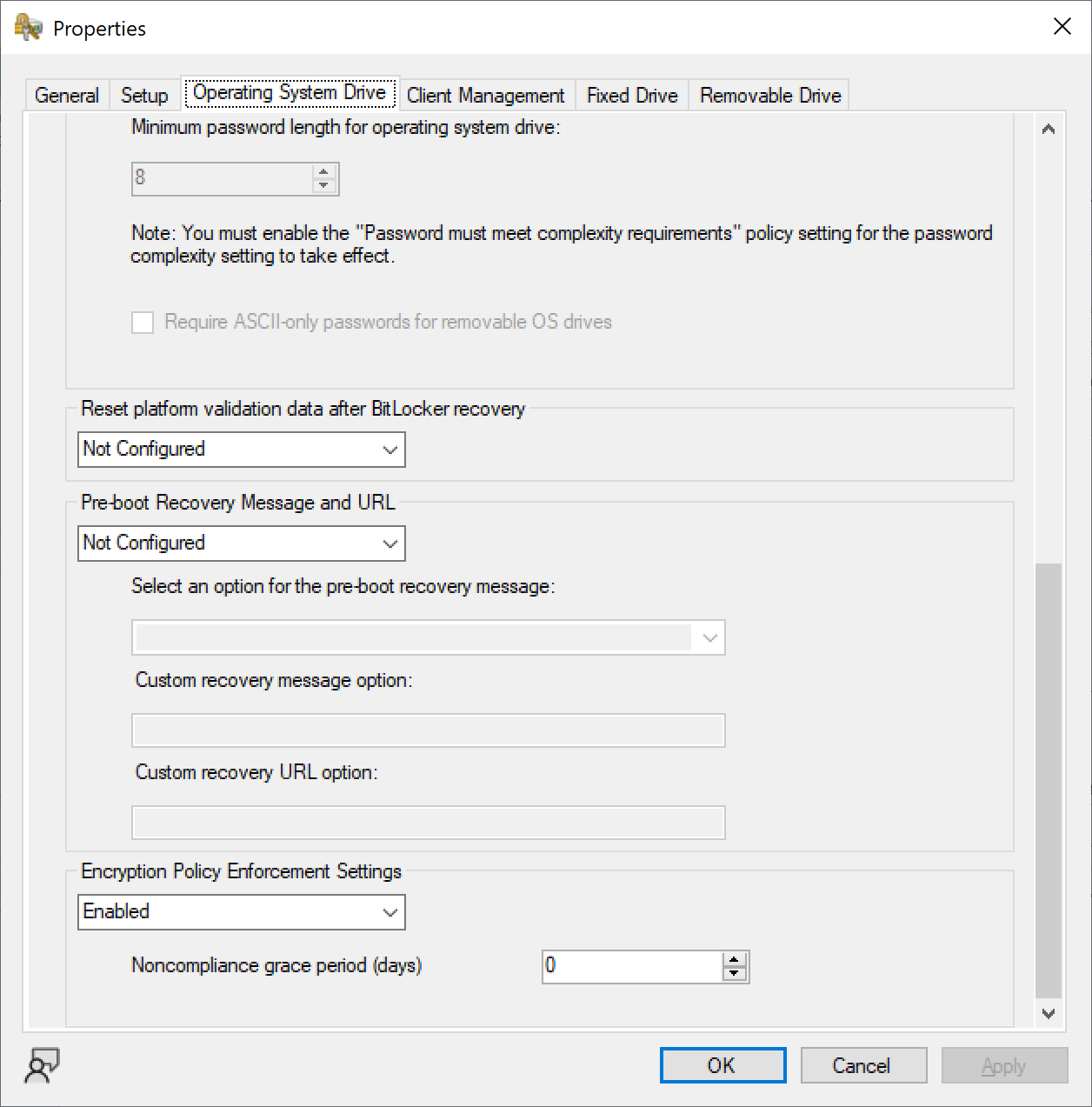
well you didn't get that prompt before so i think that's a step forward, how have you configured this ? To force encryption without intervention you must set the Encryption Policy Enforcement Settings to Enabled and set the non compliance grace period (days) to 0 if you want it to start as soon as possible