



anyweb
-
Posts
9279 -
Joined
-
Last visited
-
Days Won
371
Everything posted by anyweb
-

Unable to boot to hard disk after installation of WS2008
anyweb replied to bingyeo's question in Windows Deployment Services
what type of hardware do you have on this box with boot problems ? -
how can I setup ISS for SCCM 2007 in Windows Server 2008
anyweb replied to anyweb's question in IIS/apache/web server
is your firewall disabled or enabled ? have you left out any steps at all ? -
post your new smsts.log file and i'll look at it to see whats wrong now cheers anyweb
-
adding the 64bit boot image would not break the WDS service, so you'll need to find out whats wrong with that (read the event viewer..) have you tried a server reboot ?
-
you have to fix this then find out what package that is (CRO00001:11) and re-distribute it...
-
then you need to verify that you have distributed your boot images to both the normal DP and PXE DP
-
try and get me the winpe logs and i'll be able to help WDS in native mode is fine, SCCM in mixed mode, also fine cheers anyweb
-
make sure youve added BOTH the 32 bit and 64 bit boot images then, and then distribute them to DPs read this post > http://www.windows-noob.com/forums/index.p...post&p=1354 cheers anyweb
-
are WDS and DHCP server on the same box or different ? i need more details...
-
well before you pxe boot the machine you have to do a Computer Association to import the computername and mac address into SCCM., did you do that ?
-
as it says so can you search your hard disc for the FULL smsts.log file start by looking in X:\Windows\Temp\SMSTSLog\ and C:\SMSTSLog and C:\_SMSTaskSequence. once you find the log, post it all here as an attachment or email it to me cheers anyweb
-
excellent, well done, if you have the time, feel free to put together a howto here for all the others to learn well done again ! cheers anyweb
-
it looks like Jason is giving you good help on this problem at the moment so let's see how that goes cheers anyweb
-
it looks ok to me assuming that WIN is your sitecode and WIN-WKMIE6IIDYJ is your servername once youve installed the pxe filter if you then start the action again, you'll see the red exclamation mark, then just click Cancel.
-
before attempting to switch to native mode is everything working correctly on your SCCM server in mixed mode ?
-
Create your own rightclick Option within SMS Tools
anyweb replied to wmmayms's question in Troubleshooting, Tools, Hints and Tips
great stuff, but i have to ask is this SMS only or both sms and sccm ? -
can you paste what you entered into your pxefilter here ? you can replace password with ************
-
how can I setup ISS for SCCM 2007 in Windows Server 2008
anyweb replied to anyweb's question in IIS/apache/web server
just use the 2008 guides i have, it should be pretty much the same,. if you run into any problems raise a new post here and we'll deal with it -
how can I setup ISS for SCCM 2007 in Windows Server 2008
anyweb replied to anyweb's question in IIS/apache/web server
try this link, does it help ? cheers anyweb -
Updates for Workstation with SCCM 2007 ?!?!?
anyweb replied to TronixS's question in Software Update Point
thanks for the update, can you show us a screenshot of where you did this in the WSUS admin console ? -
SMS_AD_SYSTEM_DISCOVERY_AGENT problem?
anyweb replied to heungwing's topic in Configuration Manager 2007
well this is telling you one of the problem machines so find out why and fix it, how often are you doing AD discoverys ? cheers anyweb -
how can I configure SCCM 2007 in Windows Server 2008 - Part 3
anyweb replied to anyweb's topic in Configuration Manager 2007
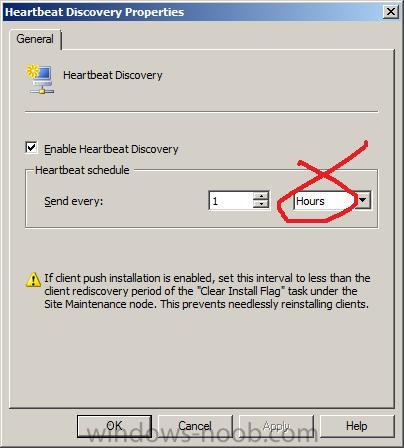
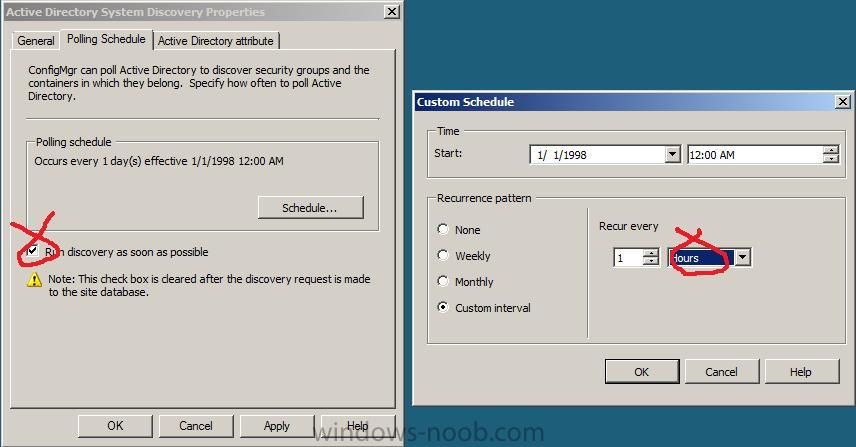
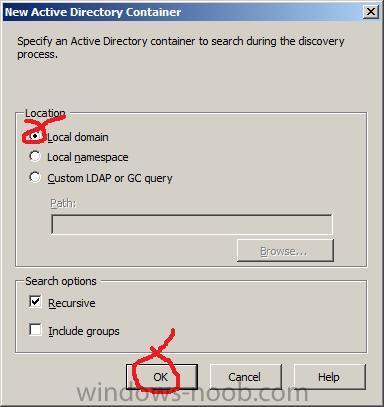
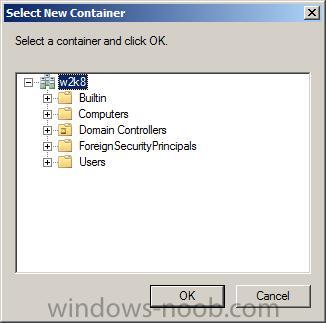
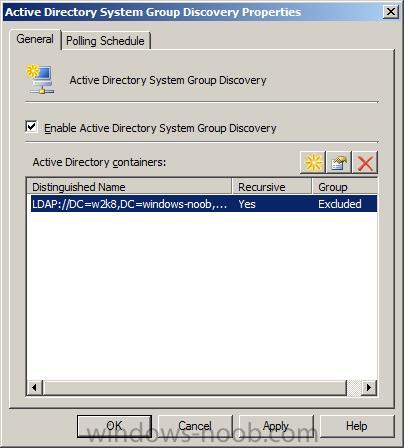
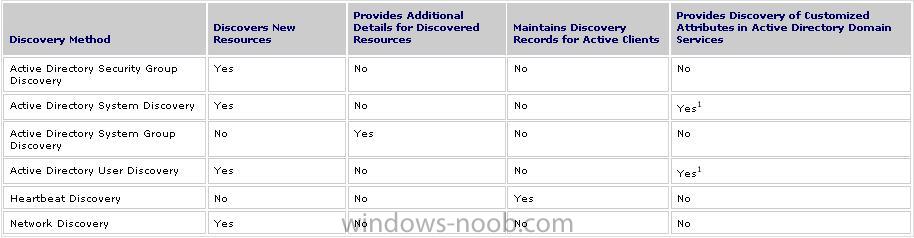
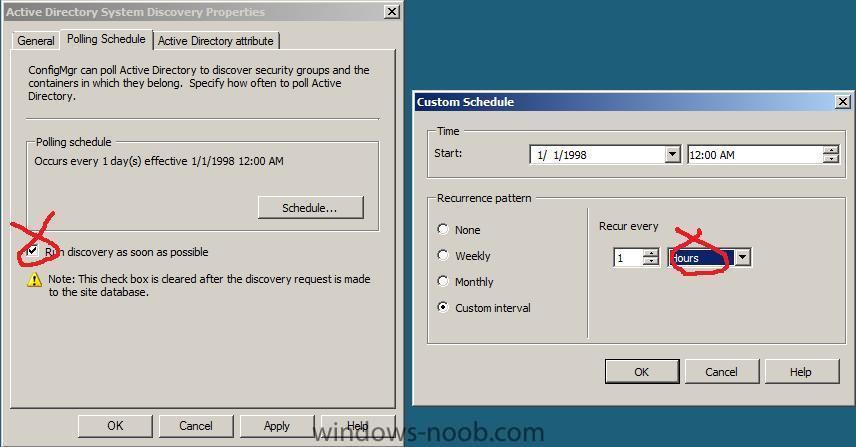
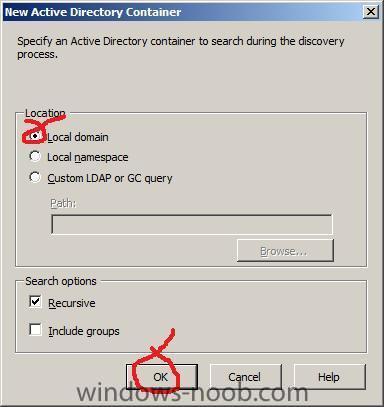
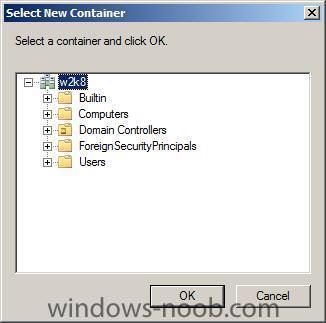
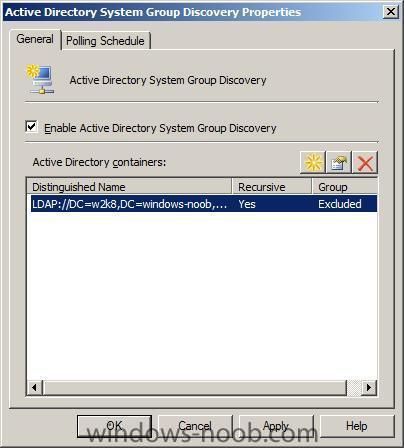
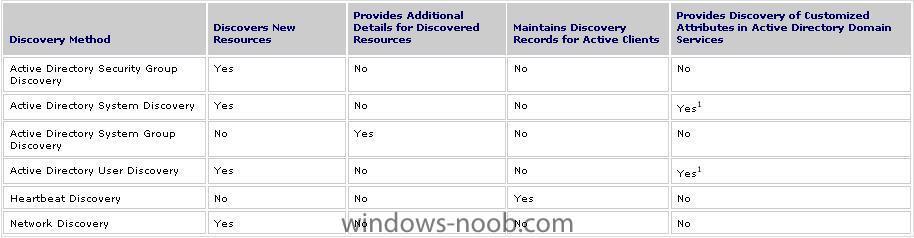
Step 3. Configure Discovery methods The above table is taken from Technet. Active Directory System Discovery – Discovers computers from the specified locations in Active Directory Domain Services. Active Directory User Discovery - Discovers user accounts from the specified locations in Active Directory Domain Services. Active Directory Security Group Discovery - Discovers security groups, including local, global, and universal groups from the specified locations in Active Directory Domain Services. Active Directory System Group Discovery – Discovers additional information about previously discovered computers from the specified locations in Active Directory Domain Services. This information includes the OU and group membership of the computer. Active Directory System Group Discovery does not discover information about new resources that did not previously exist in the Configuration Manager site database. Heartbeat Discovery – Used by active Configuration Manager clients to update their discovery records in the database. Because it is initiated by an active client, Heartbeat Discovery does not discover new resources. Network Discovery – Searches your network infrastructure for network devices that have an IP address. This allows you to discover devices that might not be found by other discovery methods, including printers, routers, and bridges. In the Discovery Methods section, select Heartbeat Discovery, and set the discovery to 1 hour (as this is a lab, this will discover our clients quickly, obviously in a Production Environment you will want to set the times differently). For the below options, enable discovery and then set as follows * Active Directory System Group Discovery 1 hour * Active Directory Security Group Discovery 1 hour * Active Directory System Discovery 1 hour * Active Directory User Discovery 1 hour Note: You may want to set these values to 1 minute in a lab environment. you should also check the Run discovery as soon as possible is ticked for all of the above. We also need to tell SCCM where to look for these computers and that is done in each of the 4 AD options above, So bring up the Active Directory System Group Discovery properties and click on the Yellow star to add an Active Directory container In the New Active Directory Continer window, make sure Local Domain is selected and click ok. when the Select New Container window comes up, click ok. now your container is selected click ok to exit and do the same actions for each of the 3 remaining AD discovery methods. That's it you are done !! you can now test your SCCM server by adding clients to your Windows 2008 domain.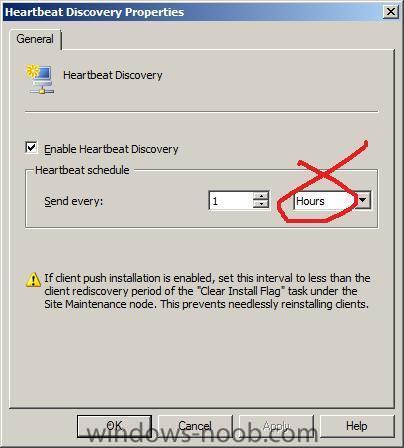
-
how can I configure SCCM 2007 in Windows Server 2008 - Part 3
anyweb replied to anyweb's topic in Configuration Manager 2007
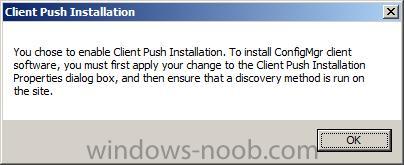
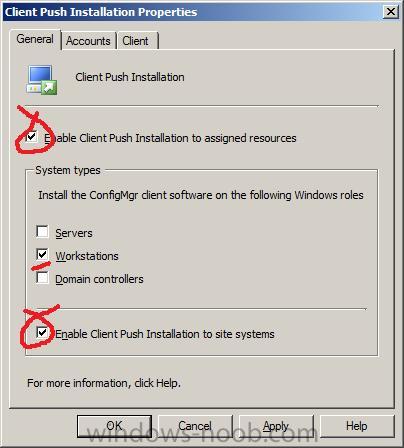
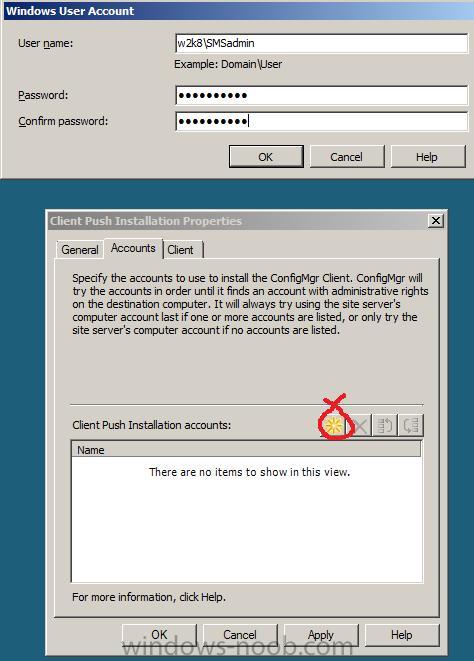
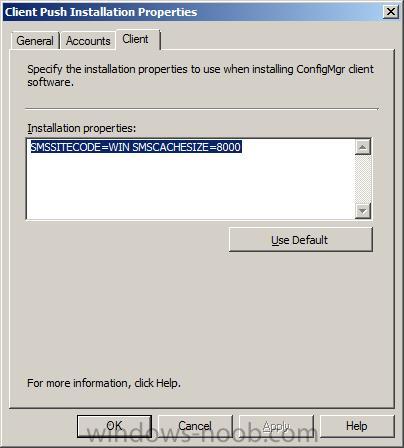
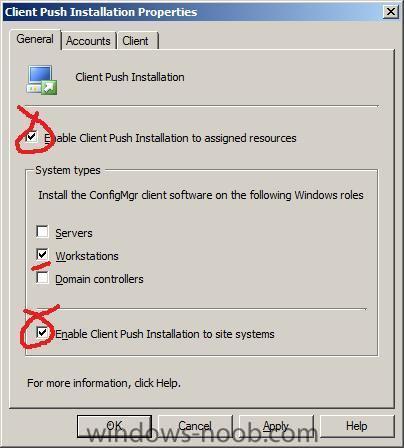
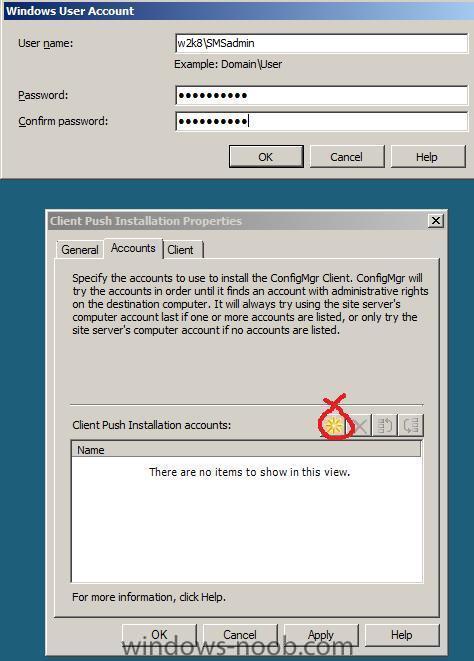
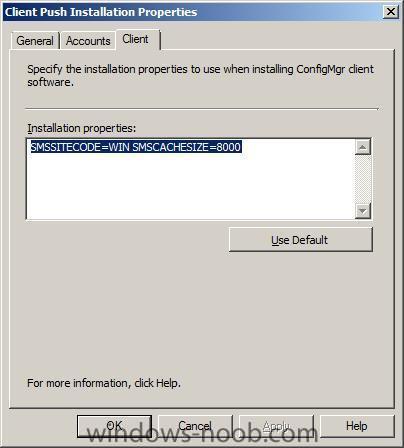
Step 2. Client Installation Methods In the left pane of SCCM configmgr, select Client installation methods and double click on Client Push Installation. place a checkmark in Enable Client Push Installation to assigned resources and take note of the warning and then set your client push properties as below for Accounts, set the account to SMSadmin (this is fine for the lab environment, in production you should create a new user account such as SMSAdvCli and use that account for client installation only) To successfully install the Configuration Manager 2007 client, the Windows user account used must have Local Administrative rights on the destination computer. If the install fails with all accounts in the list then the installation will be attempted using the computer account from the Configuration Manager 2007 site server. If the user account does not have Local Administrative permissions on the destination computer then the Client will not install. [To grant a user local administrative permissions on a computer open up computer management, Local Users and Groups, Groups, Administrators and add the user you wish to be the local administrator]. Next click on the Advanced client tab and set your Installation Properties string to something like this SMSSITECODE=WIN SMSCACHESIZE=8000 the above sets our SMS site code to WIN and the SMS cache size on the client to approx 8GB.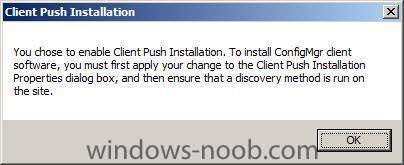
-
how can I configure SCCM 2007 in Windows Server 2008 - Part 2
anyweb replied to anyweb's topic in Configuration Manager 2007
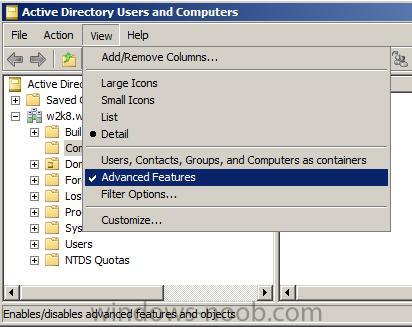
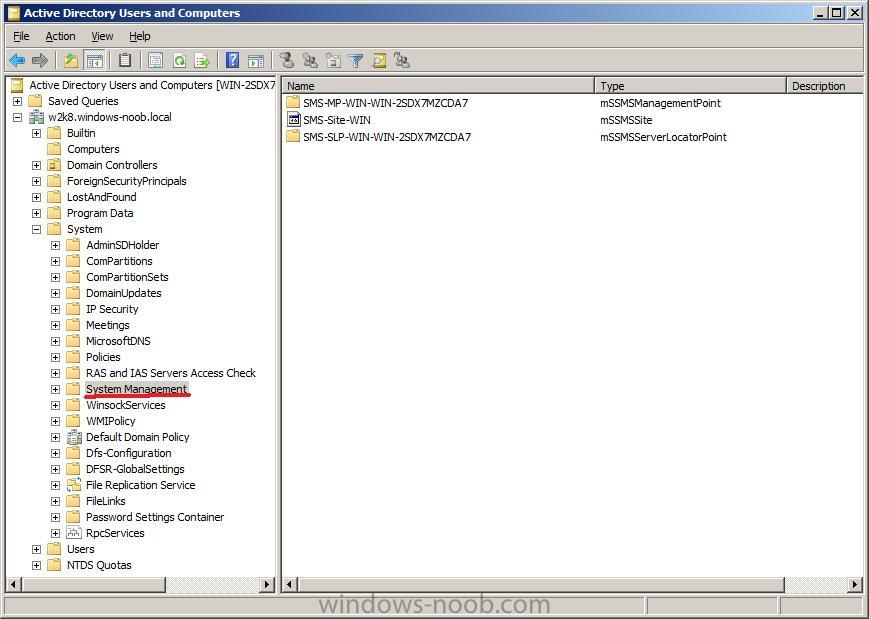
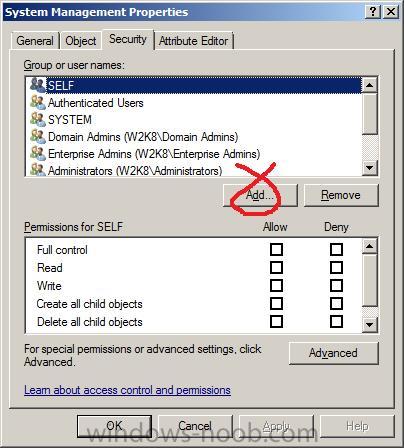
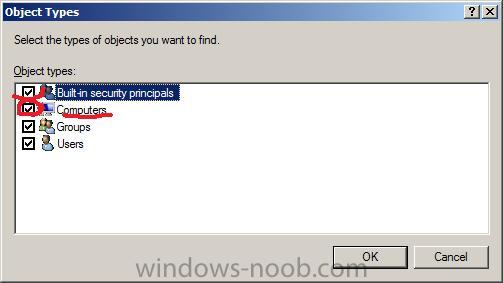
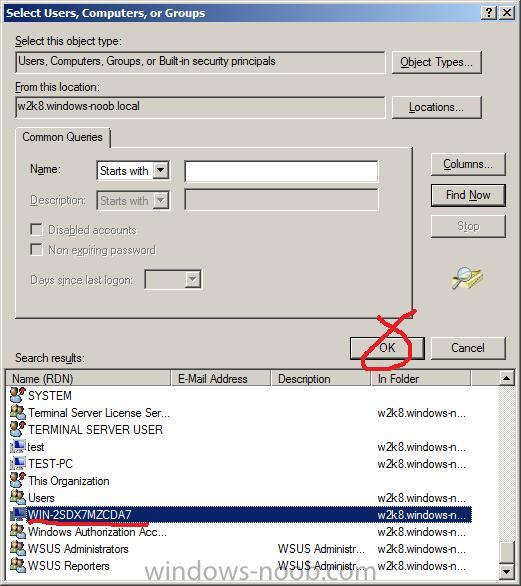
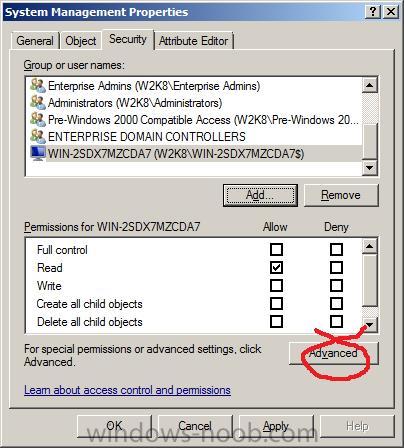
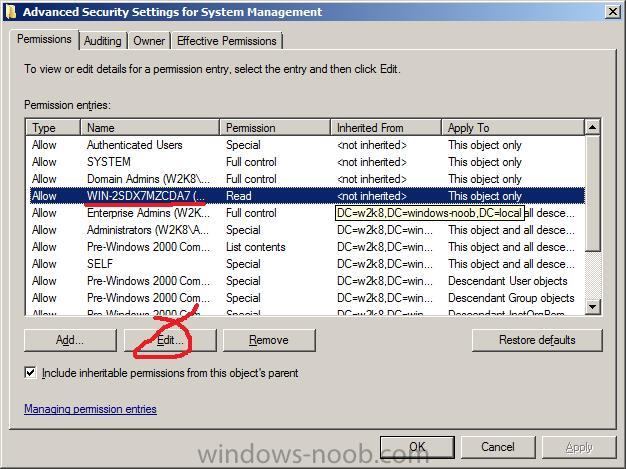
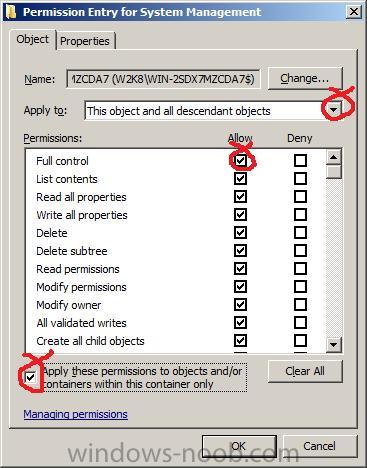
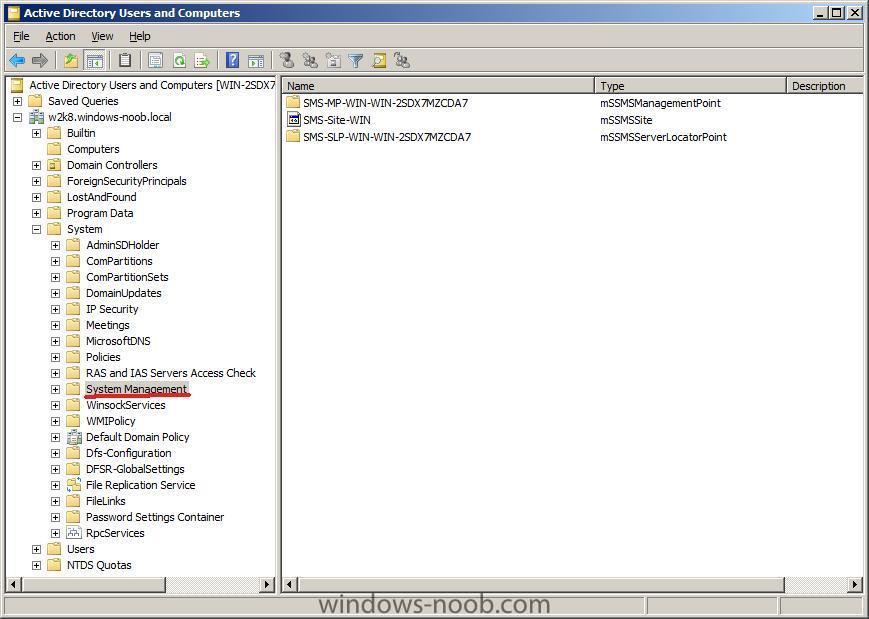
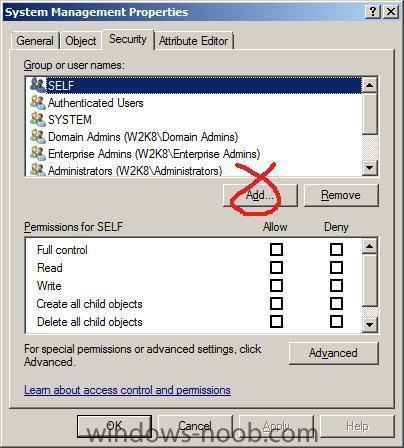
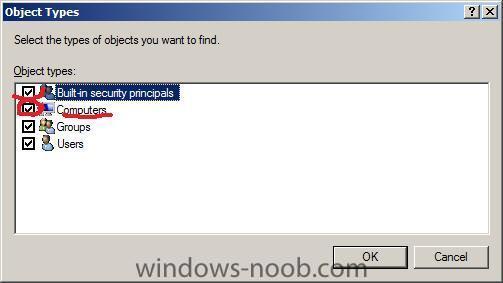
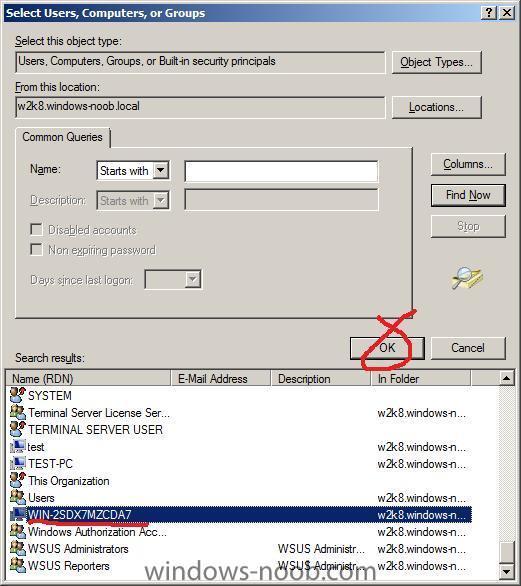
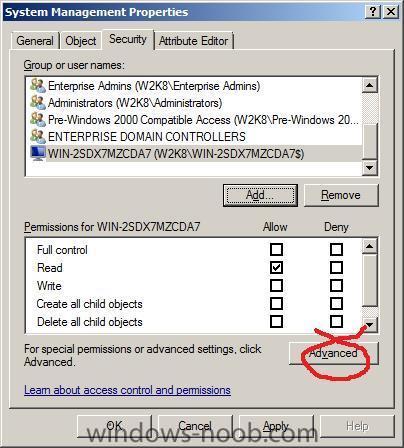
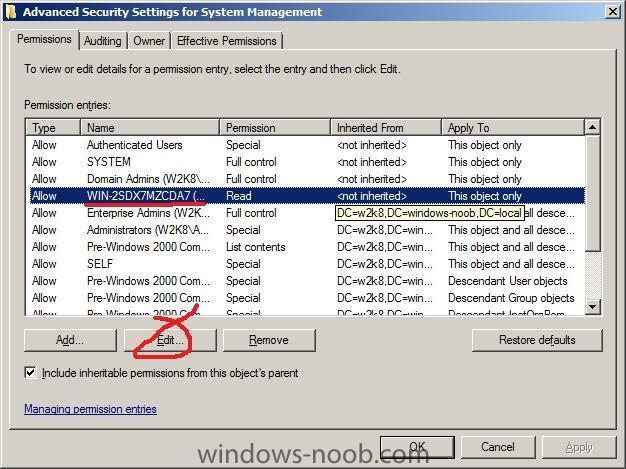
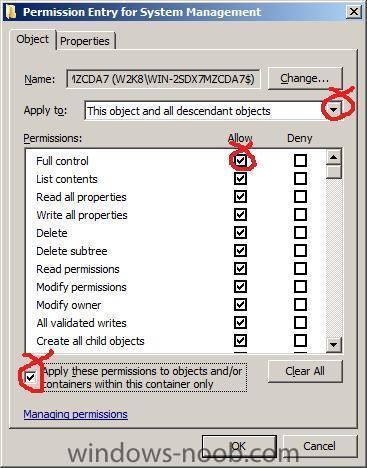
Step 2. Make sure the System Management container in Active Directory has the correct permissions for SCCM In other words we will make sure the local computer (the server SCCM is running on, in this case WIN-2SDX7MZCDA7) has full access to this particular area in Active Directory. For more info on Creating and configuring the AD system management container For SCCM using Adsiedit described here. Start up the Active Directory Users and Computers console. Make sure that Advanced Features is selected under the View option. Once it is, in the left pane select System, and then scroll down to the System Management Container. Right-click it and choose properties, then select the Security tab, Verify your SCCM server computer account is listed in the Group or user names, scroll down to check, if it is not there then add it by clicking on Add. Click on Object types as in the screenshot below then select computers (by default it's not selected). Click on OK and then click on Advanced to expand the view, then Find now. When you see your server listed, highlight it and click OK. click ok again to add it to the Security tab. Now that we have added it, we need to edit it's security permissions to make sure that the permissions apply to both the Container and descendant (formally child) objects. So let's click on Advanced. At this point you should see your computername listed but with read permissions that apply only to This object only. We are going to change that to Full access to This object and all descendant objects. to do so highlight our computername and click on Edit. In the window that appears click the drop down menu called Apply onto: and select This object and all descendant objects. Once done, click on Full Control for the Allow permissions and don't forget to select Apply these permissions to objects and /or containers within this container only. Click ok when done. In an enterprise, please verify the correct AD permissions for this container and set them accordingly, for advice on this please visit technet.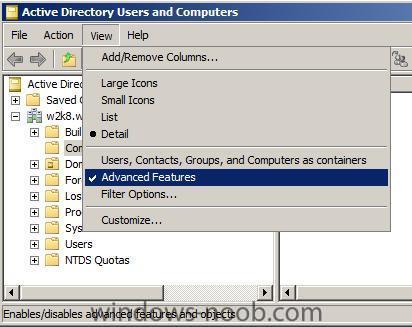
-
About a year after the first beta (which was followed by another beta and a release candidate), Microsoft has announced the release of the final version of Internet Explorer 8, the company's newest browser. The focus of Internet Explorer 8 is better standards compliance, security, and making "common online tasks faster and easier". more > http://osnews.com/story/21163/Microsoft_Re...rnet_Explorer_8