



anyweb
-
Posts
9276 -
Joined
-
Last visited
-
Days Won
371
Everything posted by anyweb
-

Task Seq - Windows 7 Install on UEFI Machine
anyweb replied to Tech1914's topic in Configuration Manager 2012
why Windows 7, if the device is UEFI i'd recommend Windows 10 (or at least Windows 8.1 with update), must you install Windows 7 on it ? normally the only way to get Windows 7 to work with uefi is to enable a CSM mode in the bios to disable Secure boot. -
well the process must be started in Windows, that's where you get the GUI to enter the capture destination details, the credentials needed, details about the image and then it SYSPREPs the machine before rebooting and starting the capture process in WinPE, please ask your trainer to review the steps again (in particular step 3) to see how that occurs,
-
this chart is updated via the Service Connection Point role (which checks weekly) In online mode: Diagnostics and usage data is automatically sent once a week from the service connection point to the cloud service.
-
did you try his advice ? To create/remove a NAP policy for software updates, you must select Enable/disable NAP evaluation on the NAP Evaluation tab in software update properties. Therefore I browsed to Software Library -> Overview -> Software Updates -> All Software Updates and added the Column "NAP Evaluation". I sorted these criteria and saw that there were a couple of old updates haven set a date instead of "No". After selecting them, I unchecked "Enable NAP Evaluation" in the NAP Evaluation tab of the properties and tried the prerequisites check again. Success!!!
-
sorry for the delay in responding i've been busy, do you have time to do this over teamviewer with me so i can take a closer look?
-
doing osd over wireless is not recommended as the the connection could drop or certificates can not be reached, also you cannot PXE from wireless so that would limit you to starting the task sequence in Windows, i'd suggest you look at the lenovo usb network adaptors instead cheers niall
-
IntroductionMicrosoft have released a new version of the ContentLibraryCleanup tool for System Center Configuration Manager in the latest Technical Preview release (TP1701). By upgrading your Technical Preview release to version 1701 you can start testing the new features of the tool today, and some of these new features have been requested on UserVoice, a forum where people can ask for changes to a product, get others to vote their idea up, and if enough interest is seen, to fulfill a need. About the toolThis tool first surfaced in Technical Preview 1612. It’s designed to find content that is broken in one form or another on your distribution points (for whatever reason) and to alert you, or to free up space by deleting that broken content. It was designed to be cautious, if it doesn’t know exactly what is going on it will quit rather than accidentally delete files. Note: The tool is currently in Technical Preview so avoid running it in a Production environment. You can run the tool from the Primary site, or if speed is important, run it from the distribution point you are targeting. In fact, you can run the tool from anywhere that can do remote WMI calls to the provider/Distribution Point and SMB calls to the Distribution Point. It can be found in the following location (after you’ve installed the latest Technical Preview release), where <driveletter> is the drive letter that you installed ConfigMgr on: <driveletter>\Program Files\Microsoft Configuration Manager\cd.latest\SMSSETUP\TOOLS\ContentLibraryCleanup Note that you’ll need appropriate access to the cd.latest folder, so press Continue in the UAC prompt. What switches does it use ?By opening that location with a command prompt and typing the following command: ContentLibraryCleanup.exe /? you can see the following output: Usage: ContentLibraryCleanup.exe [/delete] [/q] /dp <Distribution Point FQDN> [/ ps <Primary Site FQDN> /sc <Primary Site Code>] [/log <log file directory>] /delete (optional) — delete the content, do not print what would be deleted. /q (optional) — run in quiet mode. Suppress all prompts (assuming delete mode) and do not open log file automatically. /dp <Distribution Point FQDN> (required) — the FQDN of the target distribution point. /ps <Primary Site FQDN> (optional*) — the FQDN of the primary site. *Required if the distribution point is on a secondary site. /sc <Primary Site Code> (optional*) — the site code of the primary site. *Required if the distribution point is on a secondary site. /log <log file directory> (optional) — the directory to place log files in. Can be a network share. If not specified, the temp folder is used. Note: By using the /q switch, this also assumes you answer ‘a’ to deleting all found orphaned content in conjunction with /delete. Testing the toolSo let’s test it. Note: Make sure to login as a user with Full Administrative access to the distribution point and with the Full Administrator RBAC role (this version of the tool doesn’t check if you are in an ADSG, so make sure you are explicitly a Full Administrator). Enter the following command (replace the FQDN in bold with your dp FQDN and replace the log folder location with your chosen location): ContentLibraryCleanup.exe /dp cm02.windowsnoob.lab.local /log d:\ContentLibraryCleanupLogs when prompted about what-if, answer y for yes. Notice that it tells you how much space it would have saved it you had run it in delete mode. Running the tool also automatically opens the logfile in CMTrace and that log file will give you details about the following Orphaned packages Packages with invalid contents Orphaned files Bytes freed if the tool is run in delete mode Using the /delete switchNow that you are familiar with the tool it’s time to use it for what it was designed for, so we’ll add the /delete switch. Note: In the example below, there is NO problem on the distribution point, so no space is available to be freed up. Enter the following command, notice the /delete switch. Please replace the FQDN in bold with your distribution point FQDN and replace the log folder location with your chosen location: ContentLibraryCleanup.exe /delete /dp cm02.windowsnoob.lab.local /log d:\ContentLibraryCleanupLogs answer yes to see the results and you’ll get a dated log file with the details of what was freed on the dp in question As there was no problem on this dp, no space was freed. Deleting Orphaned contentSo the above shows what happens when there’s no problem on the dp, but what if there was one or more orphaned files or packages ? Note: In the example below, there is a problem on the distribution point, so we can free up space. Let’s see the results of that….in the first check we omit the /delete switch, to see that it correctly identifies the problem, and it does! next, it opens the log file (which auto-opens) Next, run the command again but this time add the /delete switch, the red downward pointing arrow points to the orphaned content and prompts you what to do with it… answering yes to the prompt will delete the orphaned content (or answer a to delete all), and, now you can see a difference in the log file too… Result ! Hopefully this new improved tool will help you clean up any unwanted content on your distribution points, and it’s a great improvement and proves that UserVoice works ! thanks to Brandon @ Microsoft for answering my questions ! cheers ! niall
-
WINPE PXE Display issue - Display too large
anyweb replied to Config_Mgr_noob's topic in Configuration Manager 2012
do you mean for the background image as in WinPE ? or duing the OSD process...to customize the background images used during OSD simply locate the files in MDT2013\Toolkit\Tools\x86 folder, you should see some STEP_01.bmp and so on, to customize the wallpaper simply right click on your MDT created boot image and change it on the customization tab -
welcome to the forums and please tell your friend thanks from me
-
Frontend configuration help
anyweb replied to SCCM2k16's question in Deploying Windows 10, Windows 8.1, Windows 7 and more...
so many questions, it's best to take things one problem at a time, i can do teamviewer with you later this evening if that works, if not then tomorrow sometime, let me know via PM cheers niall -
well XP is not supported by Microsoft anymore so I can't imagine why you would be capturing it, but does the smsts.log file reveal anything ? the error means. The specified procedure could not be found. Source: Windows -----
-
WINPE PXE Display issue - Display too large
anyweb replied to Config_Mgr_noob's topic in Configuration Manager 2012
if you add a restart computer before displaying that udi does it help ? -
so what exactly do you see when you pxe boot, can you take a screenshot of the error, is it happening on only one system, is there a network cable attached ?
-
have you configured a dhcp server ?
-
can you check what the ConfigMgrPrereq.log in the root of C: on your ConfigMgr server says about the error ?
-
have you unblocked the file ? also, what does the smsprov.log tell you about the error ?
-
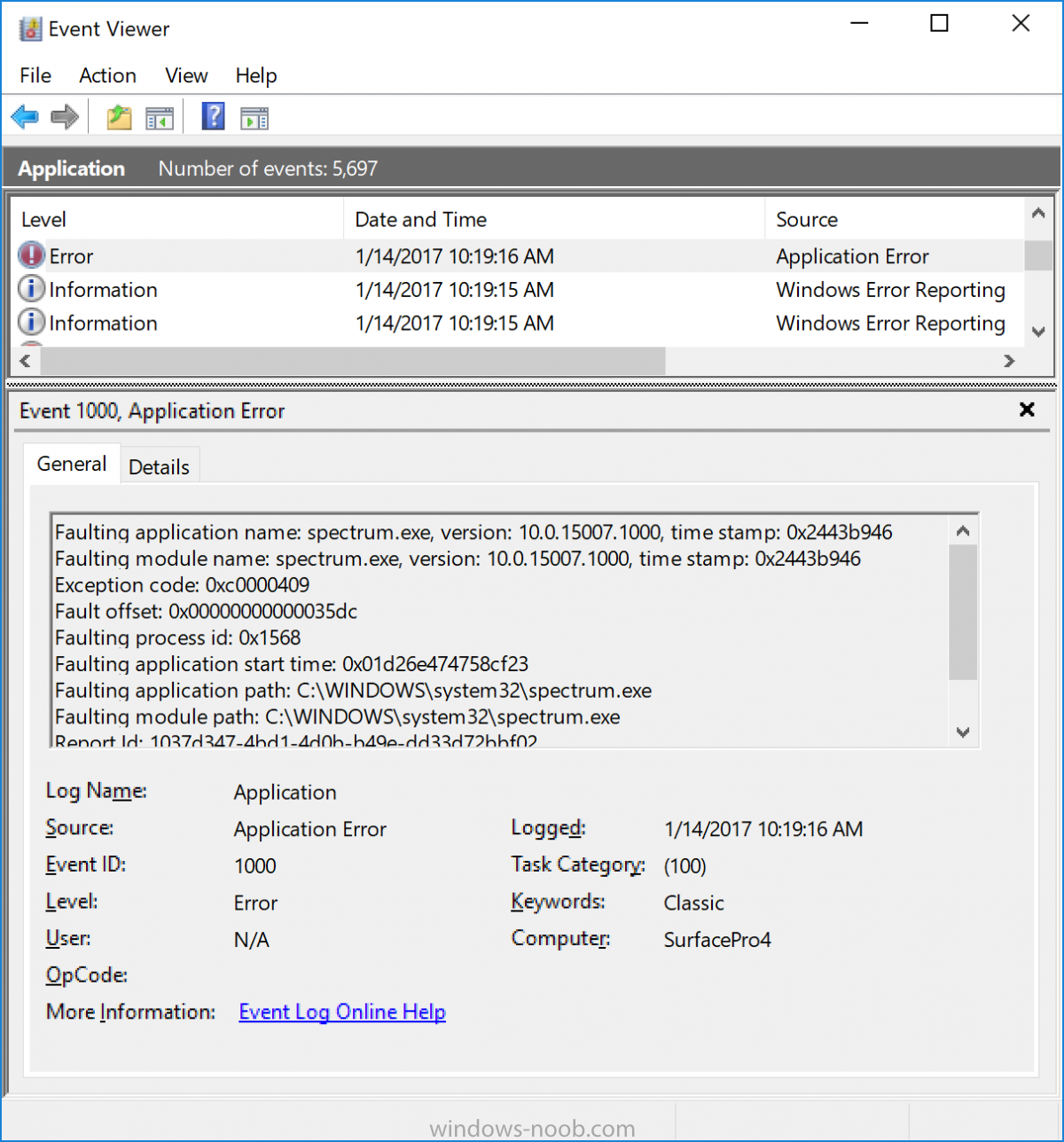
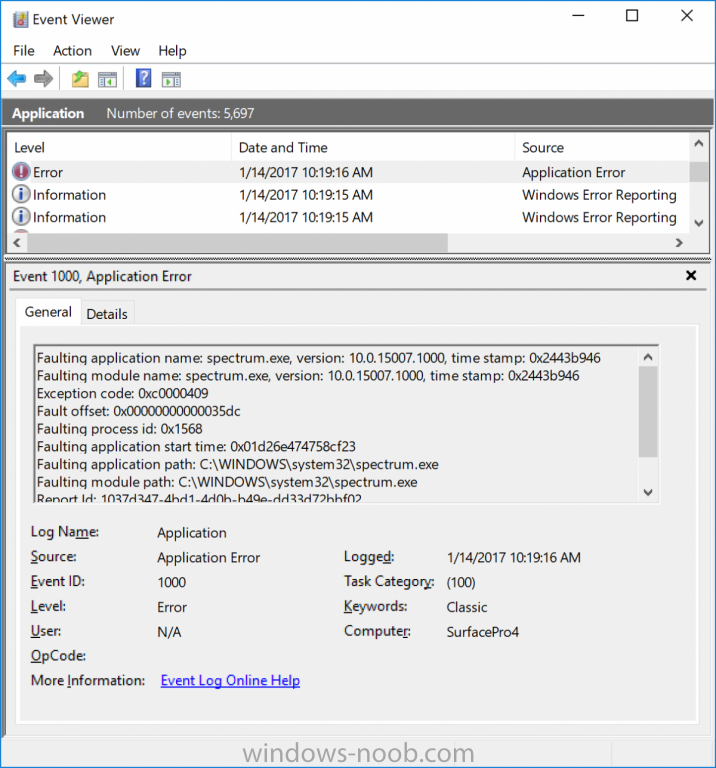
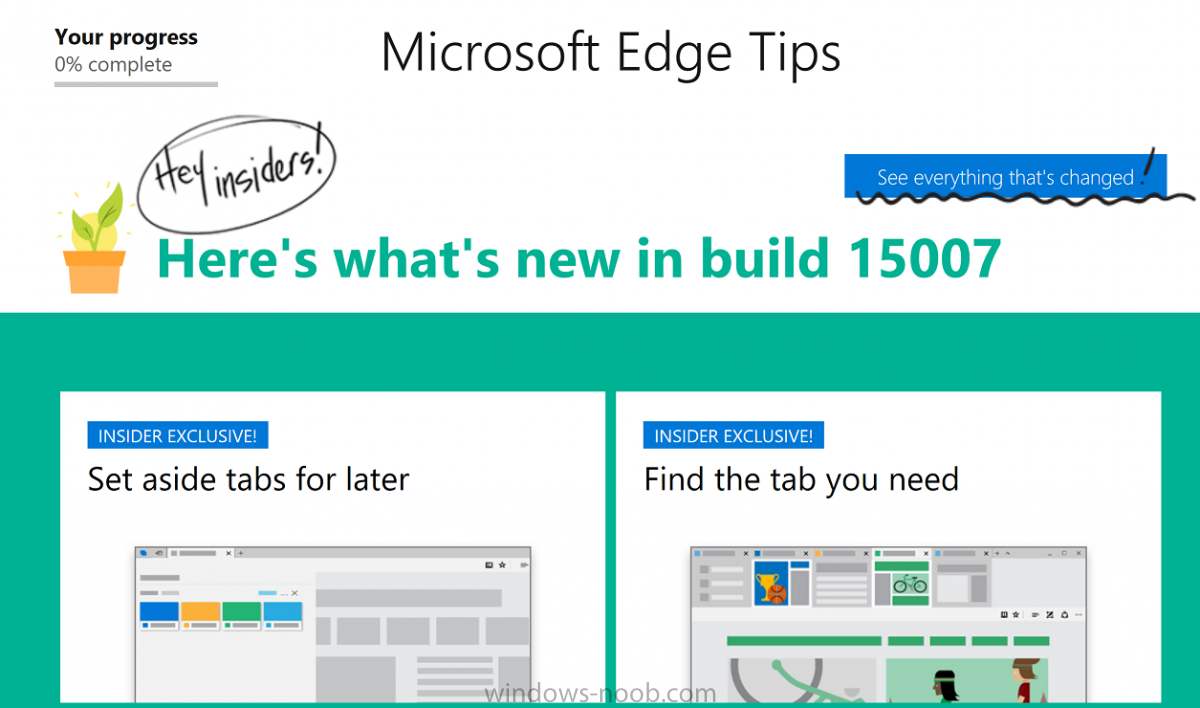
So a new day, and another release of Windows 10 Insider preview, with lots of changes to the operating system including improvements to Edge. When I started my Surface Pro 4 this morning I was greeted with the usual 'your computer was updated...'. After logging in I noticed issues straight away in my web browser of choice (Firefox), it was having problems scrolling (scroll bar down action didn't work 9 times out of 10). I tried Edge, same issue so not my browser, Next I tried to play back video, it didn't work and sent the audio into a meltdown, it crashed and started 'audio diagnostics'. After checking the event log I saw several errors with Spectrum.exe crashing over and over. Anyhow, I tweeted it and got replies immediately and was advised to check the release notes, so here they are. My issue is the first in the list. After applying this workaround all is ok again. Now I will point out that most of us Insiders don't read the release notes, why ? because we are used to our computers getting updated every other week and in general, it's a painless process moving from one build to the next, but in this case i found the issues were enough to send a tweet or two. Known issues for PC After updating to this build, nonstop exceptions in the Spectrum.exe service may occur causing PCs to lose audio, disk I/O usage to become very high, and apps like Microsoft Edge to become unresponsive when doing certain actions. As a workaround to get out of this state, you can delete C:\ProgramData\Microsoft\Spectrum\PersistedSpatialAnchors and reboot. For more details, see this forum post. We are investigating certain situations in which PCs might bugcheck (GSOD) during the installation of new builds (15002+) causing the PC to rollback to the previous build. When clicking on certain elements in desktop (Win32) games, the game minimizes and cannot be restored. Desktop shortcuts containing the “%” character (usually URI shortcuts with escaped characters) will result in a cyclical explorer.exe crash. To resolve this, use Task Manager to open PowerShell, and edit the shortcut to not include a % in the path. When projecting to a secondary monitor, if you set the connection to “Extended”, Explorer.exe may start crashing in a loop. If this happens, turn off your PC, disconnect the secondary monitor, then restart your PC. Windows Insiders will unexpected see a “Holographic” entry on the main page of Settings. Brightness changes made via Settings > System > Display will unexpectedly revert after closing the Settings app. For now, please use either Action Center, power flyout or brightness keys to change the brightness. The list of apps in the Surface Dial “Add an app” page via Settings > Devices > Wheel may unexpectedly be empty. If that happens, tap the “Browse for an app” button at the bottom of the screen to pick the desired app instead. Taskbar preview icons are unexpectedly small on high-DPI devices. Quicken will fail to run with an error stating .NET 4.6.1 is not installed. For Insiders familiar with Registry Editor, there is an optional workaround. Take ownership of the following registry keys and edit the “version” value to be 4.6.XXXXX instead of 4.7.XXXXX: HKEY_LOCAL_MACHINE\SOFTWARE\WOW6432Node\Microsoft\NET Framework Setup\NDP\v4\Client HKEY_LOCAL_MACHINE\SOFTWARE\WOW6432Node\Microsoft\NET Framework Setup\NDP\v4\Full Note: Please take caution when editing the registry. Changing the wrong value can have unexpected and undesirable results. Using CTRL + C to copy in Command Prompt won’t work. Some websites in Microsoft Edge may unexpectedly show “We can’t reach this page”. If you encounter this, please try accessing the site from an InPrivate tab. Dragging apps from the all apps list to pin on Start’s tile grid won’t work. For now, please right-click on the desired app in order to pin it. Miracast sessions will fail to connect. On certain hardware types (e.g.: Acer Aspire), the Netflix app crashes when starting a movie. 3rd party UWP apps would crash on devices if the DPI settings on the machine are >=150% (Generally people do this on high resolution devices – Surface book etc.). If you upgrade from Windows 8.1 directly to Build 15002, all your store apps are lost during upgrade process but you can go and re-download all the lost apps from the Store. When using Microsoft Edge with Narrator, you may hear “no item in view” or silence while tabbing or using other navigation commands. You can use Alt + Tab when this happens to move focus away from and back to the Edge browser. Narrator will then read as expected. Saying “Hey Cortana, play <item> on <AppName>” doesn’t work immediately after installing the app. Wait 5 minutes for indexing to begin and try again. ADDED 1/10: Under Settings > Update & security > Windows Update you might see the text “Some Settings are managed by your organization” even though your PC isn’t being managed by an organization. This is a bug caused by an updated flight configuration setting for Insider Preview builds and does not mean your PC is being managed by anyone. ADDED 1/13: If you’re experiencing an issue getting stuck at 0% downloading this build – check out this forum post. ADDED 1/13: During the installation of this build, Insiders may experience a storport.sys bugcheck (GSOD) causing them to rollback to the previous build. There is currently no workaround. ADDED 1/13: If you’re experiencing an issue where your PC gets to 99% and appears stuck – sit tight and don’t do anything (such as rebooting). There is a bug causing the installation to take an abnormal amount of time. ADDED 1/13: On some PCs, audio stops working sporadically with ‘device in use’ error”. We are investigating. Restarting the audio service may fix things for a bit.
-
that's a lot of 404's Not found (404). Source: Windows ----- care to add some actual info about your issue ?
-
grab the smsts.log and attach it here so we can see what is going on
-
so do you want to edit what is available in internet explorer to the end user, is that what you mean ? have you looked at this yet ? https://technet.microsoft.com/en-us/itpro/internet-explorer/ie11-deploy-guide/group-policy-objects-and-ie11
-
How to run WPF from WinPE Task Sequence
anyweb replied to Flip76's question in Frontends, HTA's and Web Services
cool, please show us a screenshot of your masterpiece and feel free to spread the love and post some sample code too or even a guide ! -
The Windows-noob OSD Guides for ConfigMgr 2012 R2 - LabSetup
anyweb replied to gmandar's topic in Configuration Manager 2012
sure thing, drop me an email (as before) when you are online and i'll remote in again -
How to run WPF from WinPE Task Sequence
anyweb replied to Flip76's question in Frontends, HTA's and Web Services
and is that the one you added powershell to ? you can verify via the references tab of the task sequence